
DOWNLOAD SAMPLE IMAGES
description
Learn how to use Generative Expand to completely reframe your photos! This tutorial covers extending your canvas from vertical to horizontal, enhancing image detail, and using both Firefly and Gemini models. Discover how to even change the camera angle of your original photograph using this powerful new technology for composition transformation.
JOIN 10 DAYS OF AI (FOR FREE!)
Ready to jump in? Sign up and we’ll email you a printable calendar and daily class schedule so you can get started right away!
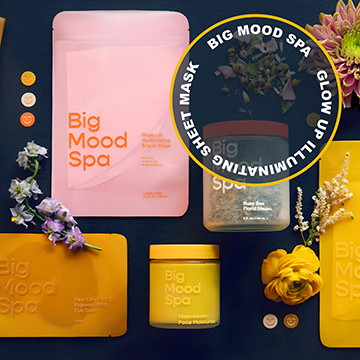
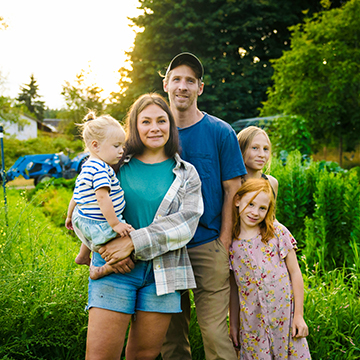
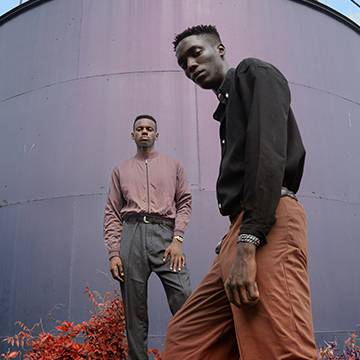
Image Source
- Karsten Winegeart
- Matthew Stephenson
- Shana Van Roosbroek
Images sourced from Unsplash.
Share


AFTER
BEFORE
Expand Your Vision
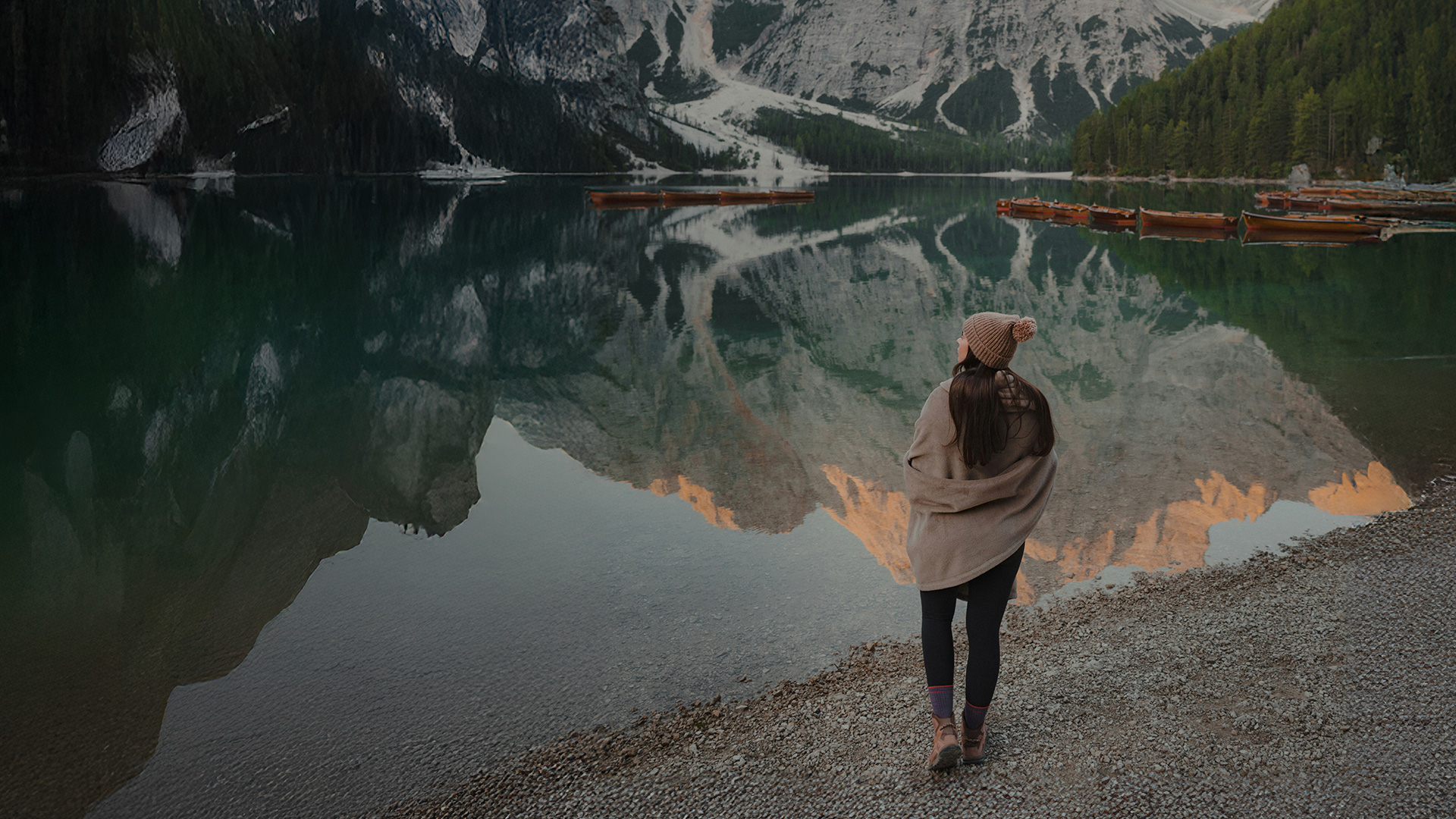
Generative Expand is one of Photoshop’s most powerful AI features. You can use it to modify and reframe any photo compositions, such as converting portrait images to landscape or adjusting the original camera perspective. The following guide details the steps to expand your canvas seamlessly, improve image quality using models like Nano Banana, and effectively transform your photographs.
Access Crop Tool
1. Begin by opening your vertical image and selecting the Crop Tool (keyboard shortcut “C”).
2. In the options bar at the top, look for the “Fill” setting and choose Generative Expand. 3. Next, drag the crop handles outwards to expand the canvas horizontally. This allows you to reframe your shot. Leave the prompt field blank or select the desired image model, and then click Generate to fill the new space with AI-created content.
Enhance Generated Detail
3. After the initial expansion, you may notice that the AI-generated areas have a lower resolution than the original photograph. To improve this quality difference, select the generated layer in your layers panel.
4. In the Properties panel, locate and click the “Enhance Detail” icon. This tool will run a subsequent generation pass, significantly improving the detail and blending of the newly expanded sections for a more cohesive final image.
Use Nano Banana
The Gemini 2.5 Nano Banana model can be used indirectly for superior detail and realism, especially with subjects like faces.
1. First, expand your image using the steps above.
2. Then, select the entire canvas using Ctrl/Cmd + A.
3. Choose Generative Fill, and in the prompt, type something like “zoom out 10%.” Make sure the Nano Banana model is selected and click Generate to apply its advanced detail rendering to the whole composition.
Change Camera Angle
Finally, this technology allows for extreme compositional changes, such as modifying the camera angle.
1. Again, select the entire image using Ctrl/Cmd + A and click Generative Fill.
2. Instead of asking it to zoom, simply prompt the AI with the perspective you want, such as “change the camera angle to be top down” or “to be bird’s eye view.” The AI will render a completely new image from the requested angle while preserving the core subject and scene.