
DOWNLOAD SAMPLE IMAGES
description
Discover the power of AI masking in ACR! In this tutorial, you’ll learn how to use Adobe Camera Raw’s AI masking tools to easily select parts of your photos—like the subject, background, or sky. Fine-tune your images with professional results by adjusting light, color, and clarity to make your subjects truly stand out.
JOIN 10 DAYS OF AI (FOR FREE!)
Ready to jump in? Sign up and we’ll email you a printable calendar and daily class schedule so you can get started right away!
Image Source
- Slava Jamm
- Vladimir Yelizarov
Images sourced from Unsplash.
Share
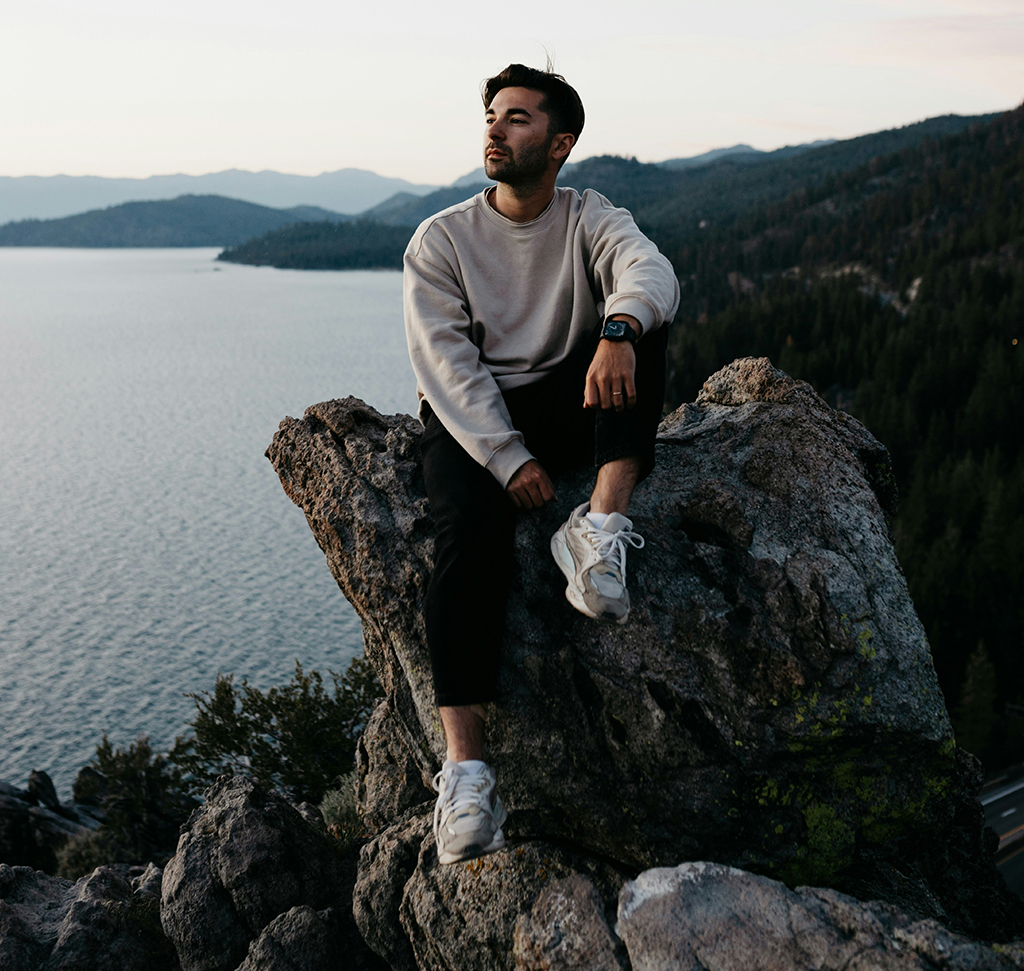
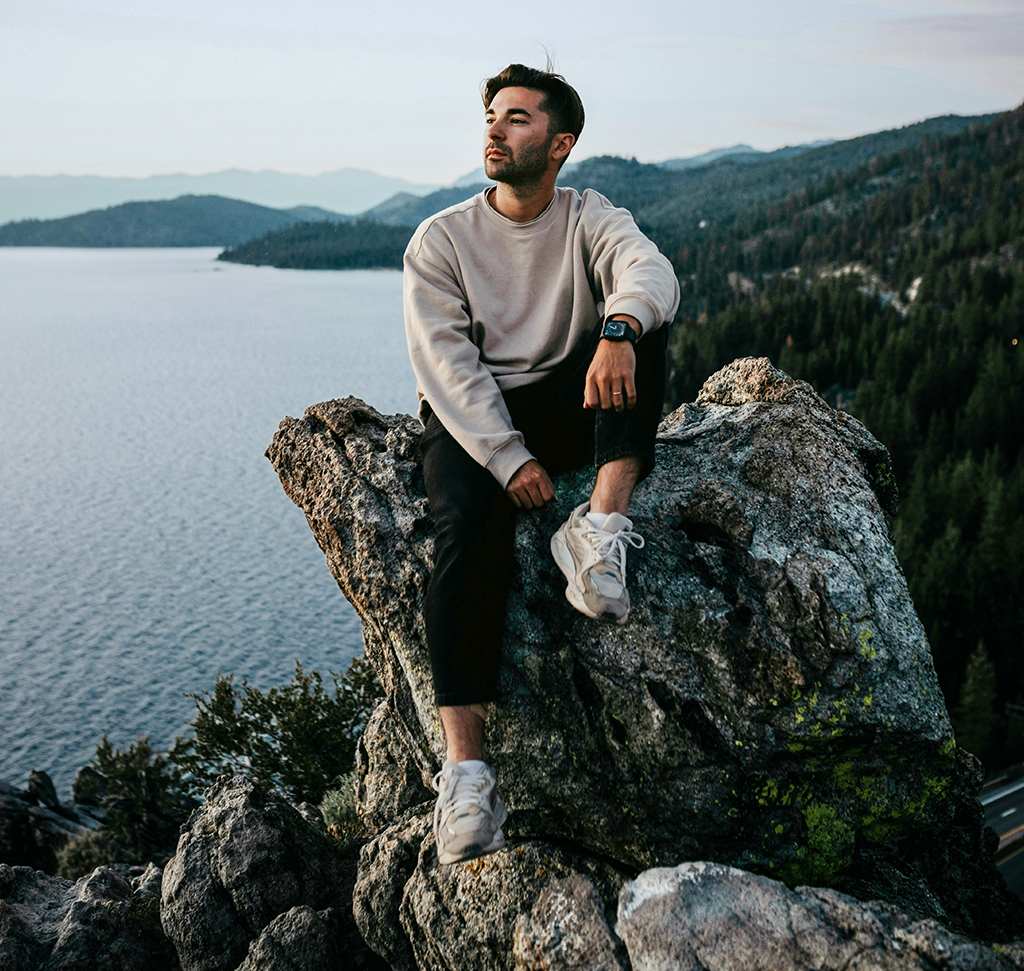
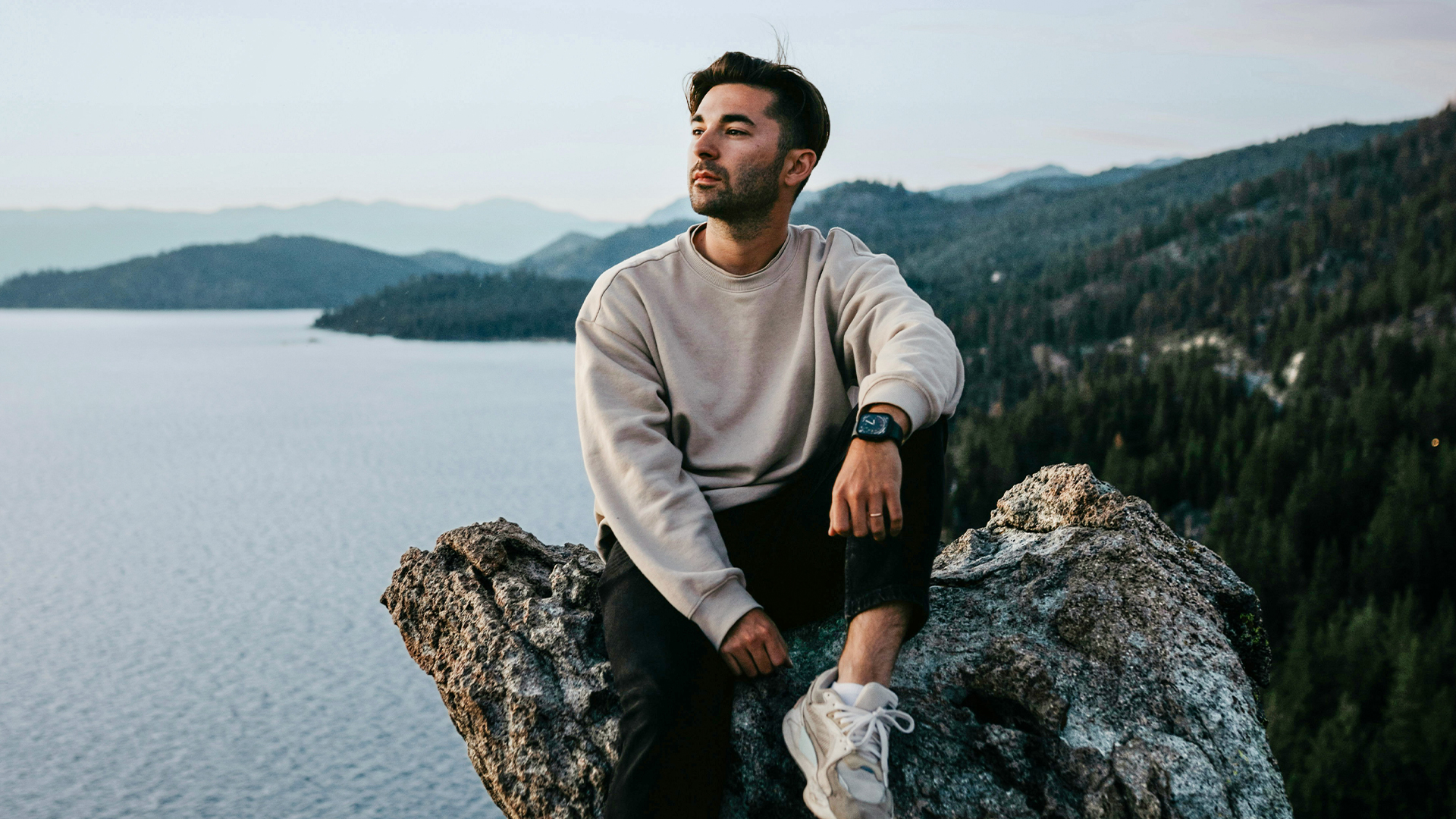
AFTER
BEFORE
AI Masking Made Easy
Get ready to discover the magic of AI Masking in Adobe Camera Raw! This revolutionary feature makes local photo adjustments simple and powerful. The intelligent tools instantly select complex areas like skies, subjects, and landscapes. You can easily apply precise edits to bring out color, boost light, and create stunning, professional-quality images in just moments.
Getting Started
1. Start by opening your image in Photoshop.
2. To enable non-destructive editing, the first critical step is converting your background layer into a Smart Object. Navigate to Filter > Convert for Smart Filters.
3. Once converted, access the main editing environment by going to Filter > Camera Raw Filter. This powerful filter houses all the new AI masking tools, and using a Smart Object ensures you can return to the filter and adjust your masks at any time without losing quality.
Initial AI Masking
4. Inside the Camera Raw Filter, click the Masking icon (a circle with dashed lines) on the right panel. Here, you’ll find AI-driven options like “Select Subject,” “Select Sky,” “Select Background,” and “Select Landscape.”
5. For the first example, select Select Background. ACR automatically creates a mask defining the background.
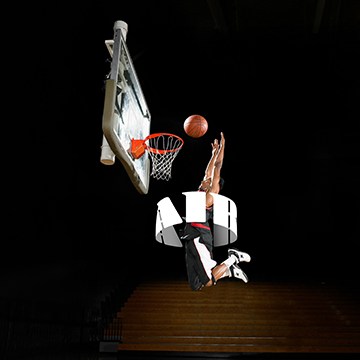
6. Scroll down to the Light adjustments and reduce the Exposure to darken the background, immediately making the subject pop.
Refine & Combine
7. To refine the initial mask, you can use the Subtract or Add functions. For instance, to create a subtle glow behind the subject, select the initial background mask and choose Subtract > Radial Gradient.
8. Click and drag to draw a gradient over the subject’s immediate background area, subtracting it from the dark background mask and creating a natural, brighter light spot.
9. At any time, you can hide the mask overlay by pressing the Y key, or hide the pin markers using the V key, helping you visualize the final effect.
Advanced Selections
Next, use the AI features again to make more complex selections.
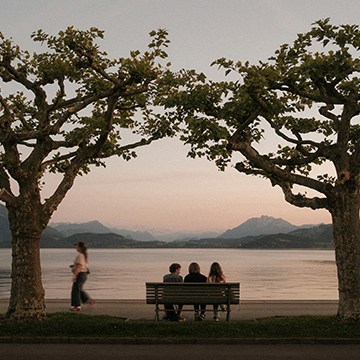
10. For the landscape image, use Select Landscape to generate separate masks for the sky, mountains, and water.
11. Adjust each of these masks independently: darken the sky Highlights and shift the Color Temperature toward blue; brighten the mountain Exposure and add Clarity; and make the water bluer.
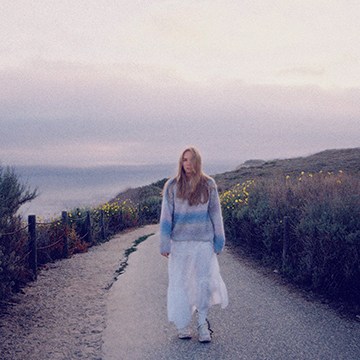
12. Finally, use Select Subject to create a mask for the person, and slightly increase Shadows and warm the Color Temperature to perfect their appearance.


Enjoying This Free Tutorial? Go Further with PRO.
Unlock Full Sample Files, PSDs, and Hundreds of Masterclasses!

Download full project assets, original PSDs, and RAW images for every lesson
Unlimited access to our complete library of PRO Photoshop & Lightroom courses
Instant 4K Ultra HD streaming on all devices, anytime, anywhere
Full access to our entire library of Photoshop Actions, Presets, and LUTs
Flexible monthly and annual membership plans
Cancel anytime with zero hassle or commitments