
DOWNLOAD SAMPLE IMAGES
description
Master AI object removal in Photoshop! Learn to use the Remove Tool for one-click removal of people and wires, and use Generative Fill for complicated areas to get multiple variations. Easily eliminate distractions, keeping all changes on a new layer for non-destructive editing.
JOIN 10 DAYS OF AI (FOR FREE!)
Ready to jump in? Sign up and we’ll email you a printable calendar and daily class schedule so you can get started right away!
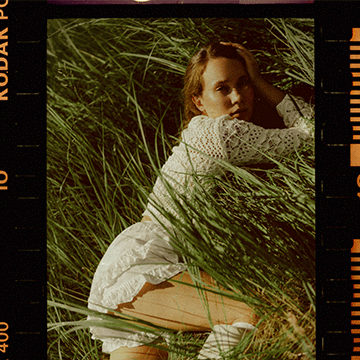
Image Source
- Dominic Chasse
- Max Bohme
- Vladimir Yelizarov
Images sourced from Unsplash.
Share

AFTER
BEFORE
One-Click Distraction Removal
To create a truly professional photo, nothing should pull the viewer’s eye away from your subject. Distractions such as wires, people, or unwanted clutter significantly weaken your image. Fortunately, Photoshop’s advanced AI features now let you remove these elements almost instantly. Get ready to transform your images and achieve clean, impactful results using these simple steps.
Set Up Tool
The most straightforward method uses Photoshop’s dedicated Remove Tool.
1. Begin by clicking on your background layer and selecting the Remove Tool from the toolbar.
2. To ensure non-destructive editing, check the “Create a new layer” option in the top bar. For people and subject removal, use the one-click feature: go to Find Distractions, select People, and the AI will automatically highlight the background subjects.
3. To finalize the removal, press Enter or click the confirmation checkbox.
Remove Wires Too
The Remove Tool is equally effective for technical distractions like wires and cables.
1. With the tool active and the new layer option checked, go back to Find Distractions and choose Wires and Cables. The AI will analyze the image and eliminate the detected lines.
2. For quick spot-removal of any leftover items (like support cables or light bulbs), you can simply paint over the distraction and then click the checkbox or hit Enter to process the removal.
Use Generative Fill
If you are removing an object in a complicated area and want control over the outcome, use Generative Fill for multiple variations.
1. Start by using the Selection Brush tool to sloppily select the unwanted object (like a large sign).
2. In the contextual task bar, click Generative Fill.
3. Leaving the prompt box empty is often best for removal. Ensure the Firefly Image 3 model is selected for the best results, and click Generate. Photoshop will provide three different variations in the Properties panel, allowing you to choose the best one.
Manual Quick Fix
The Remove Tool also allows for fast, manual removal of individual distractions without using the “Find Distractions” feature. Simply select the Remove Tool, paint right over the person or object you wish to eliminate, and then hit the checkbox or Enter at the top to process the removal. This technique is ideal when you don’t need the multiple options provided by Generative Fill, prioritizing speed and simplicity instead.