

description
Most people use Curves for one thing: an s-curve for contrast. This tutorial covers five capabilities that go further, including why Curves beats Levels on every tonal range, how the Targeted Adjustment Tool builds the curve for you, the gray point eyedropper that fixes white balance in one click, and the Luminosity and Color blend modes that separate tonal changes from color changes.
Enjoying This Free Tutorial?
We publish a new free tutorial every week, each one with sample images and PSDs you can download and follow along with. Sign up and they land straight in your inbox, along with early word on sales, events and subscriber-only offers.
5 Things You Didn’t Know About Curves in Photoshop
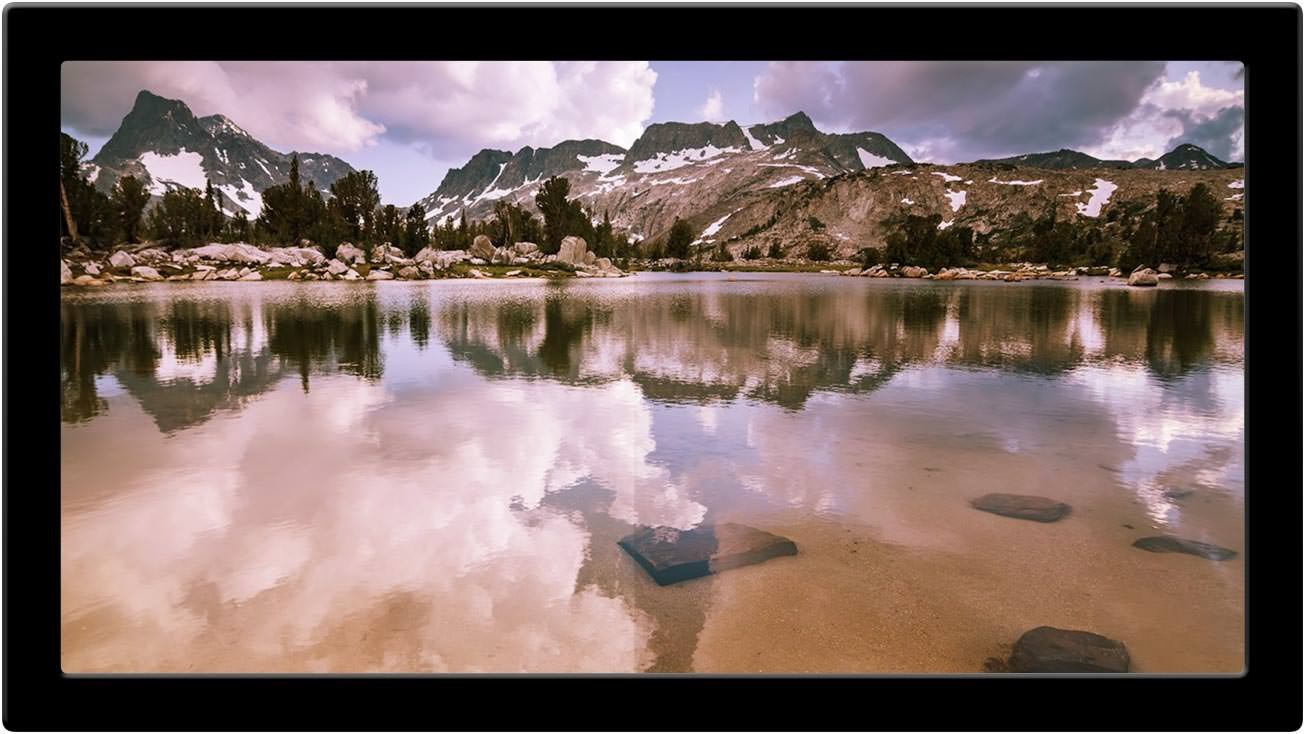
Phans of Phlearn already know Curves as one of the most powerful luminosity and color adjustment tools in Photoshop. Whether you’re adding contrast, brightening shadows or giving a kiss of magenta to your mid-tones, Curves gets the job done. But there’s so much power packed under the hood that most users only ever scratch the surface.
1. Curves Is Like Levels on Steroids
“Anything you can do I can do better. I can do anything better than you.” If Photoshop were an elementary school playground, this is what Curves would be singing tauntingly at Levels.
Levels is a great tool for setting black and white points and adjusting mid-tone brightness, and it can reduce dynamic range by changing the black and white output levels. Curves does all of that too, with more subtlety, control and ease.
Black and White Points
The controls work much as they do in Levels: set the points with the Eyedropper tools by clicking in the image, or move the black and white point sliders in the Curves window. Pro tip: hold Alt or Option while moving those sliders and Photoshop shows you the clipped highlights and shadows.
To change output levels, useful when shadows are too dark or highlights too bright, drag the corresponding black or white control point in the Curves window up or down.

Where Curves Pulls Ahead
With Levels you can only adjust all mid-tones at once, brighter or darker. With Curves you can adjust every tonal range individually by placing control points on the curve. Say you’ve set your black and white points and now want to brighten the mid-tones by dragging the curve up, but you don’t want the shadows or highlights to brighten with them: place control points in each of those regions and drag them back down. That control over every tonal range is why Curves wins this fight every time.

2. The Targeted Adjustment Tool Finds the Tones for You
When you want to add contrast to a specific area, it helps to know which tonal ranges that area occupies. Say you have a sweet cloudscape that could use some punch. Normally you’d add a Curves adjustment layer and start dragging the highlights up and the shadows down — except that doesn’t work here, because all the clouds live in the highlights and an s-curve simply blows the image out.
Hover over to see Curves contrast.
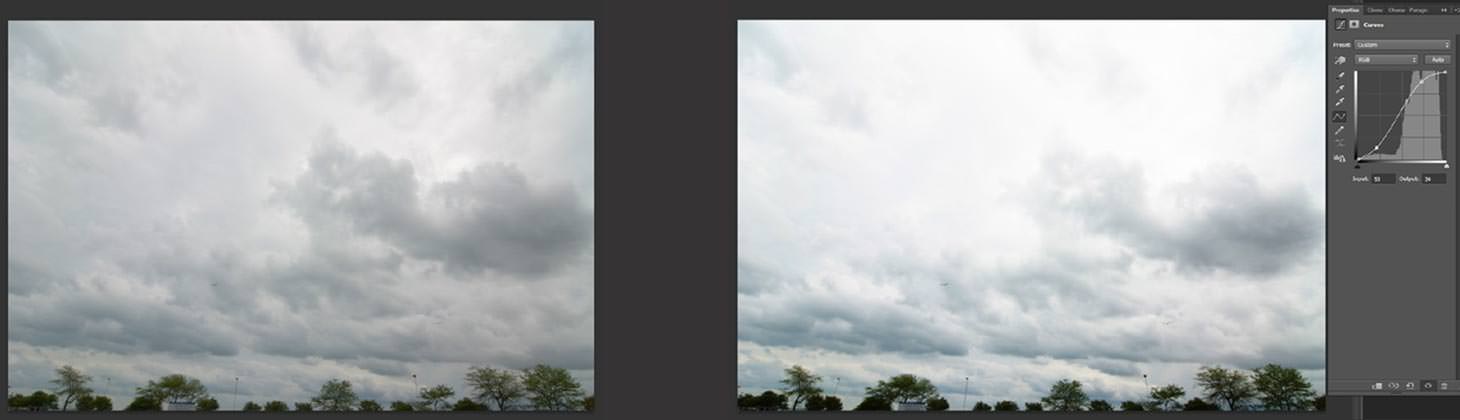
So you keep fiddling, and after a minute of trial and error you end up with something like this:
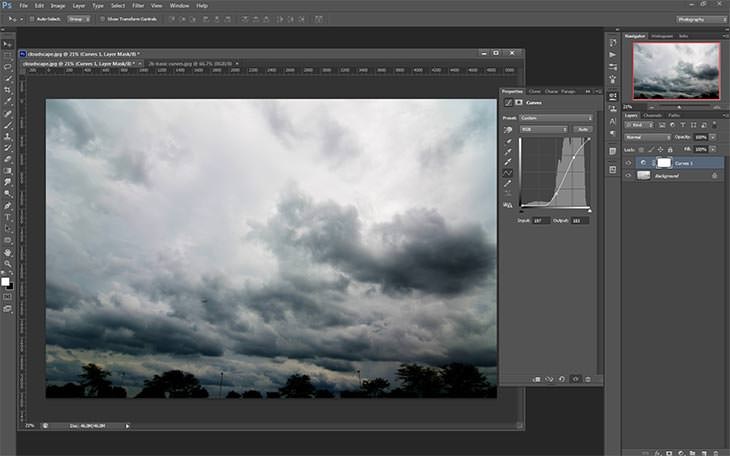
The Faster Route
Use the Targeted Adjustment Tool instead and you get the same look, if not better, in a fraction of the time. Click the Targeted Adjustment Tool in the Curves window and hover over your image: a small circle appears on the tone curve corresponding to the exact tone under the cursor. That’s Photoshop telling you which tones you need to adjust.
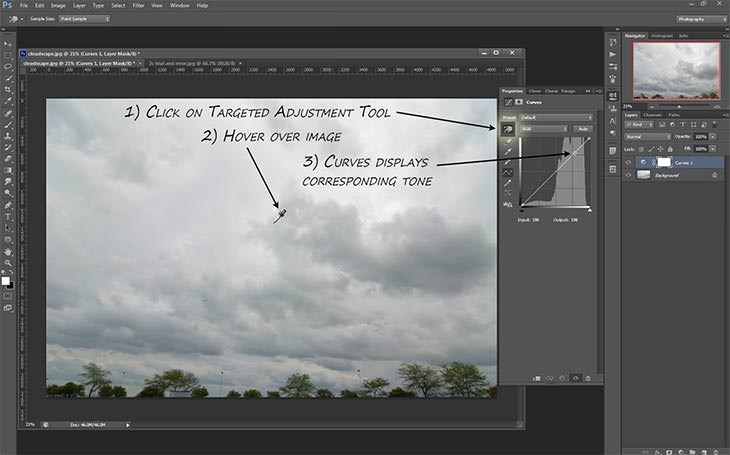
It goes one step further. Click on the image and drag up or down, and the curve moves correspondingly based on the tone you clicked. Click a highlight and drag up: the highlights brighten. Click the shadows and drag down: the shadows darken. You can use it as many times as you like, isolating and adjusting tonal ranges instantly.

3. Curves Fixes White Balance at the Touch of a Button
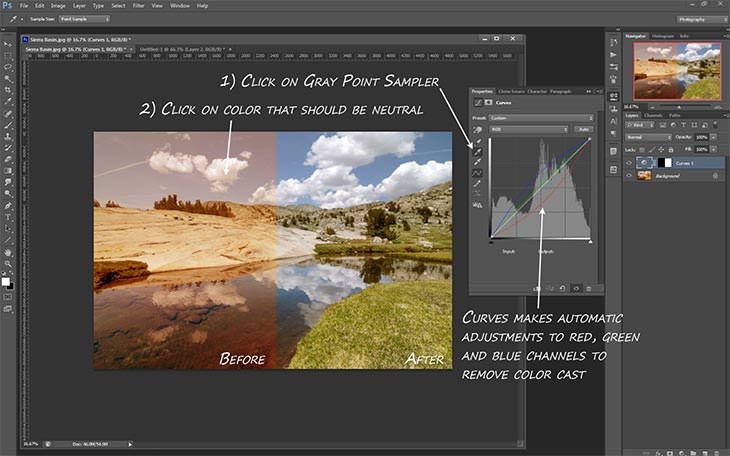
Between the black and white point eyedroppers sits the neglected step-child of the family: the gray point selector. Sample any point in the image with it and Curves automatically applies the appropriate adjustments to the Red, Green and Blue curves to make that point neutral gray. It affects color only, not luminosity, so the brightness of your image survives.
That means an image with a weird color cast, or mixed lighting your camera couldn’t work out, can be fixed by clicking a point you know should be color neutral — a gray card, a white wall, an overcast sky — and Photoshop balances the color for you, just like that.
4. Adjust Brightness Without Affecting Color
The most basic use of Curves is adding contrast with the classic s-curve, highlights up and shadows down. A little-realized side effect is that it also increases saturation. If you’ve already set your saturation where you want it, or you’re working with skin tones, that extra saturation is a problem.
Hover over to see before.

Change the blending mode of your Curves Adjustment Layer to Luminosity and the adjustment applies only to the brightness values, not the color values — contrast added, saturation untouched.

5. Change Color and Saturation Without Affecting Brightness
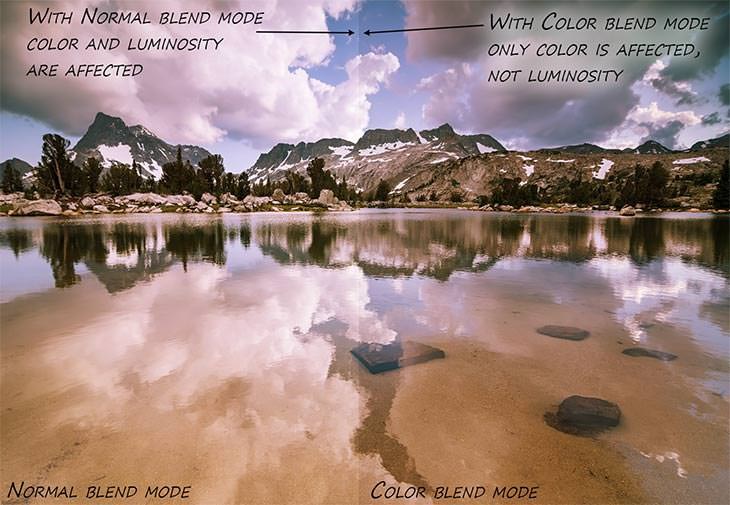
Curves is also a fantastic way to make color adjustments. Mucking about with the color channels lets you change color balance, increase color casts in shadows or highlights, apply split toning, simulate cross-processing and create plenty of other effects. But just as adjusting brightness affected color above, adjusting color affects brightness here.
Say you want less blue in your shadows, so you drag the Blue channel curve down in the shadow range — that also slightly darkens the shadows. Add a little red to the highlights by dragging the Red channel up and you’ve slightly brightened the image too. Those subtle luminosity changes may not be what you want.
Hover over to see before.

A blending mode comes to the rescue again. Set the Curves Adjustment Layer to Color and you get all of the color changes with none of the luminosity changes.
Similarly, to increase saturation without affecting brightness, put a simple s-curve in the RGB curve and set the blend mode to Saturation.
Bonus: Draw Your Own Curve
I’m incorrigible, so here’s a bonus. Curves has a genuinely bizarre tool built in that I’ve never personally been able to use well, but it’s fun enough to be worth showing: the draw-your-own-curve tool, marked by the little pencil in the Curves window.
Click it and you can draw the tone curve however you like — a continuous curve, discrete sections, or just a scatter of disconnected dots. Whatever you do the result is almost always psychedelic. My only advice is to experiment and have fun, because you will get unpredictable, unrepeatable effects.
More Free Photoshop Tutorials
- Curves vs Levels: Learn the Difference
- Correct Color and Exposure in Photoshop
- Three Ways to Use Blend If
The Thread Running Through All of These
Four of these five tips are really one idea: Curves does two jobs at once, and most of its frustrations come from the job you didn’t ask for. An s-curve raises contrast and saturation together; a channel curve shifts color and brightness together. Luminosity and Color blend modes let you keep the half you wanted and discard the half you didn’t, which is why they matter more than any particular curve shape. The Targeted Adjustment Tool and the gray point eyedropper solve the other recurring problem, which is knowing where on the curve to click in the first place.
Final Thoughts
Curves replaces Levels because it can adjust every tonal range independently. The Targeted Adjustment Tool shows you which tones you’re touching, the gray point eyedropper corrects white balance in one click, and setting the adjustment layer to Luminosity or Color separates tonal changes from color changes so you only get the effect you were after.
Related Tutorials
Master Photoshop, Lightroom and Photography
Join PHLEARN PRO for $12.99 a month or $99.99 a year. Cancel anytime, with a 100% money-back guarantee.





