

Download Assets
This tutorial includes 1 sample image, 1 sample PSD and 1 PDF guide. Downloads are free with a PHLEARN account.
- Download the sample images and PSDs from every free tutorial on PHLEARN
- New free tutorials published every week
- One free account — sign up once, then download anything
Free PDF Guide · 3 Pages
This Tutorial as a Step-by-Step PDF
The 3-page guide covers both methods: a Hue/Saturation layer targeted to Blues with the eyedropper, an inverted mask painted white over the shirt, then the Cyans, and for the socks Select > Color Range, a color sampled from the wall with Alt/Option and the Color blend mode. Keep it next to your keyboard.
description
Learn how to match clothes to any color background in Photoshop using two different techniques. For a color that only needs a nudge, a Hue/Saturation adjustment layer targeted at the specific color channel shifts the hue while an inverted mask keeps the effect on the clothing alone. For a color that’s too far off, like a bright sock against a pastel wall, a Color Range selection, a sampled brush color, and the Color blend mode repaint it while keeping every wrinkle and highlight in the fabric.
Enjoying This Free Tutorial?
We publish a new free tutorial every week, each one with sample images and PSDs you can download and follow along with. Sign up and they land straight in your inbox, along with early word on sales, events and subscriber-only offers.
Image Source
Photo by RODNAE Productions via Pexels
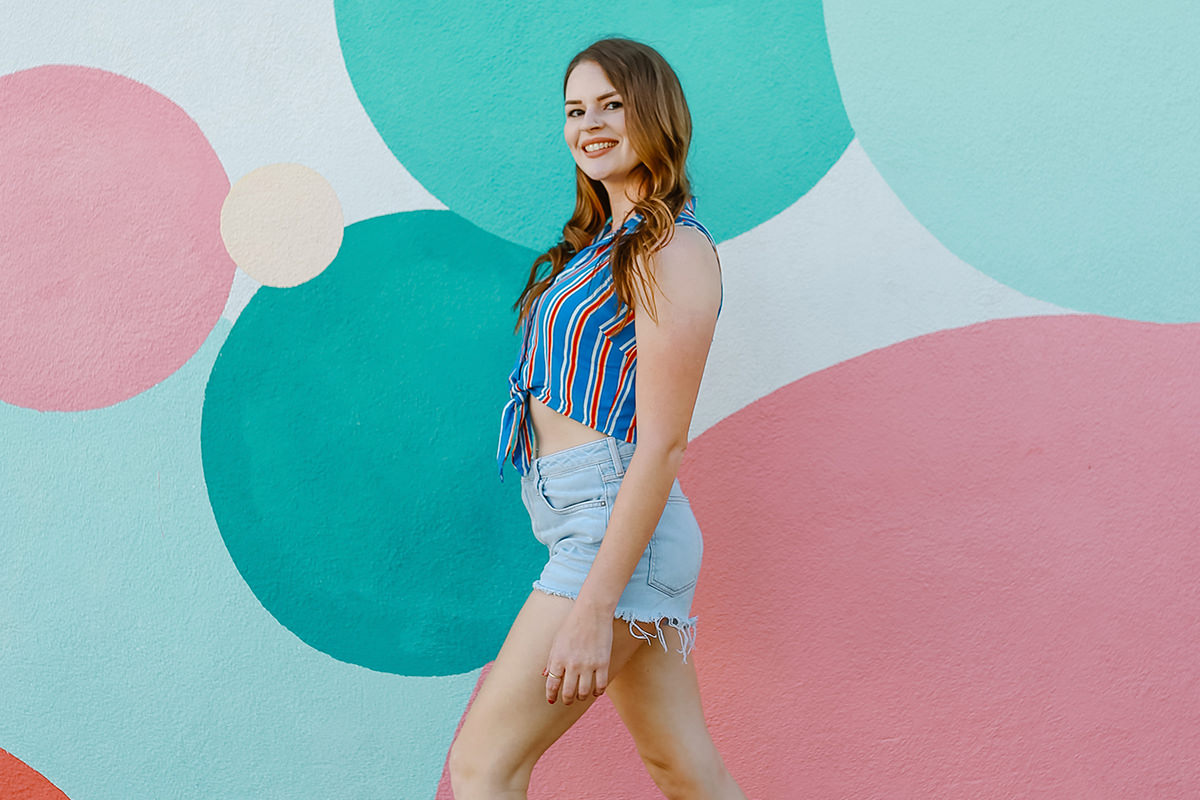
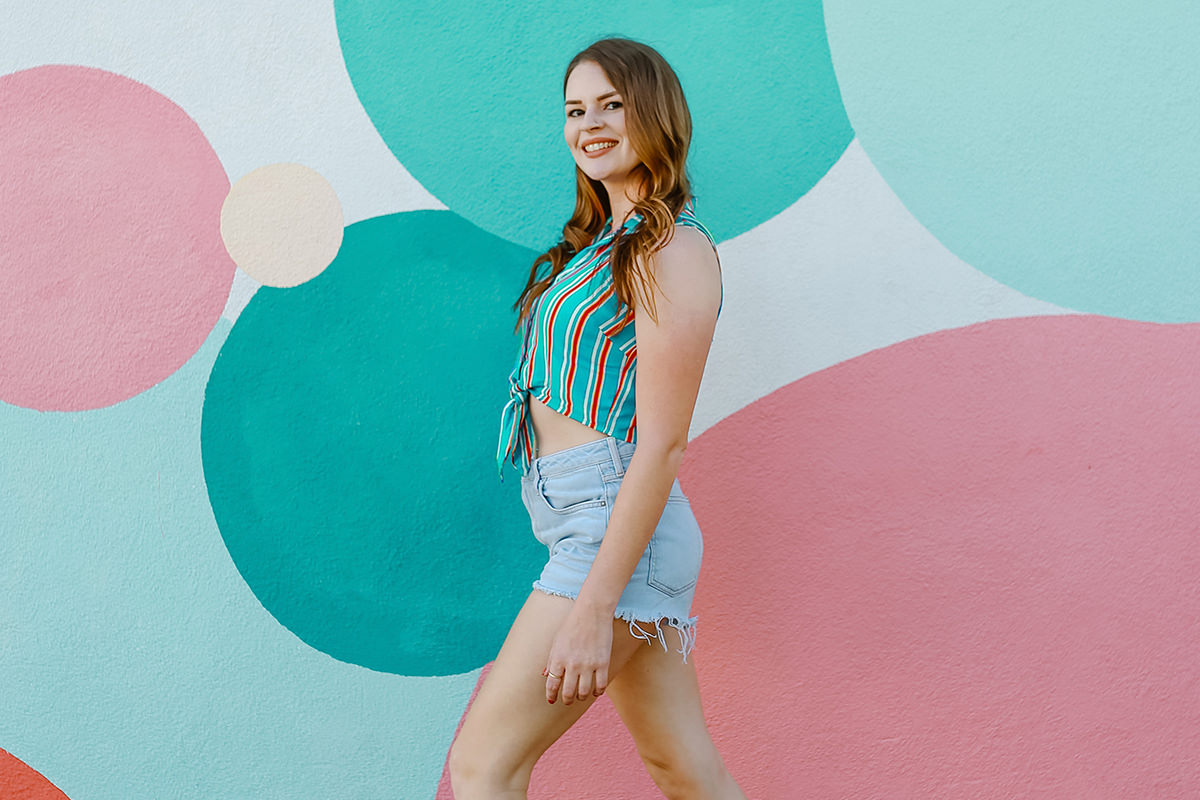
How to Match Clothing Color to Any Background in Photoshop
A subject’s clothing color doesn’t have to fight with the background it’s shot against — nudging a shirt or a pair of socks toward the same hue as the wall or backdrop behind it can make the whole composition feel more intentional. This technique covers two different ways to match clothes to any color background: adjusting an existing color with Hue/Saturation, and repainting a color entirely using a selection and the Color blend mode.
Targeting a Color with Hue/Saturation
When the clothing already has some color to work with, a targeted Hue/Saturation adjustment can shift it without touching anything else.
-
Add a Hue/Saturation Adjustment Layer
Go to Layer > New Adjustment Layer > Hue/Saturation.
-
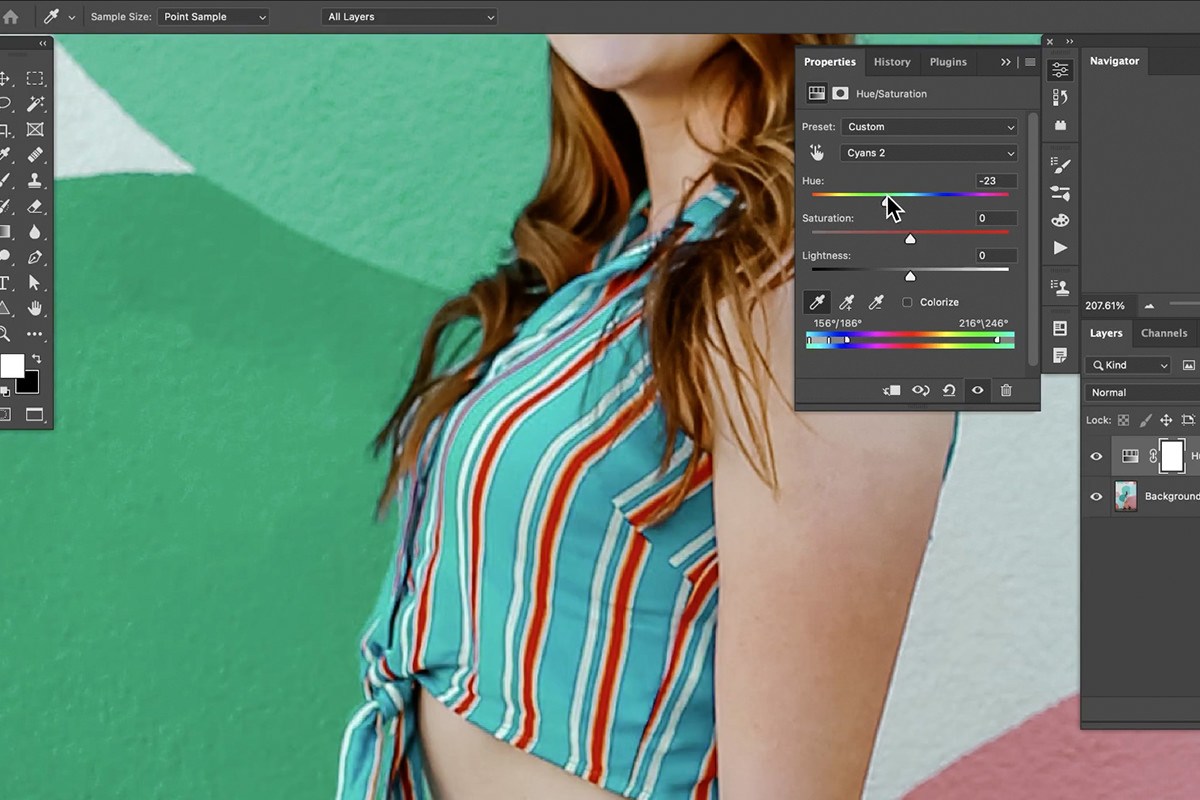
Target the Specific Color Channel
Instead of leaving the adjustment set to Master, click the dropdown and choose the specific color range that matches the clothing — Blues, for example — then use the eyedropper to click directly on the clothing to fine-tune exactly which color range gets targeted.
-
Shift the Hue
Drag the Hue slider until the clothing color shifts toward the background color you’re matching it to. The reds in the skin don’t change at all, because only the blues are targeted. The wall may shift a little since it is close to the same blue; the mask in the next step takes care of that.
Masking the Effect to a Specific Area
Targeting a color range narrows the effect, but a mask is what keeps it contained to exactly the clothing and nothing else that happens to share a similar hue.
-
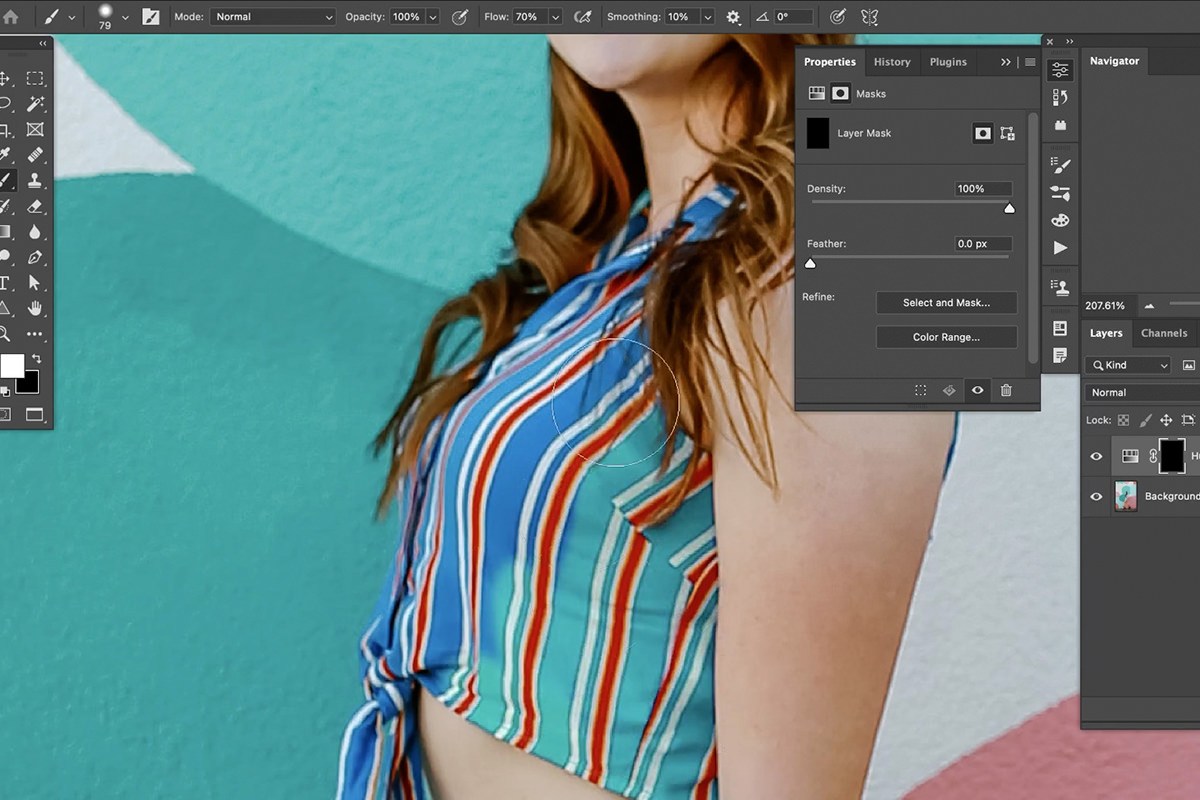
Invert the Adjustment Layer’s Mask
Click the layer mask thumbnail and press Ctrl + I on PC (Cmd + I on Mac) to invert it to black, hiding the effect everywhere.
-
Paint White to Reveal the Effect
Use the Brush tool with white as your paint color to reveal the hue shift exactly where the clothing is, including the back or far side of the garment so the whole piece changes consistently.
-
Paint Black to Correct Overspill
If the effect spills onto part of the background that shared the same targeted color, press X to swap to black and paint over the mistake to hide the effect there.
Why Invert First, Then Paint White
Starting with an inverted, fully black mask means nothing is affected until you deliberately paint it in, which is safer than starting from a fully visible effect and trying to paint everything else away. It also means you don’t need to be especially careful or precise while painting, since anywhere you don’t paint white simply stays unaffected.

Adjusting Multiple Color Channels
Clothing and fabric often contain more than one underlying color, so a single targeted channel may not be enough to fully shift the look.
-
Target a Second Color Channel
Switch the Hue/Saturation adjustment’s target from Blues to Cyans, or whichever secondary color range is present in the clothing, and adjust its Hue slider as well.
-
Compare Against the Background
Toggle the adjustment layer on and off and compare the clothing color directly against the background it’s meant to match, refining both targeted channels until they align closely.

Selecting a Second Item with Color Range
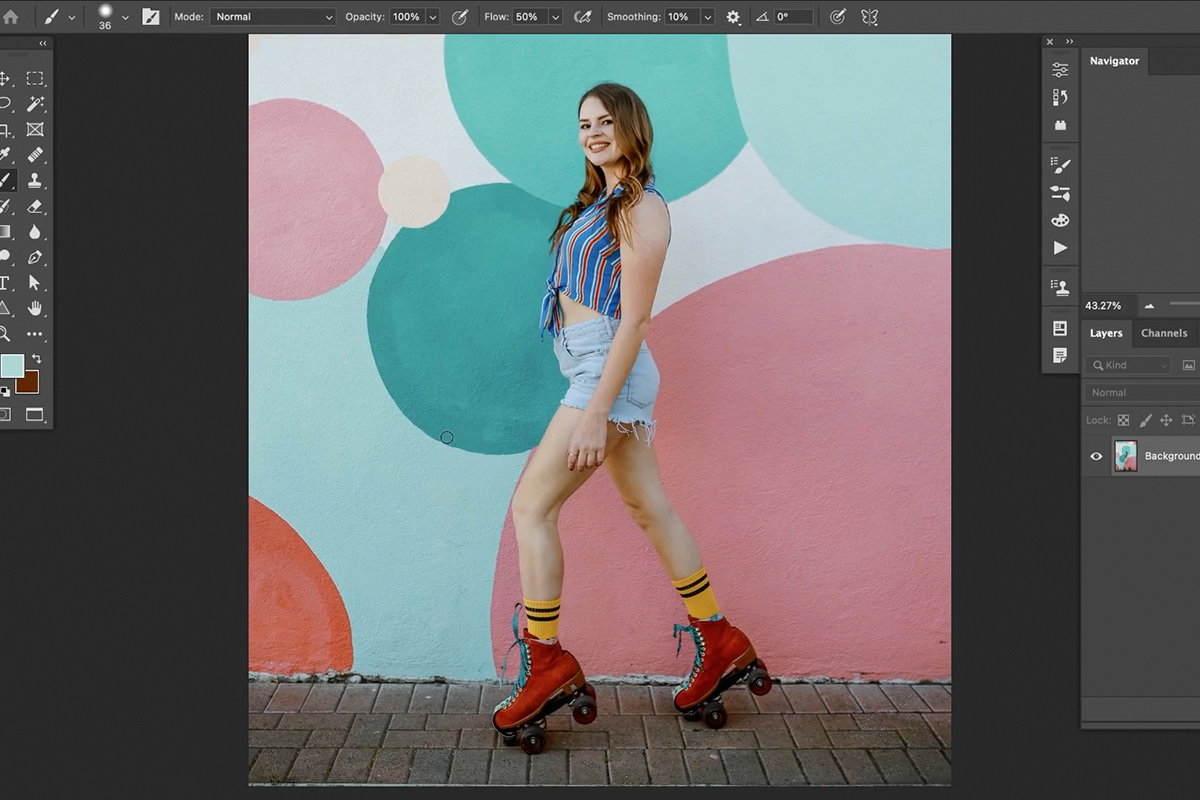
For a color that’s too far from the background to fix with a Hue slider — a bright yellow sock, for example — a full repaint works better than a hue shift.
-
Create a New Layer
Add a new, empty layer above your image.
-
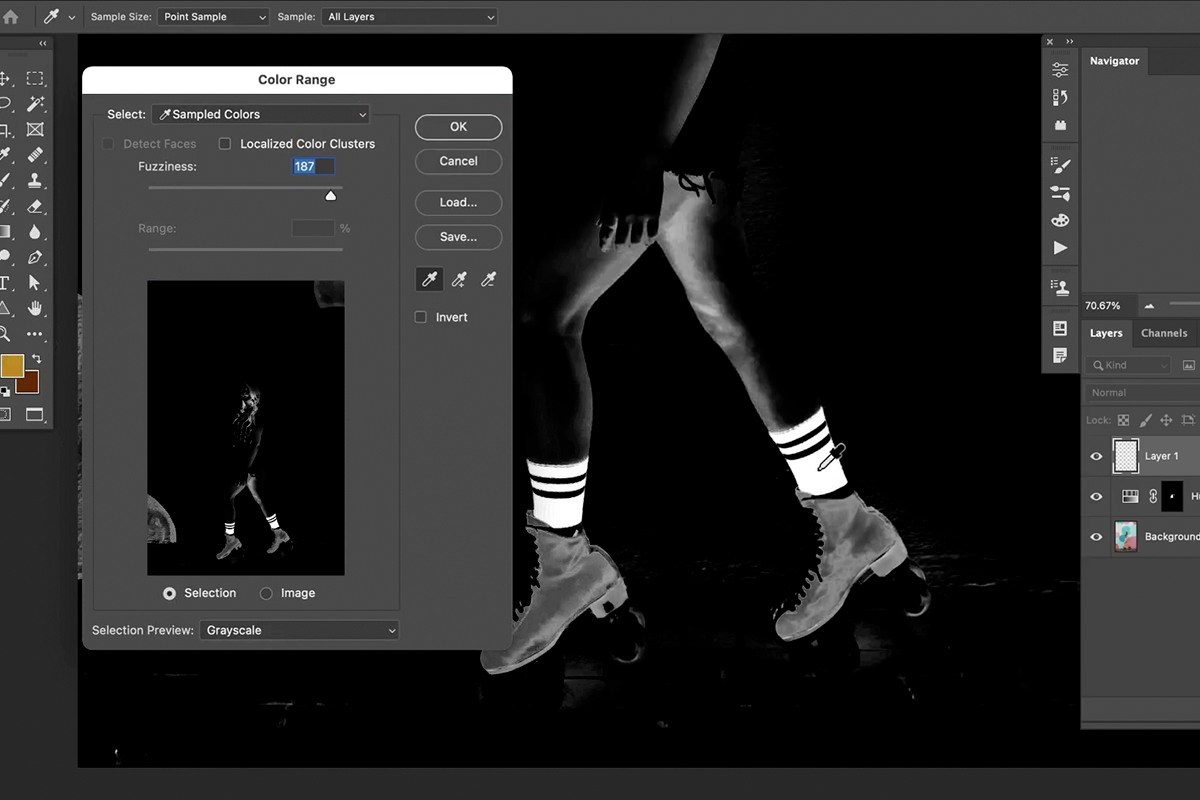
Select the Item with Color Range
Go to Select > Color Range, click the eyedropper directly on the item you want to recolor, and click OK to turn that selection active.
Painting a Sampled Color Over the Selection
With the selection active, painting the new color becomes almost foolproof.
-
Sample the Target Color
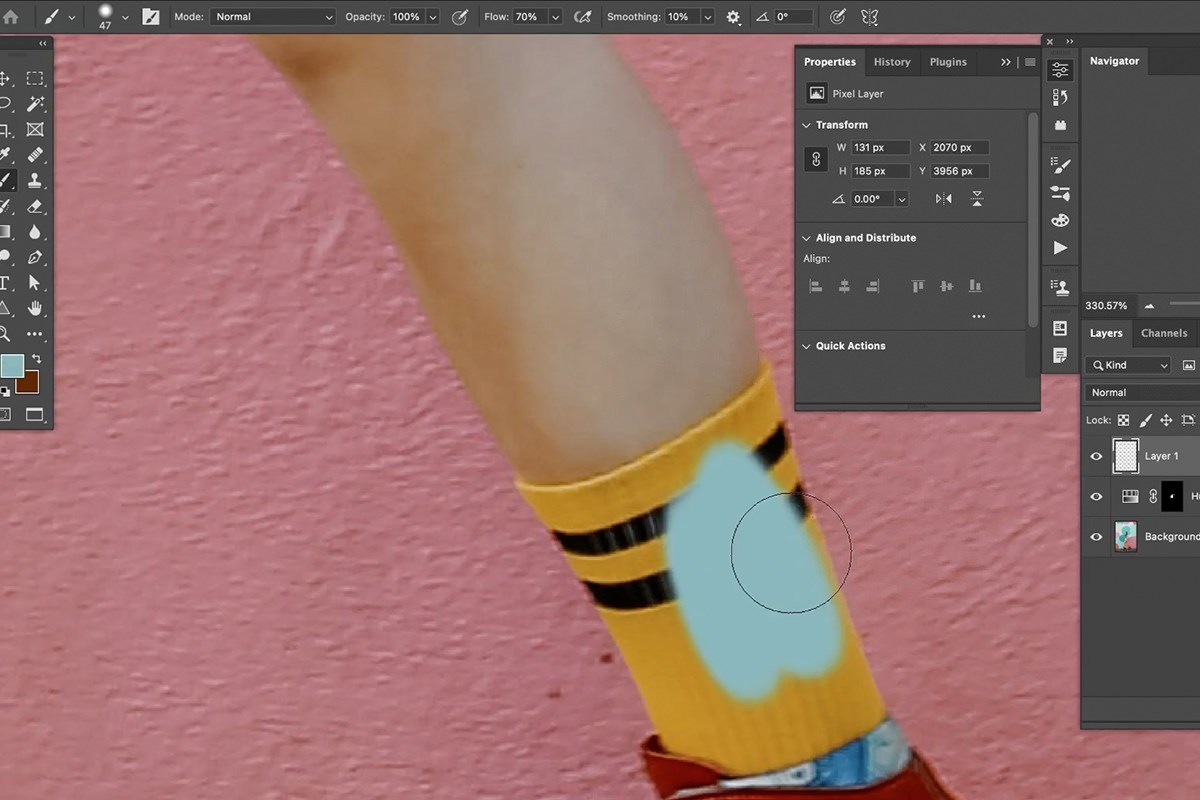
Press B for the Brush tool, then hold Alt on PC (Option on Mac) to sample the color you want to match directly from the background.
-
Paint Freely Within the Selection
Paint directly over the selected item — since the active selection constrains where paint can land, you don’t need to stay carefully within the lines.
-
Deselect
Press Ctrl + D on PC (Cmd + D on Mac) to deselect once the item is fully painted over.
Why Selections Make Sloppy Painting Okay
An active selection acts as a hard boundary that paint simply cannot cross, no matter how far outside the lines your brush strokes go. That means you can focus entirely on covering the item completely and quickly, without worrying about precision, since the selection itself is doing the job that careful, slow painting would otherwise have to do.
Changing the Blend Mode to Color
A flat coat of paint alone won’t look realistic — changing the layer’s blend mode is what makes the repaint believable.
-
Set the Layer’s Blend Mode to Color
Change your painted layer’s blending mode from Normal down to Color, near the bottom of the blend mode list.
Why Color Blend Mode Instead of Normal
Color mode applies only the hue and saturation of your painted layer while preserving the original luminosity values underneath — the existing shading, wrinkles, and highlights in the fabric all stay intact, and only the actual color changes. Left at Normal blend mode, a flat painted color would flatten out all of that texture and look like a sticker rather than fabric.
Cleaning Up the Mask
A quick mask pass on the newly painted layer handles any spots where the color spread further than intended.
-
Add a Layer Mask
Click the Add Layer Mask icon on your Color-mode painted layer.
-
Paint Black to Remove Overspill
Paint black on the mask over any area the color shouldn’t affect, such as a subject’s legs near the item you just recolored, and paint white again if you accidentally remove too much.


Why This Approach Works
Both techniques here rely on the same underlying idea: separating color from the luminosity detail that makes something look like real fabric rather than a flat shape. The targeted Hue/Saturation adjustment shifts only the hue of an existing color while leaving brightness and texture untouched, and the Color blend mode does the same thing for a fully repainted layer — only the color changes, while every wrinkle, shadow, and highlight already in the photo stays exactly as it was. Using a mask or an active selection to control exactly where each effect lands means neither technique requires careful, painstaking painting; the selection or mask handles precision so the actual color work can move quickly. Which method to reach for comes down to how close the existing color already is to your target: a subtle shift calls for Hue/Saturation, while a color that’s too far away calls for a full repaint in Color blend mode.
Final Thoughts
Matching clothing color to a background is a small compositional detail, but it’s one that makes a photo feel considered rather than accidental. Once you’re comfortable targeting specific color channels with Hue/Saturation and repainting with the Color blend mode, both techniques apply just as well to matching any other element in a photo — a prop, an accessory, or a piece of furniture — to whatever color scheme the rest of the image is built around.
Quick Reference: Keys, Menus and Settings
- Shift a colorLayer > New Adjustment Layer > Hue/Saturation; Master to Blues, eyedropper on the shirt, drag Hue
- Contain itCmd/Ctrl + I inverts the mask; paint white on the shirt, X for black
- Second rangeChoose Cyans and adjust again
- Select the socksNew layer; Select > Color Range, eyedropper on the socks, OK
- Paint the new colorB, Alt/Option-click the wall, paint; Cmd/Ctrl + D to deselect
- Make it realisticBlend mode: Normal to Color
- Clean upLayer mask icon; paint black to hide, white to bring back
No AI, no generative credits.

Free Downloads
Follow Along on the Same Photo
Get the photo from the video, the sample PSD and the 3-page PDF guide to both recoloring methods. Free with a PHLEARN account.
Matching Clothing Color: Common Questions
Which method should I use to recolor clothing?
Use Hue/Saturation when the clothing is already close to the target color, like the blue shirt here. When the color is too far away, like the yellow socks, select it with Color Range and repaint it on a layer set to the Color blend mode.
How do I change only one color with Hue/Saturation?
Add a Hue/Saturation adjustment layer, click where it says Master and choose Blues (or the closest range), then click the eyedropper on the clothing and drag the Hue slider.
Why does the background change color too?
The wall is close to the same blue, so the targeted range catches it. Click the layer mask, press Cmd/Ctrl + I to invert it, and paint white only over the clothing.
What if I paint the effect onto the wall by mistake?
Press X to switch to black and paint over that spot. Black on the mask hides the effect, white shows it.
The shirt still doesn’t match. What next?
Fabric often holds more than one color. Go back to the adjustment, choose Cyans and keep adjusting until the shirt matches the wall. Paint the back side of the shirt too, or it won’t look real.
How do I select an item by its color?
Create a new layer, go to Select > Color Range, click the eyedropper on the item and click OK. Anything similar in color gets selected; lighter areas are selected more.
How do I paint with the exact background color?
Press B for the Brush tool, hold Alt/Option and click the background color you want. With the selection active, you can paint loosely and the paint stays inside it.
Why does the painted color look flat?
The layer is still in the Normal blend mode. Change it to Color, near the very bottom of the blend mode list, and the shading and texture of the fabric come back.
How do I remove color that spilled onto skin?
Click the layer mask icon on the painted layer and paint black where the color shouldn’t show, like the legs here. Paint white to bring it back if you hide too much.
Are the sample files free?
Yes, with a free PHLEARN account. You get 1 sample image, 1 sample PSD and 1 PDF guide: the photo from the video, the PSD and a 3-page guide.
Master Photoshop, Lightroom and Photography
Join PHLEARN PRO for $12.99 a month or $99.99 a year. Cancel anytime, with a 100% money-back guarantee.





