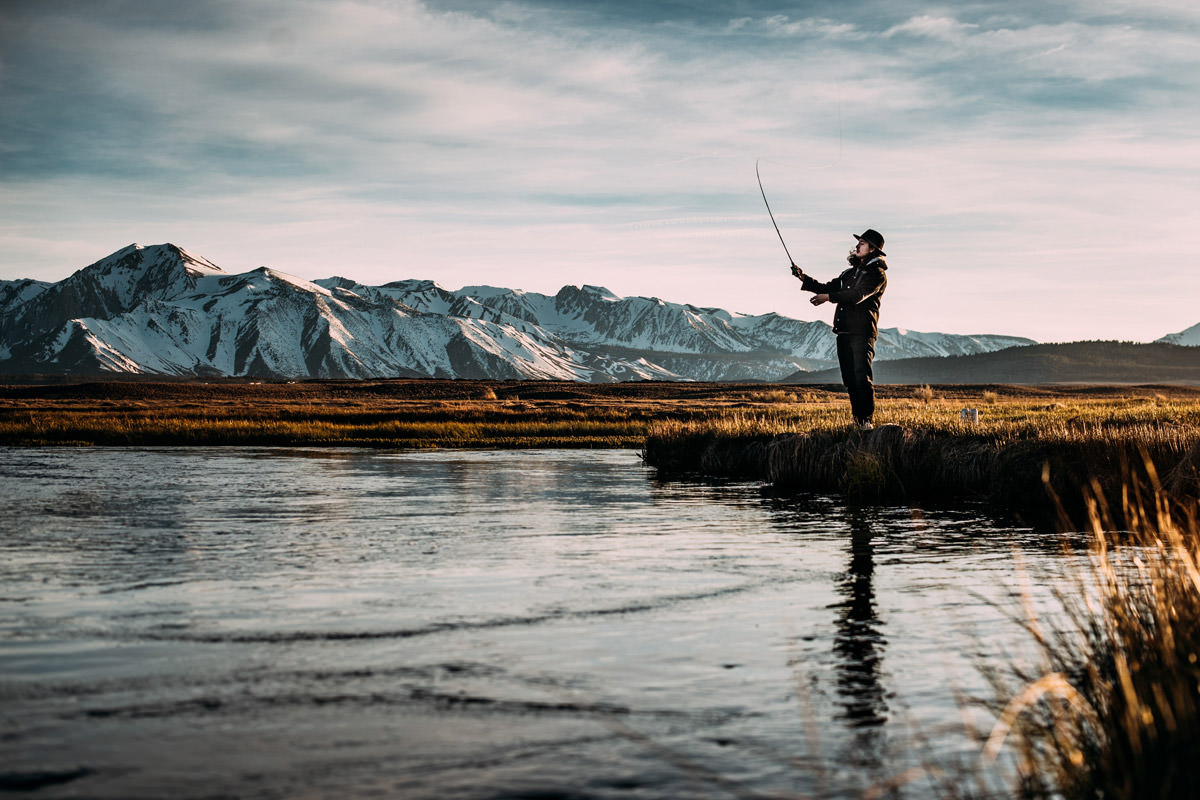

Download Assets
This tutorial includes 2 sample images, 1 Photoshop action and 1 PDF guide. Downloads are free with a PHLEARN account.
- Download the sample images and PSDs from every free tutorial on PHLEARN
- New free tutorials published every week
- One free account — sign up once, then download anything
Free PDF Guide · 2 Pages
This Tutorial as a Step-by-Step PDF
The 2-page guide walks through the look by hand, a Solid Color layer in a saturated blue set to Exclusion at about 30% Opacity, then loading the action set through Window > Actions > Load Actions, playing one of the five looks and dragging in the 16:9 film bars with Shift held to resize. Keep it next to your keyboard.
description
A convincing cinematic grade is three things stacked together. A Solid Color fill layer set to the Exclusion blend mode splits one colour across the image, cool in the shadows and its complement in the highlights, the way colour film does. A set of free Photoshop Actions applies that same setup in one click on any photo, and a transparent black-bar PNG letterboxes the frame to 16:9 to finish the look.
Enjoying This Free Tutorial?
We publish a new free tutorial every week, each one with sample images and PSDs you can download and follow along with. Sign up and they land straight in your inbox, along with early word on sales, events and subscriber-only offers.
Create a Cinematic Look in Photoshop: Realistic Color Film Effect
A convincing cinematic color grade comes down to three layered techniques working together: a Solid Color adjustment layer combined with the Exclusion blend mode to split one color across shadows and highlights, a set of downloadable Photoshop Actions that apply that same coloring instantly to any photo, and a black-bar overlay that constrains the image to a 16:9 aspect ratio associated with film. None of these three pieces alone would sell the effect, but together they turn an ordinary photo into something that reads as a genuine frame pulled from a movie.
Adding a Solid Color Adjustment Layer
Start by adding an Adjustment Layer set to Solid Color rather than working directly on the image’s pixels. 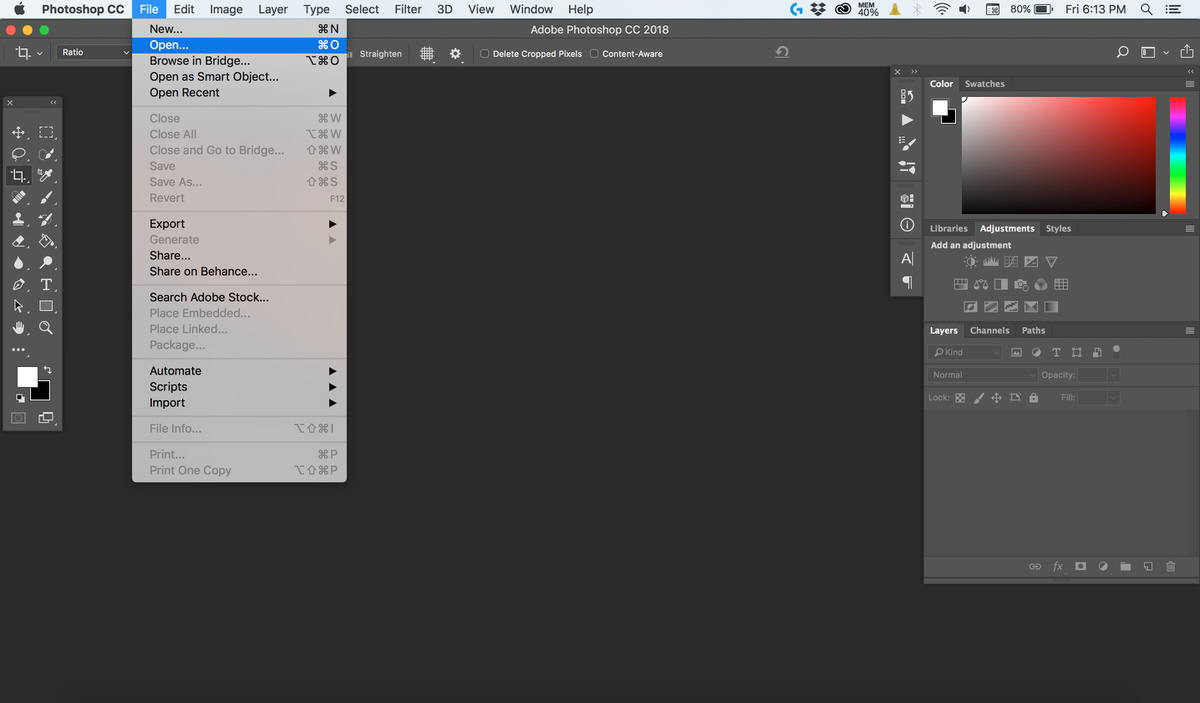 Working on an adjustment layer keeps the color choice completely non-destructive, meaning it can be revisited, recolored, or removed entirely at any later point without touching the original photo underneath. Almost any color can technically work here, but a saturated blue is a strong, reliable starting point for a cinematic look, since blue reads as a cool, moody tone that pairs well with warm skin and highlight colors later.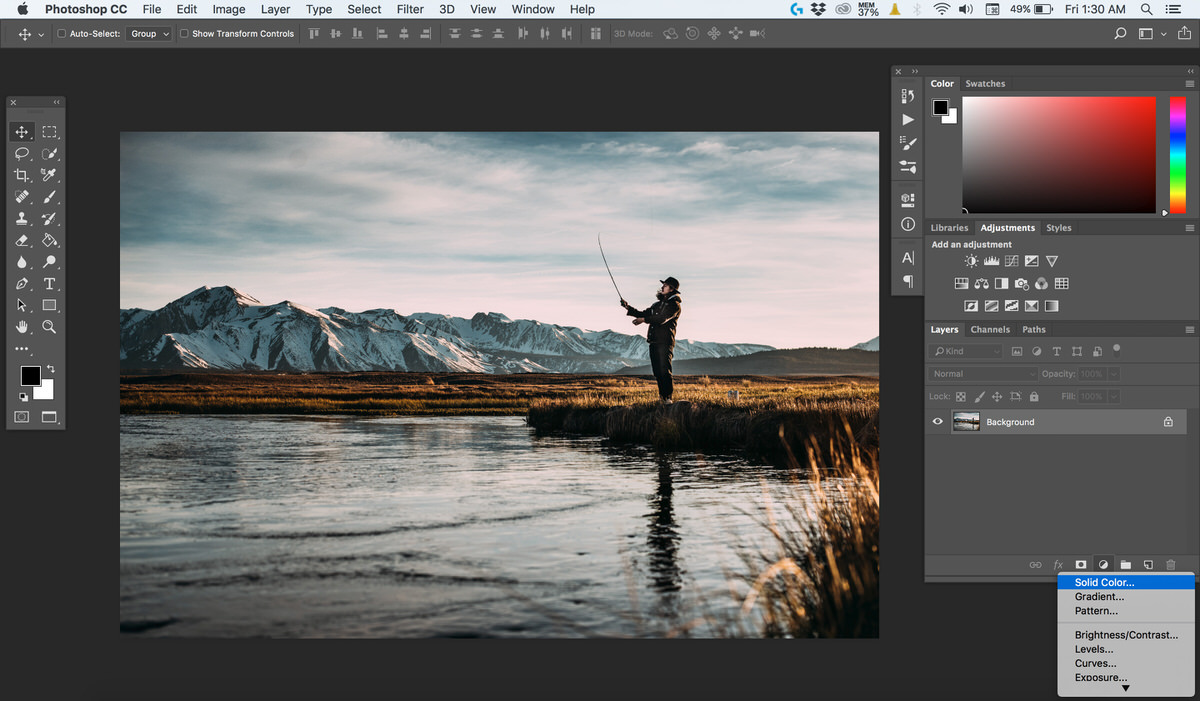

Why a Fill Layer Instead of Manual Color Balance
It would be possible to approach cinematic coloring through Curves or Color Balance adjustments targeting shadows and highlights separately, but a single Solid Color fill layer paired with a blend mode collapses that into one simple, fast decision: pick a color, and let the blend mode determine how it distributes across the tonal range. This keeps the whole workflow approachable even for someone who hasn’t spent time learning the finer points of channel-based color grading.
Switching to the Exclusion Blend Mode
With the solid blue fill layer sitting on top of the image, change its layer Blending Mode from the default Normal setting to Exclusion. Exclusion isn’t one of the more commonly reached-for blend modes, but it has a very particular and useful effect for this technique: rather than simply tinting the whole photo with one flat color, it adds the chosen color into the image’s shadow areas while adding that same color’s complementary opposite into the highlight areas. 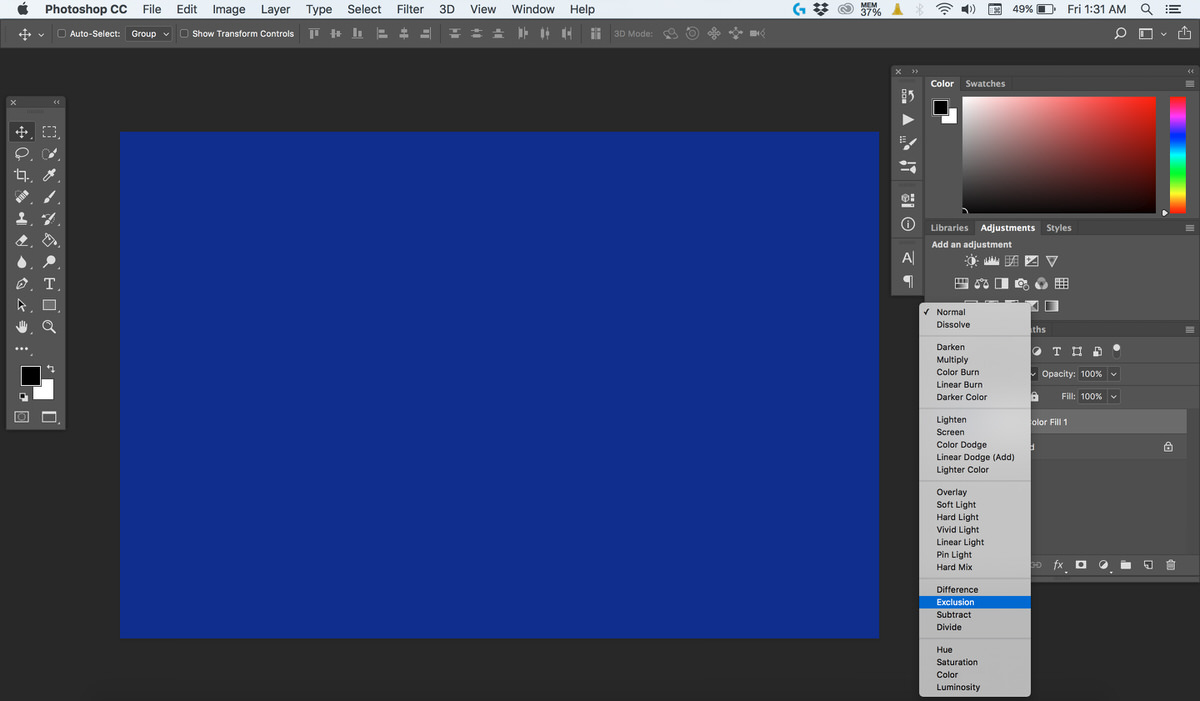 That automatic split between shadow color and highlight color is exactly the kind of two-tone grading look associated with color film stock and cinema releases.
Dialing In Opacity and Color
Once Exclusion mode is applied, lower that layer’s opacity down to around 30 percent. At full opacity the color split tends to look far too intense and artificial, but dialing it back to roughly a third of its strength tends to land in a believable sweet spot for cinematic tone rather than an overpowering, obviously-filtered color cast. 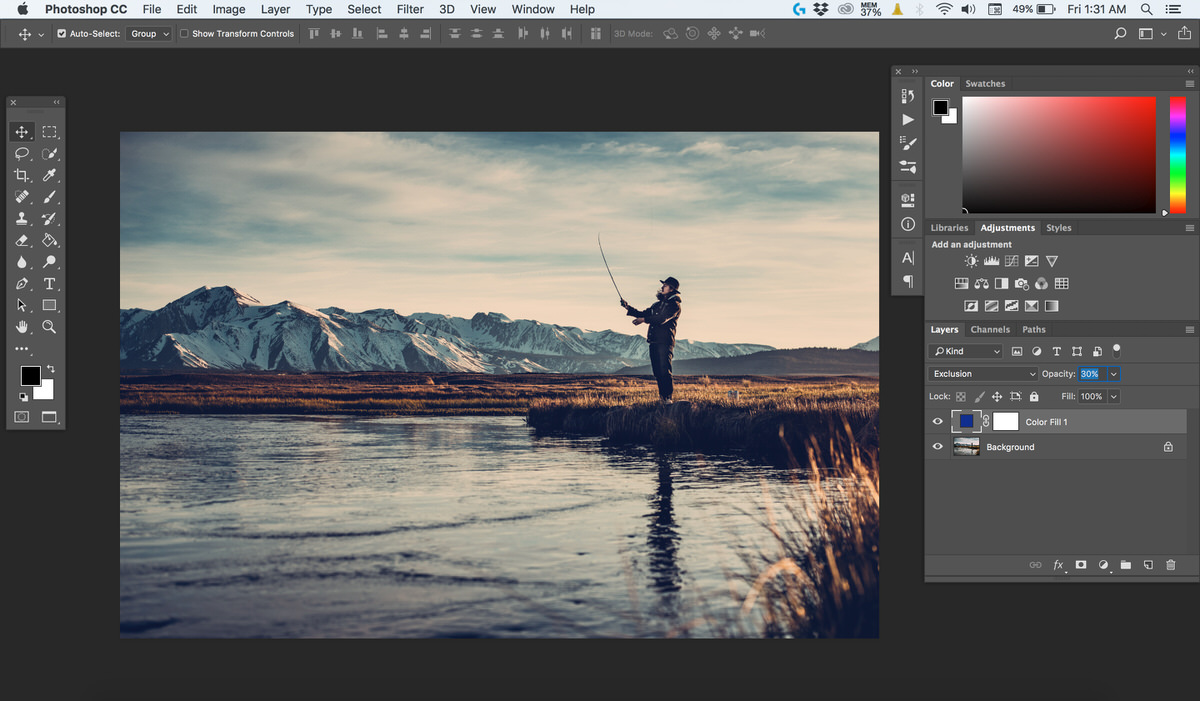 The fill color itself can be double-clicked and changed at any time after the fact, since it’s still a live adjustment layer, and staying within a cool color range (blues, teals, and similar tones) tends to work especially well when a person is in the shot, since the technique pushes cool color into the shadows while leaving warmer, more flattering tones in the highlights that fall across skin.
Loading the Free Cinematic Look Actions
Manually rebuilding a Solid Color layer and an Exclusion blend every single time would get repetitive fast, so a set of ready-made Photoshop Actions that apply this same cinematic coloring automatically is available as a free Download. To load them, open the Actions panel through Window > Actions. 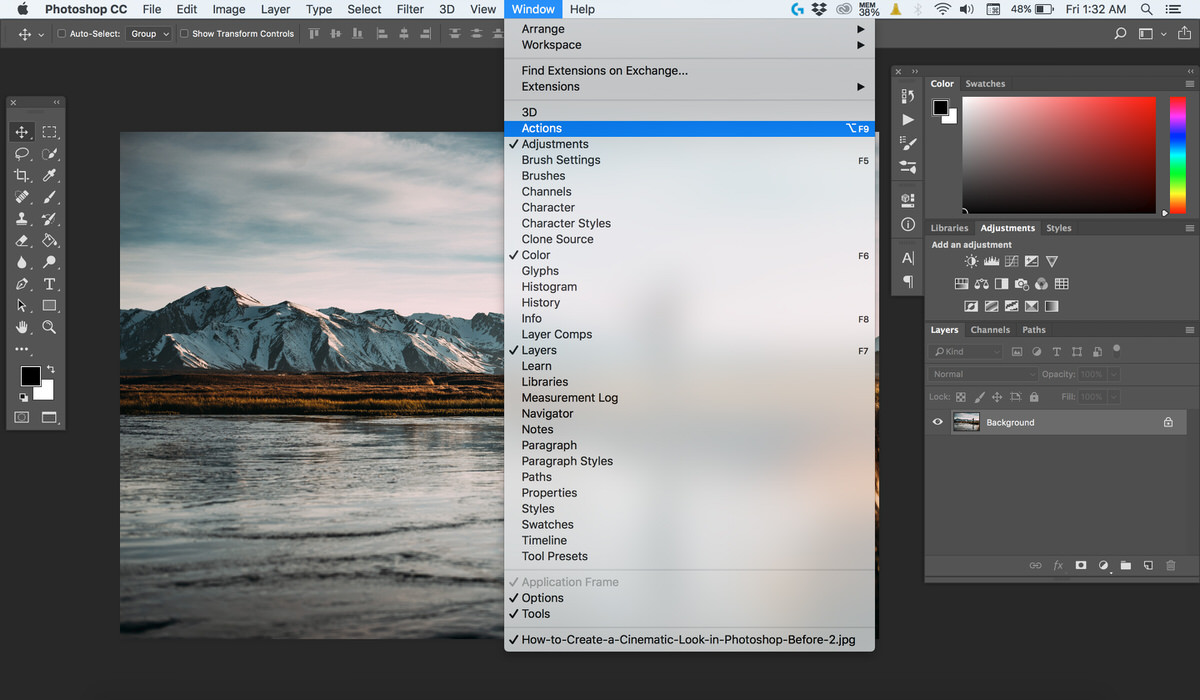
Loading the Action Set into Photoshop
With the Actions panel open, click its small menu icon in the top-right corner and choose Load Actions from the dropdown. 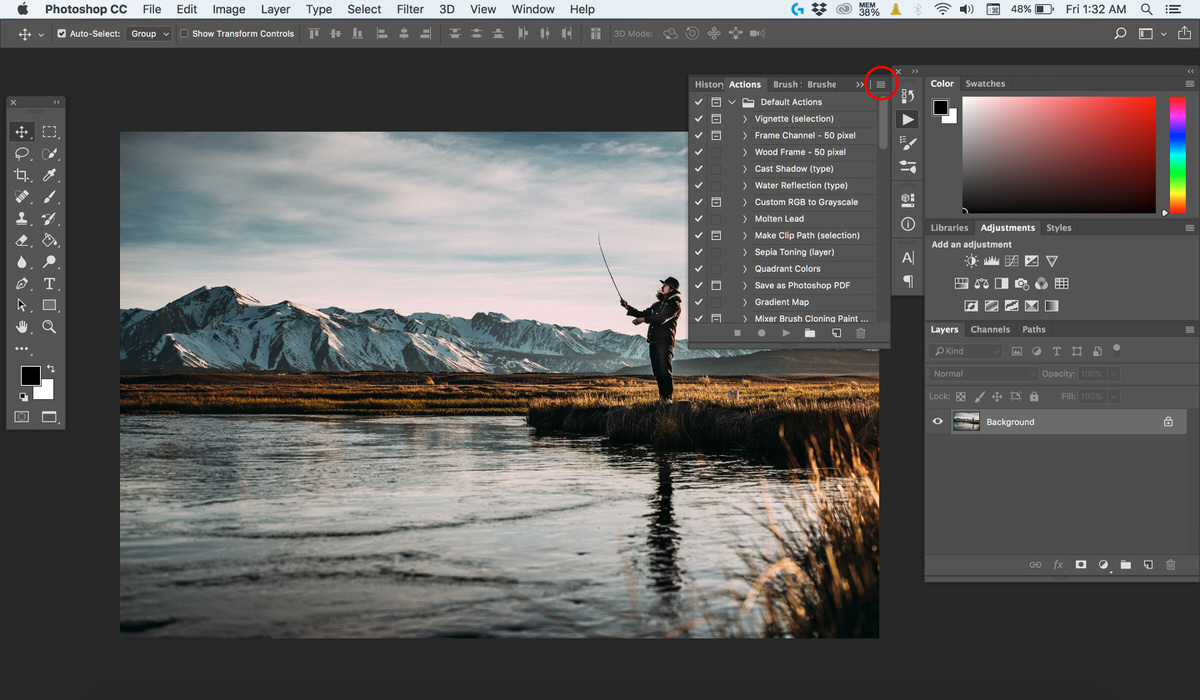
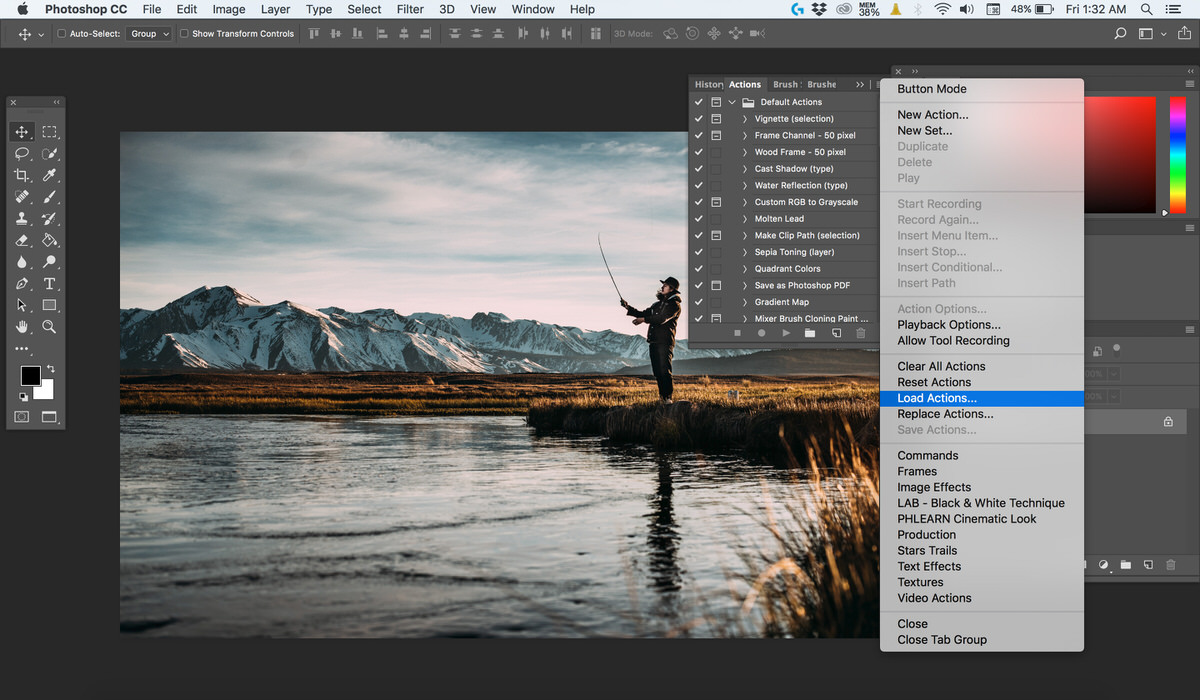 In the file browser that opens, navigate to the downloaded assets and select the “PHLEARN Cinematic Look.atn” file to load it directly into the Actions panel, where it becomes available alongside any other saved action sets.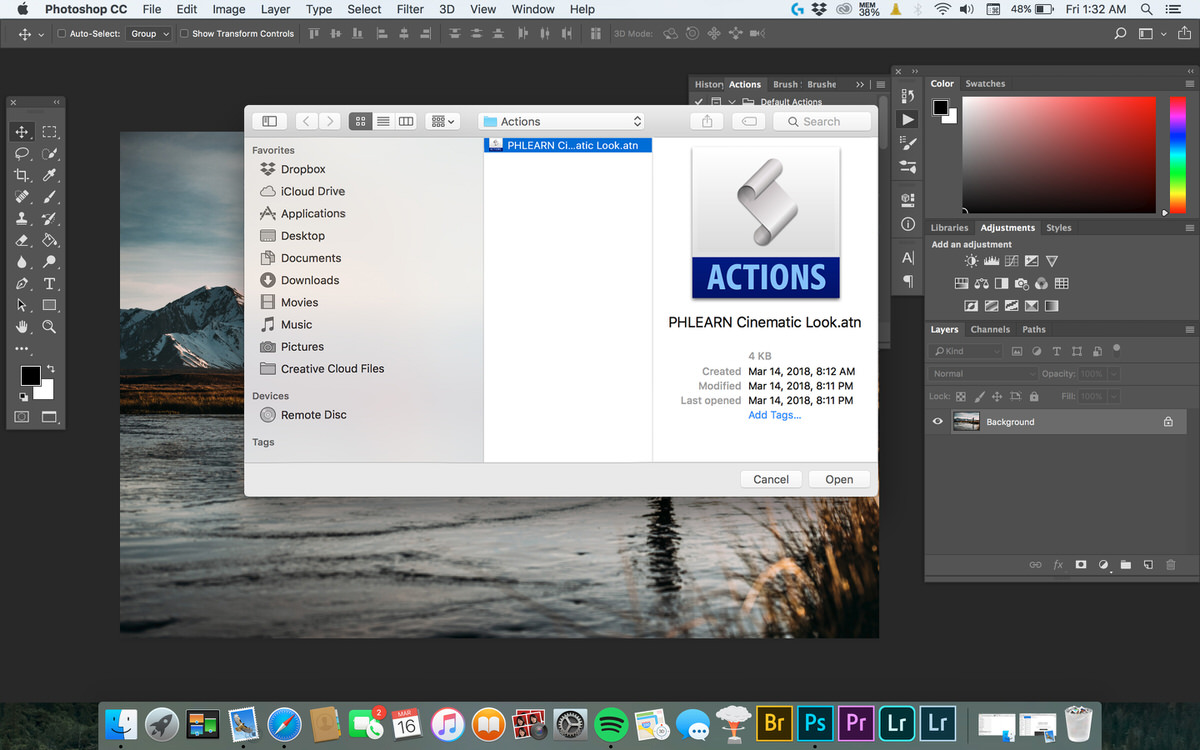
Running an Action to Tone the Image
Once the set is loaded, the Actions panel shows the PHLEARN Cinematic Look folder with five looks, PHLEARN Cinematic Look 1 through 5, each producing its own particular color treatment. Selecting whichever one looks most appealing for a given photo and clicking the Play button at the bottom of the panel applies that entire multi-step look automatically in a single click. 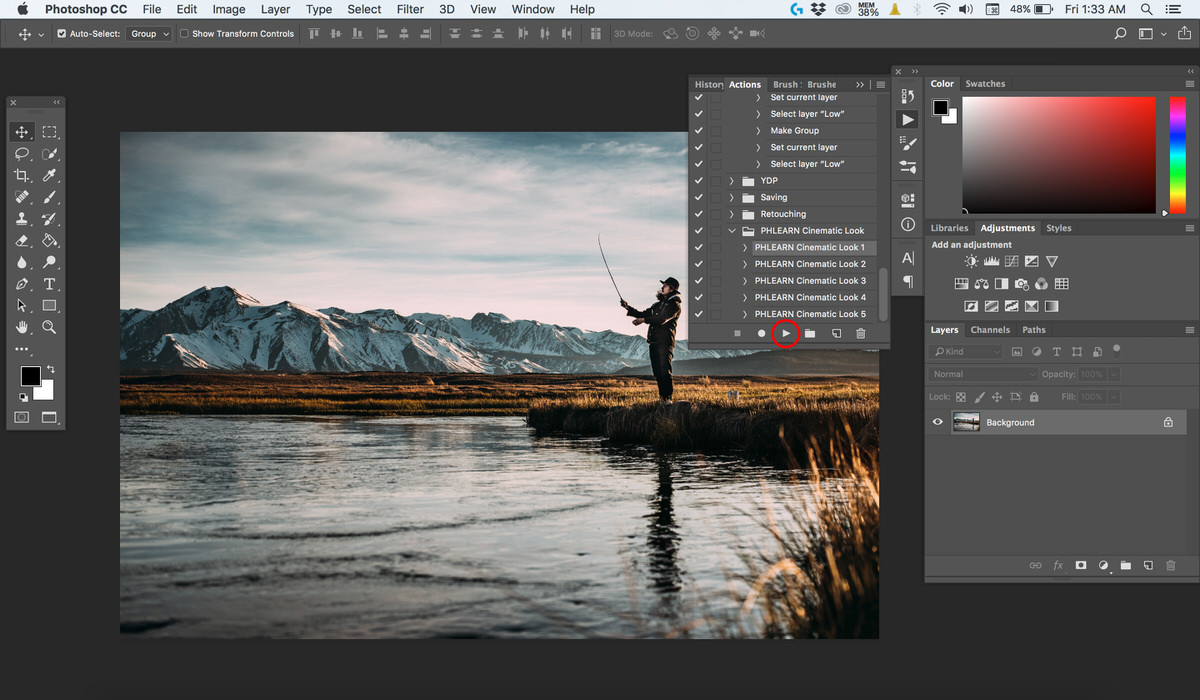 Rather than flattening the image or baking the color in permanently, each preset builds its own labeled group of layers directly in the Layers panel, so the specific adjustment layers, blend modes, and opacity values behind that look stay fully visible and editable after the action finishes running.
 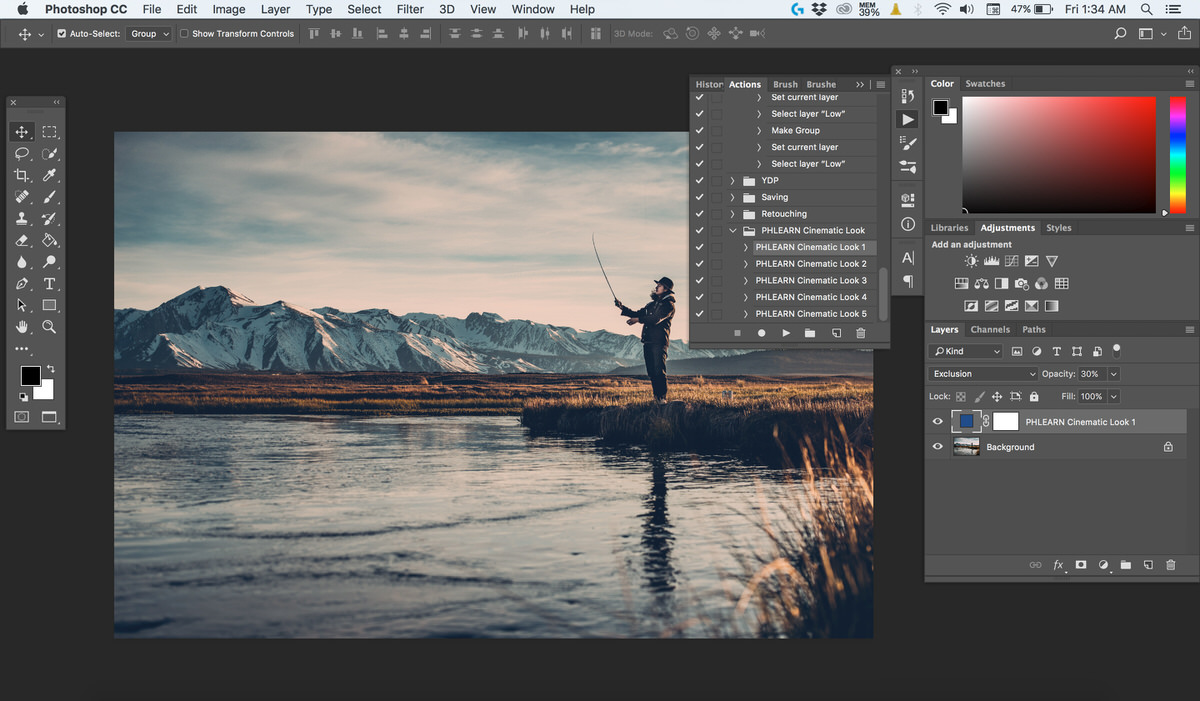 Because five different looks are included in the same downloaded set, it’s easy to try a few different looks on the same photo before settling on a favorite.
Treating a Loaded Action Like a Starting Point
Because each action produces a real, inspectable layer group rather than a locked-in, flattened effect, the resulting cinematic look is best treated as a starting point rather than a final answer. The Solid Color fill’s hue, the Exclusion layer’s opacity, or any other setting inside that group can still be nudged afterward to better match a specific photo’s existing lighting and color palette, the same way the manual version of the technique was adjusted earlier in this tutorial.
Adding Cinematic Black Bars
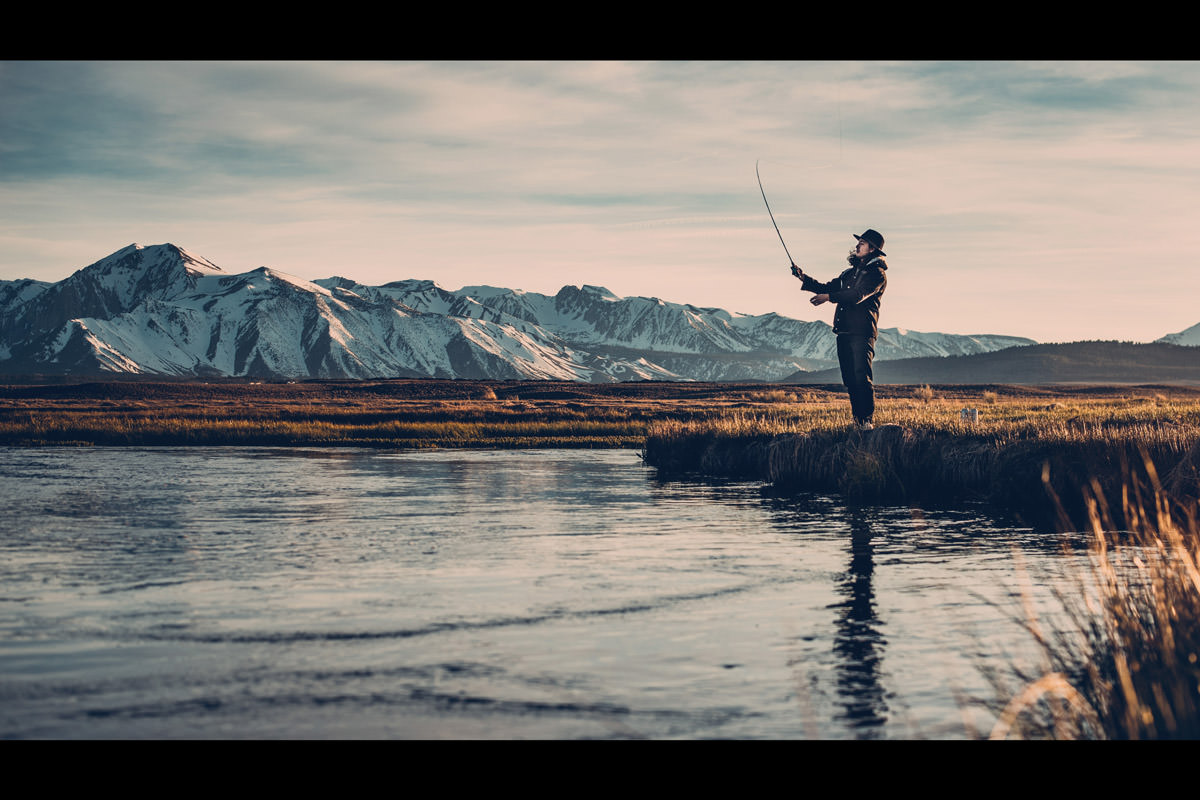
To complete the look, the last piece is adding black letterbox bars to the top and bottom of the image, visually constraining it to a 16:9 aspect ratio, the widescreen ratio associated with film and cinema releases. Go to File > Open and select the included “Cinematic-Look-Film-Bars.png” file that comes bundled with the same download as the actions. 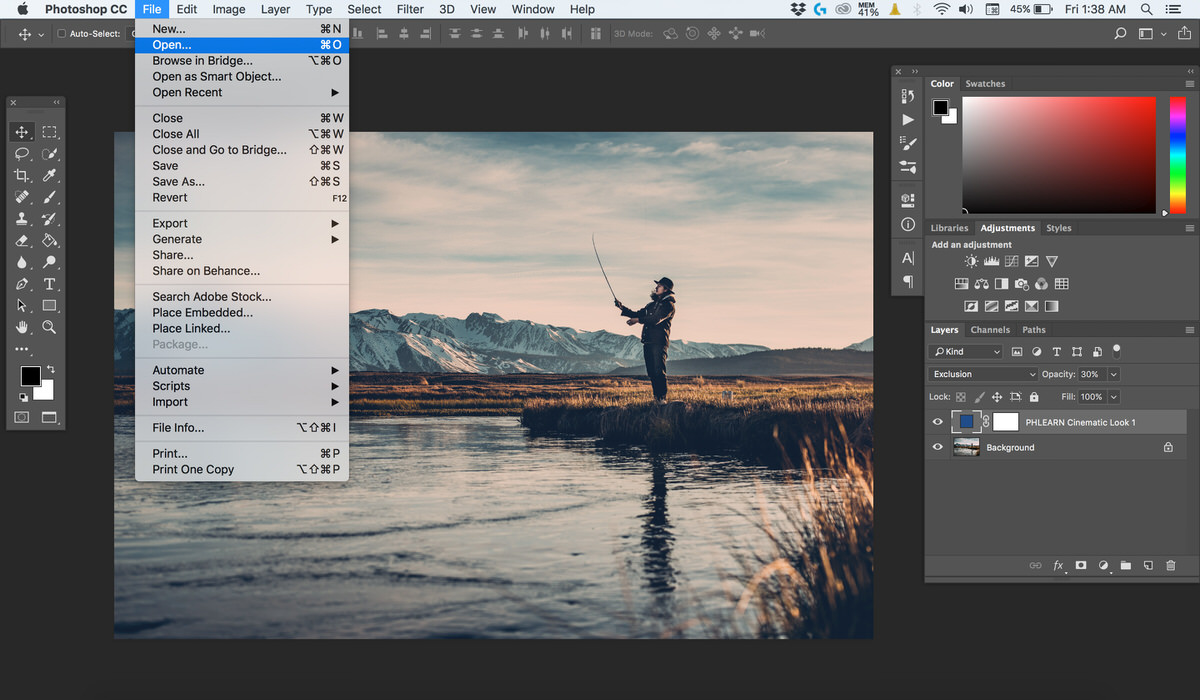
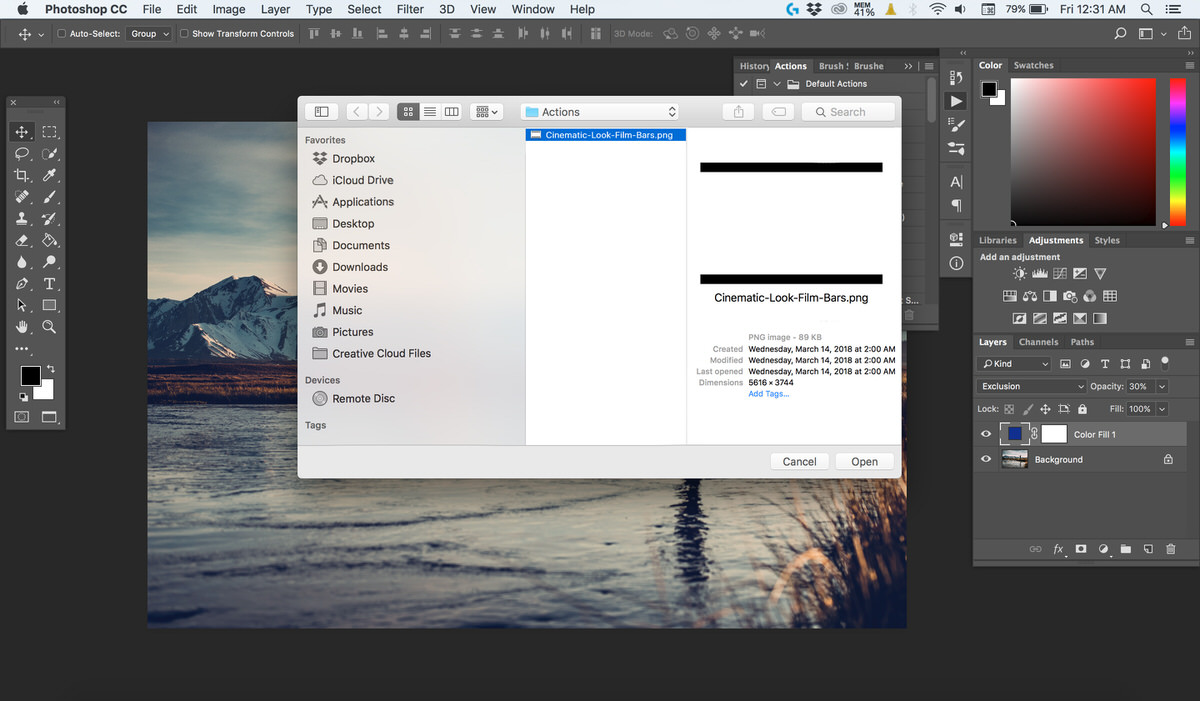
Dragging and Resizing the Bars to Fit the Frame
This PNG file has transparency built directly into it, with solid black bars along the top and bottom and a fully transparent middle section. 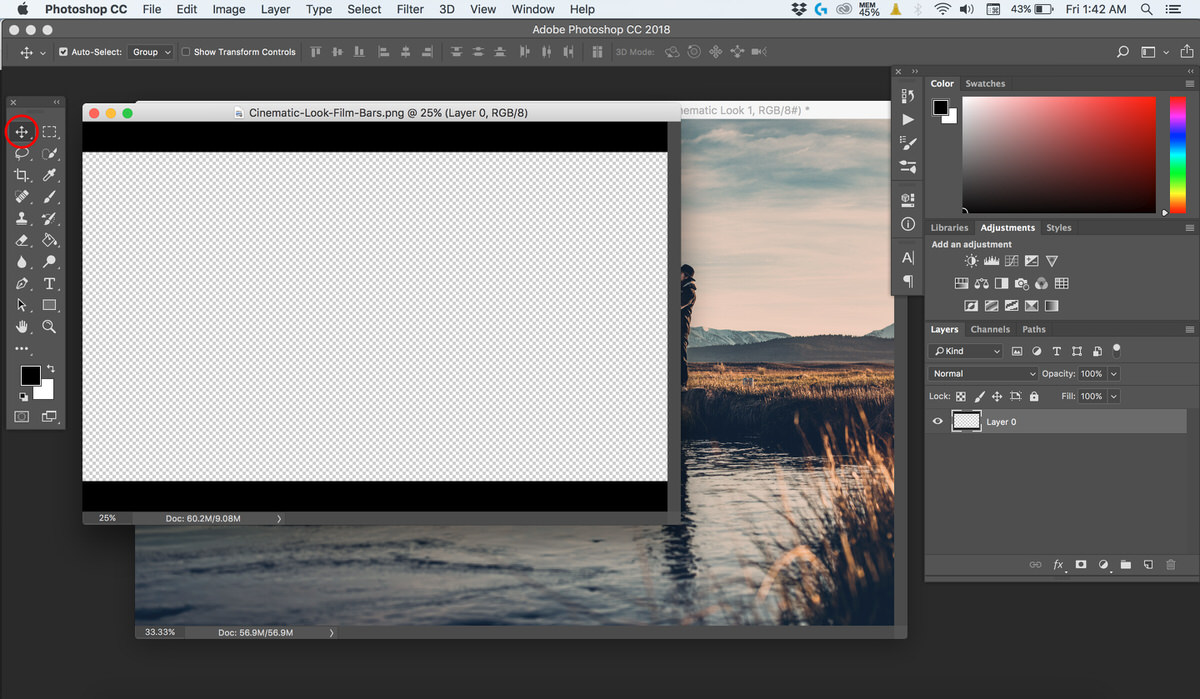 With the Move tool selected, simply click and drag the bars directly from their own document window over onto the main toned image. Once placed, the bars appear as a brand new layer sitting above the color-graded layer group.
 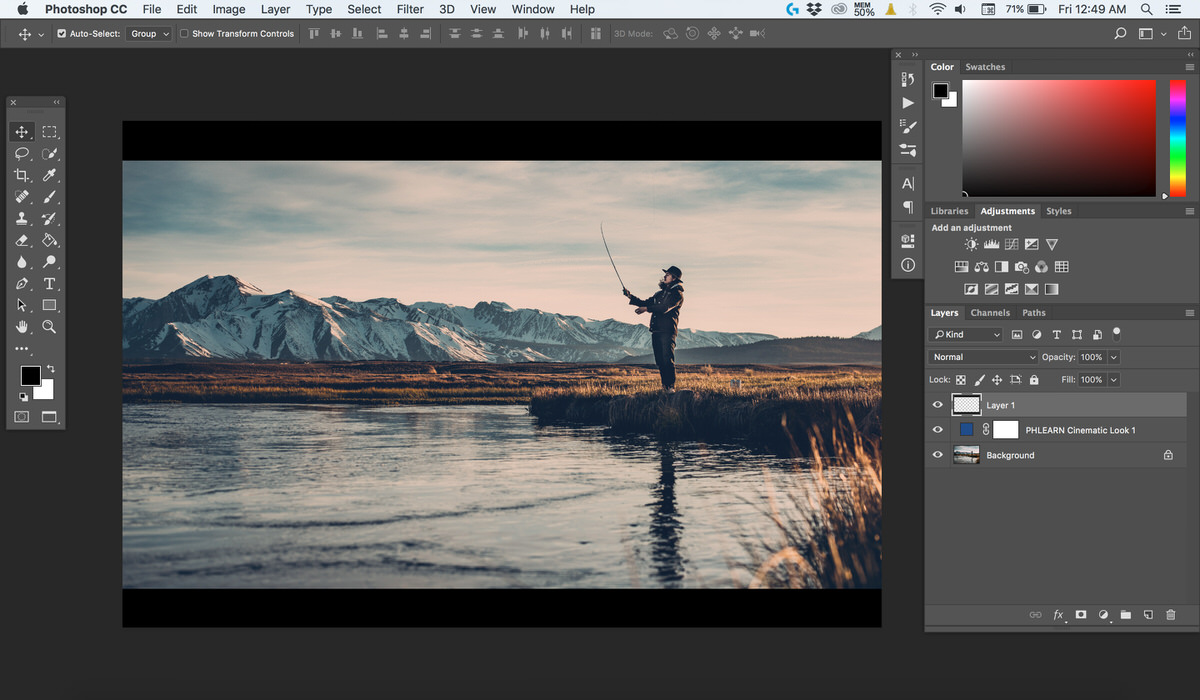 If the photo’s dimensions don’t line up exactly with the bars file, Free Transform can resize the bars layer to fit — just hold Shift while resizing so the bars keep the same aspect ratio, their original 16:9 proportions (in newer versions of Photoshop, Free Transform keeps the proportions by default and Shift unlocks them instead) so they don’t stretch out of shape while being resized to fit a differently sized or differently cropped photo.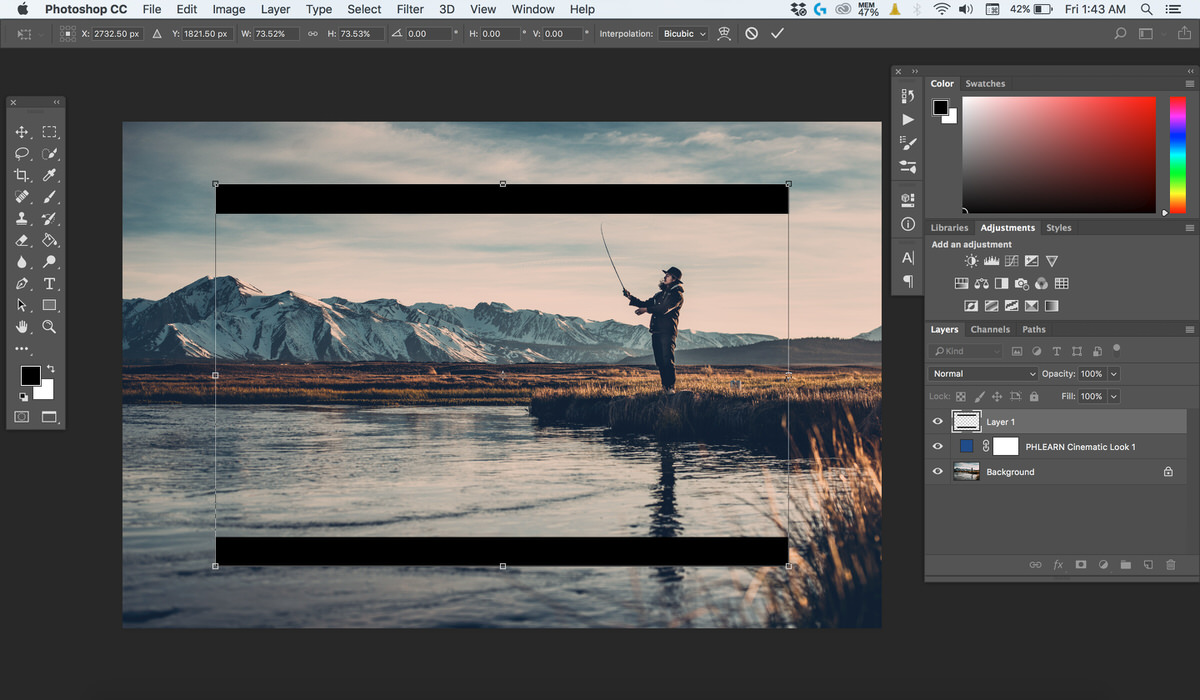
Comparing the Manual and Action-Based Approaches
Building the color grade manually with a Solid Color layer and the Exclusion blend mode, as covered in the earlier steps, and applying it instantly through a pre-built Action ultimately produce the same underlying layer structure — they’re two different paths to the exact same result. Learning the manual version first makes the action-based shortcut much more useful, since it becomes clear exactly what each preset is doing under the hood and how to adjust it afterward rather than treating it as an unchangeable black box.
Reviewing the Finished Cinematic Look
With both the color grade and the letterboxed bars now in place, the finished image reads as a genuine cinematic film frame rather than an ordinary snapshot, and the whole transformation, from a flat, evenly lit photo to a moody, widescreen composition, took only a handful of steps. 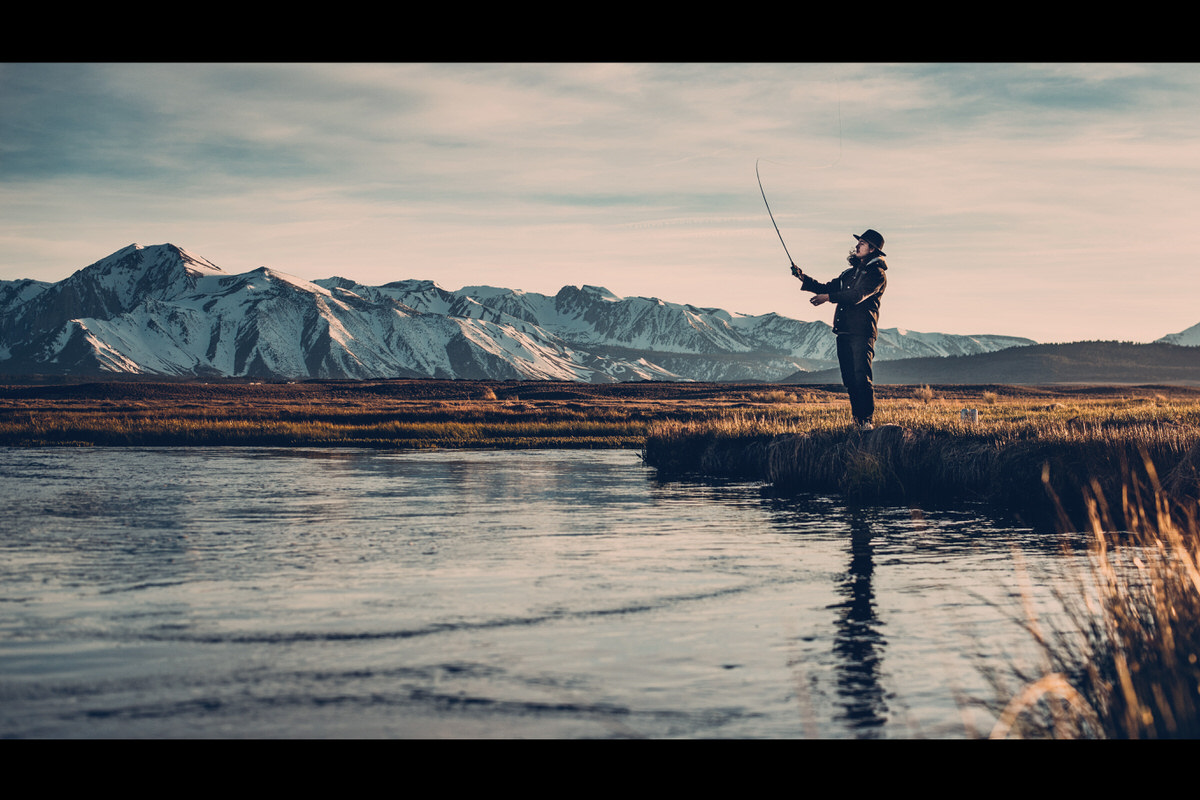 For anyone installing a Photoshop action set for the very first time, PHLEARN’s Quick Installation Guide walks through the process of getting actions set up from scratch, and if this same black-bar technique ever needs to be applied to a layer of a different size later on, the same resize steps used here for the bars carry over directly to that situation as well.
Why This Effect Works
Exclusion blend mode is what makes this color grade feel like real film stock rather than a flat color overlay, since it naturally splits a single chosen color into complementary tones across shadows and highlights instead of tinting the whole image evenly the way a simple color overlay or a basic opacity-reduced fill would. That built-in split between cool shadows and warm(er) highlights is a core visual signature of color film and cinema grading, which is exactly why this specific blend mode, out of dozens of options in Photoshop, was chosen for the effect. Packaging that entire multi-layer setup as a downloadable Photoshop Action makes it instantly repeatable across any future photo, without needing to rebuild the adjustment layer, blend mode, and opacity value by hand each time — a single click reproduces the whole look consistently. And the black letterbox bars do real perceptual work beyond simple decoration: constraining the frame to a widescreen 16:9 ratio is one of the strongest, most immediate visual cues that tells a viewer’s eye “this is a film frame,” reinforcing and completing the color work that’s already been done underneath it.
Final Thoughts
Once the free action set and the accompanying black bars PNG are both downloaded, this entire cinematic look, color grade, letterboxing, and all, can be applied to a brand new photo in well under two minutes, and every individual part of it, the color adjustment layer, its blend mode and opacity, and the black bars layer, remains fully editable afterward rather than being permanently baked into the pixels. Trying a few of the different included cinematic presets on the same photo is a fast, low-commitment way to see which particular color treatment fits a given image best before settling on a final look to export.
Quick Reference: Keys, Menus and Settings
- Add the colorNew Adjustment Layer > Solid Color, a saturated blue or another cool color
- Split the tonesBlend mode Normal to Exclusion
- Set the strengthOpacity about 30%; double-click the layer to change the color
- Load the actionsWindow > Actions, panel menu > Load Actions, PHLEARN Cinematic Look.atn
- Run a lookClick PHLEARN Cinematic Look 1 to 5, then Play
- Add the barsFile > Open Cinematic-Look-Film-Bars.png, drag in with the Move tool, Shift to resize at 16:9
No AI, no generative credits.

Free Downloads
Follow Along on the Same Photo
Get the sample photo, the black film bars PNG, the PHLEARN Cinematic Look action set with five looks and the 2-page PDF guide. Free with a PHLEARN account.
Cinematic Color in Photoshop: Common Questions
How do you get a cinematic color look in Photoshop?
Add a Solid Color adjustment layer, pick a saturated blue, set the layer’s blend mode to Exclusion and lower its Opacity to about 30%.
What does the Exclusion blend mode do here?
It adds your chosen color into the shadows and its complement into the highlights. With blue, the shadows go cool and the highlights go warm.
Why does my image look way too strong?
Exclusion at full Opacity is far too much. Bring the layer’s Opacity down to about 30%, which Aaron finds is the sweet spot for cinematic coloring.
Which color should I use for the Solid Color layer?
Just about any color works, but Aaron suggests staying in the cool color range. That gives cool shadows and warm highlights, which look really good on skin tones.
Can I change the color later?
Yes. Double-click the Solid Color adjustment layer and pick a new color at any time.
How do I load the cinematic actions?
Go to Window > Actions, click the panel menu icon, choose Load Actions and select PHLEARN Cinematic Look.atn from your download. Click a look and press Play.
How many looks are in the action set?
Five, named PHLEARN Cinematic Look 1 through 5. Each builds its own group of layers, so you can try several on the same photo and adjust what they made.
How do I add the black movie bars?
Go to File > Open and choose Cinematic-Look-Film-Bars.png. With the Move tool, drag it onto your photo; the transparent middle lets the image show through.
How do I resize the bars without stretching them?
In the video, Aaron holds Shift while resizing so the bars keep their 16:9 aspect ratio. In newer versions of Photoshop, Free Transform keeps the proportions by default.
Are the sample files free?
Yes, with a free PHLEARN account. You get 2 sample images, 1 Photoshop action and 1 PDF guide: the sample photo, the black film bars PNG, the PHLEARN Cinematic Look action set with five looks and the 2-page guide.
Master Photoshop, Lightroom and Photography
Join PHLEARN PRO for $12.99 a month or $99.99 a year. Cancel anytime, with a 100% money-back guarantee.





