How to Install Photoshop Actions
How to load an .ATN file into Photoshop, make the set permanent, play an action and give it a shortcut, run it on a whole folder, and what to do when Photoshop says a command is not available. The install takes about a minute.


Shown: Duotone Colors Photoshop Actions. Drag the slider to compare.
Load an Action in About a Minute
A Photoshop action is a recording. Someone clicked through a technique once, Photoshop wrote down every step, and now that whole sequence plays back on any photo with one click. The PHLEARN actions build the same layer stacks we teach, such as frequency separation, dodge and burn, sharpening, or a vignette, so you get a proper, editable setup without doing the twenty clicks yourself.
Installing one takes about a minute, in Photoshop on Mac and Windows, in every Creative Cloud version. Here is the whole job in three steps.
Prefer a printable guide? Download the PHLEARN Photoshop Actions install guide (PDF). It is also its own download on every pack page.
What’s Inside an Action Pack
Every PHLEARN action pack is built the same way, so these steps work for all of them. One file does the work: the .ATN in the Photoshop Actions folder.
Once installed, the actions show up as a set at the bottom of the Actions panel.
An .ATN is not an image, so you cannot open it or drag it onto a canvas. It only means something to Photoshop’s Actions panel. Keep the unzipped folder somewhere permanent, such as Documents, so you can load the set again after a Photoshop update.
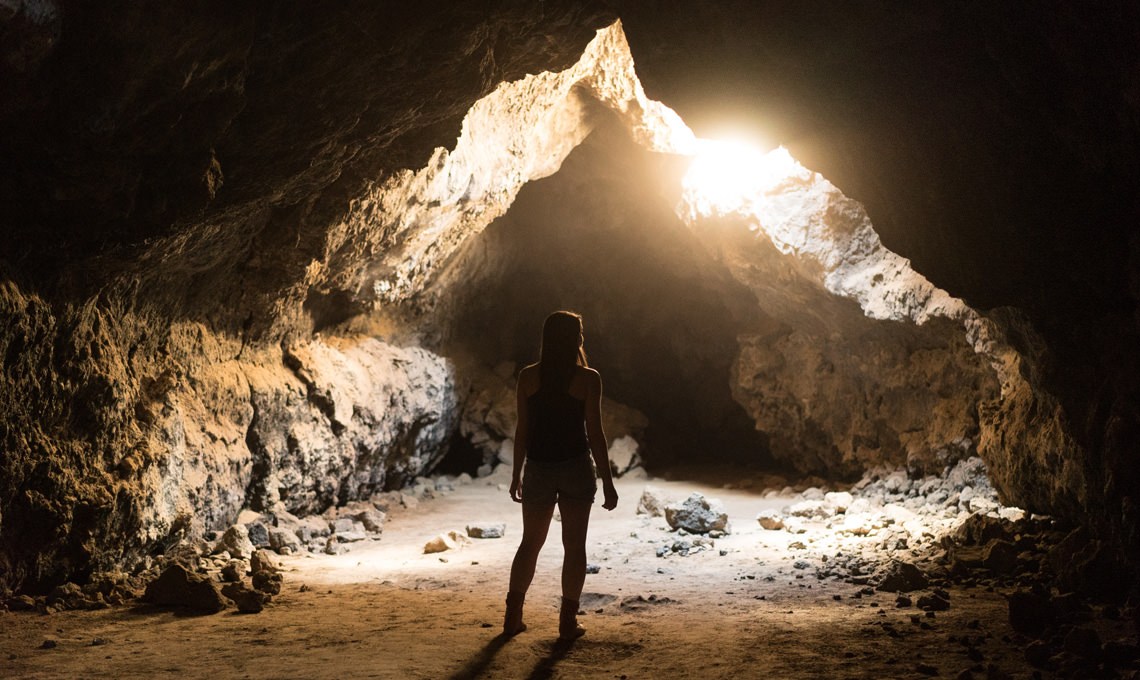
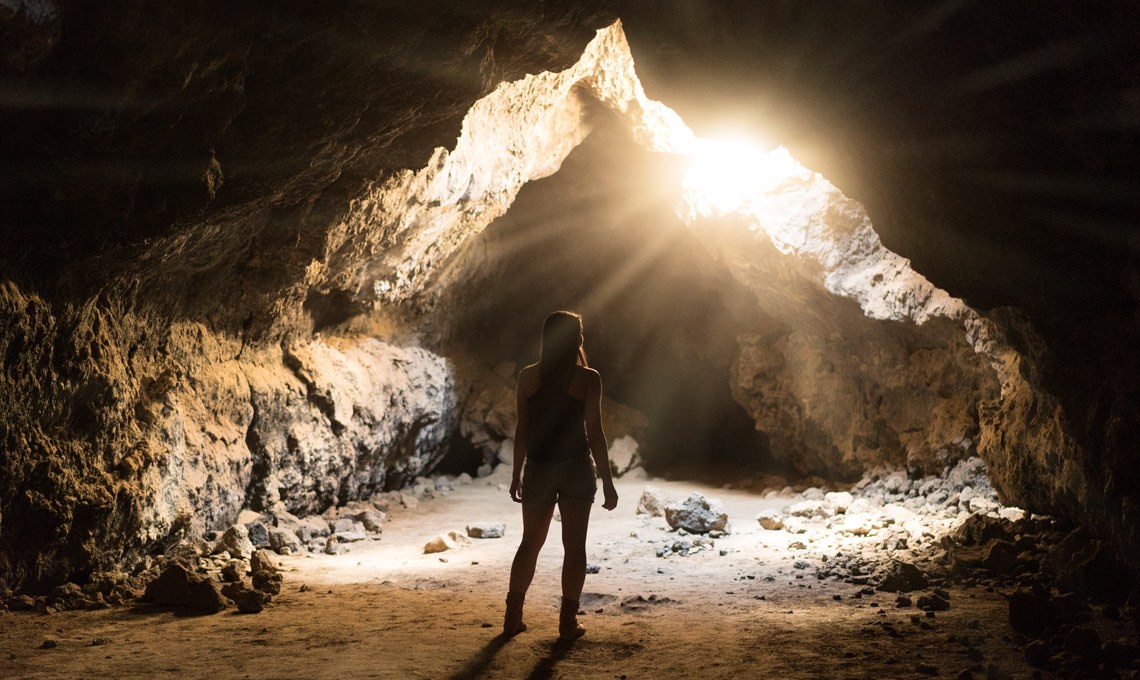
Shown: Light Rays Photoshop Action. Drag the slider to compare.
The Fastest Way to Install Photoshop Actions
This works in every version of Photoshop from CS6 onward, on Mac and Windows, and takes about as long as it takes to read.
The fastest way
Double-click the action file
- 1Unzip the download. Photoshop cannot read a zipped action.
- 2Open Photoshop and leave it running.
- 3Open the Photoshop Actions folder and double-click the .ATN file.
- 4Go to Window > Actions and scroll to the bottom.
- 5Click an action, then press Play.
Nothing happened? It worked. Photoshop shows no confirmation. New sets always land at the end of the list.
Where to click
Installing From the Actions Panel
The double-click method is faster, but the Actions panel gives you a proper file dialog. Use it when you are loading several packs at once, when a double-click opened the wrong program, or when you just want to see exactly which file you are picking.
From the Actions panel
Load the actions
- 1Open the Actions panel: Window > Actions.
- 2Open the panel menu.
- 3Choose Load Actions.
- 4Select the .ATN file and click Open.
- 5Click an action and press Play.
Shortcut. Option + F9 on a Mac or Alt + F9 on Windows opens the Actions panel.
Where to click
Two neighbors in that menu are worth knowing. Replace Actions clears everything in the panel and loads only the file you pick, which is handy when the panel gets cluttered and a disaster when you did not mean it. Reset Actions puts Photoshop’s default set back. Neither deletes your .ATN files, so anything you lose can be loaded again.
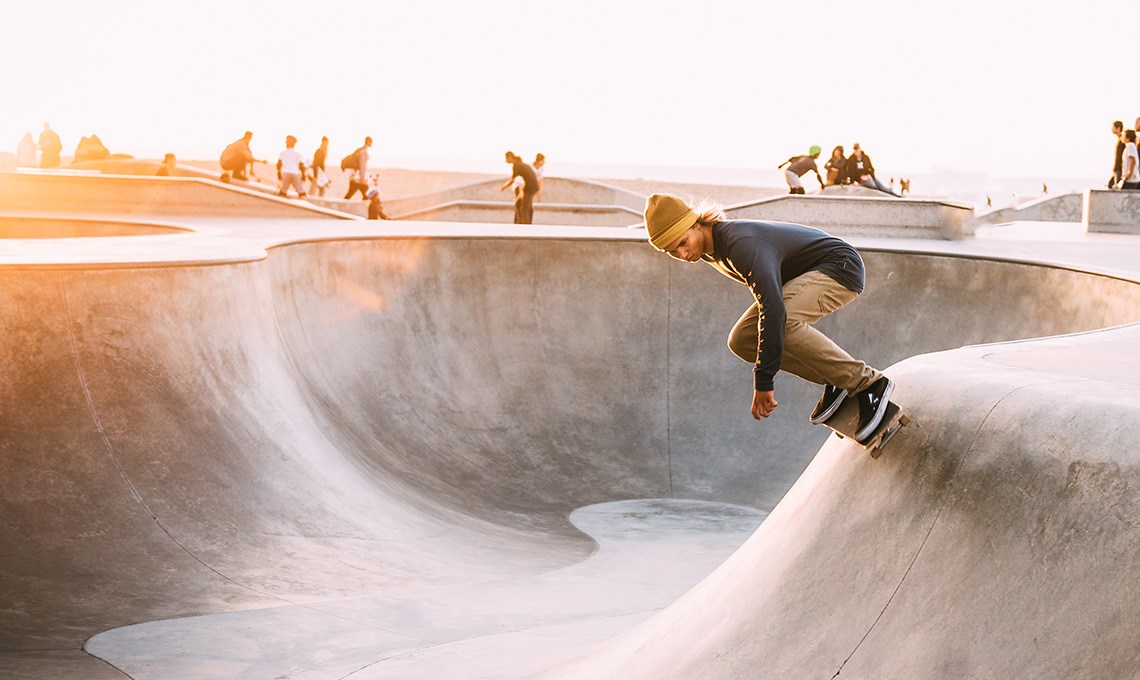

Shown: Sun Flare Photoshop Actions. Drag the slider to compare.
Make Your Actions Permanent
Once an action is loaded, it stays in the Actions panel every time you open Photoshop. The only things that clear it are resetting your preferences, a crash before Photoshop saves its settings, or Replace Actions. Copy the .ATN into Photoshop’s own Actions folder and the set also waits in the Actions panel menu, next to Photoshop’s built-in sets, after any reset.
Permanent install
Keep the actions in Photoshop
- 1Copy the .ATN file.
- 2Open Photoshop’s Actions folder (paths below).
- 3Paste the file in. Your computer may ask for your password.
- 4Restart Photoshop.
- 5Open the Actions panel menu and pick the set from the list.
Mac: Applications > Adobe Photoshop 2026 > Presets > Actions
Windows: C: > Program Files > Adobe > Adobe Photoshop 2026 > Presets > Actions
Use your version year if it is not 2026.
Where to click
Keep the .ATN, or save your own
Your original download is the backup. If you have edited an action or built a set of your own, select the set (the folder, not an action inside it) and choose Save Actions from the panel menu to write it out as a new .ATN file. Photoshop only saves whole sets, so if the option is grayed out, click the set instead of a single action.
Moving your actions to a new version of Photoshop
When Photoshop updates to a new yearly version, it usually offers to migrate your presets on first launch, and Edit > Presets > Migrate Presets does the same job later. If anything is missing afterward, load the .ATN again with either method above. It takes ten seconds, which is the whole argument for keeping the original download.
Playing an Action
Installing is the easy part. Here is how to run an action so it does what the pack’s tutorial shows.
Using an action
Play an action
- 1Open a photo and start from a clean layer stack.
- 2Check the image is 8-bit RGB. Image > Mode should show RGB Color and 8 Bits/Channel.
- 3Select the action by name and press Play.
- 4Read any message that pops up, then click Continue.
- 5Adjust the result in the Layers panel.
“Command not currently available”? The photo is 16-bit or CMYK, or the wrong layer is selected. Set Image > Mode to RGB Color and 8 Bits/Channel, click the image layer and play again.
Where to click
Already edited the photo? Merge everything to a new layer first (Cmd+Option+Shift+E on a Mac, Ctrl+Alt+Shift+E on Windows), select that layer, then press Play. Most PHLEARN actions expect to start from a single image layer.


Shown: Smart Sharpen Photoshop Actions. Drag the slider to compare.
3 Tips for Using Actions Well
Photoshop on the iPad and on the web cannot run actions. They have no Actions panel, so use the desktop app.


Shown: Black & White Photoshop Actions. Drag the slider to compare.
More Ways to Run an Action
Turn actions into one-click buttons
Choose Button Mode from the Actions panel menu and every action becomes a colored button. One click plays it. Choose Button Mode again to go back to the list view, which you need for loading new sets or looking inside an action.
Give an action a keyboard shortcut
Double-click the empty space to the right of an action’s name (or select it and choose Action Options from the panel menu), then pick a Function Key. Add Shift or Command (Mac) or Control (Windows) if that key is already taken. From then on, pressing that key plays the action, no panel required.
Run one action on a whole folder of photos
Go to File > Automate > Batch, choose the set and the action, point Source at a folder, and point Destination at a different folder so your originals stay untouched. Photoshop opens every image, plays the action, and saves the result. If you do this often, File > Automate > Create Droplet turns the same setup into a small app you can drop files onto.


Shown: Smart Vignette Photoshop Action. Drag the slider to compare.
What Trips People Up
I double-clicked the file and nothing happened
Open Window > Actions and scroll all the way to the bottom. The panel does not scroll to a new set for you. If it shows colored buttons instead of a list, you are in Button Mode; the new actions are at the bottom there too.
Photoshop says the command is not currently available
Besides the usual causes in Playing an Action (a 16-bit or CMYK photo, or the wrong layer selected), check for a locked layer, a Smart Object or text layer where the action needs pixels, or an older Photoshop that lacks the tool. Click Stop, fix the cause, and play the action again from the top.
I clicked Stop by accident
Select the action again and press Play to start over from the top. A message with Continue and Stop is part of the action, so Continue is almost always the button you want.
Photoshop is not in English and the action errors on a layer name
Actions refer to layers by name, and the default layer in a French or German Photoshop is not called “Background”. Rename your layer to match what the action asks for, or set Photoshop’s language to English in Preferences > Interface, run the action, then switch back.
Photoshop could not load the actions
Either the .ATN is still inside the .zip, or the download did not finish. Unzip it, check that the file size looks reasonable (a few kilobytes at least), and download it again if it does not.
My actions vanished after an update or a reset
Resetting preferences, or Replace Actions, clears the panel. Load the .ATN again with either method above. If you copied the pack into the Presets > Actions folder, it is also waiting in the Actions panel menu.
The result looks different from the tutorial
The photo decides the outcome. A full-resolution file and a small web export respond very differently to the same blur radius or sharpening amount, so run actions on the full-size image. If the effect is too strong, lower the opacity of the layer or group the action created.
Does it work in Photoshop Elements or an older Photoshop?
Elements 11 and newer has an Actions panel in Expert mode (Window > Actions) and reads the same .ATN files, but it is missing some tools, so the retouching setups may stop partway through. We build and test our actions in Photoshop. Older Photoshop versions, back to CS6, load actions the same way; a very old version may lack a filter a newer action calls.
Learn What the Actions Are Doing
Every PHLEARN action automates a technique we teach in full. If you want to understand the layers an action builds, or do the same thing by hand, start with the free tutorials in Retouching and Color Grading, then browse the full PHLEARN Photoshop actions library.