Dark & Moody Lightroom Presets for Classic & Mobile
-

-
Add to
favorites
-
Software
-
CompatibilityLightroom Classic & Mobile
-
Lightroom presets10 Dark and Moody Presets
-
Works in every Lightroom.xmp for Classic, Desktop & Mobile
-
Backup for older app versions.dng for Lightroom Mobile
-
In the download4 Sample Images + PDF Guide
Lightroom Preset Downloads
Install Guide
How to Install Your Presets
A short PDF that walks you through installing this pack in Lightroom Classic, Lightroom desktop and Lightroom on your phone, plus three tips for better results.
DESCRIPTION
A picture tells a story, why not make it interesting? From sunny forest portraits to bright and open landscapes, give any image that brooding and dramatic look in a single click.
Shadows and highlights both come down with every preset, and most also lower saturation and darken the corners, a good match for woodland portraits, overcast weddings and rugged landscapes. After you apply one, raise Exposure if a face sits too deep in shade.
One zip holds the 10 presets as .xmp files, which work in Lightroom Classic, Lightroom on your computer and Lightroom on your phone, plus .dng versions for older releases of the mobile app, each in its own labeled folder, with 4 sample images to practice on and the PDF install guide.
TRY THEM FOR FREE
Want to try our Presets before you buy? Check out our FREE Lightroom Presets Sample Pack with 10 of our favorite looks for Lightroom Classic and Mobile.
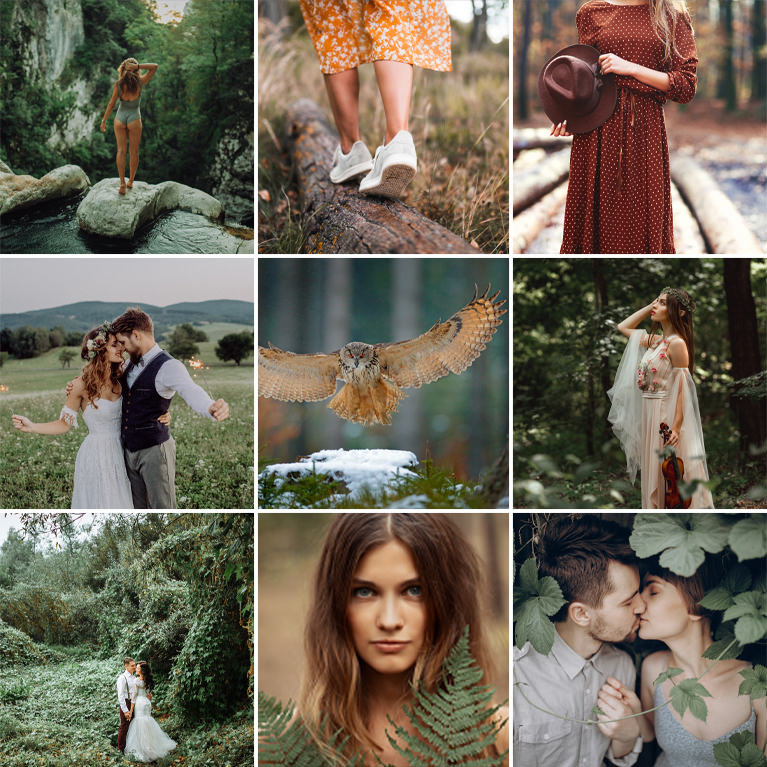
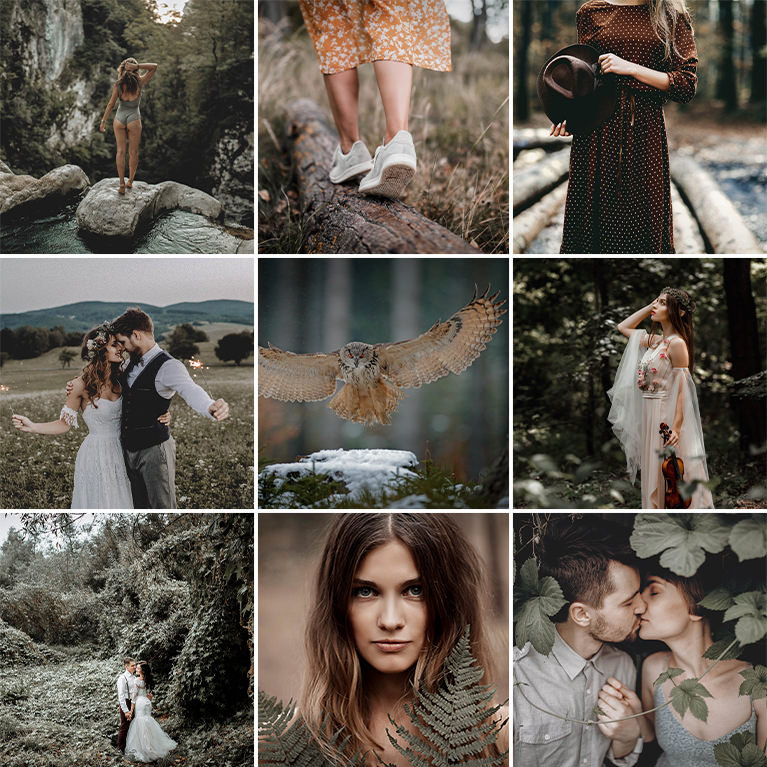
PHLEARN PRO · Lightroom Presets
Dark and Moody Lightroom Presets
10 presets4 sample imagesLightroom Classic & Mobile
Dark and Moody Lightroom Presets · 10 Looks
Deep Shadows and Muted Olive Greens
Ten presets that darken the shadows, quiet bright greens and keep skin light. They work in Lightroom Classic and in Lightroom on desktop and mobile.
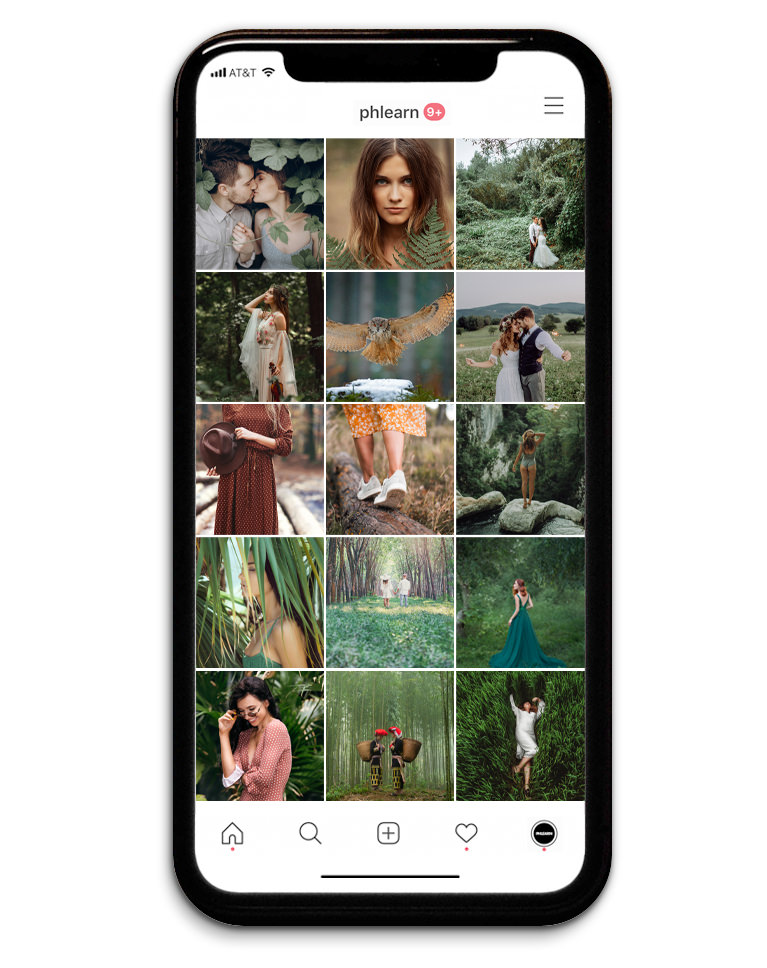
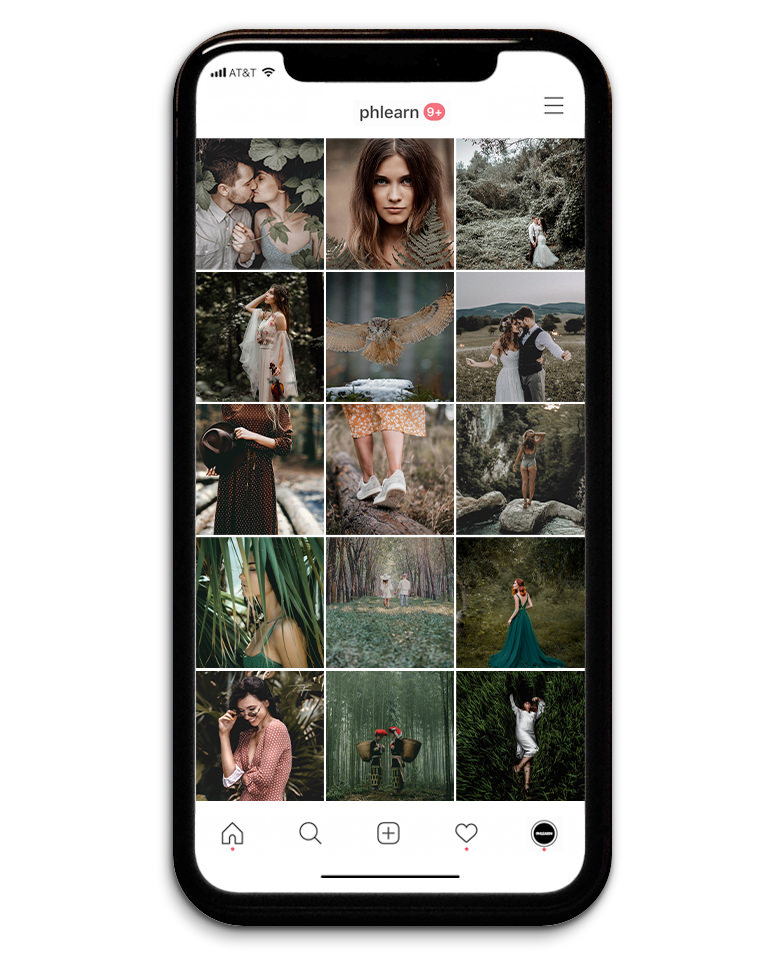
One Mood for the Whole Feed
The Dark and Moody pack is ten presets that darken the shadows, pull bright greens down toward olive and keep skin light. Across a feed of forest portraits, weddings and landscapes, the photos share one brooding, muted style. None of the ten change exposure, so the mood comes from tone and color.
Greens Darkened in Every Preset
Every preset in the pack darkens greens, lowers their saturation and shifts them toward yellow. Busy foliage turns into quiet olive and brown instead of fighting with the subject. Yellows also get darker and less saturated in all ten.
Skin Stays Bright
Oranges get brighter in every preset while the shadows are pulled down, so faces stand out from darker surroundings without turning muddy. Highlights come down in all ten, nine deepen the blacks, and seven add a dark vignette.
Best on: forest and woodland portraits, moody weddings, and dark, green landscapes.

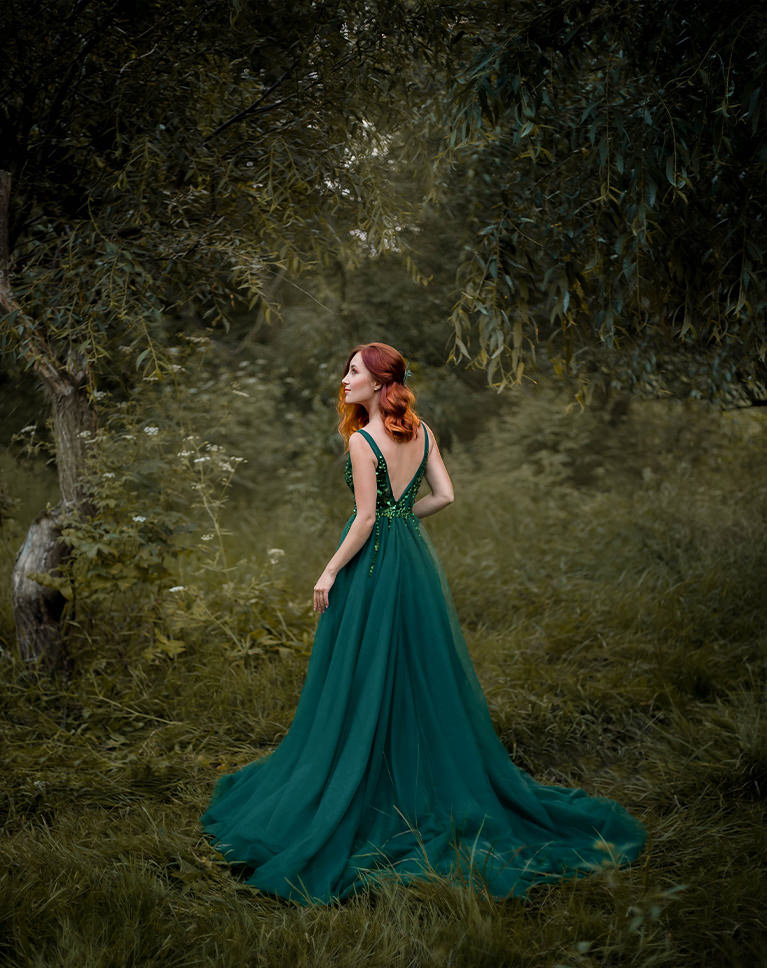
Dark Tealite
Dark Tealite pulls the bright forest greens down into deep olive and brown and darkens the edges of the frame. The teal gown and red hair keep their color, so they become the focus. Exposure does not change, so all of the darkening comes from the tone settings.
Greens Turned to Olive
Greens shift strongly toward yellow, lose some saturation and get much darker, and yellows darken too. A warmer, slightly magenta white balance adds to the earthy brown. Blues and aquas also lose saturation, and blues get noticeably darker.
Heavy Highlight Recovery
Highlights are pulled down hard and the shadows and blacks drop a lot, with a dark vignette around the edges. Reds gain a touch of color and get darker, which helps red hair stand out. Contrast also eases a little, and clarity and texture drop slightly for a softer finish.
Best on: forest and woodland portraits, storybook-style shoots, and gowns outdoors.
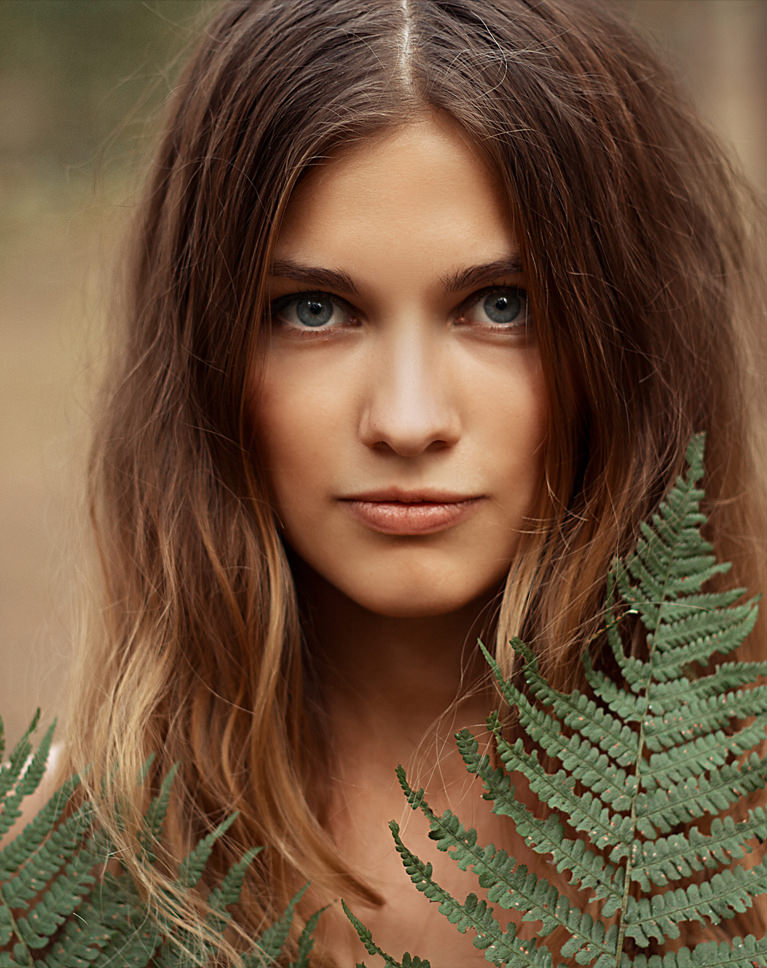
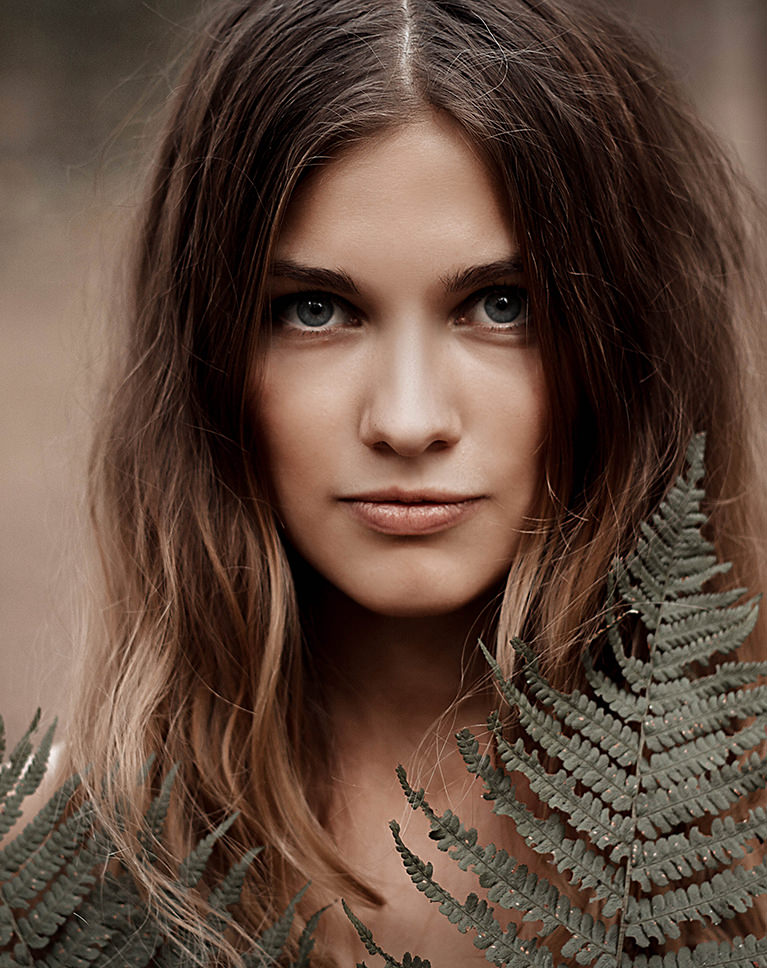
Warm Sable
Warm Sable darkens the soft brown background and turns the fern a muted gray-green. Her face gets a little brighter against the darker frame, so her eyes and features stand out. Highlights come down as well, and the white balance does not change.
Brighter Skin, Muted Greens
Oranges and reds get brighter while greens shift toward yellow, lose a lot of color and get darker. Skin keeps its glow as foliage fades into the background. Yellows also shift toward orange, lose saturation and get darker.
Lower Contrast, Lifted Lights
Contrast comes down, shadows and blacks are deepened, and the light tones on the curve go up. A soft vignette darkens the edges around the face, and overall saturation comes down while vibrance goes up, so skin keeps its color. The curve also pulls the brightest highlights down slightly.
Best on: close-up portraits, natural-light headshots, and outdoor portraits with foliage.
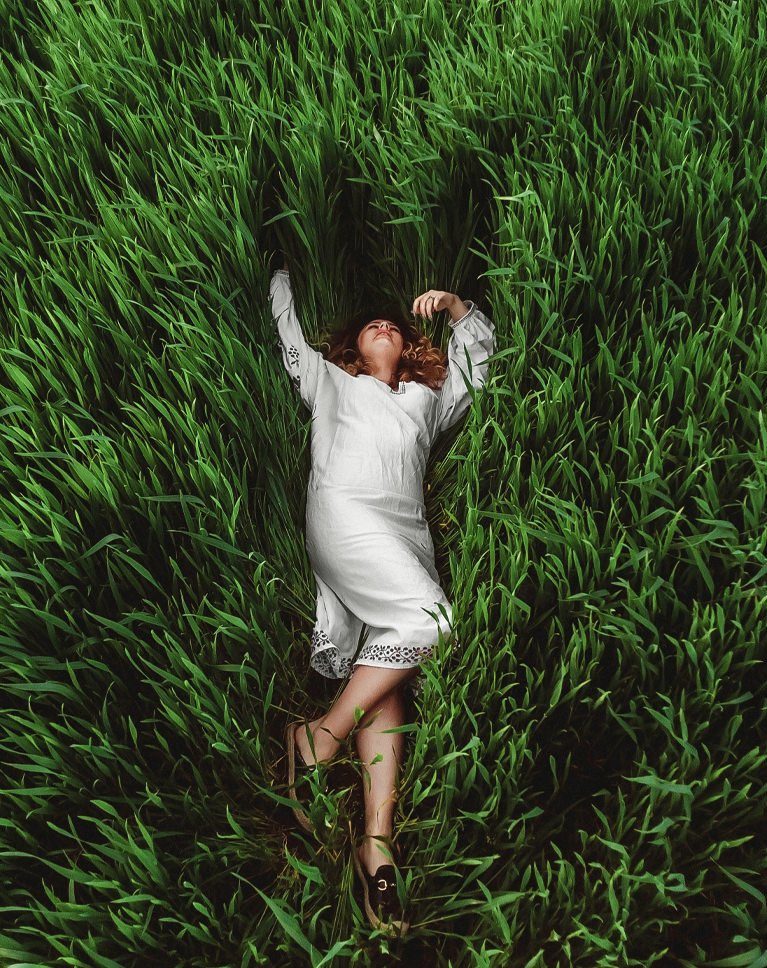
Black Satin
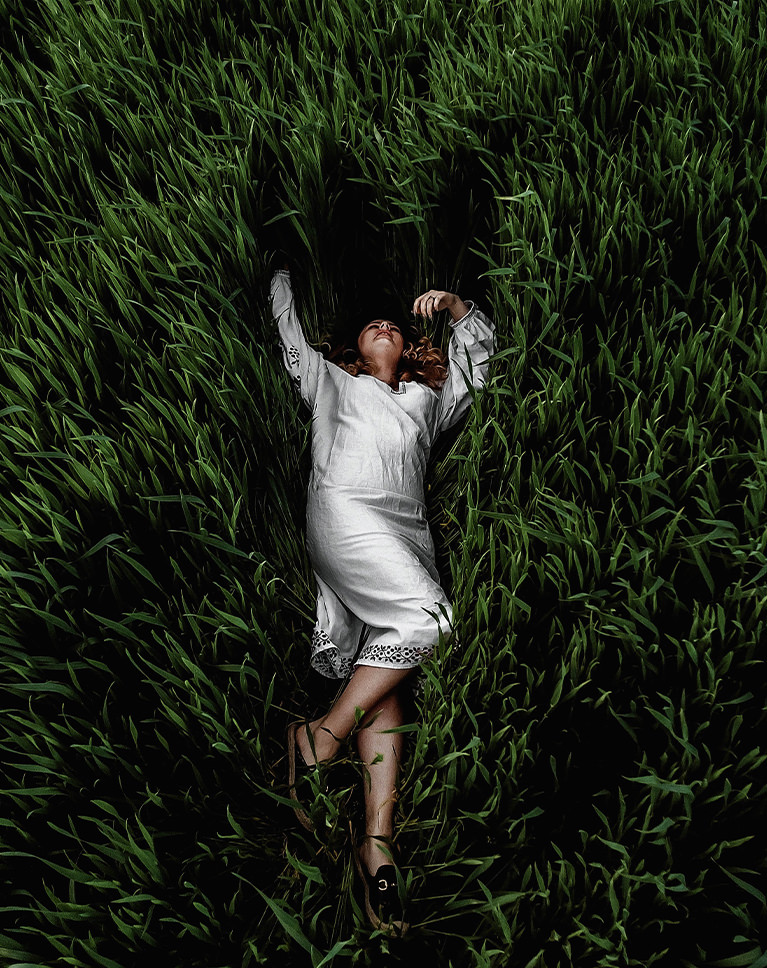
Black Satin drops the shadows in the tall grass close to black and turns the bright green blades a darker, deeper shade. Her white dress stands out against the dark surroundings. Highlights come down by 51 as well, and a light vignette darkens the edges.
Crushed Shadows, Bright Whites
Shadows are pulled down hard, with the slider and on the curve, while contrast, whites and the light tones go up. Dehaze and a touch of clarity add a little extra punch to the grass. Texture also rises slightly, which brings out fine detail.
Cooler, Calmer Color
The white balance cools slightly and overall saturation and vibrance come down. Greens and yellows get darker and less saturated, while oranges brighten to keep skin light. Blues and aquas also turn darker and less saturated.
Best on: overhead shots in grass or fields, light clothing against dark surroundings, and dramatic outdoor portraits.
What’s in the Download
One zip, desktop and mobile
One zip with both versions in labeled folders: .xmp presets for Lightroom Classic, desktop and mobile, and .dng backups for older releases of the mobile app, plus 4 sample images to practice on. In Lightroom they show up under User Presets.
- ZIPPHLEARN Dark and Moody Lightroom Presets 2026.zipDesktop and mobile presets in one download, 10.1 MB
- XMPLightroom Classic, Desktop & Mobile (.xmp)10 presets for every Lightroom app
- DNGLightroom Mobile Backup (.dng)The same 10 for older releases of the mobile app
- JPG4 Sample ImagesFree-to-use practice photos
- PDFPHLEARN Lightroom Presets - Install Guide (2026).pdfClassic, desktop and mobile install steps
- PHLEARN-Dark & Moody-Black Ink
- PHLEARN-Dark & Moody-Black Satin
- PHLEARN-Dark & Moody-Crisp Onyx
- PHLEARN-Dark & Moody-Crisp Raven
- PHLEARN-Dark & Moody-Dark Tealite
- PHLEARN-Dark & Moody-Light Coal
- PHLEARN-Dark & Moody-Midnight Blacks
- PHLEARN-Dark & Moody-Mill Springs
- PHLEARN-Dark & Moody-Soft Jade
- PHLEARN-Dark & Moody-Warm Sable
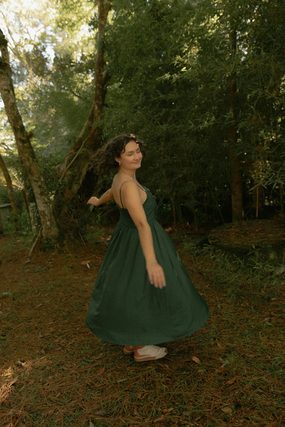
The 4 sample images



Lightroom Preset Questions, Answered
What’s included in the Dark & Moody Lightroom Presets?
The pack includes 10 presets: Midnight Blacks, Dark Tealite, Mill Springs, Black Satin, Soft Jade, Crisp Onyx, Light Coal, Warm Sable, Crisp Raven and Black Ink. They come as .XMP presets for Lightroom Classic, Lightroom desktop and Lightroom on your phone, plus .DNG versions for older versions of the mobile app.
What kind of photos are the Dark & Moody Lightroom Presets made for?
From sunny forest portraits to bright, open landscapes, they give an image a brooding, dramatic look. The style is edgy and hyper stylized: high contrast and muted tones. Most presets also add subtle oranges and reds for a dark, cozy vibe, and they can be applied across a whole series for a consistent style.
How do the Dark & Moody presets add contrast without losing detail?
They are designed to preserve highlights, lower the midtones and darken the shadows without crushing them. Strong vignetting and deep midtones draw the eye to your subject, and while the presets desaturate a lot of color, they are built to preserve skin tone.
Are Lightroom Presets included in my PHLEARN PRO subscription?
Yes. A PHLEARN PRO membership includes every Lightroom Preset pack, plus PRO Tutorials, LUTs, Photoshop Actions and Photoshop Brushes.
Which version of Lightroom do I need?
The .XMP presets work in Lightroom Classic 7.3 and newer, in Lightroom on your computer and in Lightroom on your phone. For older versions of the mobile app, use the .DNG files in the download. We recommend the latest version.
How do I install Lightroom Presets?
In Lightroom Classic, open the Develop module, click the + in the Presets panel, choose Import Presets and select the .XMP files. The PDF install guide in your download covers Lightroom on your computer and your phone too, and every method is on our Lightroom Presets install guide.
I imported the pack, but I can’t see it.
The new group arrives collapsed and sits in alphabetical order. Scroll the Presets panel, find the group named after the pack and click its arrow.
Do I have to install the presets on my phone separately?
Not if you import them into Lightroom on your computer: within a few minutes they show up in Lightroom on any device signed in to the same Adobe account. If you use Lightroom Classic, import the .XMP files in the mobile app: open a photo, tap Presets, then Yours, then the three-dot menu and Import Presets.
Do the presets work on RAW and JPEG photos?
Yes. Every preset is built to work on both RAW and JPEG files, and each one can be adjusted after you apply it.
The preset looks too strong. What do I do?
Lower the Amount slider at the top of the Presets panel, then adjust White Balance and Exposure for that photo. Every photo starts from different light.
Do you offer refunds?
Because these are downloadable products, all sales are final and we are not able to offer refunds.
Terms of Use
These Presets are licensed for personal and professional use by the individual who purchased or downloaded them. The license does not extend to companies or partnerships, and the files may not be resold, loaned, gifted, shared, copied or redistributed. All PHLEARN Presets are copyright protected.
Master Photoshop, Lightroom and Photography
Join PHLEARN PRO for $12.99 a month or $99.99 a year. Cancel anytime, with a 100% money-back guarantee.





