Forest Tone Lightroom Presets for Classic & Mobile
-

-
Add to
favorites
-
Software
-
CompatibilityLightroom Classic & Mobile
-
Lightroom presets10 Forest Tone Presets
-
Works in every Lightroom.xmp for Classic, Desktop & Mobile
-
Backup for older app versions.dng for Lightroom Mobile
-
In the download4 Sample Images + PDF Guide
Preset Downloads
Install Guide
How to Install Your Presets
A short PDF that walks you through installing this pack in Lightroom Classic, Lightroom desktop and Lightroom on your phone, plus three tips for better results.
DESCRIPTION
Add emerald greens, golden browns, and rich forest-inspired coloring to your images with our Forest Tone Lightroom Presets!
With every preset the blacks go deeper and the highlights come down, and most raise contrast too, a good match for portraits in woods, gardens and leafy parks. After you apply one, lift Shadows if a face falls too dark against the trees.
One zip holds the 10 presets as .xmp files, which work in Lightroom Classic, Lightroom on your computer and Lightroom on your phone, plus .dng versions for older releases of the mobile app, each in its own labeled folder, with 4 sample images to practice on and the PDF install guide.
TRY THEM FOR FREE
Want to try our Presets before you buy? Check out our FREE Lightroom Presets Sample Pack with 10 of our favorite looks for Lightroom Classic and Mobile.
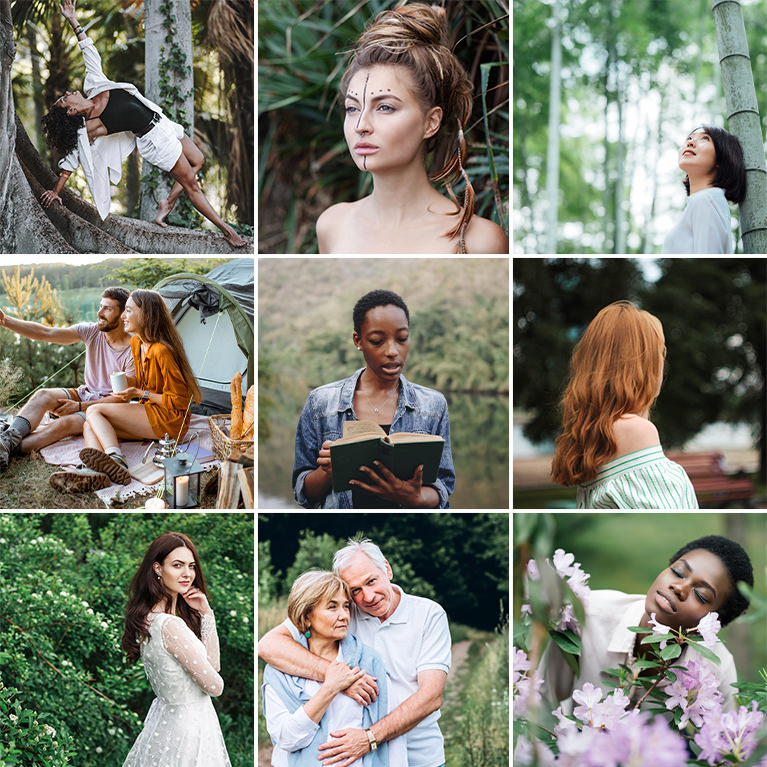
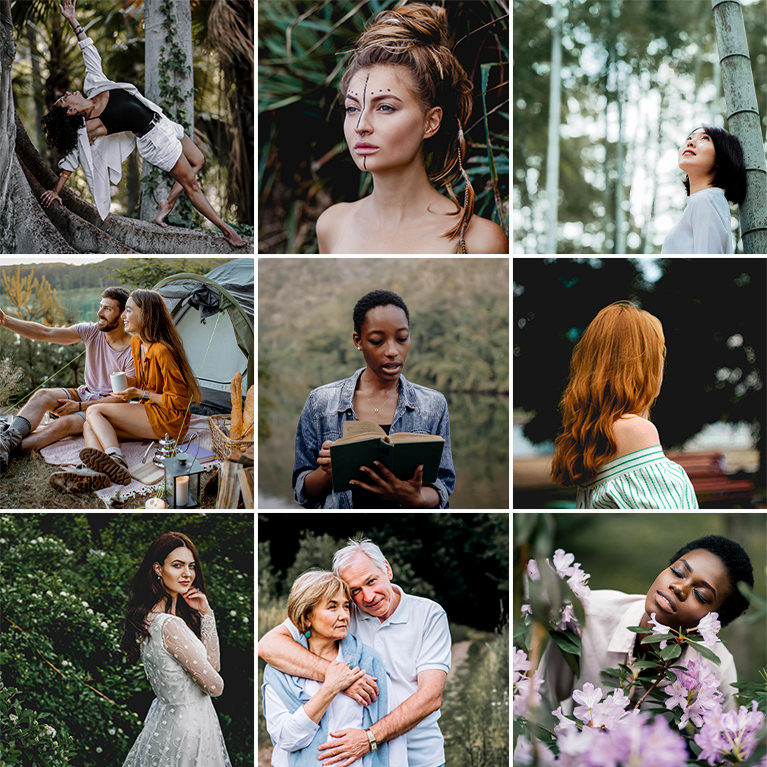
PHLEARN PRO · Lightroom Presets
Forest Tone Lightroom Presets
10 presets4 sample imagesLightroom Classic & Mobile
Forest Tone Lightroom Presets · 10 Looks
Deep, Earthy Greens for Outdoor Portraits
Ten presets that darken and calm busy foliage so people stand out against trees, grass and leaves. They work in Lightroom Classic and in Lightroom on desktop and mobile.
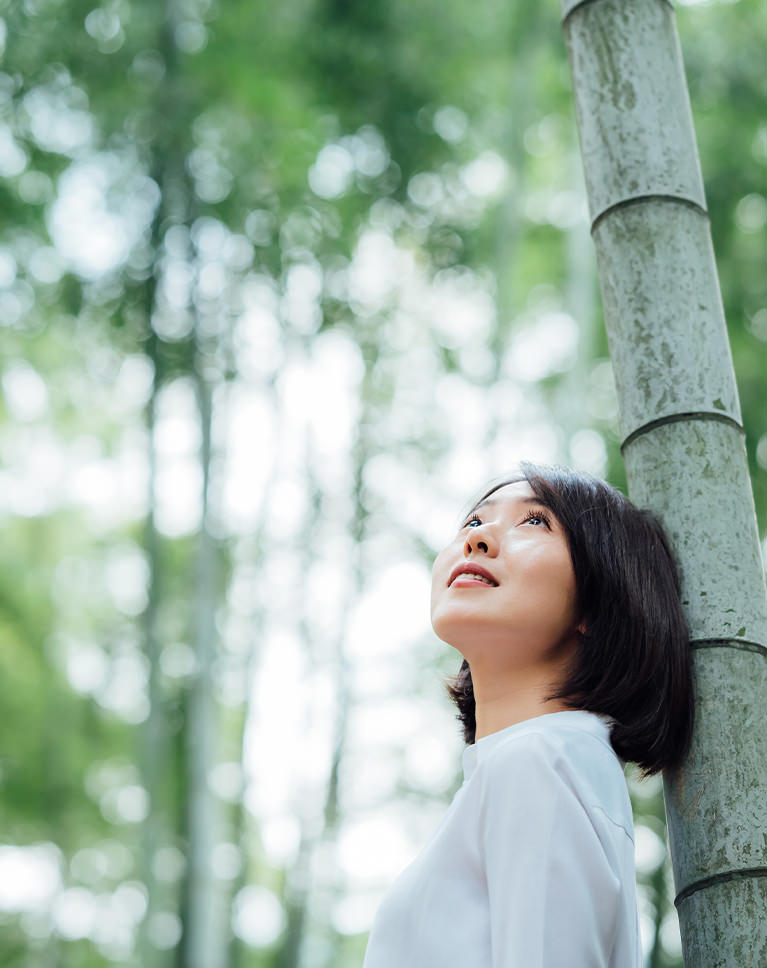
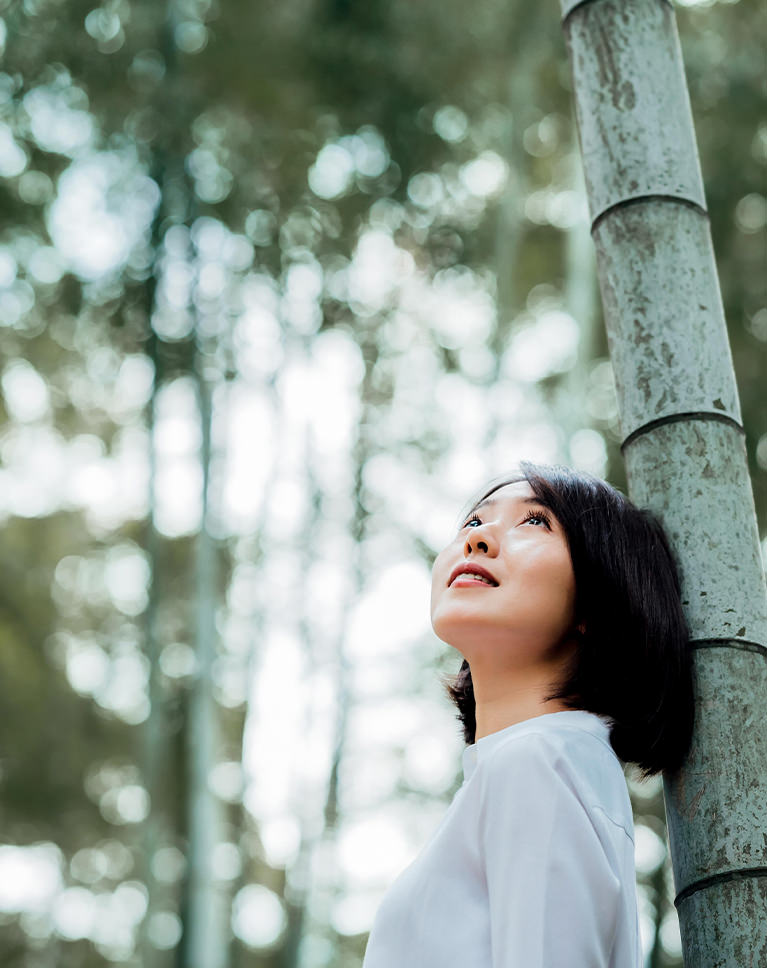
May Green
May Green turns bright, leafy greens into a darker, quieter olive. The bamboo forest behind her loses its glare, while her white shirt and skin stay clean and light against it. White balance is not changed, so the shift comes from the green and tone settings.
Greens Darkened a Lot
Green luminance drops by 71 and saturation by 49, and greens shift toward yellow, so fresh spring leaves become a muted sage-olive. Yellows also darken a little and lose some color. Highlights come down by 53 to hold the bright sky between the stalks.
Deeper Blacks, Clean Whites
Blacks drop by 37 while whites rise by 17, which keeps the subject crisp even though overall contrast is slightly lower. Shadows ease down by 17, and an S-shaped point curve darkens the lower tones and brightens the upper ones.
Best on: portraits among trees and bamboo, bright woodland scenes, and outdoor photos where the greens feel too loud.
Dark Juniper
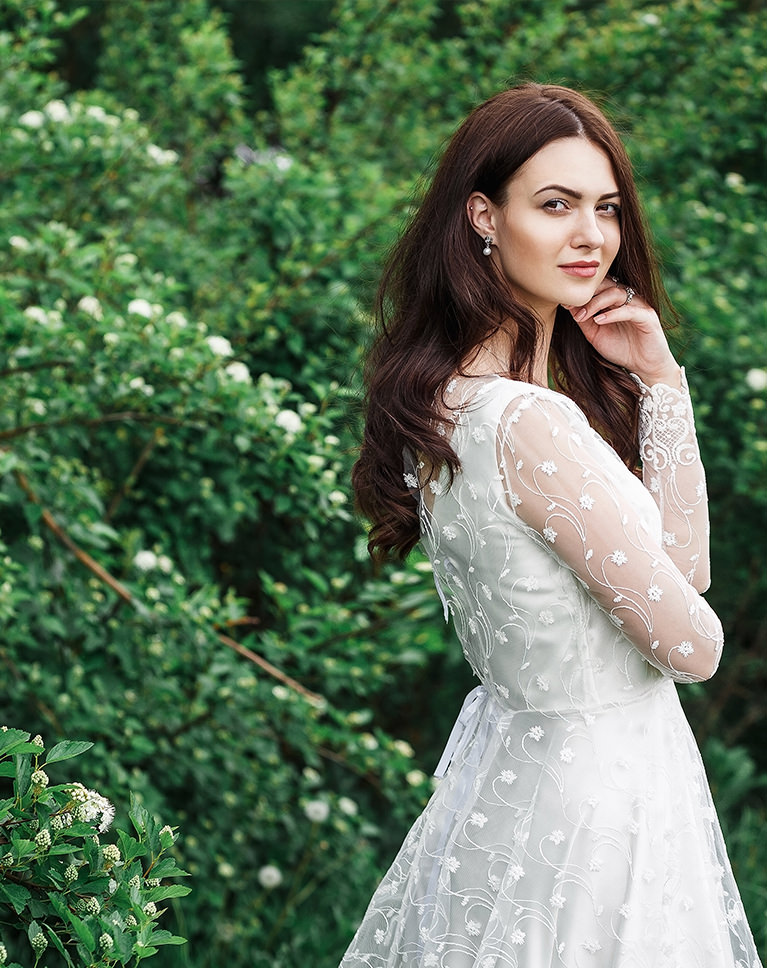
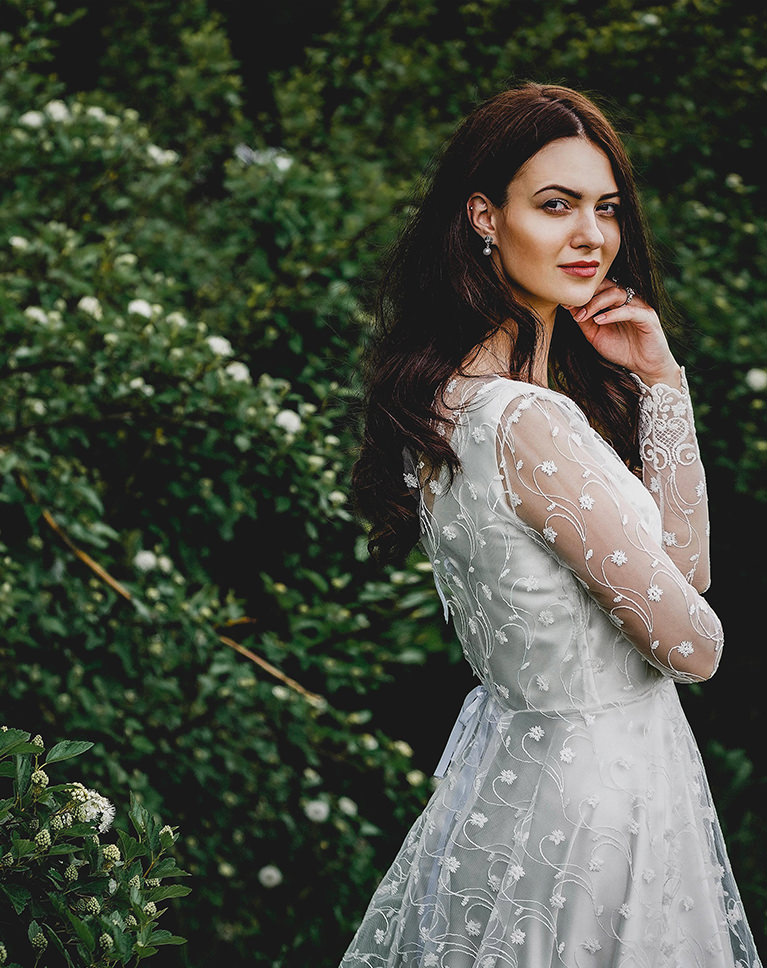
Dark Juniper sinks a bright garden into deep, shadowy green. The hedges behind her go dark and moody, while the white lace dress and her face stay bright, so she stands out from the leaves. Oranges and yellows, the main skin tones, change by only a few points.
Crushed Darks, Held Highlights
The tone curve pulls the dark tones down hard and blacks drop by 32, while highlights come down by 71 to keep detail in the white dress. The curve also holds the brightest white just below pure white. Contrast rises by 20 and a vignette darkens the edges.
Greens Pushed Into Shadow
Green luminance falls by 59 and saturation by 48, so foliage turns into a dark, quiet backdrop instead of a bright distraction. Greens also shift toward yellow, which leans the foliage toward olive.
Best on: portraits in gardens and hedges, light-colored clothing against foliage, and dramatic outdoor fashion photos.
Warm Lime
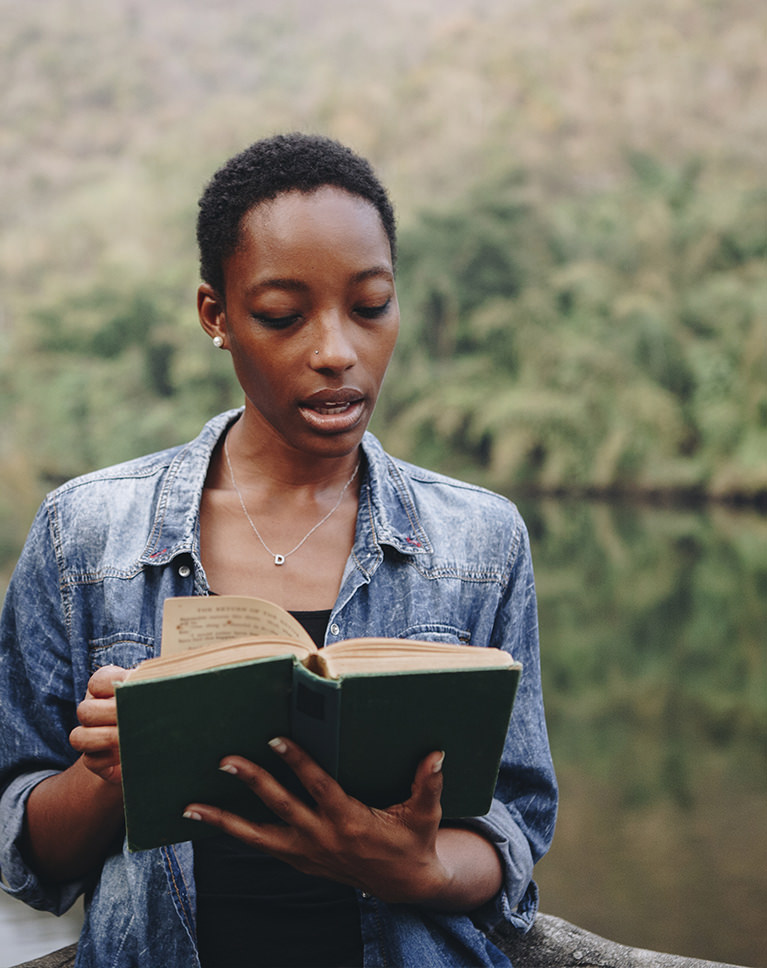
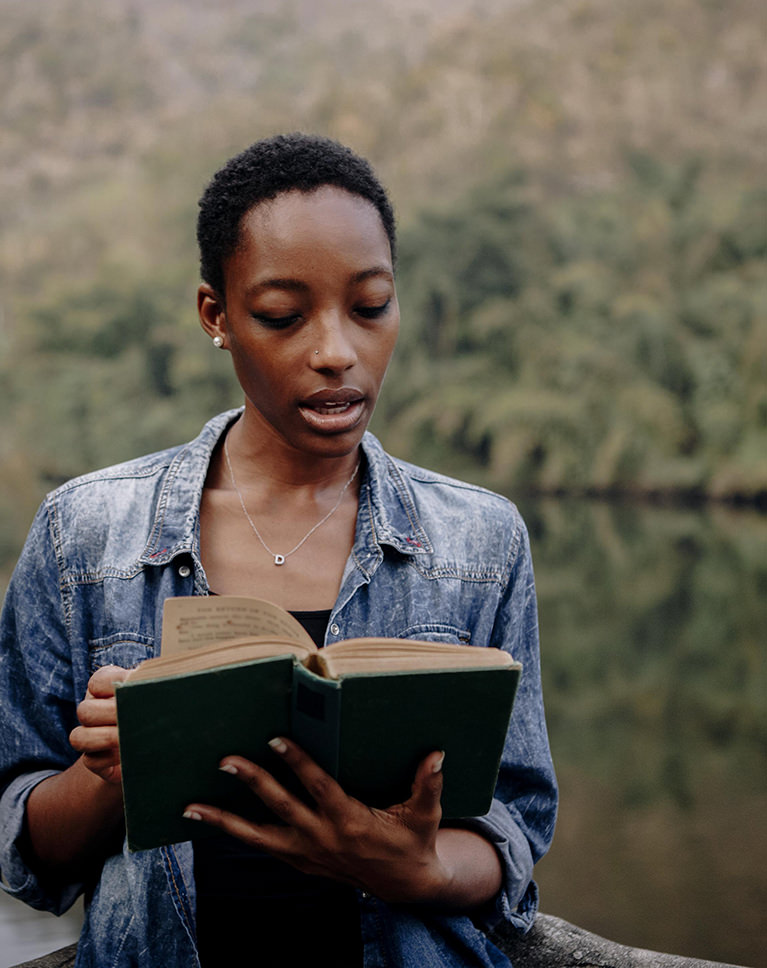
Warm Lime darkens the scene and turns the trees across the water a deeper olive. Her denim shirt keeps its blue, the green book cover goes darker and her skin stays rich and natural. White balance does not change, and oranges get slightly lighter, which helps skin hold its warmth.
Darker Yellows and Greens
Yellow and green luminance both drop by nearly half, and greens lean toward yellow, which gives the foliage its olive tone. Greens also lose a little color, while yellows gain a touch. Overall saturation eases off slightly.
Deep Blacks, Gentle Contrast
Blacks drop by 52 and highlights by 57 while overall contrast is turned down, so the photo gets darker without looking harsh. Whites ease down by 10 and shadows by 9. A light vignette frames the subject.
Best on: portraits by lakes and rivers, quiet reading or travel moments outdoors, and photos with lots of background foliage.
Sunbeam Green
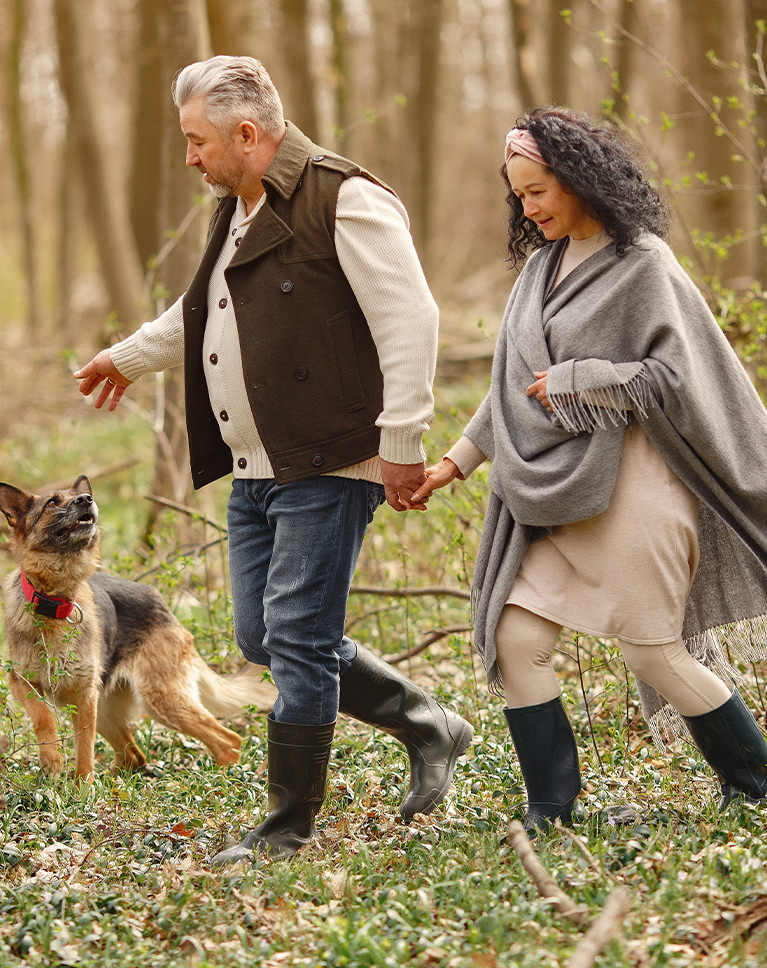
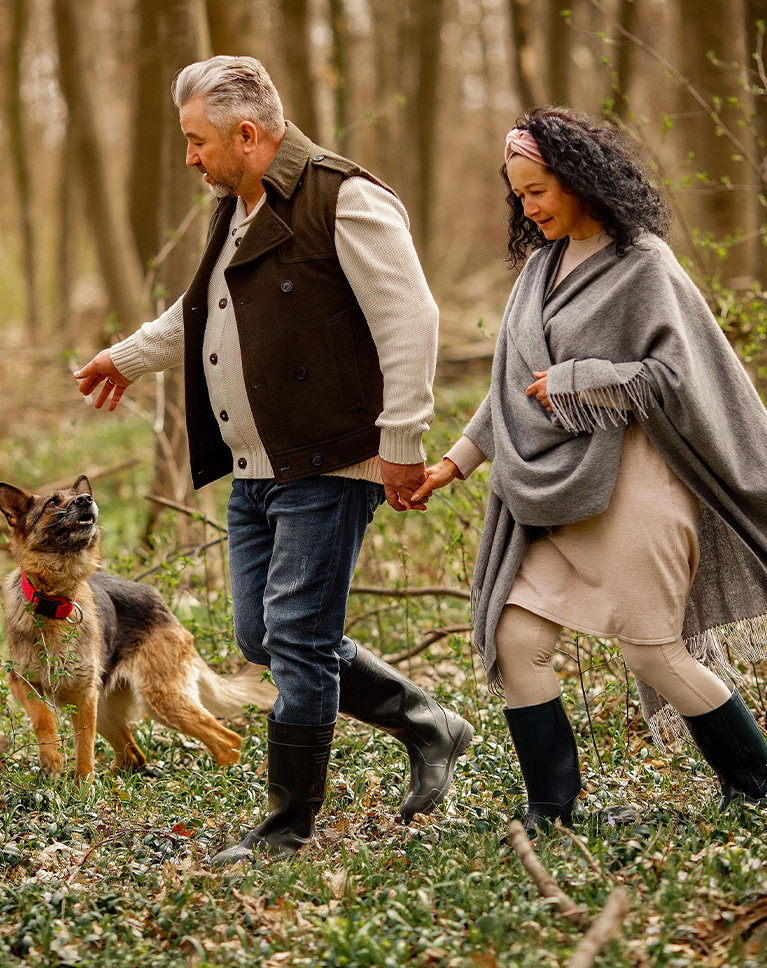
Sunbeam Green adds depth to a busy forest scene. The dark vest, rubber boots and tree trunks get deeper, while the dog’s tan coat and the forest floor keep their warm, earthy color. Reds and oranges keep their saturation, and white balance is not changed.
Strong Contrast, Softer Highlights
Contrast rises by 35 and blacks drop by 47, but highlights come down by 66, so the bright sky between the trees keeps its detail. Whites and shadows each rise by about 5. A vignette of -14 draws the eye toward the center.
Greens Calmed Slightly
Greens and yellows lose about a fifth of their color and darken a little, so spring growth stays natural rather than neon. Greens lean slightly toward aqua, while oranges and yellows shift a little toward red and orange.
Best on: couples and families walking in the woods, dogs outdoors, and sunny forest scenes with lots of texture.
Ripple Greens
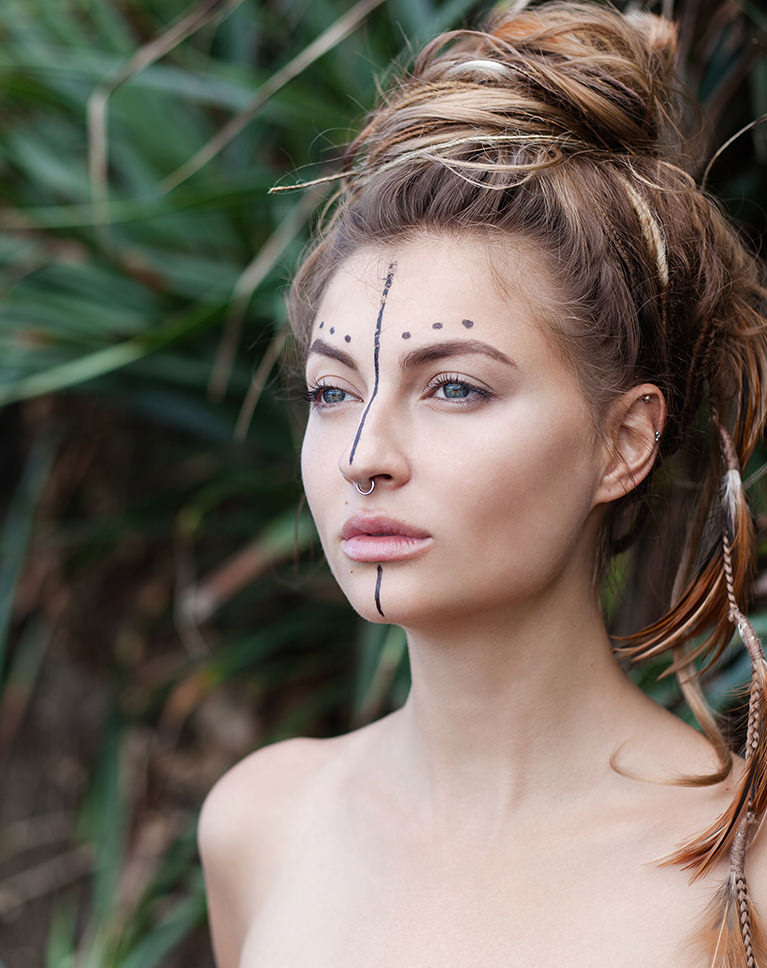
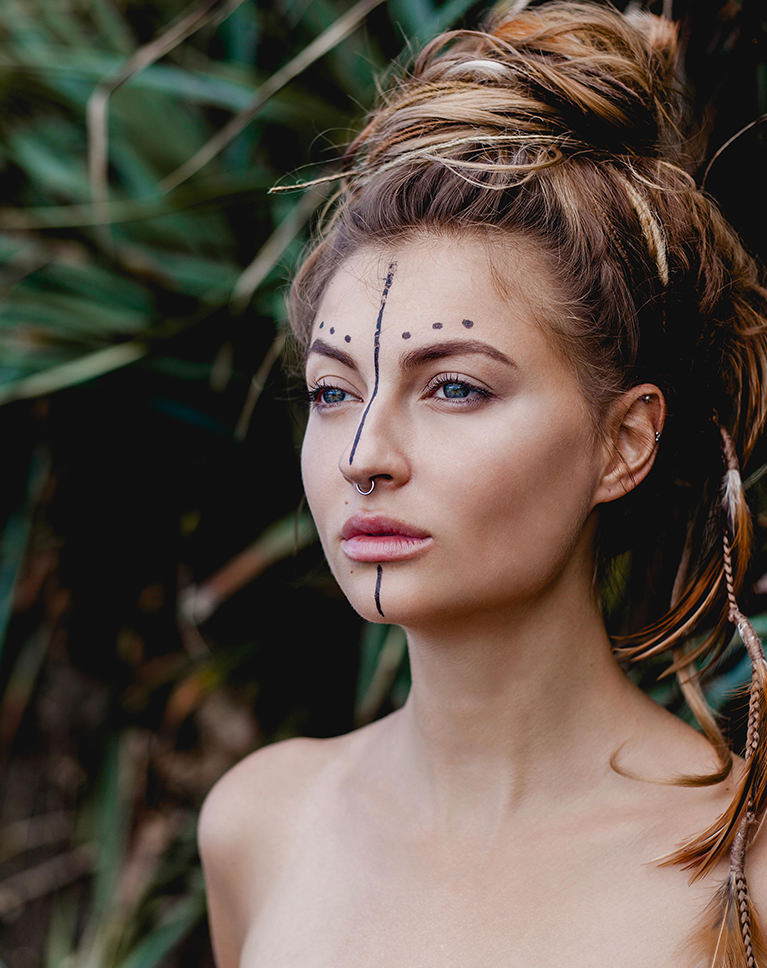
Ripple Greens darkens the leaves behind her so the face comes forward. The background drops toward a deep green-black, while her skin and the brown in her hair keep their warmth. Vibrance rises by 7, adding a little color to the quieter tones.
Darker Shadows, Capped Whites
The tone curve pulls the darks down and lowers the white point, and whites drop by 26, so bright skin never clips. Highlights drop by 50 and blacks by 21 for extra depth. Contrast rises by 20 for a crisper portrait.
Leaves Fade Into the Dark
Greens lose about 40 percent of their color, get a little darker and shift toward yellow, so the leaves sit quietly behind the skin instead of pulling focus. Oranges and yellows darken slightly, and a faint orange tint sits in the highlights.
Best on: close-up portraits in front of grass or leaves, editorial and styled beauty shots, and moody outdoor headshots.
Midnight Greens
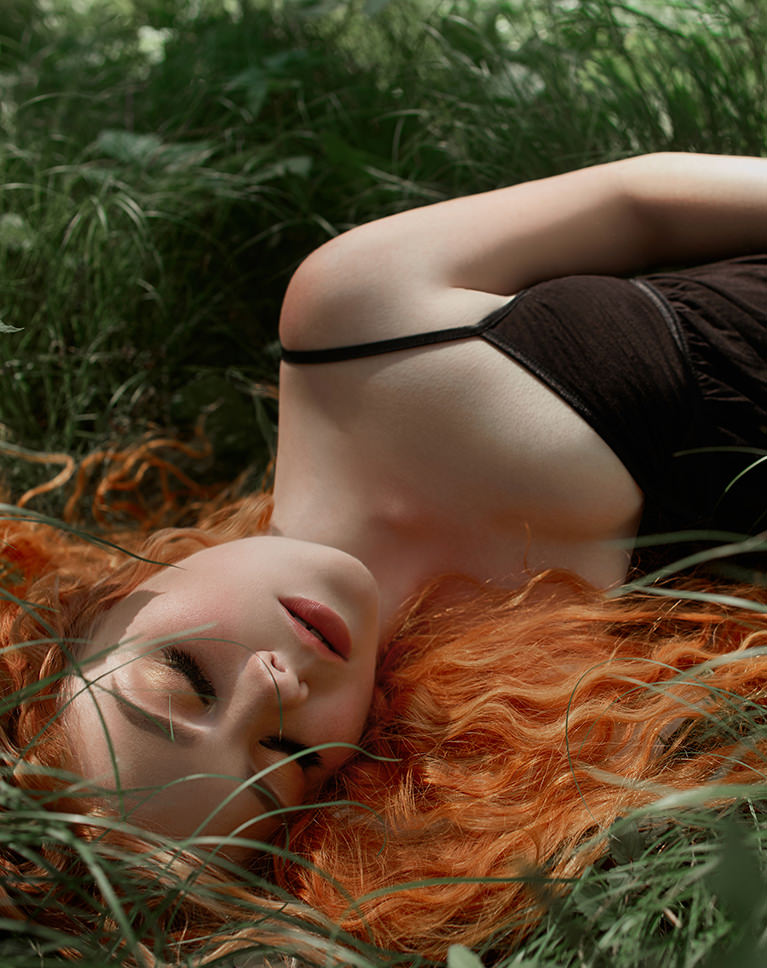
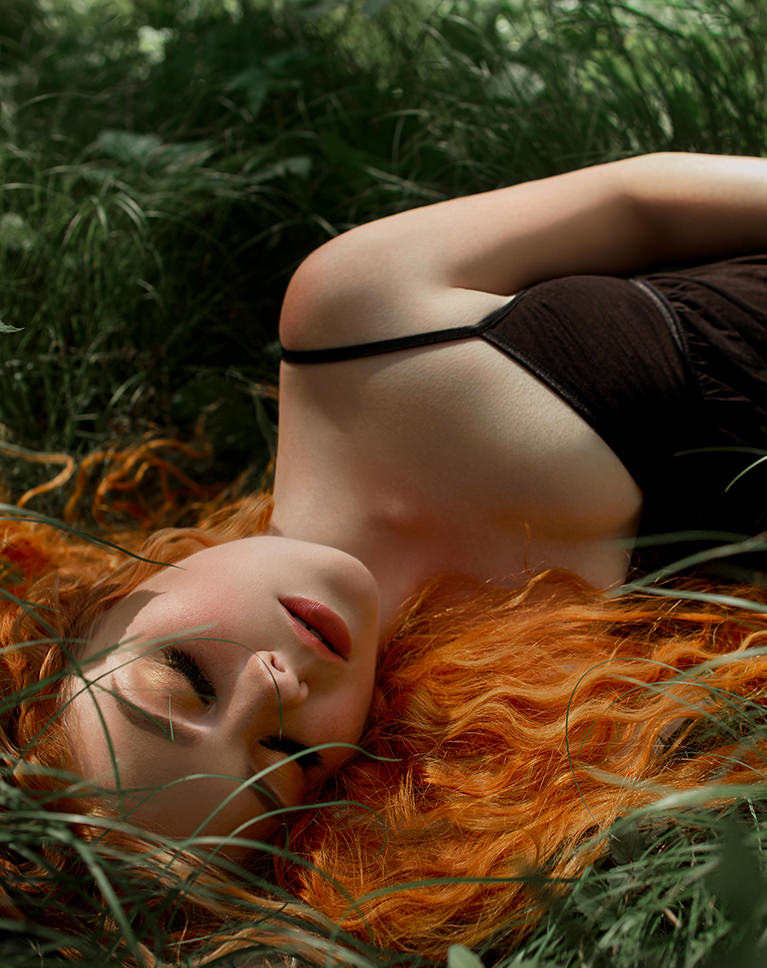
Midnight Greens adds color and punch while keeping the grass soft. Her red hair turns a stronger copper, her skin looks a little brighter and the grass around her goes a lighter, gentler green. Oranges get 7 points lighter, which helps brighten her skin.
More Color, Except Greens
Vibrance and saturation each rise by 10, while greens lose a quarter of their color and get brighter. Warm tones carry the photo, so the green setting supports the subject. Yellows get a little darker, and the white balance stays unchanged.
Whites Up, Blacks Down
Whites rise by 20 and blacks drop by 14, with a touch of Dehaze for clarity and a light vignette that darkens the edges and keeps the eye on her face. Contrast rises by 9 and highlights ease down by 17.
Best on: portraits lying in grass or meadows, red and auburn hair, and soft-light outdoor shots.
What’s in the Download
One zip, desktop and mobile
One zip with both versions in labeled folders: .xmp presets for Lightroom Classic, desktop and mobile, and .dng backups for older releases of the mobile app, plus 4 sample images to practice on. In Lightroom they show up under User Presets.
- ZIPPHLEARN Forest Tone Lightroom Presets 2026.zipDesktop and mobile presets in one download, 11.5 MB
- XMPLightroom Classic, Desktop & Mobile (.xmp)10 presets for every Lightroom app
- DNGLightroom Mobile Backup (.dng)The same 10 for older releases of the mobile app
- JPG4 Sample ImagesFree-to-use practice photos
- PDFPHLEARN Lightroom Presets - Install Guide (2026).pdfClassic, desktop and mobile install steps
- PHLEARN-Forest Tones-Clover Green
- PHLEARN-Forest Tones-Dark Juniper
- PHLEARN-Forest Tones-Deep Jadite
- PHLEARN-Forest Tones-May Green
- PHLEARN-Forest Tones-Midnight Greens
- PHLEARN-Forest Tones-Pale Moss
- PHLEARN-Forest Tones-Ripple Greens
- PHLEARN-Forest Tones-Sunbeam Green
- PHLEARN-Forest Tones-Warm Lime
- PHLEARN-Forest Tones-Winsor Green
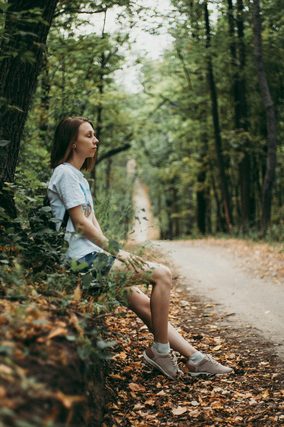
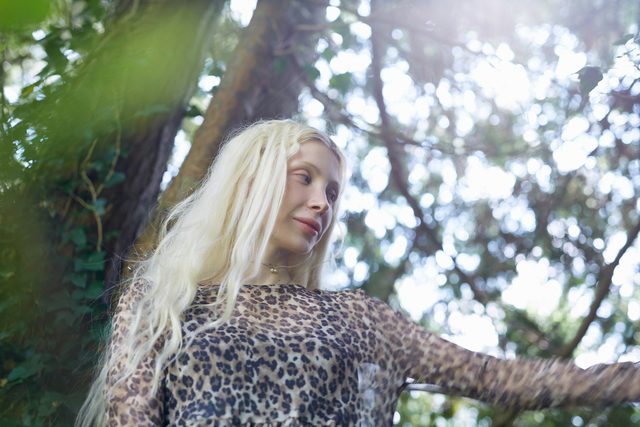
The 4 sample images

Lightroom Preset Questions, Answered
What’s included in the Forest Tone Lightroom Presets?
The pack includes 10 presets: Clover Green, Dark Juniper, Deep Jadite, May Green, Midnight Greens, Sunbeam Green, Ripple Greens, Pale Moss, Warm Lime and Winsor Green. They come as .XMP presets for Lightroom Classic, Lightroom desktop and Lightroom on your phone, plus .DNG versions for older versions of the mobile app. Sample images are included too.
What kind of photos are the Forest Tone Lightroom Presets made for?
They’re made for outdoor photos that feature trees, grass and foliage. The presets add emerald greens, golden browns and rich forest-inspired coloring, and they’re designed to create sharp contrast alongside that rich color. They work on both RAW and JPEG photos.
Which Forest Tone presets are shown on this page?
The before-and-after examples show seven of the ten: Winsor Green, which is the featured look, plus Dark Juniper, May Green, Midnight Greens, Ripple Greens, Sunbeam Green and Warm Lime. Clover Green, Deep Jadite and Pale Moss are in the download too, so try them on the included sample images.
Are Lightroom Presets included in my PHLEARN PRO subscription?
Yes. A PHLEARN PRO membership includes every Lightroom Preset pack, plus PRO Tutorials, LUTs, Photoshop Actions and Photoshop Brushes.
Which version of Lightroom do I need?
The .XMP presets work in Lightroom Classic 7.3 and newer, in Lightroom on your computer and in Lightroom on your phone. For older versions of the mobile app, use the .DNG files in the download. We recommend the latest version.
How do I install Lightroom Presets?
In Lightroom Classic, open the Develop module, click the + in the Presets panel, choose Import Presets and select the .XMP files. The PDF install guide in your download covers Lightroom on your computer and your phone too, and every method is on our Lightroom Presets install guide.
I imported the pack, but I can’t see it.
The new group arrives collapsed and sits in alphabetical order. Scroll the Presets panel, find the group named after the pack and click its arrow.
Do I have to install the presets on my phone separately?
Not if you import them into Lightroom on your computer: within a few minutes they show up in Lightroom on any device signed in to the same Adobe account. If you use Lightroom Classic, import the .XMP files in the mobile app: open a photo, tap Presets, then Yours, then the three-dot menu and Import Presets.
Do the presets work on RAW and JPEG photos?
Yes. Every preset is built to work on both RAW and JPEG files, and each one can be adjusted after you apply it.
The preset looks too strong. What do I do?
Lower the Amount slider at the top of the Presets panel, then adjust White Balance and Exposure for that photo. Every photo starts from different light.
Do you offer refunds?
Because these are downloadable products, all sales are final and we are not able to offer refunds.
Terms of Use
These Presets are licensed for personal and professional use by the individual who purchased or downloaded them. The license does not extend to companies or partnerships, and the files may not be resold, loaned, gifted, shared, copied or redistributed. All PHLEARN Presets are copyright protected.
Master Photoshop, Lightroom and Photography
Join PHLEARN PRO for $12.99 a month or $99.99 a year. Cancel anytime, with a 100% money-back guarantee.





