Old Retro Lightroom Presets for Classic & Mobile
-

-
Add to
favorites
-
Software
-
CompatibilityLightroom Classic & Mobile
-
Lightroom presets10 Old Retro Presets
-
Works in every Lightroom.xmp for Classic, Desktop & Mobile
-
Backup for older app versions.dng for Lightroom Mobile
-
In the download4 Sample Images + PDF Guide
Preset Downloads
Install Guide
How to Install Your Presets
A short PDF that walks you through installing this pack in Lightroom Classic, Lightroom desktop and Lightroom on your phone, plus three tips for better results.
DESCRIPTION
Give your photos the soft and muted tones of old film and retro styles. Packed with beautiful colors like pinks, golds, blues, and greens, our Old Retro Lightroom Presets offer a full palette of timeless, vintage looks.
Every look adds grain and texture and pulls down the highlights, and most lower contrast and darken the corners, for street fashion, classic cars and close portraits. After you apply one, raise Exposure a little if the faded tones make a face look dull.
One zip holds the 10 presets as .xmp files, which work in Lightroom Classic, Lightroom on your computer and Lightroom on your phone, plus .dng versions for older releases of the mobile app, each in its own labeled folder, with 4 sample images to practice on and the PDF install guide.
TRY THEM FOR FREE
Want to try our Presets before you buy? Check out our FREE Lightroom Presets Sample Pack with 10 of our favorite looks for Lightroom Classic and Mobile.

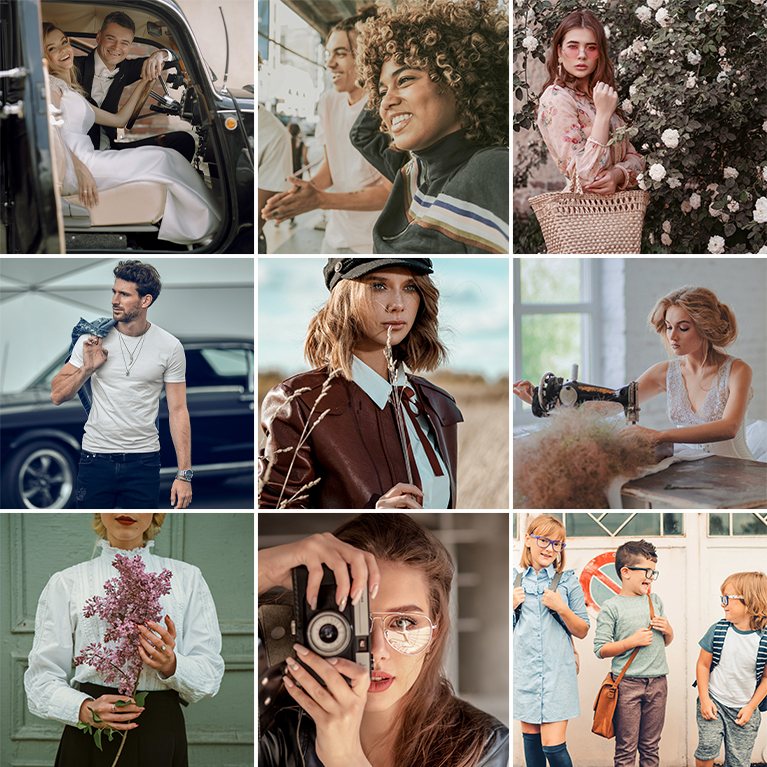
PHLEARN PRO · Lightroom Presets
Old Retro Lightroom Presets
10 presets4 sample imagesLightroom Classic & Mobile
Old Retro Lightroom Presets · 10 Looks
Faded Film Color With Grain and Soft Tints
Ten presets that add film grain, soft color tints and a faded, vintage feel to portraits, fashion and street photos. They work in Lightroom Classic and in Lightroom on desktop and mobile.
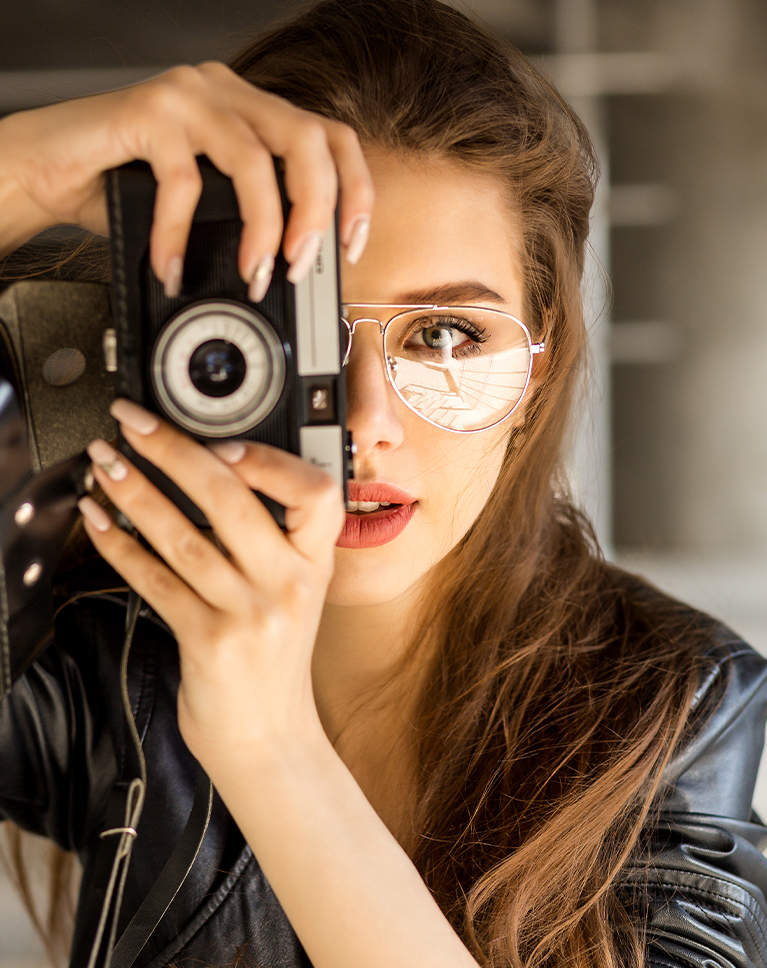
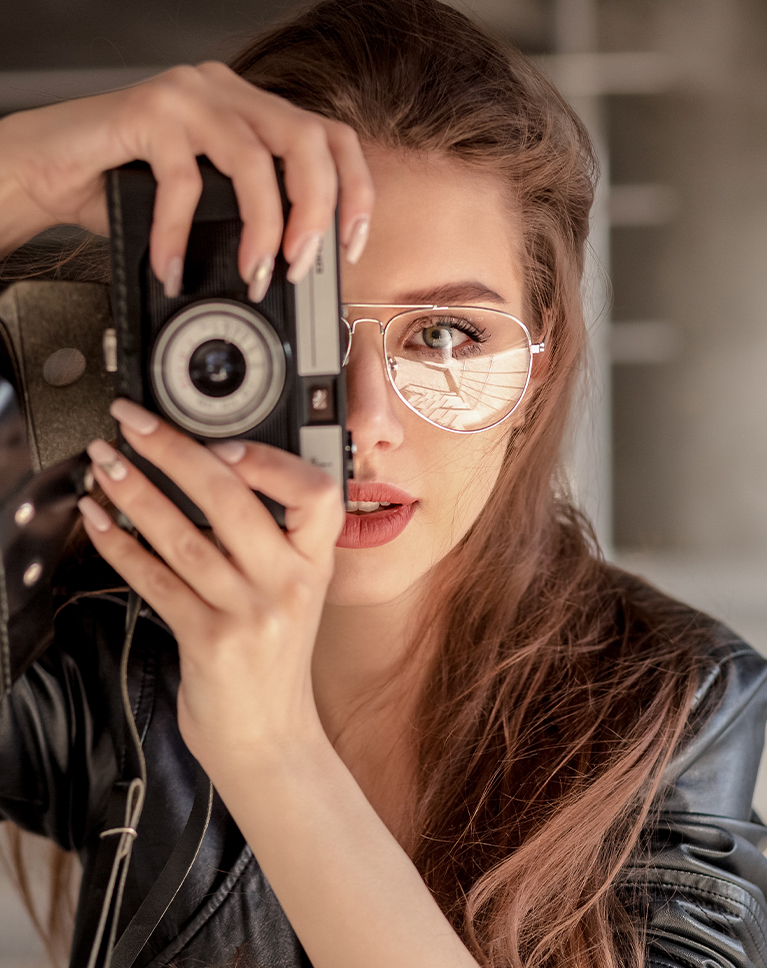
Vintage Ivory
Vintage Ivory softens this portrait and gives her hair a rosier, less orange brown. Skin stays warm, the red lips hold their color, and the background turns a muted, faded tone like an old print. White balance moves 4 points warmer.
Lower Contrast, Gentle Highlights
Contrast drops by 46 and Highlights by 48, which flattens bright skin and window light into a soft, even range. Grain and a light vignette add an analog texture. Shadows, Whites and Blacks ease down slightly too, by 5, 11 and 14.
Oranges Pushed Toward Red
Orange hue moves toward red and loses some saturation, which is why warm hair and skin take on a dusty rose tone. A faint blue tint in the shadows balances the warmth. Orange luminance rises by 10, and greens lose 15 points of saturation.
Best on: portraits with dark clothing, indoor lifestyle shots, and photos you want to feel a few decades older.
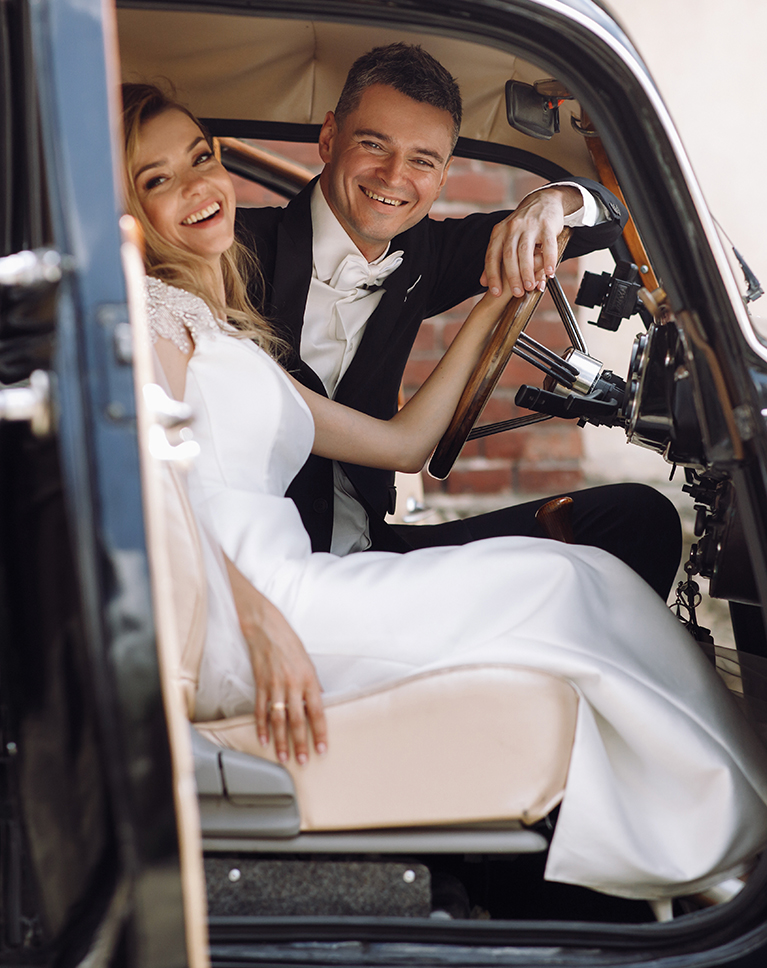
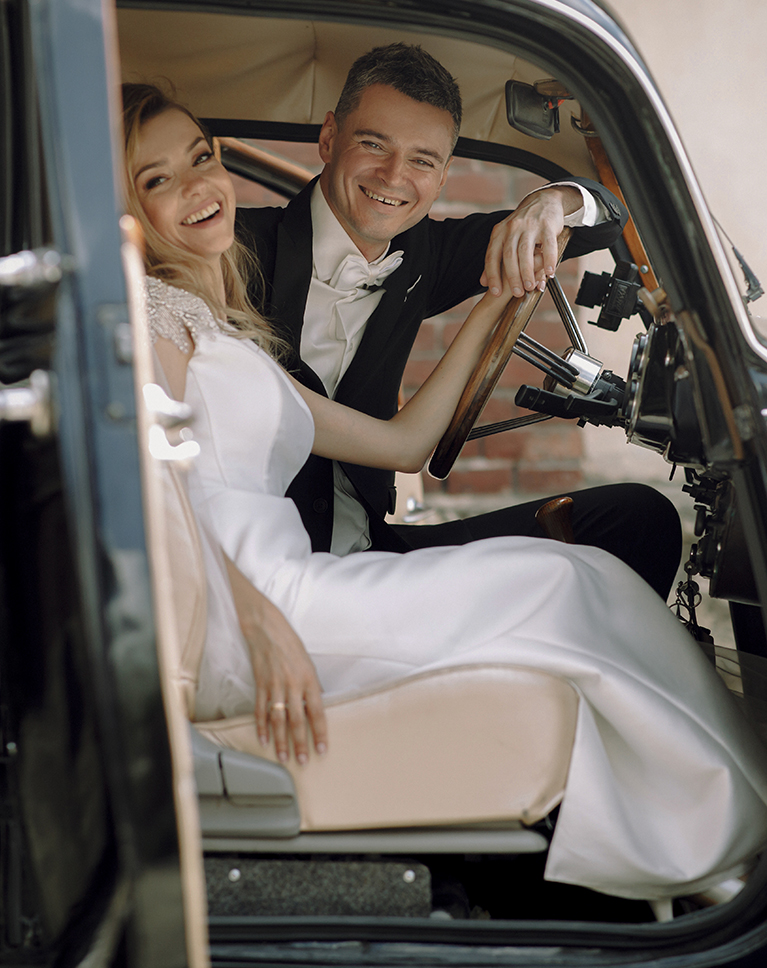
Vintage Greens
Vintage Greens gives this wedding car scene a faded, film-like quality. The white dress turns a soft ivory, the brick wall behind the couple loses some of its red, and the dark suit and car lose some of their punch. White balance does not change, so the color shift comes from split toning and HSL.
Contrast Cut by 77
Contrast drops sharply while Shadows come down by 39 and Highlights, Whites and Blacks each come down by 18, which compresses the tones into a soft, low-contrast range. Texture rises by 9 to keep fine detail.
Green Shadows, Warm Highlights
Split toning adds a green tint to the shadows and a light orange to the highlights, a color mix that recalls aged film prints. Reds lose saturation, and grain and a vignette finish the look. Greens, aquas, blues, purples and magentas all gain saturation, between 12 and 20.
Best on: wedding photos, classic cars, and couples in formal wear.
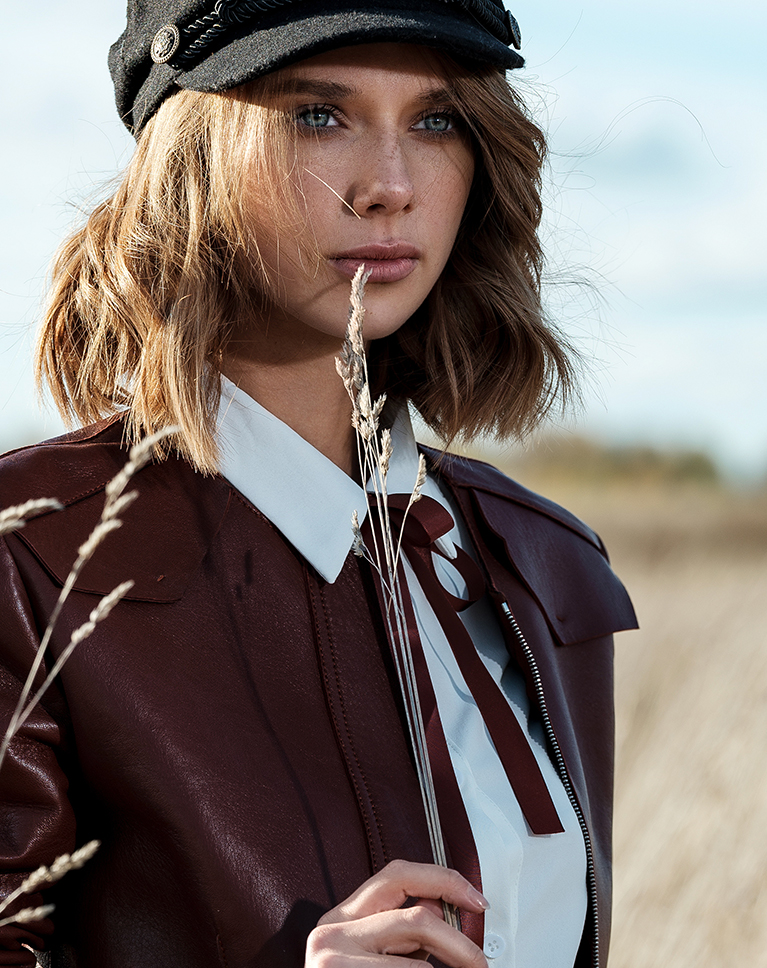
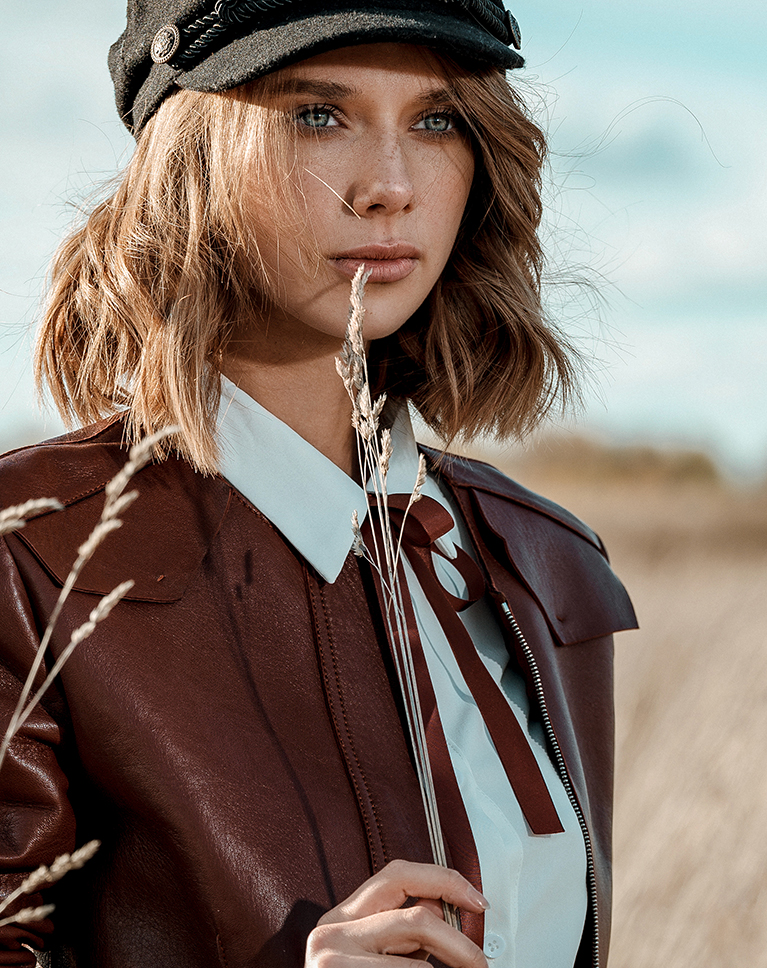
Starlite Gold
Starlite Gold gives her hair and skin richer honey tones and turns the dry field behind her a warmer gold. The leather jacket deepens, and the pale sky picks up a light blue-aqua tint. Contrast drops by 40, and Blacks come down by 21 for deeper darks.
Vibrance Up, Saturation Down
Vibrance rises by 35 while overall Saturation drops by 10, which boosts muted colors like skin and hair more than strong ones. The white balance moves warmer. Clarity and Texture both rise by 10 for crisper detail.
Gold Shadows, Blue Highlights
Split toning puts a yellow tint in the shadows and a blue tint in the highlights. Greens shift toward yellow and lose color, so grass and foliage turn golden. Blues lose 36 points of saturation, and grain and a vignette add an older finish.
Best on: outdoor portraits in fields, autumn and late-summer light, and blonde or light-brown hair.
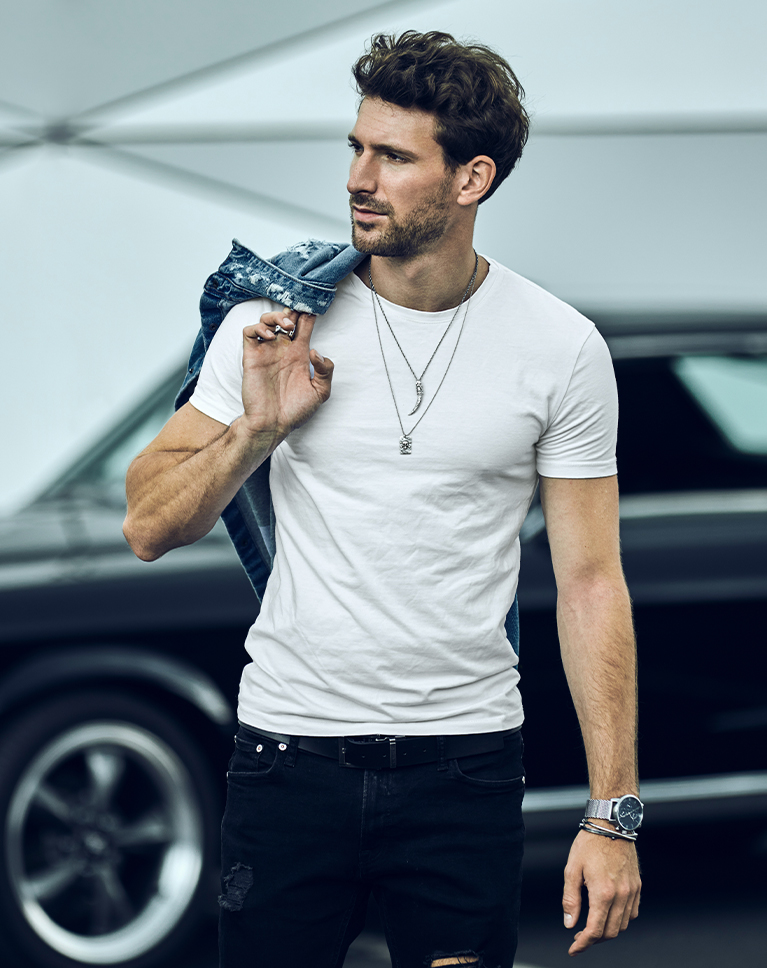
Matte Blacks
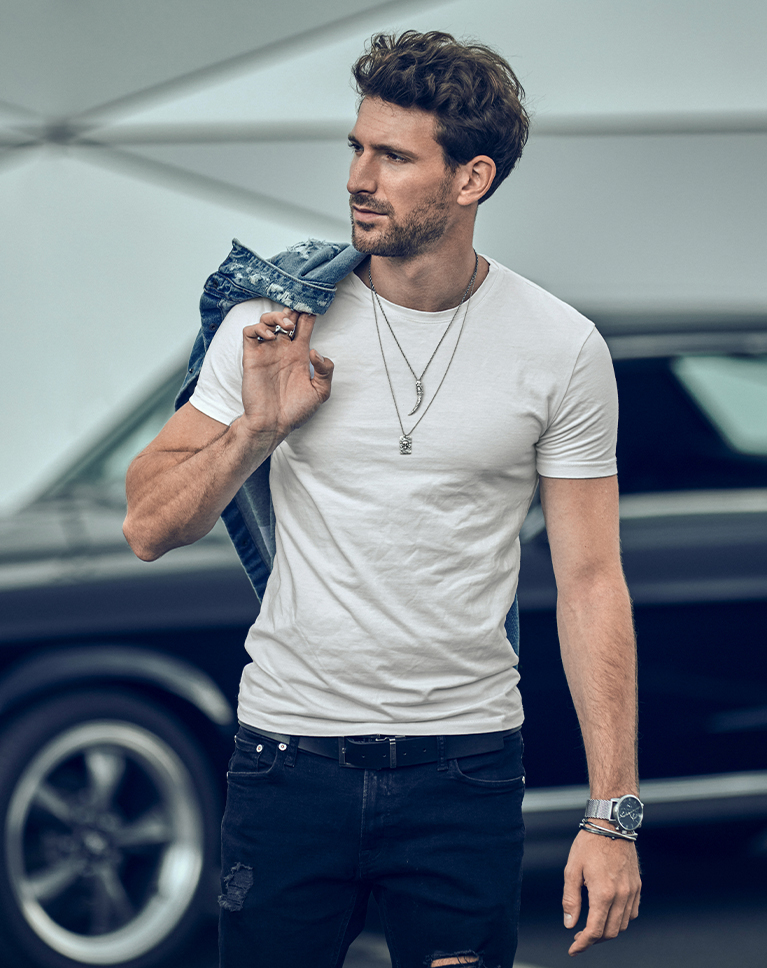
Matte Blacks lifts the darks into a soft, faded matte. The black car and jeans turn a deep navy gray, the white T-shirt softens, and his skin keeps a warm, natural tone. White balance does not change, so the cool tones come from split toning.
Blue Shadows, Warm Highlights
Split toning adds a blue tint to the shadows and a yellow tint to the highlights, so dark areas cool off while light areas stay warm. Blacks rise and Contrast drops by 42. Highlights come down by 22 and Whites by 15.
Grain and a Vignette
Film grain and a dark vignette frame the subject, and oranges get a little richer while reds are muted, so skin stays healthy next to the cool darks. Yellows shift strongly toward orange and lose 23 points of saturation.
Best on: men’s fashion, street portraits, cars and urban scenes, and photos with lots of dark tones.
Camellia Pinks
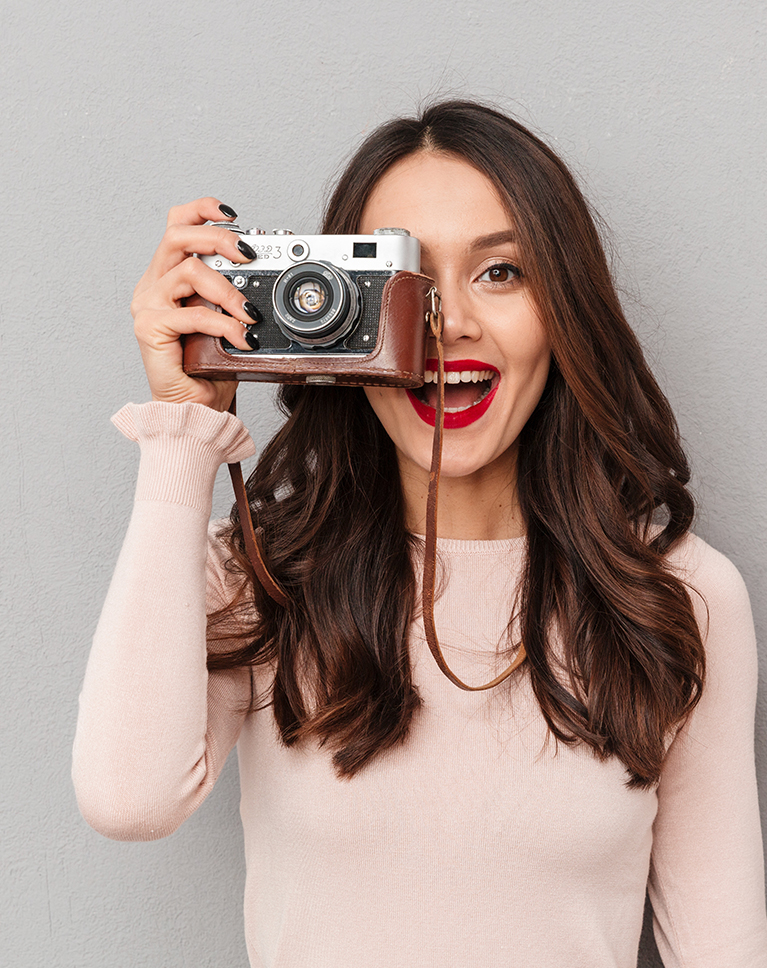
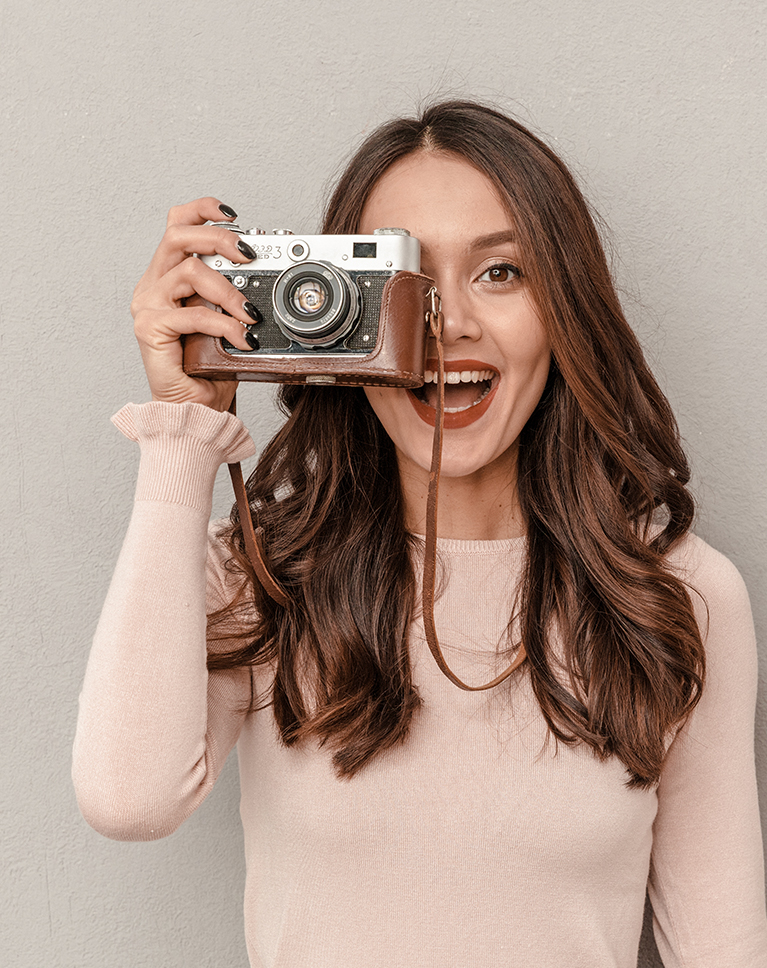
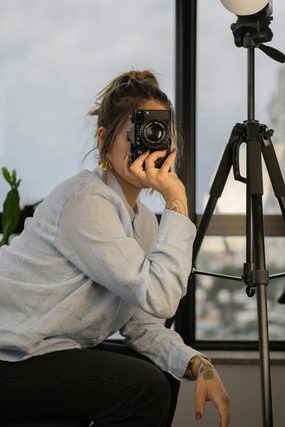
Camellia Pinks warms the cool gray wall into a soft blush-beige, and the pink sweater blends into it. Her bright red lips turn a muted, darker coral, and skin and hair settle into gentle warm tones. Highlights come down by 25.
Reds Muted and Shifted
Red hue moves well toward orange while red saturation and brightness drop, which is what calms a bold lipstick. Oranges lose some color too, greens shift toward yellow, and blues lose a third of their saturation. Magentas lose 20 points of saturation but get lighter.
Warmer Light, Film Grain
Temperature moves 9 points warmer, Shadows lift and Contrast eases, and grain gives the photo an older, printed texture. The tone curve pulls every region down, most of all the shadows region at -24. There is no vignette.
Best on: playful portraits against plain walls, pastel clothing, and photos with vintage cameras or retro props.
What’s in the Download
One zip, desktop and mobile
One zip with both versions in labeled folders: .xmp presets for Lightroom Classic, desktop and mobile, and .dng backups for older releases of the mobile app, plus 4 sample images to practice on. In Lightroom they show up under User Presets.
- ZIPPHLEARN Old Retro Lightroom Presets 2026.zipDesktop and mobile presets in one download, 7.7 MB
- XMPLightroom Classic, Desktop & Mobile (.xmp)10 presets for every Lightroom app
- DNGLightroom Mobile Backup (.dng)The same 10 for older releases of the mobile app
- JPG4 Sample ImagesFree-to-use practice photos
- PDFPHLEARN Lightroom Presets - Install Guide (2026).pdfClassic, desktop and mobile install steps
- PHLEARN-Old Retro-Apple Blossom
- PHLEARN-Old Retro-Camellia Pinks
- PHLEARN-Old Retro-Cashmere Blues
- PHLEARN-Old Retro-Glenwood Greys
- PHLEARN-Old Retro-Matte Blacks
- PHLEARN-Old Retro-Starlite Gold
- PHLEARN-Old Retro-Sunbeam Yellow
- PHLEARN-Old Retro-Vintage Greens
- PHLEARN-Old Retro-Vintage Ivory
- PHLEARN-Old Retro-Vintage Ochre
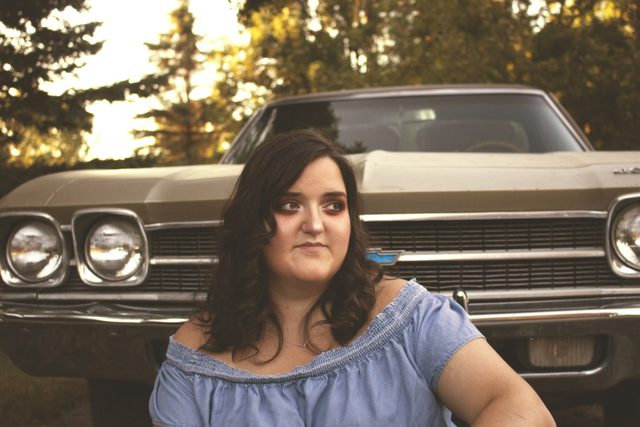
The 4 sample images


Lightroom Preset Questions, Answered
What’s included in the Old Retro Lightroom Presets?
The pack includes 10 presets: Apple Blossom, Camellia Pinks, Cashmere Blues, Glenwood Greys, Matte Blacks, Starlite Gold, Sunbeam Yellow, Vintage Greens, Vintage Ivory and Vintage Ochre. They come as .XMP presets for Lightroom Classic, Lightroom desktop and Lightroom on your phone, plus .DNG versions for older versions of the mobile app, and the download includes sample images to practice on.
What kind of look are the Old Retro Lightroom Presets made for?
They give photos the soft, muted tones of old film and retro styles. Expect soft contrast, muted colors and subtle color toning for an old-style film look. The featured look on the page is Apple Blossom.
What range of colors does the Old Retro pack cover?
The Old Retro Lightroom Presets are packed with colors like pinks, golds, blues and greens, so the pack offers a full palette of timeless, vintage looks rather than a single style. You can try them on the included sample images to find the one that suits each photo.
Are Lightroom Presets included in my PHLEARN PRO subscription?
Yes. A PHLEARN PRO membership includes every Lightroom Preset pack, plus PRO Tutorials, LUTs, Photoshop Actions and Photoshop Brushes.
Which version of Lightroom do I need?
The .XMP presets work in Lightroom Classic 7.3 and newer, in Lightroom on your computer and in Lightroom on your phone. For older versions of the mobile app, use the .DNG files in the download. We recommend the latest version.
How do I install Lightroom Presets?
In Lightroom Classic, open the Develop module, click the + in the Presets panel, choose Import Presets and select the .XMP files. The PDF install guide in your download covers Lightroom on your computer and your phone too, and every method is on our Lightroom Presets install guide.
I imported the pack, but I can’t see it.
The new group arrives collapsed and sits in alphabetical order. Scroll the Presets panel, find the group named after the pack and click its arrow.
Do I have to install the presets on my phone separately?
Not if you import them into Lightroom on your computer: within a few minutes they show up in Lightroom on any device signed in to the same Adobe account. If you use Lightroom Classic, import the .XMP files in the mobile app: open a photo, tap Presets, then Yours, then the three-dot menu and Import Presets.
Do the presets work on RAW and JPEG photos?
Yes. Every preset is built to work on both RAW and JPEG files, and each one can be adjusted after you apply it.
The preset looks too strong. What do I do?
Lower the Amount slider at the top of the Presets panel, then adjust White Balance and Exposure for that photo. Every photo starts from different light.
Do you offer refunds?
Because these are downloadable products, all sales are final and we are not able to offer refunds.
Terms of Use
These Presets are licensed for personal and professional use by the individual who purchased or downloaded them. The license does not extend to companies or partnerships, and the files may not be resold, loaned, gifted, shared, copied or redistributed. All PHLEARN Presets are copyright protected.
Master Photoshop, Lightroom and Photography
Join PHLEARN PRO for $12.99 a month or $99.99 a year. Cancel anytime, with a 100% money-back guarantee.





