

Download Assets
This tutorial includes 2 sample images, 1 sample PSD and 1 PDF guide. Downloads are free with a PHLEARN account.
- Free sample files with every tutorial on PHLEARN
- New tutorials published every week
- Unlimited downloads with your free PHLEARN account
Free PDF Guide · 3 Pages
This Tutorial as a Step-by-Step PDF
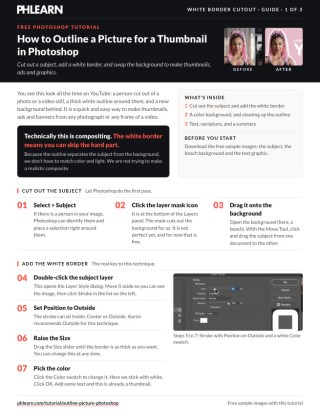
The guide walks through the whole thumbnail look: Select > Subject and a layer mask, a white Stroke layer style set to Outside, a Solid Color background sampled from the subject, cleanup with the Brush Tool or the Pen Tool, then text and two background variations. Keep it next to your keyboard.
description
A thumbnail outline is only as clean as the cutout underneath it, because the Stroke layer style just traces whatever shape the mask defines. This tutorial cuts the subject out with Select Subject and a layer mask, sets Stroke to Outside position at a size that still reads when the image is scaled down, adds a color background sampled from the subject, then cleans up the mask with the Brush Tool or the Pen Tool to smooth the rough spots the outline would otherwise follow.
Enjoying This Free Tutorial?
We publish a new free tutorial every week, each one with sample images and PSDs you can download and follow along with. Sign up and they land straight in your inbox, along with early word on sales, events and subscriber-only offers.

How to Outline a Picture in Photoshop
This tutorial cuts a subject out with Select > Subject, drags it onto a new background and adds a clean, thumbnail-style white outline with the Stroke layer style. It then adds a color background sampled from the subject, cleans up the mask with the Brush Tool or the Pen Tool so the outline follows a smooth edge, and finishes with text and two background variations. It is a quick way to make thumbnails, ads and banners from any photo or video frame.
Cutting Out the Subject
Go to Select > Subject: if there is a person in the image, Photoshop identifies them and places a selection right around them. Click the layer mask icon at the bottom of the Layers panel and the mask cuts out the background. It is not perfect yet, and for now that is fine. Then open the background (a beach in the video) and, with the Move Tool, drag the subject from one document to the other. The Stroke effect will trace whatever shape that mask defines.
Choosing a Stroke Color
Double-click the subject layer to open the Layer Style dialog, move it aside so you can see the image, and click Stroke in the list on the left. Click the Color swatch to choose the outline’s color. The video sticks with white; any color that contrasts clearly against the background it will sit on also works.
Raising the Stroke Size
The Stroke effect’s Size value is raised to make the outline thicker, since the default size is usually far too thin to read clearly at thumbnail scale.
Sizing for the Final Use Case
An outline that looks reasonable at full size can disappear once an image is scaled down to a small thumbnail, so the Size value is worth judging against how small the final image will actually be displayed.
Setting the Stroke Position to Outside
The Stroke effect’s Position is set to Outside, which draws the entire outline around the outer edge of the subject’s shape rather than splitting it between the inside and outside of that edge.
Why Position Matters Here
An Inside or Center position would eat into the subject itself as the stroke gets thicker; Outside keeps the subject’s own edge untouched and adds the full outline just beyond it.
Adding a Color Background
For a background that matches the subject, click the adjustment layer icon at the bottom of the Layers panel and choose Solid Color. Pick any color for now. The new layer lands above the subject and hides her, so drag it below the subject layer in the Layers panel.
Zoom in, double-click the fill layer’s color thumbnail, and click right on the photo: while the color picker is open, the cursor works as an eyedropper. The video samples a pink from the subject’s hair, which ties the background to the person. On a flat color like this, any rough spots in the cutout show clearly along the white border, which is what the cleanup fixes next.
Selecting the Brush Tool
Pressing B selects the Brush Tool. Click the layer mask thumbnail on the subject layer first, so the brush paints on the mask and not on the photo. The video doesn’t call for a particular brush tip; what matters is the color you paint with.
Painting Black to Smooth the Edges
With the Brush Tool, black is painted directly onto the subject’s layer mask along any rough or uneven spots, such as the arms, the waist and the outline of the hair, smoothing the underlying cutout edge so the Stroke effect traces a cleaner outline instead of following every small imperfection.
Painting white does the opposite and makes the subject visible again, so you can always come back and paint areas back the way they were. The video uses it to put the curl texture back along the hair.
Fixing the Mask Fixes the Outline
Because the Stroke effect simply follows the mask’s shape, any smoothing done to the mask directly improves how clean the final outline looks, without needing to touch the Stroke settings again.
Cleaning Up with the Pen Tool
For more precision, press P for the Pen Tool and click and drag to draw very smooth curves along where the edge should be, such as along the arm, then close the path. Right-click, choose Make Selection and click OK. Now paint white on the mask: the brush only paints inside the selection, which leaves a very clean edge.
Brush or Pen
The Pen Tool is the more precise tool, for when you really want to go in and be exact. The Brush Tool is a lot faster, and for most applications it is totally going to be good enough.
Adding Text and Variations
To finish the thumbnail, open the ready-made text graphic and drag it into the final document with the Move Tool. With the outline in place, this is already a thumbnail, ad or banner.
Two quick variations change the look. Over the beach photo, add another Solid Color layer in black and lower its Opacity, so the subject and the words read clearly and you can still see the beach. On the pink version, add a Gradient fill layer, click the gradient to edit its colors (sample the pink for one and choose a deeper pink for the other), then drag on the image to place it and increase Scale a little. Every background option sits below the subject.
Why This Technique Works
A Stroke layer style is entirely dependent on the shape it’s tracing, so the quality of a subject’s outline comes down to the quality of its mask, not the Stroke settings themselves. Cleaning up the mask with the Brush Tool or the Pen Tool before finalizing the Stroke is what produces a crisp, professional-looking outline instead of one that faithfully reproduces every rough spot from the original cutout. The white border also separates the subject from the background, so there is no need to match color and light the way a realistic composite would.
Final Thoughts
Outlining a picture comes down to a Stroke layer style set to Outside position at a readable size, backed by a cleanly painted mask underneath it, since the outline is only ever as smooth as the shape it’s tracing.
Quick Reference: Keys, Menus and Settings
- Cut outSelect > Subject, then the layer mask icon at the bottom of the Layers panel
- White borderDouble-click the layer > Stroke: Position Outside, raise Size, Color white
- Color backgroundSolid Color fill layer below the subject; double-click its thumbnail and click the photo to sample
- Brush cleanupB on the mask: black trims, white restores
- Pen cleanupP, draw the edge, right-click > Make Selection, paint white on the mask
- FinishDrag in the text; black Solid Color at low Opacity over a photo, or a Gradient fill
Free Downloads
Follow Along on the Same Photos
Get the 2 sample images from the tutorial, the layered PSD and the 3-page PDF guide to the cutout, the white border and the cleanup. Free with a PHLEARN account.
Outlining a Picture in Photoshop: Common Questions
How do I put a white outline around a person in Photoshop?
Cut the person out with Select > Subject and a layer mask, then double-click the layer and click Stroke. Set Position to Outside, raise the Size and keep the Color white.
How do I cut the subject out first?
Go to Select > Subject and click the layer mask icon at the bottom of the Layers panel. The mask doesn’t have to be perfect yet. Then drag the subject onto the new background with the Move Tool.
Which Stroke position should I use?
Outside. Inside and Center cover more of the person as the stroke gets thicker, while Outside leaves the subject’s own edge untouched.
How thick should the outline be?
Drag the Size slider until the border is as thick as you want; you can change it at any time. Judge it small, because an outline that looks fine at full size can disappear in a thumbnail.
Why does my outline look bumpy?
The Stroke traces the mask, so it follows every rough spot in the cutout. Fix the mask, not the Stroke settings, and the white border follows automatically.
How do I clean up the edge with a brush?
Click the layer mask thumbnail and press B for the Brush Tool. Paint black to trim jagged edges and white to bring areas of the subject back.
Should I use the Pen Tool or the Brush Tool?
The Pen Tool (P) is more precise: draw the edge, right-click > Make Selection, then paint white on the mask. The Brush Tool is a lot faster and good enough for most applications.
How do I pick a background color that matches the subject?
Add a Solid Color fill layer below the subject, double-click its color thumbnail and click on the photo to sample a color. The video grabs a pink from the subject’s hair.
Do I need to match the light like a real composite?
No. The white outline separates the subject from the background, so you don’t have to match color and light. The look isn’t trying to be a realistic composite.
Are the sample files free?
Yes, with a free PHLEARN account. You get 2 sample images, 1 sample PSD and 1 PDF guide, the 3-page step-by-step guide to the whole workflow.
Master Photoshop, Lightroom and Photography
Join PHLEARN PRO for $12.99 a month or $99.99 a year. Cancel anytime, with a 100% money-back guarantee.





