

Download Assets
This tutorial includes 301 sample images and 1 PDF guide. Downloads are free with a PHLEARN account.
- Download the sample images and PSDs from every free tutorial on PHLEARN
- New free tutorials published every week
- One free account — sign up once, then download anything
Free PDF Guide · 3 Pages
This Tutorial as a Step-by-Step PDF
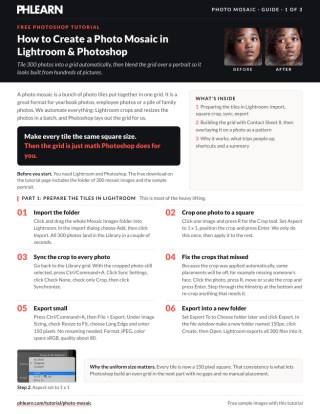
The 3-page guide covers a 1 x 1 crop synced to all 300 photos in Lightroom, export at 150 pixels, File > Automate > Contact Sheet II at 3000 x 2250 pixels with 20 columns and 15 rows, then Edit > Define Pattern and a Soft Light Pattern fill at about 40% scale. Keep it next to your keyboard.
description
A photo mosaic turns a whole collection of images into one larger picture. This tutorial covers both halves: batch-cropping and exporting 300 source photos to a uniform square size in Lightroom, letting Photoshop’s Contact Sheet II automation assemble the grid, then saving that grid as a pattern and blending it over a portrait on Soft Light so the photo appears to be built from hundreds of smaller pictures.
Enjoying This Free Tutorial?
We publish a new free tutorial every week, each one with sample images and PSDs you can download and follow along with. Sign up and they land straight in your inbox, along with early word on sales, events and subscriber-only offers.

How to Create a Photo Mosaic in Lightroom & Photoshop: Complete Guide
A photo mosaic — a large image built out of hundreds of smaller tiled photos — is a striking way to bring together a big collection of images, whether that’s yearbook photos, employee headshots, or years of family photos. This guide covers both halves of the process: building the mosaic itself from a folder of source photos using Lightroom and Photoshop’s Contact Sheet automation, then taking it further by turning that mosaic into a repeatable pattern and overlaying it on a photo so the final image looks like it’s made entirely out of hundreds of smaller pictures.
Every photo used in this walkthrough, including the full 300-photo mosaic source set, is available as a free Download, so the exact same files used here can be followed along with step by step.
Planning a Good Mosaic Source Set
Before importing anything, it’s worth thinking about what the source photo collection actually represents, since a mosaic is only as compelling as the photos that make it up. A folder of genuinely varied images, different subjects, different colors, different compositions, produces a much richer, more visually interesting mosaic than a folder full of near-duplicate shots, since variety is what gives individual tiles enough contrast against their neighbors to read clearly once the grid comes together. The 300-photo set used in this example was specifically chosen to represent a wide range of people and scenes, which pays off directly once the mosaic is assembled and later blended into a portrait.
Importing Source Photos into Lightroom
Start in Lightroom with a folder of source images meant to become mosaic tiles (this example uses 300 different photos). 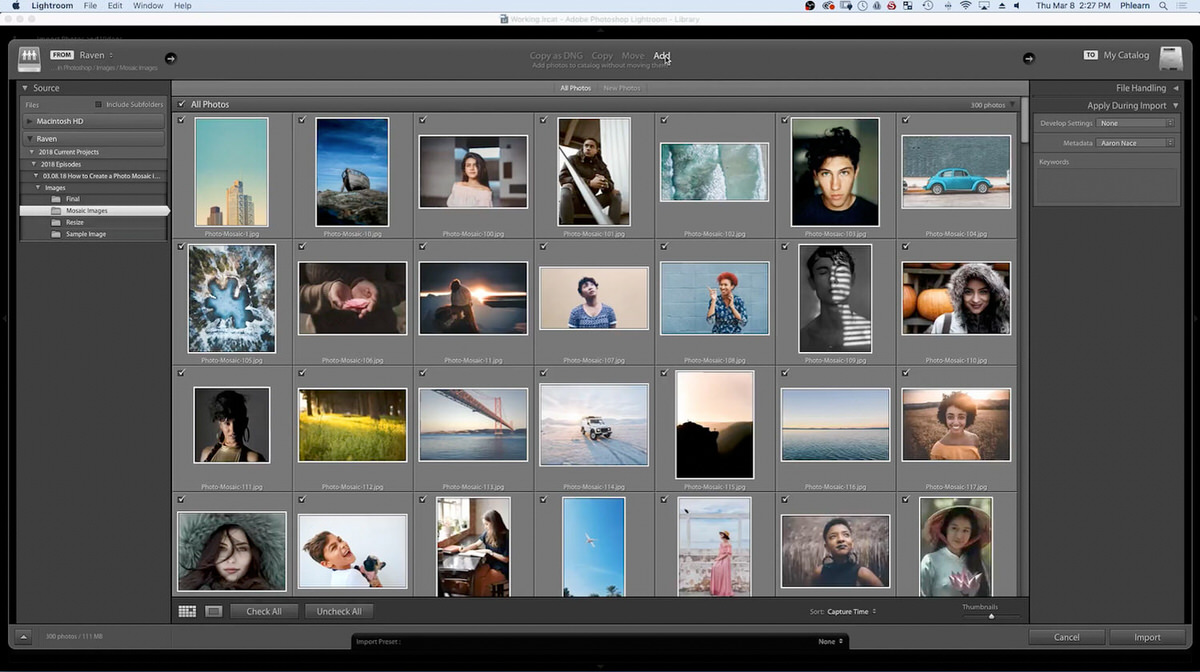
 Simply click and drag the entire folder into Lightroom, which brings up the import dialog — clicking Add and then Import brings every photo into the catalog in just a couple of seconds.
Cropping Every Photo to a Square
Since mosaic tiles need to be uniform, every source photo needs a square crop. Select one image and press R to open the Crop tool, choose a 1:1 aspect ratio, and position the crop as desired before pressing Enter.
Syncing the Crop Across All Photos at Once
Rather than repeating that crop manually on every photo, go back to the grid view, select all photos with Ctrl/Cmd+A, and use Sync Settings. Click “Check None” first to clear every option, then check only Crop before clicking Synchronize. 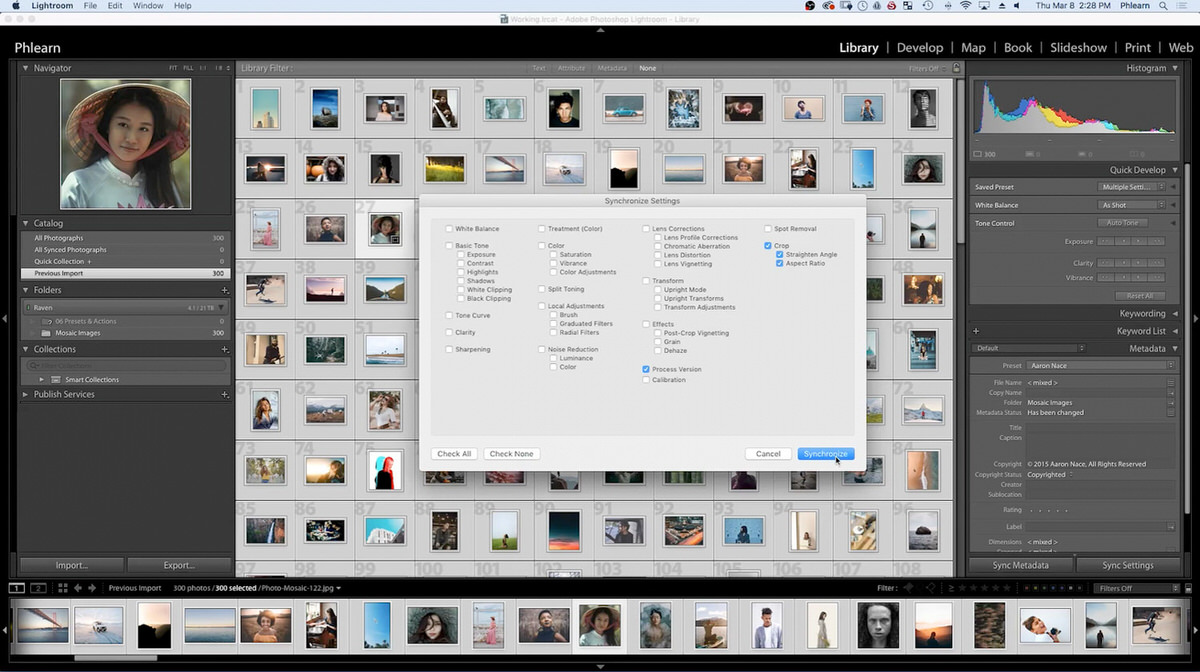 This applies the exact same square crop to every photo in the batch in one step.
Fixing Individual Crop Placement
Because the synced crop applies the same relative position to every photo, some images will end up cropped in an awkward spot — cutting off a face instead of centering it, for example.  Pressing R on any individual photo reopens its crop for a quick manual fix, including repositioning or rescaling it, then pressing Enter to confirm. Working through the filmstrip and re-pressing R on any photo that needs adjustment makes it easy to catch and fix every awkward crop before moving on.
This is worth doing methodically rather than spot-checking a few images at random, since even a handful of badly cropped tiles will stand out once they’re part of a finished mosaic.  Working through the filmstrip in order and re-cropping anything that looks off, one photo at a time, is a simple but effective way to make sure every single tile in the final mosaic is well composed before moving on to export.
Exporting All Photos at a Small Size
With every photo cropped to a square, select all of them again and go to File > Export. 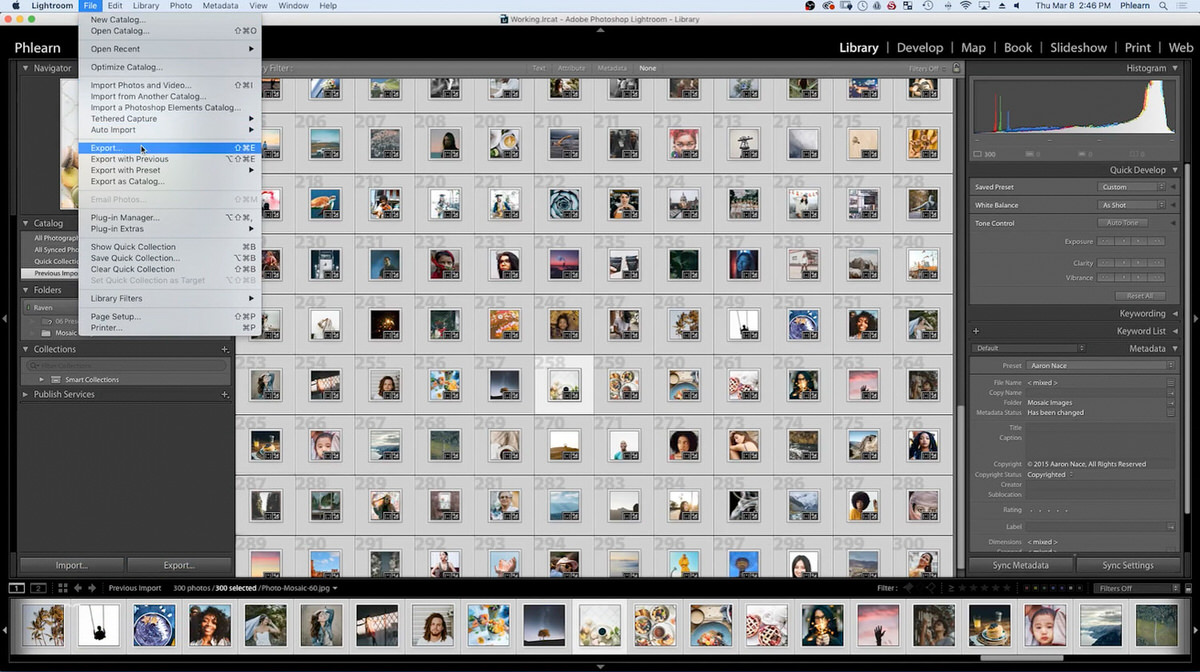 Under Image Sizing, resize the long edge down to 150 pixels — since these will become tiny individual tiles in a mosaic, they don’t need to be large.
 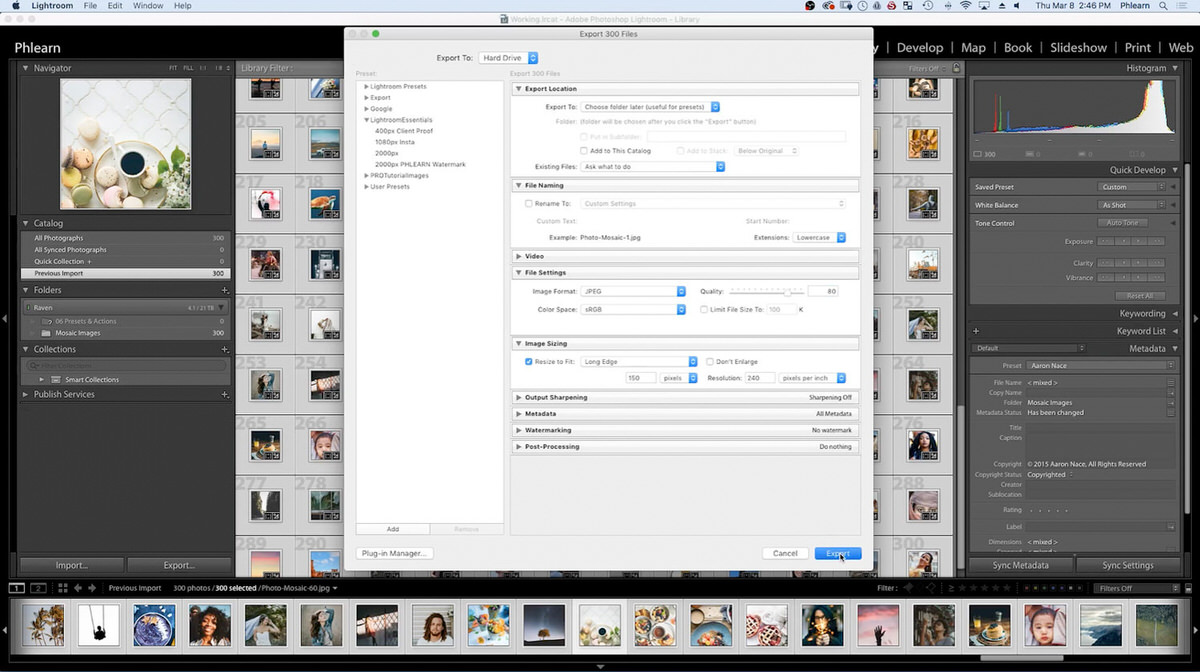 Set the file format to JPEG, sRGB, with a quality of around 80, and set Export To to Choose folder later. Click Export, then in the file window create a new folder named 150px, click Create and then Open, and Lightroom exports all 300 photos into it.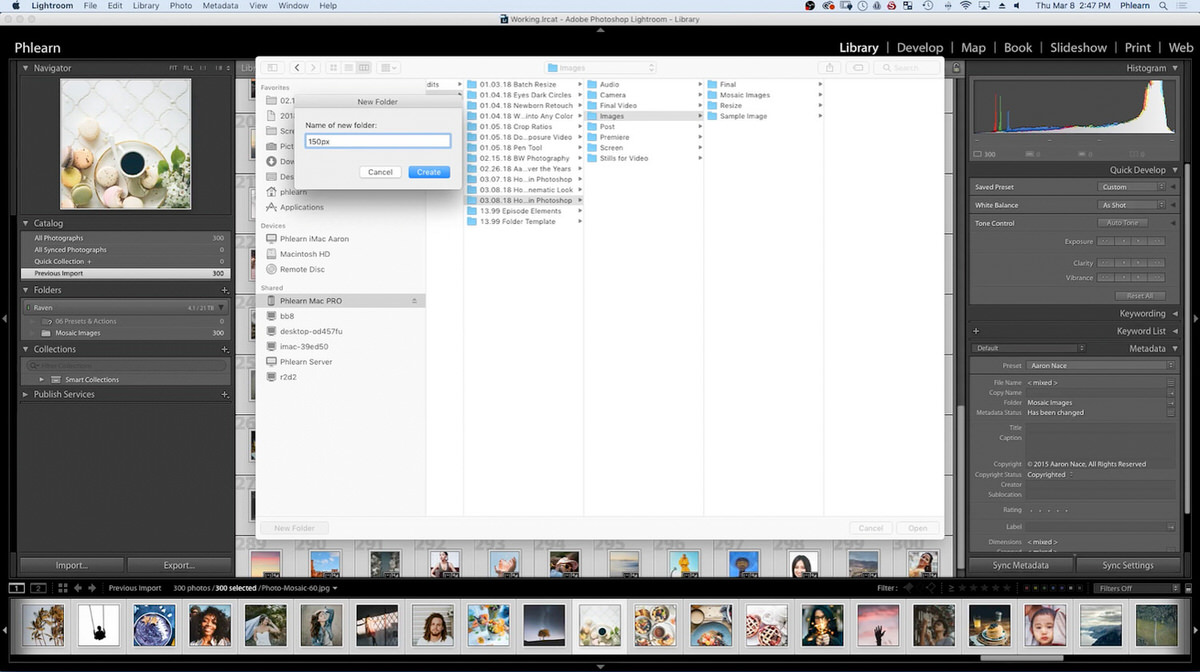
Why a Uniform Tile Size Matters
Exporting every photo at exactly 150 pixels on the long edge, after they’ve all already been cropped to the same square aspect ratio, is what makes the next automated step possible. If tile sizes varied even slightly, Photoshop’s Contact Sheet automation would have no consistent grid to build against, and the resulting mosaic would have gaps, overlaps, or uneven spacing between tiles. Getting the sizing and cropping consistent up front in Lightroom, across all 300 photos at once, is what turns the next step from a manual nightmare into a single automated action.
Building the Mosaic with Contact Sheet II
From here, the rest of the process is automated inside Photoshop. Go to File > Automate > Contact Sheet II. 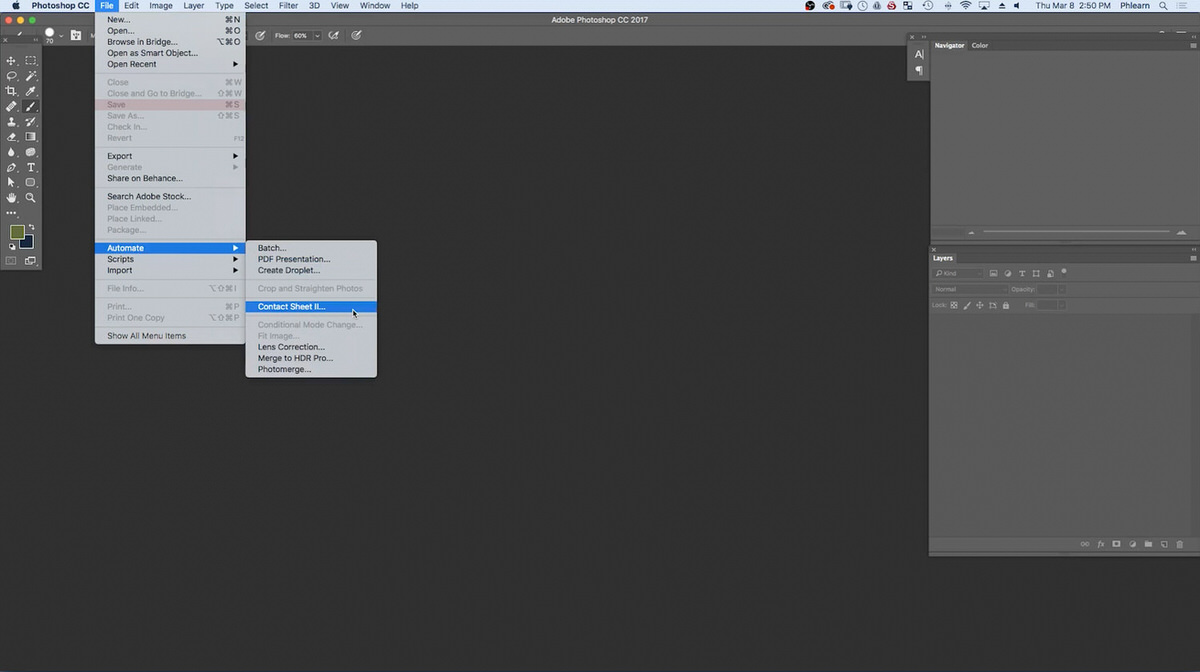 Choose the exported 150px folder as the source images, then set the document size based on the math of the tile grid: since each tile is 150 pixels square, 20 columns wide comes out to 3000 pixels, and 15 rows tall comes out to 2250 pixels.
 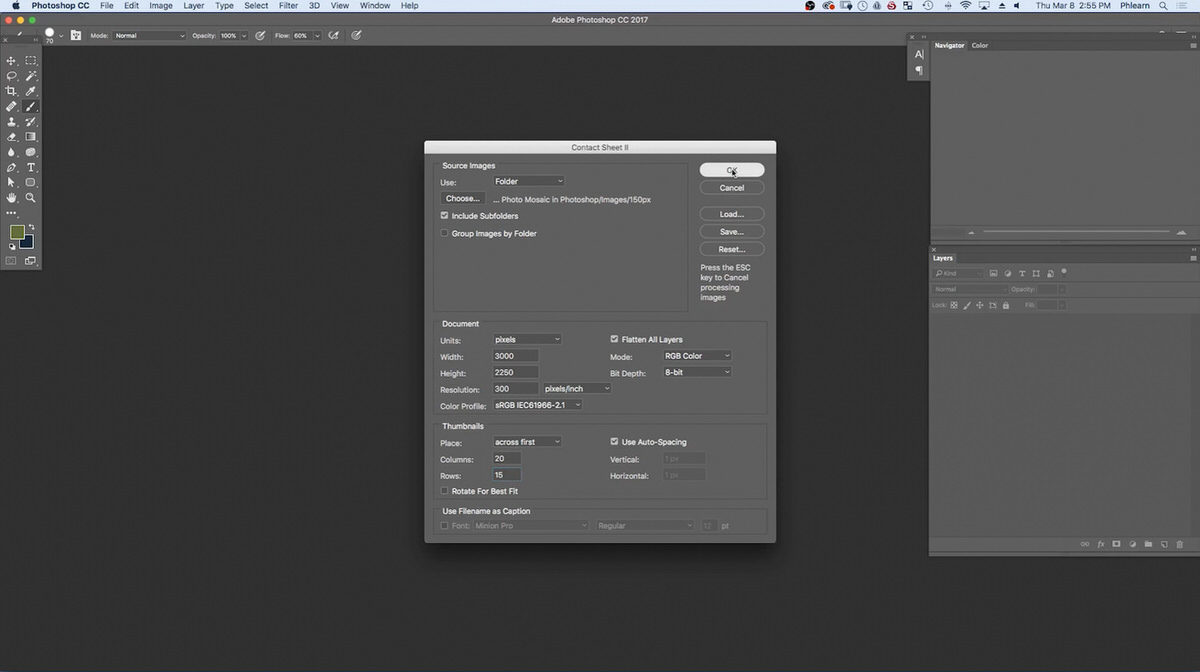 Set the thumbnail placement to 20 columns and 15 rows, and uncheck “Use Filename as Caption” since captions aren’t needed on the finished mosaic.
Letting Contact Sheet II Assemble the Grid Automatically
Clicking OK lets Photoshop calculate the layout and place every one of the 300 photos into a perfectly even mosaic grid automatically, with no manual placement required. 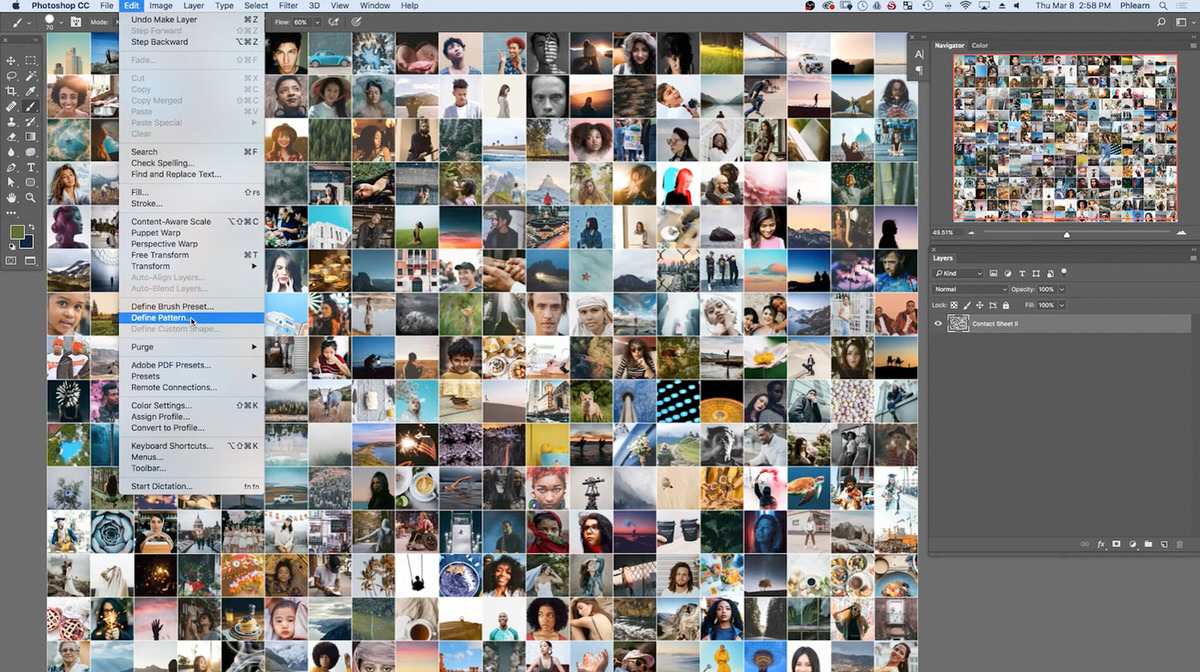 At this point, anyone who only wants a standalone photo mosaic already has a finished result — the remaining steps take it further by turning that mosaic into a texture that can be applied to any other photo.
It’s worth pausing here to zoom into the finished grid and confirm every tile landed where it should, since Contact Sheet II’s automatic placement is reliable but still worth a quick visual check before moving on to the next stage, especially on a large 300-image grid where a single misplaced or corrupted file could otherwise go unnoticed.
Turning the Mosaic into a Reusable Pattern
To use the mosaic as an overlay, define it as a Photoshop pattern: go to Edit > Define Pattern, give it a name like “Photo Mosaic,” and confirm. This stores the entire mosaic inside Photoshop’s pattern library, ready to be applied to any image going forward.
Applying the Mosaic as a Pattern Fill Layer
Open a different sample photo — a portrait in this example — that the mosaic pattern will be applied to. 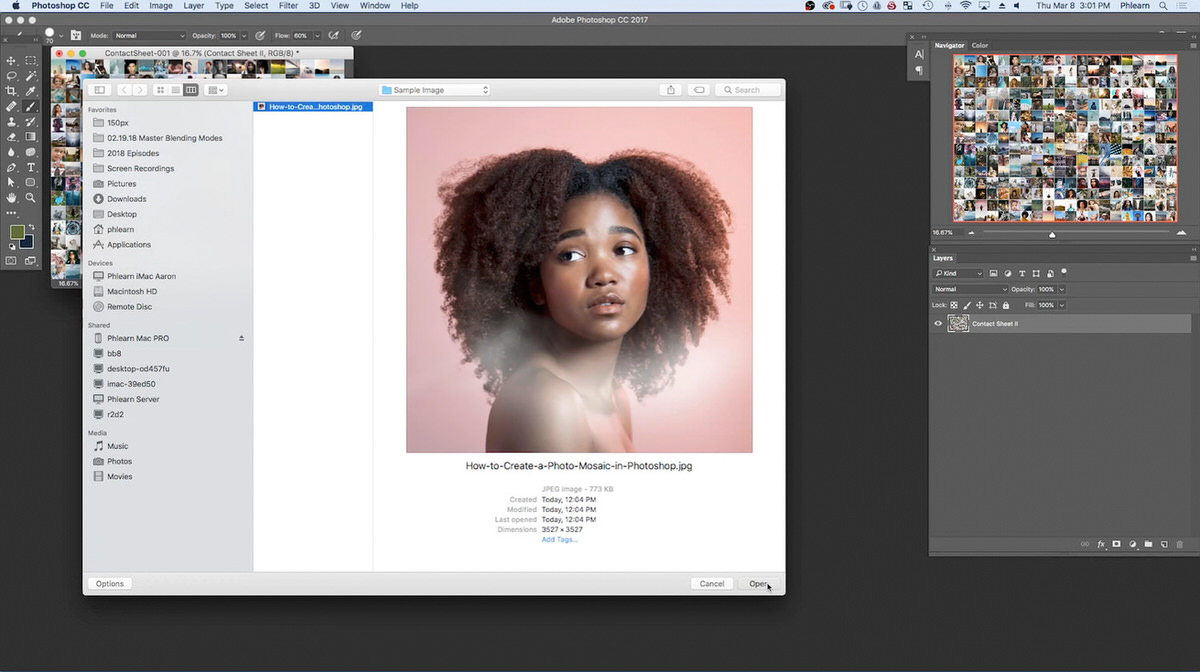 Add the pattern as a new fill layer through Layer > New Fill Layer > Pattern.
 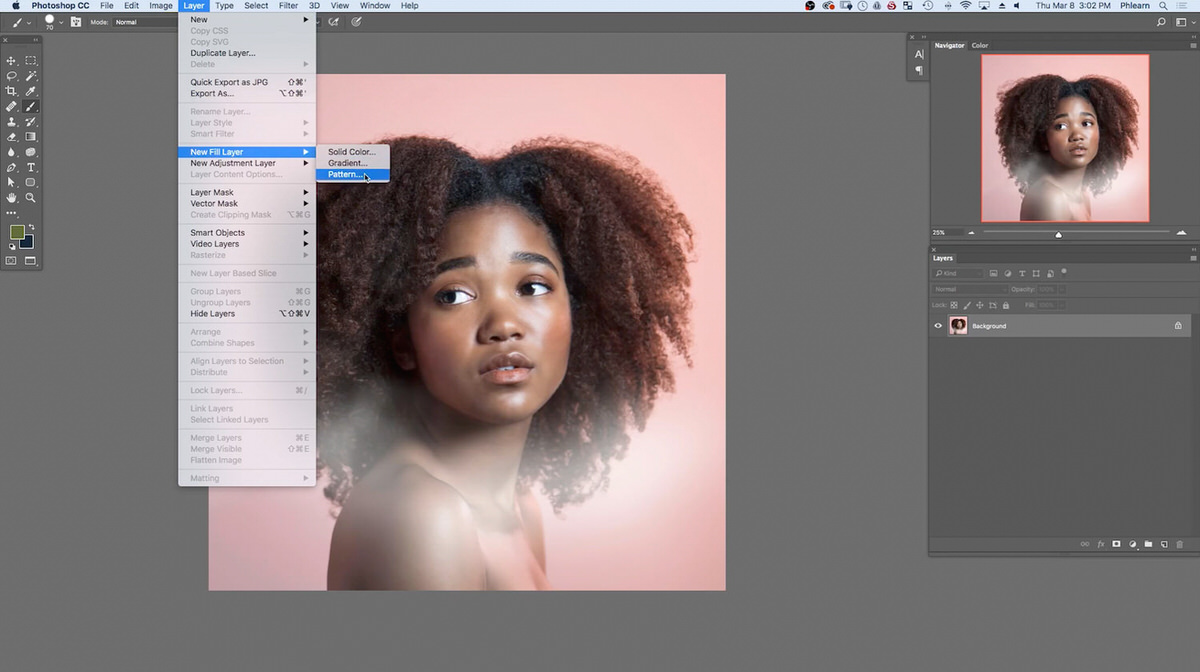 The saved mosaic pattern loads in automatically and tiles infinitely across the layer, with a Scale control that determines how many repetitions of the mosaic show up across the image.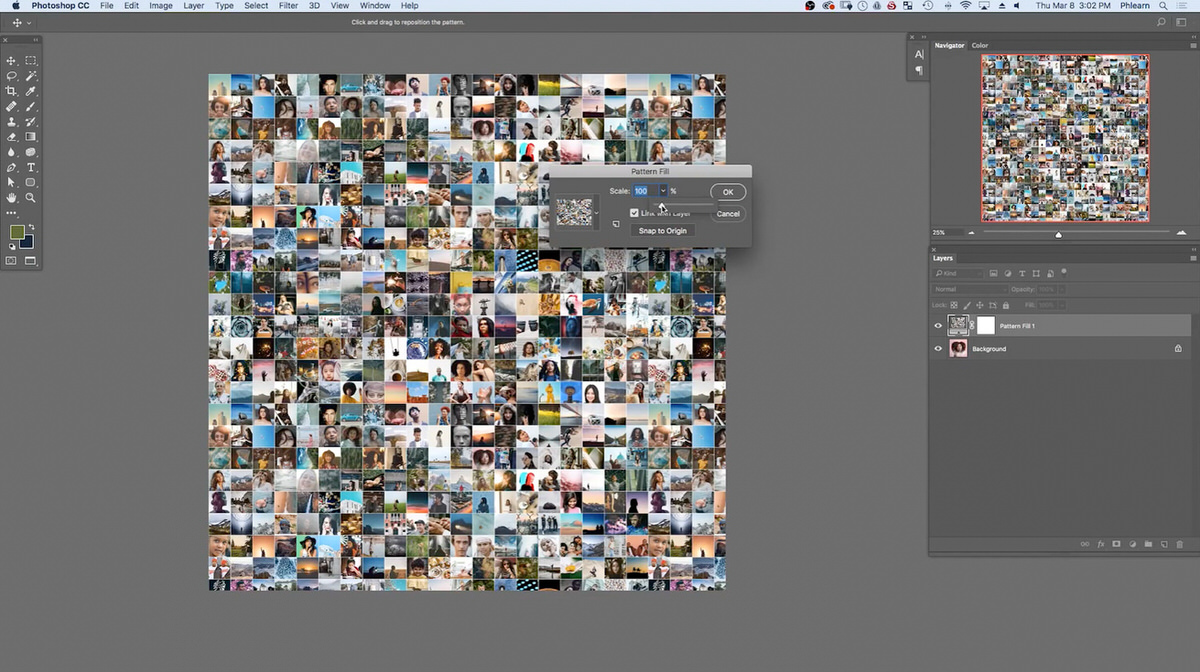
Blending the Pattern with Soft Light
Change the pattern fill layer’s blend mode from Normal to Soft Light, which lets the underlying photo’s tones and shapes show through the mosaic tiles rather than sitting flatly on top of the image. 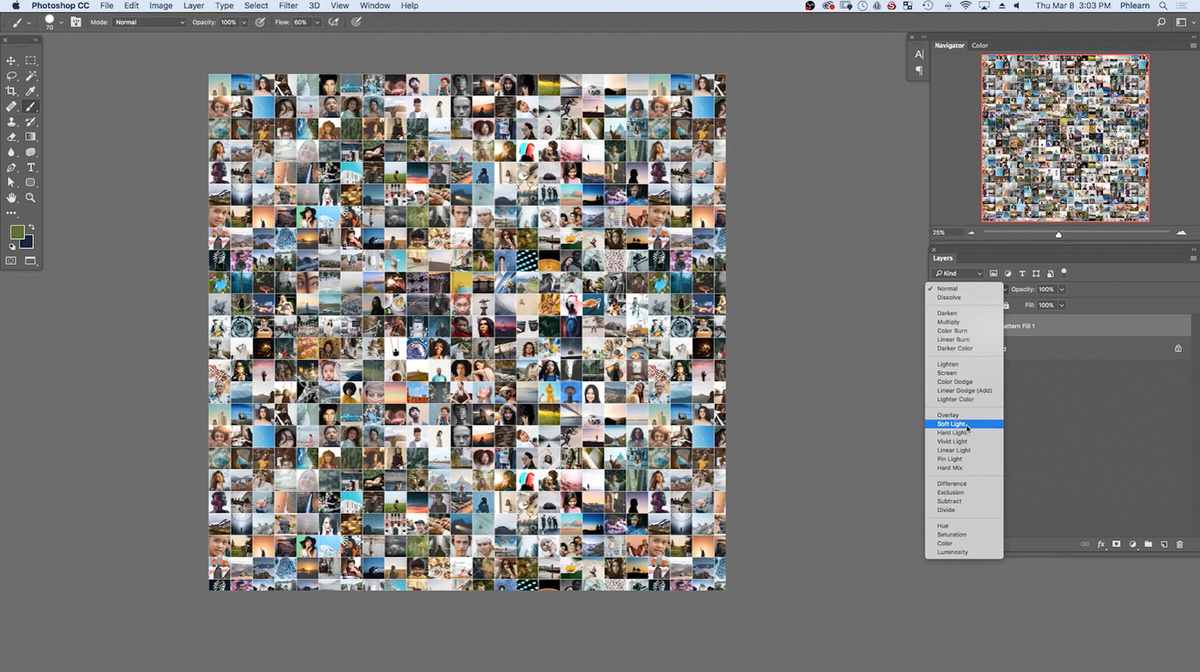 Once applied, the mosaic immediately starts to look like it’s forming the actual photo, since the pattern layer picks up the brightness and contours of the portrait underneath it.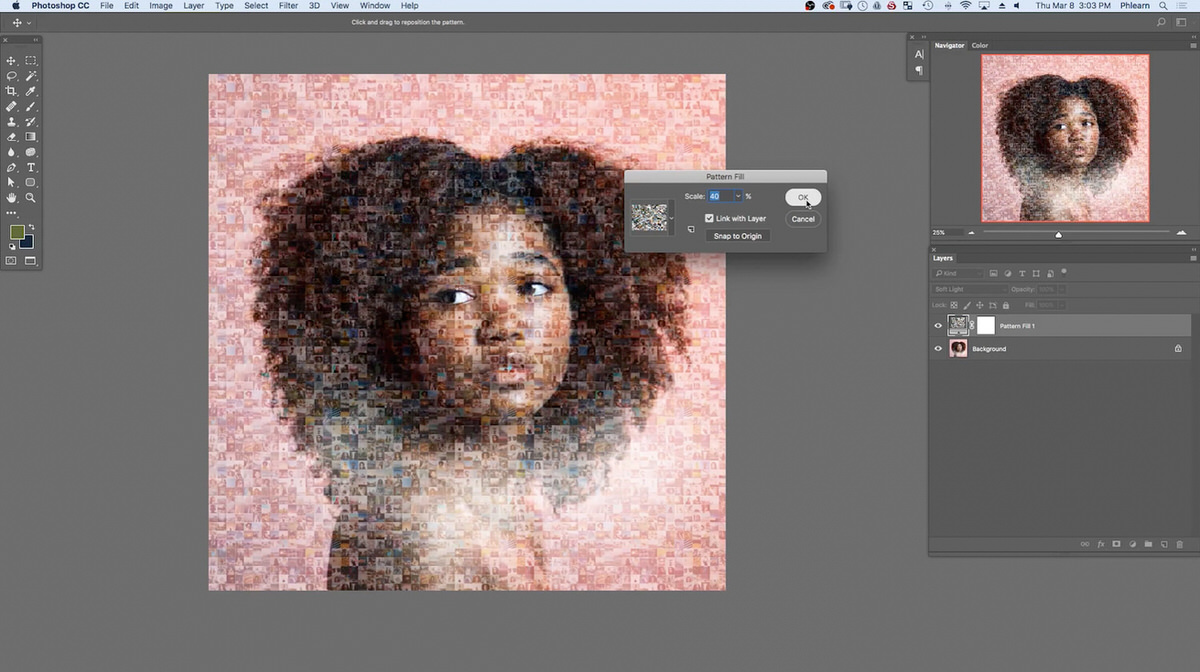
Fine-Tuning Pattern Scale and Contrast
Double-clicking the pattern fill layer reopens its settings, where the Scale slider controls how large or small each individual tile appears: a lower scale packs in more, smaller tiles, while a higher scale shows fewer, larger tiles. 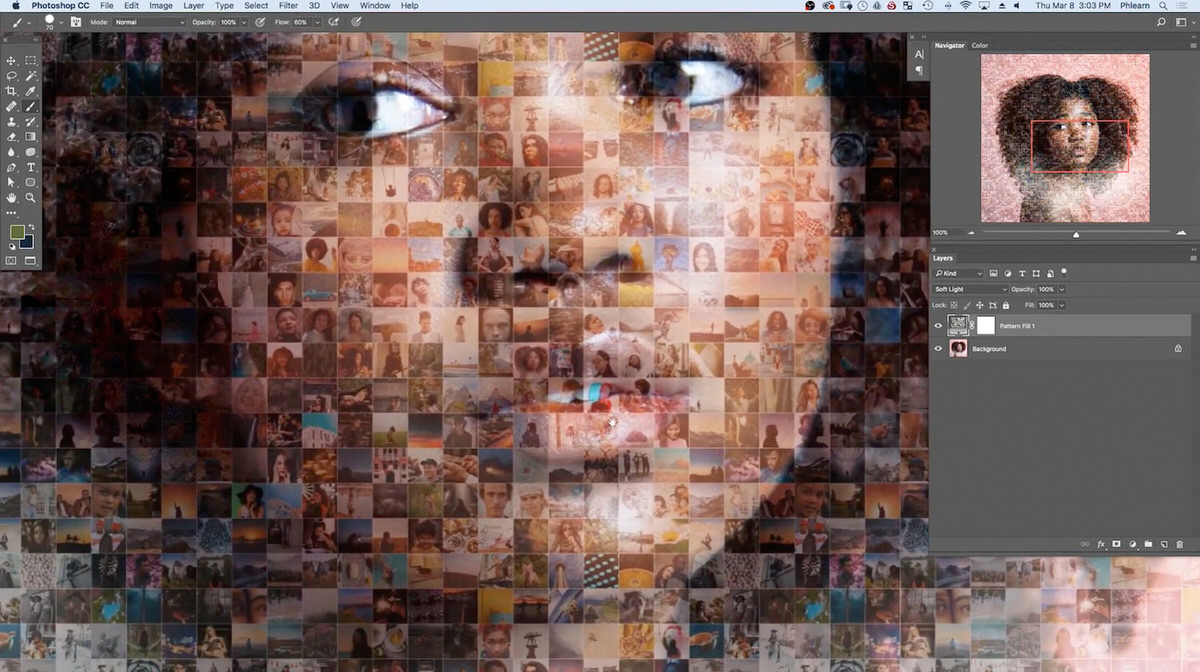 Since every photo has a different amount of fine detail, there’s no single correct scale — around 40 percent worked well for this particular portrait, but each new image benefits from testing a few different scale values to find what reads best.
Reducing Contrast with a Clipped Levels Layer
If the pattern layer’s contrast feels too strong, add a Levels adjustment layer clipped specifically to the pattern fill layer. 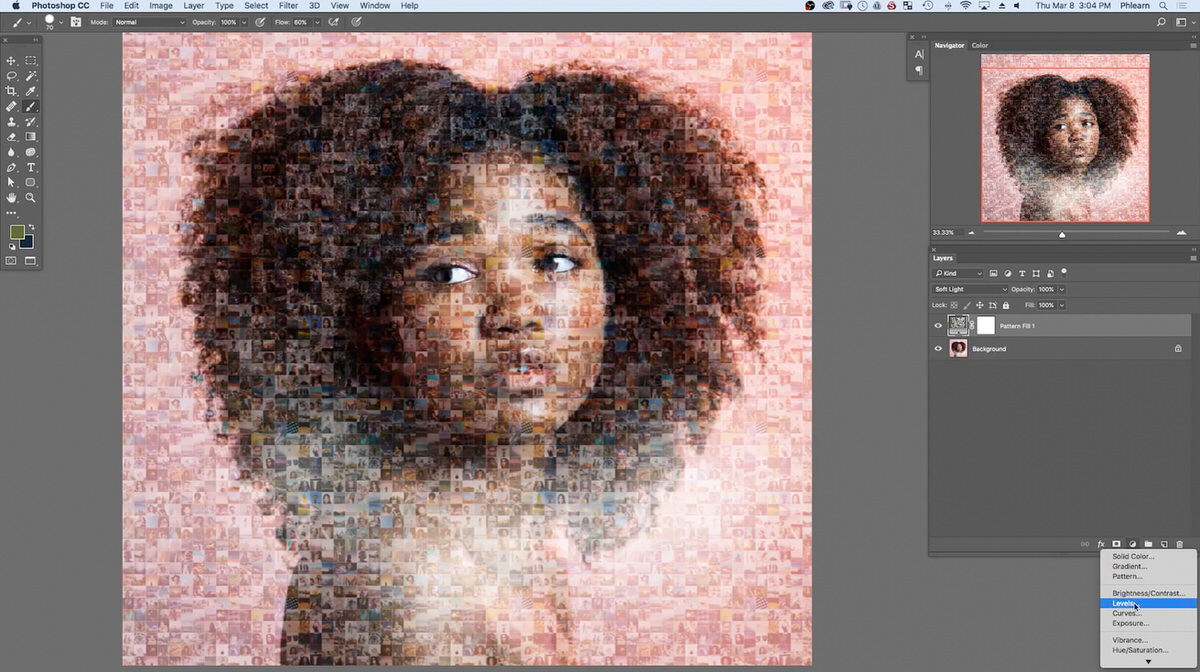 Bringing the black and white Output Levels sliders in a little softens the overall contrast of the pattern, making the underlying photo easier to see through the mosaic tiles, and since it’s a separate adjustment layer, it can be toggled on or off at any time.
Clipping the Levels layer specifically to the pattern fill layer, rather than letting it affect the whole image, matters here: an unclipped adjustment would also change the contrast of the underlying portrait itself, undoing some of the careful exposure and color work that photo already had. By restricting the adjustment to just the pattern, the mosaic tiles can be softened independently while the base photo underneath stays exactly as it was, which keeps the overall effect controllable and reversible at every stage of the process.
Working with Your Own Photo Collection
While this example uses a curated 300-photo stock set, the entire workflow applies just as well to a personal photo collection — a year’s worth of phone photos, every picture from a company retreat, or a family archive going back years. The main variable to adjust for a personal collection is simply the total photo count: fewer source photos means a smaller contact sheet grid (fewer columns and rows in the Contact Sheet II dialog), while a much larger collection can be arranged into a bigger, more detailed grid. The underlying steps, cropping to a square, exporting small, and letting Contact Sheet II handle placement, stay exactly the same regardless of how many photos are involved.
Ideas for Using a Finished Photo Mosaic
A finished photo mosaic effect has plenty of practical uses beyond a standalone image: wedding or event photographers can build a mosaic from every photo taken at an event and layer it over the couple’s main portrait as a client keepsake, giving them something far more memorable than a typical printed gallery. The same effect works well as a website background, a social media banner, or a “best of the year” roundup image built from a collection of favorite shots pulled from an entire year of photography. Because the underlying pattern is fully reusable, a single mosaic built once from a meaningful set of photos can be applied across several different final images, letting the same story be told in more than one format without redoing any of the setup work.
Why This Technique Works
Splitting this workflow between Lightroom and Photoshop plays to each app’s strengths: Lightroom’s batch Sync Settings makes cropping and exporting hundreds of photos to a uniform size fast, rather than repeating those steps by hand on every image, while Photoshop’s Contact Sheet II automation handles the tedious math and placement of arranging every tile into a perfectly even grid — math that would be genuinely painful to work out and place manually across 300 individual images. Turning that finished grid into a Photoshop pattern, rather than treating it as a one-off flattened image, is what makes it reusable across any future photo, since a pattern lives inside Photoshop’s library and tiles infinitely at any scale, rather than being tied to the exact dimensions of the document it was created in. And Soft Light blend mode is the specific ingredient that makes the overlay believable: it lets the underlying photo’s actual brightness and shape show through the pattern, so the mosaic reads as if it’s forming the image rather than sitting as a flat, unrelated grid on top of it, the way Normal blend mode would if applied directly instead.
Final Thoughts
Once the source photos are cropped and exported and the mosaic pattern is saved inside Photoshop, that same pattern can be reused on any number of future photos, adjusting only the scale and Levels contrast to fit each new image. The two-stage process, batch preparation in Lightroom followed by pattern-based automation in Photoshop, turns what could be an enormous manual task into something that comes together in only a few clicks per photo.
Quick Reference: Keys, Menus and Settings
- Square cropR, Aspect 1 x 1, Enter
- Sync the cropCmd/Ctrl + A, Sync Settings, Check None, Crop, Synchronize
- Export the tilesFile > Export: Long Edge 150 pixels, JPEG, sRGB, quality about 80, Choose folder later
- Build the gridFile > Automate > Contact Sheet II: 3000 x 2250 pixels, 20 columns, 15 rows, captions off
- Make a patternEdit > Define Pattern
- Overlay itLayer > New Fill Layer > Pattern, blend mode Soft Light, Scale about 40%
- Less contrastLevels clipped to the pattern fill, Output Levels brought in a little
Free Downloads
Follow Along on the Same Photos
Get all 300 mosaic tile photos, the portrait the mosaic is blended over and the 3-page PDF guide with every setting. Free with a PHLEARN account.
Photo Mosaics: Common Questions
What do I need to make a photo mosaic?
Lightroom to crop and resize the photos in a batch, and Photoshop to lay out the grid with Contact Sheet II. The video uses a folder of 300 photos.
How do I crop hundreds of photos to a square at once?
Crop one photo with R and an Aspect of 1 x 1, press Enter, then select all with Cmd/Ctrl + A. Click Sync Settings, click Check None, check only Crop and click Synchronize.
Some of my synced crops cut off faces. How do I fix them?
Click the photo, press R, move or scale the crop and press Enter. Step through the filmstrip and re-crop any photo that needs it before you export.
What size should I export the tiles?
In the video they go out at 150 pixels on the long edge, JPEG, sRGB, quality about 80. Export To is set to Choose folder later, and a new 150px folder is made in the file window after clicking Export.
How do I work out the Contact Sheet II size?
Multiply the tile size by the columns and rows. For 150 pixel tiles in a grid 20 wide and 15 tall, that is 3000 x 2250 pixels, with Columns at 20 and Rows at 15.
Why are there file names under my tiles?
Use Filename as Caption is checked in Contact Sheet II. Uncheck it before you click OK.
How do I make a photo look like it is made of the mosaic?
Turn the mosaic into a pattern with Edit > Define Pattern. On the photo, add Layer > New Fill Layer > Pattern and change the layer’s blend mode from Normal to Soft Light.
What Scale should the pattern be?
There is no single right value. Double-click the pattern fill to reopen it and try a few; about 40% suited the sample portrait.
How do I tone down the mosaic so the photo shows through?
Add a Levels adjustment layer clipped to the pattern fill, then bring the black and white Output Levels in a little. Because it is clipped, the photo underneath is not changed.
Are the sample files free?
Yes, with a free PHLEARN account. You get 301 sample images and 1 PDF guide: the 300 mosaic tile photos, the portrait used for the overlay and the 3-page step-by-step guide.
Master Photoshop, Lightroom and Photography
Join PHLEARN PRO for $12.99 a month, or $99.99 a year (save 36%). Cancel anytime, with a 100% money-back guarantee.





