

THIS COURSE INCLUDES
- 5 Lessonsfollow-along
- 1h 25mof HD video
- Beginnerno experience needed
- 7 Sample Imagesto follow along
- 6 Layered PSDs+ Frequency Separation action
- Captionsand chapters on every lesson
Part of a Learning Path
Join PHLEARN PRO for instant access to this course and every tutorial on PHLEARN.
- Stream in up to 4K on any device
- Closed captions and chapters on every course
- Download all sample images and PSDs
- New PRO tutorials every month
- Cancel anytime
Description
It’s never been easier to sell products online, and that means that product photos are in high demand. Join us for this intro to product retouching in Photoshop as we explore a professional workflow. Learn how to retouch and reshape products, remove scratches and blemishes, sculpt highlights and shadows, and place products onto solid-colored backgrounds, perfect for any website or online storefront.
In 5 lessons, we cover the issues you’ll run into most. You’ll learn when to reach for the Spot Healing Brush, the Healing Brush, the Clone Stamp or Content-Aware Fill, and how to reshape a bag with Liquify and smooth out its fabric with frequency separation while keeping all of its texture. We show you how to place a graphic onto a phone screen in perspective so it updates whenever you change the original, a technique that works just as well for signs, billboards and client mockups. You’ll cut a product out automatically onto pure white and build a realistic shadow from scratch, and take on the harder case too: a white chair on a white background, where Select Subject struggles and the Pen Tool takes over. Follow along with the included sample images, PSD files and the PHLEARN frequency separation action.
What You’ll Learn
- Remove scratches and blemishes from any product photo
- Sculpt highlights and shadows for a polished look
- Place products on solid backgrounds ready for e-commerce
Table of Contents
Course Downloads
Picture-Perfect Products
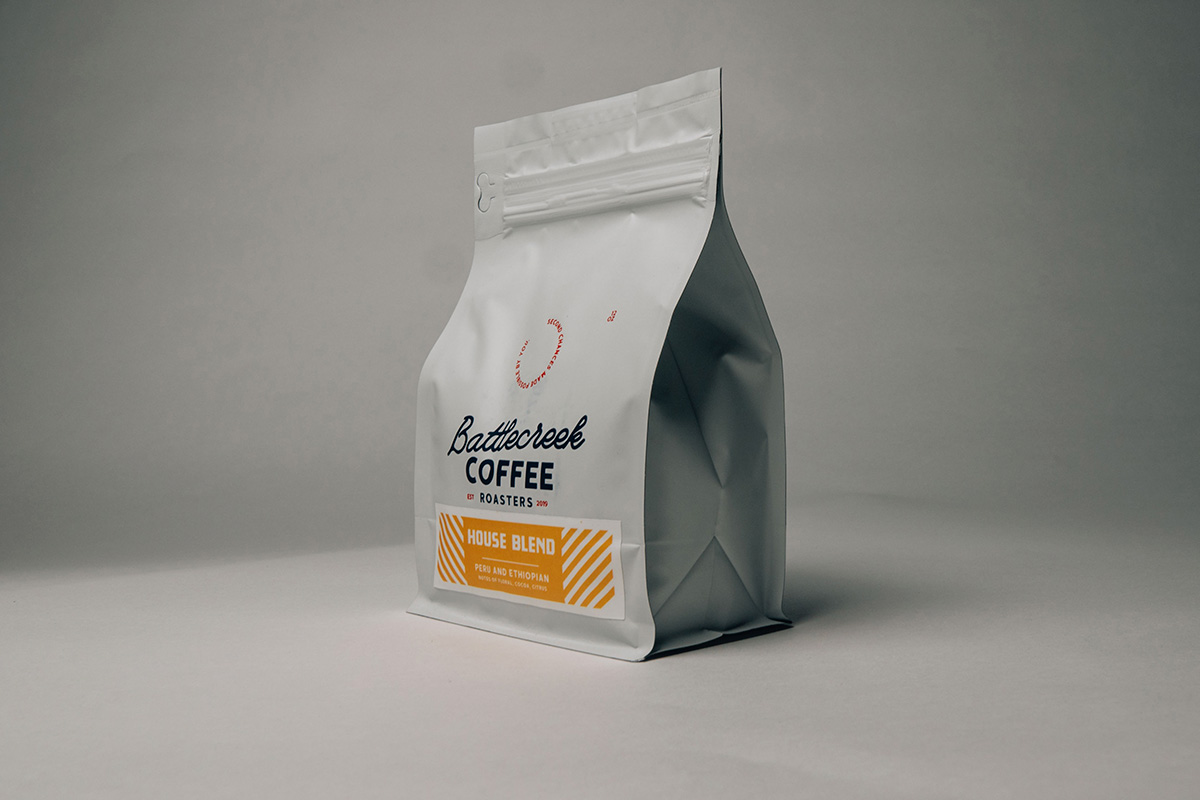
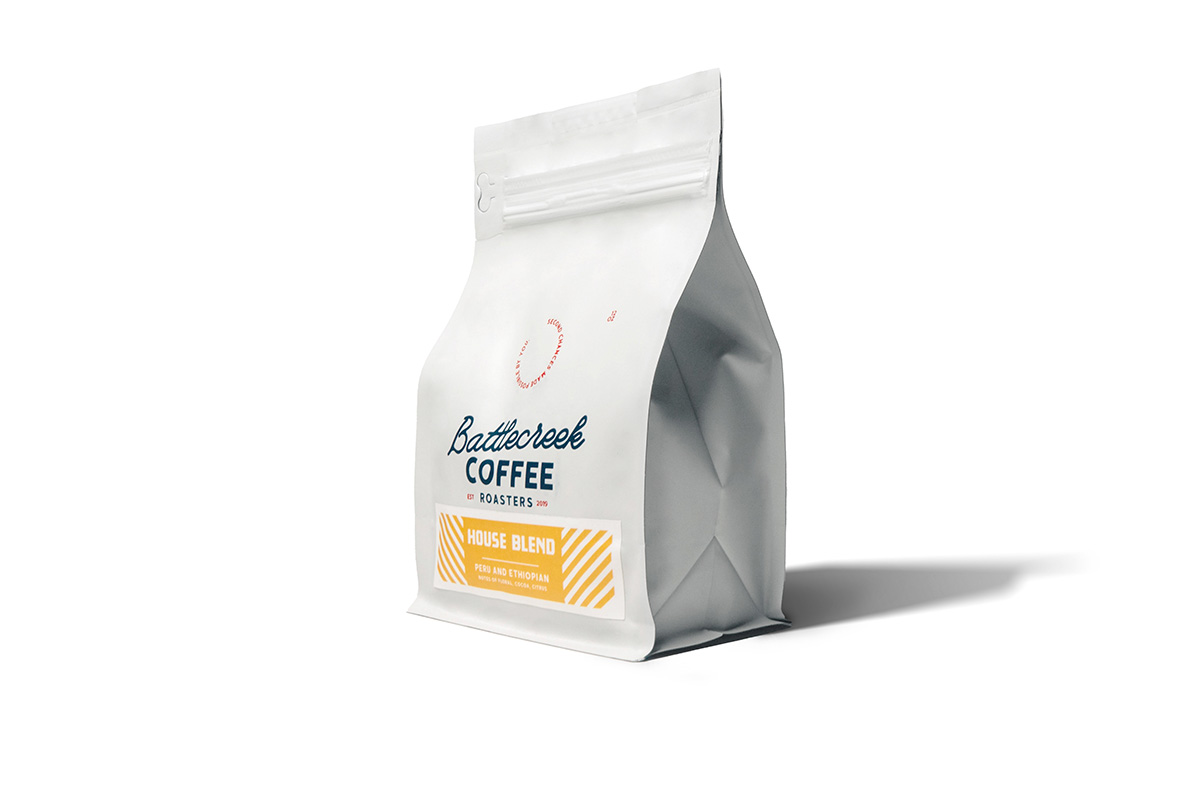
Seamless Product Retouching
Retouch and reshape products. Cut out products and place them onto pure white backgrounds. Create realistic digital mockups of websites. If you’ve been waiting to explore the world of product retouching, then this is the course for you!


Product Retouching in Photoshop: The Art of the Craft
This intro to product retouching in Photoshop is all about bringing real-world objects and products to life in a photograph. Learn how to enhance textures and details, retouch and reshape objects, place products onto new backgrounds, and create realistic digital mockups.
Retouch & Reshape
Product retouching in Photoshop starts with cleanup: remove small blemishes like dust and scratches using powerful tools like the Spot Healing Brush, Clone Stamp, and more. Use the Liquify Tool to give products a more visually appealing shape and structure.
Work with Products
Looking for more courses focused on product photography and product retouching in Photoshop? Check out our more advanced courses with The Ultimate Guide to Product Photography, How to Retouch & Composite Product Photography, and Product Retouching for E-Commerce!
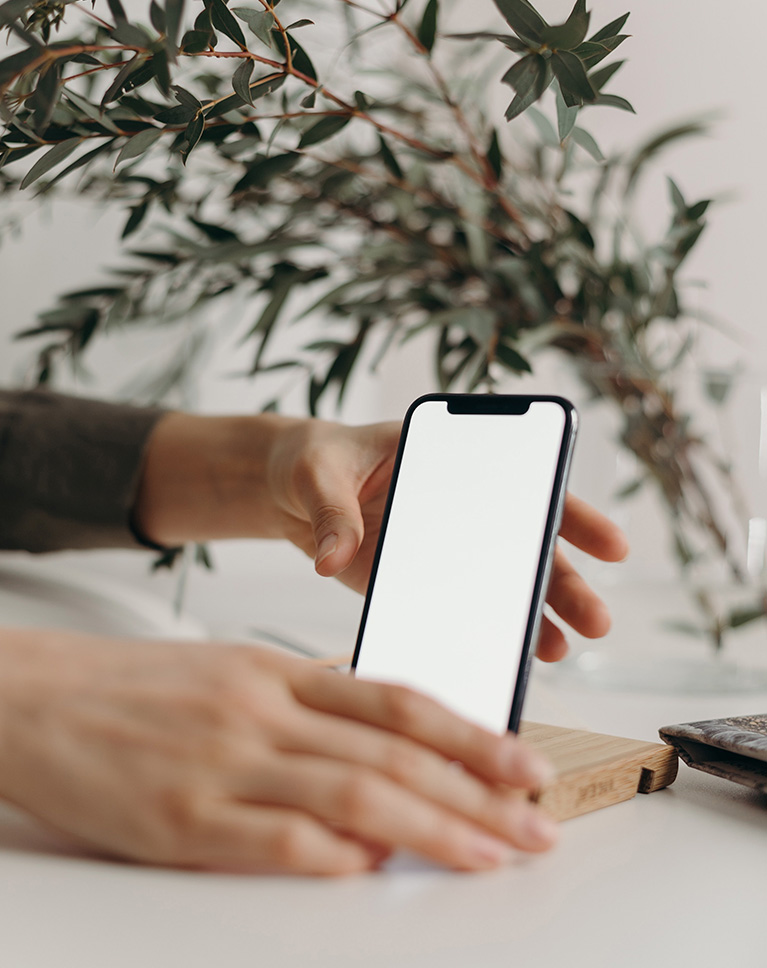
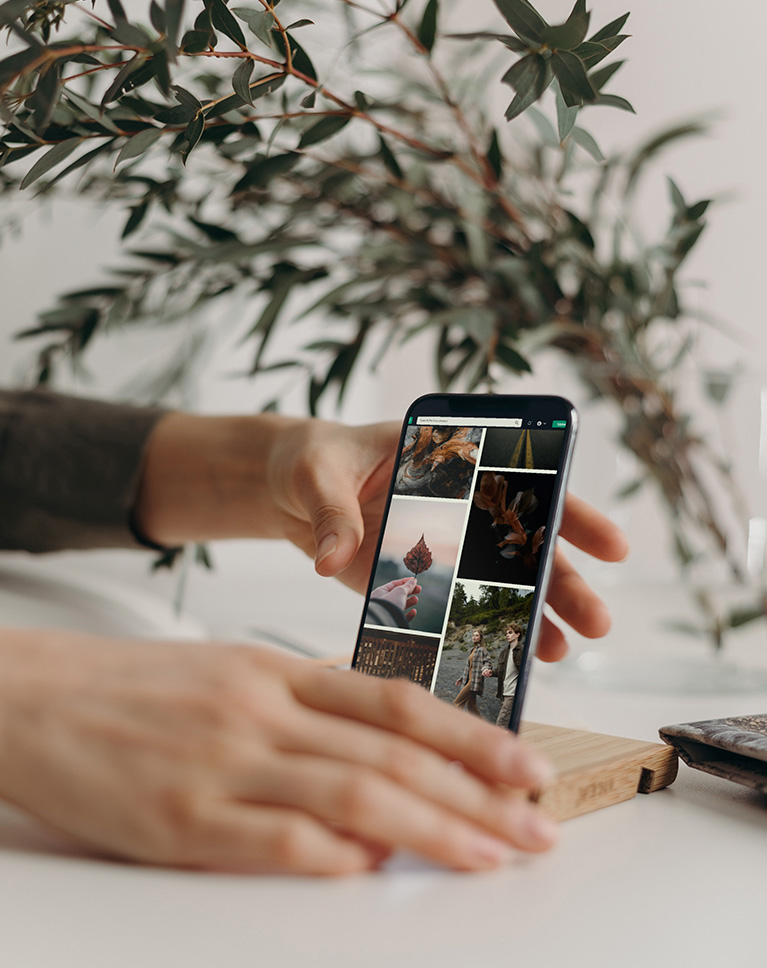
Websites & Digital Mockups
The ability to show off a new website or app in the hands of a user is a powerful and effective way to bring a digital product to life. Learn how to use product retouching in Photoshop for realistic digital mockups, placing a graphic, website, or design into any photographed digital display. And for more on creating product mockups, check out How to Create Realistic Mockups in Photoshop
Pro Workflows
Like any type of creative editing, an efficient workflow is just as important as the tools and techniques used to get the job done. Learn how to manage and organize multiple product retouching in Photoshop projects and work non-destructively.
Frequency Separation Photoshop Action
Frequency Separation is one of the most powerful product retouching in Photoshop techniques for the professional retoucher, and our custom Photoshop Action makes it easier than ever to fit this important skill into your workflow. The Action allows you to instantly separate a photo into a Layer of texture information and a Layer of color information so that each can be edited independently for maximum precision and control.
Create Seamless Backgrounds
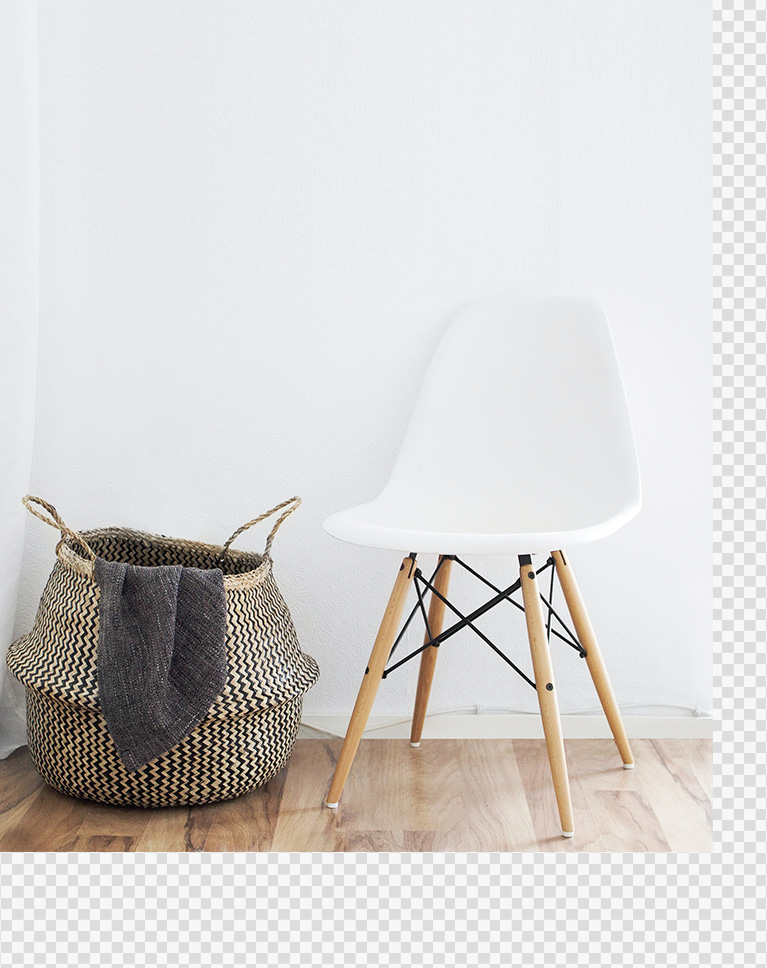
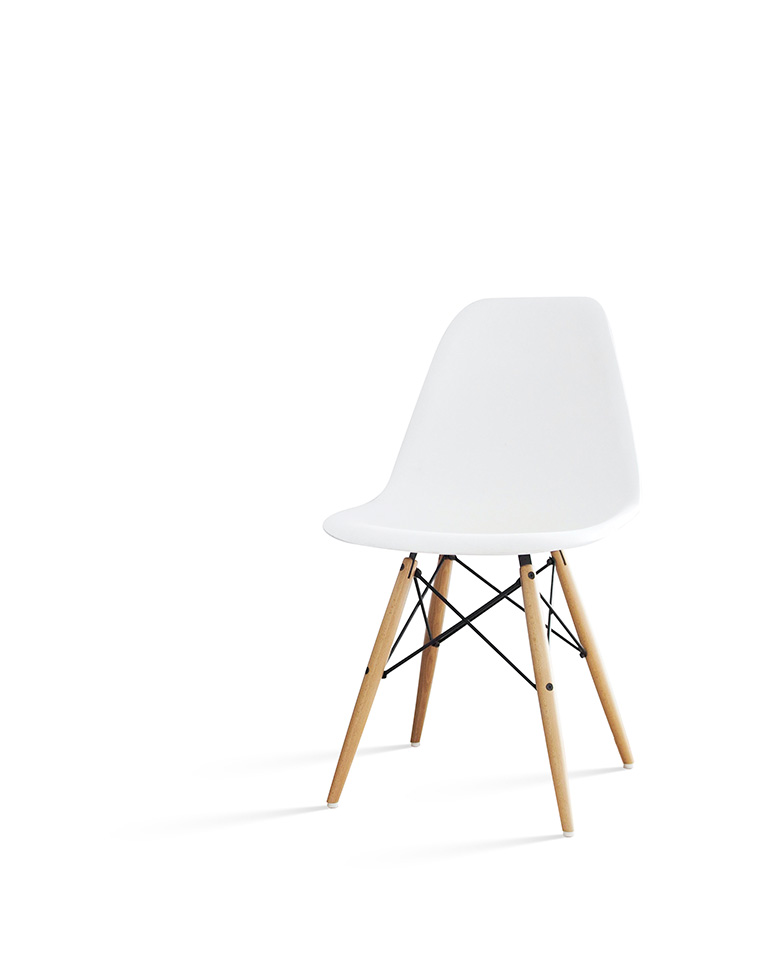
Not only do product photos need to show off quality, materials, and features, the photos also need to be versatile, fitting seamlessly into a brand’s website and social media feeds. That’s why we show you how to place any product onto a pure white background with clean cutouts and realistic shadow details.
Recreate Shadows
Being able to place any product onto a clean, solid-colored background is an essential skills. But being able to do it while recreating realistic shadow details can take the effect to a whole new level.
Perfect Cutouts
Learn how to use a combination of automated tools (like Select Subject) and manual tools (like the Pen Tool) to make perfect cutouts of any product, allowing you to place them onto new backgrounds and make more precise edits.
Remove Blemishes & Scratches
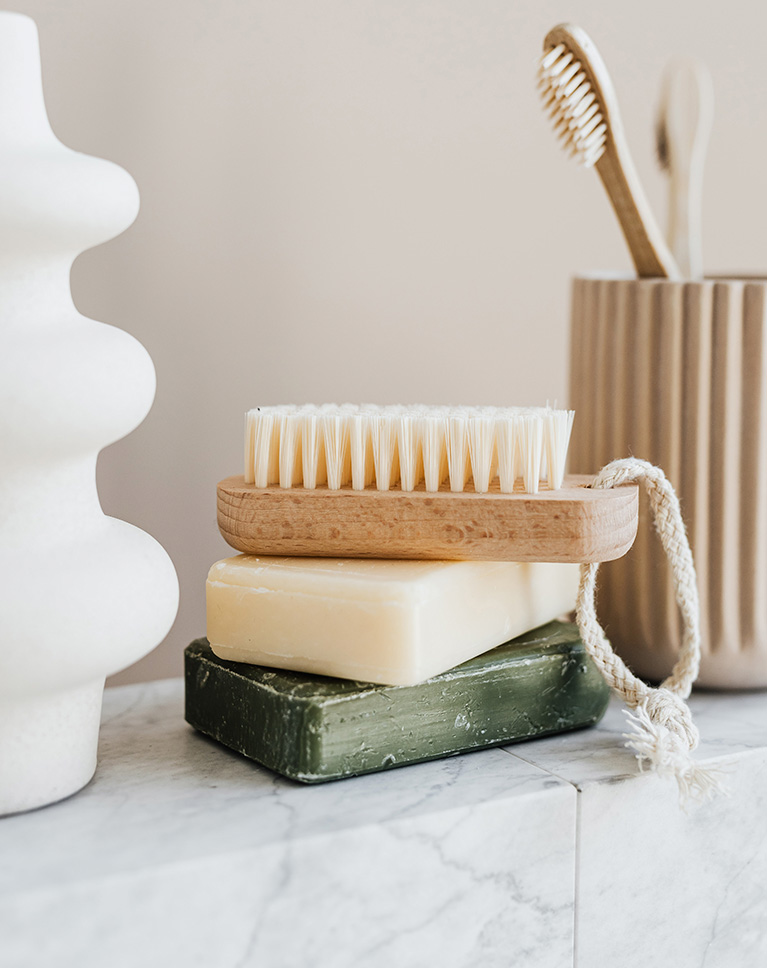
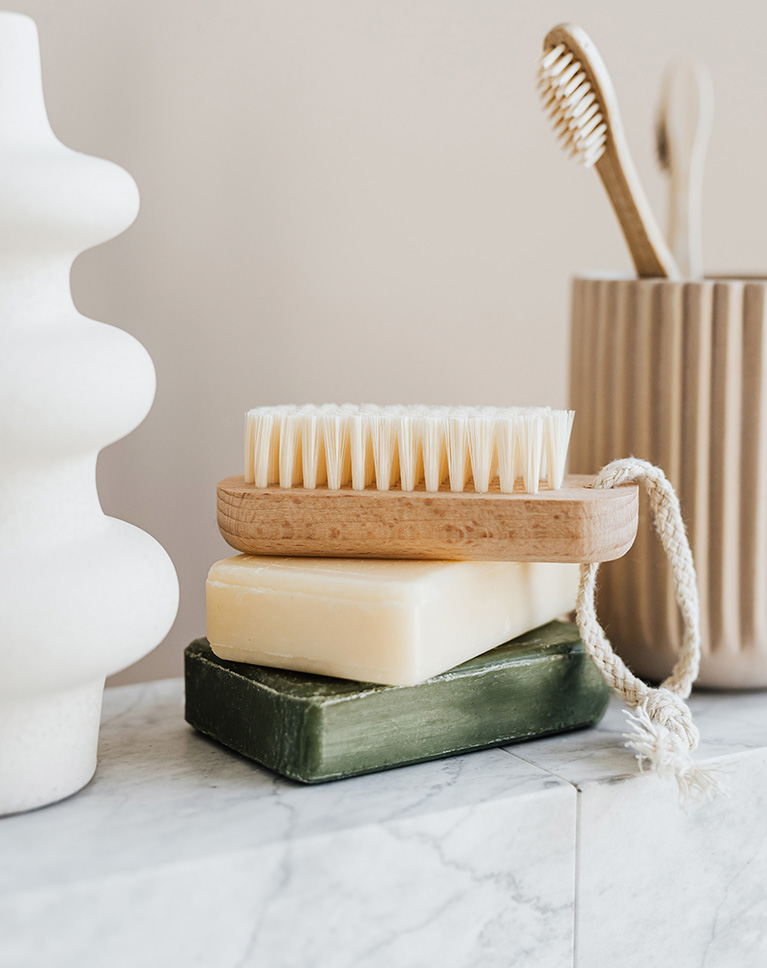
Photographs tend to capture all the small details, especially the ones we don’t want to be visible. Eliminate small blemishes like dust, wrinkles, and scratches so that every product looks its absolute best.
Texture & Detail
Help people understand what a product is going to feel like by enhancing its natural textures and details in Photoshop.
Professional Retouching Skills
While we only cover products in this course, the skills presented extend to many other areas of photo editing and retouching. For a more comprehensive approach to retouching, try our Retouching Learning Path.

Class Instructor
Aaron Nace
PHLEARN Founder & Lead Instructor
Aaron Nace is a photographer, digital artist, and the founder of PHLEARN. Since 2011 he has taught millions of people to edit with confidence in Photoshop and Lightroom, on YouTube and in PHLEARN PRO, and he has been a featured speaker at Adobe MAX for more than eight years.
Every PRO course comes with the sample images and PSDs to follow along step by step, and Aaron adds new courses and free tutorials all year.
- 2M+YouTube subscribers
- 160M+video views
- 1,000+tutorials published
- 15years teaching Photoshop
Reviews
Master Photoshop, Lightroom and Photography
Join PHLEARN PRO for $12.99 a month, or $99.99 a year (save 36%). Cancel anytime, with a 100% money-back guarantee.






These tutorials are very helpful and I highly recommend them. I wish there were more options though for resizing the viewing screen other than full wide screen like you can on youtube.
O cara é muito louco!!! Pena que não mande a legenda em português. Muito massa. Go, go…
Great, informative, easy to follow!
Great Tutorial!
Always Learn something new when I watch Aaron Turorials.
Fantastic tutorial. So helpful with talking about the various tools and methods that can be used. Thank you so much!
I always learn a couple of things (or tons) with Aaron’s “nice to teach” method. In this case I did the tutorial for the bag frequencies technique. You did it very simple and it works nice. I’ll use it for sure. Thanks!
Brilliant tutorial .. as always.
awesome! tkx for the excellent class
Every time I view or even review a tutorial I always learn something new. I also enjoy Aaron’s personality touch which is talking to me and not at me. He is also very easy to understand. Thank you for all the techniques you open the door to. Dan Lane Williams
great !!!!
As always you’re doing an amazing job. Thanks you so much for providing such a way to learn to anybody.
Great tutorial Arron! I’ve been using Photoshop professionally since version 1 but I always learn something new from your tutorials. Your pace and clarity make learning fun and easy. Even with my years of experience, it never fails that I have a ‘smack my head’ moment when discovering something new from you. Keep it up. I will try to always keep my subscription current. Thanks!
STELLAR!!!! Tutorial on Product retouching… the frequency separation technique is such a fantastic tool to have in your arsenal when retouching. Would love to see some more product retouching in photoshop especially jewelry (rings, watches and bracelets).