

Download Assets
This tutorial includes 6 sample images, 1 sample PSD and 1 PDF guide. Downloads are free with a PHLEARN account.
- Free sample files with every tutorial on PHLEARN
- New tutorials published every week
- Unlimited downloads with your free PHLEARN account
Free PDF Guide · 3 Pages
This Tutorial as a Step-by-Step PDF
The guide walks through picking a texture with light elements on a dark background, scaling it with Ctrl/Command+T, setting it to Screen, converting to a Smart Object, then Filter > Blur > Box Blur, Levels and Hue/Saturation Colorize as Smart Filters, and duplicating, flipping and masking a copy for each color. Keep it next to your keyboard.
description
Screen blend mode makes the dark parts of a texture invisible, so raindrops and bokeh on a dark background turn into a window reflection over any portrait. This tutorial blurs the texture with Box Blur as a Smart Filter, darkens it with Levels, colorizes each copy with Hue/Saturation to match the light in the photo, then masks every layer to keep the texture off the face.
Enjoying This Free Tutorial?
We publish a new free tutorial every week, each one with sample images and PSDs you can download and follow along with. Sign up and they land straight in your inbox, along with early word on sales, events and subscriber-only offers.
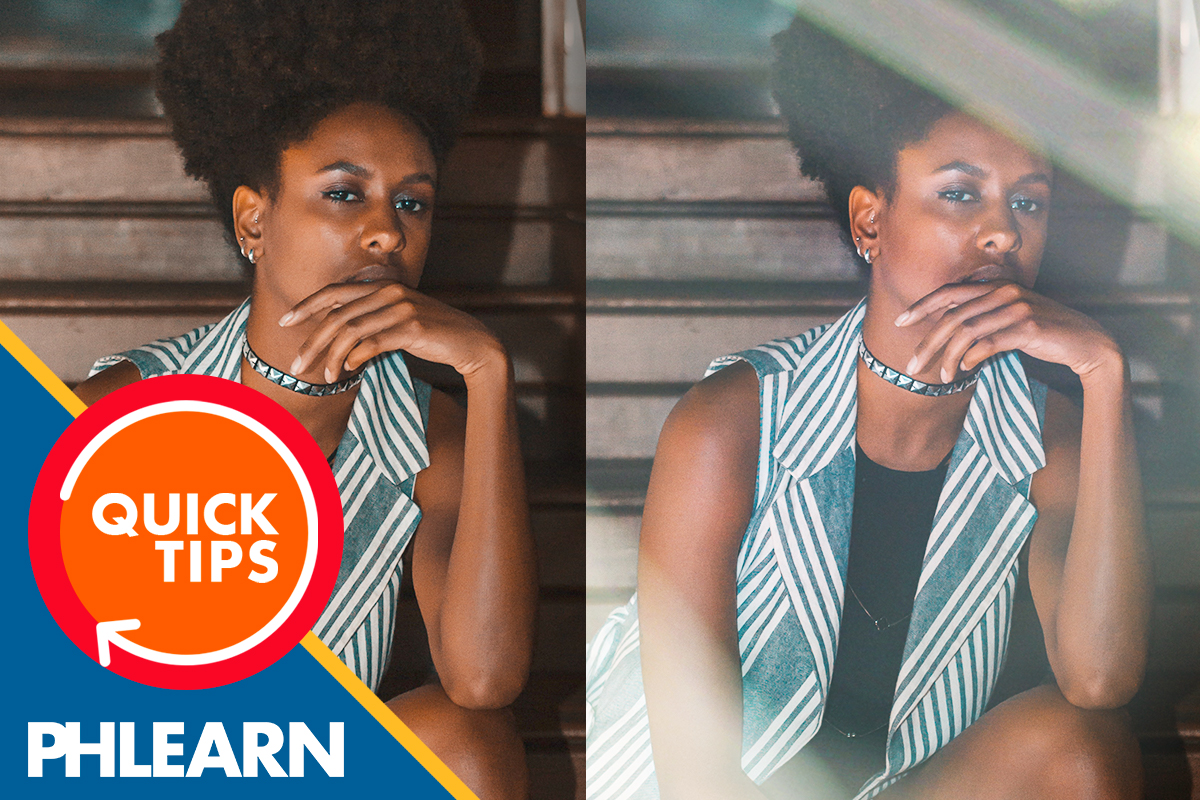
How to Create a Window Reflection Effect in Photoshop
This tutorial layers a rainy-window texture over a portrait so it looks like it was shot through a pane of glass with water on it. Screen blend mode makes the dark parts of the texture disappear, a Box Blur puts the drops out of focus, and Hue/Saturation colors each copy to match the light in the photo, the part Aaron likes most. Layer masks keep the texture off the face. The whole effect takes just a couple of minutes.
The video on this page is the short, music-only version. For the full walkthrough with Aaron explaining every step, watch How to Add Textures & Overlays to a Photo in Photoshop.
Choosing the Window Texture
The technique starts with the sample portrait and window texture in this tutorial’s download. The texture is raindrops and some bokeh on a dark background, and that is the thing to look for in any texture: light elements on a dark background. The dark areas are the part that will disappear, so a dark background lets you mix the two images a lot better. Any stock image or texture like this can work.
Placing and Scaling the Texture
With the Move Tool, drag the texture from its own document onto the portrait. Press Cmd/Ctrl + T to transform, hold Alt/Option and drag a corner to scale from the middle until the texture covers the photo, then press Enter.
Setting the Blend Mode to Screen
The texture layer’s blend mode is changed from Normal to Screen, which gets rid of the dark areas and leaves just the light areas: the drops and the lights. Hold Shift and drag left or right with the Move Tool to place the lights, and press Cmd/Ctrl + T again if it needs more scaling.
Why a Dark Texture Works
Screen makes the darks invisible, and the darker an area of the texture is, the less of it shows. Normal mode would simply cover the portrait underneath.
Converting to a Smart Object
At this point the subject and the water drops are both perfectly in focus, which wouldn’t really be the case. Looking through glass, the glass would probably be out of focus and the subject in focus, so the texture gets a blur. It is always a good idea to make a Smart Object before you apply blurs, so you can change the blur at any time.
Set the blend mode back to Normal first (Aaron always creates a Smart Object in Normal mode), right-click the layer and choose Convert to Smart Object, then change Normal back to Screen. It looks the same.
Blurring with Box Blur
Go to Filter > Blur > Box Blur and raise it until the drops go soft. Box Blur looks a little more like a realistic lens blur than a Gaussian Blur does. Because the layer is a Smart Object, the blur is a Smart Filter: double-click Box Blur in the Layers panel to change it at any time, or turn it off and on to compare.
Darkening with Levels
Still on the texture layer, press Cmd/Ctrl + L for Levels and pull the dark slider in to make the darks a bit darker. Screen is making the dark areas invisible, so darker darks mean even less of the texture shows. It simply makes the layer less visible.
Colorizing to Match the Light
Press Cmd/Ctrl + U for Hue/Saturation and check Colorize. Bring Saturation up so you can see what you are doing, then move Hue until it mimics a color of light in the image. This first layer becomes the blues. Matching the color makes the reflections look like they represent the light from your photo, and it is what Aaron likes most about this effect.
Turn the Smart Filters off and back on to see how much better the texture integrates with the photo, then drag the layer around until the lights land somewhere more interesting.
Duplicating for a Second Color
So far only one of the colors in the photo is represented. Press Cmd/Ctrl + J to duplicate the texture layer and move the copy to a different spot. Double-click Hue/Saturation in the copy’s Smart Filters and move Hue until it mimics the reds in the image.
More Copies, Moved and Flipped
For a different look, duplicate the blue layer again and drag it down the frame (zooming out makes this easier), then press Cmd/Ctrl + T, right-click and choose Flip Vertical. One more duplicate of a red layer finishes the stack: four texture layers in Screen, each a copy of the same texture with its own color.
Masking Each Texture Layer
Each texture layer gets its own layer mask. Add a mask and, with a nice soft Brush (B), paint black wherever you don’t want the texture. On the blue layer that means the couple of spots sitting on the face. The layers can be grouped at the end, but the masks stay on the individual layers, not the group.
Painting Away a Hard Edge
Watch for the hard edge of the texture, which shows up on the last red copy. A hard edge is a dead giveaway that the texture was added in Photoshop, so paint black over it on that layer’s mask until it fades out.
Why This Technique Works
Screen mode makes the dark parts of the texture invisible, so only the drops and the lights sit on the portrait. The Box Blur puts the glass out of focus while the subject stays sharp, the way it would look through a real window, and matching each copy’s color to the light in the photo makes the reflections look like they belong to it. Levels makes the darks darker so less of the texture shows, and a mask on each layer keeps it off the face and removes any hard edge, which would be a dead giveaway.
Final Thoughts
Building a window reflection effect comes down to a texture with light elements on a dark background, Screen blend mode, a Smart Object with Box Blur, Levels and Hue/Saturation as editable Smart Filters, one duplicate for each color of light in the photo, and a mask on each layer to keep the texture off the face and hide hard edges.
Quick Reference: Keys, Menus and Settings
- Place and scaleDrag the texture in with the Move Tool; Cmd/Ctrl + T, Alt/Option-drag a corner
- BlendBlend mode Normal to Screen; Shift-drag to move in a straight line
- Smart ObjectIn Normal mode, right-click > Convert to Smart Object, then back to Screen
- BlurFilter > Blur > Box Blur
- Darken and colorCmd/Ctrl + L darker darks; Cmd/Ctrl + U, Colorize, Hue to match the light
- Copy and flipCmd/Ctrl + J per color; Cmd/Ctrl + T, right-click > Flip Vertical
- MaskLayer mask on each layer, soft brush (B), paint black over the face and any hard edge
No AI, no generative credits.

Free Downloads
Follow Along on the Same Photos
Get the 6 sample images, including the portrait and the rainy-window texture, the layered PSD, and the 3-page PDF guide. Free with a PHLEARN account.
Window Reflection Effect: Common Questions
What kind of texture works for a window reflection?
Light elements on a dark background, such as raindrops and bokeh. The dark areas are the part that disappears, so a dark background mixes with the photo a lot better.
Why set the texture to Screen?
Screen gets rid of the dark areas and leaves just the light areas, the drops and the lights. In Normal mode the texture simply covers the portrait.
How do I scale the texture to cover the photo?
Press Cmd/Ctrl + T, hold Alt/Option and drag a corner to scale from the middle, then press Enter.
Why convert the texture to a Smart Object?
So the blur, Levels and Hue/Saturation land as Smart Filters you can change at any time. Set the layer to Normal, right-click > Convert to Smart Object, then switch it back to Screen.
Why blur the water drops?
Looking through glass, the glass would be out of focus while the subject is sharp. Filter > Blur > Box Blur looks a little more like a realistic lens blur than Gaussian Blur.
How do I make the texture less visible?
Press Cmd/Ctrl + L for Levels and make the darks a bit darker. Screen makes the darks invisible, so darker darks mean less of the texture shows.
How do I match the reflection color to the light in my photo?
Press Cmd/Ctrl + U, check Colorize, raise Saturation and move Hue until it mimics a color in the image. Duplicate the layer with Cmd/Ctrl + J for each color, blue and red in the video.
How do I keep the texture off the face?
Give each texture layer its own layer mask and paint black with a soft brush where you don’t want it. Paint away any hard texture edge too; it’s a dead giveaway.
Can I change the blur after I apply it?
Yes. Double-click Box Blur under the layer in the Layers panel, change the amount and click OK. Nothing has to be redone, because the layer is a Smart Object.
Are the sample files free?
Yes, with a free PHLEARN account. You get 6 sample images, 1 sample PSD and 1 PDF guide, including the portrait and the rainy-window texture used in the tutorial.
Master Photoshop, Lightroom and Photography
Join PHLEARN PRO for $12.99 a month or $99.99 a year. Cancel anytime, with a 100% money-back guarantee.





