

Download Sample Images
Download Assets
This tutorial includes 1 sample image, 1 sample PSD, 1 Photoshop brush and 1 PDF guide. Downloads are free with a PHLEARN account.
- Free sample files with every tutorial on PHLEARN
- New tutorials published every week
- Unlimited downloads with your free PHLEARN account
Sample PSD
Free PDF Guide · 4 Pages
This Tutorial as a Step-by-Step PDF
The guide walks through painting over the tattoo with a large soft brush at 30% then 10% Flow, masking and clipping, the 50% gray Smart Object on Soft Light with Add Noise, Emboss and Gaussian Blur, building freckle and hair brushes in Window > Brush Settings, and finishing the color. Keep it next to your keyboard.
description
Skin is one of the most difficult things to work with in photo retouching. With so much fine detail and naturally-occurring texture, it might sound impossible that you can recreate it from scratch.
But it’s not!
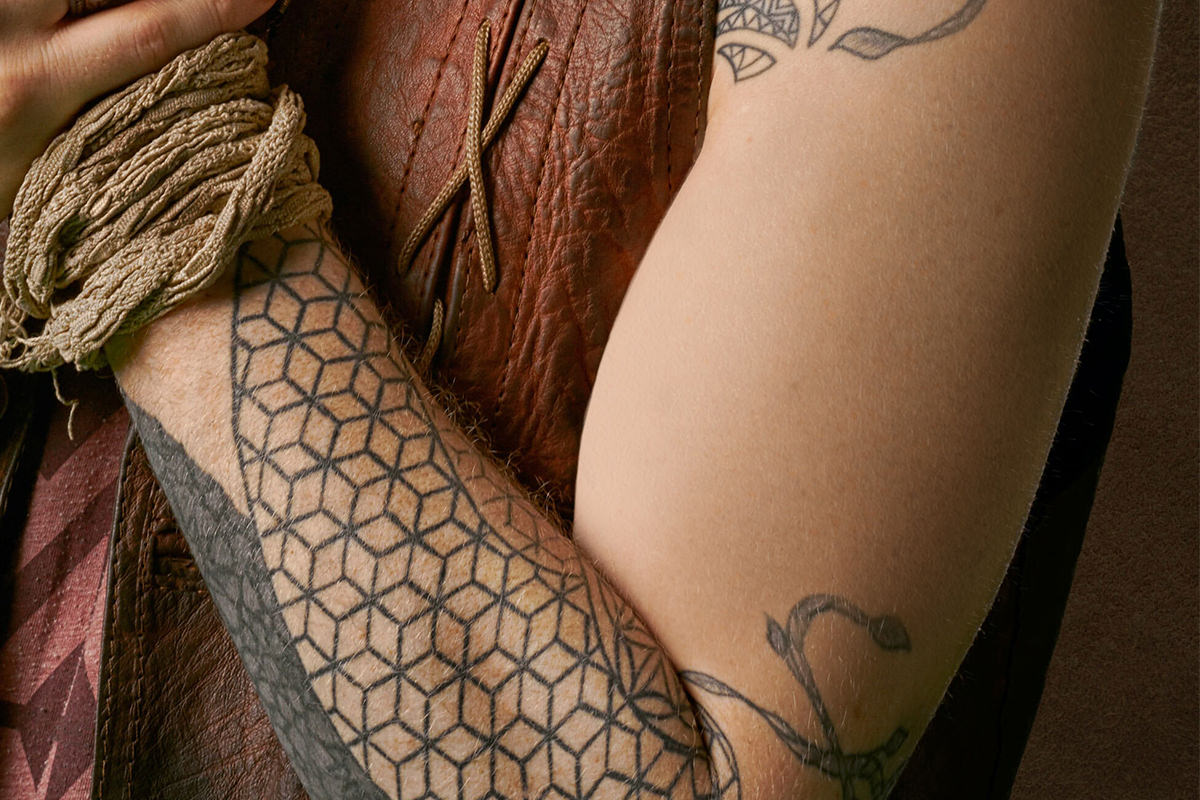
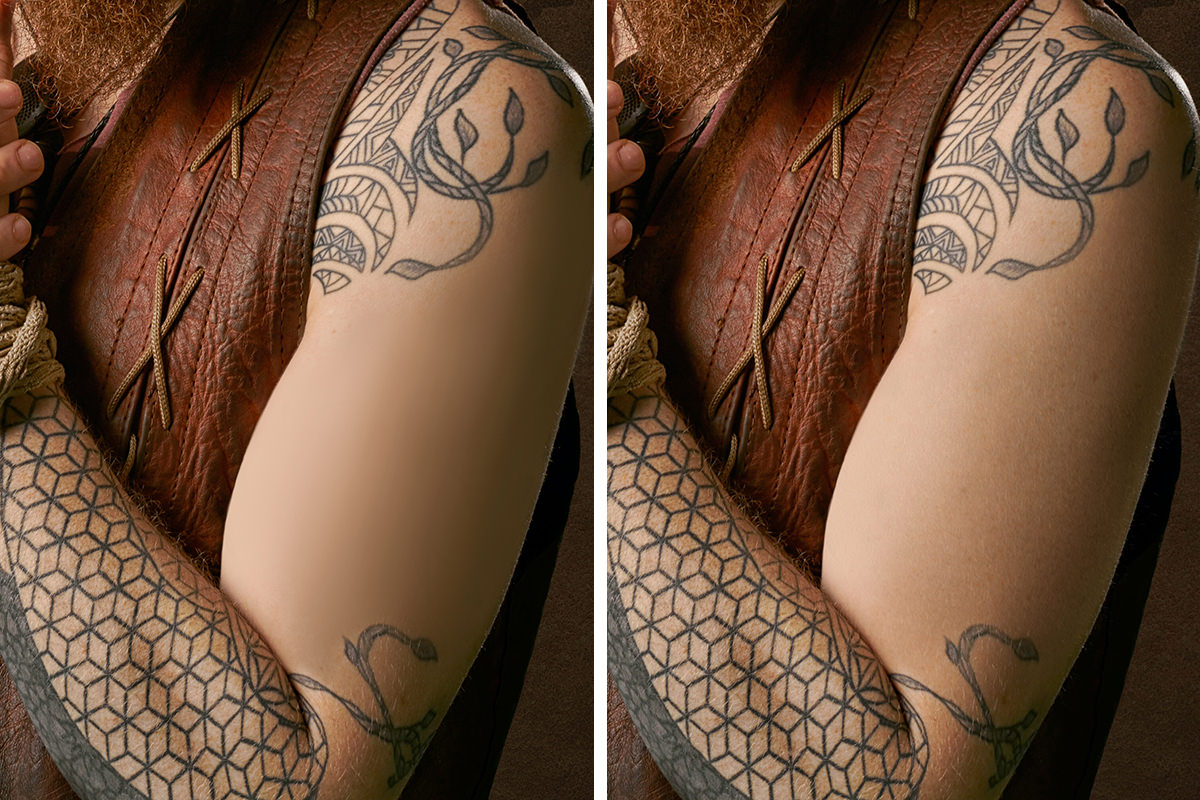
Learn how to create skin texture in Photoshop as we completely remove a tattoo from a person’s arm, and then use a combination of professional techniques and the included Photoshop Brushes to fill that area in with ultra-realistic skin texture.
Enjoying This Free Tutorial?
We publish a new free tutorial every week, each one with sample images and PSDs you can download and follow along with. Sign up and they land straight in your inbox, along with early word on sales, events and subscriber-only offers.
CREATE PHOTO-REALISTIC SKIN IN PHOTOSHOP
How to Create Skin Texture from Scratch in Photoshop
Skin is a delicate area with a lot of natural variation in both color and texture. One of the biggest challenges for new retouchers is removing distractions and blemishes without leaving skin blotchy or detail-free. As your skills develop you might turn to advanced techniques like frequency separation, which lets you work with color and texture independently so retouching one doesn’t damage the other. But even the advanced techniques sometimes need support, and if you’re relatively new to retouching you’ll want a way to repair skin whose original texture has already been removed.
Why This Comes Up
The example here removes a tattoo from a subject using the Brush Tool. The Brush Tool fills an area with colors that match its surroundings easily enough, and while those areas will match color, highlight and shadow, they lack every trace of the person’s actual skin detail. That’s the perfect opportunity to recreate the original skin texture from scratch with a couple of powerful Photoshop tools.
Build From Back to Front
Whether you’re making a detailed composite or recreating skin texture, get used to building elements from the back to the front. Here that means color, highlight and shadow first, then texture, then freckles and spots, then fine hairs. Working in that order helps each element look natural and creates the depth the whole thing needs to be believable.
Removing a Tattoo with the Brush Tool
The example image has a subject covered in tattoos. Tattoos are a perfectly normal thing to appear in a photo, and often they’re what make a photo unique and interesting; one is being removed here purely to create a situation where skin texture has to be rebuilt.
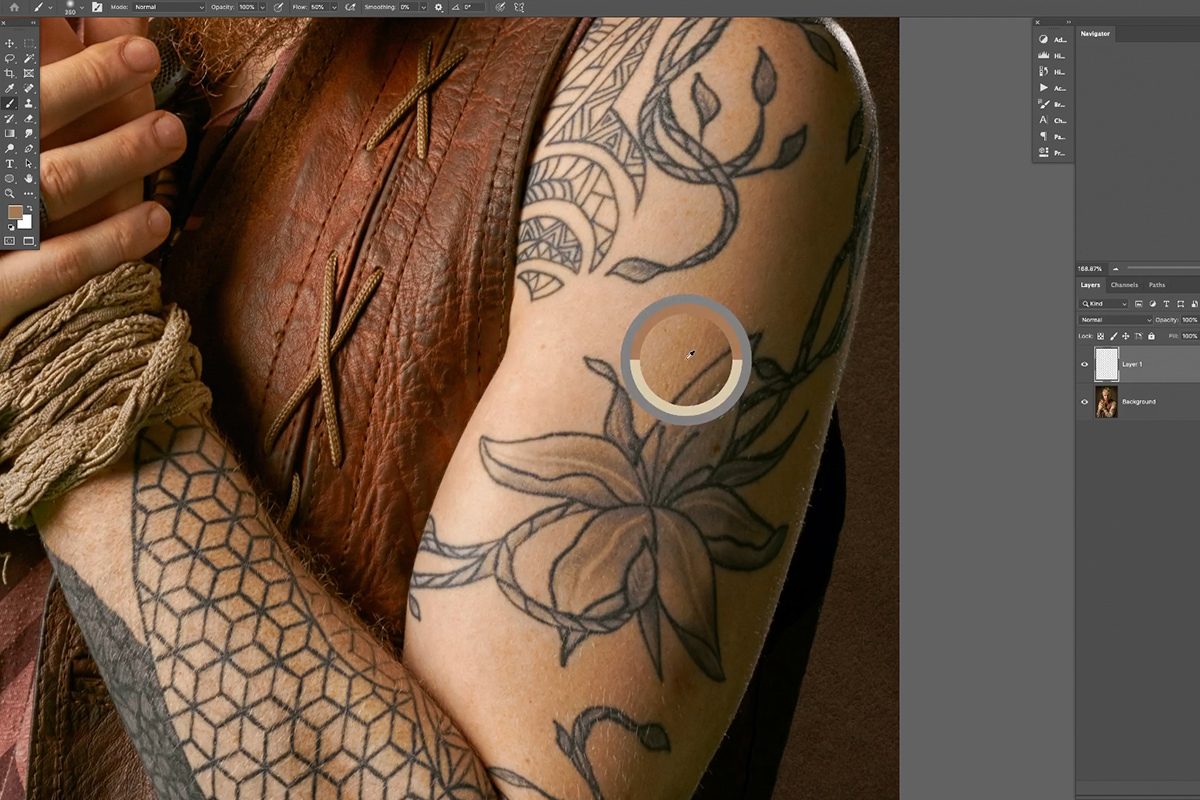
The removal itself is simple, especially since skin texture isn’t the concern yet. Create a new layer, select the Brush Tool, and set a large soft brush to a low Flow, which makes blending much easier: about 30% (Shift + 3) to start, then about 10% (Shift + 1) for blending. In the Eyedropper Tool options, set Sample Size to 11 by 11 Average so each sample reads a slightly larger area. Then start sampling colors from the subject’s arm and painting over one of the tattoos.
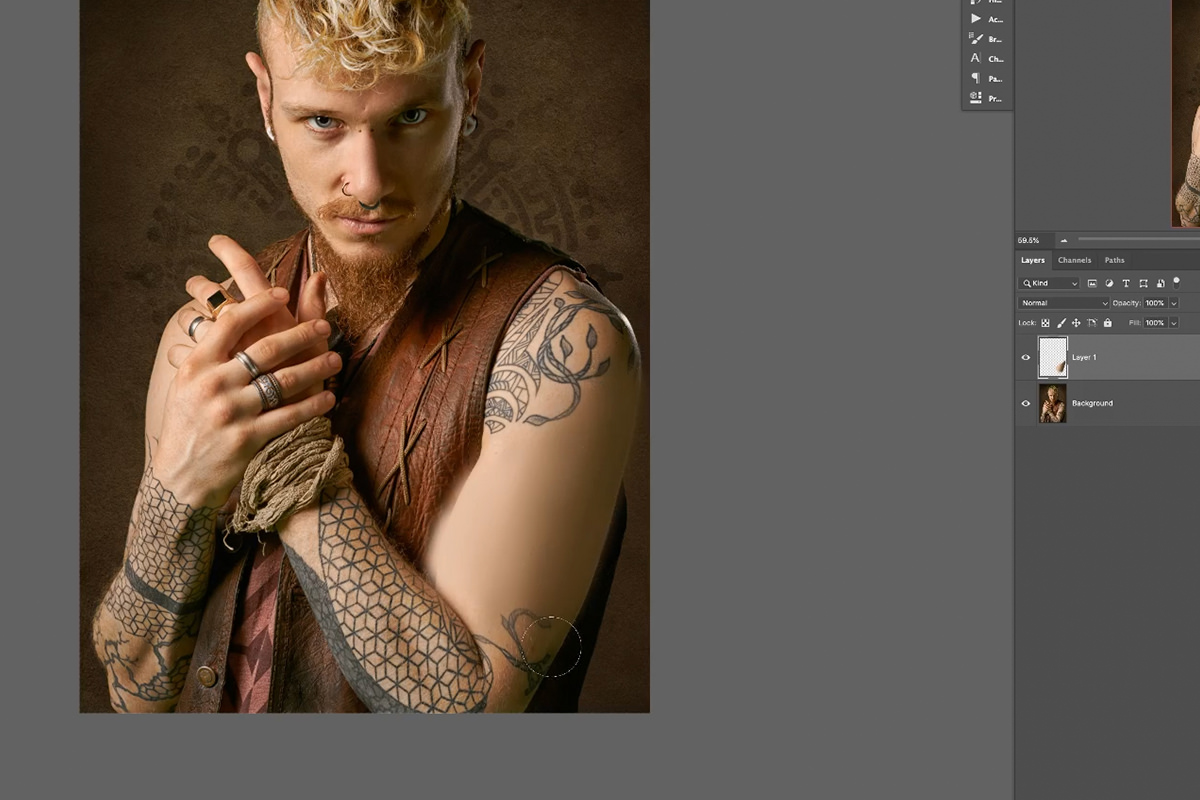
Follow the Light That’s Already There
The important thing is to follow the natural colors, highlights and shadows around the area you’re painting. In this example the light source is camera-left, casting shadows on the camera-right side of the subject’s face and body, so painting means brighter highlighted skin tones along the left edge and darker tones along the right.
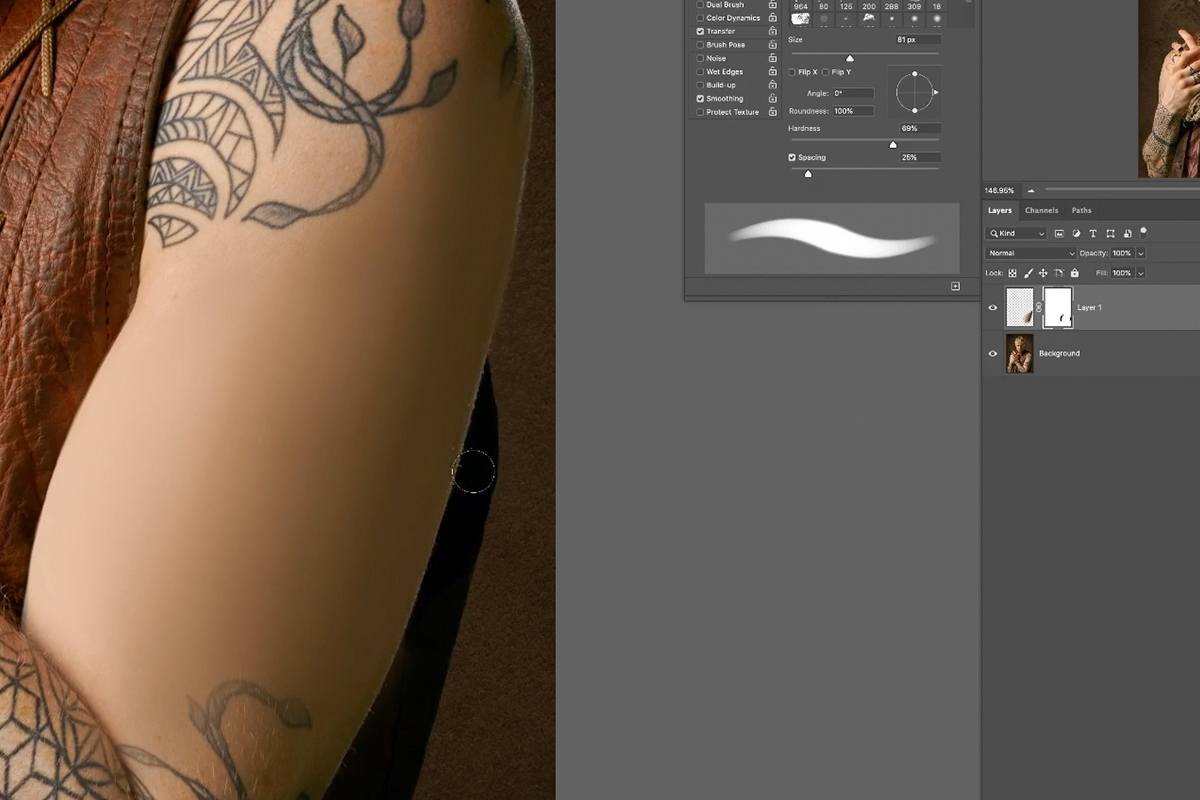
Don’t worry about painting outside the skin as you go; hide any unwanted paint with a layer mask once you’ve finished. You should end up with two layers: the background, and the brush layer covering the tattoo with matching color and lighting.
Zoom out as you work and as you check your work. A zoomed-out view makes it far easier to tell whether the lighting and color are blending correctly with the rest of the image.
A Note About Clipping Masks
Before moving on, almost every new edit from here goes on a new layer above and clipped to that brush layer. When a layer is clipped to another, it only appears where that layer appears, so every new edit shows up only where you painted. Make sure the brush layer is formed tightly to the arm and doesn’t overlap anything it shouldn’t.
Creating Skin Texture with Noise
Creating skin texture from scratch isn’t that difficult once you’ve got this far. A fairly automated tool plus a few small adjustments recreates skin detail in a handful of clicks.
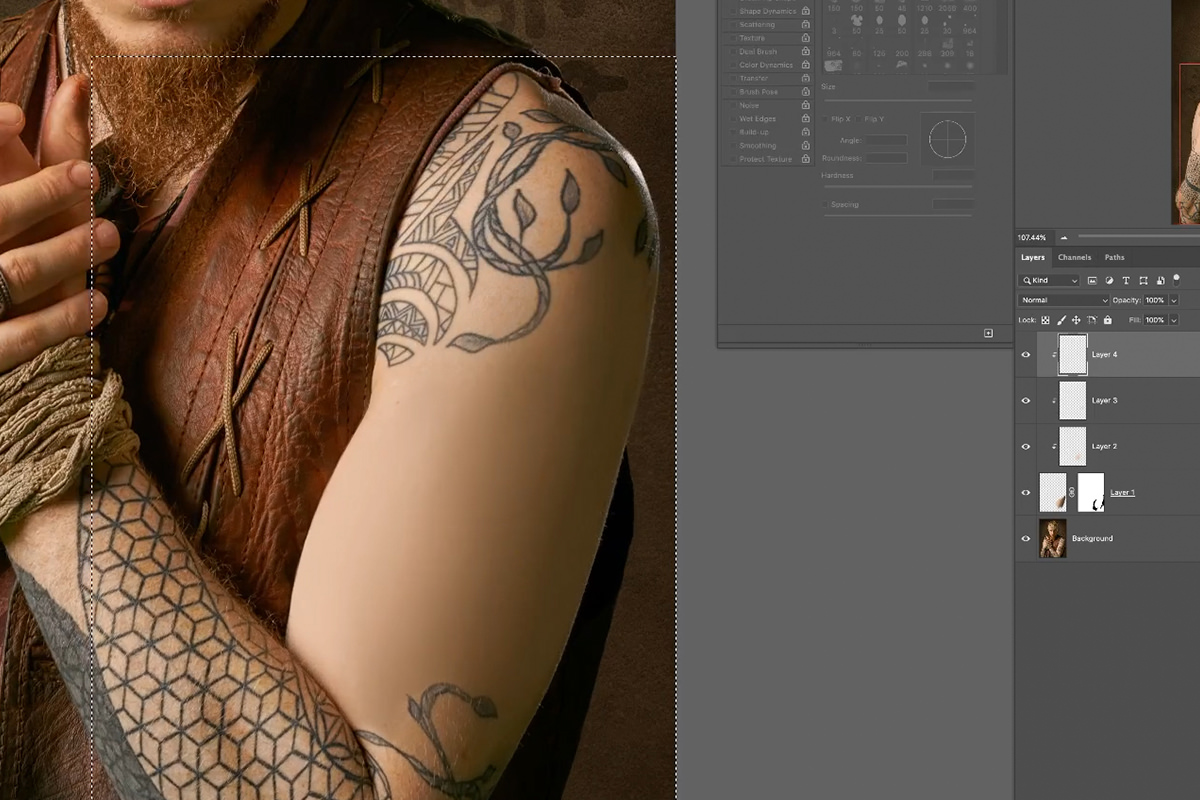
Create a new layer and clip it to the skin color layer. Take the Rectangular Marquee Tool and select the part of the arm that needs texture, then go to Edit and Fill and fill that area with 50% gray. Noise can’t be applied to a blank layer, so the area needs something in it first, and the gray disappears in a moment.
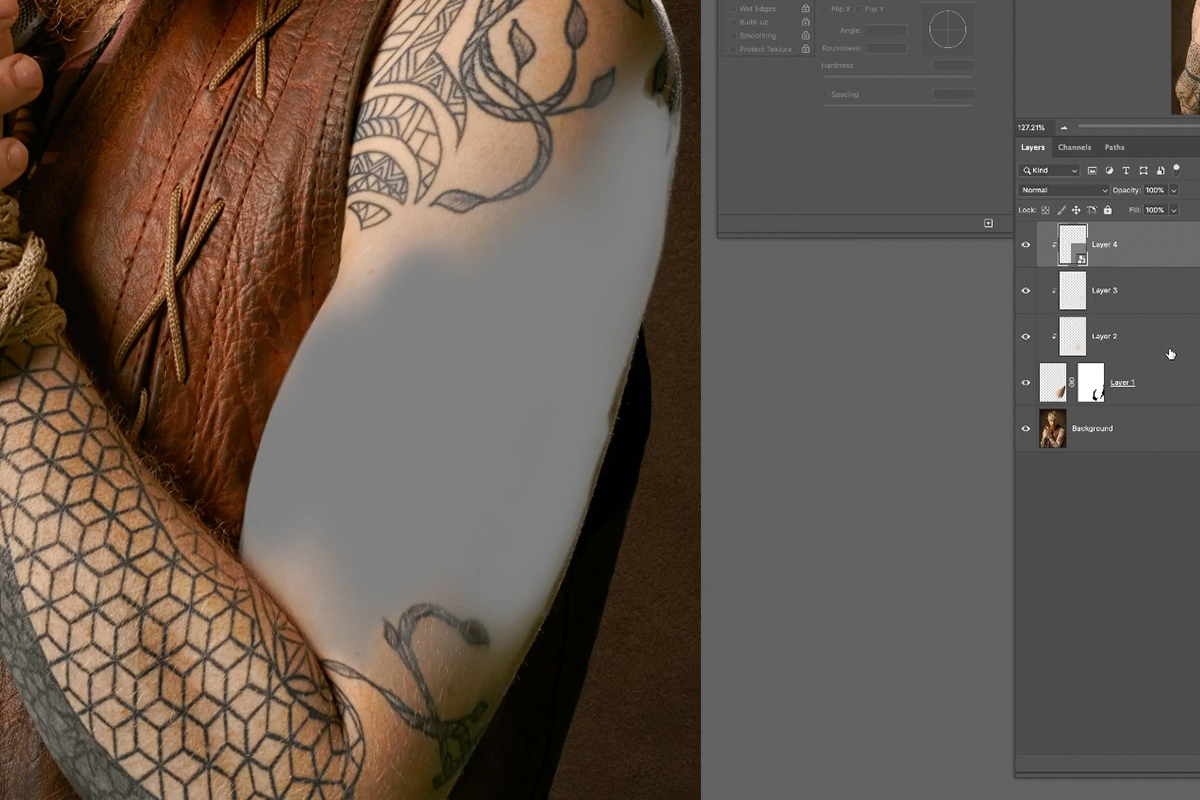
Soft Light Hides the Gray
With the selection filled, right-click the layer and choose Convert to Smart Object, then change its Blending Mode from Normal to Soft Light, which hides any value that is 50% gray. That gives you an area where noise can be applied without doing anything strange to the color of the subject’s skin.
Converting first is what makes the next step work. Smart Objects allow Smart Filters, which can be changed and adjusted at any time rather than being permanent. Noise is a filter, so this lets you dial in the exact look without starting over if it goes wrong.
The Three Filters That Build the Texture
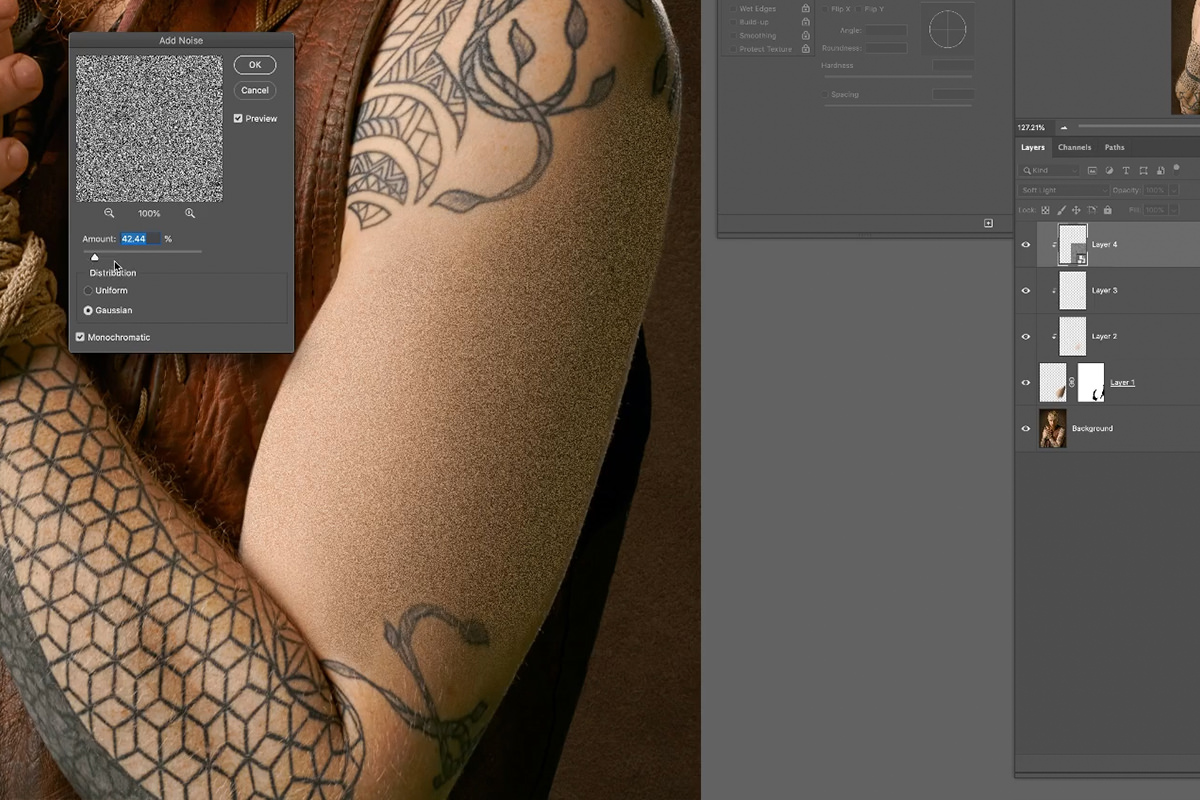
With a Smart Object in place, go to Filter, Noise, then Add Noise. You get a live preview of the effect — get it close (Aaron starts around 42), but don’t worry about perfect yet, because two more filters are still to come.
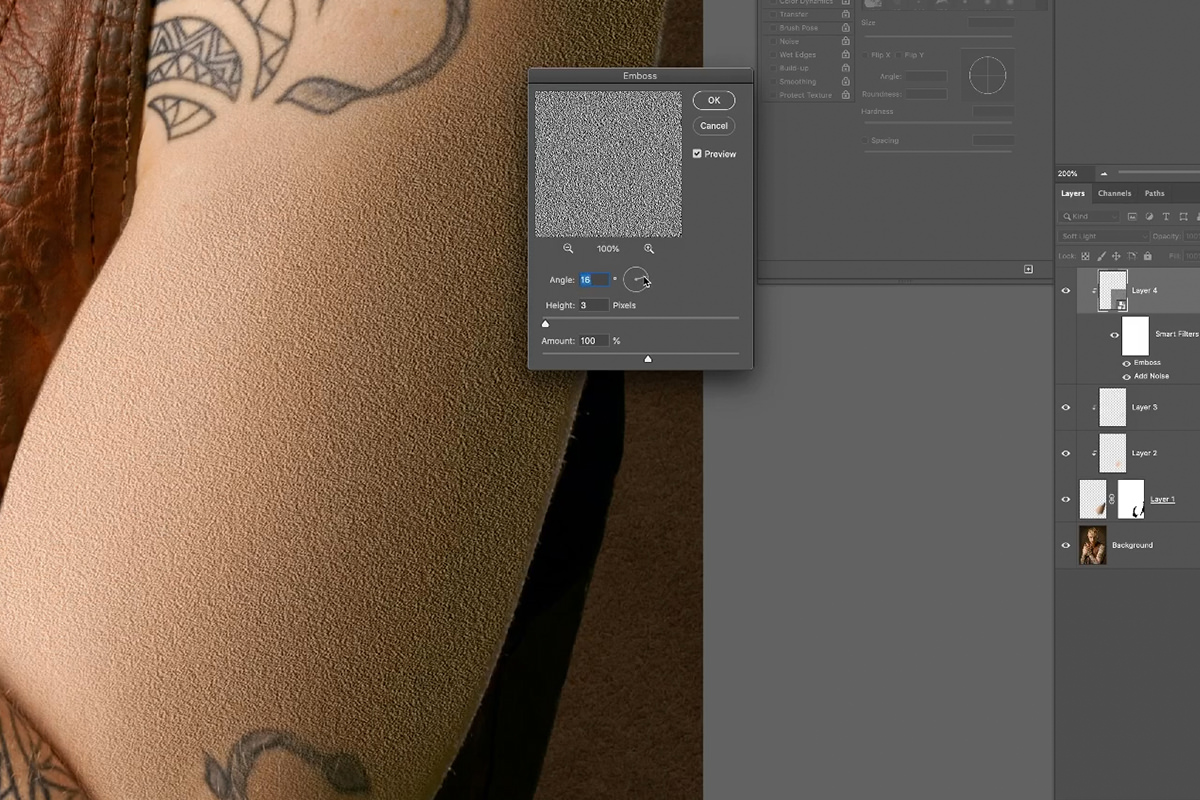
Next go to Filter, Stylize, then Emboss. Emboss adds contrast to fine edges, which gives the appearance of more texture and depth. Again, close is enough for now.
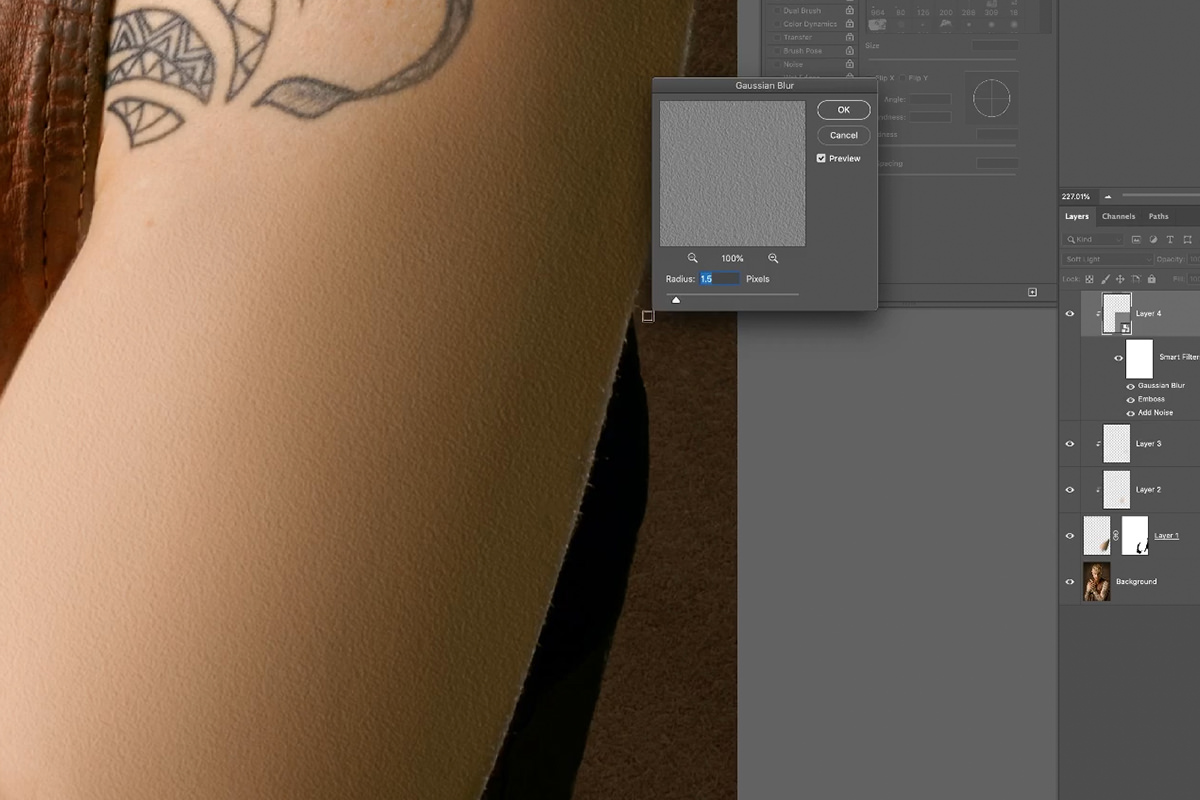
Lastly go to Filter, Blur, then Gaussian Blur. Apply enough blur that the texture isn’t harsh and starts to blend into the photograph.
With all three in place, go back and dial each one in until the result closely matches the natural skin texture in the surrounding areas. In the video, Add Noise comes down from 42 to 20 and the Emboss Height from 3 to 2. Then the texture layer’s opacity comes down too: press V, then 7 for 70% or 5 for 50%.
Adding More Detail with Custom Brushes
This is looking good, but it doesn’t read as real skin yet. Skin has spots, tiny imperfections, freckles, color variation and hair, which is a lot of missing detail.
Custom Photoshop brushes are an excellent tool for creating randomness and variation. The custom brushes made in the video come in this tutorial’s download as one Photoshop brush file: two for skin detail like spots and freckles, and one designed to create fine, realistic hair. Follow along in the video if you want to learn how they’re made, or use them straight away to save time.

Use the brushes to create spots, freckles and color variation in the skin: dark spots on a Multiply layer, light spots on another. To blur a spot layer later, set it back to Normal first so the blend mode isn’t baked in, convert it to a Smart Object, then set Multiply or Soft Light and add a Gaussian Blur.
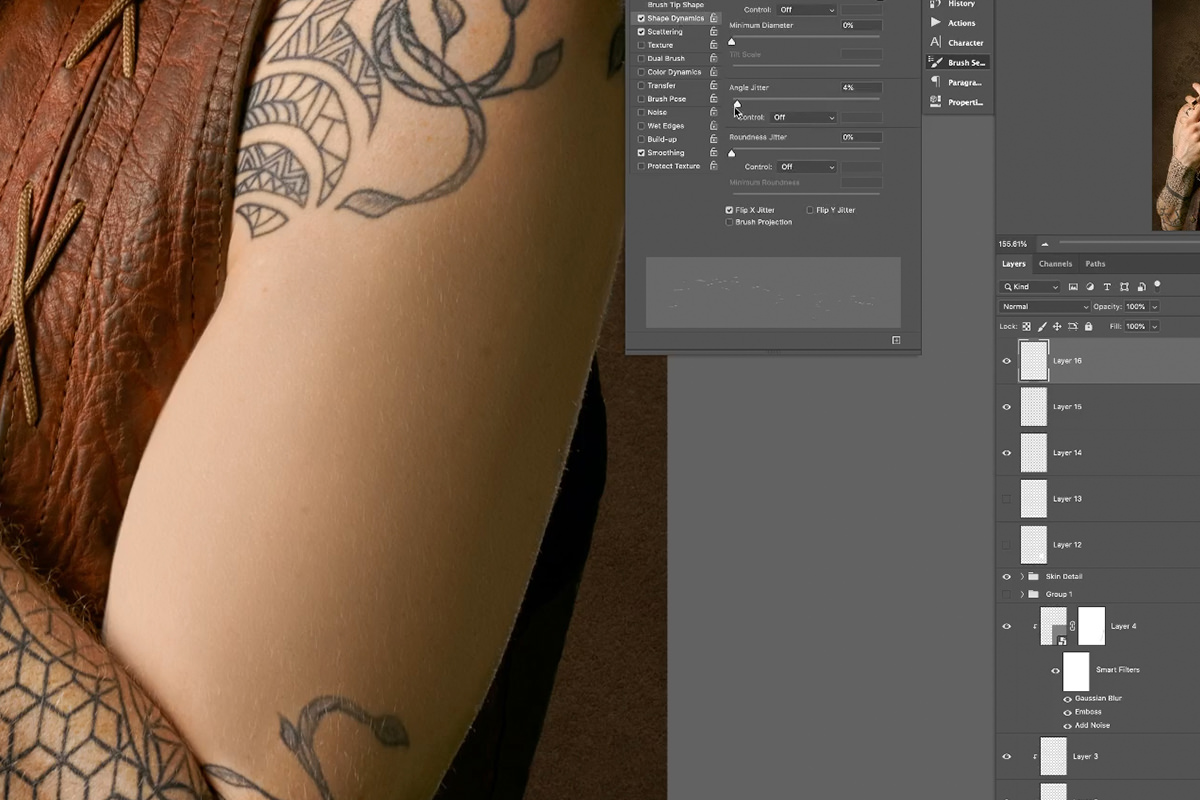
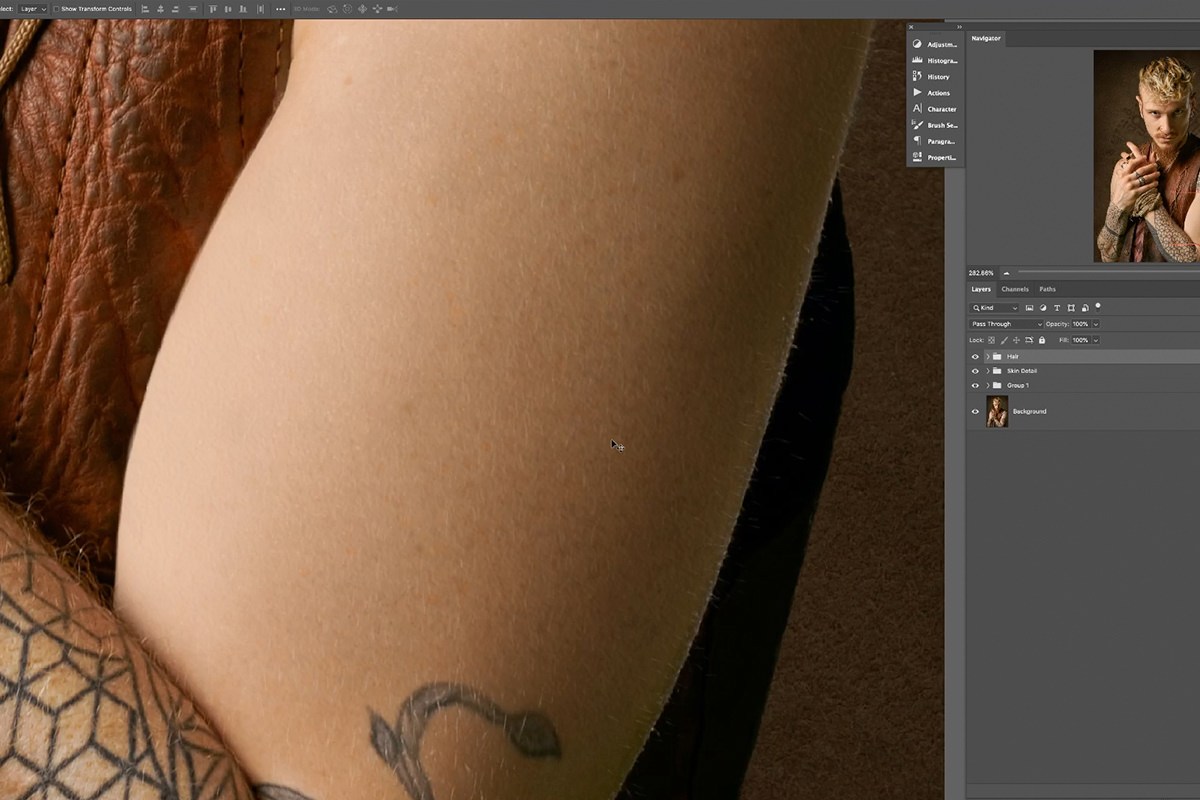
Then apply fine hairs over the top, and soften them with a Gaussian Blur of about 0.1 pixels if they look too defined. Look at similar areas of the subject’s skin as you go, matching the density, color and thickness of each feature as closely as you can.
The video covers the full range of techniques for building realistic textures and features with these brushes. The essentials: always work on a new layer for each new feature, sample colors from the surrounding skin, and use blending modes, opacity and varied brush sizes to work in as much variation as possible.
Final Adjustments
Sit back, zoom out and take a long look at the result. If anything feels wrong or out of place, go back and change it — everything here was done non-destructively with Smart Objects and separate layers, so elements can be changed, added or removed in seconds.
Additional adjustments can go over the top of everything if the colors, highlights and shadows need dialing in further. A few last-minute color changes also help tie all the elements together, which is what makes the rebuilt skin texture read as natural.
Why Building From Back to Front Works
Painted-over skin fails in a specific way: the color is right and everything else is missing. Rebuilding in the order light, then texture, then marks, then hair mirrors how skin actually presents itself to a camera, so each layer has something underneath it to sit on. The 50% gray on Soft Light is the quiet trick holding it together, because it gives the noise filters a surface to work on that contributes nothing of its own to the color underneath.
Final Thoughts
To rebuild skin texture in Photoshop, paint the area’s color and light first with a soft low-Flow brush, then clip a new layer above it, fill a selection with 50% gray, convert it to a Smart Object and set it to Soft Light. Add Noise, Emboss and Gaussian Blur build the texture itself, and custom brushes add the freckles, spots and fine hairs that make it read as skin rather than grain.
Quick Reference: Keys, Menus and Settings
- Paint over the tattooB, large soft brush; Shift + 3 for 30% Flow, Shift + 1 for 10%; Alt/Option-click to sample; Eyedropper Sample Size: 11 by 11 Average
- Clip to the skinAlt/Option + Cmd/Ctrl + G
- Texture layerM, Edit > Fill > 50% Gray; right-click > Convert to Smart Object; blend mode Soft Light
- Texture filtersFilter > Noise > Add Noise (42, then 20); Filter > Stylize > Emboss (Height 3, then 2); Filter > Blur > Gaussian Blur
- Layer opacityV, then a number key: 7 for 70%, 5 for 50%
- Make a brushShift + Delete to fill; Cmd/Ctrl-click the white layer, Edit > Define Brush Preset; Window > Brush Settings
- HairWhite on Soft Light; Brush Tip Shape Angle, or Angle Jitter Control: Direction; Gaussian Blur 0.1 px
No AI, no generative credits.

Free Downloads
Follow Along on the Same Photo
Get the tattooed arm photo from the video, the layered PSD, the custom brush file and the 4-page PDF guide with every setting. Free with a PHLEARN account.
Skin Texture in Photoshop: Common Questions
Why would I need to create skin texture from scratch?
Painting away a blemish, or something as big as a tattoo, leaves skin with the right color and none of the detail. Rebuilding the texture is what makes the repair read as skin.
How do I paint over a tattoo?
On a new layer, press B for a large, soft brush at about 30% Flow (Shift + 3). Alt/Option-click the skin beside the tattoo to sample, resample constantly, then drop to about 10% Flow (Shift + 1) and blend zoomed out. Mask away any paint outside the arm.
Why set the Eyedropper to 11 by 11 Average?
Each Alt/Option-click then samples a slightly larger area instead of a single pixel, so the colors you paint are smoother.
Why clip every layer to the painted skin?
A clipped layer only shows where the layer beneath it shows, so nothing spills off the arm and you do not need a new mask each time. The shortcut is Alt/Option + Cmd/Ctrl + G.
Why fill the texture layer with 50% gray?
Noise needs something on the layer to work on, and 50% gray disappears on Soft Light, so only the filter effects show. Use Edit > Fill > 50% Gray so it is exactly 50%.
Should I convert to a Smart Object before or after setting Soft Light?
In the video the gray layer is converted first, then set to Soft Light. For the spot layers, set the blend mode back to Normal before converting so it is not baked in, then change it afterwards.
Which filters build the skin texture?
Three Smart Filters, in this order: Filter > Noise > Add Noise, Filter > Stylize > Emboss and Filter > Blur > Gaussian Blur. Double-click any one later to change it.
My texture looks too big and too strong. What do I change?
Lower Add Noise (42 to 20 in the video) and the Emboss Height (3 to 2), then lower the layer opacity with V and a number key. Paint black on a layer mask at about 10% Flow to hide texture in the shadows.
How do I make the freckle and hair brushes?
Fill a black lasso shape over white, Cmd/Ctrl-click the white layer and choose Edit > Define Brush Preset. In Window > Brush Settings, raise Size Jitter and Angle Jitter, flip X and Y, scatter on both axes and raise Spacing. Paint the hairs in white on Soft Light, with a 0.1 pixel Gaussian Blur if they look too sharp.
Are the sample files free?
Yes, with a free PHLEARN account. You get 1 sample image, 1 sample PSD, 1 Photoshop brush and 1 PDF guide: the tattooed arm photo, the layered file, the custom brushes from the video and a 4-page step-by-step guide.
Master Photoshop, Lightroom and Photography
Join PHLEARN PRO for $12.99 a month, or $99.99 a year (save 36%). Cancel anytime, with a 100% money-back guarantee.





