
Download Assets
Download Assets
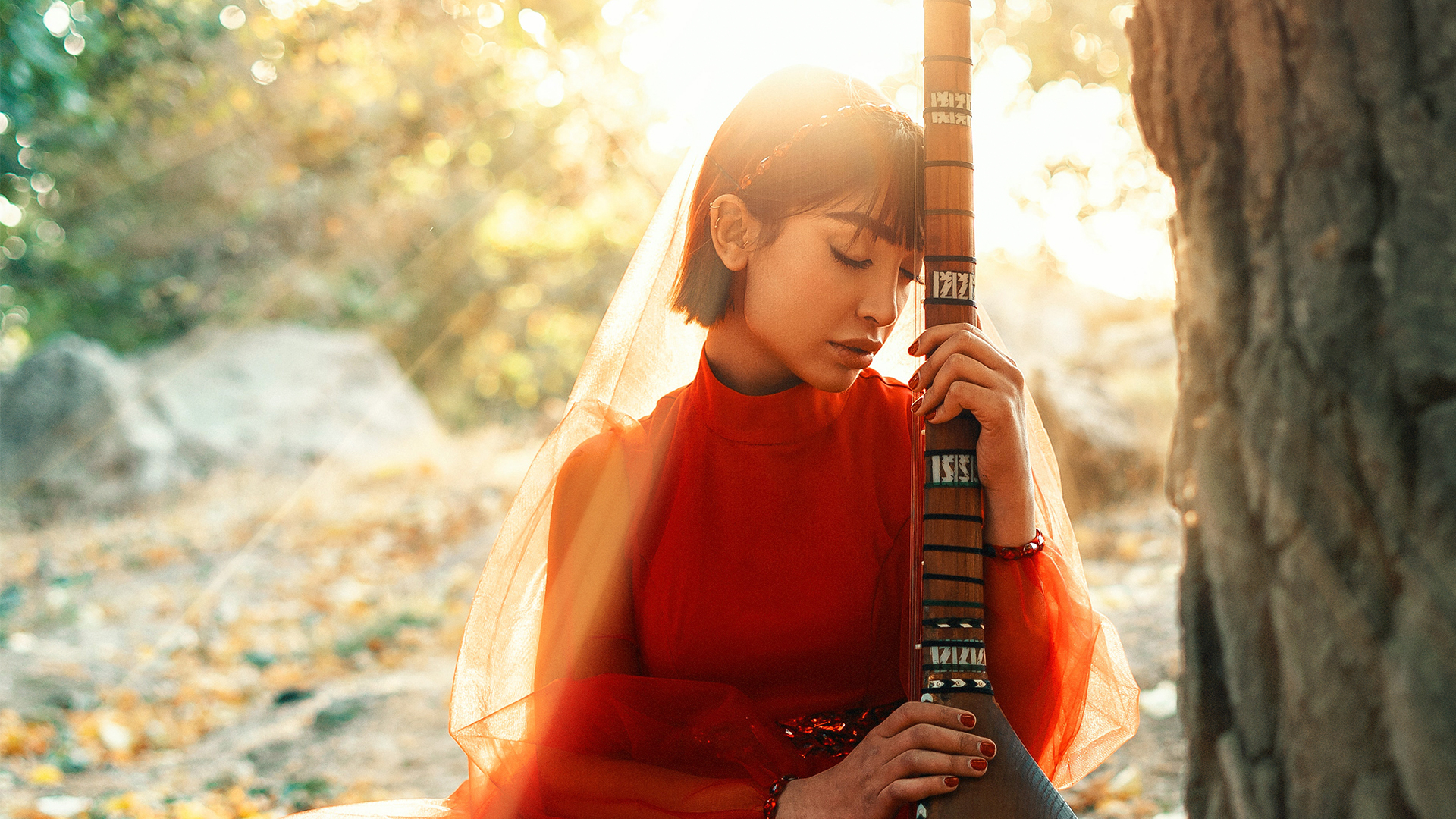
This tutorial includes 1 sample image, 1 sample PSD and 1 PDF guide. Downloads are free with a PHLEARN account.
- Free sample files with every tutorial on PHLEARN
- New tutorials published every week
- Unlimited downloads with your free PHLEARN account
Free PDF Guide · 3 Pages
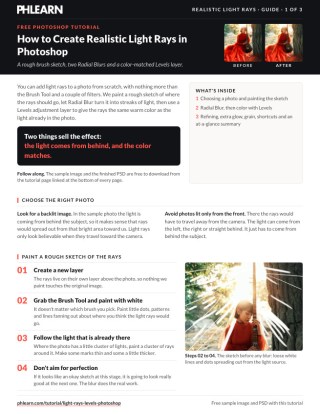
This Tutorial as a Step-by-Step PDF
The guide walks through choosing a backlit photo, painting a rough white sketch, converting it to a Smart Object, Filter > Blur > Radial Blur set to Zoom, checking the Blur Center against a black fill layer, coloring the rays with a Levels layer channel by channel, and Add Noise at 9% on each mask. Keep it next to your keyboard.
description
Learn how to create realistic light rays in Photoshop using Levels and Radial Blur!
Enjoying This Free Tutorial?
We publish a new free tutorial every week, each one with sample images and PSDs you can download and follow along with. Sign up and they land straight in your inbox, along with early word on sales, events and subscriber-only offers.
How to Create Realistic Light Rays in Photoshop
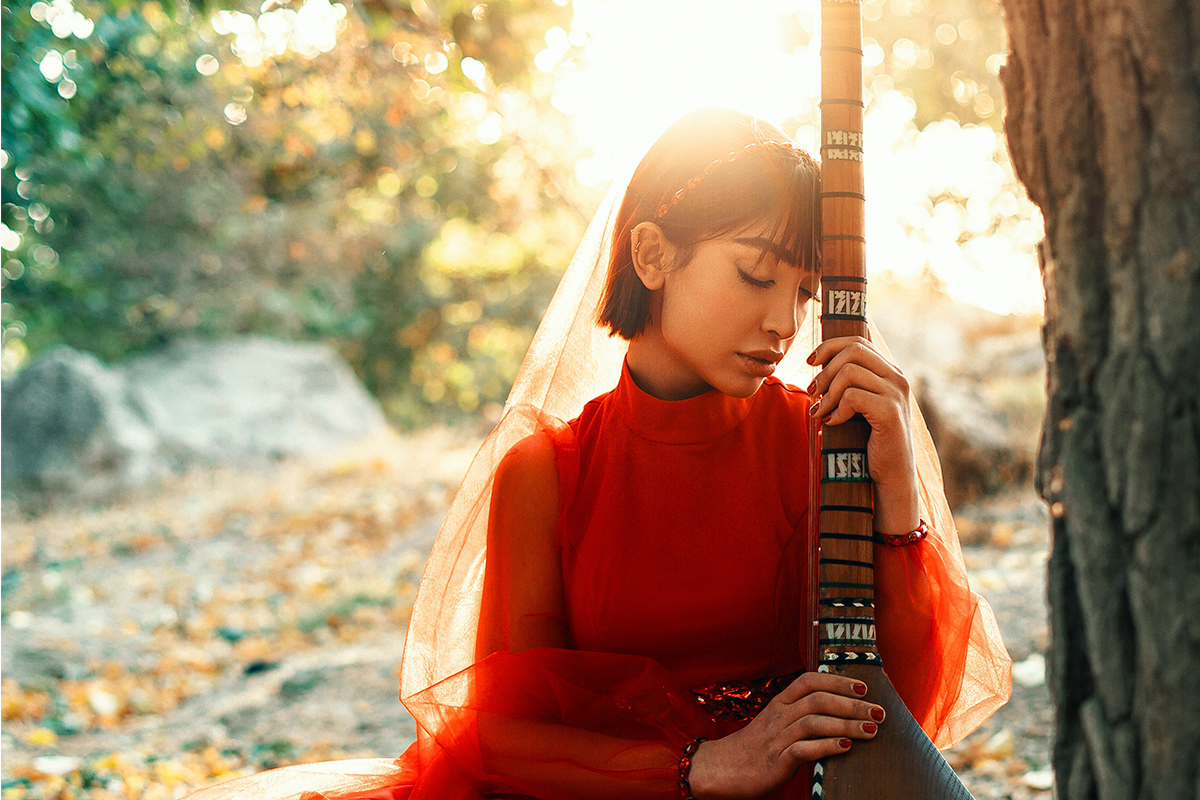
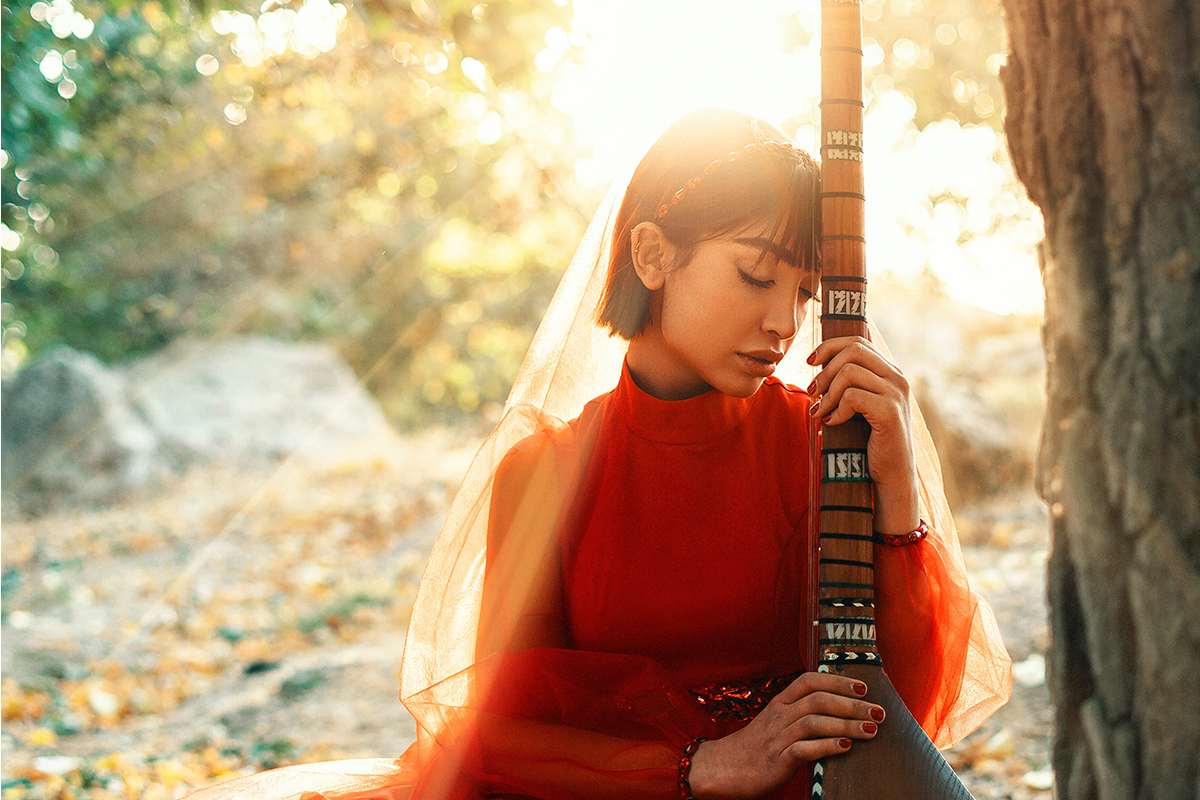
This tutorial paints convincing light rays entirely by hand, then uses a Radial Blur and a color-matched Levels adjustment layer to turn a rough sketch into a soft, glowing beam of light streaming through the trees. 
Choosing the Right Photo for Light Rays
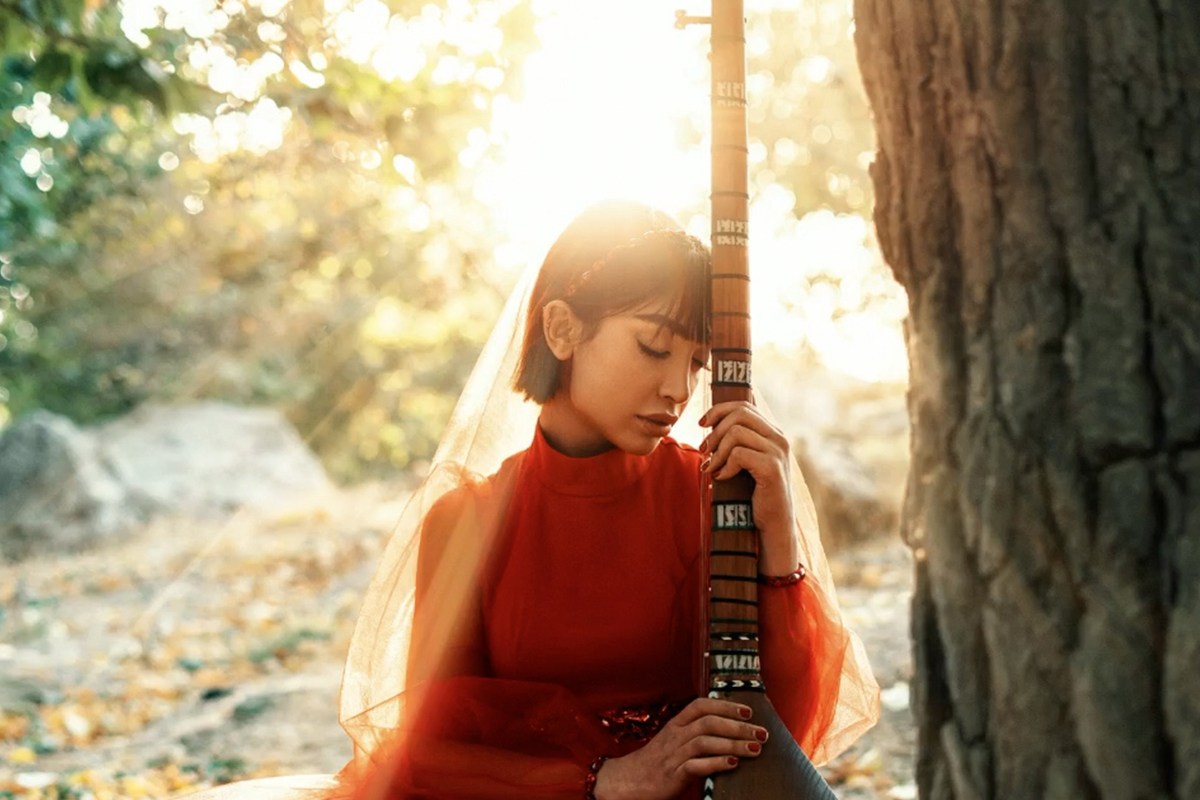
The sample image needs to be backlit, meaning the light source sits behind the subject rather than in front of them. That matters because light rays only look believable traveling toward the camera; an image lit from the front would put the rays heading the wrong direction, away from the viewer. The light can come from the left, the right, or straight on from behind, as long as it’s coming from behind the subject rather than the front.
Painting the Light Rays by Hand
On a new layer, any brush works to paint the rough shape of the rays: small dots, streaks, and thin lines fanning out from roughly where the real light source sits. Where there’s a natural cluster of light, like gaps between tree branches, adding a denser cluster of painted marks in that same spot helps the rays feel grounded in the actual scene rather than pasted on top of it. 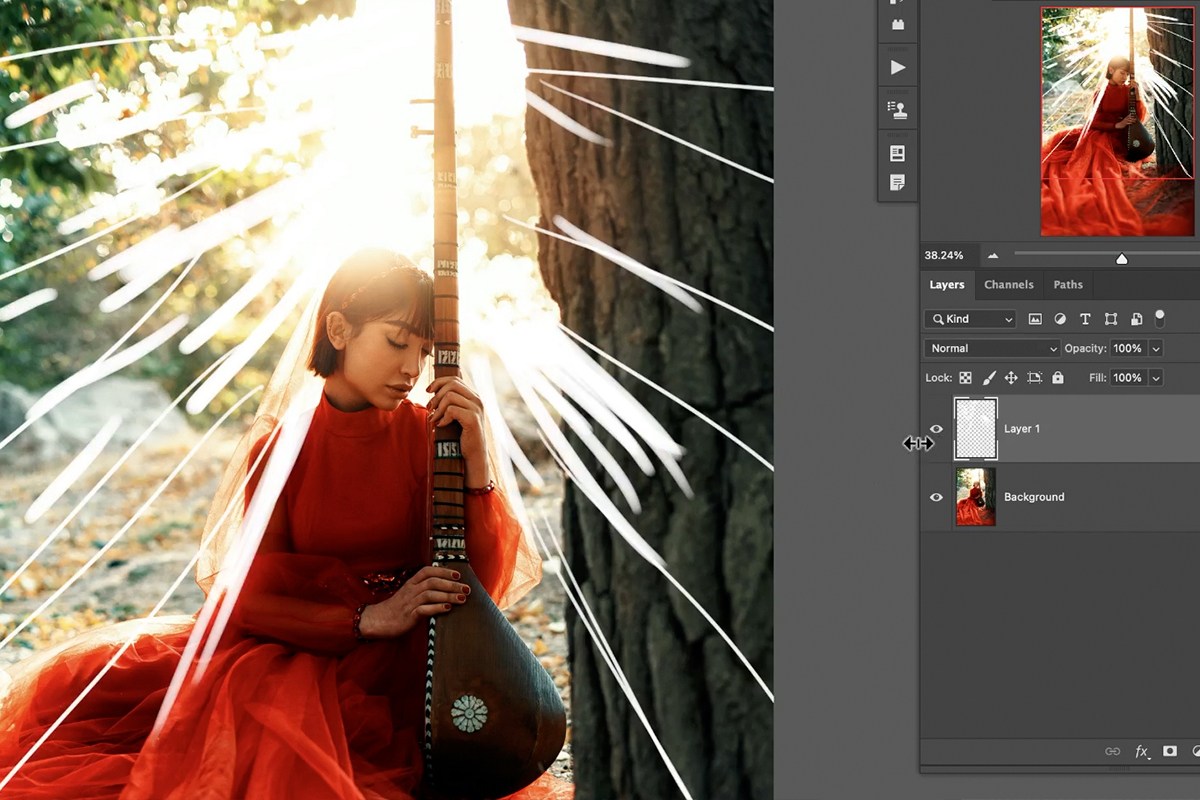
Sketching Loosely Rather Than Perfectly
The painted marks don’t need to look convincing at this stage; a rough, sketch-like pass of dots and streaks, with no attempt at precision, is exactly what the next step is designed to take and turn into something that reads as real light.
Turning the Sketch into Real Rays with Radial Blur
A Radial Blur filter is what actually sells the effect, spreading the rough painted marks out from a single point so they read as rays radiating from a light source. 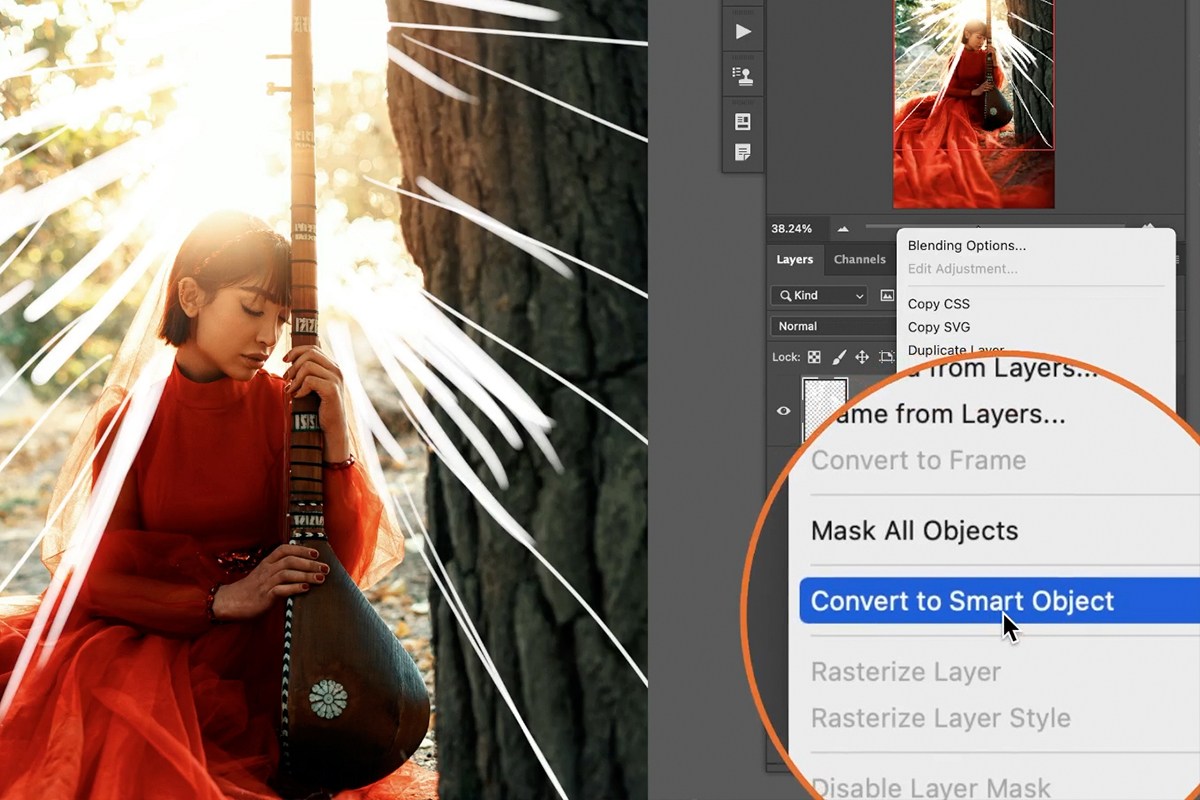
Converting to a Smart Object First
Right-clicking the rays layer and choosing Convert to Smart Object before applying the filter means the Radial Blur can be reopened and adjusted at any point afterward, rather than being baked in permanently the moment it’s applied.
Choosing Zoom Over Spin
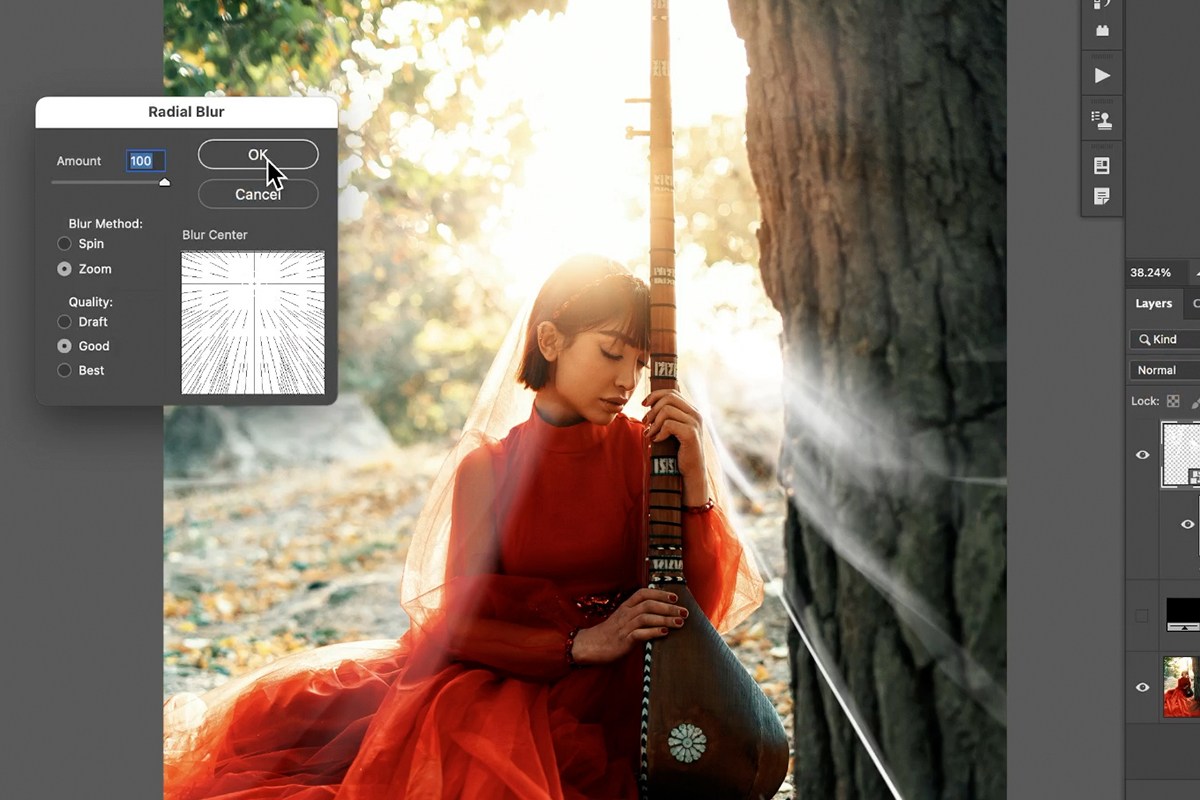
Filter, then Blur, then Radial Blur opens two blur methods: Spin, which is built for effects like a spinning car wheel, and Zoom, which already looks like streaking light rays and is the one to use here. 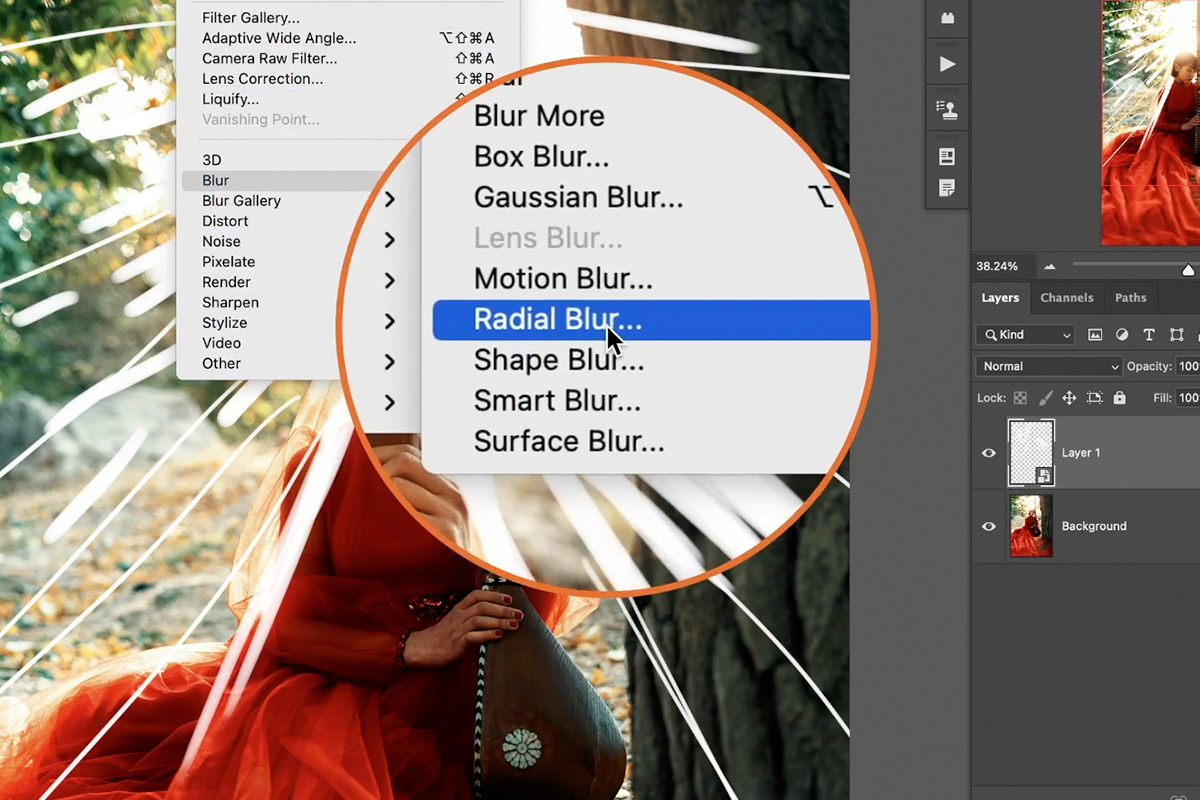
Repositioning the Blur Center by Trial and Error
The Radial Blur dialog’s Blur Center box has no live preview against the actual image, so placing it correctly on the first try is mostly a guess. 
Comparing Against a Solid Black Layer
Placing a solid black or solid color fill layer underneath the rays layer makes it much easier to judge whether the blur center landed in the right spot, since the rays show up clearly against a flat background instead of competing with the busy photo behind them. If the rays end up radiating from too low or too far to one side, double-clicking the Radial Blur entry in the Layers panel, since it’s a Smart Filter, reopens the same dialog to move the center and try again, as many times as it takes to get it right. 
Stacking a Second Radial Blur for More Realism
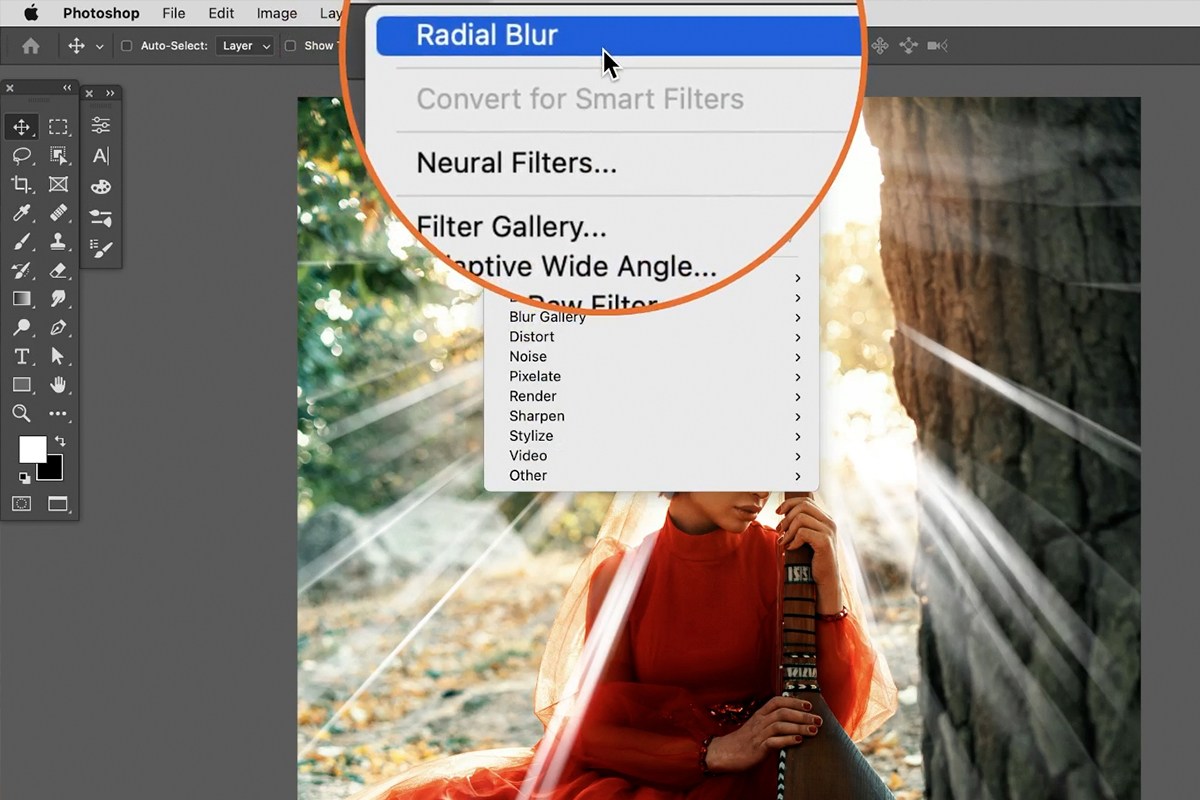
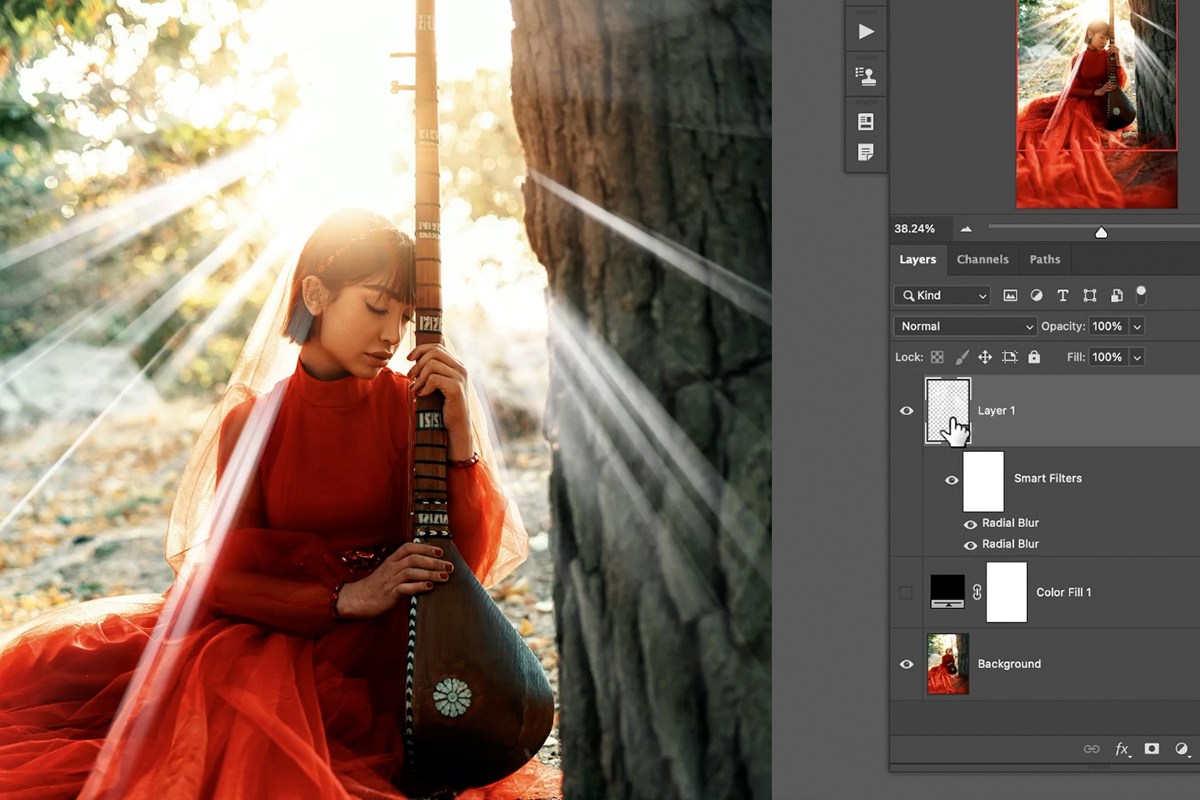
Once the first Radial Blur looks close to right, going to Filter and choosing the Radial Blur entry at the very top of the menu reapplies the same filter with the same settings a second time, stacked on top of the first as its own separate Smart Filter. The two blurs together produce noticeably softer, more convincing rays than either one on its own, and both remain independently editable afterward. 
Adding Color with a Levels Adjustment Layer
Painted purely in white, the rays still look flat and unconvincing; real light coming through trees usually carries a warm, yellow-to-red cast that needs to be added separately.
Turning the Rays Layer into a Selection
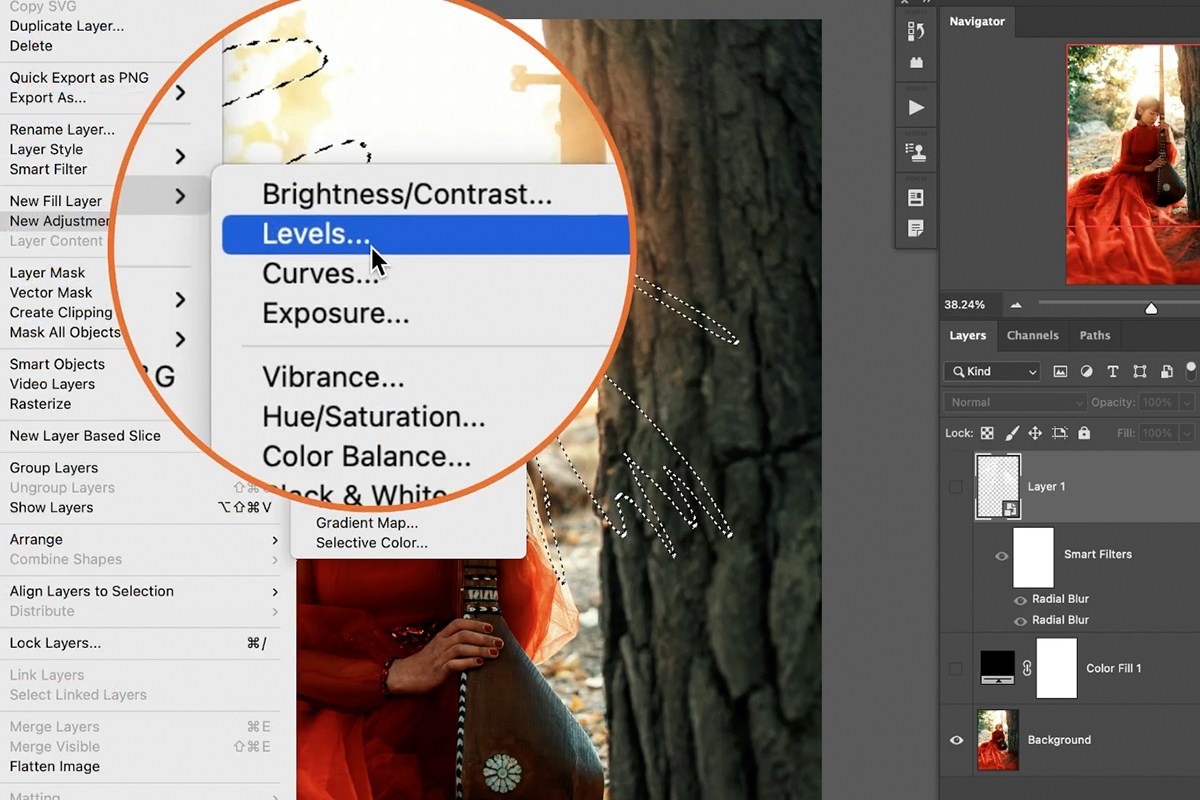
Holding Command, or Control on Windows, and clicking the rays layer’s thumbnail loads its contents as a selection. With that selection active, hiding the original white rays layer and creating a new Levels adjustment layer automatically uses the selection as that new layer’s mask, so the color adjustment only affects the shape of the rays themselves.
Adjusting Red, Green, and Blue Independently
Inside the Levels adjustment, switching the channel dropdown from RGB to Red, then Green, then Blue and nudging each channel’s slider independently builds a custom warm color rather than relying on a single preset tint. 

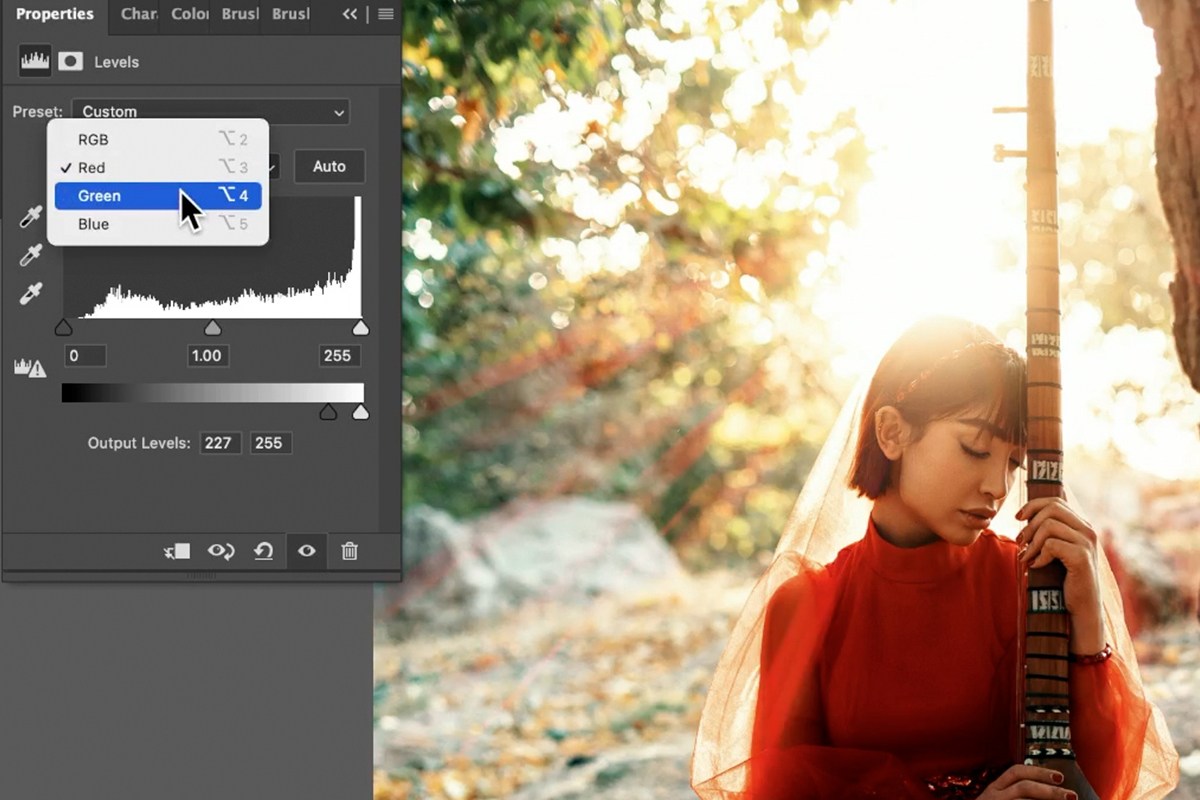 The goal is matching the color of the rays to the actual color of the light already in the photograph, adjusting each channel until the rays blend in rather than looking like an obvious addition.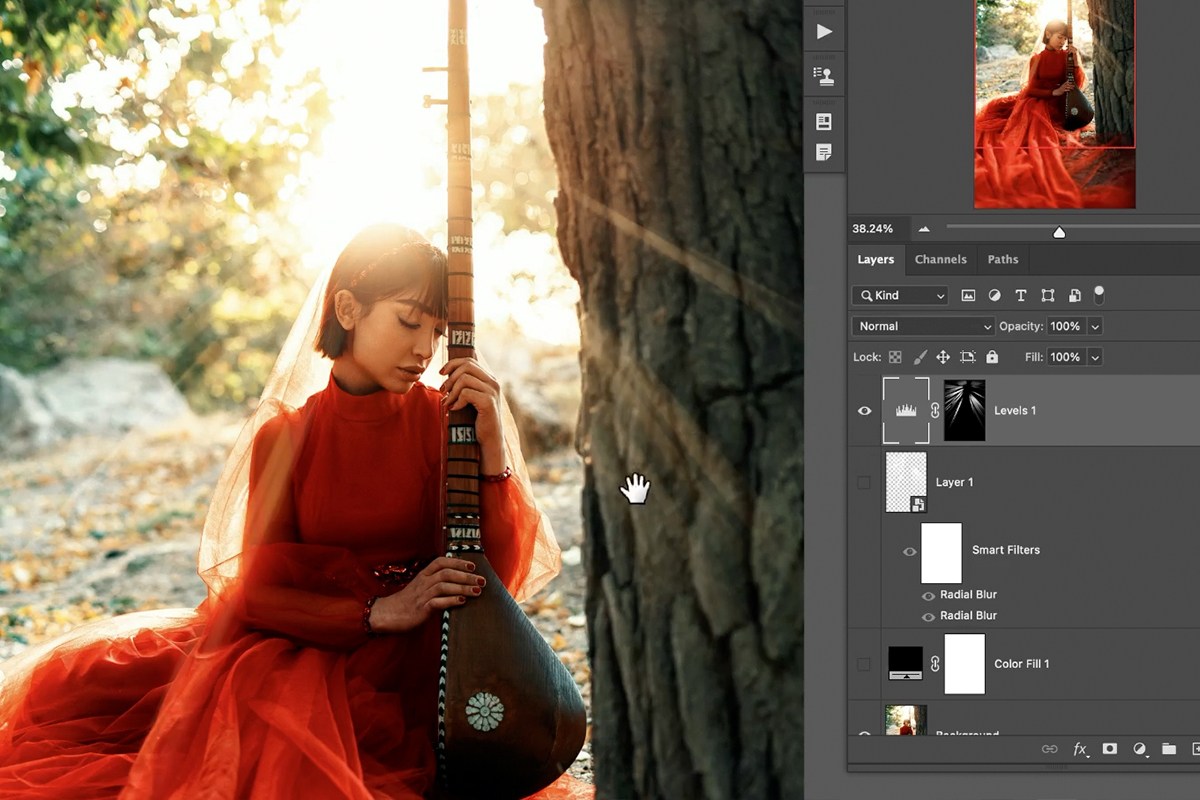
Refining the Mask with a Brush
With the color in place, any area where the rays still look off, too strong, too weak, or poking through somewhere they shouldn’t, gets painted directly on the Levels layer’s mask: black to remove light, white to add more of it. This is the same fine-tuning pass used throughout, adjusting by eye rather than trying to get the automated steps perfect on the first try.
Duplicating the Rays for Extra Light
Duplicating the entire Levels layer creates a second, independent set of rays that can be repositioned and reapplied with the same Radial Blur, then softened further with a Gaussian Blur for a gentler glow around specific areas, like a soft light peeking out around the edge of a veil. 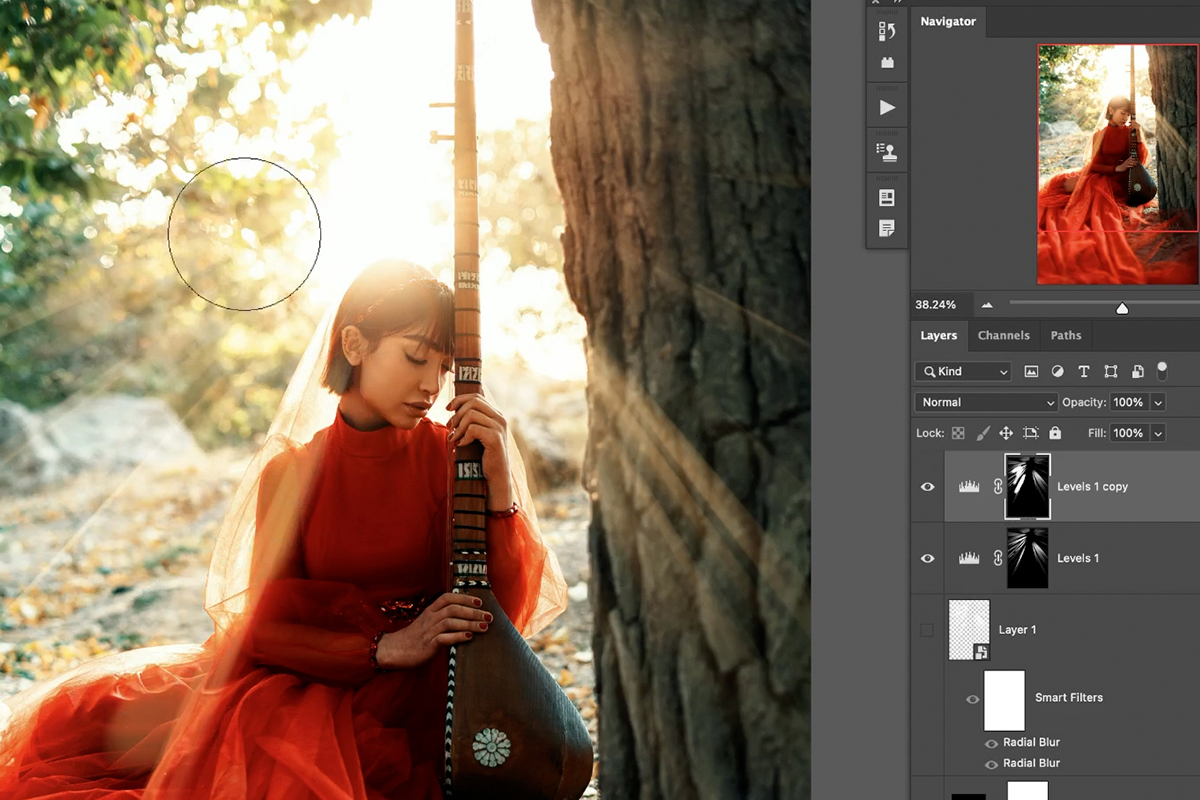
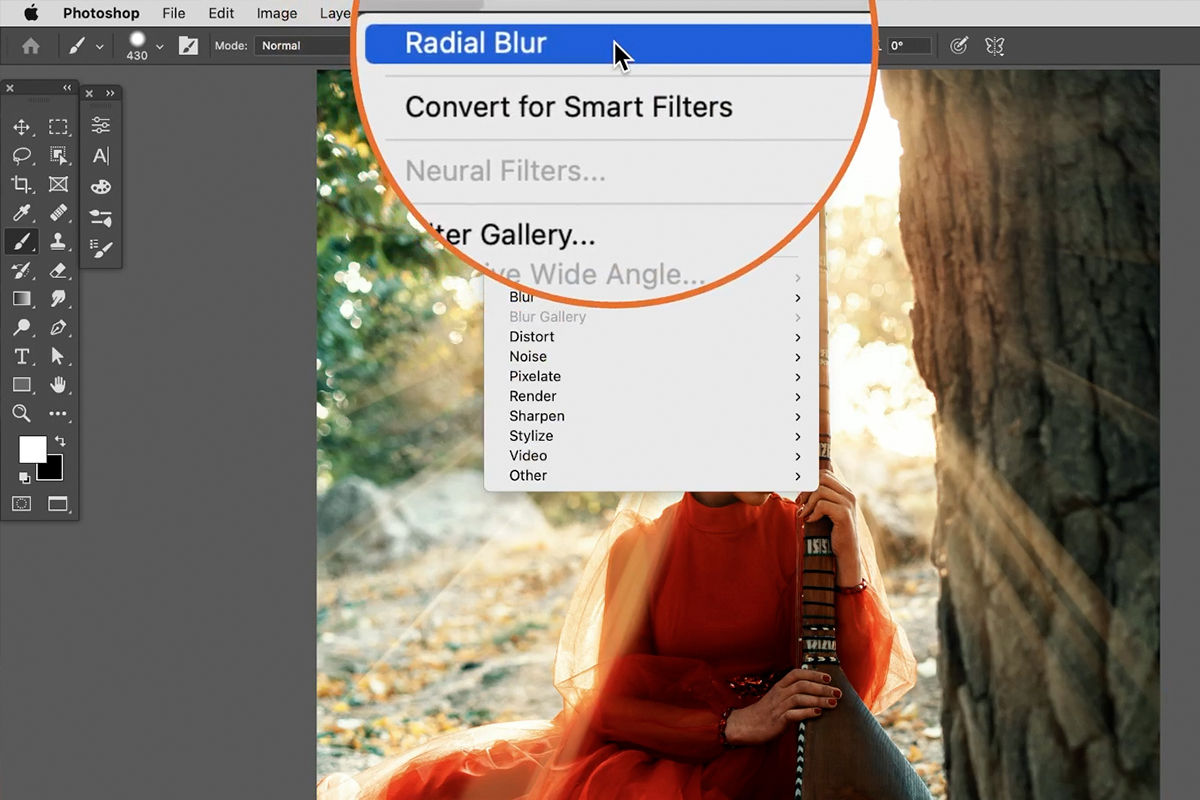
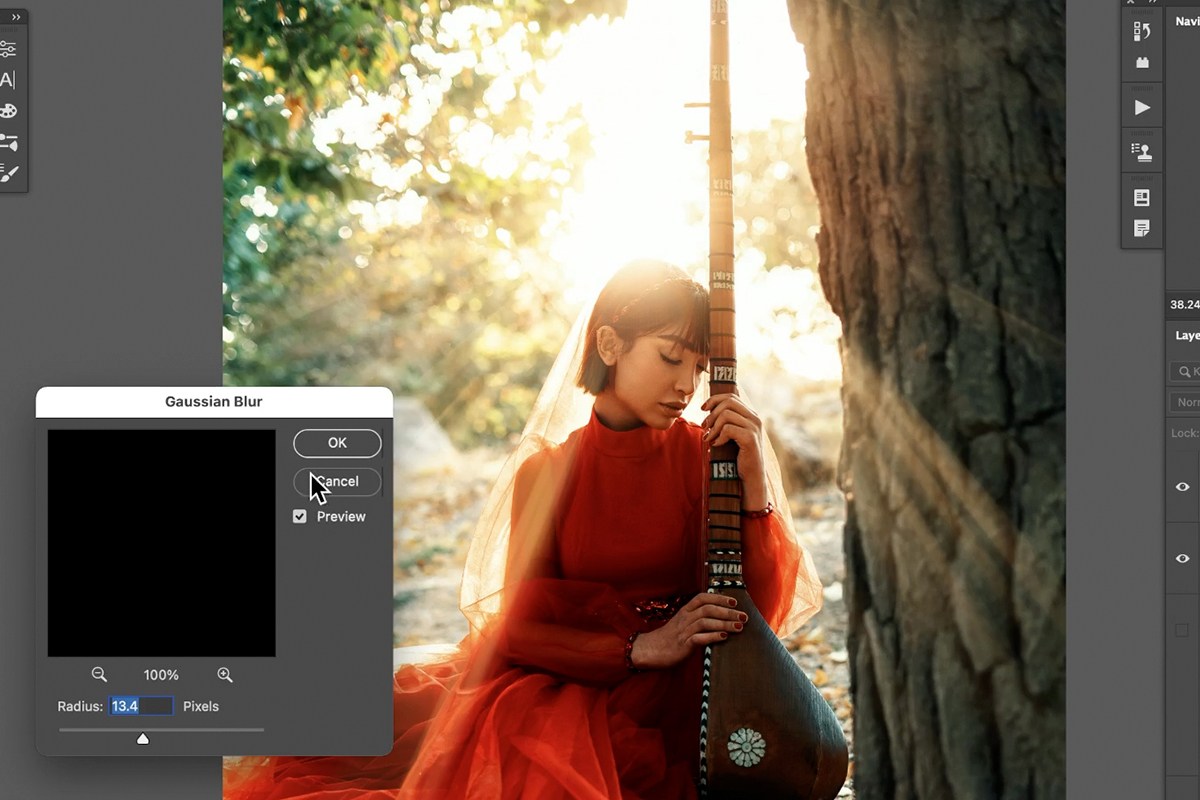 Painting black and white on this duplicate layer’s mask the same way as before controls exactly where the extra light shows up, adding more glow around the tree and the subject’s veil without affecting the original set of rays underneath.
Adding Grain So the Rays Match the Photo
Zooming into the original photograph reveals a natural grain pattern that the perfectly smooth painted rays don’t have yet, which is what keeps them from reading as part of the same photograph. Filter, then Noise, then Add Noise, set to a small amount like nine percent and applied to each rays layer’s mask, adds back that same texture so the rays pick up the same grain as the rest of the image instead of looking like an obviously clean digital addition. 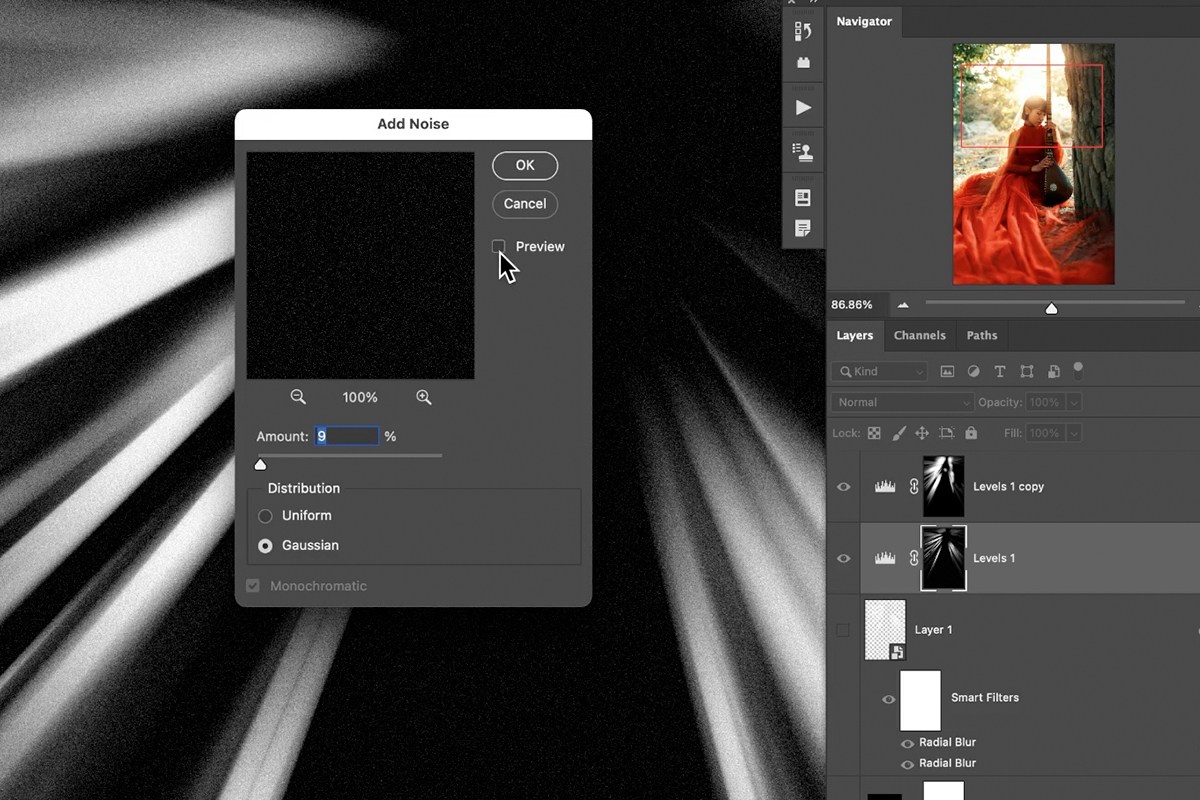
Why Matching the Light’s Color and Direction Matters
Every step in this technique points back to the same two checks: the rays have to travel toward the camera, since that’s the only direction real backlight can come from, and their color has to match the actual light already in the photo rather than staying a flat, untinted white. Getting the shape roughly right with a quick hand-painted sketch matters far less than getting those two things correct, since the Radial Blur and Levels steps can turn even a rough sketch into something convincing once the direction and color are right.
Final Thoughts
Realistic light rays in Photoshop come down to a loose hand-painted sketch, a Radial Blur or two stacked to turn it into soft streaks, a Levels adjustment layer built from that shape’s own selection to add a matching warm color, and a final pass of noise so the rays pick up the same grain as the rest of the photo. Once the technique clicks, it works on any backlit image, as long as the light is coming from behind the subject and the color matches what’s already there.
Quick Reference: Keys, Menus and Settings
- Sketch the raysNew layer, Brush Tool, white dots and lines fanning out from the light
- Smart ObjectRight-click the layer > Convert to Smart Object
- Radial BlurFilter > Blur > Radial Blur: Zoom, Amount all the way up; Filter > Radial Blur at the top of the menu repeats it
- Move the Blur CenterBlack color fill layer underneath to check, then double-click Radial Blur in the Layers panel
- Color the raysCmd/Ctrl-click the rays thumbnail, Layer > New Adjustment Layer > Levels; Red, Green, then a little Blue; Alt/Option-click the mask to view it
- Extra glowDuplicate the Levels layer, paint white on its mask, Radial Blur, then Filter > Blur > Gaussian Blur
- Match the grainFilter > Noise > Add Noise, 9%, on each Levels mask; F for full screen
No AI, no generative credits.
Free Downloads
Follow Along on the Same Photo
Get the backlit forest portrait, the finished PSD with the light rays on their own Levels layers, and the 3-page PDF guide. Free with a PHLEARN account.
Realistic Light Rays: Common Questions
What kind of photo works best for light rays?
A backlit one, with the light coming from behind the subject so the rays travel toward the camera. The light can come from the left, the right or straight behind. Avoid photos lit only from the front, where the rays would point away from the camera.
Which brush should I use to paint the rays?
It doesn’t matter. On a new layer, paint white dots, patterns and lines fanning out from the light, with a cluster of marks where the photo already has a cluster of light. A rough sketch is fine; the blur does the real work.
Why convert the rays layer to a Smart Object first?
So you can change the filter at any time. Right-click the layer and choose Convert to Smart Object, and the Radial Blur becomes a Smart Filter you can double-click to reopen.
Should I use Spin or Zoom in Radial Blur?
Zoom. Spin is for things like moving car tires, while Zoom already looks like light rays. In the video the Amount goes all the way up.
How do I know where to put the Blur Center?
You don’t get a preview on the image, so guess and check. Put a solid black color fill layer under the rays to see where they come from, then double-click Radial Blur in the Layers panel, move the center and click OK until it lines up.
Can I apply the Radial Blur twice?
Yes. Go to Filter and choose Radial Blur at the top of the menu, which repeats the last filter with the same settings. You get two Radial Blurs on the Smart Object that you can turn off and on.
How do I make the rays warm instead of white?
Hold Cmd/Ctrl and click the rays layer thumbnail, hide that layer, then go to Layer > New Adjustment Layer > Levels. The selection becomes the mask. Drag the bottom slider from left to right in Red, then Green, then add a little Blue until the rays match the light in the photo.
How do I remove some rays or add more light?
Paint black on the Levels layer mask where a ray doesn’t look right. For more light, duplicate the Levels layer, paint white on its mask, apply Radial Blur from the top of the Filter menu and soften it with Filter > Blur > Gaussian Blur.
Why do my light rays look fake?
They have no grain while the photo does. Click a Levels mask, go to Filter > Noise > Add Noise and use a small amount (9% in the video), then do the same on the other mask.
Are the sample files free?
Yes, with a free PHLEARN account. You get 1 sample image, 1 sample PSD and 1 PDF guide: the backlit forest portrait, the finished light rays file and a 3-page walkthrough of every step.
Master Photoshop, Lightroom and Photography
Join PHLEARN PRO for $12.99 a month, or $99.99 a year (save 36%). Cancel anytime, with a 100% money-back guarantee.





