
Download Assets
This tutorial includes sample images. Downloads are free with a PHLEARN account.
- Free sample files with every tutorial on PHLEARN
- New tutorials published every week
- Unlimited downloads with your free PHLEARN account
description
An even photo border takes two steps and one piece of arithmetic. This Quick Tip expands the document with Canvas Size in Relative mode anchored to Center, doubling the margin you actually want because the space splits between both sides, then fills the new area with a white Solid Color Fill layer placed below the photo so the border stays editable.
Enjoying This Free Tutorial?
We publish a new free tutorial every week, each one with sample images and PSDs you can download and follow along with. Sign up and they land straight in your inbox, along with early word on sales, events and subscriber-only offers.

How to Add a Border to a Photo in Photoshop
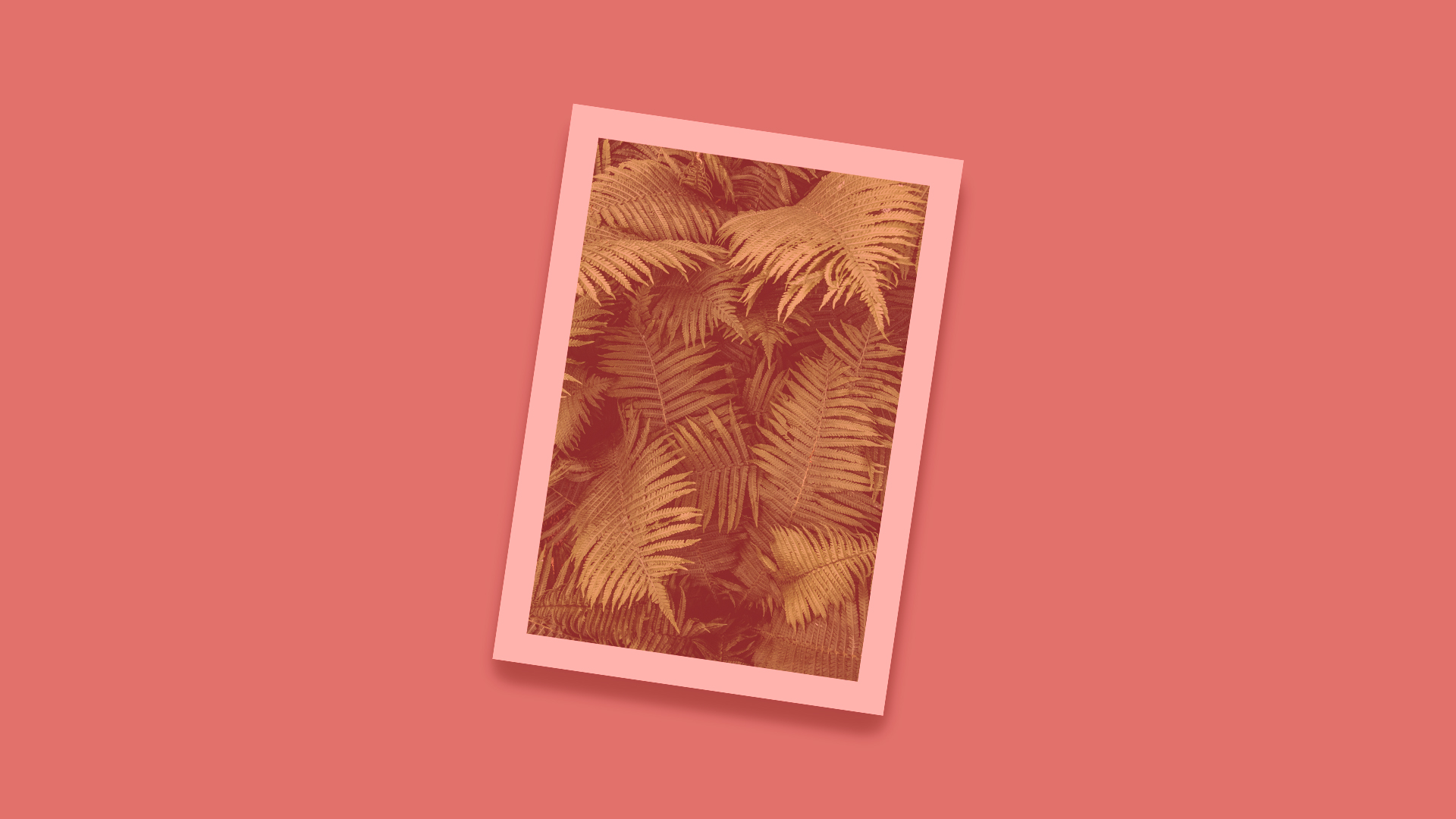
This Quick Tip adds a clean white border around a photo using Canvas Size to expand the document evenly on every side, then fills that new space with a Solid Color Fill layer.
Opening Canvas Size
Going to Image, then Canvas Size, opens the dialog where the document’s overall dimensions can be expanded without resizing the photo itself.
Checking Relative and Anchoring to Center
Checking Relative changes the width and height fields to represent how much space to add rather than the document’s final total size, and setting the anchor to Center makes sure that new space is distributed evenly around all four sides instead of extending from one edge.
What Happens Without a Centered Anchor
Leaving the anchor in a corner or edge position would add all the new canvas space to just one or two sides, producing an uneven border rather than a consistent frame around the whole photo.
Entering Double the Desired Margin
Because the added space splits evenly between opposite sides when anchored to Center, the amount entered needs to be double the actual margin wanted on each individual side.
Why the Amount Needs Doubling
An amount entered in Relative mode gets divided between both sides of that dimension, so entering the desired margin as-is would only produce half the intended border width around the photo.
Creating a Solid Color Fill Layer
With the canvas expanded, a Solid Color Fill layer is created to fill in the new transparent space that now surrounds the photo.
Setting It to White and Moving It Below the Image
The fill layer’s color is set to white, and it’s moved below the photo layer in the layer stack, so the white shows only in the newly expanded canvas area around the photo rather than covering the photo itself.
Why Layer Order Matters Here
If the white fill layer sat above the photo instead of below it, it would hide the image completely rather than simply filling in the border around it.
More Free Photoshop Tutorials
- Add a Film Border to Any Image in Photoshop
- How to Add a Vintage Film Border in Photoshop
- Export Images for Web and Print
Why This Technique Works
Expanding the canvas with Relative mode and a Center anchor is what guarantees an even border on every side without any manual measuring or nudging. Filling that new space with a separate Solid Color layer, rather than painting directly on the photo, keeps the border fully editable, so its color or width can be changed later without touching the image itself.
Final Thoughts
A clean, even photo border comes down to Canvas Size set to Relative with a Center anchor, doubling the intended margin to account for how that space splits between both sides, and a white Solid Color Fill layer placed underneath the photo to complete the frame.
Related Tutorials
Master Photoshop, Lightroom and Photography
Join PHLEARN PRO for $12.99 a month or $99.99 a year. Cancel anytime, with a 100% money-back guarantee.





