
Download Assets
This tutorial includes 1 sample image and 1 PDF guide. Downloads are free with a PHLEARN account.
- Download the sample images and PSDs from every free tutorial on PHLEARN
- New free tutorials published every week
- One free account — sign up once, then download anything
Free PDF Guide · 2 Pages
This Tutorial as a Step-by-Step PDF
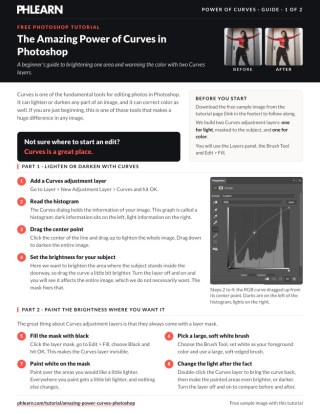
The guide walks through two Curves adjustment layers: the center point dragged up, then Edit > Fill the mask with Black and paint white with a large, soft brush over the subject. The second layer uses the channel drop-down, Blue down a tiny bit and Red up a little, to warm the image. Keep it next to your keyboard.
description
Curves is one of the genuinely fundamental tools in Photoshop, able to change an image’s brightness and color dramatically with a couple of adjustment layers. This works through what it can actually do: reading the histogram inside the Curves dialog, masking the effect to just where you want it, revisiting the brightness after the fact, switching to an individual color channel, and warming an image using blue and red together.
Enjoying This Free Tutorial?
We publish a new free tutorial every week, each one with sample images and PSDs you can download and follow along with. Sign up and they land straight in your inbox, along with early word on sales, events and subscriber-only offers.
The Amazing Power of Curves in Photoshop
Curves is one of the true fundamental tools in Photoshop, capable of dramatically changing an image’s brightness and color with just a couple of adjustment layers. Anyone building a stronger foundation in Photoshop should also get comfortable with every single adjustment layer available, along with the fundamentals of how Layers and Groups work, since Curves relies directly on both.
Add a Curves Adjustment Layer to Brighten or Darken
Layer > New Adjustment Layer > Curves opens the Curves dialog, and dragging the center point of the curve up brightens the entire image, while dragging it down darkens it. Even at this most basic level, Curves already offers more nuance than a simple brightness slider, since the curve’s shape can be adjusted at multiple points rather than as one flat value.
Understand the Histogram Inside the Curves Dialog
The background of the Curves dialog displays the image’s own histogram, with dark tonal information toward the left and light tonal information toward the right, giving a visual sense of where an image’s actual brightness values fall before making any adjustment.
Mask the Effect to Just Where You Want It
Every Curves adjustment layer comes with its own layer mask automatically, which is a big part of what makes the tool so flexible: brightening an image to highlight one specific area, like a subject standing in a doorway, otherwise affects the entire photo the moment the layer is toggled on, which usually isn’t the goal.
Filling the Mask with Black, Then Painting White
Clicking the layer mask and using Edit > Fill with black hides the brightening effect across the whole image, and then, with a large, soft-edged brush and white as the foreground color, painting directly onto the mask reveals the brightening exactly where it’s painted, leaving everywhere else untouched.
Adjust Brightness Levels After the Fact
Double-clicking the Curves layer at any point afterward reopens the same curve for further adjustment, brighter or darker, letting the exact strength of the effect keep evolving even after the masking work is already done. Toggling the layer off and on shows a direct before-and-after comparison of the change.
Switch to an Individual Color Channel
Beyond overall brightness, a second Curves adjustment layer can control color instead, by clicking the channel dropdown (which defaults to RGB) and choosing Red, Green, or Blue individually.
Warm Up an Image with Blue and Red Together
On any given channel, dragging the curve’s midpoint one direction adds that channel’s color, while dragging it the other direction adds its opposite.
Red and Cyan, Green and Magenta, Blue and Yellow
On the Red channel, dragging up adds red while dragging down adds cyan; on the Green channel, up adds green and down adds magenta; on the Blue channel, up adds blue and down adds yellow. To warm an image up, pulling the Blue channel’s midpoint down slightly adds yellow, and pulling the Red channel’s midpoint up slightly adds red, and since red and yellow intersect to make orange, the two adjustments together warm the image up, as long as neither curve gets pushed too far and starts to look unnatural.
Fine-Tune with Opacity or Additional Masking
Just like the brightness-focused Curves layer earlier, a color-shifting Curves layer can be masked to affect only part of the image, or its overall opacity can simply be lowered to dial back the strength of the color shift without touching the curve itself.
Why Curves Is a Great Starting Point for Any Edit
Whenever it’s not obvious where to start editing a photo, Curves is a genuinely reasonable first move, since a single adjustment layer can handle both brightness and color, targeted precisely with a mask and refined afterward through opacity or further curve adjustments.
Curves Combines Brightness and Color Control in One Tool
Few other tools in Photoshop offer this same combination: one adjustment layer type that handles overall light and dark, localized brightening or darkening through masking, and full per-channel color control, all fully non-destructive and endlessly revisable after the fact.
Mastering Curves Unlocks the Rest of Photoshop
Curves sits at the intersection of two skills that come up constantly in Photoshop: understanding how layer masks control visibility, and understanding how individual color channels combine to shift an image’s overall tone. Getting comfortable with both here, through one relatively simple tool, makes every other masked adjustment layer in Photoshop feel far more intuitive afterward.
Final Thoughts
A couple of Curves adjustment layers, one for brightness masked precisely to a specific area, and one for color shifted subtly warmer through the Blue and Red channels, can transform an image dramatically in just a few minutes. Whenever a photo edit needs a starting point and it isn’t obvious what to reach for first, Curves is very often the right answer.
Quick Reference: Menus and Settings
- New Curves layerLayer > New Adjustment Layer > Curves, then OK
- Lighten or darkenDrag the center point up to lighten, down to darken
- One area onlyClick the mask, Edit > Fill: Black; paint white with a large, soft Brush
- Change it laterDouble-click the Curves layer
- Pick a channelChannel drop-down: Red/Cyan, Green/Magenta, Blue/Yellow
- Warm it upBlue down a tiny bit (yellow), Red up a little (red)
- Dial it backLower the layer Opacity or paint on its mask
No AI, no generative credits.
Free Downloads
Follow Along on the Same Photo
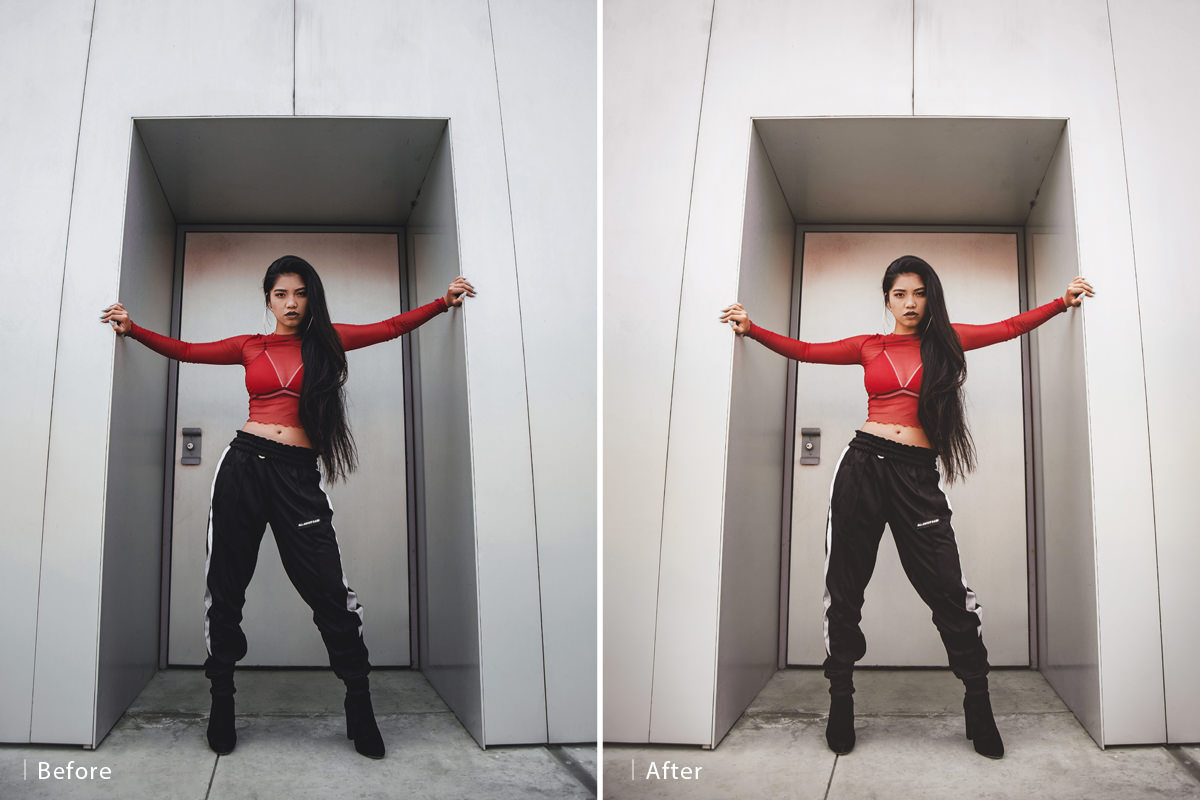
Get the sample photo of the subject in the doorway and the 2-page PDF guide to both Curves layers, step by step. Free with a PHLEARN account.
Curves in Photoshop: Common Questions
What does Curves do in Photoshop?
Curves can lighten or darken any part of an image, and it can correct color as well. Add it with Layer > New Adjustment Layer > Curves, then drag the center point up to lighten or down to darken.
What is the graph behind the curve?
That’s the image’s histogram. Dark information sits on the left and light information on the right.
How do I brighten just one part of the photo?
Click the Curves layer’s mask, go to Edit > Fill and choose Black, which hides the effect. Then take the Brush Tool with white as the foreground color and a large, soft brush, and paint only where you want it lighter.
Can I change the brightness after I’ve painted the mask?
Yes. Double-click the Curves layer to bring the curve back and make the painted areas brighter or darker. Turn the layer off and on to compare before and after.
How do I change color with Curves?
Add a second Curves layer and click the channel drop-down in the dialog. It starts on RGB; choose Red, Green or Blue to work on one color at a time.
Which colors does each Curves channel add?
Dragging up adds the channel’s color and dragging down adds its opposite. Red adds red or cyan, Green adds green or magenta, and Blue adds blue or yellow.
How do I warm up a photo with Curves?
On the Blue channel, drag the middle of the curve down a tiny bit to add yellow. On the Red channel, drag it up a little to add red. Red and yellow intersect to make orange, which warms the image.
Why does my color shift look fake?
The channel curve went too far. Drag it just a tiny bit; go too far down on Blue and it won’t look realistic.
How do I tone down a Curves adjustment?
Lower the layer’s Opacity, or paint on its layer mask to control where it shows. You can also double-click the layer and move the curve again.
Are the sample files free?
Yes, with a free PHLEARN account. You get 1 sample image and 1 PDF guide: the photo of the subject in a doorway and a 2-page guide to every step.
Master Photoshop, Lightroom and Photography
Join PHLEARN PRO for $12.99 a month, or $99.99 a year (save 36%). Cancel anytime, with a 100% money-back guarantee.





