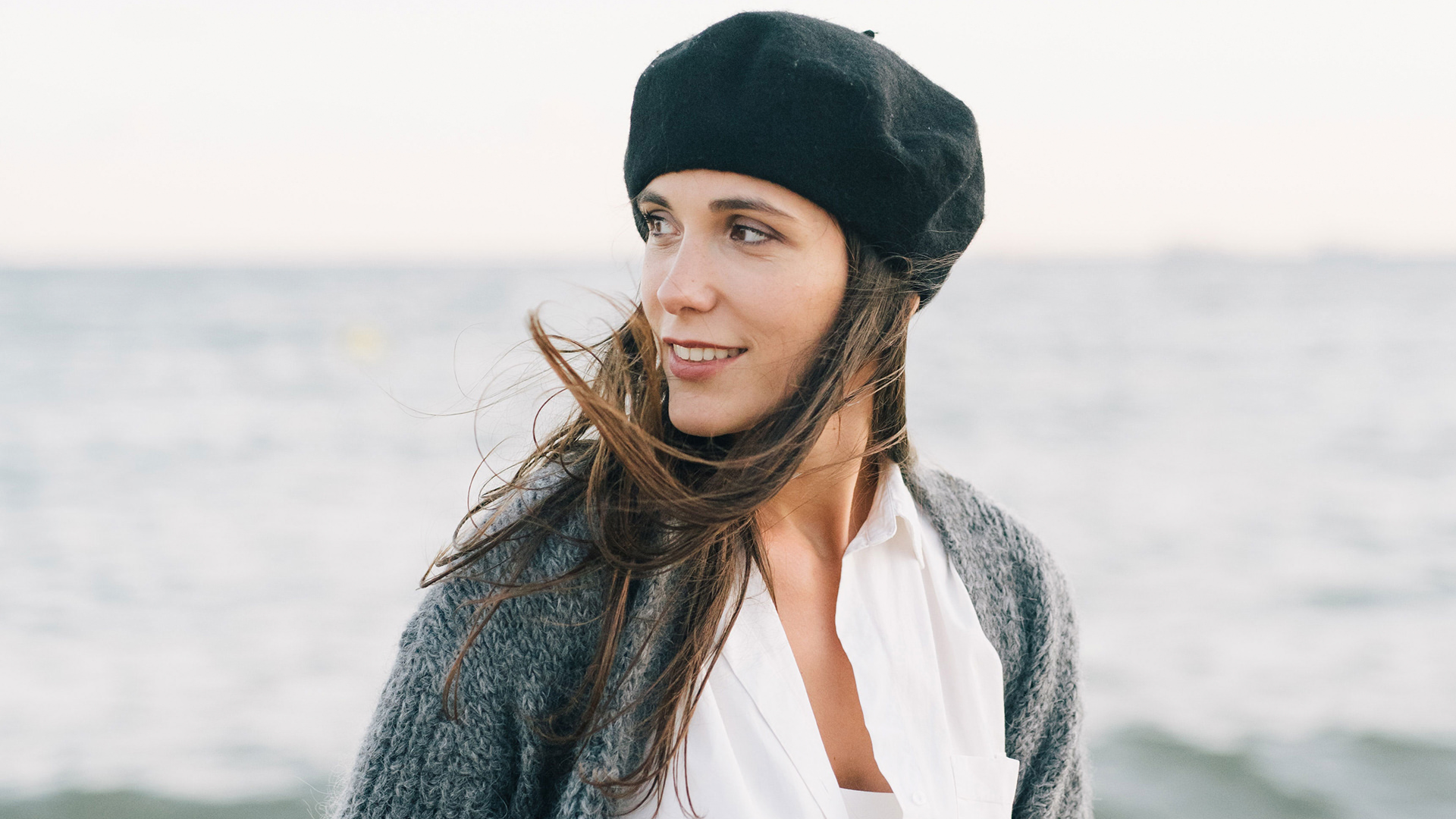

Download Sample Images
Download Assets
This tutorial includes 1 sample image, 1 sample PSD, 1 Photoshop brush and 1 PDF guide. Downloads are free with a PHLEARN account.
- Free sample files with every tutorial on PHLEARN
- New tutorials published every week
- Unlimited downloads with your free PHLEARN account
Free PDF Guide · 4 Pages
This Tutorial as a Step-by-Step PDF
The guide walks through Select > Subject and a layer mask, checking it with Alt/Option-click, defining a fuzz brush with Edit > Define Brush Preset and Size, Angle and Roundness Jitter, Scattering and Opacity Jitter, painting it on the mask, then the Blue channel, Levels and Select > Inverse for hair. Keep it next to your keyboard.
description
Photoshop is full of both automatic and manual techniques that can help us cut out subjects from their background. But which method is better? You’ll have to watch to find out! (Just kidding, the answer is that both are great, especially when used together.)
Learn how to use Select Subject, the Pen Tool, Channels, the Brush Tool, and a free custom Photoshop Brush to make accurate selections and cutouts in just a few minutes.
Enjoying This Free Tutorial?
We publish a new free tutorial every week, each one with sample images and PSDs you can download and follow along with. Sign up and they land straight in your inbox, along with early word on sales, events and subscriber-only offers.
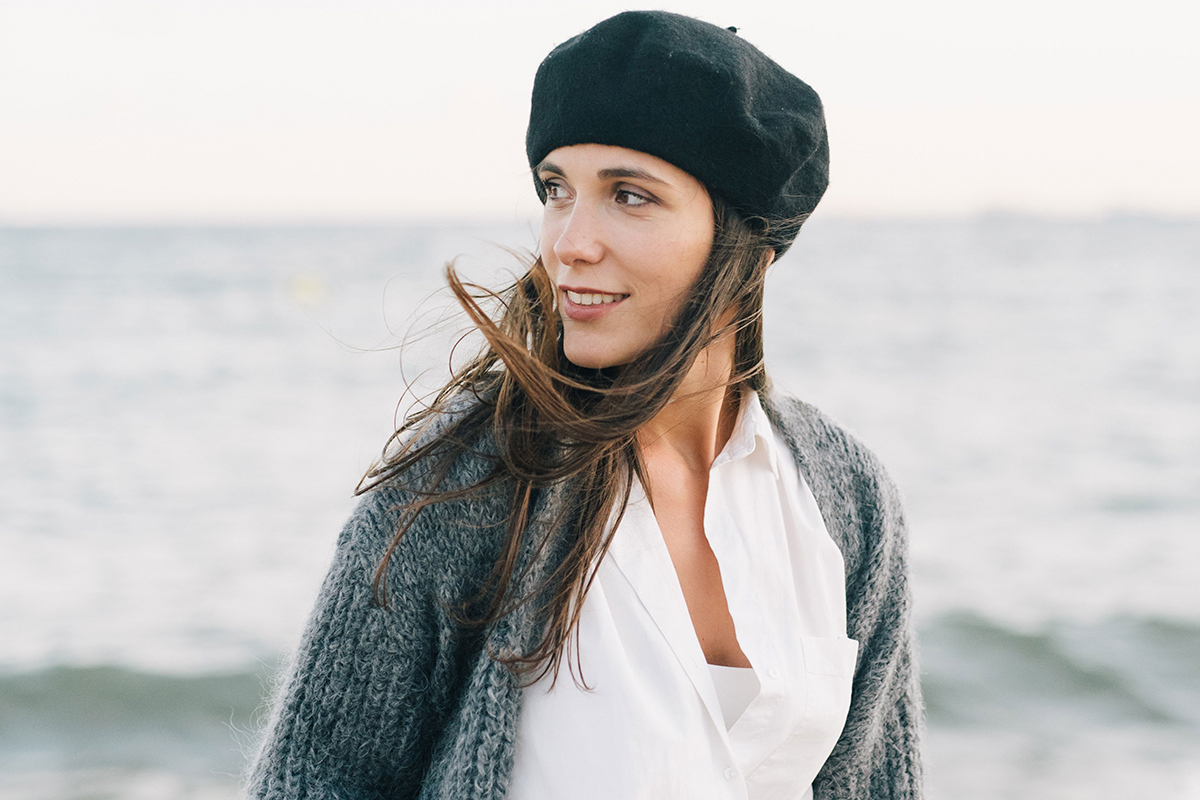
How to Cut Out Hair and Fuzzy Edges in Photoshop
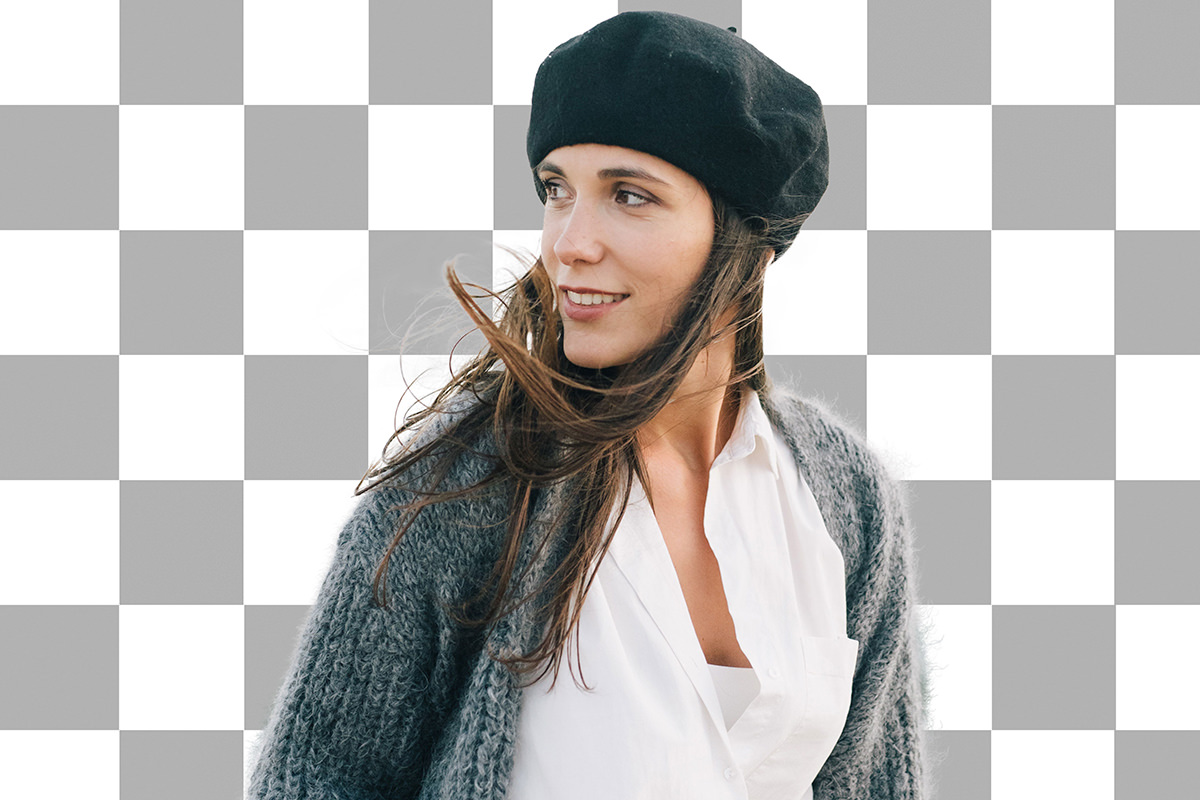
The argument about automatic versus manual selections misses the point. Photoshop’s automatic tools have become very good, and they will get you most of the way to a cutout in one click. What they cannot do is handle the edges that matter: the wisps of hair, the fuzz on a knitted sweater, the soft transitions where a subject stops being a subject.
The answer is not to pick a side. It is to start automatic, then spend your effort only where the automatic result failed. This tutorial covers that workflow on a genuinely difficult image: a subject in a fuzzy sweater with flyaway hair, using Select Subject as a base, a custom brush to build fuzz that was never captured, and a channels-based selection to recover real hair detail.
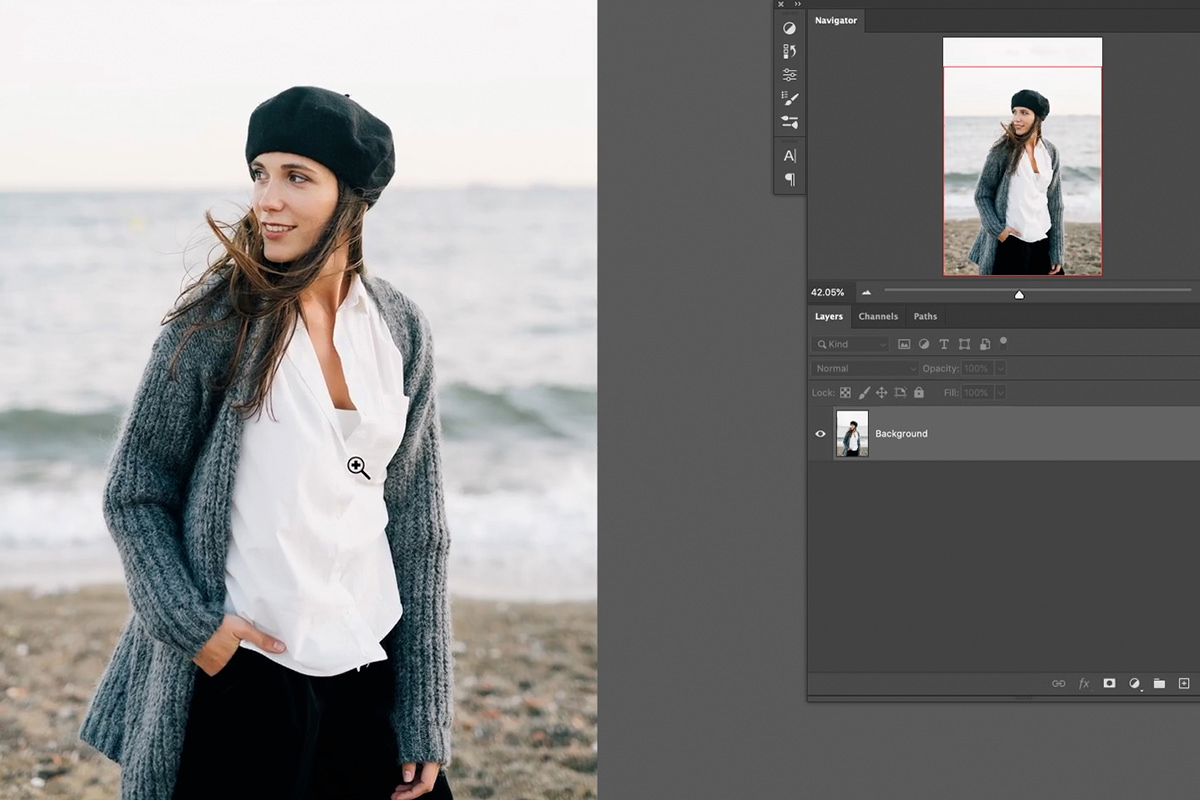
Start With Select Subject
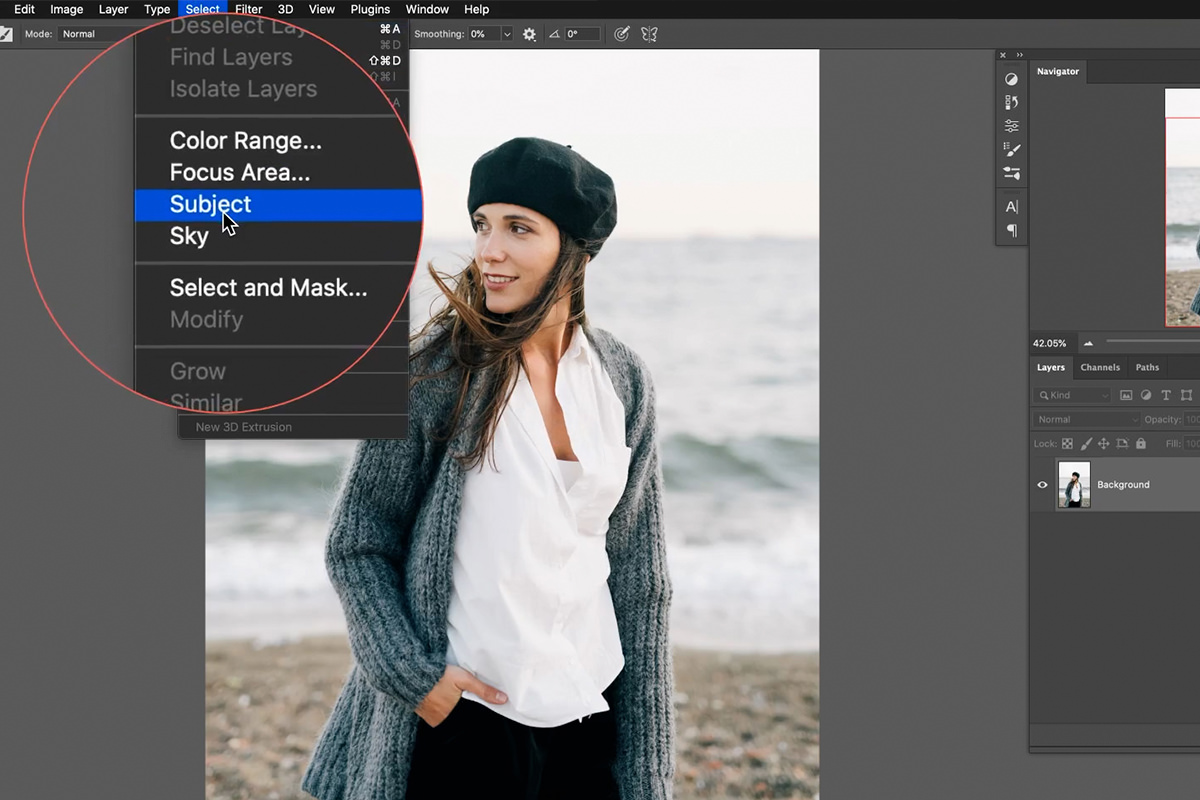
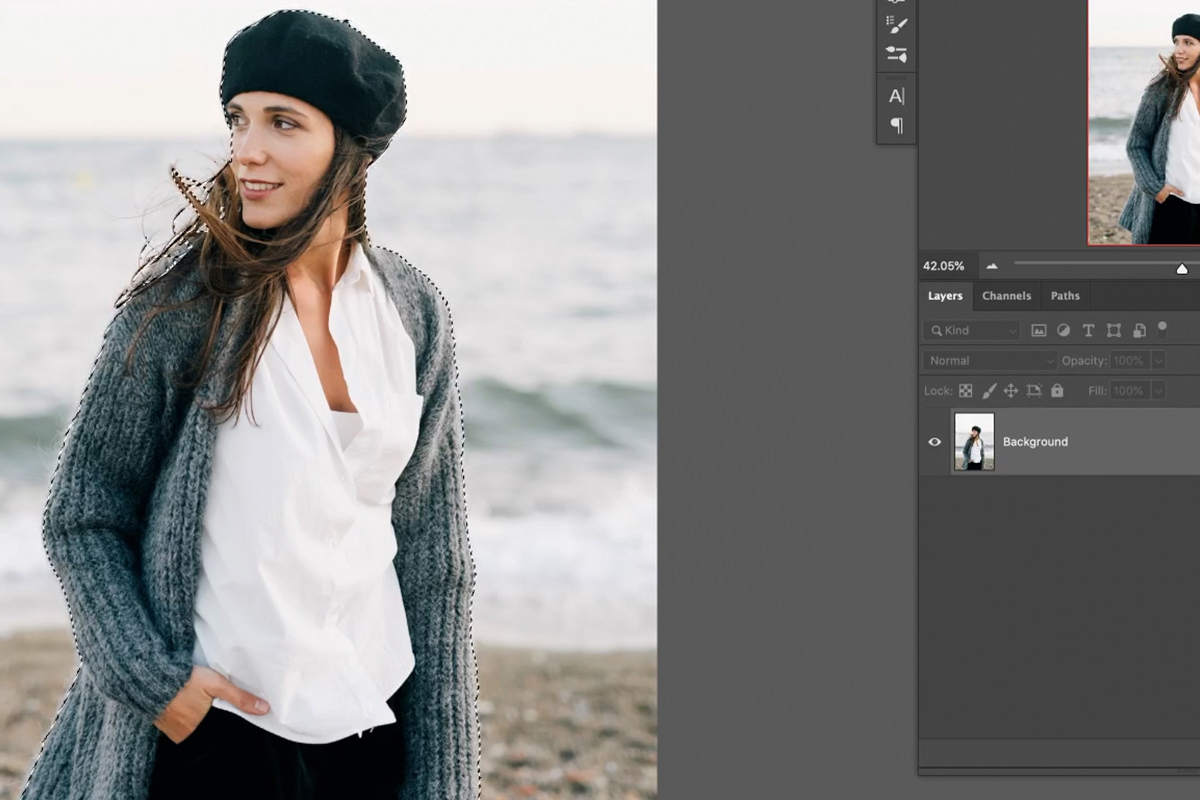
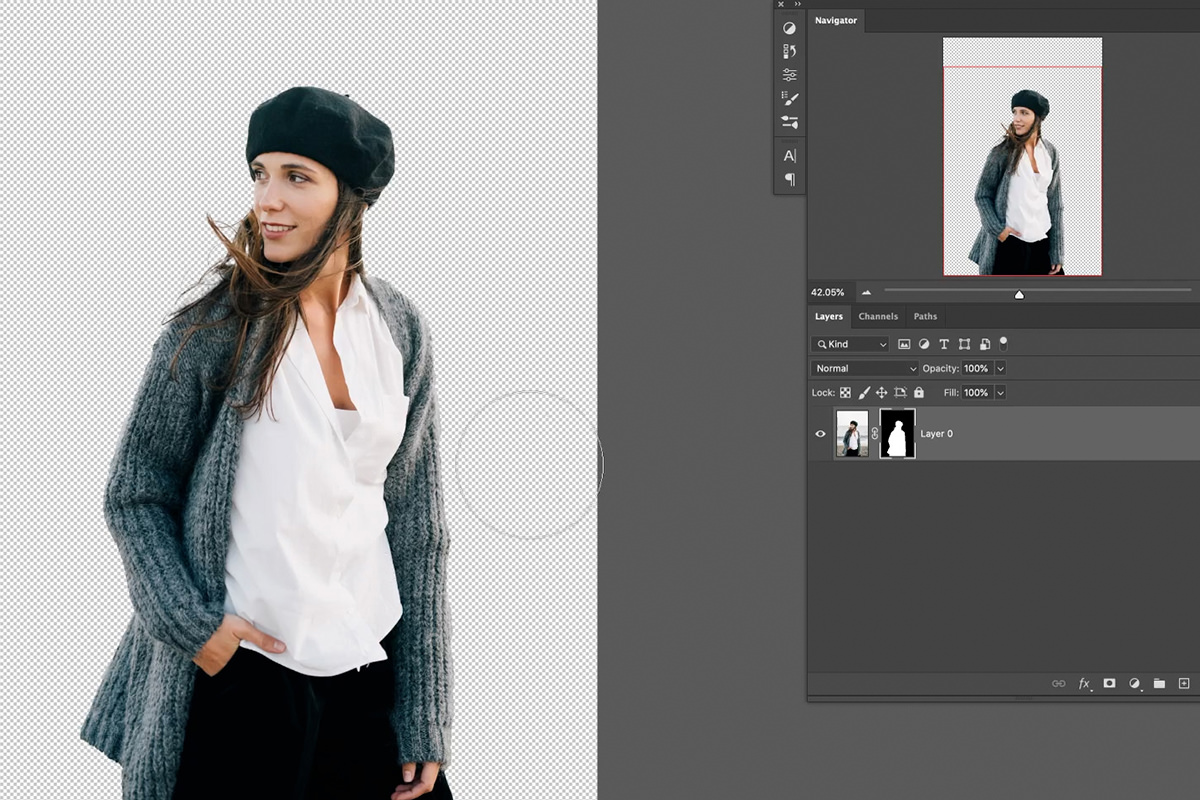
Go to Select, then Subject. Photoshop analyzes the image, finds the person, and produces a selection, including a genuine attempt at the hair. Click the layer mask icon at the bottom of the Layers panel to turn that selection into a mask.
Add a white solid color fill layer underneath so you can actually see what you have. Against the original background, a mask always looks better than it is; against flat white, every problem shows.
Inspect the Mask Properly Before You Trust It
Two keyboard moves are essential here, and most people skip them.
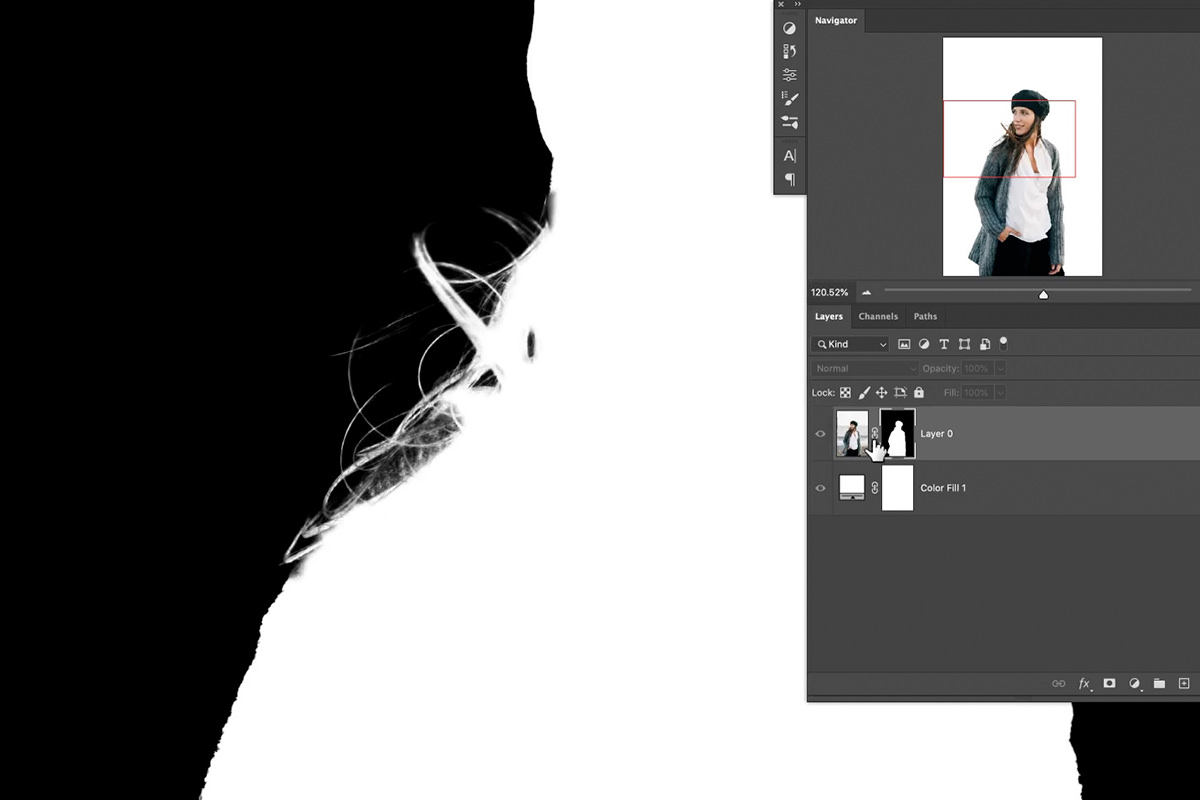
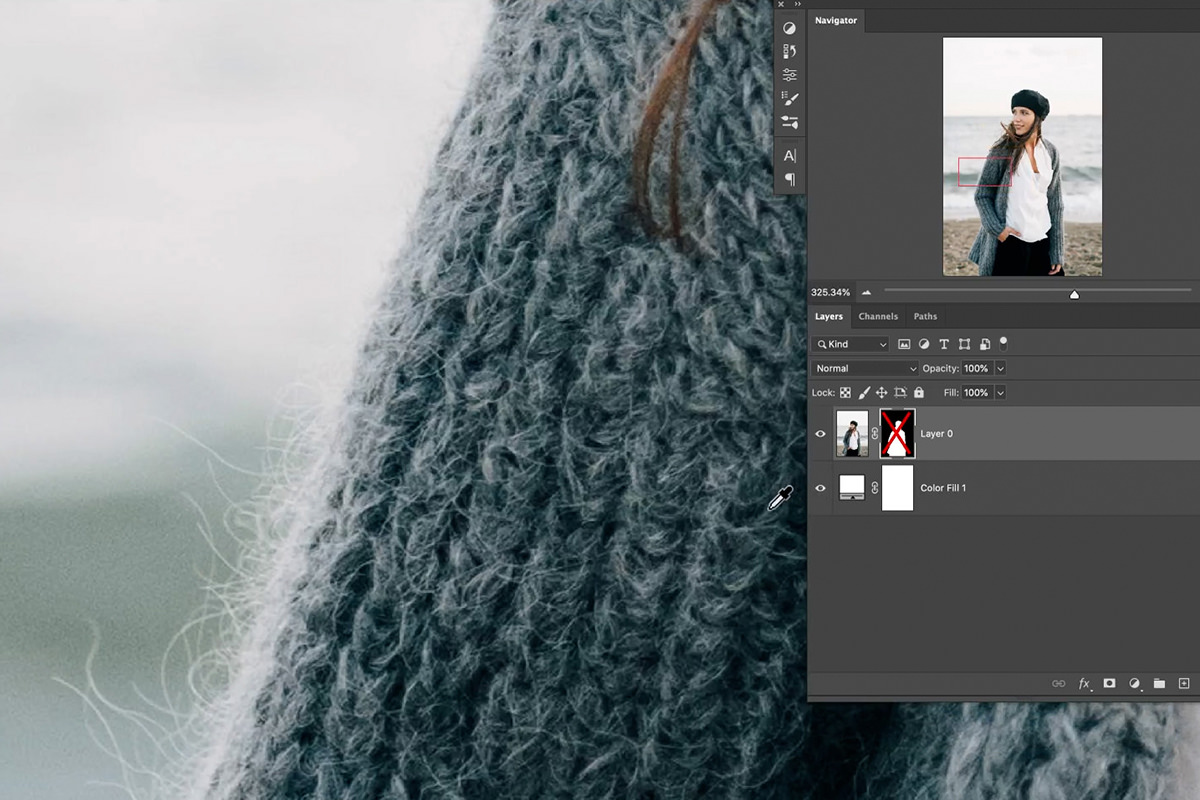
Hold Alt or Option and click the layer mask thumbnail to view the mask itself in the document window, black and white, full size. This is the only honest way to judge a cutout. Hold Shift and click the thumbnail instead to disable the mask temporarily, which gives you a quick before and after.
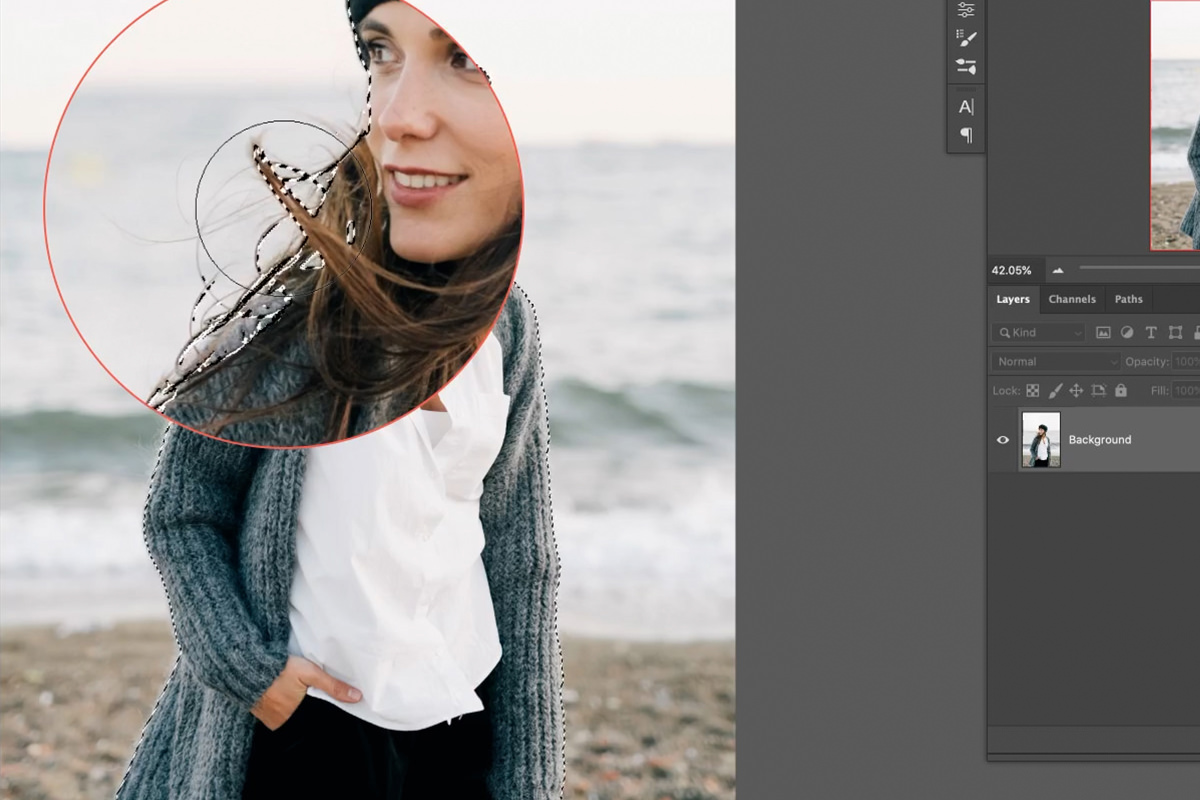
Doing this on our image reveals three separate problems.
The sweater has gone semi-transparent
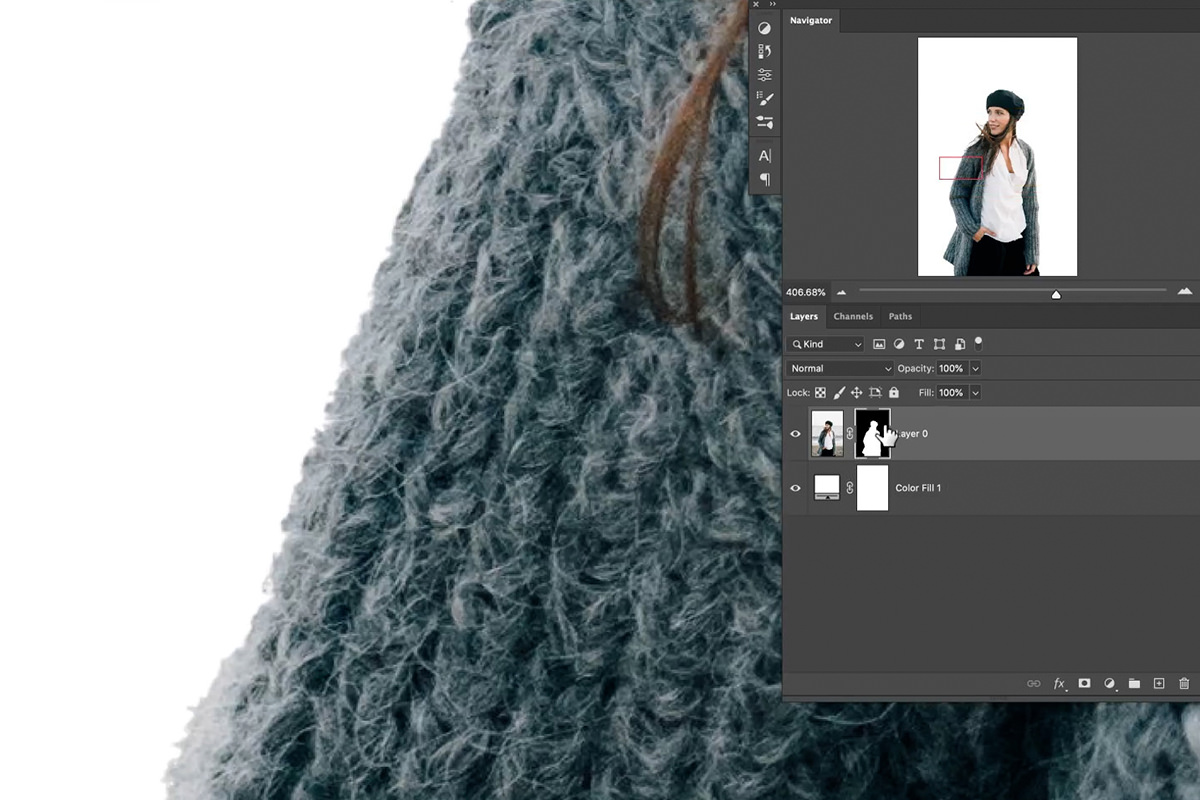
Areas of the sweater that should be solid white in the mask are gray. Photoshop got confused by the loose knit and decided parts of it were partially background, so the sweater will look see-through in the final composite.
The hair is incomplete
Select Subject made a real effort on the hair, and it is not bad. But a lot of the finer strands were not captured, and the edge reads as slightly choppy.
The sweater fuzz is simply gone
The tiny fibers standing off the edge of the knit have been cut straight through, leaving a hard jagged boundary where there should be a soft halo.
Being honest about this one: accurately capturing those individual fibers is extraordinarily difficult, even by hand. It is not a matter of picking a better tool or being more patient. There is a better approach, covered below, and it is not to try harder at selecting them.
Why the Pen Tool Is the Wrong Tool Here
The instinct when an automatic selection disappoints is to do it manually with the Pen Tool. It is worth seeing why that fails on this image.
Trace around the subject with the Pen Tool, convert the path to a selection, and apply it as a mask. The result is technically precise and completely wrong: the edge is hard, clean and mathematical, and the sweater now looks like it was cut from cardboard.
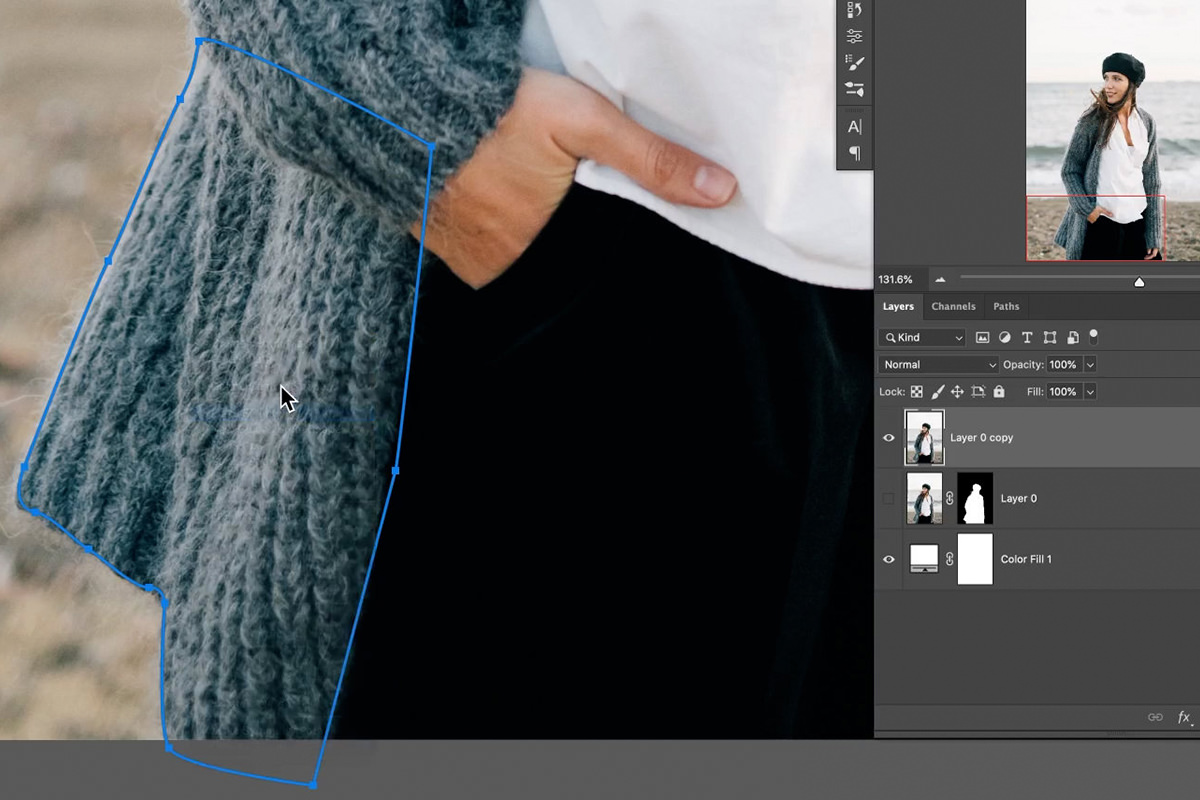
The Pen Tool is unbeatable on hard edges, like a phone, a car, a bottle, anything manufactured. On a soft edge it is actively the wrong choice, and the automatic Select Subject result genuinely looks more organic and more believable than the hand-drawn path.
So the answer is not to replace the automatic selection. It is to refine it.
Building a Custom Fuzz Brush
Since the original fibers cannot be selected, we will paint new ones. A custom brush makes this convincing and fast.
-
Create a new layer and press D for default colors
You want black on white for defining a brush.
-
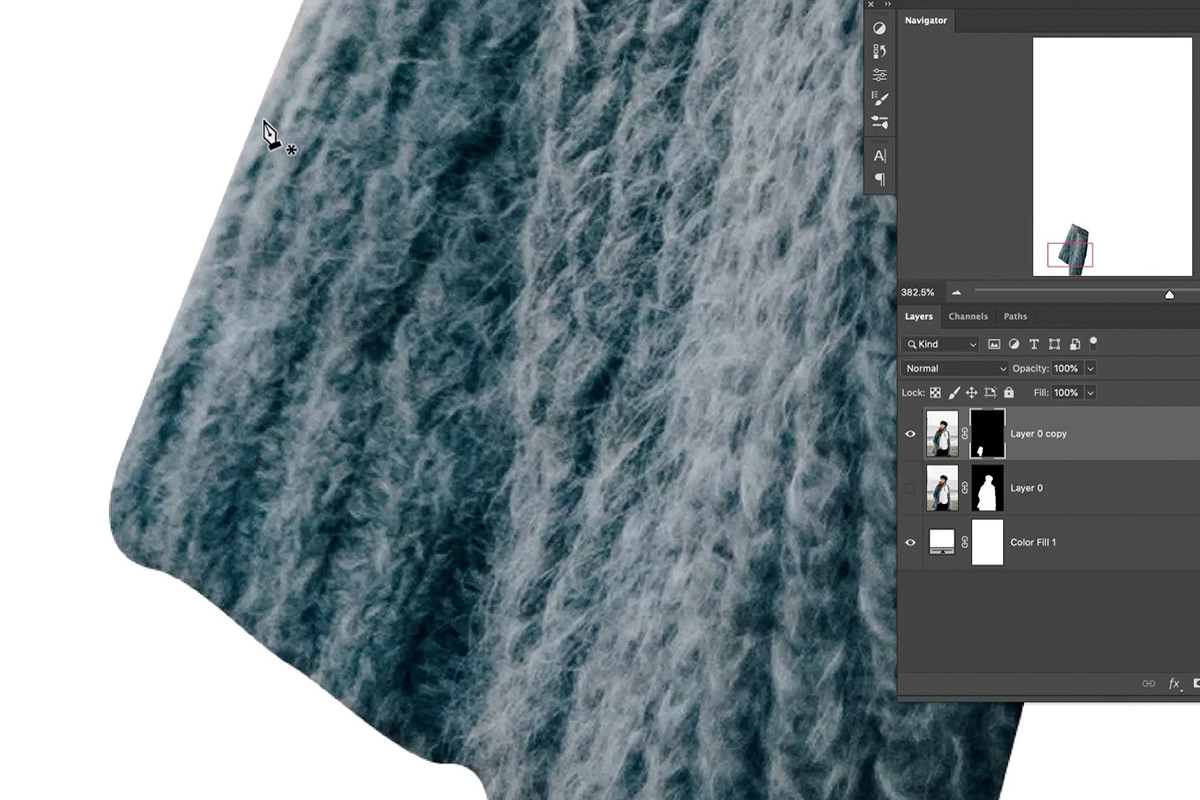
Paint a small cluster of hair-like strokes in black
Use a normal round brush at 100% opacity and draw a few short, slightly irregular flicks, the shape of a small tuft of fibers. It does not need to be beautiful.
-
Add a white-filled layer underneath
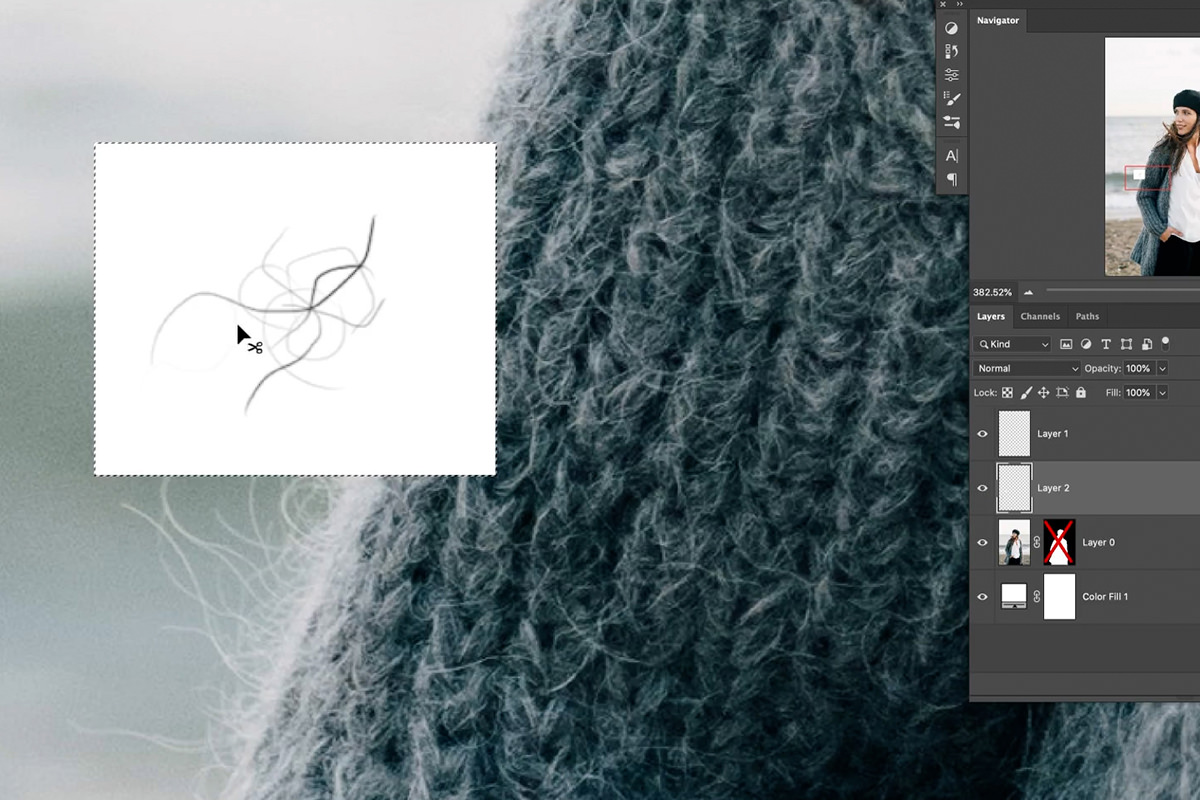
Create a new layer below it, make a selection around your black tuft, and press Shift + Delete to fill it with white. Photoshop defines brushes from luminance, so you need black marks on a white field.
-
Go to Edit, then Define Brush Preset
Give it a name you will recognize later. Aaron calls his sweater hair ball; the one in the download is the PHLEARN Sweater Brush. Your tuft is now a brush tip.
Making it behave like real fuzz
Painting with the new brush straight away looks obviously repetitive, the same tuft stamped over and over. The Brush Settings panel fixes that. Go to Window, then Brush Settings.
-
Turn on Shape Dynamics
Raise Size Jitter so some strokes are large and some small. Raise Angle Jitter so each stamp lands at a different rotation. Add a little Roundness Jitter for further variation. Watch the preview at the bottom of the panel as you go.
-
Turn on Scattering
A small amount spreads the stamps apart rather than laying them in a single track, which is how real fibers sit.
-
Turn on Transfer and add Opacity Jitter
Some fibers catch the light more than others. Varying opacity is what stops the result looking stenciled.
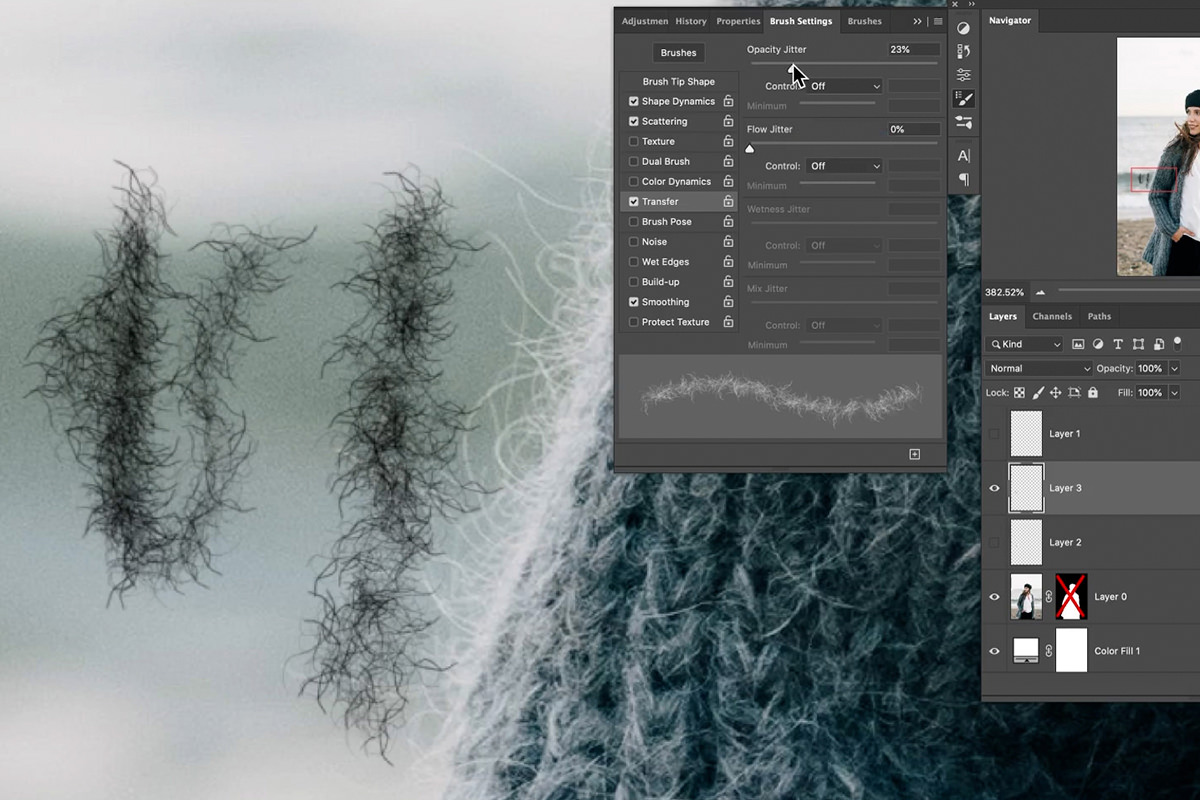
Test it on a blank layer. With those four settings on, the brush produces something that genuinely reads as the fuzzy edge of a knit.
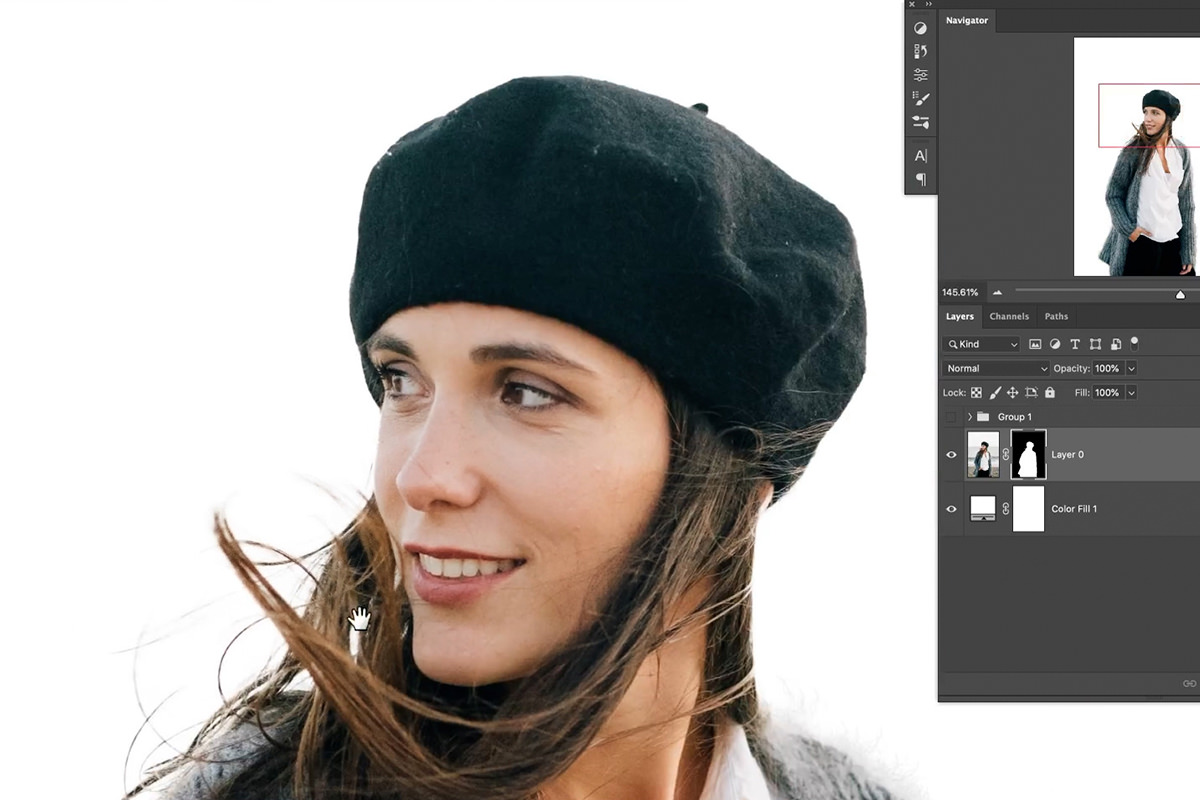
Painting Fuzz Into the Layer Mask
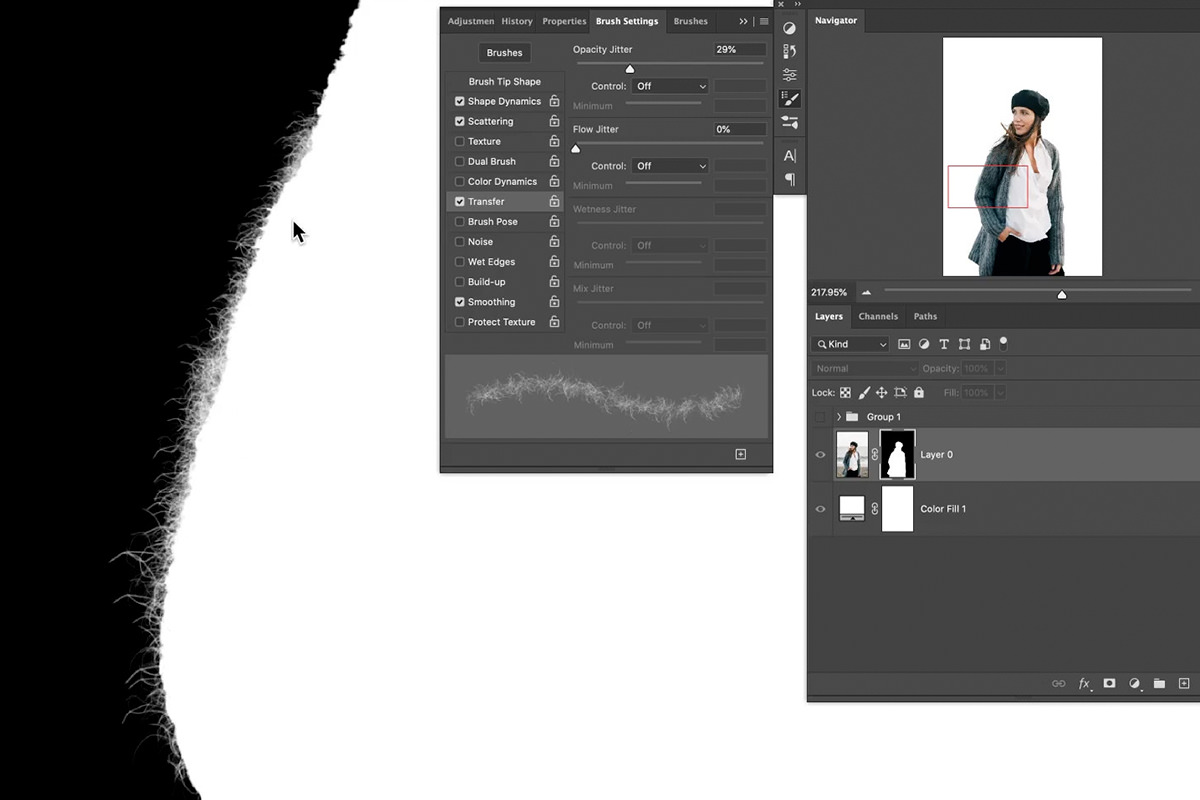
Now the two halves come together. Alt or Option click the layer mask on your subject to view it, select the fuzz brush, and paint with white along the edge of the sweater.
Painting white on a mask reveals. Every stamp of the brush opens up a small tuft of the underlying image, so you are not painting fake fur on top of the photo. You are revealing real sweater in a fuzz-shaped pattern. That is why it looks right: the color and texture are genuinely from the photograph.
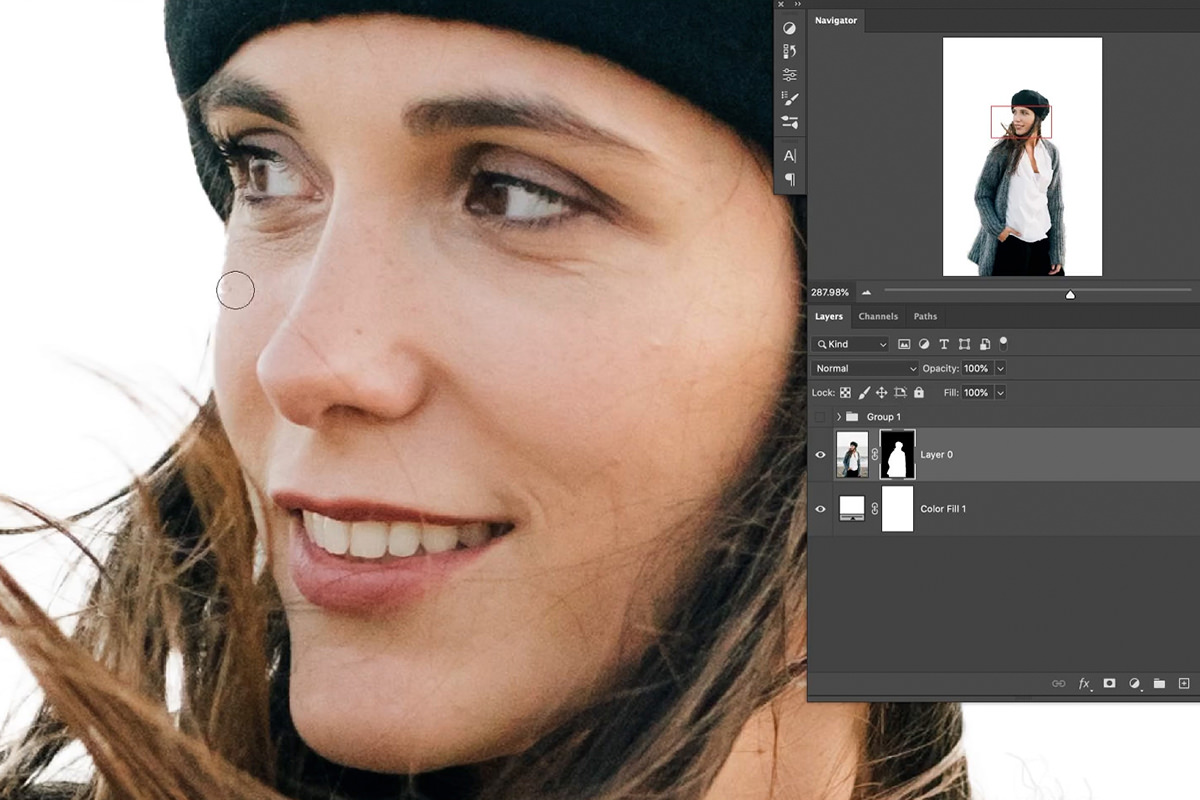
Use the square bracket keys to resize the brush constantly as you work. A mix of larger and smaller stamps looks far more natural than a uniform size. If you overdo an area, switch to black and paint the fuzz back off. Masks are completely reversible, which is what makes this approach safe to experiment with.
Alt or Option click the mask periodically to check your work. What you should see is an edge that looks as though every individual fiber was painstakingly selected, when in fact none of them were.
This is the key idea worth taking away: do not try to capture the original fuzz. Add your own. The result is better, it takes a fraction of the time, and your mask ends up cleaner and more reusable than any attempt at the real fibers would have been.
Quick Cleanup Around the Face
Switch to a standard round brush and paint white on the mask over any areas around the face that Select Subject clipped too aggressively. This takes seconds and is worth doing before moving to the hair.
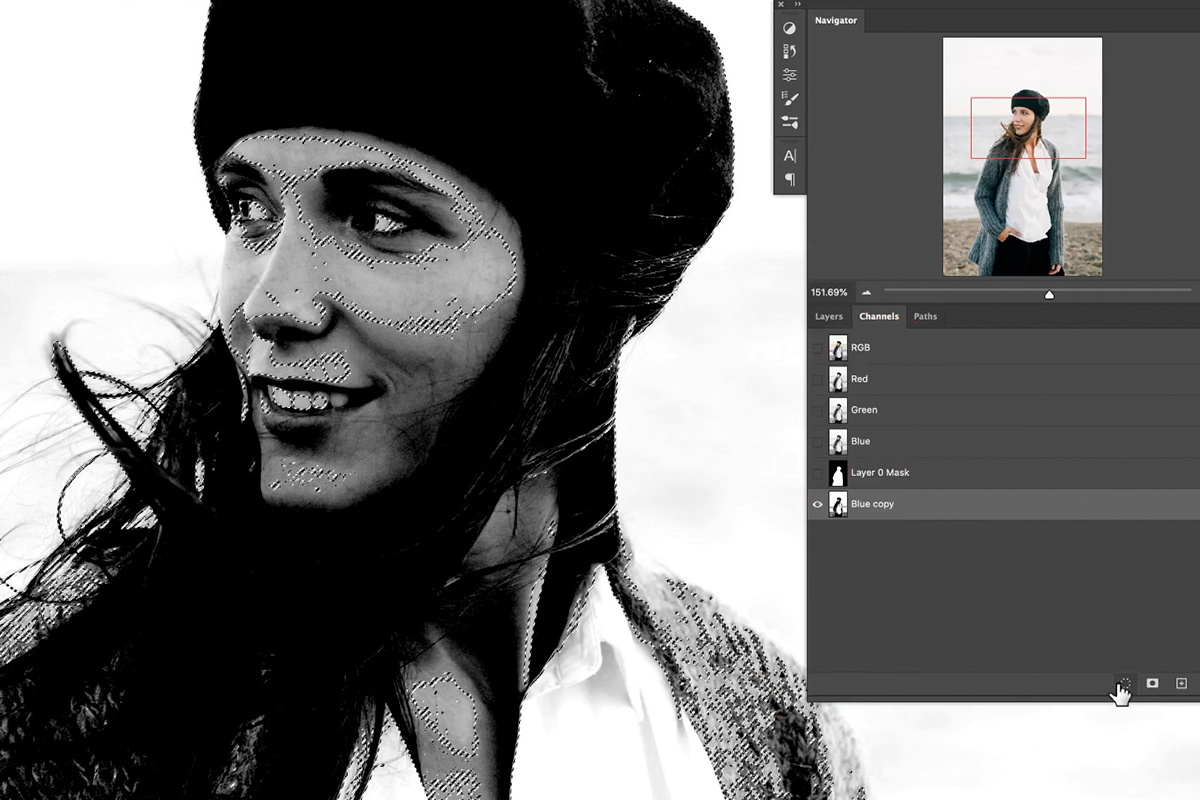
Selecting Hair With Channels
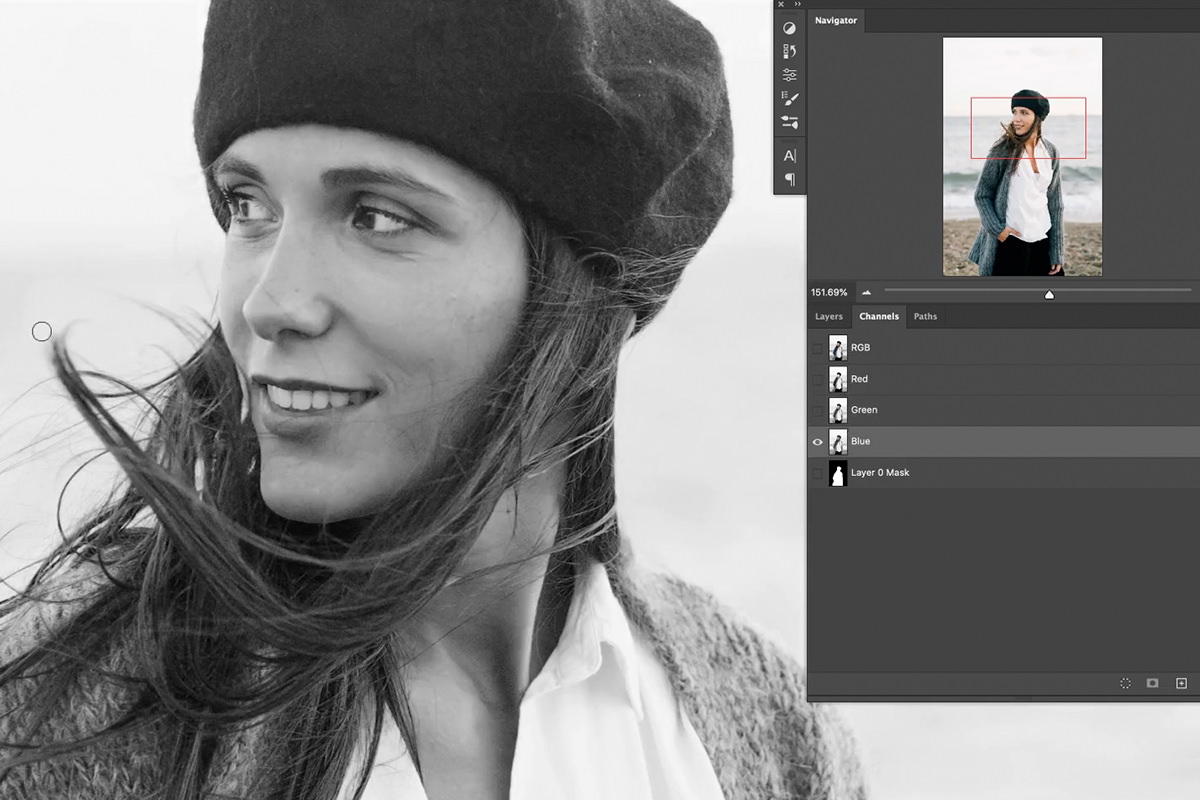
The hair needs a different technique, because unlike the sweater fuzz the detail genuinely is in the photograph; it just needs a selection accurate enough to pull it out. Channels are the right tool whenever there is a strong luminance difference between subject and background, which is the case here: dark hair against a light background.
-
Open the Channels panel
Window, then Channels. Click through Red, Green and Blue in turn and look for the one with the greatest contrast between hair and background. On this image, Blue wins.
-
Duplicate the channel before touching it
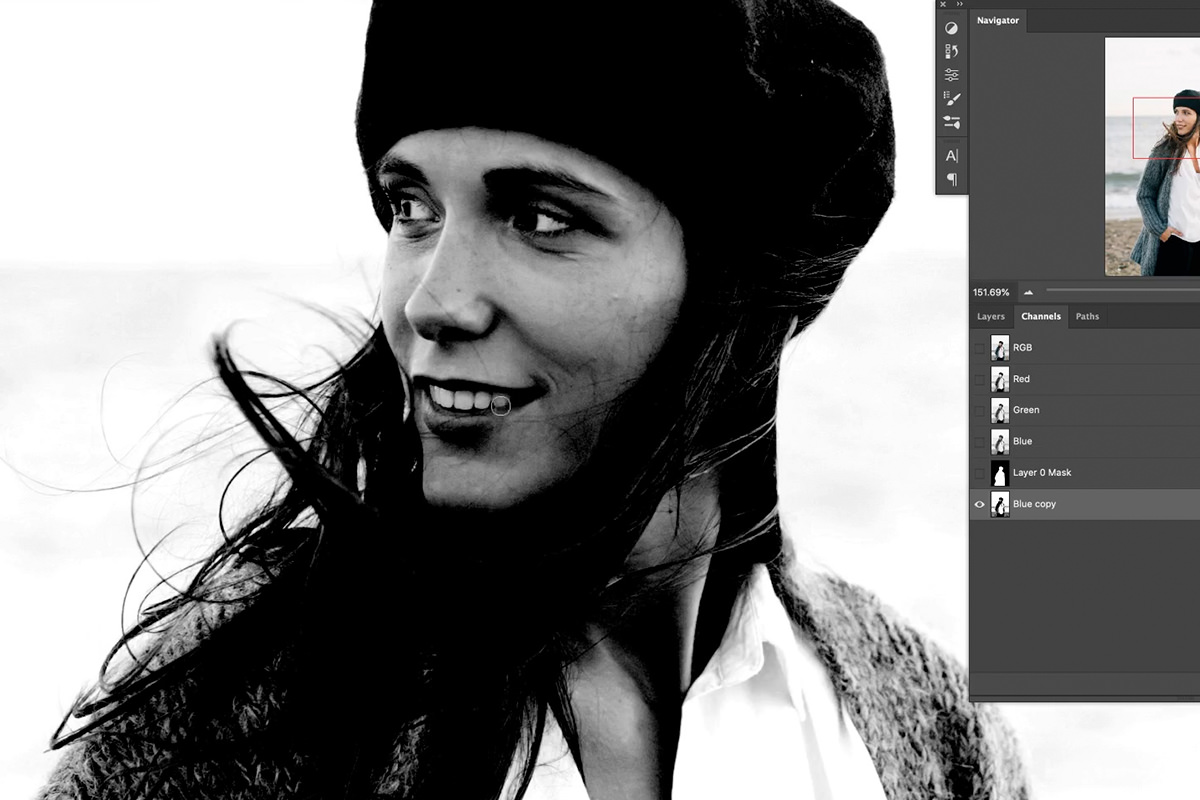
Drag it onto the new channel icon to create Blue copy. This step is not optional: editing an original color channel changes the colors in your actual image.
-
Press Ctrl or Cmd + L for Levels and add contrast
Make the darks a little darker and the lights a little lighter, so more of the hair stands out against the light background.
-
Load the channel as a selection
Hold Ctrl or Cmd and click the channel thumbnail, or use the selection icon at the bottom of the panel.
-
Inverse the selection
Loading a channel always selects the light areas, here the background. Go to Select, then Inverse, so the dark hair is selected instead.
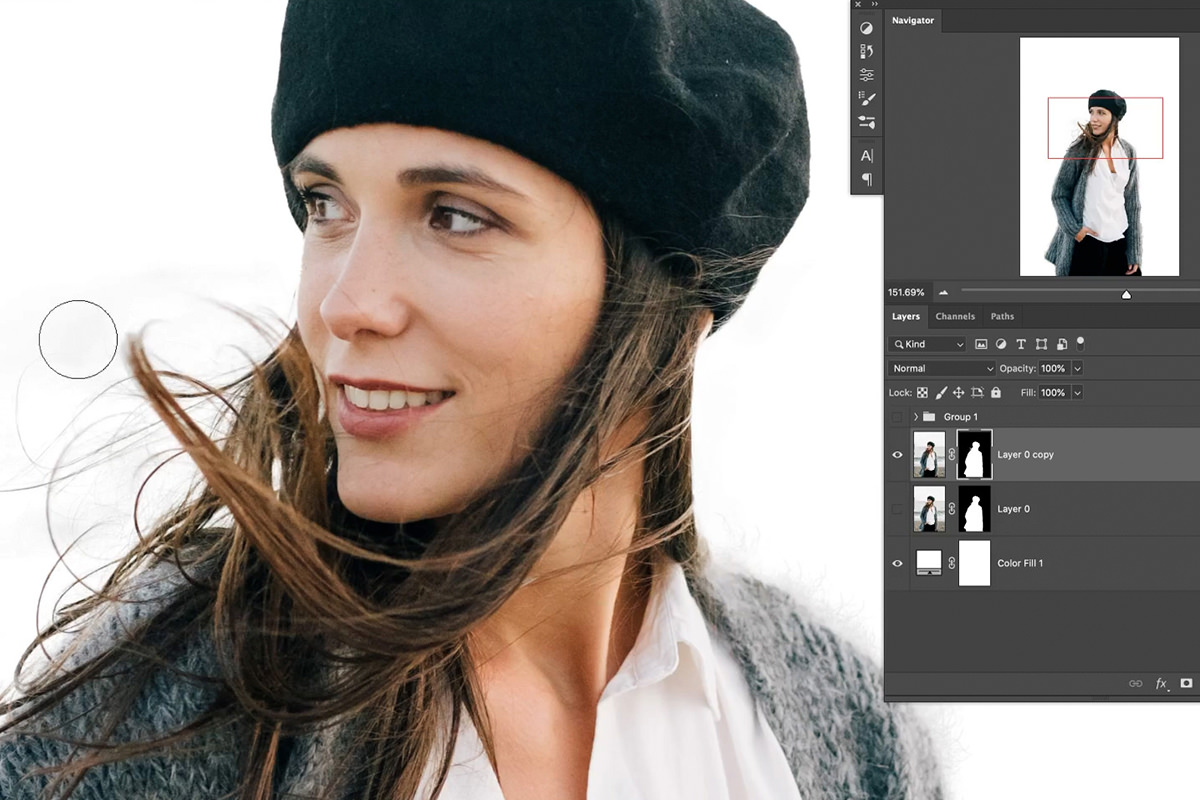
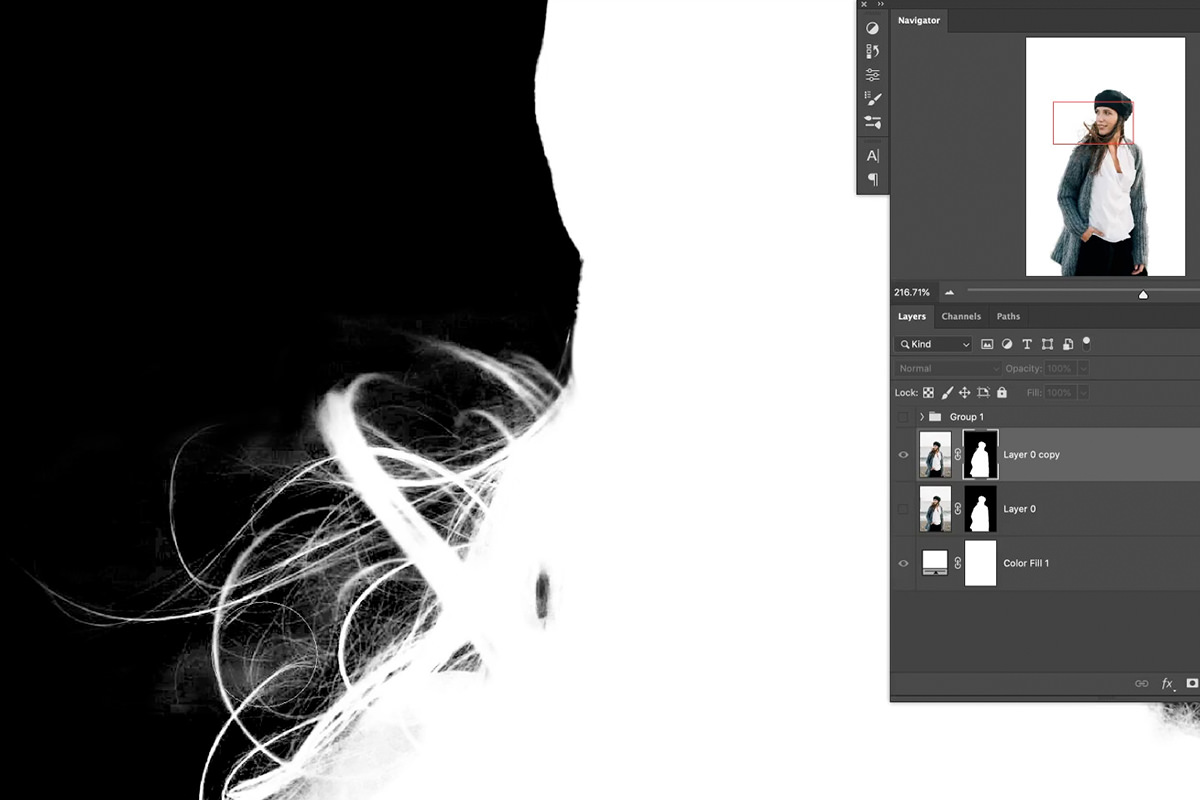
Back on the Layers panel, click the layer mask and paint white with a normal brush over the hair. Press Ctrl or Cmd + H first to hide the marching ants. The selection stays active, it is just no longer in the way visually.
Because the selection is constrained to the hair, painting recovers the real strand detail from the original photograph. The difference against the automatic result is substantial: where Select Subject gave a slightly choppy edge, this gives individual strands.

Tidying the result
Channel selections often bring a little background along with the hair. Alt or Option click the mask, and paint black over any areas where too much background became visible.
There is also a refinement worth knowing: switch the Brush Tool’s blend mode from Normal to Overlay and paint black along the hair edge. Overlay mode targets the lighter values while leaving darker detail intact, so it removes pale halo wisps without destroying the strands you just recovered. Remember to set the blend mode back to Normal afterward; forgetting is a classic way to be confused by your own brush ten minutes later.
Automatic Versus Manual: the Actual Answer
Neither approach wins on its own. Select Subject got most of this cutout right in one click, including a reasonable first pass at the hair, and reproducing that by hand would have taken a long time for a worse result on the soft edges. But it could not handle the sweater fuzz, it left the knit semi-transparent, and its hair edge was merely acceptable.
The manual techniques, a custom brush and a channels selection, went only after the edges it struggled with: the sweater fuzz and the hair. That is the efficient shape of the work: let the automatic tool do the bulk, then spend your skill only where it demonstrably failed.
It is also worth noticing that the two manual techniques solved fundamentally different problems. The channels selection recovered detail that existed in the file. The custom brush invented detail that did not. Knowing which situation you are in tells you which tool to reach for, and that is how you get a professional-looking result in a fraction of the time.
Quick Reference: Keys, Menus and Settings
- Cut outSelect > Subject, then the layer mask icon; a white layer underneath
- Check the maskAlt/Option-click to view it; Shift-click to turn it off and on
- Make the brushD for default colors, black strokes, Shift + Delete to fill white behind, Edit > Define Brush Preset
- Fuzz settingsWindow > Brush Settings: Size, Angle and Roundness Jitter, Scattering, Transfer > Opacity Jitter
- Paint the fuzzWhite on the mask, black to take it away; [ and ] resize the brush
- Hair selectionWindow > Channels, copy Blue, Cmd/Ctrl + L, Cmd/Ctrl-click the thumbnail, Select > Inverse
- Paint the hair backCmd/Ctrl + H hides the edges; brush Mode Overlay for light wisps, then back to Normal

Free Downloads
Follow Along on the Same Photo
Get the portrait in the fuzzy sweater, the finished PSD with the mask, the sweater fuzz brush and the 4-page PDF guide. Free with a PHLEARN account.
Cutting Out Hair and Fuzzy Edges: Common Questions
What is the fastest way to start a cutout in Photoshop?
Go to Select > Subject, then click the layer mask icon at the bottom of the Layers panel. Put a white layer underneath so you can see the edge clearly.
How do I check whether my mask is any good?
Alt/Option-click the layer mask to view it in black and white. Shift-click it to turn the mask off and on for a before and after.
Should I use the Pen Tool to cut out a sweater?
No. The Pen Tool is for hard edges, like a phone or a car. On a soft sweater the edge stops looking soft, and the Select Subject result looks more organic, so refine it instead.
How do I cut out the fuzz on a sweater?
Don’t try to catch the original fuzz; it is extremely difficult even by hand. Make a fuzz brush and paint white on the layer mask along the edge, so you add your own.
How do I make a custom fuzz brush?
On a new layer, press D for default colors and paint a few thin black strokes at 100% opacity. Fill a layer underneath with white using Shift + Delete, then go to Edit > Define Brush Preset.
Why does my custom brush look repetitive?
Every stamp is identical until you change it. In Window > Brush Settings, raise Size Jitter and Angle Jitter, add a little Roundness Jitter and Scattering, and turn on a little Opacity Jitter under Transfer.
What if I paint too much fuzz?
Paint black on the mask to take some of it away. Use the [ and ] keys to change the brush size as you go; a few bigger stamps add randomness.
How do I select hair with channels?
In Window > Channels, find the channel with the most contrast (Blue here) and drag it to the new channel icon. Press Cmd/Ctrl + L to add contrast, Cmd/Ctrl-click the thumbnail, choose Select > Inverse and paint white on the mask.
How do I remove light wisps around the hair?
Set the Brush Tool’s Mode from Normal to Overlay and paint black on the mask. It removes the lighter wisps and keeps the defined detail. Set the Mode back to Normal when you are done.
Are the sample files free?
Yes, with a free PHLEARN account. You get 1 sample image, 1 sample PSD, 1 Photoshop brush and 1 PDF guide: the portrait, the finished masked file, the sweater fuzz brush and the 4-page step-by-step guide.
Master Photoshop, Lightroom and Photography
Join PHLEARN PRO for $12.99 a month, or $99.99 a year (save 36%). Cancel anytime, with a 100% money-back guarantee.





