
Download Assets
This tutorial includes sample images. Downloads are free with a PHLEARN account.
- Free sample files with every tutorial on PHLEARN
- New tutorials published every week
- Unlimited downloads with your free PHLEARN account
description
Recolouring a plain studio backdrop takes one adjustment layer, not a reshoot. This Quick Tip targets a Hue/Saturation layer at the background, checks Colorize so it applies a single uniform hue instead of shifting existing colours, then pulls the saturation back from Colorize default, which is what keeps the result reading as a lit backdrop rather than flat paint.
Enjoying This Free Tutorial?
We publish a new free tutorial every week, each one with sample images and PSDs you can download and follow along with. Sign up and they land straight in your inbox, along with early word on sales, events and subscriber-only offers.
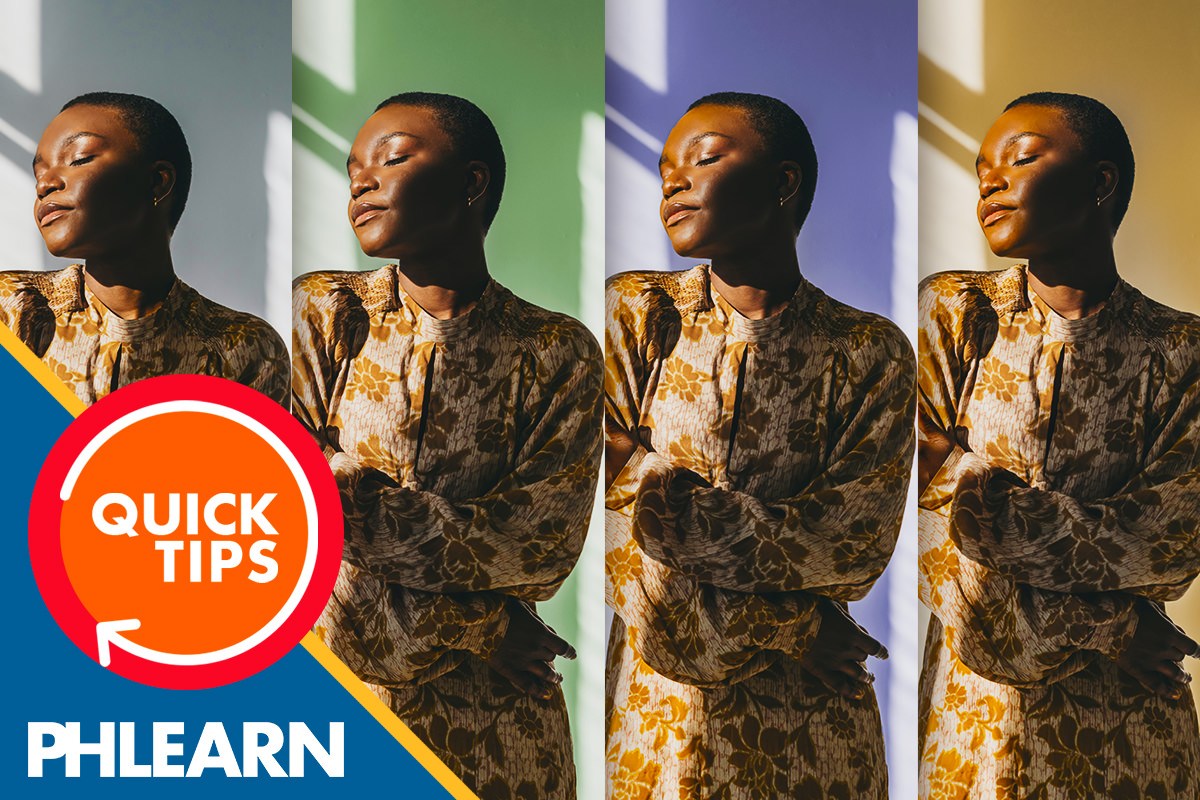
How to Change a Background Color in Photoshop
This Quick Tip recolors a plain studio background using a Colorize-mode Hue/Saturation adjustment, letting the same portrait be tried against any background color in seconds.
Creating a Hue/Saturation Adjustment on the Background
A Hue/Saturation adjustment layer is created targeting the background specifically, so the color change affects the backdrop rather than the person standing in front of it.
Why Targeting Just the Background Matters
Because the adjustment is limited to the background, the subject’s skin tones and clothing stay untouched while the backdrop color changes underneath them, which is what makes it possible to preview different background colors without also throwing off the look of the person in the shot.
Checking Colorize
Checking the Colorize option in the Hue/Saturation panel switches its behavior from shifting existing colors to applying a single uniform hue across the whole background, which is what a plain, evenly lit studio backdrop needs.
Choosing a New Hue
With Colorize turned on, the Hue slider sets the background to any color, letting the same shot be tried against gray, green, purple, gold, or any other studio color without reshooting.
Lowering Saturation for Realism
The Saturation slider is lowered from Colorize’s default, since a fully saturated hue tends to look artificial on a studio background; a more muted saturation keeps the color looking like an actual painted or lit backdrop.
Why Full Saturation Looks Off
Colorize’s default saturation level often reads as an overly vivid, flat color rather than something photographed under real studio lighting, which is why pulling it back is part of getting a believable result rather than an optional finishing touch.
Comparing Different Background Colors
Because the Hue slider can be moved to any value at any time, the same portrait can be compared side by side against several different background colors before settling on a final choice.
One Adjustment Layer, Many Options
Since the color lives entirely on one adjustment layer, switching between options is as simple as dragging the Hue slider again, without needing to duplicate the image or rebuild the effect from scratch for each color tried.
More Free Photoshop Tutorials
- How to Change Background Color in Photoshop
- Change a Background Using AI in Photoshop
- Change Any Color into a Specific Color in Photoshop
Why This Technique Works
Colorize mode is built specifically for applying one consistent hue across a whole area, which matches exactly how a plain studio backdrop needs to change color. Keeping the adjustment on its own layer, rather than baked directly into the pixels, is what makes it possible to try several colors quickly and settle on whichever one works best for the final image.
Final Thoughts
Changing a studio background’s color comes down to a Colorize-mode Hue/Saturation layer targeted at just the backdrop, with saturation pulled back from its default for realism, giving a fast way to preview a portrait against any background color without a single reshoot.
Related Tutorials
From the Magazine View all
Stories, interviews and guides for photographers, new every week.
 BusinessHow to Compete With AI: Give Your Clients MoreEveryone has the same tools now, and your clients know it. The way to compete is to give them more.
 EditingLightCraft vs Lightroom: Is the Free Clone Any Good?The free clone on the same RAW files: what matches, what breaks and who should switch.
 EditingHow to Tell If a Photo Is AI, and Prove Yours Is RealThe tells that still work in 2026, why detectors disagree, and how to prove your own photos.
Master Photoshop, Lightroom and Photography
Join PHLEARN PRO for $12.99 a month, or $99.99 a year (save 36%). Cancel anytime, with a 100% money-back guarantee.