

Download Assets
This tutorial includes 3 sample images, 3 sample PSDs and 1 PDF guide. Downloads are free with a PHLEARN account.
- Download the sample images and PSDs from every free tutorial on PHLEARN
- New free tutorials published every week
- One free account — sign up once, then download anything
Free PDF Guide · 3 Pages
This Tutorial as a Step-by-Step PDF
Every step from the video in order: Select All, Generative Fill, choosing Gemini 3 with Nano Banana Pro in the model menu, the three prompts word for word, generating extra variations and deleting the ones you don’t want. Keep it next to your keyboard.
description
Compositing a person into a new background is a real job. You cut them out, fix the edges, match the color temperature, rebuild the light on their face — and if the clothes are wrong for the new setting, that’s another hour of work or a reshoot.
Nano Banana PRO, Google’s Gemini 3 model now available inside Photoshop’s Generative Fill, does the whole thing from one plain-English sentence. Select the canvas, describe the scene you want, and it rebuilds the background, changes the clothing, matches the lighting, and keeps your subject recognizable.
Enjoying This Free Tutorial?
We publish a new free tutorial every week, each one with sample images and PSDs you can download and follow along with. Sign up and they land straight in your inbox, along with early word on sales, events and subscriber-only offers.
Image Source


Nano Banana PRO Changes the Whole Scene Around Your Subject
Compositing a person into a new background is a real job. You cut them out, you fix the edges, you match the color temperature, you rebuild the light on their face, and if the clothes are wrong for the new setting you’re looking at another hour of work or a reshoot.
Nano Banana PRO — Google’s Gemini 3 model, now available inside Photoshop’s Generative Fill — does the whole thing from a sentence. You select the canvas, describe the scene you want, and it rebuilds the background, matches the lighting, and keeps your subject recognizably themselves. It will change their clothing in the same pass if you ask.
What This Model Does Differently
It Understands Conversational Prompts
You don’t need prompt syntax or keyword stacking. “Place the subject on a rooftop in a major city and match the lighting” is a sentence, and it works as one.
The Subject Stays the Same Person
The main failure of earlier generative background work was identity drift — the face came back subtly different. Nano Banana PRO holds the subject’s features consistent while everything around them changes.
It Relights Rather Than Pastes
Ask for a beach and the light on your subject changes to match a beach. That relighting step is the one that used to take the longest by hand, and it’s the reason the results integrate instead of looking cut out.
Select the Canvas and Open Generative Fill
-
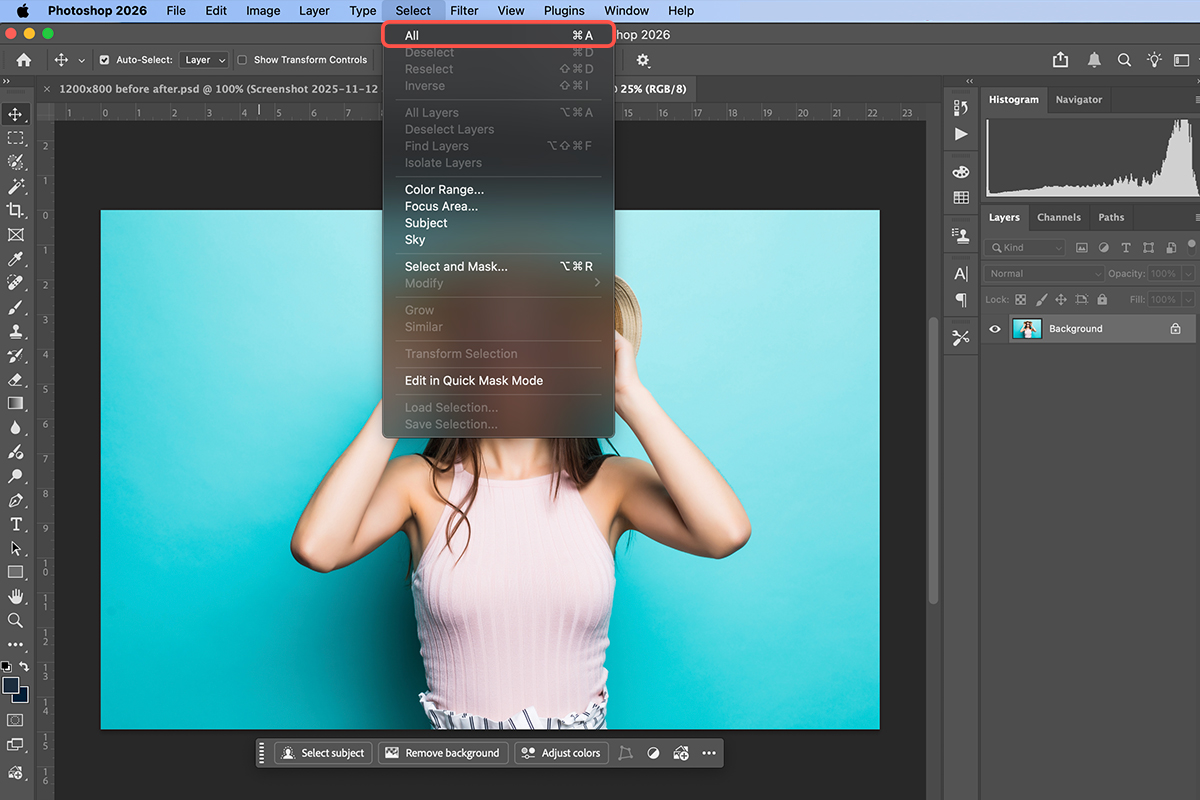
Select All
Select > All, or Cmd/Ctrl + A. This is counter-intuitive if you’re used to selecting the thing you want to change — here you’re telling the model the entire frame is available to rework, subject included.
-
Click Generative Fill
It appears in the Contextual Task Bar as soon as the selection is active.
-
Choose Nano Banana PRO From the Model List
The panel defaults to Adobe’s own Firefly model. You have to pick the advanced model explicitly — skipping this step is why people try the workflow and wonder what the fuss was about.
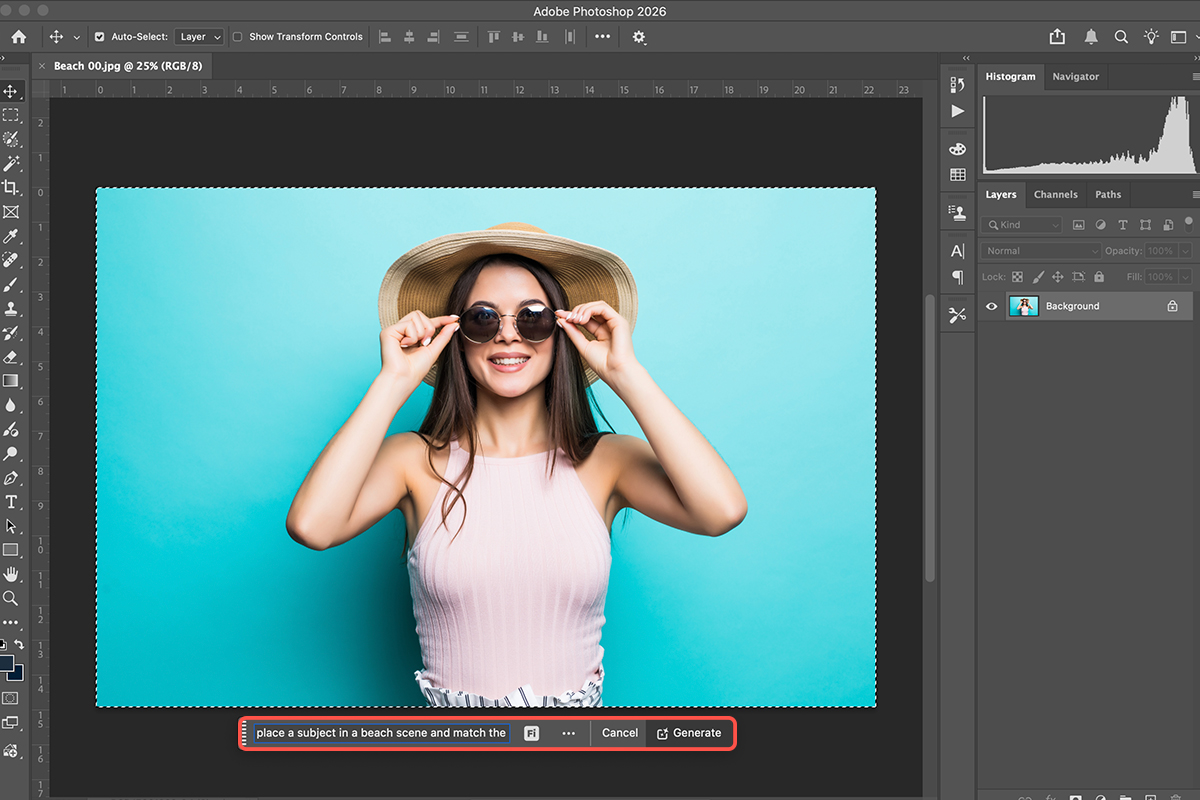
Write the Prompt in Plain English
-
Describe the Scene You Want
Write it the way you’d say it: “place the subject in a beach scene and match the lighting to the background”, or “place the subject on top of a rooftop in a major city”. Naming the lighting explicitly is worth doing — it’s what pushes the model toward integrating the subject rather than compositing them.
-
Combine Background and Wardrobe in One Prompt
This is where it gets genuinely useful: “place our subject into a stadium and change their clothing to match the colors of that stadium”. Two jobs that would normally be two separate pieces of work, handled in one generation.
-
Click Generate
The model returns quickly, and each result arrives on its own generative layer with your original untouched underneath.
Review the Variations
-
Click Through the Options in the Properties Panel
Compare them on the things that are hard to fix afterwards — the direction of the light, the edge where the subject meets the background, and whether the perspective of the new scene matches the angle the subject was photographed from.
-
Keep the Generative Layer Rather Than Flattening
Every result sits on its own layer above the original. That means you can mask parts of the generation away, or reveal a piece of the real photograph underneath, which is often what turns a good generation into a convincing one.
What It Costs
Nano Banana PRO is a partner model, so it draws on generative credits at a much higher rate than Adobe’s own Firefly models — roughly ten credits per generation at the time of writing, against one for standard Firefly features. Adobe has flagged that figure as promotional, so check the current cost by hovering over the model icon in the Properties panel before you generate.
On plans with unlimited standard Generative Fill this is still a metered feature, and on a limited monthly balance it will empty it quickly. The practical approach is the one that applies to every partner model: explore with the cheap options, then spend the expensive generation once you know what you’re asking for. Our free guide to generative credits covers which tools cost what.
Where It Still Falls Short
Vague Prompts Get Generic Scenes
“A nice background” produces exactly what you’d expect. Specific settings, specific times of day, specific light — the more you decide, the less the model decides for you.
Mismatched Camera Angles
A subject shot from below placed into a scene rendered at eye level reads as wrong even when every other element is right. Look at perspective first when comparing variations.
Hands, Text and Fine Detail
Still the weak spots of generative models generally. Zoom in on them before accepting a result.
Regenerating Instead of Rewriting
At ten credits a go, a second attempt with the same prompt is an expensive way to hope. Change the prompt.
What This Changes, and What It Doesn’t
A tool that relights a subject into a new environment from a sentence removes the most laborious part of compositing. That’s a real change, and it’s worth being direct about: some work that used to take an afternoon now takes a minute.
What it doesn’t remove is the judgement. Knowing that the light is coming from the wrong side, that the perspective doesn’t match, that the edge is too clean to be real — those are the things that separate a composite that holds up from one that doesn’t, and they come from having done it by hand. The model generates; you still have to be able to see.
Try It on a Portrait
Select All, open Generative Fill, switch the model to Nano Banana PRO, write a full sentence describing the scene and the light, and generate. Download the three free sample images and the layered PSDs, and work through the exact prompts first — then write your own for a portrait where the background let the picture down. For the manual compositing skills that tell you whether a generation is actually working, our PRO Photoshop Learning Path is where to go next.
Quick Reference: Keys, Menus and Settings
- Select everythingCmd/Ctrl + A (or Select > All)
- Open the toolGenerative Fill in the contextual taskbar
- Pick the modelModel menu > Gemini 3 with Nano Banana Pro
- Prompt 1“Place the subject in a beach scene and match the lighting to the background”
- Prompt 2“Place the subject on top of a rooftop in a major city”
- Prompt 3“Place the subject into a stadium and change their clothing to match the colors of that stadium”
- More optionsProperties panel > Generate again; the trash icon deletes a variation
Talk to it like a person: say where the subject goes and what should match.

Free Downloads
Follow Along on the Same Photos
Get the three portraits, the three PSDs with the beach, rooftop and stadium results, and the PDF guide. Free with a PHLEARN account.
Nano Banana Pro: Common Questions
What is Nano Banana Pro in Photoshop?
Google’s Gemini 3 image model, available inside Generative Fill. Select the whole image, pick it from the model menu and describe where the subject should go. It keeps the person and their clothing and builds a new scene around them.
Why select the whole image instead of just the background?
The model reads the entire photo and decides what to keep from the prompt. Cmd/Ctrl+A, Generative Fill, prompt, done; no cutting out the subject first.
How should I write the prompt?
Like you’d talk to a person. Say where the subject goes and what should match: “Place the subject in a beach scene and match the lighting to the background.” Adding “match the lighting” is what makes the result look like one photo.
Why generate more than once?
Each click gives another take on the same prompt. Aaron generates a few times per prompt and picks the best; any variation that drifts from the original subject goes with the delete icon in the Properties panel.
Can it change clothing and location at the same time?
Yes. The stadium prompt asks for a new location and clothing that matches the stadium colors in one line, and every variation came back with both. It was Aaron’s favorite of the three.
Does the subject still look like the same person?
In the video, yes: same face, same pose, same clothing on the beach and rooftop examples. Check each variation and delete the ones that don’t match.
Does it use generative credits?
Yes. Every generation is a Generative Fill run and spends credits. Keep an eye on your balance when you’re generating several variations per prompt.
Do I need the beta?
No. It’s in the full release of Photoshop 2026 under the Generative Fill model menu.
Are the sample files free?
Yes, with a free PHLEARN account. You get the three portraits, three PSDs with the beach, rooftop and stadium results, and the PDF guide.
Master Photoshop, Lightroom and Photography
Join PHLEARN PRO for $12.99 a month or $99.99 a year. Cancel anytime, with a 100% money-back guarantee.





