

Partner models changed this. For a while, AI in Photoshop meant one thing: Adobe’s Firefly. If Firefly couldn’t do what you wanted, that was the end of it and you went back to doing it by hand.
That has changed. Generative Fill now offers partner models — Google’s Gemini 2.5 Nano Banana, Black Forest Labs’ Flux Kontext Pro and others — in the same dropdown as Adobe’s own. They handle conversational prompts well enough to take several separate edits in one instruction, they behave differently from Firefly in ways worth knowing, and they price differently in generative credits.
Free practice files
Practice Files for This Tutorial
The 4 sample images, 4 layered PSDs and the 2-page PDF guide from the video, so you can follow every step on the same files.
This tutorial includes 4 sample images, 4 sample PSDs and 1 PDF guide.


Create a free PHLEARN account to download, or log in if you already have one. One account gets you the files for every free tutorial.
Watch the Full Series
10 Days of AI in Photoshop & LightroomWatch all 10 tutorials free
description
Continue Watching 10 Days of AI
JOIN 10 DAYS OF AI (FOR FREE!)
Image Source


Partner Models Put Other Companies’ AI Inside Generative Fill
For a while, “AI in Photoshop” meant one thing: Adobe’s Firefly. If Firefly couldn’t do what you wanted, that was the end of it, and you went back to doing it by hand.
That’s changed. Generative Fill now offers partner models — Google’s Gemini 2.5 Nano Banana, Black Forest Labs’ Flux Kontext Pro and others — sitting in the same dropdown as Adobe’s own. They understand conversational prompts well enough to handle several separate edits in one instruction, they behave differently from Firefly in ways worth knowing, and they cost considerably more.
What Changes When You Switch Models
You Can Combine Edits in One Prompt
Removing an object and changing the sky are two jobs in a normal workflow. A partner model will take “remove the fence and add clouds to the sky” and do both at once, consistently.
You Select the Whole Canvas, Not the Object
This is the counter-intuitive part. Rather than selecting precisely the thing you want changed, you select everything and describe the change in words. The precision moves from your selection into your sentence.
You Get One Result, Not Three
Firefly returns three variations per generation. Partner models typically return one. That single difference changes how you work with them — more on it below.
Run a Multi-Part Edit
-
Select the Entire Canvas
Cmd/Ctrl + A, or Select > All. Selecting everything is what lets the model reason about the whole scene — how the light falls, what the sky is doing, where the object you want removed sits in relation to everything else.
-
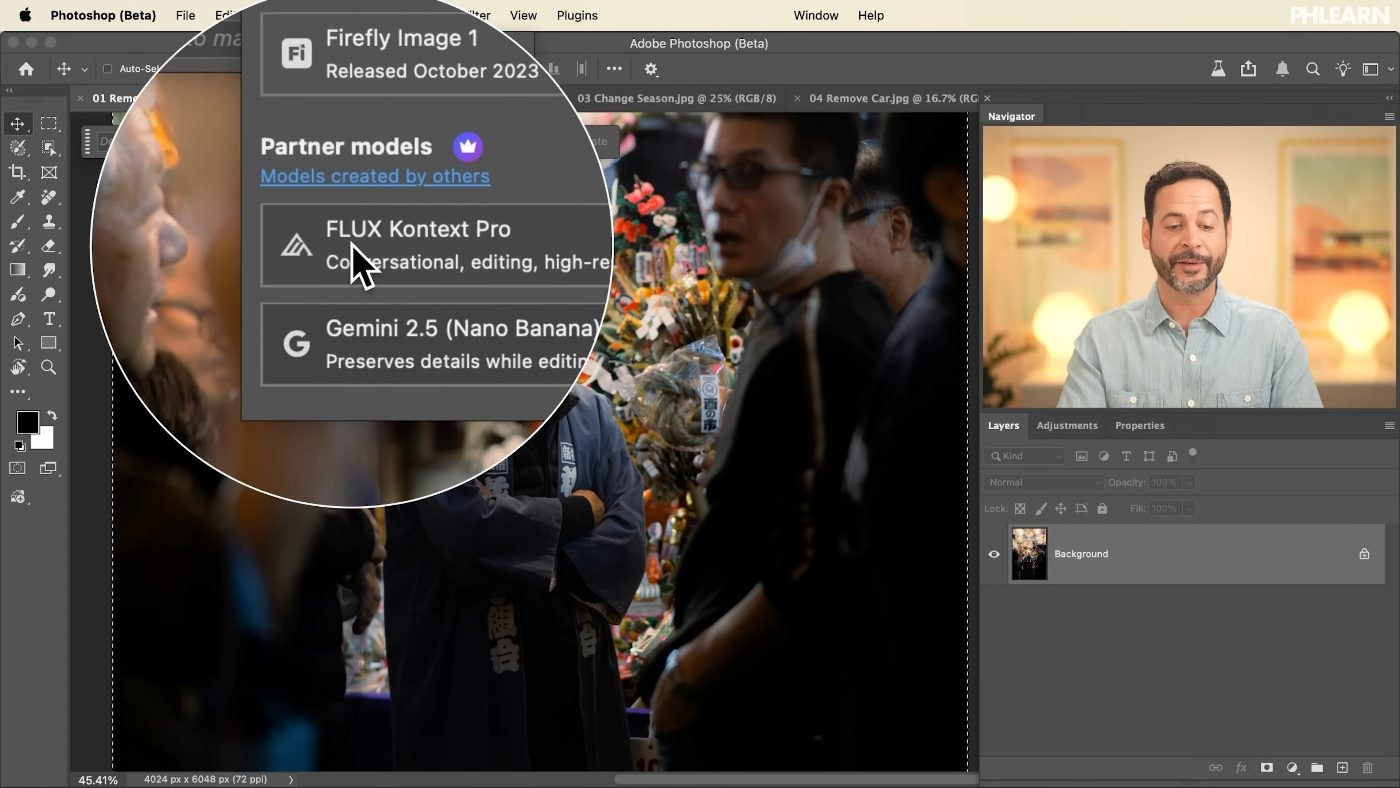
Open Generative Fill and Pick a Partner Model
The Contextual Task Bar’s Generative Fill button, then choose from the model list — Gemini 2.5 Nano Banana, Flux Kontext Pro or whichever others are available to you. It defaults to Firefly, so this is a deliberate choice each time.
-
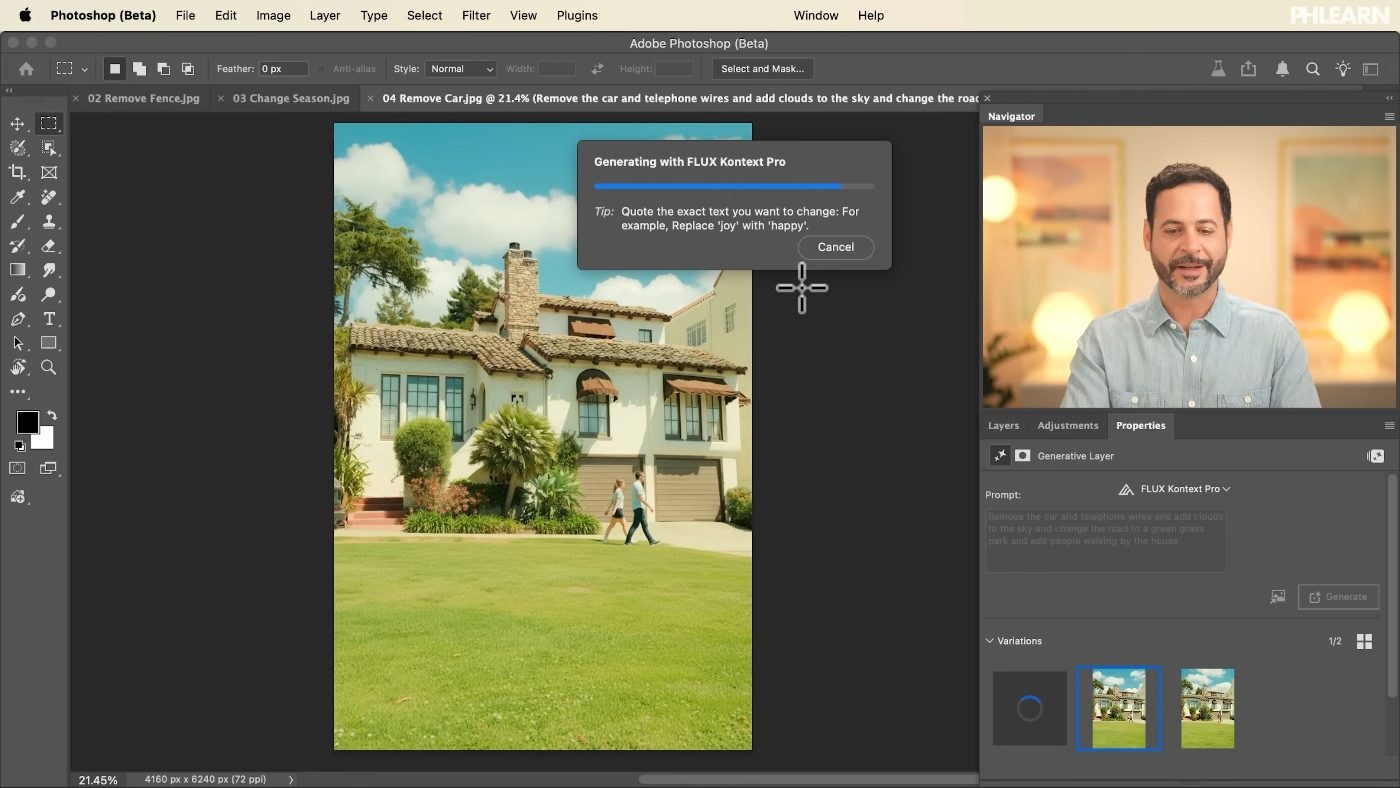
Write One Prompt Covering Every Change
Conversationally, and completely: “remove the fence and add clouds to the sky”. Describing both changes together lets the model make them consistent with each other — new clouds that match the light already in the scene, rather than clouds added to a picture it has never seen the rest of.
-
Generate, Then Deselect
Cmd/Ctrl + D when you’re finished. The result arrives on its own generative layer, so the original is untouched underneath.

One Variation Per Generation, and What That Means
Firefly gives you three options to choose between. Partner models give you one. There are two practical consequences.
Regenerating Is How You Get Alternatives
Click Generate again with the same prompt and model and you get a different result. That’s the equivalent of Firefly’s three variations — it just costs you three generations to get there.
The Prompt Carries More Weight
With three options you can pick the one that came closest. With one, what you wrote is what you get. Time spent making the prompt specific pays back directly here.
What They Cost
The Photoshop AI partners are all premium features. At the time of writing a single generation runs to about ten generative credits, against one for a standard Firefly generation — and with only one variation returned for that ten. Adobe adjusts these figures, so hover over the model icon in the Properties panel to check the current cost before you click.
Put those two facts together and the working method follows: get the composition and any selections right first, write the most specific prompt you can, and generate once. Our free guide to generative credits covers what every other AI tool in Photoshop and Lightroom costs.
Where This Goes Wrong
Leaving the Model on Firefly
The dropdown resets to Adobe’s model. If a result seems unremarkable, check which model actually ran.
Vague Prompts at Ten Credits Each
“Make it better” is expensive and useless. Name the objects, the changes and the conditions you want.
Regenerating Instead of Rewriting
Two identical generations cost twenty credits to roll the dice twice. Changing the wording is free and usually more effective.
Asking for Too Much at Once
Combining two or three related changes works well. A prompt with seven separate instructions tends to produce a result where two of them landed.
A Dropdown Worth Paying Attention To
The interesting thing about Photoshop AI partners isn’t any single model. It’s that the model has become a choice you make per job, the way you’d choose a lens. Some are better at photorealism, some at graphics, some at following complicated instructions — and the list will keep changing.
Which makes the useful habit a simple one: know what each model in your dropdown is good at and what it charges, and pick deliberately rather than accepting the default. That, plus a specific prompt, is most of getting good results out of any of them.
Try a Combined Prompt
Select All, open Generative Fill, switch the model to a partner model, and write one prompt that asks for two related changes at once — a removal and an addition works well. Generate once, look hard at the result, and rewrite rather than reroll if it missed. Download the four free sample images and work through the exact edit first. For the manual compositing skills that let you judge whether a generation is actually working, our PRO Photoshop Learning Path is where to go next.
Quick Reference: Keys, Menus and Settings
- Select everythingCmd/Ctrl + A (or Select > All), then Generative Fill in the contextual taskbar
- Pick a modelModel menu: Firefly Image 3 / Image 1 (Adobe), Flux Kontext Pro, Gemini 2.5 Nano Banana (Google)
- Switch models laterProperties panel > model menu > Generate
- Prompt 1“Remove all the people from the photo except for the man in the center and fill in the details of his booth”
- Prompt 2“Remove the fence and add clouds to the sky”
- Prompt 3“Add a Volkswagen bus and change the time of day to sunset and change the season to fall”
- Prompt 4“Remove the car and telephone wires and add clouds to the sky and change the road to a green grass park and add people walking by the house”
- VariationsPartner models give one per generation (Firefly gives three); click Generate again for another
Day 7 of the 10 Days of AI series. Deselect with Cmd/Ctrl + D.
Image source
Free Downloads
Follow Along on the Same Photos
Get all four sample images, the four PSDs with the Nano Banana and Flux results, and the PDF guide. Free with a PHLEARN account.
Partner Models: Common Questions
What are partner models in Generative Fill?
AI engines from other companies that run inside Photoshop next to Adobe’s Firefly models: Flux Kontext Pro and Google’s Gemini 2.5 Nano Banana at recording. You pick them from the model menu in Generative Fill or the Properties panel.
What’s different about using them?
You select the whole image and describe everything you want in one sentence, like talking to a person. No brushing selections over a fence wire by wire; the prompt does the work.
Can one prompt do several edits?
Yes. The video adds a Volkswagen bus, changes the time of day to sunset and the season to fall in one prompt, and later removes a car and telephone wires, adds clouds, turns the road into a park and adds people in one go.
Why do I only get one variation?
Partner models return one result per generation, where Firefly returns three. Click Generate again in the Properties panel for another, and try the other model on the same prompt.
Nano Banana or Flux: which is better?
In the video Nano Banana stayed closest to the original photo (same framing, just the requested changes). Flux sometimes reframed the shot, but on the sunset example Aaron preferred its more photographic look. Run both and compare.
What if it misses part of the prompt?
Generate again. On the house example the first result left some telephone wires; the second removed them.
Where do they still go wrong?
Added people. Zoomed in, the Flux result’s figures stood in ways people don’t. Check anything the model invented at 100%.
Do partner models use generative credits?
Yes, every generation spends credits. The video doesn’t show the per-model amounts; check your plan’s credit information.
Are the sample files free?
Yes, with a free PHLEARN account. You get all four sample images, four PSDs with the results and the PDF guide.
From the Magazine View all
Stories, interviews and guides for photographers, new every week.
 EditingLightCraft vs Lightroom: I Edited the Same RAW Files in BothThe free clone on the same RAW files: what matches, what breaks and who should switch.
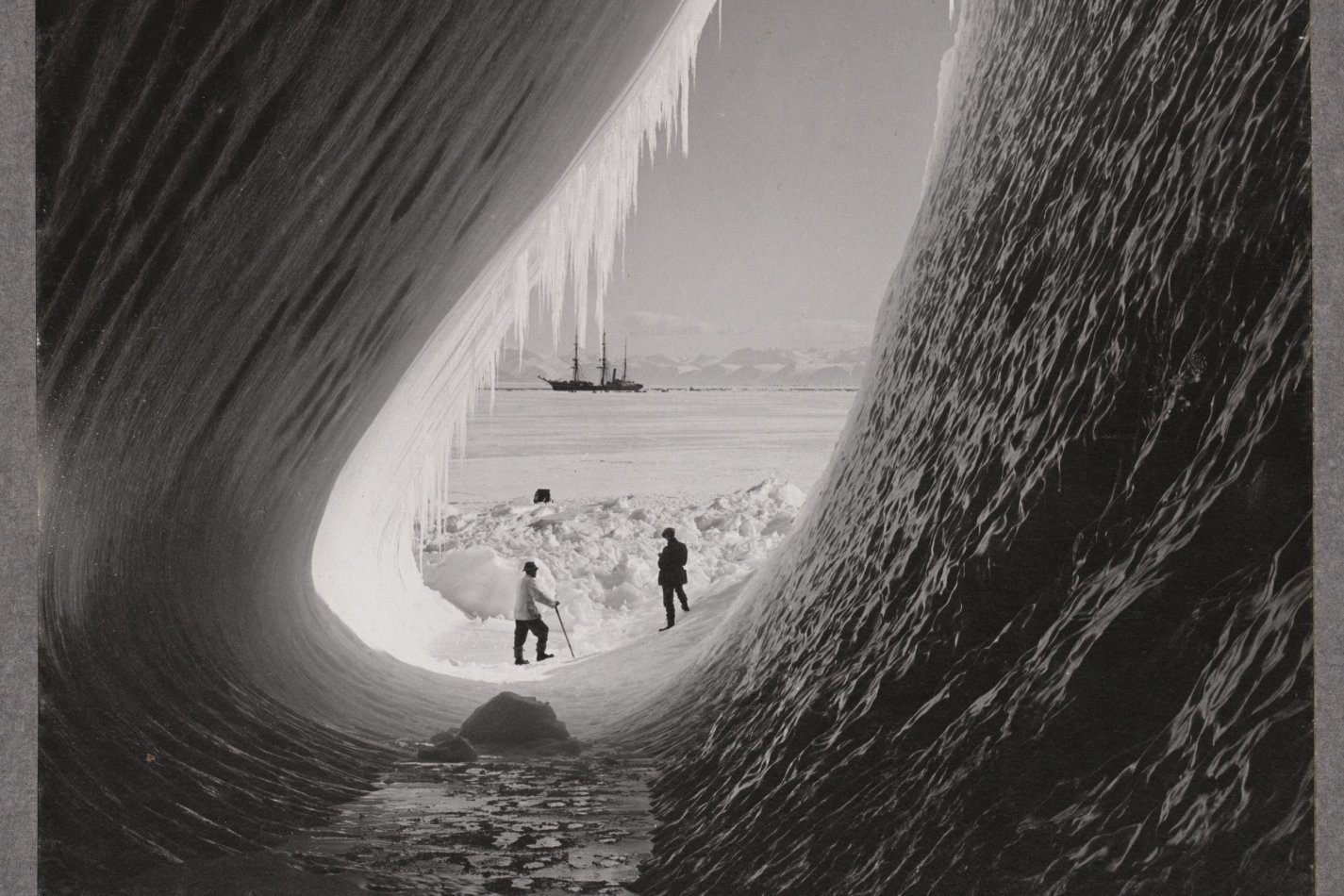 InspirationRare Historical Photos: 13 of the Rarest Pictures Ever TakenFrom the earliest surviving picture of a person to the last passenger pigeon: who took each one and why it survives.
 EditingArtCraft: Photoshop Cloned by AI in Two Weeks. Is It Legal?ArtCraft cloned Photoshop and Lightroom with AI and gave them away. Any good? Legal? Safe?
Master Photoshop, Lightroom and Photography
Join PHLEARN PRO for $12.99 a month, or $99.99 a year (save 36%). Cancel anytime, with a 30-day money-back guarantee.