

Most people discover generative credits by running out. You’ve been working normally, a dialog tells you the balance is gone, and you have no idea which of the last two hundred clicks were the expensive ones.
The rule is simpler than it looks: generative credits are spent when a tool creates new pixels, and not otherwise — which means a surprising amount of Photoshop’s and Lightroom’s AI costs nothing at all. This is the full breakdown of which tools are free, which spend credits and how much each one costs, plus the two settings that make a balance last.
Free practice files
Practice Files for This Tutorial
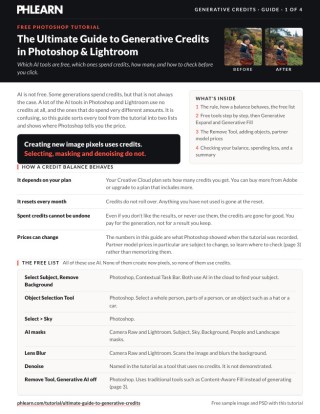
The layered PSD and the 4-page PDF guide from the video, so you can follow every step on the same files.
This tutorial includes 1 PDF guide and 1 sample PSD.
Create a free PHLEARN account to download, or log in if you already have one. One account gets you the files for every free tutorial.
description
Enjoying This Free Tutorial?
Image Source


Updated October 2026: Adobe has changed its credit rules since this video was recorded in January 2026. The Remove tool no longer uses credits, and standard Generative Fill and Expand cost one credit per Generate instead of one per variation (Creative Cloud Pro and Firefly plans don’t spend credits on them at all). The prices on this page are Adobe’s as of October 2026; the video shows the old ones.
Generative Credits, and Which Adobe AI Tools Actually Spend Them
Most people discover Adobe’s credit system by running out. You’ve been working normally, a dialog tells you your balance is gone, and you have no idea which of the last two hundred clicks were the expensive ones.
The rules aren’t complicated once you see them laid out. Generative credits are spent when a tool creates new pixels, and not otherwise — which means a surprising amount of Photoshop’s and Lightroom’s AI costs nothing at all. Here’s the full breakdown, and the two settings that make the biggest difference to how fast your balance drains.
Costs below are Adobe’s published prices as of October 2026. Adobe adjusts these periodically, so the verification habit in the last section matters more than any individual number here.
The Rule Underneath All of It
If a tool analyzes your image, it’s free. If it generates new image data, it costs credits. Every specific case below follows from that one distinction, which is worth holding onto because it lets you predict the cost of features that don’t exist yet. There is one exception, and it works in your favor: the Remove Tool can generate new pixels, but Adobe doesn’t charge credits for it.
The AI Tools That Cost Nothing
These are all doing analysis rather than generation, so they’re free regardless of how many times you use them.
Select Subject
Photoshop identifies your subject and builds a selection. Nothing new is invented, so nothing is charged.
Remove Background
The same technology pointed at the inverse. Also free, however many images you run it on.
Object Selection
Hover-to-select on individual objects. Free, and worth using freely — a better selection makes every generative step that follows more likely to work first time.
AI Masking in Lightroom and Camera Raw
Sky, subject, vegetation, landscape masks — all free. This is the single biggest thing people don’t realize, because it means most of a serious Lightroom workflow costs nothing.
Lens Blur and Denoise
Both use AI, and with Adobe’s own models both are free. They’re modifying existing pixels rather than inventing new content. The exception is choosing a partner model, such as Topaz for AI Denoise, AI Sharpen or Generative Upscale in Photoshop: those cost 10 to 20 credits per image, depending on its size.
What Generative Fill and Expand Cost
These are where the spending starts, and where the arithmetic surprises people.
One Credit Per Generate, Not Per Variation
With Adobe’s standard Firefly model, Generative Fill and Generative Expand cost one credit per generation. Each press of Generate returns three variations, and the three together cost one credit. (In the January 2026 video each variation cost a credit, so a Generate cost three.) On Creative Cloud Pro and the Firefly plans, standard generations like these don’t use credits at all.
Adobe’s newer premium models cost more on every plan: Firefly Image 5 is 10 credits per generation and Firefly Image 4 Ultra is 20.
Which Makes Your Selection the Real Cost Control
Every regeneration is another credit, or another 10 to 40 with a premium or partner model. A careless selection that needs four attempts costs four times what a clean one that works first time does. The free selection tools above are, in a direct sense, how you save money.
The Remove Tool Is the Interesting Case
The Remove Tool has a Generative AI setting in the options bar (Off, On or Auto), and as of October 2026 none of them costs anything. Adobe lists the Remove Tool, and Generative Remove in Lightroom, among the generative features that don’t use credits, and Photoshop’s own tip says the same: removing may use generative AI, but it doesn’t use generative credits.
Generative AI Off: Content-Aware
It falls back to Adobe’s traditional content-aware technology. For a dust spot, a stray hair, a power line against clear sky, this is genuinely as good.
Generative AI On: Also Free
Now it’s generating, and it produces a single result rather than three. In the video this cost one credit; Adobe no longer charges for it. For straightforward object removal that makes the Remove Tool the cheapest generative route in Photoshop, cheaper than Generative Fill, and most people are unaware of it.
Partner Models Are the Expensive Ones
Ten to Forty-Plus Credits Per Generation
Adobe now exposes third-party models — Flux, Google Gemini and others — alongside its own. They’re capable, and they’re priced accordingly: a single generation costs from 10 to 40 credits or more depending on the model. As of October 2026: Flux Kontext Pro 10, Flux 2 Pro 20, Nano Banana 2 10 to 40 depending on output size, and Nano Banana Pro 40. Partner models use credits on every plan, Creative Cloud Pro included.
Hover Before You Click
The cost is shown when you hover over the model icon in the Properties panel. Check it every time. The gap between a one-credit Firefly generation and a forty-credit partner-model one is the difference between a month’s balance lasting and disappearing in an afternoon.
Which Doesn’t Mean Never Use Them
It means use them deliberately. Get the composition and the selection right with the free tools and a cheap Firefly pass, then spend the expensive generation once on the version you actually want.
How Your Balance Behaves
It Resets Monthly and Does Not Roll Over
Your allowance depends on your Creative Cloud plan and refills each month. Anything unspent is gone at the reset — so if you have a large project coming, timing it just after a reset gives you the fullest balance to work with.
How Many Credits Your Plan Gets
As of October 2026: the Photoshop single-app plan gets 25 a month (500 if you subscribed before June 17, 2025), Lightroom 250, Photography 1TB 1,000, and Creative Cloud Pro and Firefly Pro 4,000 for premium features, with standard generations unlimited.
Check It in Your Adobe Account, the Creative Cloud App or Photoshop
All three show the remaining balance. In Photoshop it’s the Generative Credits Usage panel; its icon sits at the top right, next to the workspace menu. Looking once at the start of a big job is more useful than discovering the number at the point it hits zero.
Credits Are Spent on Generation, Not on Results
This is the part worth internalizing: the charge happens the moment you generate. If all three variations are unusable, those credits are still gone. You’re paying for the attempt. The only refund is for a generation that fails outright, which Adobe usually returns within minutes.
How to Spend Fewer of Them
Do the Selection Work First, With Free Tools
Select Subject, Object Selection and the Selection Brush cost nothing. Time spent there directly reduces the number of generations you need.
Reach for the Remove Tool Before Generative Fill
For removing an object, the Remove Tool costs nothing with Generative AI off or on. Try it off first; often that’s enough.
Write a Better Prompt Instead of Generating Again
Every extra attempt adds up faster than the time it takes to think about why the last one missed, and with a partner model each one costs 10 to 40 credits.
Save Partner Models for the Final Version
Explore cheaply, commit expensively. Doing it the other way round is how a balance vanishes.
Why the Free List Is the Important One
The tools that cost nothing — selections, masks, denoise, lens blur — are also the ones that do the most work in a normal edit. A photographer can run an entire professional Lightroom and Photoshop workflow and touch generative credits only occasionally.
That’s worth knowing in both directions. It means the credit system is far less restrictive than it feels when you first hit the limit, and it means the skills worth developing are still the ones that have always mattered: seeing, selecting, and knowing what the picture needs. Generation is a tool you reach for at the end, not the thing the work is made of.
Check Your Balance Before Your Next Project
Open your Adobe account and look at the number, then keep three habits: do selections with the free tools, use the free Remove Tool before Generative Fill, and hover over any partner model to see its cost before you generate. Download the free sample image and the included PDF credit guide to keep the breakdown from the video handy. And for the non-generative skills that most of a professional edit still rests on, our PRO Photoshop Learning Path is where to go next.
Quick Reference: Keys, Menus and Settings
- No credits: selectionsSelect Subject and Remove Background in the Contextual Task Bar (Window > Contextual Task Bar), Object Selection > Select People, Select > Sky
- No credits: Camera Raw masksFilter > Convert for Smart Filters, Filter > Camera Raw Filter > Masking: Subject, Sky, Background, Landscape, People
- No credits: Lens BlurCamera Raw > Lens Blur > Apply; drag the focus target over the subject
- Generative ExpandC, Fill > Generative Expand, drag the edges, Generate: 3 variations for 1 credit with the standard Firefly model (0 on Creative Cloud Pro and Firefly plans; 3 in the video)
- Remove with Generative FillSelection Brush over the object, Generative Fill, no prompt, Generate: 1 credit (3 in the video)
- Remove toolGenerative AI Off (Content-Aware), On (one result) or Auto: 0 credits as of October 2026 (On cost 1 in the video). Keep Sample All Layers and Create New Layer on
- See what a model costsOn a generative layer, Properties > model selector, then hover the credits icon next to it (October 2026: Flux 2 Pro 20, Flux Kontext Pro 10, Nano Banana 2 10–40, Nano Banana Pro 40; the original Nano Banana was retired on October 2, 2026)
- Check your balanceCreative Cloud app > your plan > View your generative AI balance, your Adobe account online, or Photoshop’s Generative Credits Usage panel
Credit costs are Adobe’s as of October 2026 and can change; the hover icon in Photoshop is the current price.
Image source
Free Downloads
Follow Along on the Same File
Get the PDF guide with every tool’s credit cost from the video, and the sample PSD with the generative layers. Free with a PHLEARN account.
Generative Credits: Common Questions
Which Photoshop tools use generative credits?
The rule of thumb: if a tool creates new pixels, it uses credits. Selections, masks and denoising use AI but make no new pixels, so they cost nothing. Generative Fill and Generative Expand create pixels and spend credits. The Remove tool is the exception: it can use generative AI, but Adobe doesn’t charge credits for it. On Creative Cloud Pro and the Firefly plans, standard Firefly generations are unlimited, so only premium and partner models spend credits.
Which AI tools are free to use?
Select Subject, Remove Background, the Object Selection tool with Select People, Select Sky, every AI mask in Camera Raw and Lightroom (subject, sky, background, landscape, people) and Lens Blur. None of them touched the balance in the video. As of October 2026 the Remove tool (with Generative AI off or on) and Lightroom’s Generative Remove are free too.
How much do Generative Expand and Generative Fill cost?
With Adobe’s standard Firefly model, one credit per Generate, and each Generate returns three variations. In the January 2026 video it was one credit per variation, so three per click. On Creative Cloud Pro and the Firefly plans they don’t use credits at all. Premium models cost more: Firefly Image 5 is 10 credits per generation and Image 4 Ultra is 20.
Does the Remove tool use credits?
Not any more. Off works like Content-Aware Fill, On uses generative AI for one result, and Auto lets Photoshop decide; as of October 2026 none of them uses credits (On cost one credit in the video). Aaron’s advice still holds: try it with AI off first, then switch it on if the result isn’t good enough.
What do the partner models cost?
Much more, and each one is different. As of October 2026: Flux Kontext Pro 10, Flux 2 Pro 20, Gemini 3.1 with Nano Banana 2 10 to 40 depending on output size, and Gemini 3 with Nano Banana Pro 40 credits per generation, and they return one result, not three. Gemini 2.5 with Nano Banana, 10 credits in the video, was retired on October 2, 2026. Partner models use credits on every plan. Adobe can change these, so check in Photoshop.
Where does Photoshop show a model’s cost?
Select a generative layer (the one with the sparkle icon), open Properties, pick the model in the selector there and hover over the small credits icon beside it. It’s hover only, not a click, and the model menu in the task bar doesn’t show it.
Is adding objects with AI worth the credits?
In Aaron’s test, no. Four models and 73 credits produced no usable rabbit. Expanding a canvas and removing things worked well and cost little; adding something new was the expensive gamble.
How do I check my credit balance?
Open the Creative Cloud app, go to your plan and click View your generative AI balance; it opens your Adobe account in the browser with the generative AI and premium features balances. In Photoshop, the Generative Credits Usage panel shows it too; its icon is at the top right, next to the workspace menu. The whole video used 190 of 4,000 credits.
Do unused credits roll over?
No. They reset every month on your billing date, and spent credits can’t be refunded even if you don’t like the result (a generation that fails outright is usually refunded within minutes). How many you get depends on your plan. As of October 2026: 25 a month for the Photoshop single app if you subscribed on or after June 17, 2025, 250 for Lightroom, 1,000 for Photography 1TB, and 4,000 for premium features on Creative Cloud Pro and Firefly Pro, with standard generations unlimited. You can buy more or upgrade.
What’s in the download?
The PDF guide and the sample PSD with the generative layers from the video, free with a PHLEARN account.
Master Photoshop, Lightroom and Photography
Join PHLEARN PRO for $12.99 a month or $99.99 a year. Cancel anytime, with a 100% money-back guarantee.





