

Download Assets
This tutorial includes 8 sample images, 8 sample PSDs and 1 PDF guide. Downloads are free with a PHLEARN account.
- Download the sample images and PSDs from every free tutorial on PHLEARN
- New free tutorials published every week
- One free account — sign up once, then download anything
Free PDF Guide · 4 Pages
This Tutorial as a Step-by-Step PDF
Every step from the video in order: Select All, Generative Fill, the model menu with Gemini 2.5 Nano Banana and Flux Kontext Pro, all eight prompts word for word, switching models on the same layer, generating again, and which examples worked and which didn’t. Keep it next to your keyboard.
description
Nano Banana changes how Generative Fill works. Generative Fill has always worked the same way: make a careful selection, describe the one thing you want in it, generate. That model rewards precision and punishes ambition — four changes meant four rounds of selecting and prompting.
The new models in Photoshop Beta invert both halves. Gemini 2.5 Nano Banana and Flux Kontext Pro want the whole canvas selected, and they take several instructions at once. Use Nano Banana for general image work and Flux Kontext Pro for anything involving text or type.
Enjoying This Free Tutorial?
We publish a new free tutorial every week, each one with sample images and PSDs you can download and follow along with. Sign up and they land straight in your inbox, along with early word on sales, events and subscriber-only offers.
Image Source
Christian Lue,
Damir Semirkhanov,
Dmitry Spravko,
Hamed Farahpour,
Jay Soundo,
Jonathan Borba,
Nathan Gordon
via Unsplash
Photoshop Beta Turns Generative Fill Into a Conversation
Nano Banana rewrites the rules of Generative Fill, which has always worked the same way: make a careful selection, describe the one thing you want in it, generate. That model rewards precision and punishes ambition — four changes meant four rounds of selecting and prompting.
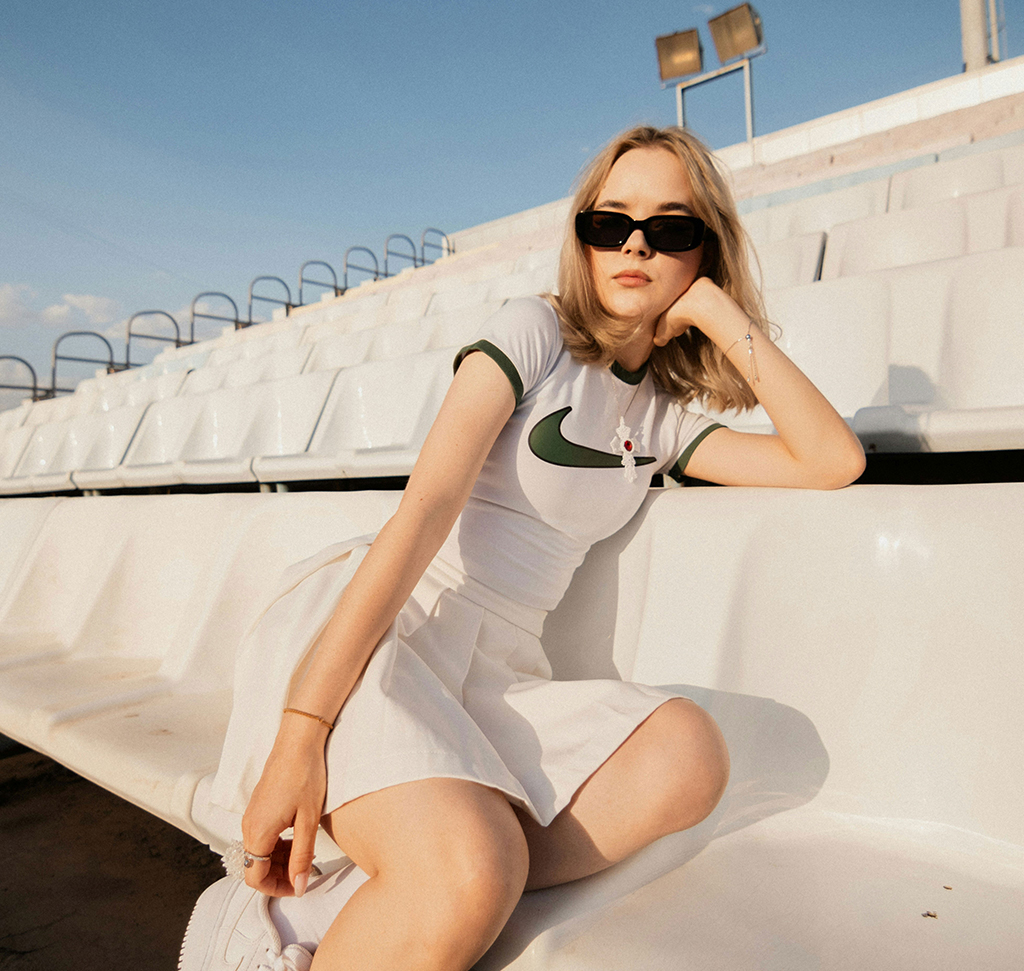
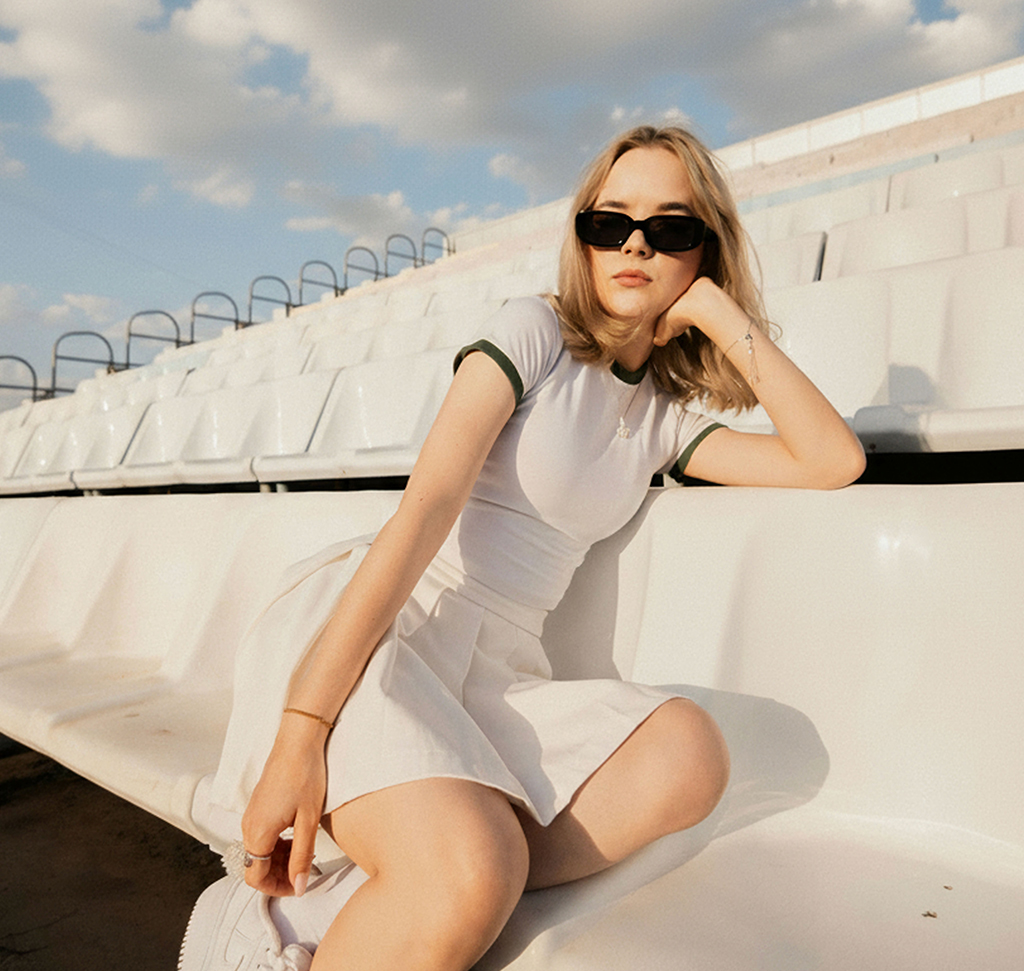
The new models in Photoshop Beta invert both halves of that. Gemini 2.5 Nano Banana and Flux Kontext Pro want the whole image selected, and they will happily take several instructions at once. “Remove the logo from her shirt and make the sky more interesting with some clouds” is a single prompt now, and the reason it works is that the model can see the entire photograph while it does both.
What Actually Changed
Select Everything, Not the Thing
This reverses the habit Firefly taught you. Nano Banana and Flux Kontext Pro reason about the whole scene, so a tight selection starves them of exactly the context that makes them good.
One Prompt, Several Instructions
You can chain requests in one sentence. Think about briefing a retoucher rather than filling in a form.
One Result Per Click, Not Three
Firefly returns three variations. Nano Banana returns a single, more considered generation — so iteration means clicking Generate again rather than picking from a set.
Start by Selecting the Whole Canvas
-
Open Your Image in Photoshop Beta
These models are beta features, so expect them to move and improve.
-
Press Cmd/Ctrl + A
Select all. The single most important step, and the one that feels wrong if you’ve been using Generative Fill for a while. Giving the model the full frame is what lets it match lighting across a change and understand what relates to what.
-
Open Generative Fill From the Contextual Task Bar
Same entry point as before.
Write a Brief, Not a Keyword
-
Describe Everything You Want in One Prompt
“Remove the logo from her shirt and make the sky more interesting with nice clouds.” Two jobs, one instruction, one generation.
-
Use Natural Sentences
Noun-phrase prompts were what Firefly wanted. These models respond better to how you’d actually explain the job to a person, including qualifiers like “a bit more” or “subtle”.
-
Be Specific About What Stays the Same
Since the model can change anything in the frame, saying what should be left alone is now a useful part of the prompt rather than an odd thing to write.
Pick the Right Model
Gemini 2.5 Nano Banana
The default choice for general image work. It produces the most realistic and convincing results across most transformations — lighting changes, object replacement, scene adjustments.
Flux Kontext Pro
Its distinctive strength is text and type. Anything involving lettering inside the image — a sign, packaging, a shopfront — is where it beats the alternatives, and that has always been generative AI’s weakest area.
Firefly
Still there, still the one that gives you three options at a time. Useful when you want choices rather than one considered answer.
Generate, Then Iterate
-
Choose Your Model and Click Generate
The result arrives as a new generative layer above your original.
-
Toggle the Layer to Compare
Because it’s a separate layer, switching between before and after is instant — and worth doing at full size before you accept anything.
-
Click Generate Again for a Different Attempt
Each click is a fresh interpretation of the same prompt, and each one spends a generative credit. Two or three attempts is normal; if the third is still wrong, the prompt is the problem rather than the model.
Every generation costs credits, and the different models are not priced identically — our free guide to generative credits sets out what each AI tool in Photoshop and Lightroom actually costs.
Where It Goes Wrong
Making a Tight Selection Out of Habit
The instinct built by two years of Generative Fill is now the wrong one for these models. Select all.
Prompting in Keywords
“Clouds sky dramatic” gets you less than a sentence describing what you actually want.
Using Nano Banana for Text
Lettering is Flux Kontext Pro’s specific advantage. Switch models rather than re-prompting.
Expecting Three Variations
One result per click is the design, not a failure. Click again.
Forgetting It’s Beta
Model availability, naming and behaviour will all change. Don’t build a client workflow on it yet.
The Skill Is Shifting From Selecting to Describing
It’s worth naming what’s actually happening here, because it’s easy to miss under the model names. For most of Photoshop’s history, the hard part of an edit was isolating the thing you wanted to change. Every tool from the Magic Wand to Select Subject existed to solve that.
These models make the selection irrelevant — you hand over the whole picture — and move the difficulty to describing the result you want with enough precision that a machine can act on it. That’s a different skill, closer to art direction than to retouching, and it’s the one worth practising now.
Try It on One Image Today
Open something in Photoshop Beta, press Cmd/Ctrl + A, open Generative Fill, and ask for two changes in one sentence. Download the eight free sample images and eight PSDs and run the same prompt through Nano Banana and then Flux Kontext Pro to see the difference for yourself — then try one containing text and watch the gap widen. For everything Photoshop does that no prompt will do for you, our PRO Photoshop Learning Path is where to go next.
Quick Reference: Keys, Menus and Settings
- Select everythingCmd/Ctrl + A, then Generative Fill in the contextual taskbar (large selections work best with these models)
- Pick the modelModel menu: Gemini 2.5 Nano Banana for most things, Flux Kontext Pro for text and type, Firefly Image 3 for three variations
- Switch models on the same layerProperties panel > model menu > Generate; variations collect on one generative layer
- Prompts from the video“Remove the Nike logo from her shirt and make the sky a bit more interesting with nice clouds” · “Fill the room with mid-century modern furniture beautifully styled” · “Change the lighting to a beautiful sunset and place her in an Arctic tundra” · “Place the photograph into a Polaroid frame and add realistic film effects” · “Remove the computer, keyboard and mouse and have the subject use a phone instead” · “Change the lighting to be a sunset and place the subject in a green dress with green high heel shoes” · “Change the sky to be dark stormy clouds and add an eagle flying and lightning” · “Change her hair to blond and place a hat on her head”
- Stack editsSelect All again and run a new Generative Fill on top of the last one
- CreditsOne generative credit per generation
Recorded on Photoshop Beta; the same models are in the full release now.
Free Downloads
Follow Along on the Same Photos
Get all eight sample images, the eight PSDs with every generation from the video, and the PDF guide. Free with a PHLEARN account.
Nano Banana and Flux in Photoshop: Common Questions
What changed in this release?
Generative Fill can now run Google’s Gemini 2.5 Nano Banana and Flux Kontext Pro alongside Adobe’s Firefly. You describe a whole edit in one sentence, like briefing an editor, and the model applies it to the real photo.
Why select the whole image?
Adobe told Aaron that large selections work best with the new models. Cmd/Ctrl+A, Generative Fill, type the brief; the model decides what to change.
Nano Banana, Flux or Firefly?
Nano Banana for almost everything; it gave the most realistic, most contextual results in the video. Flux is the pick for text and type. Firefly still returns three variations, but it doesn’t understand the scene the way the partner models do: asked to furnish a room, it generated furniture pictures instead of furnishing the room.
Why only one result?
Partner models return one generation at a time. Click Generate again for more; they collect as variations on the same generative layer, and you can switch models in the Properties panel between tries.
What worked best?
Removing a logo and adding clouds in one go, furnishing an empty apartment (it even styled the existing shelf), moving a studio portrait into an Arctic sunset, the Polaroid frame with film effects, and the blond hair with a hat. Aaron says he couldn’t have done the tundra shot by hand as well.
What didn’t work?
The stormy sky on a black and white portrait: colored clouds, fringing around the subject and a weak eagle, even after several tries. Also a three-armed first result on the phone edit, and a “make the rocks more interesting” prompt that went fully surreal before settling down. Faces can also drift; one dress variation looked like a different person.
Can I run one edit on top of another?
Yes. Select All again and run a new Generative Fill over the result. That’s how the rocks prompt went on top of the dress edit.
Do these models use generative credits?
Yes, one credit per generation, including each retry and each model switch.
Do I need the beta?
The video was recorded on Photoshop Beta when the models first arrived. They’re in the full release of Photoshop 2026 now.
Are the sample files free?
Yes, with a free PHLEARN account. You get all eight sample images, eight PSDs with the generations and the PDF guide.
Master Photoshop, Lightroom and Photography
Join PHLEARN PRO for $12.99 a month or $99.99 a year. Cancel anytime, with a 100% money-back guarantee.





