


description
Learn how to color, brighten, and sharpen eyes in Photoshop starting from what is already there. Reading the catchlight tells you which side of the iris should be brightened, and sampling the eye’s own colors, then exaggerating them onto separate Soft Light layers, keeps the result believable instead of a flat tint. Two masked Curves layers give the iris shape, and the Sharpen tool is compared against a far more adjustable High Pass pass.
Enjoying This Free Tutorial?
We publish a new free tutorial every week, each one with sample images and PSDs you can download and follow along with. Sign up and they land straight in your inbox, along with early word on sales, events and subscriber-only offers.
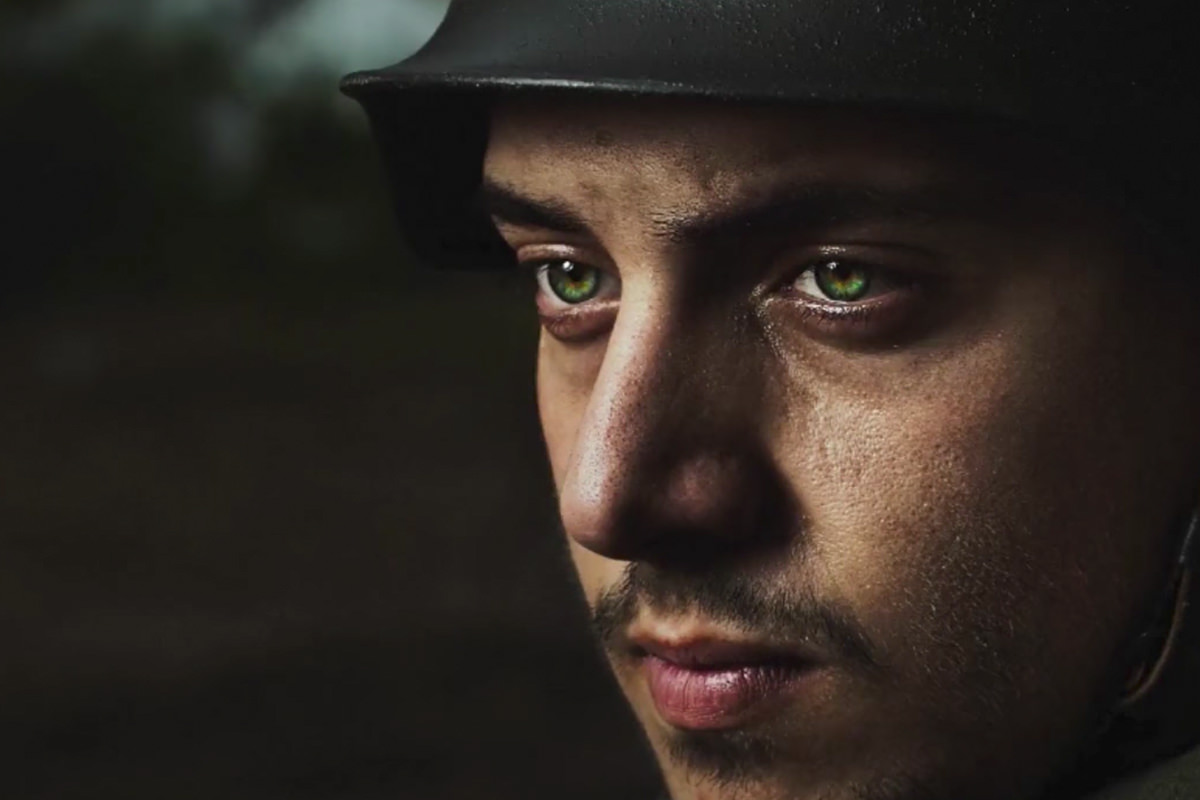
How to Color, Brighten, and Sharpen Eyes in Photoshop
Eyes that are already sharp and in focus can still be pushed much further with a little extra color, shape, and sharpening. This tutorial samples and exaggerates the colors already present in the eye, shapes them with light and shadow, then sharpens the final result using two different methods.
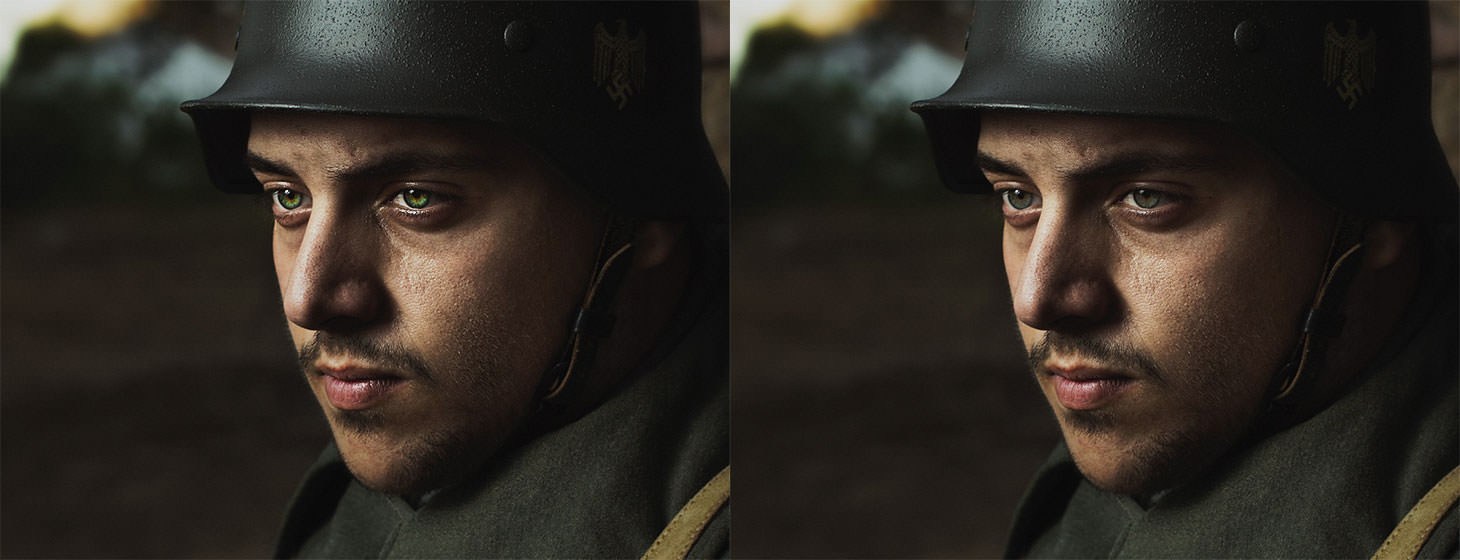
Analyzing the Eye’s Existing Colors and Light Source
Most eyes already contain more than one color, and identifying the direction of the existing catchlight determines exactly where to add brightness later.
-
Zoom In and Identify the Existing Colors
Zoom into the eye and identify its different existing color areas, such as an inner eye shape in one color and an outer ring in another, more desaturated color.
-
Locate the Light Source From the Catchlight
Find the small reflected catchlight in the eye and use its position to determine which direction the light source is coming from.
-
Note Where Brightness Should Go
Recognize that light entering the eye tends to show up brightest on the side opposite the catchlight, since light bounces through and exits on the far side.
Why Brightness Belongs Opposite the Light Source
A catchlight in the upper left of the eye means light is entering from that direction and bouncing through to exit on the opposite side. Adding brightness on that opposite side, rather than directly under the catchlight itself, matches how light actually behaves as it passes through the eye.
Sampling and Exaggerating the Eye’s Base Color
Sampling directly from the eye’s own existing color, then exaggerating it, keeps the final result looking like an enhanced version of that same eye rather than a completely different color.
-
Sample the Existing Eye Color
Press B for the Brush tool, hold Option/Alt, and click on the eye’s existing base color to sample it.
-
Exaggerate the Sampled Color
Push that sampled color further, making it noticeably lighter and more saturated than the original.
Painting Multiple Colors Onto Separate Layers
Because real eyes contain several different colors rather than one flat tone, painting each one onto its own new layer keeps every color independently adjustable.
-
Paint the First Exaggerated Color
Using a soft round brush around 90% hardness, paint the exaggerated base color onto a new layer in a loose, detailed pattern rather than a single flat blur.
-
Sample and Paint a Second Color
Create another new layer, sample a second existing color from the eye, exaggerate it, and paint it mostly on the side opposite the light source.
-
Add a Small Accent Color
Create a third new layer and add a small amount of an accent color, such as a light blue, for extra visual interest.
Why Using Multiple Colors Beats a Single Flat Tint
Simply boosting one overall color with a Curves adjustment would produce a flat, uniform tint that doesn’t resemble how eyes actually look. Painting several distinct sampled colors onto separate layers instead recreates the natural color variation already present in the eye, which is what makes the enhanced result still look believable.
Blending and Softening the Painted Colors
Changing each painted color layer’s blend mode and adding a small blur integrates the raw painted color into the eye’s existing detail.
-
Change Each Color Layer’s Blend Mode
Shift-click all the painted color layers and change their blend mode to Soft Light or Overlay.
-
Add a Small Gaussian Blur to Each Layer
Go to Filter > Blur > Gaussian Blur and apply a small blur, such as one pixel, to each painted layer so the brush strokes aren’t obviously visible.
-
Group the Color Layers Together
Shift-click all the color layers and press Cmd/Ctrl+G to group them together.
Shaping the Eye With Curves
Two separate Curves adjustment layers, each masked to a specific small area, add shape and depth by lightening and darkening opposite parts of the eye.
-
Add a Brightening Curves Layer
Add a Curves adjustment layer and click the center of the curve, bringing it up slightly to brighten.
-
Invert the Mask and Paint White in the Center
Press Cmd/Ctrl+I to invert the mask to black, then paint white in the center area between the iris’s darker edges to focus the brightness there.
-
Add a Darkening Curves Layer
Add a second Curves adjustment layer, this time bringing the curve down to darken.
-
Invert the Mask and Paint on the Correct Side
Press Cmd/Ctrl+I to invert this mask as well, then paint the darkness in on the same side as the earlier exaggerated colors, opposite the catchlight.
-
Group the Light and Dark Layers Together
Group these two Curves layers together once both are in place, giving the eye a rounder sense of shape and depth.
Sharpening With the Sharpen Tool
The Sharpen tool, nested with the Blur and Sponge tools, can add targeted sharpening directly onto a new layer when set up correctly. The Best Way to Sharpen Portraits in Photoshop and Sharpening in Photoshop both go further into sharpening itself.
-
Create a New Layer for Sharpening
Create a new, empty layer to paint the sharpening onto.
-
Select the Sharpen Tool
Select the Sharpen tool from where it’s nested with the Blur and Sponge tools.
-
Enable Sample All Layers and Protect Detail
Check Sample All Layers so the tool can read the layers beneath, check Protect Detail, and keep the mode set to Normal.
-
Paint Over Key Details
Paint over eyelids, eyelashes, brow hairs, and any small highlights, especially inside the eye, while avoiding the whites of the eyes to prevent oversharpening them.
Switching to a High Pass Sharpening Method Instead
Because the Sharpen tool bakes its result into a single layer with no adjustable opacity, a stamped High Pass layer offers a more flexible alternative.
-
Stamp a Visible Layer
Press Shift+Option/Alt+Cmd/Ctrl+E to create a new layer that stamps everything visible below it.
-
Desaturate and Set to Overlay
Press Shift+Cmd/Ctrl+U to desaturate the stamped layer so it won’t affect color, then change its blend mode to Overlay.
-
Apply the High Pass Filter
Go to Filter > Other > High Pass and choose a radius, since a lower radius gives less sharpening and a higher radius gives more.
-
Mask the Sharpening to Key Areas
Add a layer mask and paint white over the eyes, as well as areas like the lips and cheeks, to bring the sharpening into view just there.
Why the High Pass Method Is More Flexible Than the Sharpen Tool
The Sharpen tool paints its result directly and permanently onto whatever layer it’s used on, with no separate opacity slider to soften the effect afterward. Stamping a visible layer and running High Pass on it instead keeps the entire sharpening effect on its own adjustable layer, so its strength can be lowered at any point without redoing the work.
Fine-Tuning the Finished Effect
With the color, shape, and sharpening each isolated in their own groups, the overall strength of any part of the effect can still be adjusted after the fact.
-
Review the Three Separate Groups
Confirm the three separate pieces are in place: the color group, the light and dark shaping group, and the sharpening layer.
-
Lower a Group’s Opacity if Needed
Select any group that feels too strong, such as the color group, and lower its opacity until the effect feels balanced.
Why This Approach Works
Sampling and exaggerating the eye’s own existing colors, rather than applying an arbitrary new tint, is what keeps the final result looking like a naturally striking version of that same eye. Separating the color, the light and dark shaping, and the sharpening into their own groups is what makes it possible to dial back any one part of the effect without having to redo the others. Comparing the Sharpen tool against a High Pass layer shows that the more flexible, adjustable method is often worth the extra couple of steps.
Final Thoughts
None of these individual steps take very long, but together they make a genuinely dramatic difference in how much an eye stands out in a portrait. Because the whole approach starts from colors and light already present in the eye, it adapts naturally to any subject’s eye color, not just the specific example used here.
Quick Reference: Keys, Menus and Settings
- Sample the eye colorB, Alt/Option-click the iris; push lighter and more saturated in the Color Picker
- Paint the colorsA new layer per color, soft brush at about 90% Hardness
- Blend them inSoft Light or Overlay; Filter > Blur > Gaussian Blur, about 1 pixel; Cmd/Ctrl + G to group
- Light and darkCurves up and Curves down, Cmd/Ctrl + I on each mask, paint white; dark side opposite the catchlight
- Sharpen toolNew layer, Sample All Layers and Protect Detail checked, Mode: Normal
- High PassShift + Alt/Option + Cmd/Ctrl + E, Shift + Cmd/Ctrl + U, Overlay, Filter > Other > High Pass, mask to the eyes
- Dial it backLower the opacity of the color group, the light and dark group or the sharpening layer
No AI, no generative credits.
Enhancing Eyes: Common Questions
Which side of the iris should I brighten?
The side opposite the catchlight. Light enters the eye, bounces around and comes out the other side, so with a catchlight at the top left, brighten the lower right.
How do I pick a color that still looks like the same eye?
Press B, hold Alt/Option and click the eye to sample its own color. Then push that color lighter and more saturated in the Color Picker.
Why paint several colors instead of one?
Eyes often have more than one color. Paint each sampled color on its own layer, plus a few specks of light blue for interest; simply adding one color with Curves would look nothing like a real eye.
What brush should I paint the colors with?
A soft brush with Hardness at about 90%, painting a loose, random pattern on a new layer instead of a general blur. The pattern gives the iris shape and detail.
The color looks painted on. How do I blend it?
Shift-click the color layers and set them to Soft Light or Overlay. Then run Filter > Blur > Gaussian Blur at around 1 pixel on each so the brush strokes don’t show.
How do I give the eye more depth?
Add a Curves layer brought up, press Cmd/Ctrl + I and paint white in the center of the iris. Add a second Curves layer brought down, invert it and paint the darker area on the side opposite the catchlight, then group the two.
How do I use the Sharpen tool on an empty layer?
It’s nested with the Blur and Sponge tools. Check Sample All Layers and Protect Detail, keep Mode on Normal, and paint over the lids, lashes and highlights while avoiding the whites of the eyes.
Why switch from the Sharpen tool to High Pass?
Aaron wanted a sharpening layer he could adjust later. Stamp a visible layer with Shift + Alt/Option + Cmd/Ctrl + E, desaturate it, set it to Overlay and run Filter > Other > High Pass, then mask it to the eyes, lips and cheeks.
What if the effect is too strong?
Each part sits in its own group or layer: the color, the light and dark, and the sharpening. Lower the opacity of whichever one is too much.
From the Magazine View all
Stories, interviews and guides for photographers, new every week.
 BusinessHow to Compete With AI: Give Your Clients MoreEveryone has the same tools now, and your clients know it. The way to compete is to give them more.
 EditingLightCraft vs Lightroom: Is the Free Clone Any Good?The free clone on the same RAW files: what matches, what breaks and who should switch.
 EditingHow to Tell If a Photo Is AI, and Prove Yours Is RealThe tells that still work in 2026, why detectors disagree, and how to prove your own photos.
Master Photoshop, Lightroom and Photography
Join PHLEARN PRO for $12.99 a month, or $99.99 a year (save 36%). Cancel anytime, with a 100% money-back guarantee.





