
Download Assets
This tutorial includes 1 sample image, 1 sample PSD and 1 PDF guide. Downloads are free with a PHLEARN account.
- Download the sample images and PSDs from every free tutorial on PHLEARN
- New free tutorials published every week
- One free account — sign up once, then download anything
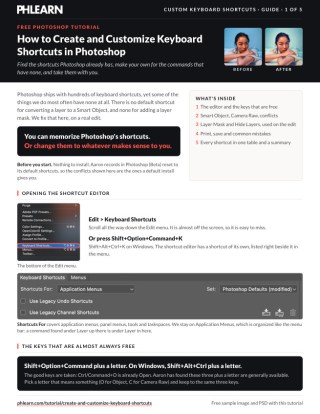
Free PDF Guide · 5 Pages
This Tutorial as a Step-by-Step PDF
Every step from the video in order: Edit > Keyboard Shortcuts, the four shortcuts Aaron makes (Convert to Smart Object, Camera Raw Filter, Reveal All layer mask, Hide Layers), how to accept a conflict, Summarize to an HTML list, and saving a set to move between versions. Keep it next to your keyboard.
description
Keyboard shortcuts are the fastest workflow change available in Photoshop, and the ones Adobe ships are only a starting point. Learn to make and customize your own keyboard shortcuts. You’ll learn how to find existing shortcuts, create new ones for commonly used tools like smart objects and layer masks, and even save your custom settings to use on different devices. We’re even including a PDF guide with our top Keyboard Shortcuts to help you get started!
Enjoying This Free Tutorial?
We publish a new free tutorial every week, each one with sample images and PSDs you can download and follow along with. Sign up and they land straight in your inbox, along with early word on sales, events and subscriber-only offers.
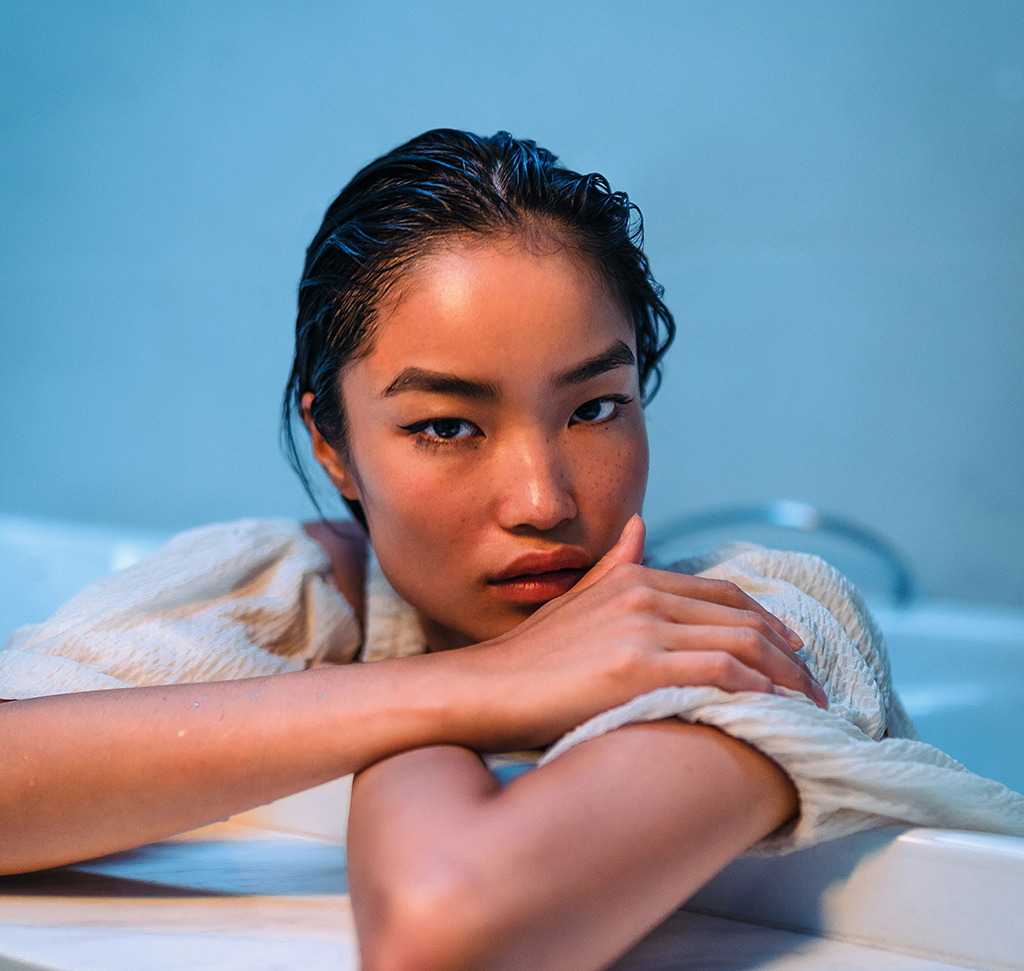
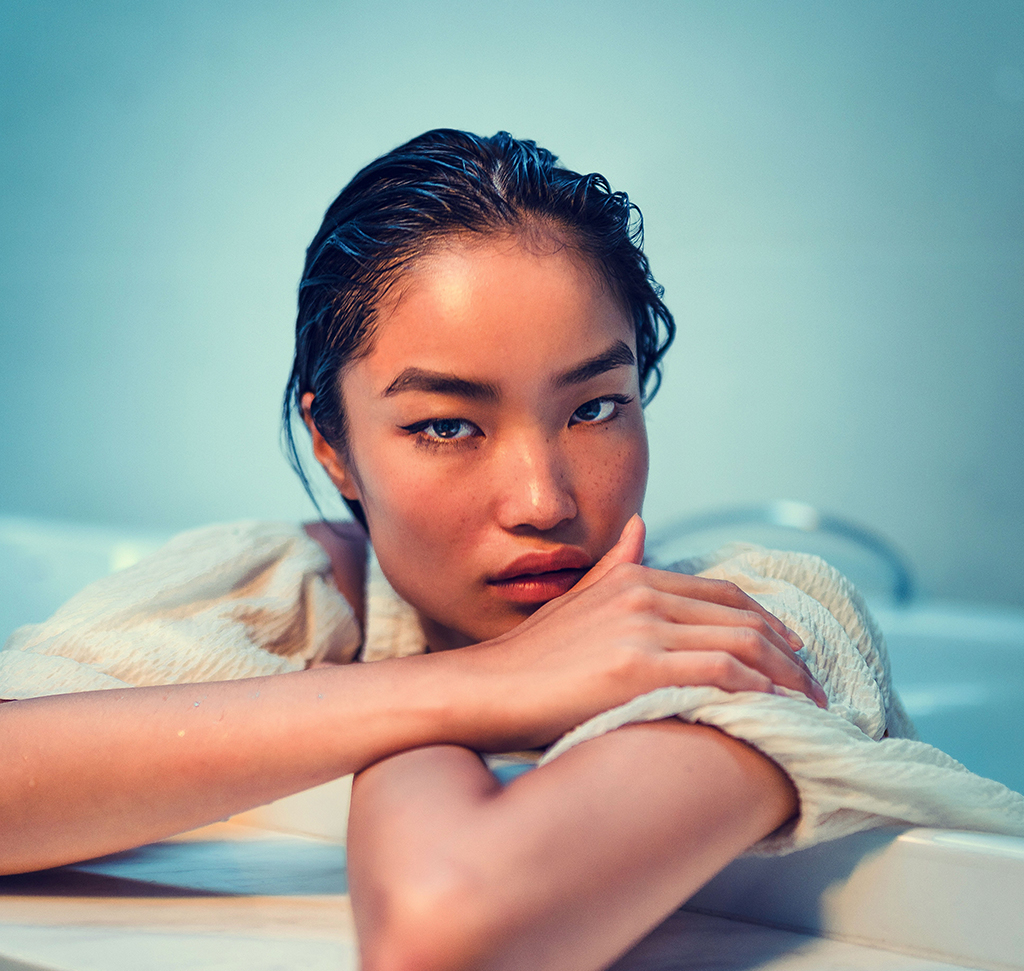
Image Source
How to Create and Customize Keyboard Shortcuts in Photoshop
Photoshop ships with hundreds of keyboard shortcuts, and some of the operations you perform most often have none at all. There is no default shortcut for converting a layer to a Smart Object. There is no default shortcut for adding a layer mask. Both are things a working retoucher does dozens of times a day.
The fix is not to memorize Adobe’s choices. It is to assign your own, to the commands you actually use, with keys that make sense to you. Photoshop’s shortcut editor is one of the best in any application — every menu command in the program is reachable and reassignable.
Opening the Shortcut Editor
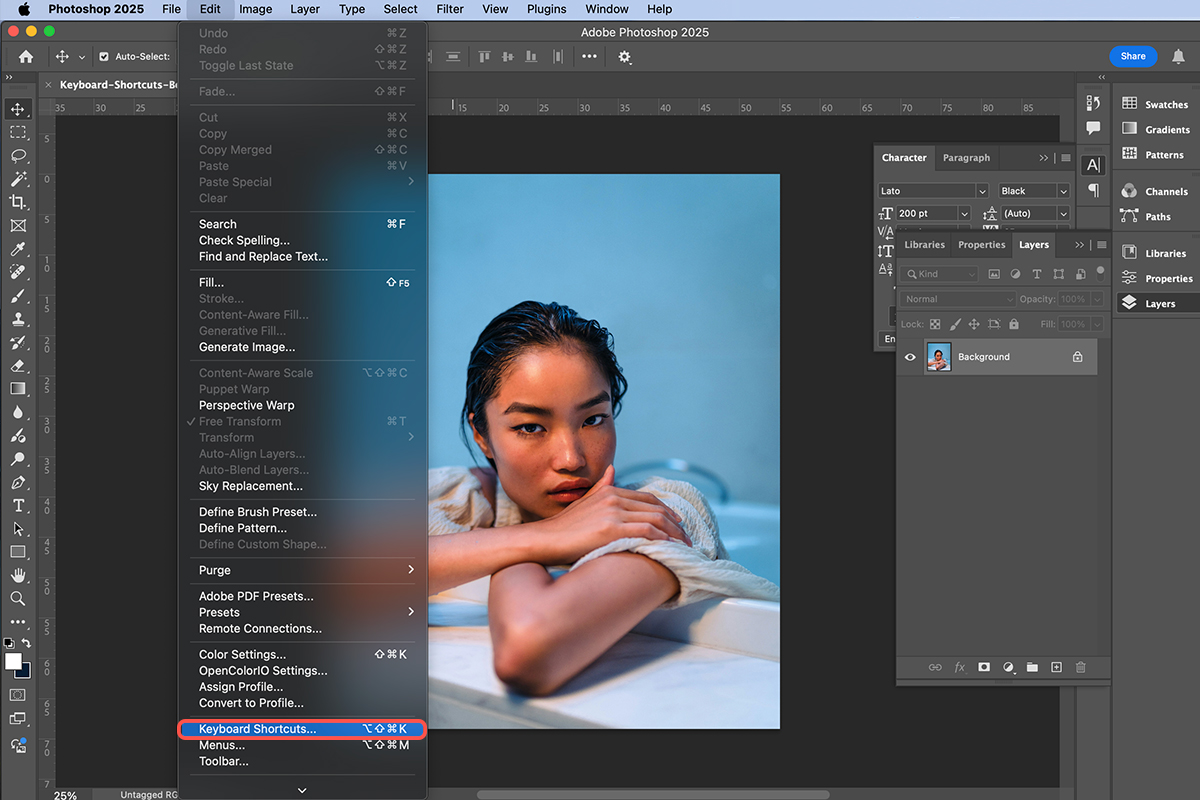
Go to Edit ? Keyboard Shortcuts. It sits right at the bottom of the Edit menu, easy to scroll past. The shortcut for the shortcut editor is Shift+Option+Cmd+K (Mac) or Shift+Alt+Ctrl+K (Windows).
The dialog groups shortcuts by where they live: Application Menus, Panel Menus, Tools, and Taskspaces. Most of what you want is under Application Menus, and it is organized exactly like the menu bar — so if you know a command is under Layer in the menus, it is under Layer here.
The Modifier Combination That Is Almost Always Free
The practical problem with assigning shortcuts is that the good keys are taken. Cmd+O is Open, Cmd+S is Save.
The answer is Shift+Option+Cmd on Mac, Shift+Alt+Ctrl on Windows. That three-modifier combination is largely unused by default, so nearly any letter is available. It leaves you free to pick a letter that is memorable rather than whatever happens to be unclaimed.
Once you adopt it as your personal prefix, your custom shortcuts become one consistent family instead of a scattered set.
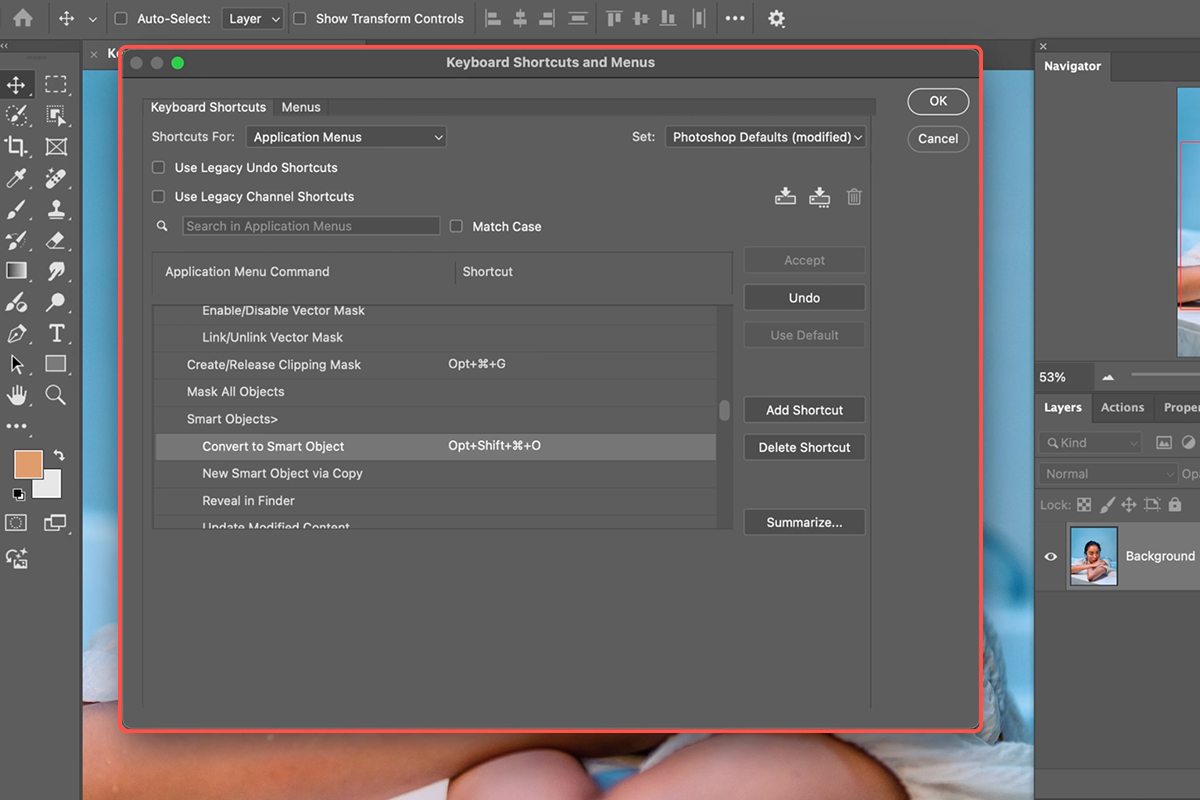
Assign One: Convert to Smart Object
Any time you are about to run a filter, the layer should be a Smart Object first — that is what makes the filter re-editable afterwards. It is also a command with no default shortcut, which makes it the perfect first assignment.
-
Open Edit ? Keyboard Shortcuts
Leave the menu set to Application Menus.
-
Expand Layer and scroll to Smart Objects
The list is long. Expect to scroll — every command in the program is in here.
-
Click in the field beside Convert to Smart Object
The field is empty because there is no default.
-
Press the combination you want
Shift+Option+Cmd+O — O for Object. You physically press the keys rather than typing their names.
-
Click Accept, then OK
The set is marked as modified from the default, which is expected.
Select a layer, press the combination, and it converts. Choose letters that mean something — O for Object, C for Camera Raw — because a mnemonic shortcut survives being unused for a week and an arbitrary one does not.
Reassign One That Already Exists
Camera Raw Filter defaults to Shift+Cmd+A. There is no obvious reason for A, and it is hard to retain.
Go back into the editor, expand Filter, find Camera Raw Filter, and assign Shift+Option+Cmd+C — C for Camera Raw.
Handling a Conflict
Photoshop will warn you that the combination is already assigned to Content-Aware Scale, and that accepting will remove it from there.
That is the right trade if you use Camera Raw constantly and Content-Aware Scale rarely. The warning is information, not an obstacle — nothing is lost permanently, and you can reassign the displaced command later if you miss it.
Click Accept and Go To Conflict and Photoshop takes you to the affected command so you can see exactly what changed.
Add a Shortcut for Layer Masks
This is the omission that surprises people most. Layer masks are fundamental to non-destructive editing and have no default shortcut.
In the editor, expand Layer and scroll to Layer Mask. You will find two options worth knowing apart:
Reveal All creates a white mask — the layer stays fully visible and you paint black to hide. Hide All creates a black mask — the layer is hidden entirely and you paint white to reveal.
Reveal All is the common case. Assign it Shift+Option+Cmd+M — M for Mask.
Now masking is one keystroke: press the combination, take the brush, paint black where you want the layer hidden.
The Best One: Hide Layers
This is the shortcut worth setting up even if you set up no others.
Under Layer, find Hide Layers and assign it Shift+Option+Cmd+V. It toggles the visibility of whatever layers are currently selected — the same as clicking the eye icon, but without going near the Layers panel.
Two things make it valuable. It works on a multiple selection, so you can toggle an entire stack of adjustment layers at once. And it works in full-screen mode: press F for full screen and Tab to hide every panel, so nothing is on screen but the image, and the toggle still works.
That gives you a clean, uninterrupted before-and-after of your whole edit — which is genuinely difficult to get any other way, since the alternative is clicking eye icons one at a time with the panels in view.
Print the Whole List
At the bottom of the Keyboard Shortcuts dialog there is a Summarize button. It exports every shortcut in Photoshop as an HTML file you can open in a browser and print.
The useful part is that it includes your custom assignments alongside the defaults, so the summary reflects your actual Photoshop rather than a generic reference chart. It is a good way to find shortcuts you did not know existed for things you have been doing through the menus.
Save and Move Your Shortcuts
Custom shortcuts live in a set that can be saved to a file.
Click the save icon at the top of the dialog and name it — something like PS2025.kys. That file can be loaded into another installation, which matters more often than you would think:
Moving to a new computer. Upgrading to a new Photoshop version. Moving between the release version and the beta. Setting up a second machine to match your main one. Sharing a standard set across a team so everyone works the same way.
Load it by double-clicking the file, or through the same dialog. Without it, every custom shortcut has to be rebuilt by hand.
Which Ones to Make
The rule is simple: anything you do repeatedly that currently takes a trip to the menus.
Convert to Smart Object, Add Layer Mask, and Hide Layers are the three with the best return, because all three are frequent and none has a default. Beyond that, reassign anything whose built-in shortcut you keep failing to remember — the built-in choice has no authority over yours.
Use one modifier family for everything you add, pick letters that stand for the command, and save the set out when you are done.
Quick Reference: Keys, Menus and Settings
- Open the editorEdit > Keyboard Shortcuts, or Shift + Option + Cmd + K (Windows: Shift + Alt + Ctrl + K)
- Find a commandShortcuts For: Application Menus; the list follows the menu bar (Layer > Smart Objects, Filter > Camera Raw Filter…)
- Free combinationShift + Option + Cmd + a letter is usually open (Windows: Shift + Alt + Ctrl)
- Aaron’s fourConvert to Smart Object = O · Camera Raw Filter = C · Layer Mask > Reveal All = M · Hide Layers = V (all with Shift + Option + Cmd)
- Conflict warningAccept and Go To Conflict takes the key from the other command (Camera Raw took it from Content-Aware Scale)
- Make it stickClick OK; shortcuts are saved when you quit Photoshop
- Print the listSummarize writes an HTML file of every shortcut, including yours
- Move themThe save icon writes a set file; double-click it on another install or version to load it
Every menu item shows its current shortcut to the right of its name.
Free Downloads
Follow Along on the Same Photo
Get the portrait from the video, the PSD with the Camera Raw glow and the Levels toning, and the PDF guide. Free with a PHLEARN account.
Keyboard Shortcuts: Common Questions
Where do I make a keyboard shortcut in Photoshop?
Edit > Keyboard Shortcuts, at the bottom of the menu. The list is organized like the menu bar, so Convert to Smart Object is under Layer > Smart Objects. Click the command, press the keys, Accept, OK.
Which key combinations are free?
Shift+Option+Cmd plus a letter is almost always open on the Mac (Shift+Alt+Ctrl on Windows). Pick a letter you’ll remember: O for object, C for Camera Raw, M for mask.
It says the shortcut is already in use. What now?
Decide which command you use more. Aaron gave Camera Raw Filter the key that Content-Aware Scale had, clicked Accept and Go To Conflict, and moved on. The other command just loses its shortcut.
Which common commands have no shortcut by default?
Convert to Smart Object and Add Layer Mask, which the video fixes first. Camera Raw Filter has one (Shift+Cmd+A) but Aaron reassigns it to something he can remember.
What’s the Hide Layers shortcut for?
Toggling the selected layers off and on without hunting for the eye icon. Select several layers, press it, and you get a before and after, even in full screen with the panels hidden (F, then Tab).
How do I find the shortcuts that already exist?
They’re printed next to every menu item, including the ones you make. For a complete list, click Summarize in the editor; it writes an HTML file you can print.
Do my shortcuts carry over to a new version?
Not automatically. Click the save icon in the editor to write a set file, then double-click that file on the new version, the beta or a friend’s computer to load it.
Why did my new shortcut disappear?
Click OK in the editor and quit Photoshop normally; the shortcuts save on exit.
Are the sample files free?
Yes, with a free PHLEARN account. You get the portrait, the PSD with the Camera Raw glow and Levels toning, and the PDF guide.
Master Photoshop, Lightroom and Photography
Join PHLEARN PRO for $12.99 a month or $99.99 a year. Cancel anytime, with a 100% money-back guarantee.





