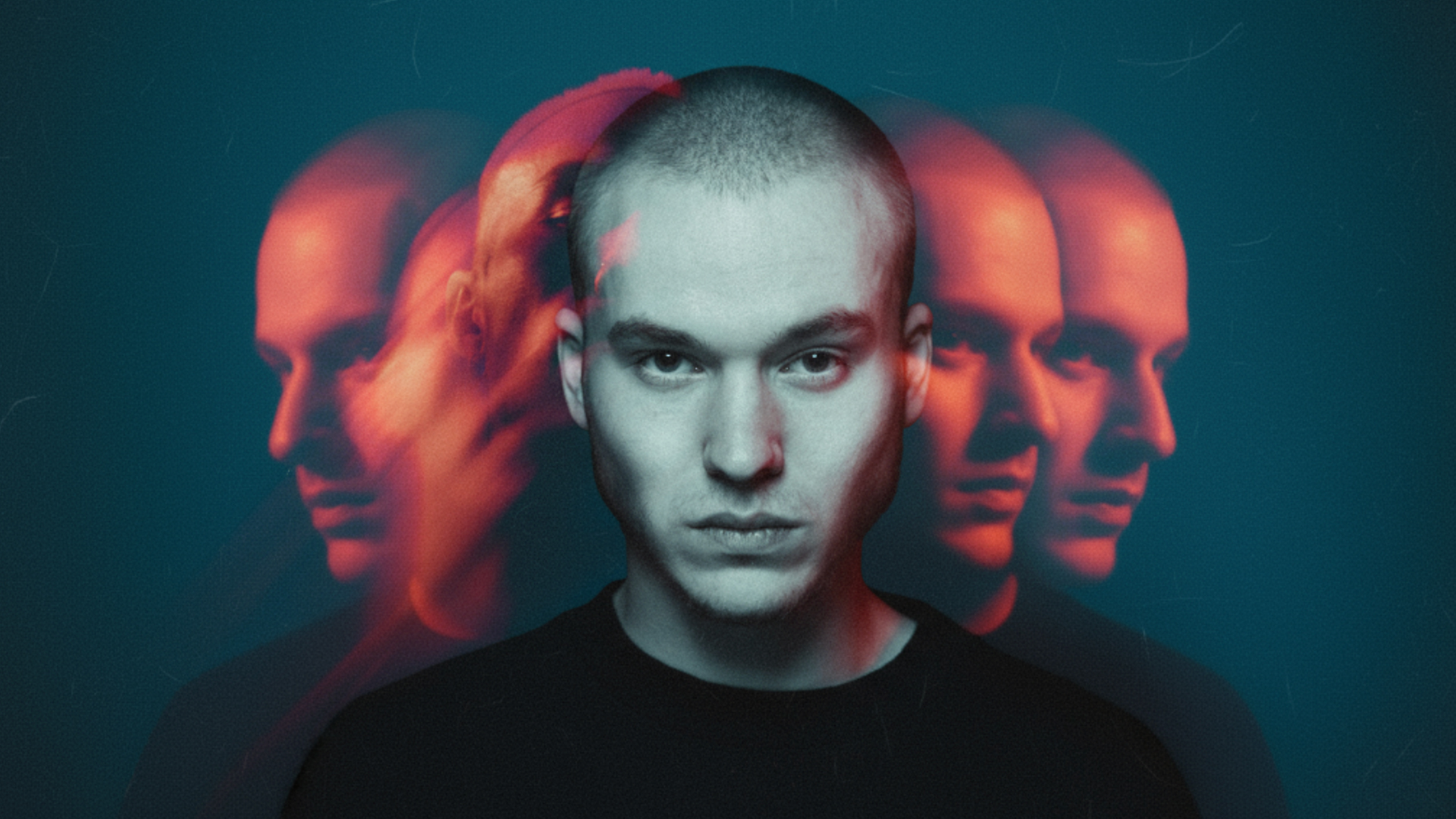

Firefly Boards changes how AI image tools work. Most give you one prompt box and one result at a time — type, wait, look, type again. Firefly Boards is a different shape: an infinite canvas in your browser where images, prompts and generations sit side by side, and where several generations can run at once instead of queueing.
It also gets Adobe’s newest models, including third-party ones like Gemini 2.5 and the Veo video models, before they reach Photoshop. This walkthrough merges two photographic styles on the canvas, refines the result at any aspect ratio, then animates it into a short cinematic clip with audio.
Free practice files
Practice Files for This Tutorial
The 2 sample images and the 4-page PDF guide from the video, so you can follow every step on the same files.
This tutorial includes 2 sample images and 1 PDF guide.

Create a free PHLEARN account to download, or log in if you already have one. One account gets you the files for every free tutorial.
description
Enjoying This Free Tutorial?
Image Source
Firefly Boards Is Adobe’s AI Workspace, and It Runs in a Browser Tab
Most AI image tools give you one prompt box and one result at a time. You type, you wait, you look, you type again. It’s a slow way to explore an idea, and it’s the reason so much AI work stops at the first output that isn’t obviously wrong.
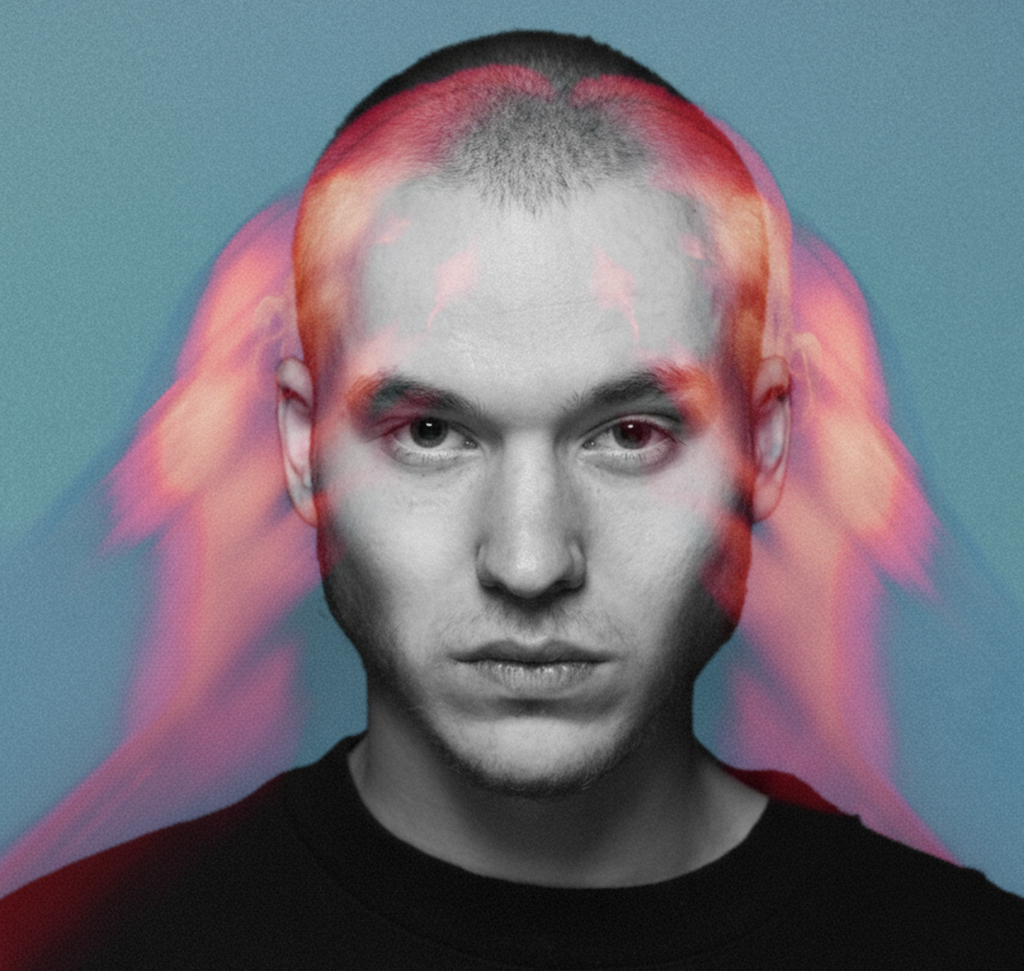
Firefly Boards is a different shape: an infinite canvas in your browser where images, prompts and generations all live side by side, and where you can fire off several generations at once without waiting for any of them. It also gets Adobe’s newest models — including third-party ones like Gemini 2.5 and the Veo video models — before they reach Photoshop. This walkthrough covers merging two photographic styles and then animating the result.
What Makes a Canvas Different From a Prompt Box
Generations Run in Parallel
Hit Generate three times with different settings and all three run at once, landing on the canvas as they finish. Comparing options side by side is a fundamentally better way to choose than judging one image in isolation.
Your Source Images Stay in View
The subject photo and the style reference sit on the same canvas as every generation. You can see at a glance how far a result has drifted from what you asked for.
You Get the New Models First
Boards is where Adobe ships early access. If a model is available anywhere in the Adobe ecosystem, it usually appears here before it appears in a desktop application.
Set Up the Board
-
Open Firefly Boards and Create a New Board
Everything runs in the browser — there’s nothing to install, and the Firefly Boards canvas saves to your Adobe account rather than a local file.
-
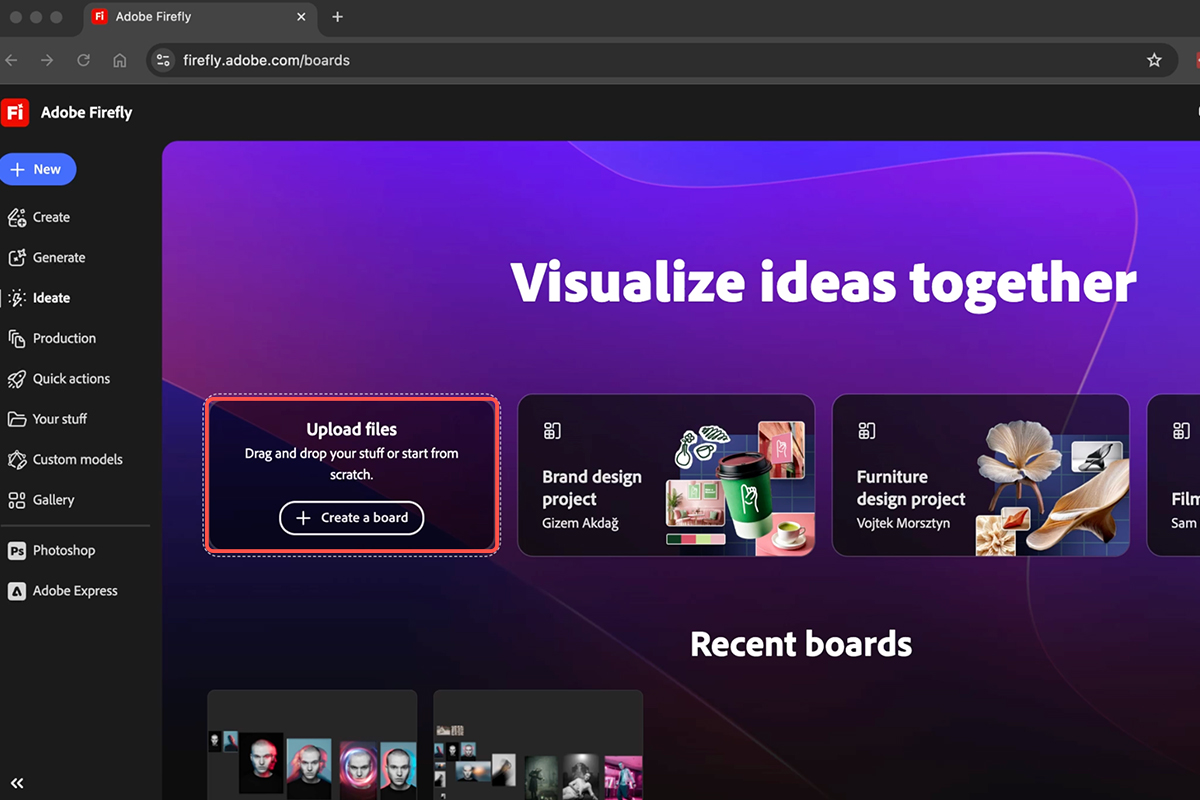
Drag Both Images Onto the Canvas
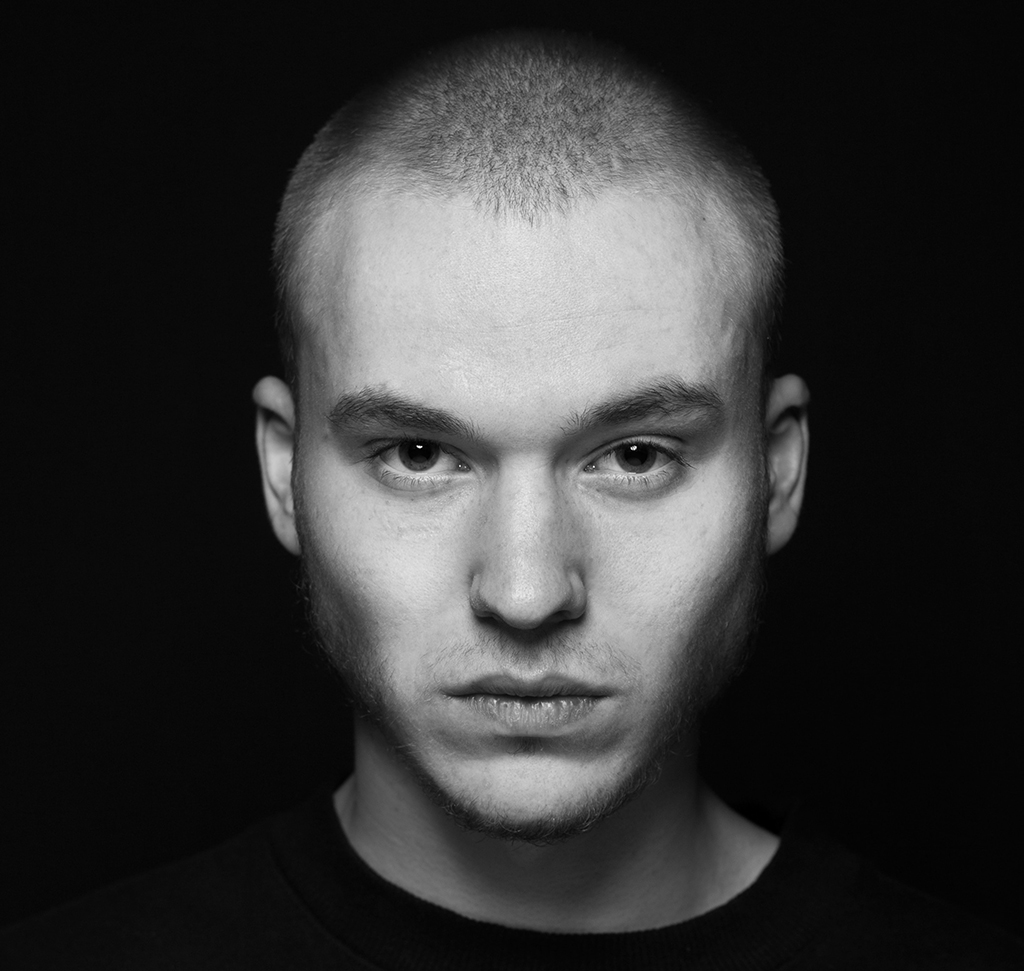
Your subject photo and your style reference. The style reference is doing more work than people expect: it’s supplying the color palette, the light quality and the grade, so pick one with a look you can actually name.
-
Arrange Them With the V Key
V is the select-and-move tool, as it is in the rest of the Adobe suite. Put the two images somewhere you can see both while you work — the canvas is infinite, and generations will fill it fast.
Merge the Two Styles
-
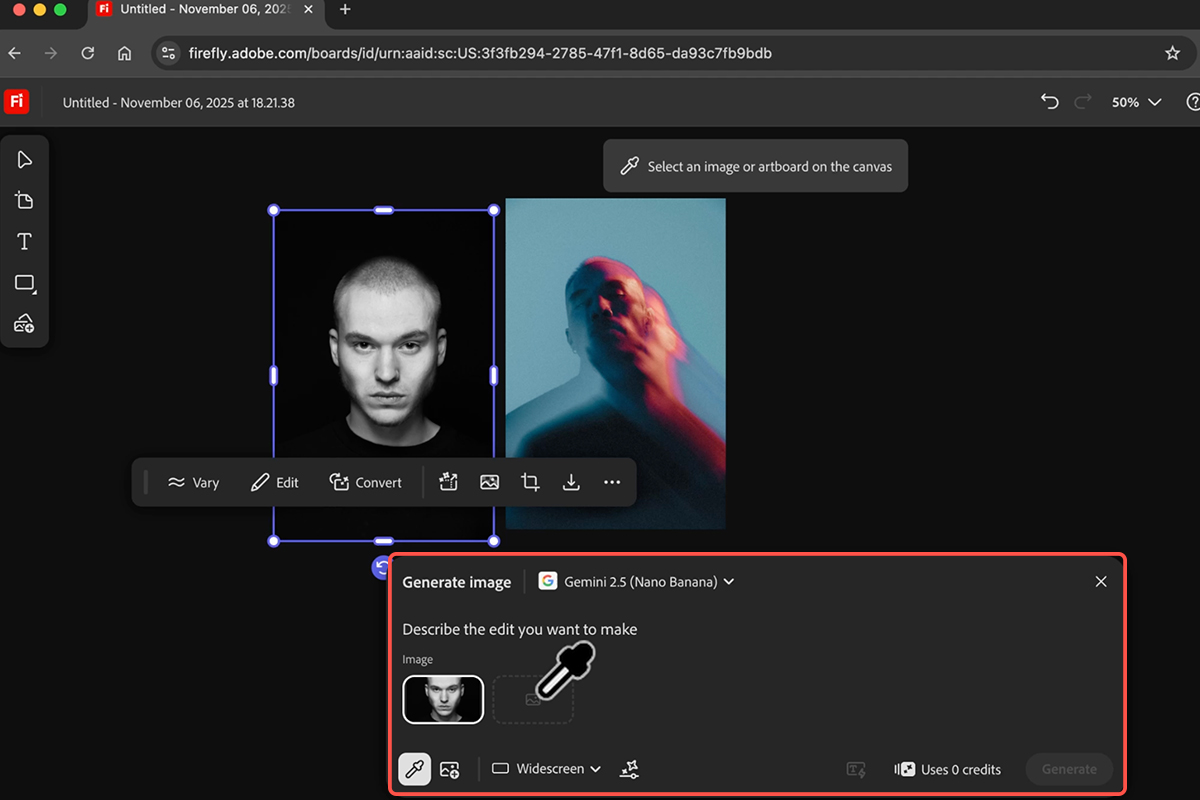
Open Generate Image and Pick a Model
The model list includes Adobe’s own Firefly models alongside third-party ones. Gemini 2.5 Nano Banana is a good default here — it’s fast, and it handles style transfer between two supplied images well.
-
Load Both Images With the Eyedropper
Use the eyedropper to pull your subject and your style reference into the prompt box. This is the step that distinguishes a style merge from a text-prompted generation: the model is working from your actual images, not from a description of them.
-
Write the Edit and Hit Enter
In Describe the edit, something as plain as “Merge the style of these two photographs” is enough. The images are carrying the information; the text just tells the model what to do with them.
-
Generate Several Times Without Waiting
Click Generate again immediately. Runs queue in parallel and appear on the canvas as they complete, so three or four variations cost roughly the same wall-clock time as one.
Refine the One You Want to Keep
-
Click Load on Your Favourite
This pulls that image’s original prompt and settings back into the generation panel — model, prompt, everything — so you’re editing a known starting point rather than trying to reproduce it.
-
Change the Aspect Ratio and Regenerate
Switch horizontal to portrait for social, or the reverse. Regenerating at a new ratio gives you a properly composed vertical rather than a crop of a horizontal image, which is the usual reason reformatted AI work looks wrong.
-
Click Place on Canvas
The refined version joins the Firefly Boards canvas alongside everything else, so you keep the earlier attempts for comparison.
Turn the Still Into Video
-
Switch to Generate Video and Choose a Model
Video 3.1 handles this well. Video generation lives on the same canvas, so there’s no export step between the still and the clip.
-
Set Your Image as the First Frame
This is what keeps the video anchored to the picture you spent the last twenty minutes getting right, rather than generating something new that merely resembles it.
-
Describe the Motion, Not the Scene
Something like “slowly shake head left to right while zooming in” works because it describes movement. The scene is already established by the first frame — re-describing it just gives the model room to change things you liked.
-
Download the Clip With Its Audio
The result comes out at high resolution with natively generated audio included. Press Cmd/Ctrl + S to save the Firefly Boards canvas before you export, so the whole exploration is still there next time.

What to Watch Out For
A Style Reference With No Clear Style
If you can’t describe what makes your reference image look the way it does, the model can’t extract it either. Pick references with an obvious, consistent grade.
Generating One at a Time
The parallel generation is the main advantage this tool has over a prompt box. Using it serially throws that away.
Cropping Instead of Regenerating for a New Ratio
Load the prompt, change the ratio, generate again. It takes seconds and gives you a real composition instead of a truncated one.
Over-Describing the Video Prompt
Describe motion only. Every extra detail about the scene is an invitation for the model to reinterpret a frame you’d already settled.
Where This Fits in a Real Workflow
Boards is best understood as a place to explore rather than a place to finish. Generating twelve directions in the time a desktop tool would take for one is genuinely useful at the front of a project, when the question is still what the thing should look like.
What comes out is a strong starting point, not a final file. The retouching, the precise color work and the compositing decisions still belong in Photoshop — and knowing how to do them by hand is what lets you tell a good generation from a merely impressive one.
Open a Board and Try It
Create a board, drag in a subject and a style reference, eyedropper both into Generate Image, ask it to merge the styles, fire off several generations at once, reload the best one at a new aspect ratio, then send it to Generate Video with a motion-only prompt. Download the two free sample images and follow the exact workflow first — then try it with a style reference of your own, which is where it becomes useful. For the desktop skills that turn a good generation into a finished image, our PRO Photoshop Learning Path is where to go next.
Quick Reference: Keys, Menus and Settings
- Open Boardsfirefly.adobe.com/boards, then create a new board
- Add your photosDrag the subject and the style reference onto the board
- Merge the stylesGenerate Image > pick a model (Gemini 2.5 Nano Banana in the video), eyedropper both images into the prompt, describe the edit, Generate
- More variationsClick Generate again without waiting; each click adds results
- Change the aspect ratioClick the result > the load icon (reloads the prompt), set Portrait, Generate, Place on Canvas
- Make a videoGenerate Video > pick a model (Veo 3.1 in the video), set the image as the first frame, describe the motion, Generate
- Save itThe download icon on the video; it comes to your computer with audio
Models and names are the ones on screen at recording; Boards adds and renames models often.
Image source

Free Downloads
Follow Along on the Same Photos
Get the portrait and the style reference from the video plus the PDF guide, and run the same board. Free with a PHLEARN account.
Firefly Boards: Common Questions
What is Firefly Boards?
A web canvas at firefly.adobe.com/boards where you drop in images, generate new ones from them and turn them into video, with no app to install. It gives you every AI model Adobe offers, including models that weren’t yet in Photoshop when this was recorded.
How do I copy one photo’s style onto another?
Drag both photos onto the board, click Generate Image, pick a model, and use the eyedropper to load each image into the prompt. Then describe the edit in plain words (“copy the style of the blurred image onto the black and white portrait”) and generate. “Merge these two photographs” works too.
Which model should I pick?
The video uses Gemini 2.5 with Nano Banana for the images and Veo 3.1 for the video. The list also has Firefly Image 4, 4 Ultra and 5, the Flux models and Imagen; try a few, since each click is a new generation.
Do I have to wait between generations?
No. Click Generate as many times as you like and they queue up; scroll through the results and keep the ones you want.
How do I get a vertical version?
Click the result, then the load icon to bring its prompt back, change the aspect ratio to Portrait and generate again. Place on Canvas puts the new version on the board.
How do I turn the image into video?
Click Generate Video, choose a model, set your image as the first frame and describe the motion (“slowly shake his head from left to right as you zoom into the photo”). You can change the aspect ratio and generate again while the first one renders. The results play on the board, with audio.
How do I get the video out?
Click the download icon on the video. From there Aaron suggests sending it to your phone for social media or dropping it into a bigger edit.
Does it use credits?
Generating images and video spends generative credits; the video doesn’t show the amounts. Check your balance in your Adobe account before a long session.
Are the sample files free?
Yes, with a free PHLEARN account. You get both sample images (the portrait and the style reference) and the PDF guide.
Master Photoshop, Lightroom and Photography
Join PHLEARN PRO for $12.99 a month, or $99.99 a year (save 36%). Cancel anytime, with a 100% money-back guarantee.





