
Download Sample Images
Download Assets
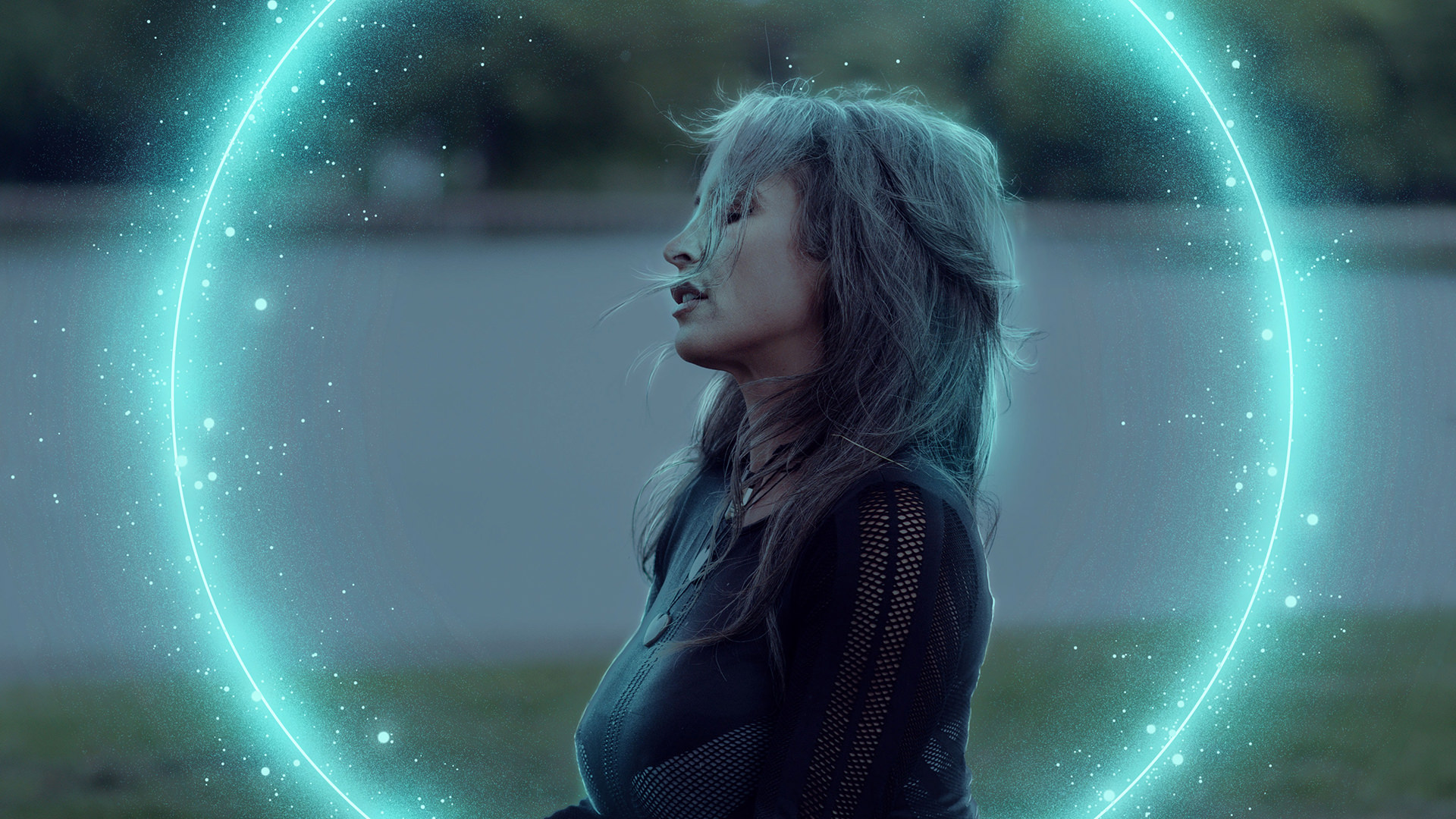
This tutorial includes 1 sample image, 1 sample PSD, 1 Photoshop brush and 1 PDF guide. Downloads are free with a PHLEARN account.
- Free sample files with every tutorial on PHLEARN
- New tutorials published every week
- Unlimited downloads with your free PHLEARN account
DOWNLOAD THE PSD
Free PDF Guide · 6 Pages
This Tutorial as a Step-by-Step PDF
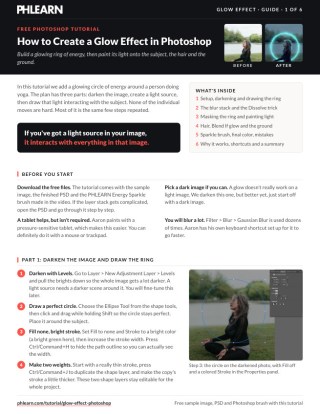
The guide walks through darkening with Levels, drawing the ring with the Ellipse Tool, the Screen and Gaussian Blur stack, the Dissolve trick with Select > Color Range, masking the ring behind the subject, painting light with Blend If, the ground glow, the sparkle brush and Color Balance. Keep it next to your keyboard.
description
Follow along as we show you how to create realistic glow and lighting effects in Photoshop! Learn how to create a glowing ring effect, integrate it into a photograph, add particle effects with the included Photoshop Brush, and more!
Enjoying This Free Tutorial?
We publish a new free tutorial every week, each one with sample images and PSDs you can download and follow along with. Sign up and they land straight in your inbox, along with early word on sales, events and subscriber-only offers.
submit your work
We want to see what you create with the techniques discussed in this tutorial! Send us your own custom glow effect for a chance to be featured on this page and on social media.
Please use the image included in the tutorial download, a free stock image from Pexels.com or Unsplash.com, or an image that you own the rights to (Make sure that it’s family-friendly!)
Ready? Submit it here!
CREATE OUT-OF-THIS-WORLD EFFECTS
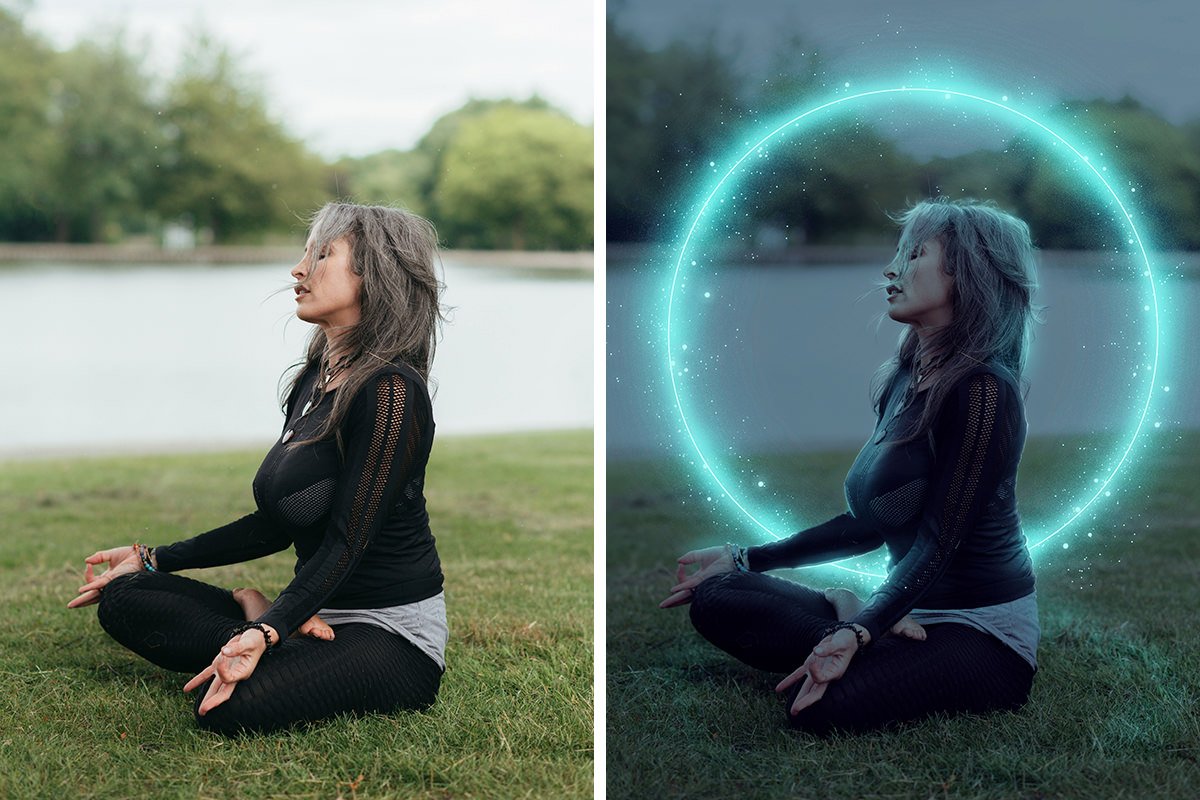
How to Create a Glow Effect in Photoshop
Most glow effects fail for the same reason: the glow is treated as decoration laid on top of a photograph rather than as a light source inside it. A real light does two things: it emits, and it illuminates everything around it. Skip the second half and the result looks like a sticker.
This tutorial builds a glowing ring of energy around a subject and then does the part that actually sells it: painting that light back onto the person, their hair, and the ground beneath them. The technique is a stack of simple steps repeated with variation, and none of the individual moves are difficult.
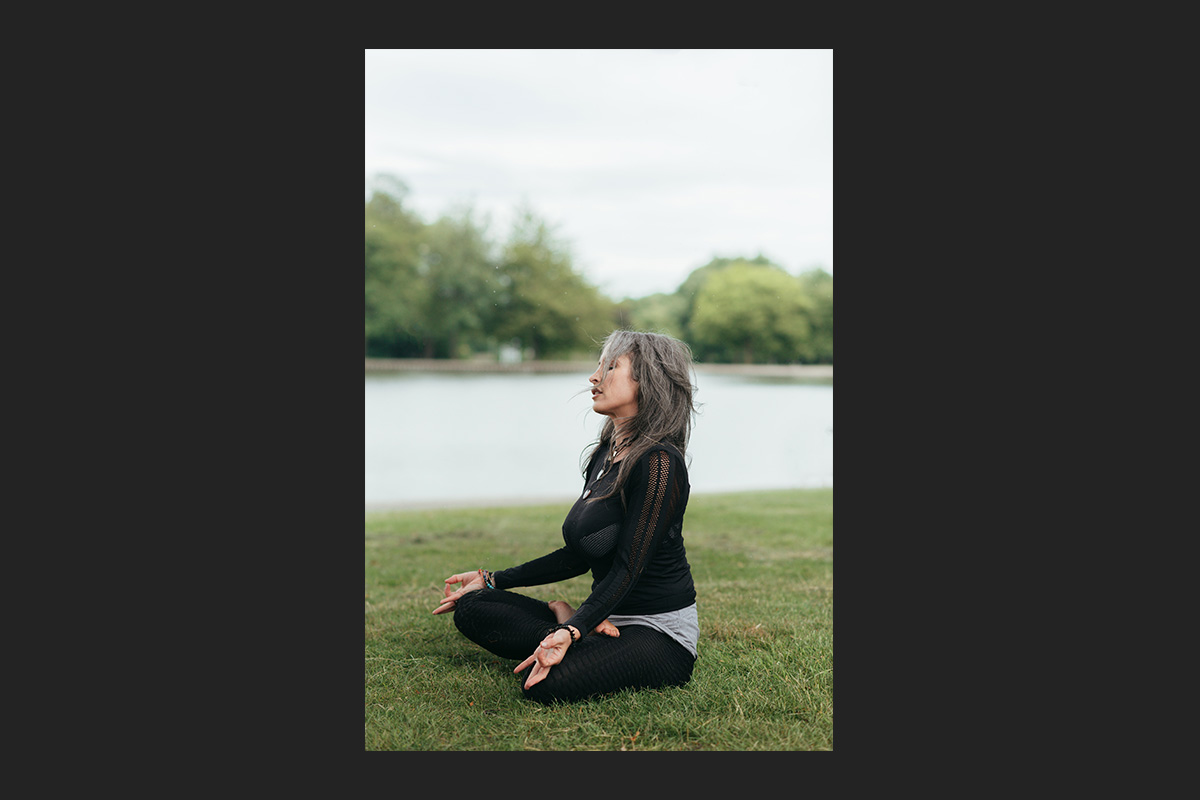
Start by Darkening the Image
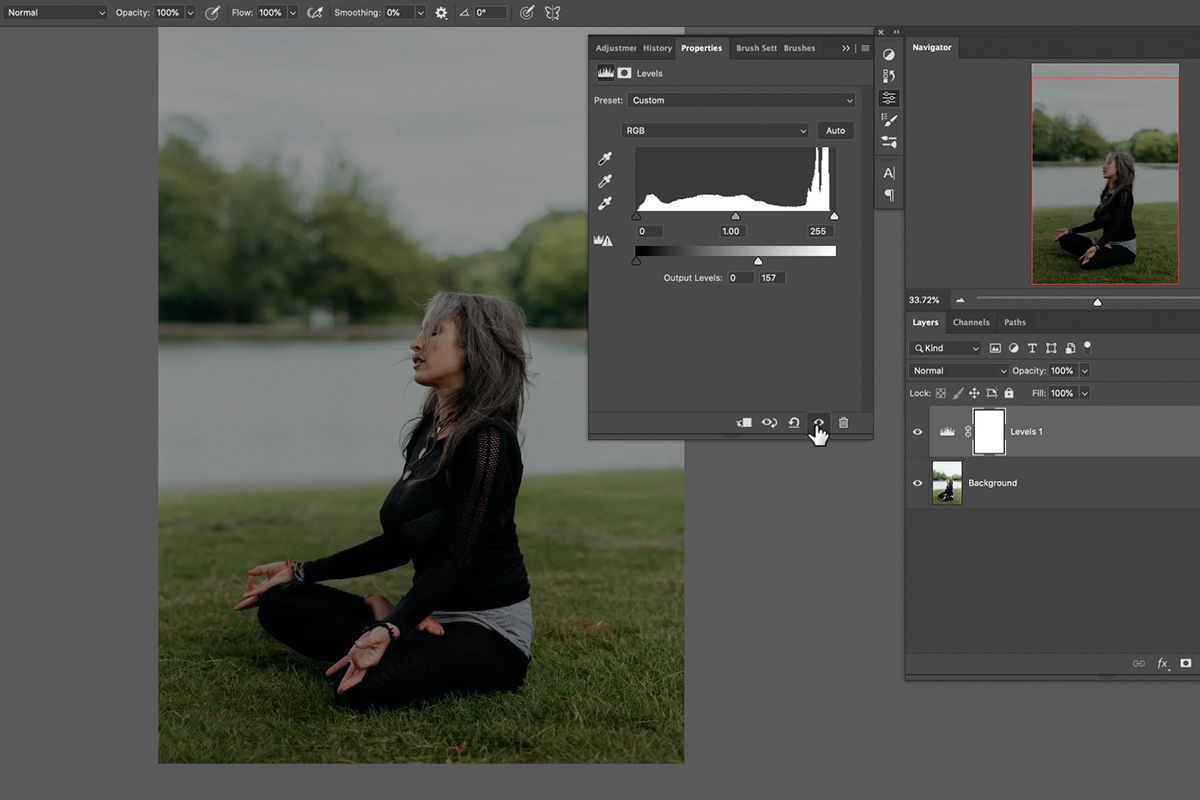
A glow cannot read on a bright photograph. There is nowhere for the light to be brighter than, so the effect has no contrast to work with.
Go to Layer, then New Adjustment Layer, then Levels. Pull the brights down until the whole image is a lot darker. You will fine-tune this later.
If you are choosing an image for this kind of effect from scratch, start with something already dark. Darkening a bright photo works, but beginning with low light gives a better result with less fighting.
Build the Ring With Shape Layers
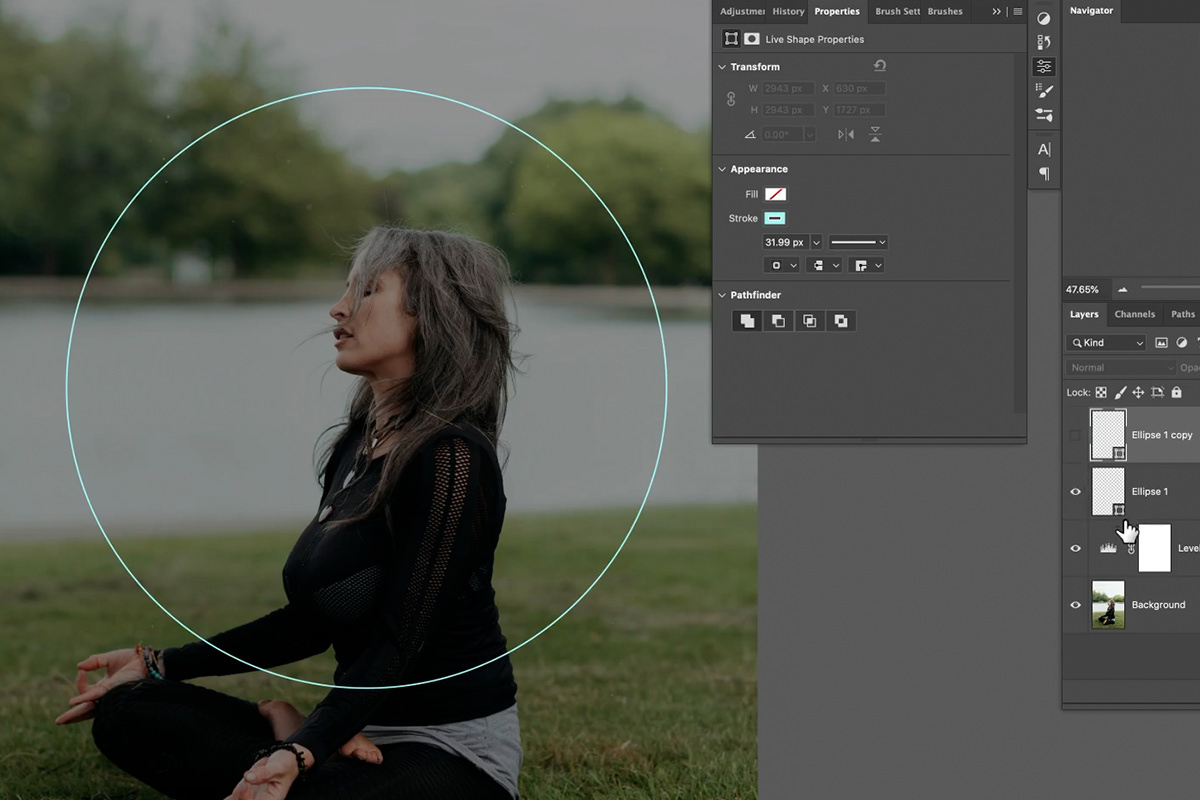
Press U and choose the Ellipse Tool. Click and drag while holding Shift to draw a perfect circle around your subject.
-
Set Fill to none
You want an outline, not a disc.
-
Set Stroke to a bright color
A vivid green or blue works well. This is the color of your light source, so pick something with real saturation.
-
Adjust the stroke width
Press Ctrl or Cmd + H to hide the path highlight so you can actually see the stroke thickness you are setting.
-
Duplicate for variation
Start with a really thin stroke, then press Ctrl or Cmd + J to duplicate the shape layer and make the copy’s stroke a little thicker. Two rings of different weights look far more like energy than a single even circle.
The Duplicate-and-Blur Stack
This is the core technique, and it is what turns a flat colored circle into something that appears to emit light.
-
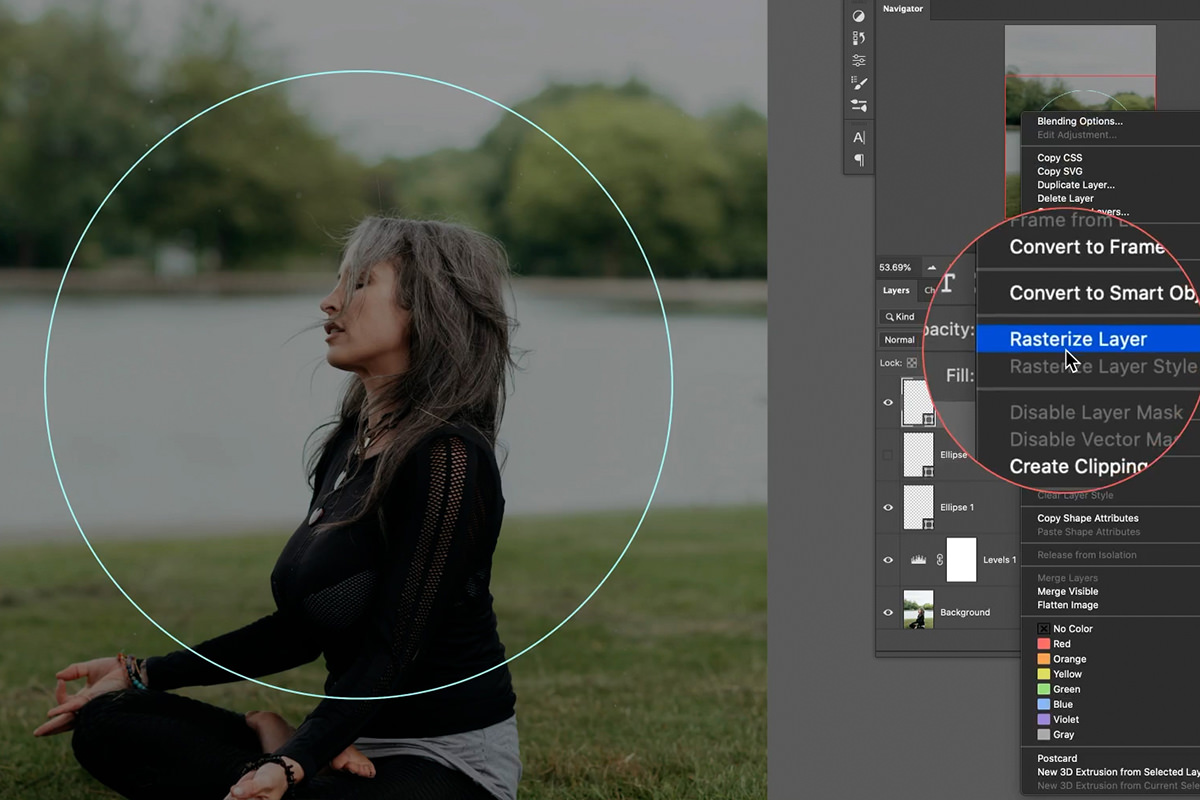
Duplicate a ring and rasterize the copy
Right-click the duplicate and choose Rasterize Layer. The original shape layer stays untouched and editable; later it becomes the crisp core of the ring.
-
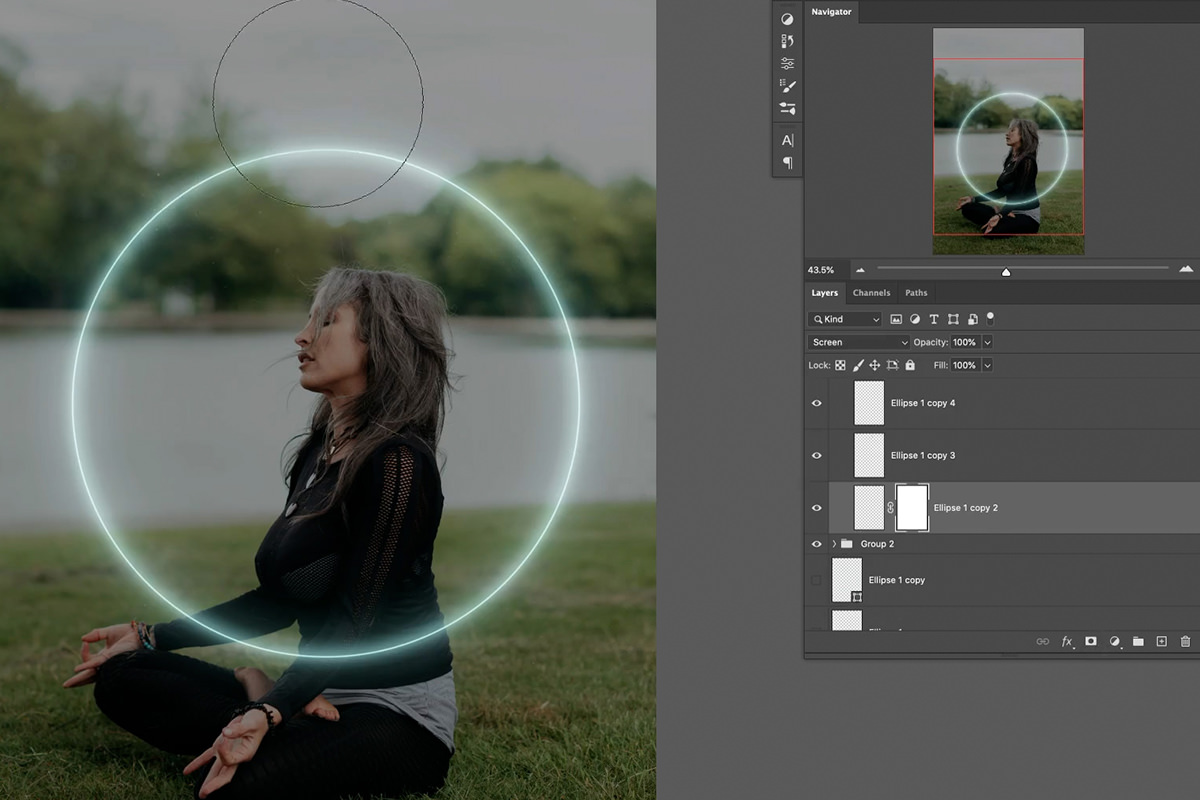
Set the blend mode to Screen
Screen only ever lightens. It is the correct mode for anything that emits light, because emitted light adds to a scene rather than replacing it.
-
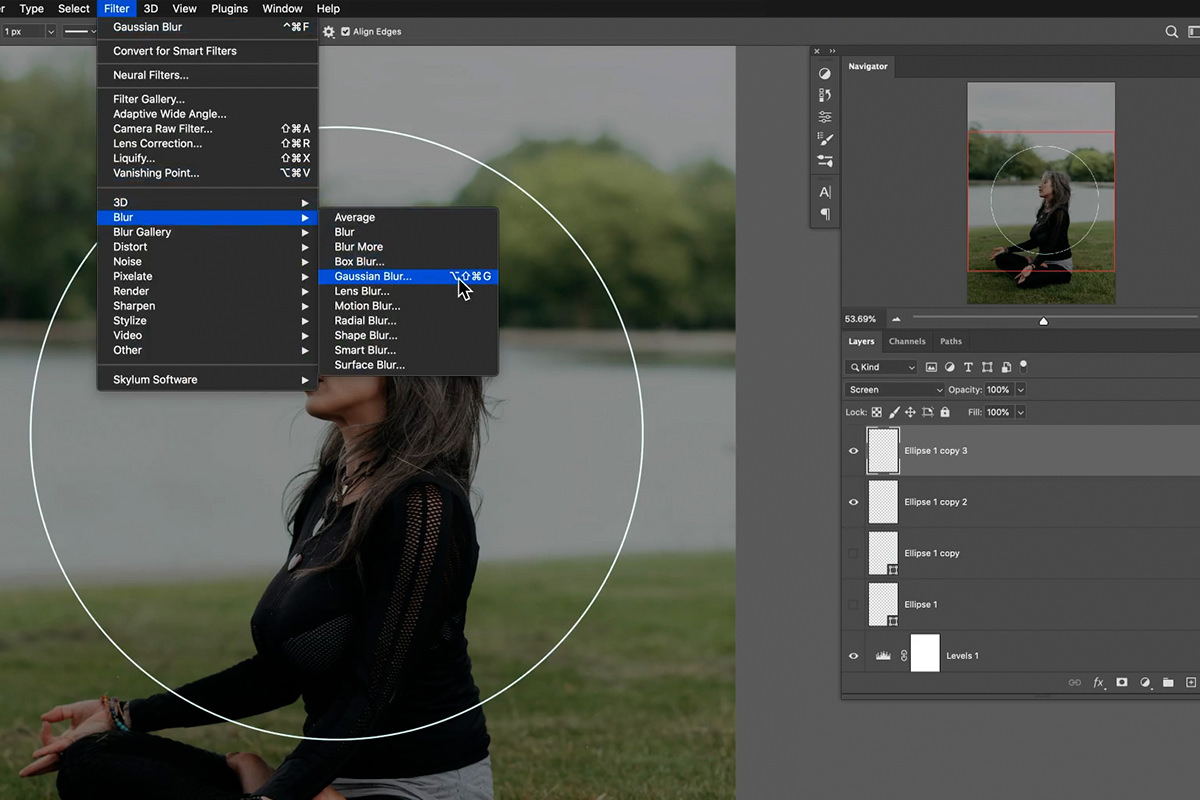
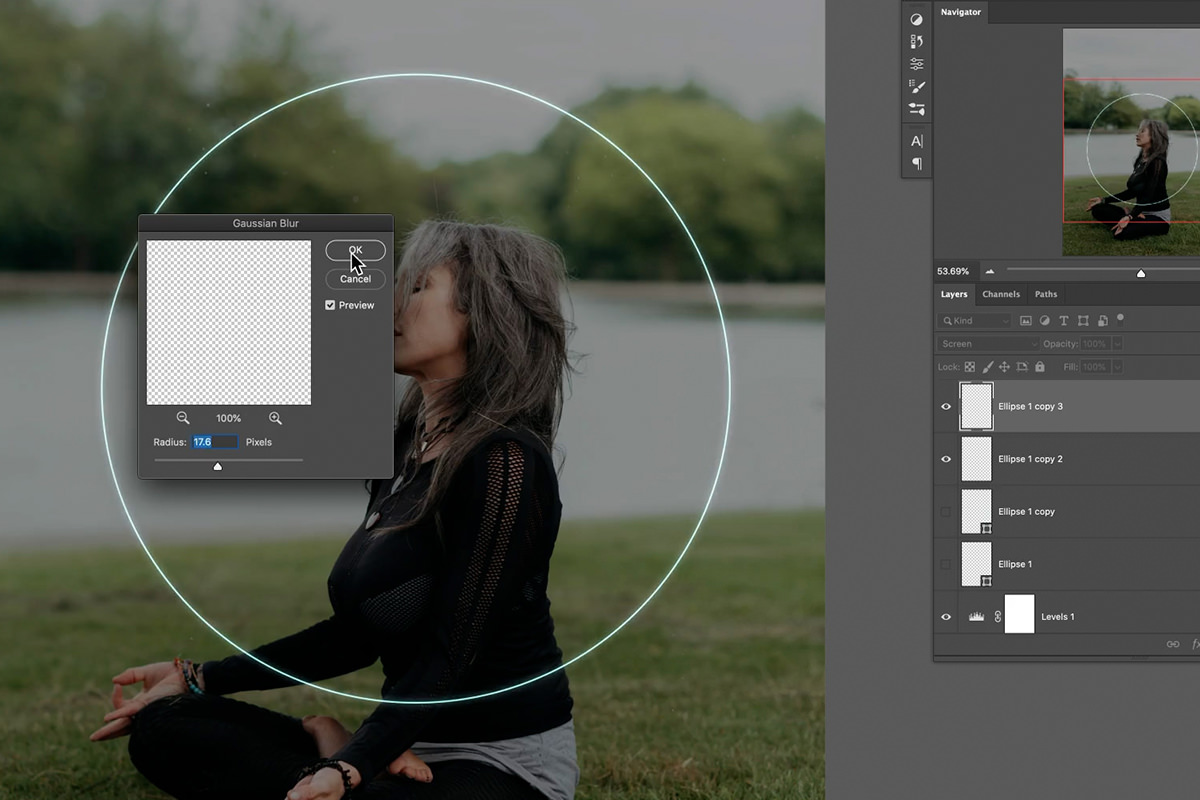
Duplicate and apply a small Gaussian Blur
Filter, then Blur, then Gaussian Blur. A small radius on the first pass.
-
Repeat with progressively larger blurs
Duplicate again, blur more. Then again, blur more still. Three or four passes.
-
Blur the sharpest copy slightly too
A perfectly crisp core looks like vector art. Even the brightest part of a light has some softness.
Why the stack works
Real light does not fall off in a single smooth gradient. It has an intense core, a bright halo, and a broad soft bloom, each much dimmer than the last. Stacking screened copies at increasing blur radii reproduces exactly that layered falloff. The more levels of duplication and blur you build, the more convincing the light becomes. This is the single biggest factor in whether a glow reads as real.
Group each set of ring layers with Ctrl or Cmd + G as you finish it. Do the thicker ring the same way: rasterize a copy, set it to Screen and give it a big blur, then duplicate it with another big blur. This edit produces a lot of layers, and organizing as you go is the difference between a project you can revisit and one you cannot.
Break the Perfection
A mathematically perfect ring looks synthetic. In the first group, add a layer mask to the base ring layer, take a normal brush at around 20% flow, and paint black in a few places to fade parts of the ring.
The change is subtle and it matters. Some sections stronger, some weaker, none of it uniform. That irregularity is what makes the eye accept it as energy rather than geometry.
Blend Modes and the Dissolve Trick
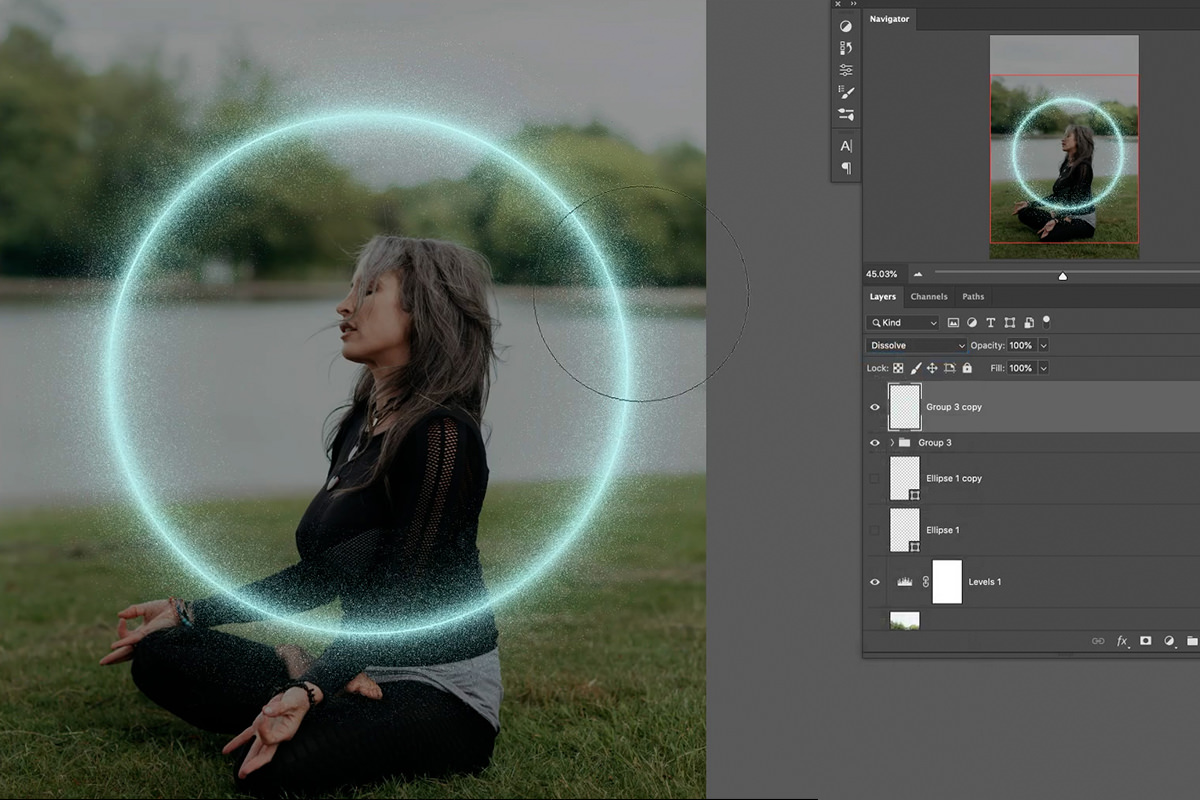
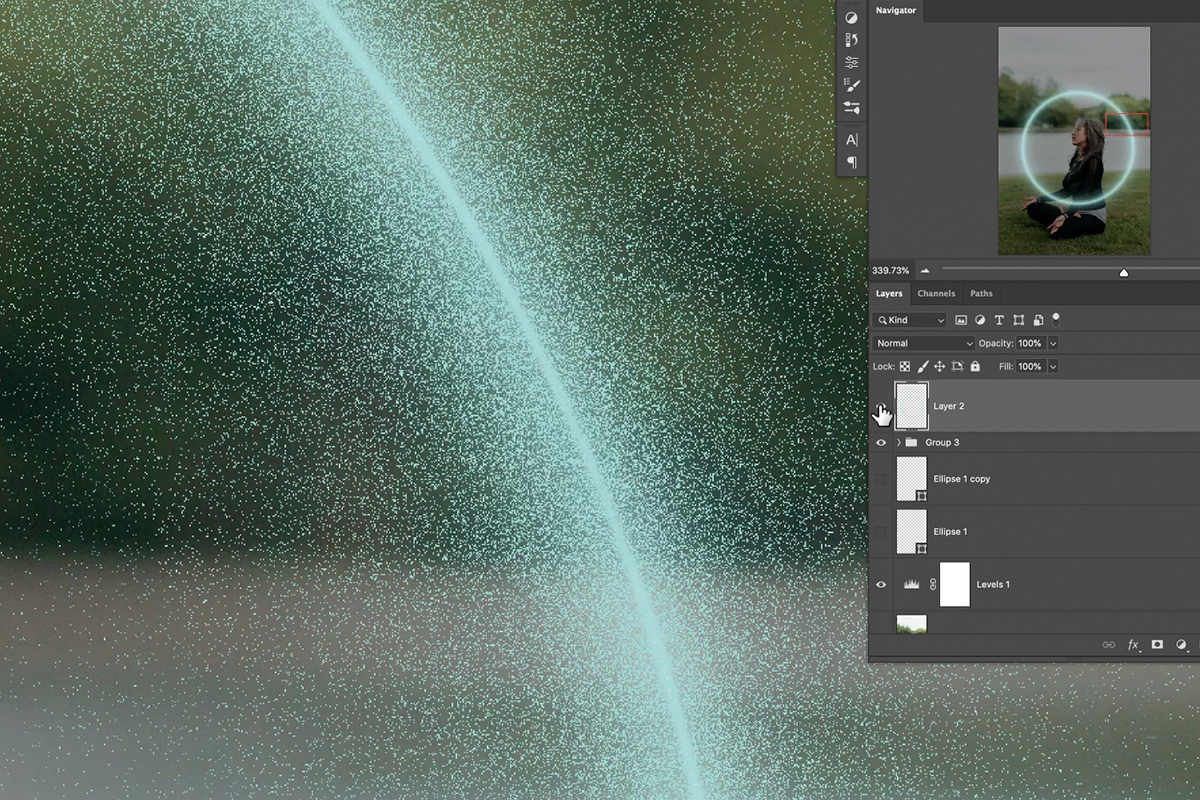
Group both ring groups, then merge a duplicate (Ctrl or Cmd + J to duplicate, then Ctrl or Cmd + E to merge) so you have a single flattened copy to experiment with, and cycle through blend modes.
Dissolve is worth stopping on. It produces a scattered, particle-like breakup that suits an energy effect and is rarely useful anywhere else in Photoshop.
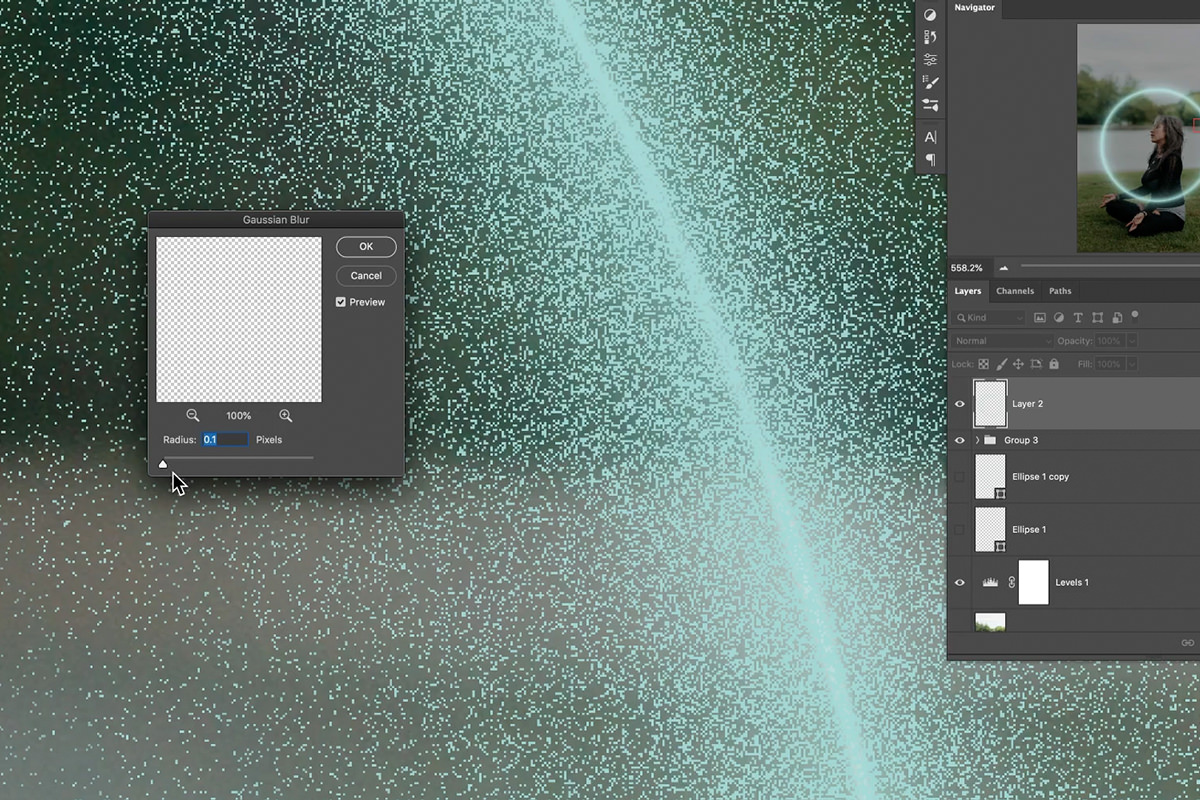
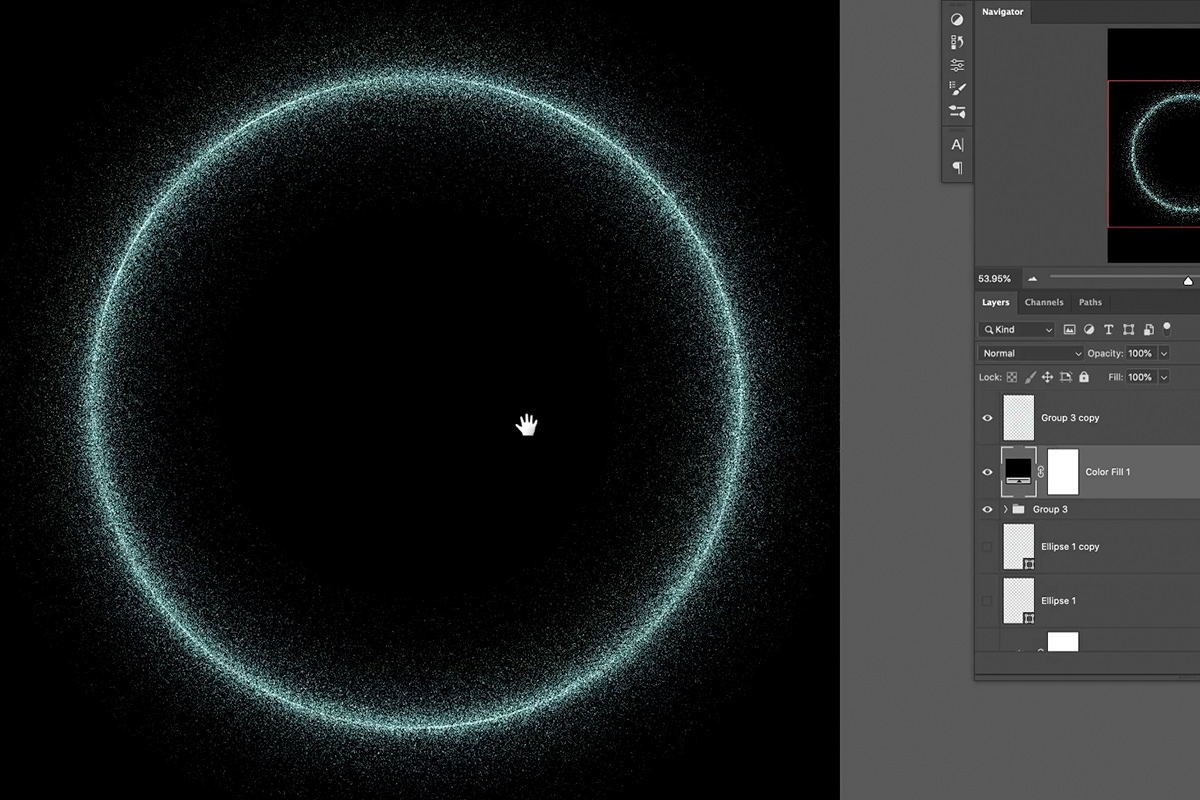
The problem is that Dissolve is not a normal layer. Add a mask or transform it and it behaves strangely, and up close it is literally a grid of hard squares. So capture the look and convert it into ordinary pixels:
-
Put a solid color fill layer underneath
Black works well and makes the dissolve pattern clearly visible.
-
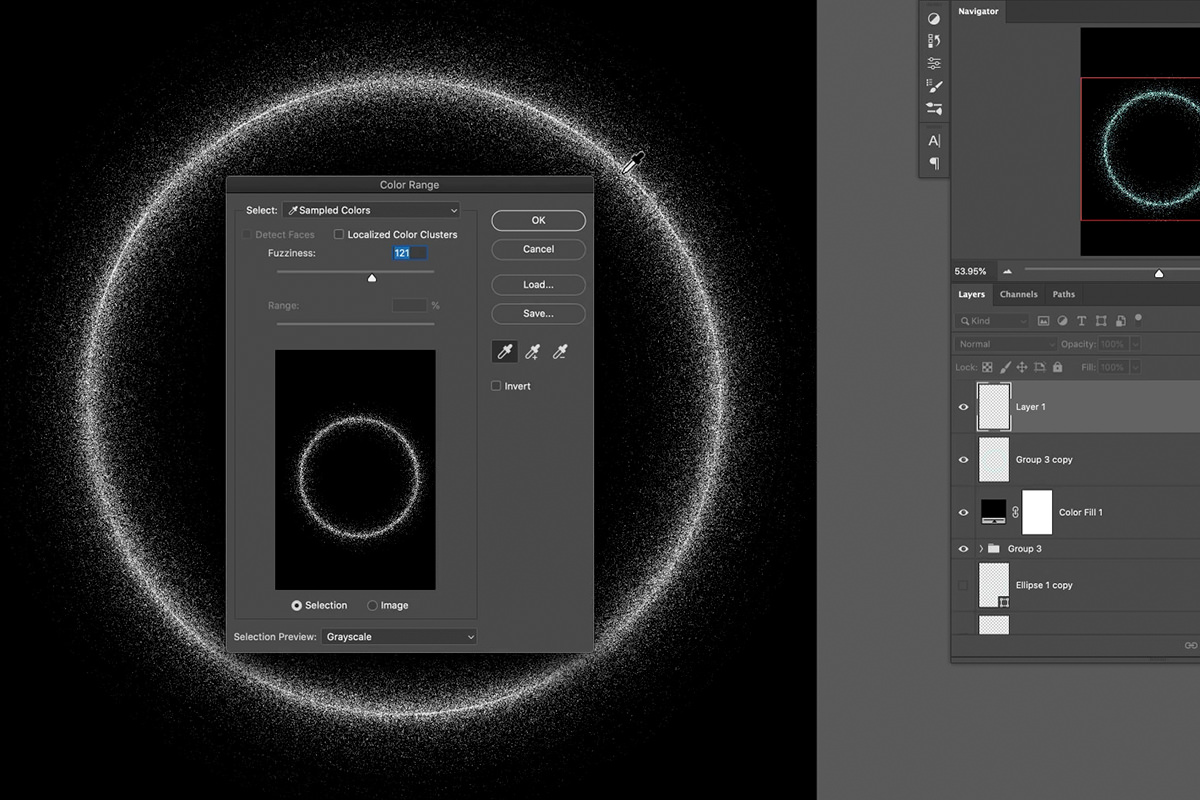
Go to Select, then Color Range
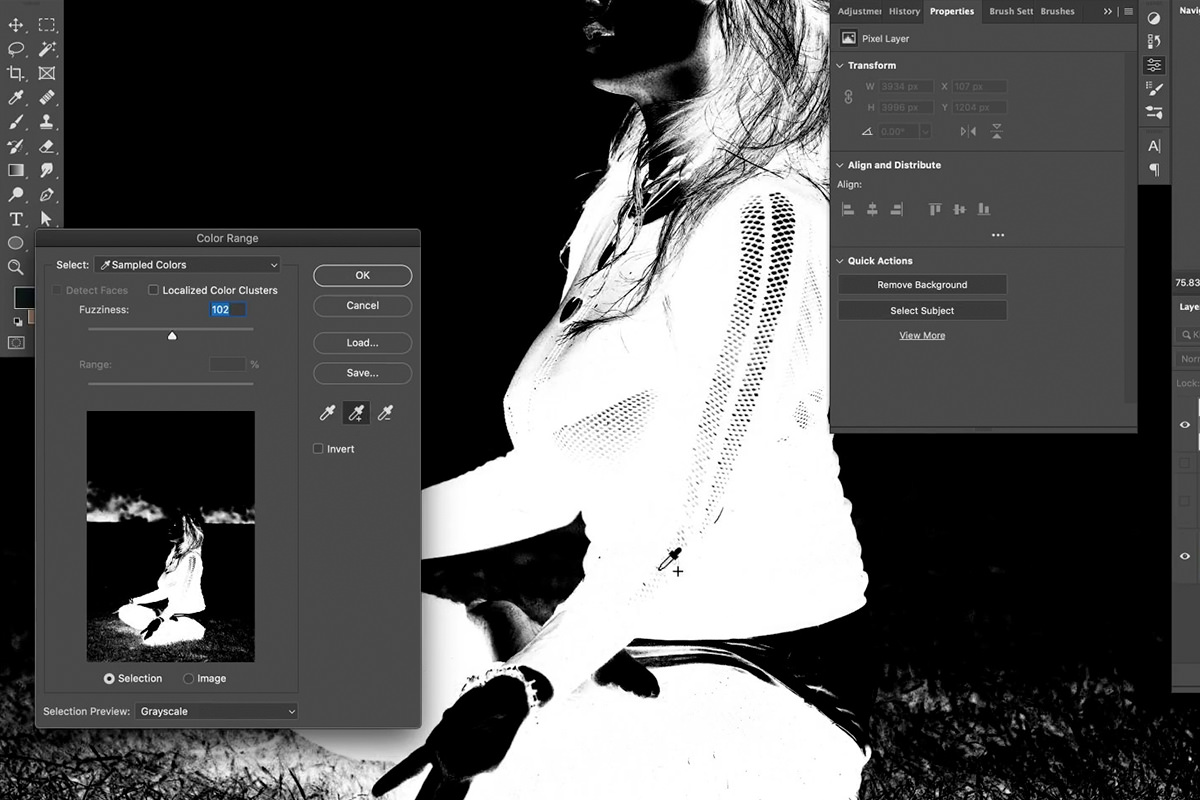
Click on the dissolve pattern and raise Fuzziness until the scattered pixels are selected.
-
Fill a new layer with your glow color
Press Shift + Delete and fill with the foreground color, then Ctrl or Cmd + D to deselect.
-
Delete the source layers
You now have the dissolve pattern as a normal, fully editable layer.
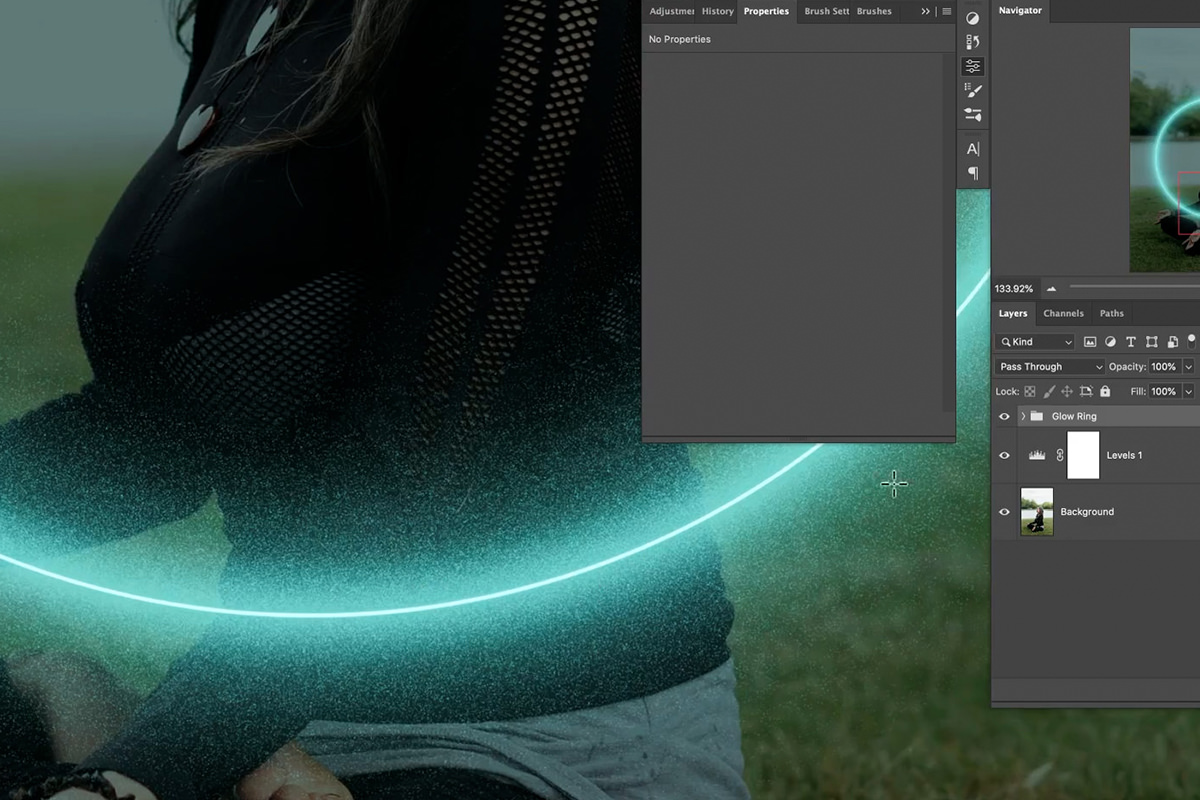
Add a small Gaussian Blur to soften the hard pixel edges, then duplicate, scale up with Ctrl or Cmd + T and blur further for a second layer of particles.
This trick generalizes. Any time a blend mode gives you a look you want but a layer you cannot work with, use Color Range to extract the appearance onto a normal layer.
Now finish the ring. Set the original ellipse shape layer from Normal to Screen, press U and lower its stroke width until it is a really thin line. Because it is still a shape, you keep that control after the fact. Then duplicate the whole ring group and merge the copy with Ctrl or Cmd + J and Ctrl or Cmd + E. Try Overlay, Soft Light and Hard Light; Vivid Light works especially well. Press Ctrl or Cmd + U and make that layer a little darker and a little more saturated.
The background needs to get darker too. Double-click the adjustment layer from the first step, go to the Red channel and bring the reds down. The whole scene gets darker and takes on the green of the light.
Putting the Ring Behind the Subject
The ring currently passes straight across the subject. It needs to go behind them.
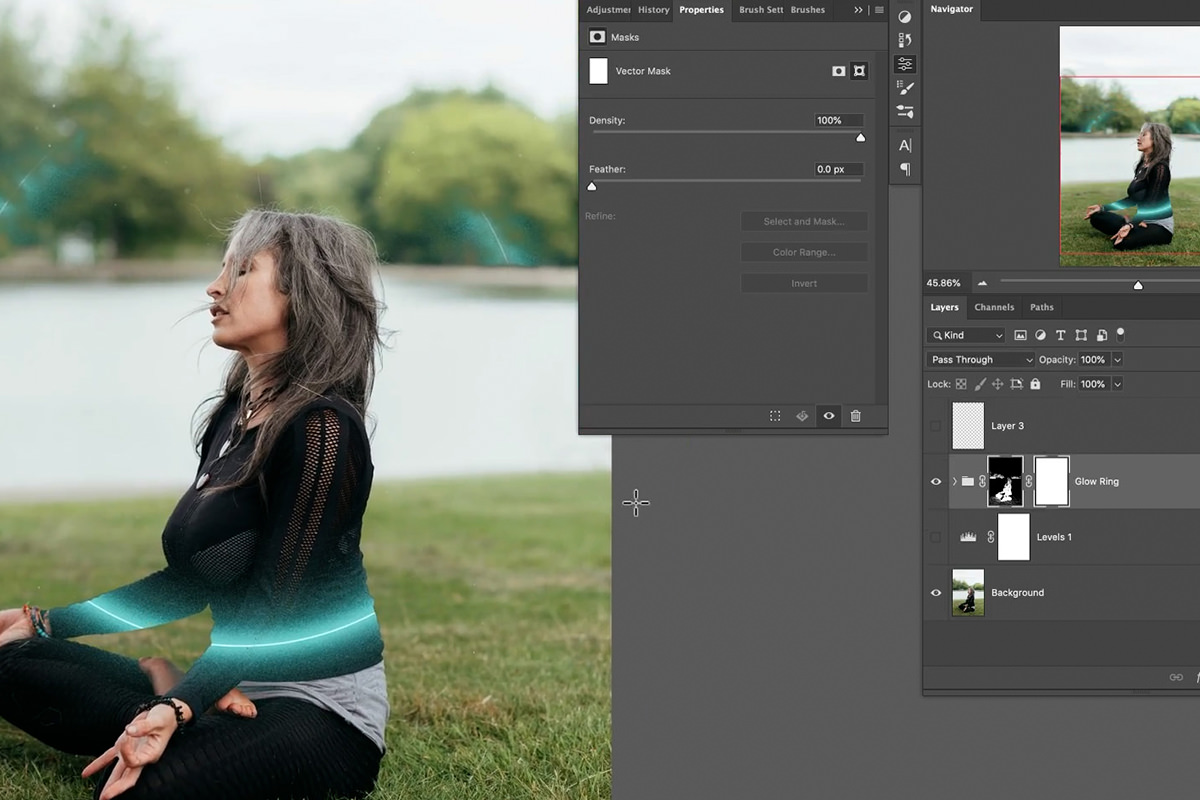
Hide the ring temporarily, make a new layer, and use Select, then Color Range, clicking on the subject’s clothing. Use the plus eyedropper to add to the selection until the subject is reasonably well covered.
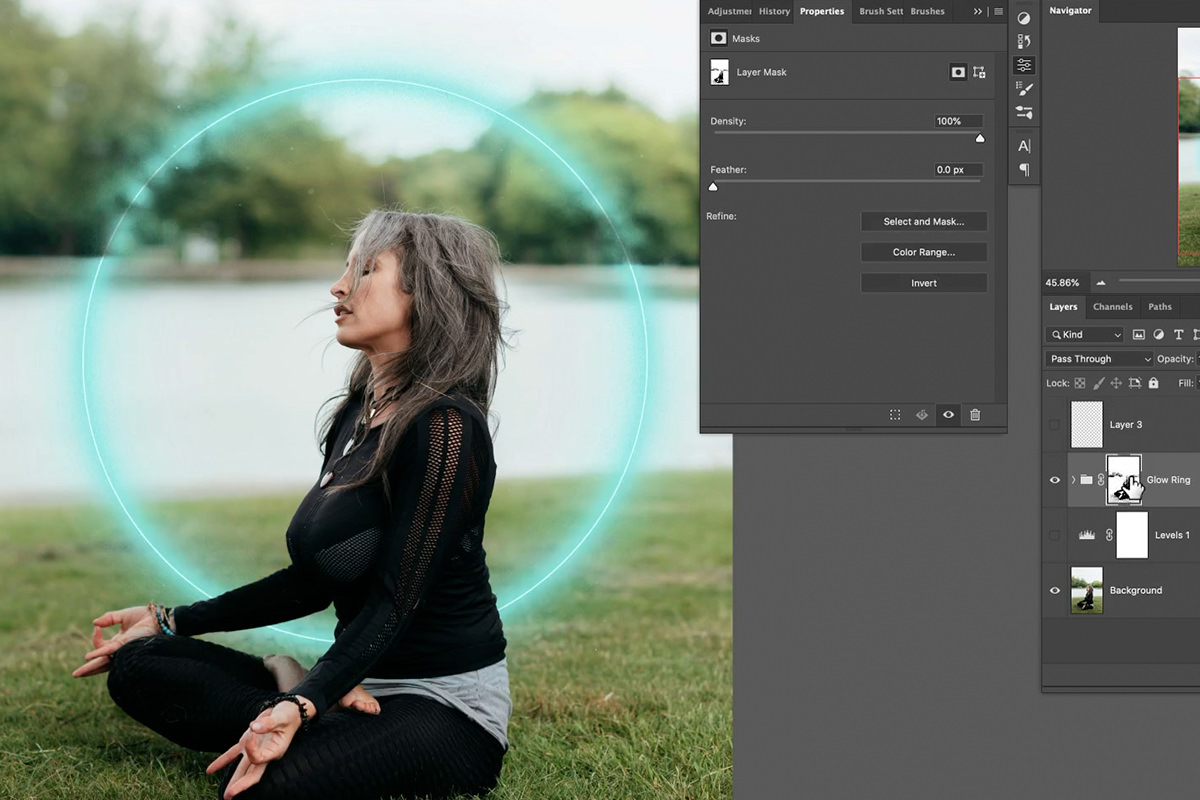
With the selection active, click the ring group and add a layer mask. If the mask comes out inverted, with the ring visible only where you wanted it hidden, press Ctrl or Cmd + I with the mask selected to flip it.
Alt or Option click the mask to inspect it. Color Range will usually have caught some background too, so paint white over those areas to bring the ring back where it belongs. You could trace this with the Pen Tool instead, but for a mask that only needs to be roughly right, Color Range takes seconds.
Painting the Light Onto the Subject
This is the step that separates a convincing effect from an obvious one. A light source in a scene illuminates the things around it, and none of the work so far has done that.
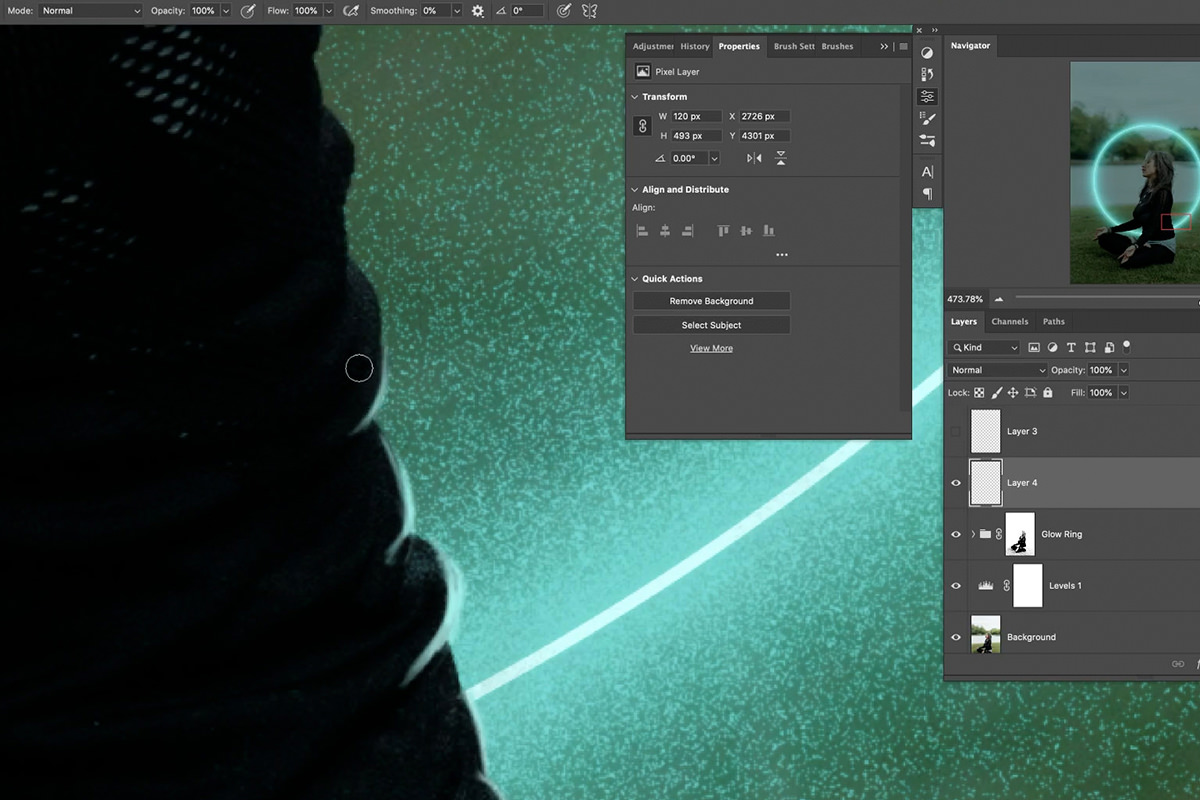
Create a new layer, press B for the Brush Tool, and sample the bright color from the ring itself using Alt or Option. Then paint along the edges of your subject where the light would actually strike.
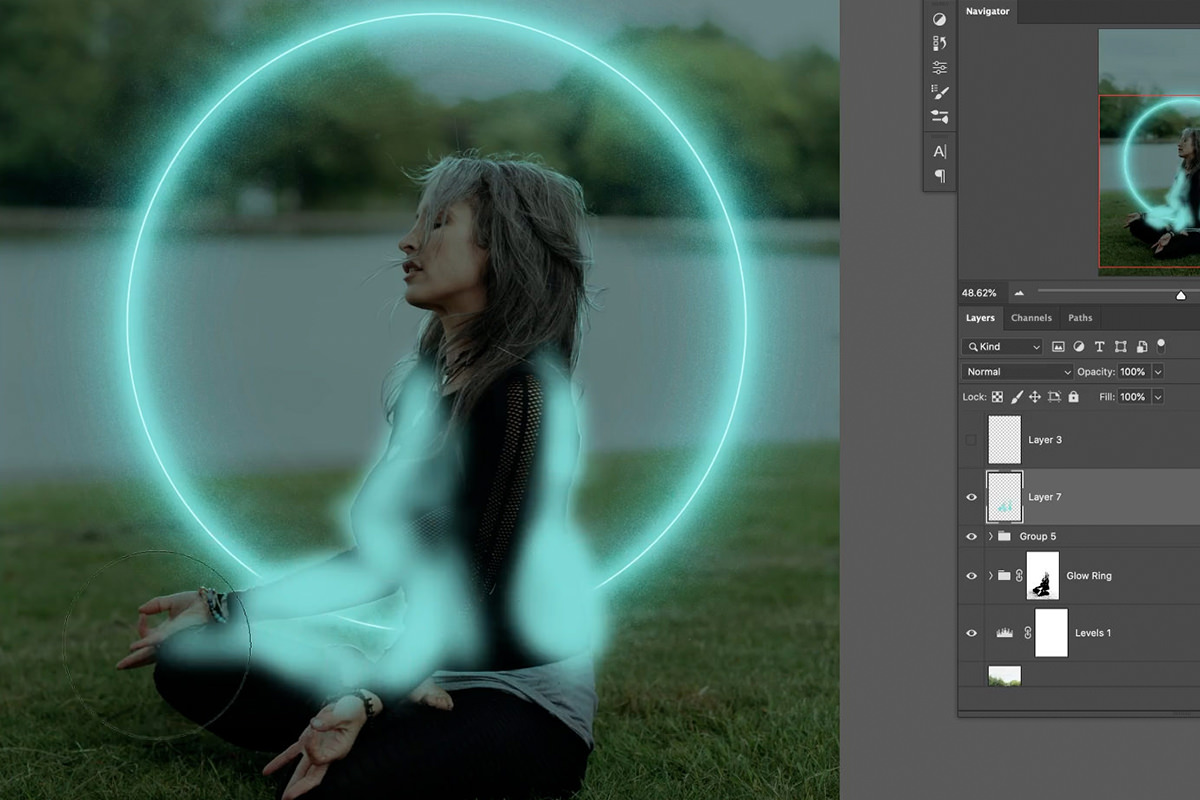
Think about direction constantly
This is the whole discipline. If the ring passes above and to the right of an arm, light the top of that arm and leave the underside dark. Where the ring passes below, reverse it. Light close to the source is intense and falls away with distance.
Working this way is genuinely a good exercise in observing light, and it is why the result looks considered rather than airbrushed.
Two practical tips
Press R for the Rotate View Tool to spin the canvas to a comfortable angle before painting a difficult stroke. Painting at a natural wrist angle produces much better lines than contorting to follow the image orientation. Press R again and hold Shift to snap back upright.
Press E for the Eraser whenever a stroke goes wrong. Nothing here needs to be right first time.
Do not chase perfection at 400%
Work zoomed in to 200–400% so the strokes are accurate, but judge the result at 100%. Imperfections that look glaring up close vanish entirely when you zoom out, and the effect reads beautifully long before the painting is technically clean.
Lighting the Hair
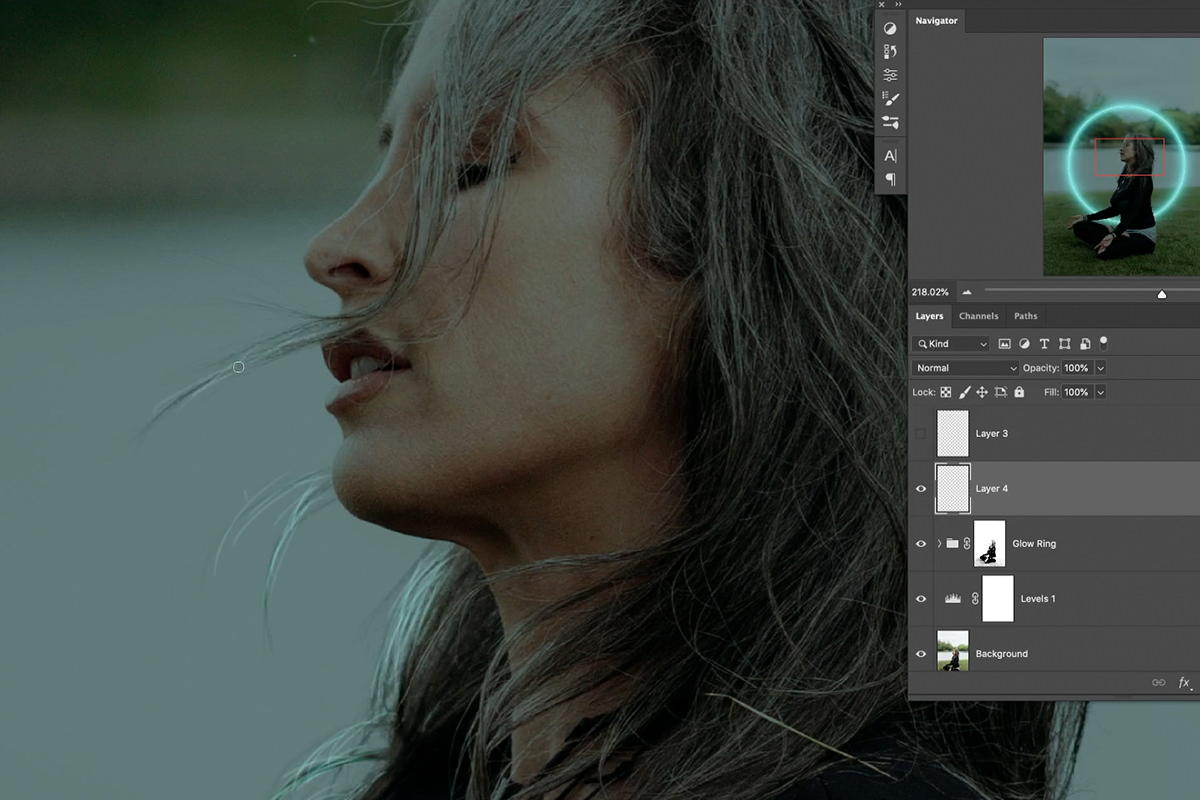
Hair needs its own pass. Make a new layer and use Color Range to select the hair, then paint bright color on the outer strands with the selection active. Press Ctrl or Cmd + H to hide the selection edges while keeping the selection live.
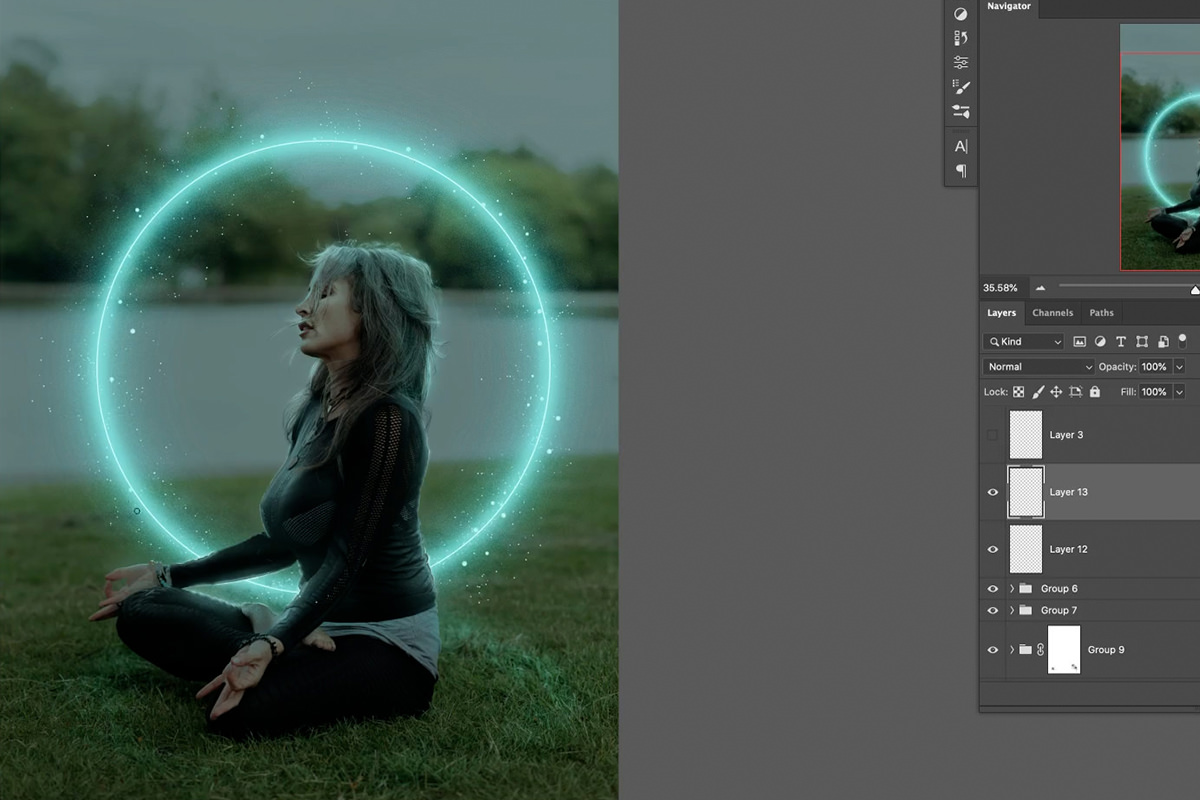
Then take a very small brush and paint individual strands by hand, following the direction of the hair that is already there. Focus on strands behind and around the head rather than across the face, since that is where a backlight would catch. It takes patience, but painted hair highlights are one of the most convincing parts of the whole effect.
Blend If for Believable Falloff
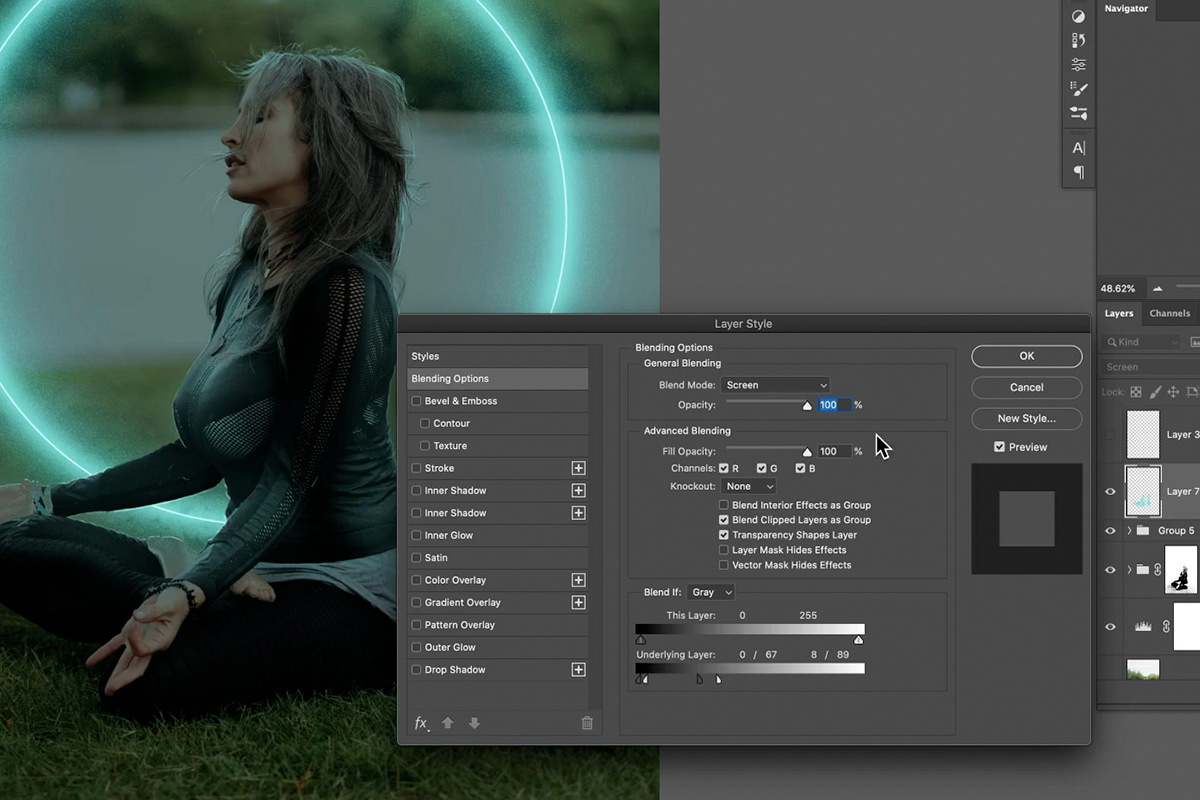
For a broader wash of color across the subject, Blend If does the blending work for you.
-
Paint the glow color loosely on a new layer
Across the arm, the leg, wherever light would reach. Precision is not required.
-
Set the blend mode to Screen
Lightening only, as before.
-
Double-click the layer to open Layer Style
Find the Blend If section at the bottom and work with the Underlying Layer slider.
-
Alt or Option drag the slider handles to split them
Splitting a handle turns a hard cutoff into a smooth transition. Without splitting, Blend If produces harsh visible edges.
-
Restrict the layer to the tones you want
Drag from the left to hide the effect in shadows, and from the right to hide it in highlights, depending on where you painted.
Then add a layer mask and paint away anything that survived where light would not reach, like the front of an arm turned away from the source, for instance.
Repeat this approach separately for the hair and the face, using Soft Light or Screen and a small amount of Blend If each time. Doing them as separate layers rather than one is what gives you control at the end.
Light on the Ground
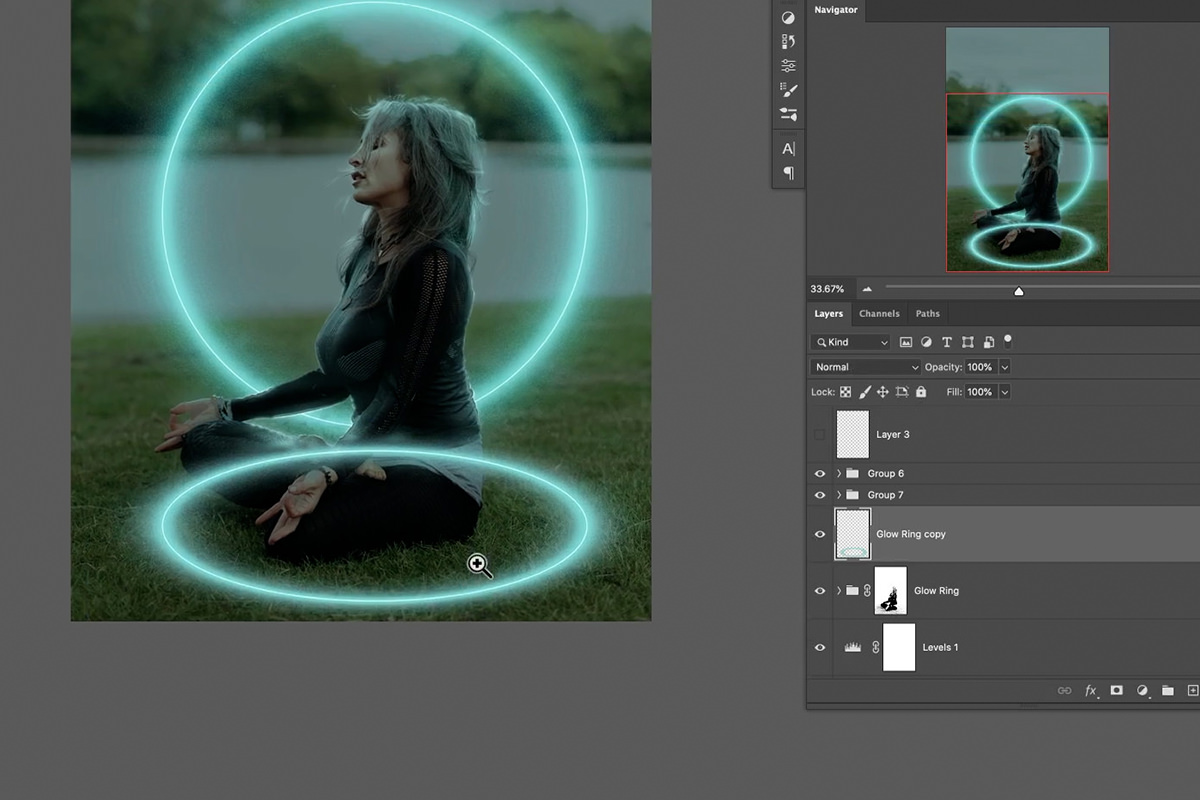
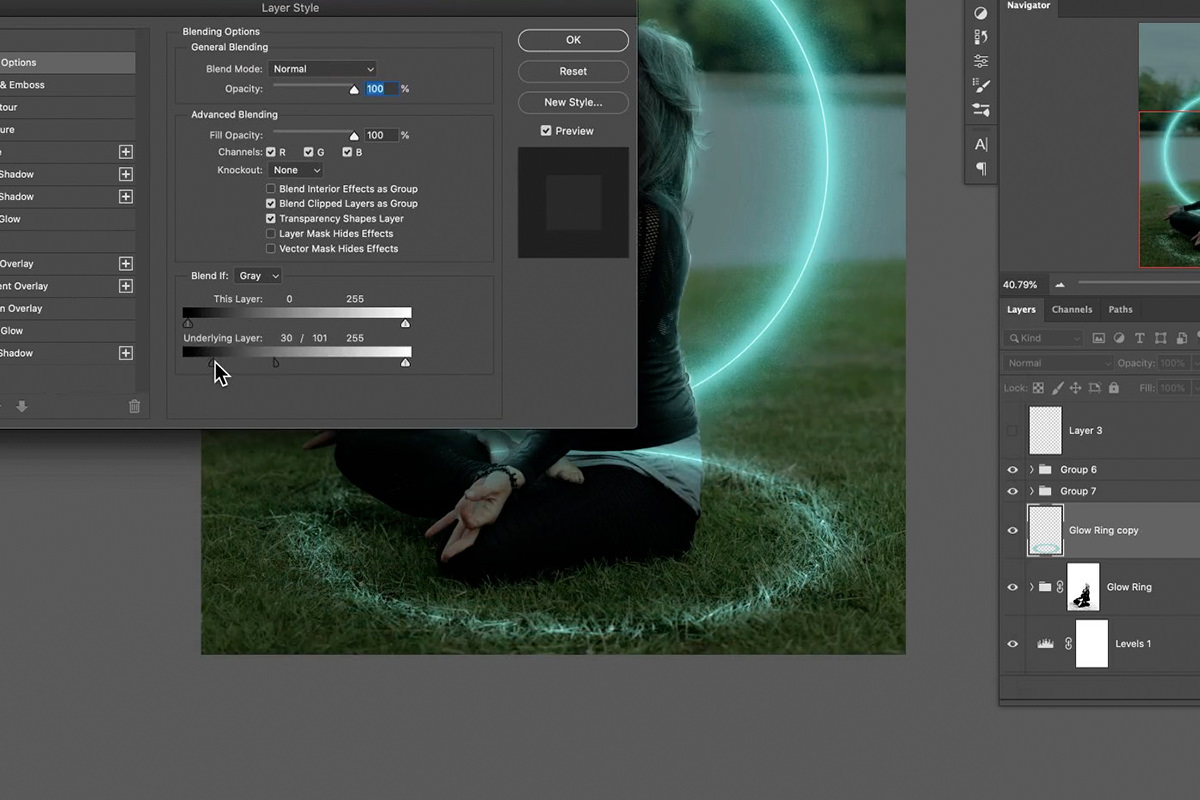
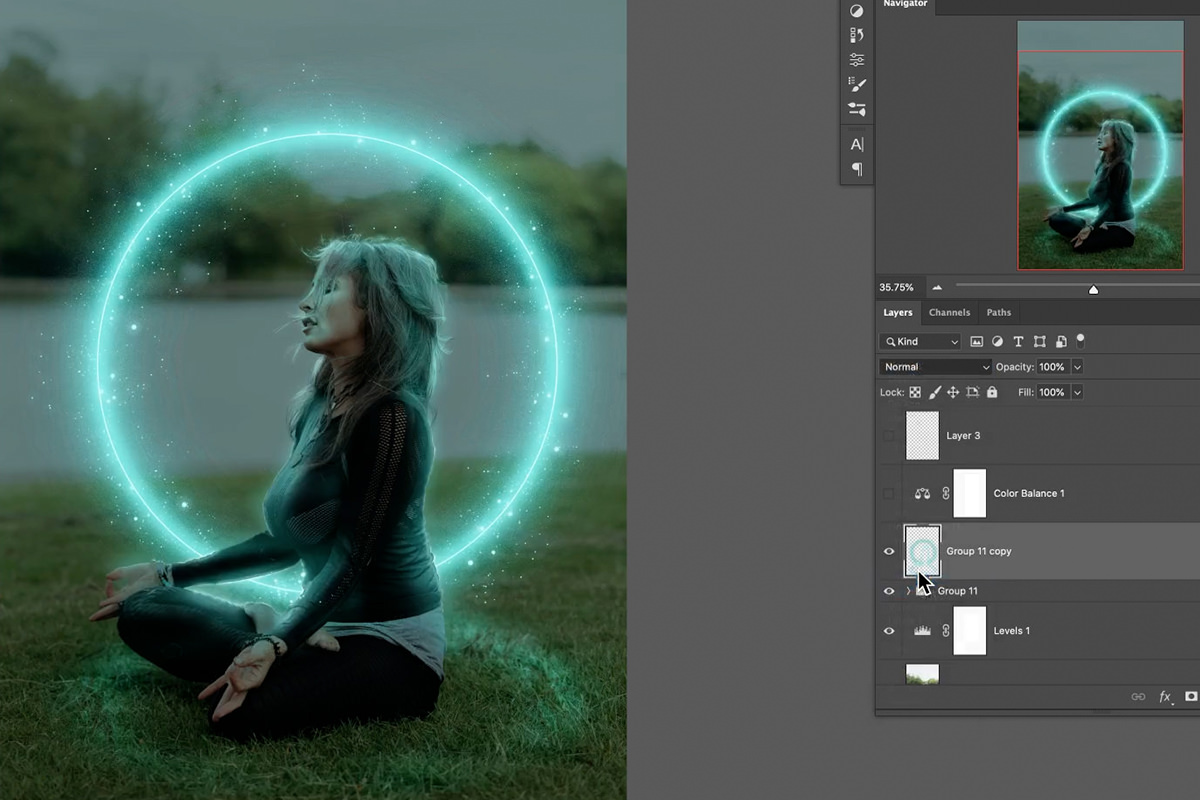
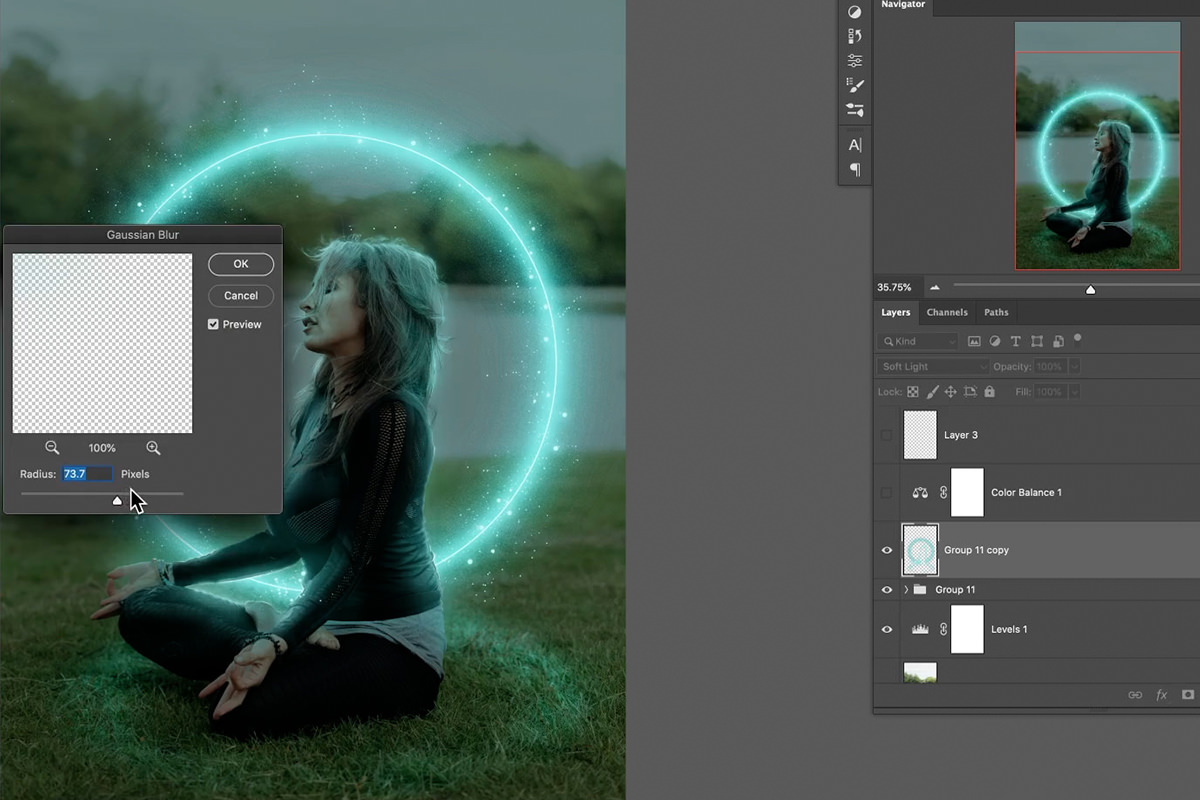
Light hits the floor as well. Duplicate the ring group, delete its mask, and use Ctrl or Cmd + T to shrink and reposition it so it sits in the grass. Merge it down with Ctrl or Cmd + E.
Set an appropriate blend mode (Soft Light or Color Dodge both work) and use Blend If to keep it out of the shadows. Then blur it heavily. Light on a surface is a diffuse glow, not a defined shape, and under-blurring this is the most common mistake.
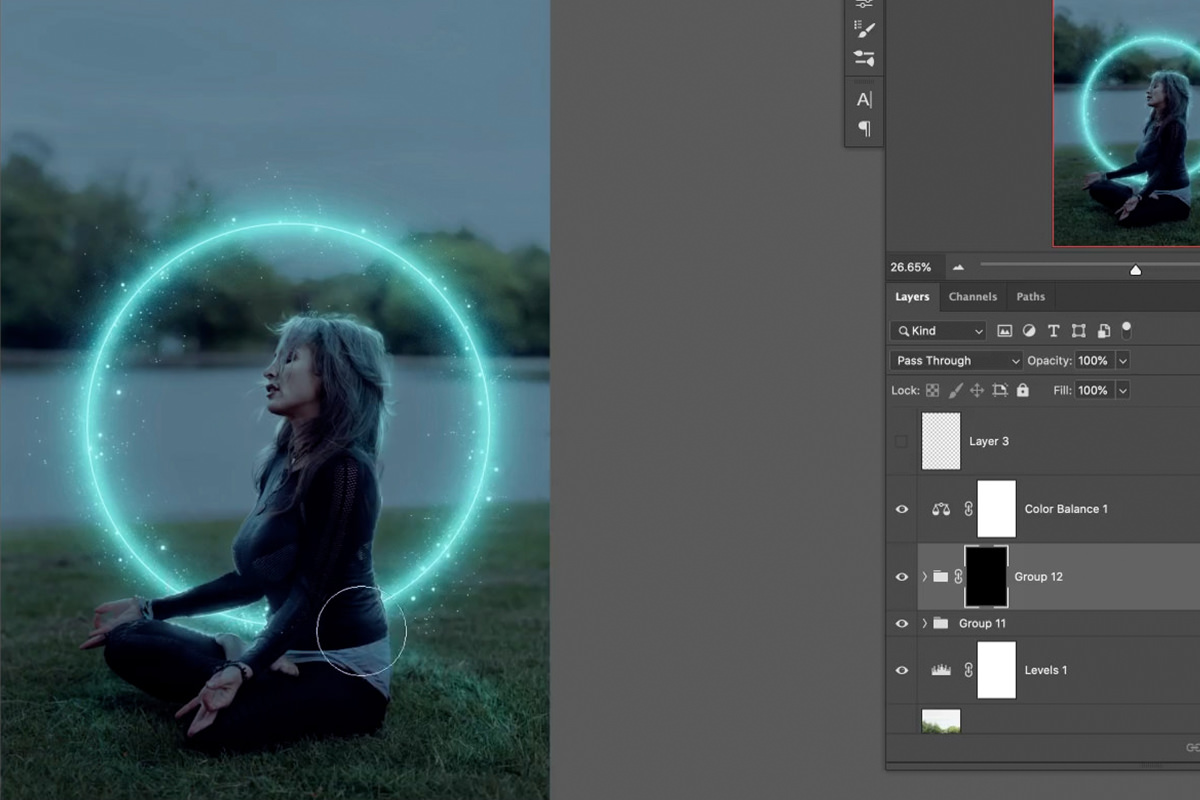
One refinement worth the extra minute: add a layer mask and paint black in a rough, broken pattern across the lit ground. Real light catches individual blades of grass, so interrupting the smooth glow makes it read as landing on a textured surface rather than floating above one. The mask does not need to be tidy; a scribble does the job.
A Custom Sparkle Brush
Small particles finish the effect and stop it looking like a single applied filter.
-
Open Window, then Brush Settings
Start from a normal round brush.
-
In Brush Tip Shape, raise Spacing and Hardness
High spacing separates the dots instead of drawing a line.
-
In Shape Dynamics, set Size Jitter to maximum and Control to Off
Control set to Off means it works without a pen tablet.
-
In Scattering, raise both axes
This spreads the particles into a natural cloud. Turn Transfer off as well.
-
Save it via the brush settings menu, New Brush Preset
Untick capture brush size so the preset works at any scale.
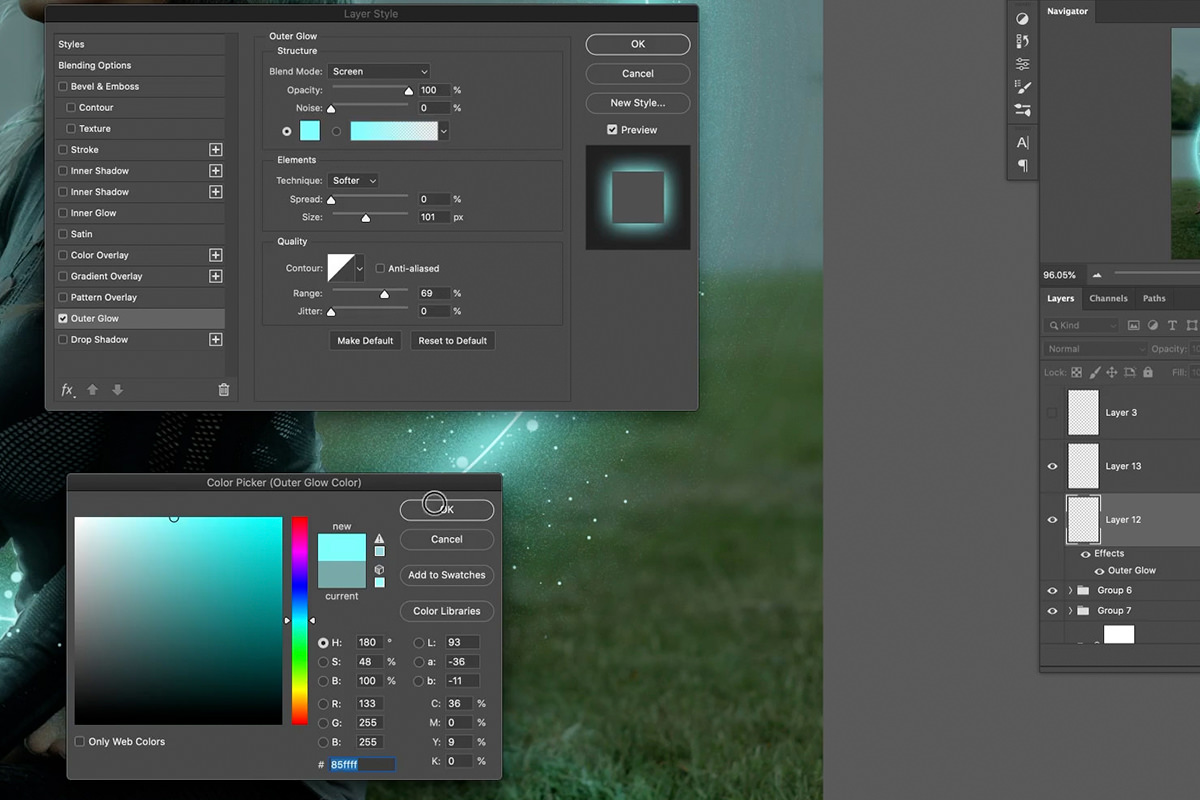
Paint a scatter of particles around the ring at a few different brush sizes, then double-click the layer and add an Outer Glow with blend mode Screen, a bright color and enough size to give each particle a soft halo. You can Alt or Option drag that layer style onto another layer to copy it across.
Final Color and One More Glow Pass
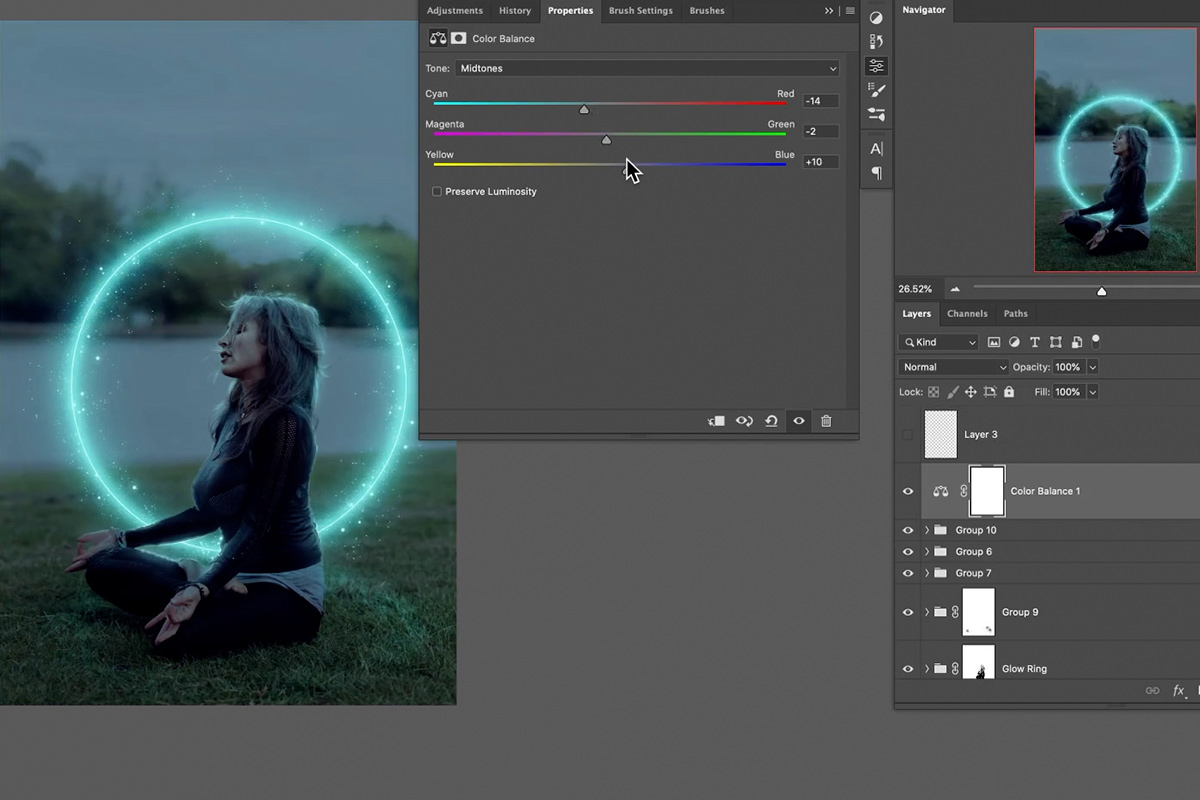
Add a Color Balance adjustment layer and push the Highlights toward cyan and a little toward green, then move the Shadows sliders and see what looks good. There is no formula here: move the sliders until it looks right. That genuinely is how most people do this, and it is worth saying rather than pretending otherwise.
The red tint you added to the first adjustment layer earlier does a similar job, pushing the whole scene toward the green of the light so the effect feels integrated rather than pasted on.
Finally, select everything you painted, duplicate it, and merge the duplicate with Ctrl or Cmd + E. Set it to Screen or Soft Light, apply a large Gaussian Blur, and use Blend If to keep it out of the shadows. This adds a final atmospheric bloom over the whole effect. Mask it in selectively (the hair, an arm, wherever it helps) rather than applying it everywhere.
What Actually Makes It Work
Looking back at the whole process, one move repeats over and over: duplicate, blur, change blend mode, mask selectively. That single pattern, applied at different scales and intensities, is most of the effect.
The other half is the part that has nothing to do with technique. The reason this reads as a light source rather than a graphic is that the light was painted onto the subject, the hair and the ground, each with attention to which surfaces face the source and which do not. You can build a beautiful glowing ring in ten minutes, but it will always look pasted on until you spend the time lighting the scene around it.
Quick Reference: Keys, Menus and Settings
- Darken the sceneLayer > New Adjustment Layer > Levels, pull the brights down; later lower the Red channel
- Draw the ringU for the Ellipse Tool, Shift-drag; Fill none, bright Stroke; Cmd/Ctrl + H hides the path
- Blur stackCmd/Ctrl + J, Rasterize Layer, Screen, Filter > Blur > Gaussian Blur; Cmd/Ctrl + G to group
- Dissolve to pixelsSelect > Color Range, Fuzziness; Shift + Delete to fill, Cmd/Ctrl + D to deselect
- Ring behind subjectColor Range on the shirt, layer mask on the group; Cmd/Ctrl + I inverts, Alt/Option-click views it
- Paint the lightB brush, E eraser, R rotate view; Blend If, Alt/Option-drag to split the tab
- Sparkle brushWindow > Brush Settings: Size Jitter up, Control Off, Spacing and Hardness up, Scattering Both Axes, Transfer off
No AI, no generative credits.
Free Downloads
Follow Along on the Same Photo
Get the yoga photo, the finished layered PSD, the PHLEARN Energy Sparkle brush and the 6-page PDF guide. Free with a PHLEARN account.
Glow Effects in Photoshop: Common Questions
Why does my glow look flat on my photo?
A glow doesn’t really work on a light image. Go to Layer > New Adjustment Layer > Levels and pull the brights down, or better yet, start with a dark image.
How do I draw a perfect ring of light?
Press U for the Ellipse Tool and hold Shift while you drag a circle around the subject. Set Fill to none and Stroke to a bright color, then press Cmd/Ctrl + H to hide the path so you can see the stroke width.
How do I make a shape look like it is glowing?
Duplicate it with Cmd/Ctrl + J, right-click the copy, choose Rasterize Layer and set it to Screen. Then keep duplicating and adding Filter > Blur > Gaussian Blur, a little more each time. The more levels of duplication and blur, the more real it looks.
Why set the glow layers to Screen?
Screen only makes things lighter. Light adds to a scene rather than covering it, so the glow brightens what is underneath without darkening anything.
How do I keep the Dissolve look on a normal layer?
Put a solid color fill layer under the Dissolve layer, make a new layer and use Select > Color Range on the speckle, raising Fuzziness. Press Shift + Delete to fill it with the foreground color, then delete the Dissolve and fill layers and add a tiny Gaussian Blur.
How do I put the ring behind my subject?
Select the shirt with Select > Color Range, then add a layer mask to the Glow Ring group. If it hides the wrong part, press Cmd/Ctrl + I to invert the mask, and paint white wherever the background got caught.
Where should I paint the light on the subject?
Where the ring would actually hit. If the ring is above an arm, paint the top and leave the bottom alone; where it is below, do the opposite. Keep it brightest close to the ring.
How does Blend If help the glow blend in?
Double-click the layer, then under Blend If hold Alt/Option and drag half of the Underlying Layer dark tab to the right. The split tab fades the glow out of the darkest areas with a soft transition.
Do I need a pen tablet to paint the light?
No. Aaron uses a pressure-sensitive tablet, but you can do it with a mouse or trackpad. Press R to rotate the canvas so you can paint at a natural angle.
Are the sample files free?
Yes, with a free PHLEARN account. You get 1 sample image, 1 sample PSD, 1 Photoshop brush and 1 PDF guide: the yoga photo, the finished layered file, the PHLEARN Energy Sparkle brush and the 6-page step-by-step guide.
Master Photoshop, Lightroom and Photography
Join PHLEARN PRO for $12.99 a month or $99.99 a year. Cancel anytime, with a 100% money-back guarantee.





