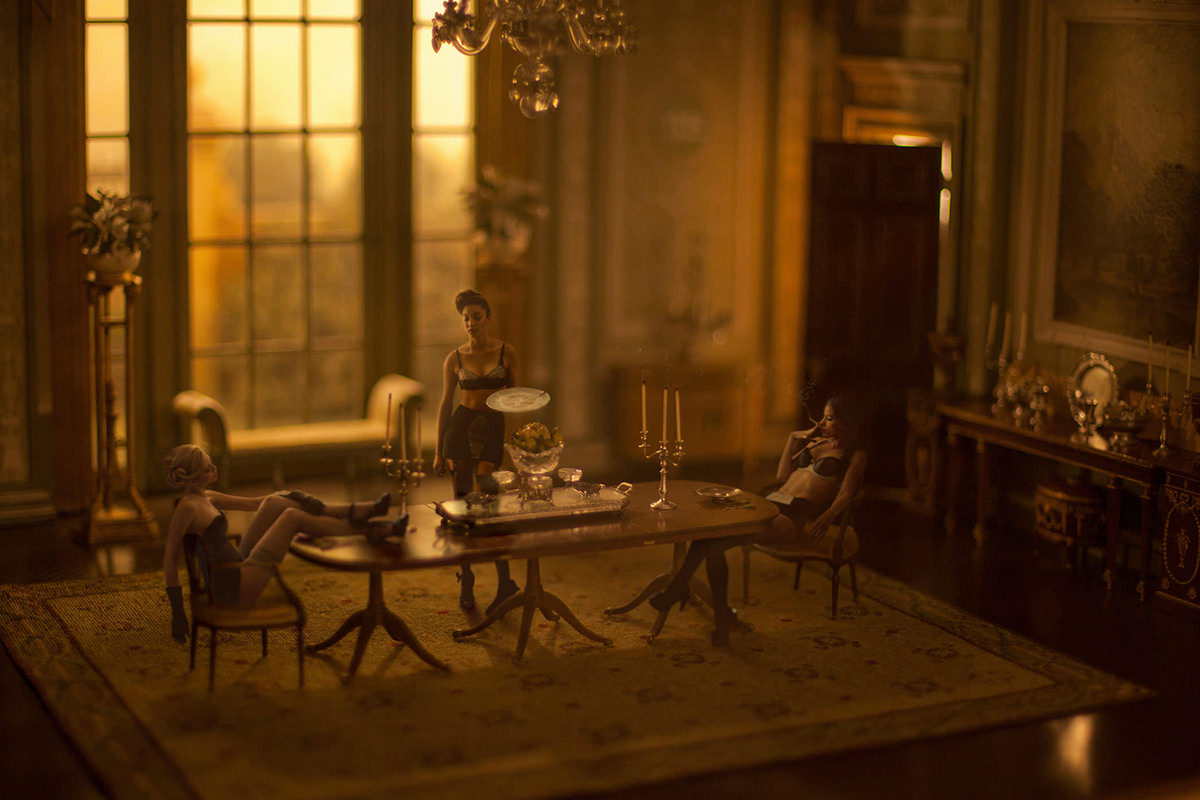

Download Assets
This tutorial includes 12 desktop wallpapers and 1 PDF guide. Downloads are free with a PHLEARN account.
- Download the sample files from every free tutorial on PHLEARN
- New free tutorials published every week
- One free account: sign up once, then download anything
Free PDF Guide · 4 Pages
This Tutorial as a Step-by-Step PDF
This guide walks through making wallpapers for each screen: finding your resolution, new documents with Ctrl/Command+N, File > Scripts > Load Files into Stack, fitting photos with Ctrl/Command+T, File > Export > Layers to Files as JPEG, and setting the folder in Desktop & Screen Saver. Use it on your own photo series.
description
Making desktop wallpapers from a photo series is really a batch job. This tutorial covers finding a display’s exact pixel resolution, building a document to match, loading a whole set of photos in as layers with Load Files Into Stack, scaling each one to fill the frame, and exporting every layer as its own JPEG in a single pass with Layers to Files.
Enjoying This Free Tutorial?
We publish a new free tutorial every week, each one with sample images and PSDs you can download and follow along with. Sign up and they land straight in your inbox, along with early word on sales, events and subscriber-only offers.
Turning a photo series into properly sized desktop wallpapers takes more than just resizing an image once, since different screens need different exact dimensions. This tutorial covers checking a display’s actual screen resolution, creating a document sized for it, bringing in and resizing a batch of photos, exporting each one individually with the Layers to Files script, and sharing the finished files online.
Checking a Display’s Exact Screen Resolution
A desktop wallpaper needs to match the display’s actual pixel resolution exactly, so checking that number first determines the size of the document to build.
-
Open Display Settings
Open the system’s display preferences to find the screen’s resolution.
-
Note the Exact Resolution
Check the reported resolution, such as 1440 by 900 for one laptop or 2560 by 1440 for a larger monitor.
Creating a New Document Sized for Each Resolution
Building a separate new document at each target resolution ensures the wallpapers being created will display correctly on that specific screen.
-
Create a New Document at the First Resolution
Press Cmd/Ctrl+N and enter the exact width and height for the first display, such as 1440 by 900.
-
Create a Second Document for a Different Display
Create another new document at a second resolution, such as 2560 by 1440, if wallpapers are needed for more than one screen size.
Importing a Series of Photos to Use as Wallpapers
Loading multiple images into a stack at once brings an entire photo series into Photoshop together, ready to resize and organize into the wallpaper documents.
-
Load Files Into a Stack
Go to File > Scripts > Load Files Into Stack, then browse to and select all the images meant to become wallpapers.
-
Confirm the Import
Click OK to open every selected image as its own layer in a new stacked document.
Dragging and Resizing Images Into Each Wallpaper Document
Dragging each image layer into a wallpaper document and transforming it to fit precisely matches the source photos to the display’s exact dimensions.
-
Select and Drag the Layers
Shift-click to select all the imported image layers and drag them into one of the wallpaper documents.
-
Resize Each Image to Fit the Document
With the layers still selected, press Cmd/Ctrl+T, click the chain link in the options bar to keep the proportions, and scale them so they fill the document’s dimensions. Adjust any single layer afterward if it needs its own framing.
-
Delete the Original Background Layer
Delete the leftover blank background layer from the new document, since only the resized photo layers are needed.
-
Repeat for the Second Document
Repeat the same dragging and resizing process to fill the second wallpaper document at its own resolution.
Why Each Image Needs Individual Resizing Per Document
A photo resized correctly for one screen resolution won’t automatically fit a different resolution’s exact aspect ratio and dimensions. Resize the layers individually within each target document so every wallpaper fills its intended screen edge-to-edge without stretching or leaving gaps.
Why Layers to Files Beats Saving Each Layer Manually
Manually toggling each layer’s visibility on and off and running Save As for every single one is slow and easy to make mistakes with once a document has more than a handful of layers. The Layers to Files script automates that entire process, exporting every layer as its own correctly named file in one run, with the file type and quality settings applied consistently across all of them.
Batch Exporting Every Layer to Its Own File
The Layers to Files export script automatically saves each layer in a document as its own separate image file, avoiding the need to manually toggle layer visibility and save one at a time.
-
Confirm the Document Size
Check Image > Image Size to confirm the document matches the intended resolution before exporting.
-
Open Layers to Files
Go to File > Export > Layers to Files.
-
Choose an Output Folder and File Prefix
Browse to a destination folder, such as one named for the target device, and set a file name prefix like “iMac Desktop.”
-
Set the File Type to JPEG
Change the file type from PSD to JPEG, with a quality setting such as eight, since JPEG is the appropriate format for a desktop background.
-
Run the Export
Click Run to export every layer in the document as its own individually named JPEG file.
-
Repeat for the Other Document
Repeat the same export process on the second wallpaper document, using a different output folder and file prefix.
Setting the Exported Images as Desktop Wallpaper
Pointing a computer’s desktop settings at the exported folder loads every image as a rotating wallpaper option.
-
Open Desktop Preferences
Open the system’s Desktop & Screen Saver preferences.
-
Choose the Exported Folder
Select the folder containing the exported JPEG files as the desktop image source.
-
Set Rotation Options
Optionally set the wallpaper to change automatically on a timer, such as every 30 minutes, and choose a random order.
Why a Shared Link Works Better Than Emailing Files Directly
Sending a full set of large JPEG wallpapers as email attachments quickly runs into file size limits and clutters an inbox for anyone downloading them. A single shareable link from a service like Dropbox lets any number of people download the whole zipped set on their own schedule, and that same link can be posted on a website or social media instead of resent individually.
Compressing and Sharing the Wallpapers Online
Compressing each output folder into a zip file and uploading it to a service like Dropbox makes it easy to share a complete wallpaper set with anyone through a single link.
-
Compress Each Output Folder
Right-click each output folder and choose Compress to create a zip file of its contents.
-
Upload to a File-Sharing Service
Move the zip files to a service like Dropbox to upload them online.
-
Generate and Share a Download Link
Create a shareable link from the uploaded file and post it wherever people should be able to download the wallpapers, such as a website or social media.
Why This Approach Works
Checking each screen’s exact resolution before building a document is what guarantees the finished wallpaper fills the display perfectly instead of appearing stretched, cropped, or letterboxed. Using Load Files Into Stack and then the Layers to Files export script turns what would otherwise be dozens of manual open-resize-save cycles into two batch operations. Compressing and uploading the finished files to a shared link is what turns a personal editing project into something anyone can actually download and use on their own computer.
Final Thoughts
None of the individual steps here are complicated, checking a resolution, dragging in photos, resizing, and exporting, but combined they turn a whole photo series into a polished, ready-to-share wallpaper set in a fraction of the time manual exporting would take. The same batch import and Layers to Files workflow scales to any number of images or target resolutions.
Quick Reference: Keys, Menus and Settings
- Find the screen sizeSystem Preferences > Displays, hover over Scale (Mac)
- New documentCmd/Ctrl + N: 1440 x 900 and 2560 x 1440 in the video
- Import the seriesFile > Scripts > Load Files Into Stack
- Fit the photosShift-click and drag the layers in; Cmd/Ctrl + T with the chain link on, Enter
- Export each layerFile > Export > Layers to Files: folder, prefix, JPEG, Quality 8, Run
- Set the wallpaperDesktop & Screen Saver: choose the folder, every 30 minutes, Random order
- Share the setRight-click > Compress, then upload and copy a Dropbox link

Free Downloads
Get the Same Wallpapers
Get the 12 desktop wallpapers, ready to use as your background, and the PDF guide with every step for sizing, exporting and sharing your own set. Free with a PHLEARN account.
Desktop Wallpapers in Photoshop: Common Questions
What size should a desktop wallpaper be?
Exactly your screen’s resolution. On a Mac, open System Preferences > Displays and hover over the Scale options to see the size, like 1440 by 900 for the MacBook Pro in the video; the 27-inch iMac is 2560 by 1440. Press Cmd/Ctrl + N and enter those numbers.
Do I need a separate document for each screen?
Yes. Make one document per resolution you want to offer. A photo sized for one screen won’t fit another screen’s exact dimensions, so each document gets its own resized copies.
How do I bring a whole series of photos in at once?
Go to File > Scripts > Load Files Into Stack, click Browse, choose the images and click OK. Photoshop opens them all as layers in one document.
How do I fit the photos to the wallpaper size?
Shift-click the layers and drag them into the wallpaper document. Press Cmd/Ctrl + T, click the chain link to keep the proportions, scale them to fill the document and press Enter. Delete the empty Background layer.
How do I save every layer as its own file?
Check Image > Image Size first, then go to File > Export > Layers to Files. Browse to an output folder, type a file name prefix like iMac desktop, set File Type to JPEG with a quality of 8 and click Run.
Should wallpapers be saved as PSD or JPEG?
JPEG. Layers to Files starts on PSD, so change the file type before you click Run.
How do I use the folder as my desktop background on a Mac?
Open System Preferences > Desktop & Screen Saver, choose the folder of exported JPEGs, and turn on Change picture, every 30 minutes in the video, with Random order.
Are the sample files free?
Yes, with a free PHLEARN account. You get 12 desktop wallpapers and 1 PDF guide: wallpapers sized for iMac and MacBook Pro screens, ready to set as your background.
Master Photoshop, Lightroom and Photography
Join PHLEARN PRO for $12.99 a month, or $99.99 a year (save 36%). Cancel anytime, with a 100% money-back guarantee.





