

description
Making an illustrated car look like its headlights are actually switched on takes more than a bright white shape, it takes a graduated beam, a glow, streaks of light, ground illumination, and a lens flare all working together. This tutorial covers sketching the effect first, building the beam with the Lasso tool and a two-pin Field Blur, adding an Outer Glow and a fading mask, creating light streaks from scratch, and finishing with a detachable lens flare.
Enjoying This Free Tutorial?
We publish a new free tutorial every week, each one with sample images and PSDs you can download and follow along with. Sign up and they land straight in your inbox, along with early word on sales, events and subscriber-only offers.
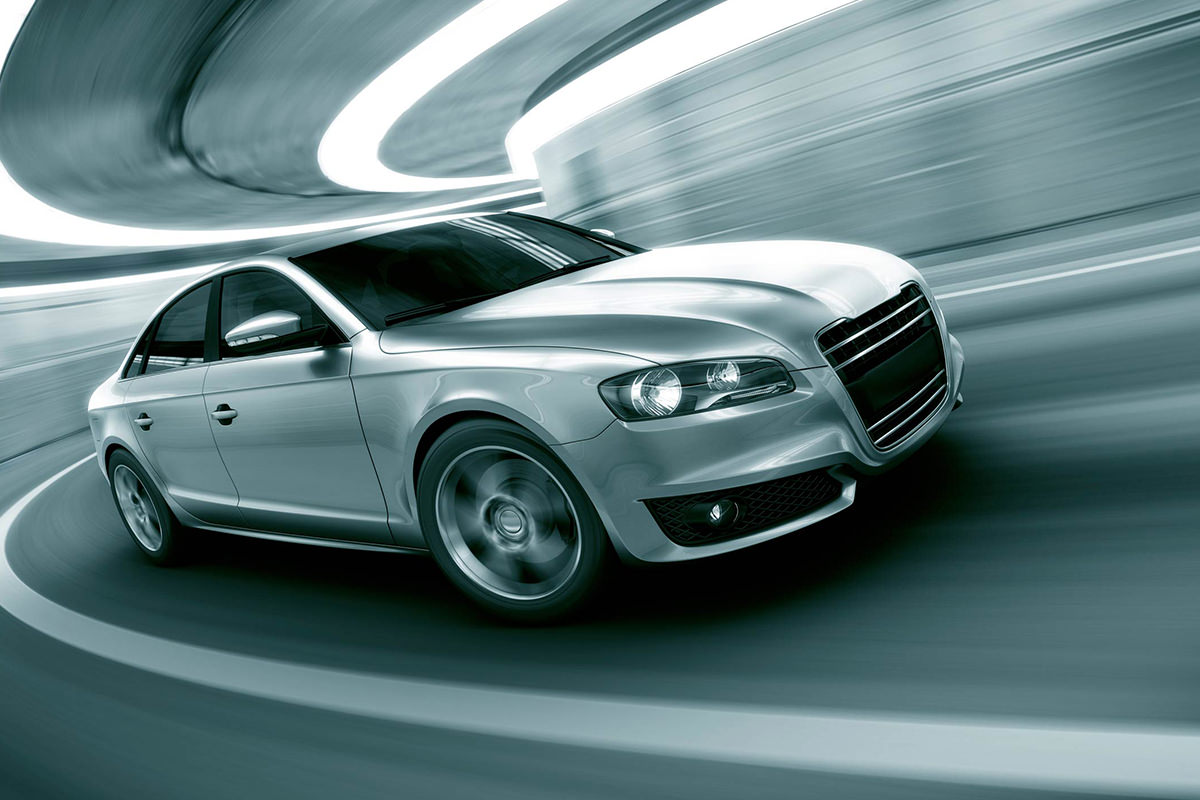
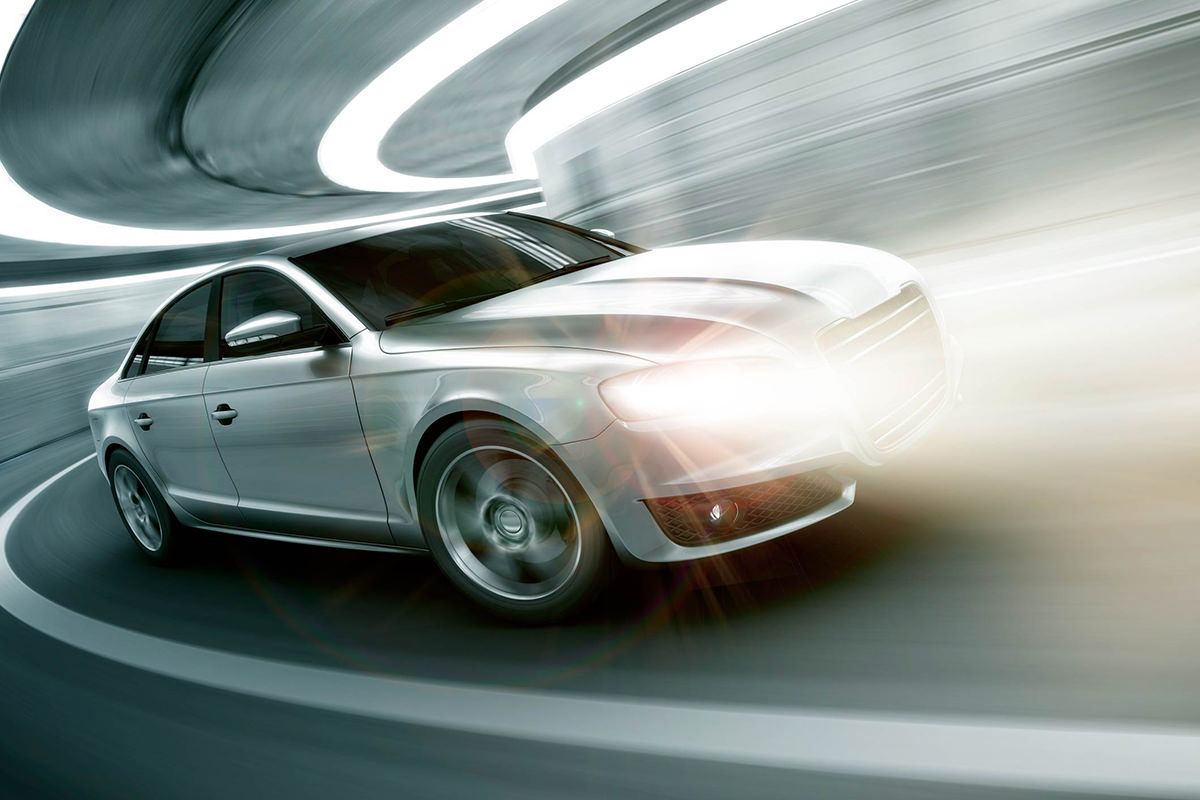
Making an illustrated car look like its headlights are actually switched on takes more than a bright white shape, it takes a graduated beam, a glow, streaks of light, ground illumination, and a lens flare working together. This tutorial covers sketching the planned effect first, building the beam with the Lasso tool and a graduated Field Blur, adding an Outer Glow and a fading layer mask, creating light streaks from scratch, illuminating the ground, and finishing with a detachable lens flare and a gradient vignette.
Sketching the Planned Light Effect First
A rough sketch drawn directly on the image works out where the beam of light, its brightness, and its blur should go before any of it gets built for real.
-
Sketch the Beam’s Shape and Direction
On a new layer, sketch roughly where the beam of light should extend from each headlight, noting where it should be brightest and where it should fade and blur.
-
Note Where Ground Light and Streaks Should Go
Mark where the light should appear to hit the ground and where extra light streaks might add to the effect, then turn the sketch layer off once the plan is clear.
Why Sketching First Saves Time on a Creative Effect
Jumping straight into building selections and blurs for a multi-part creative effect risks discovering halfway through that the overall composition doesn’t actually work. A quick sketch works out the direction, brightness, and blur of every piece in advance, so the actual building process can focus on execution rather than still figuring out the plan.
Creating the Headlight Beam With the Lasso Tool
A polygonal selection filled with white, shaped tighter near the headlight and wider as it spreads outward, forms the raw shape of the light beam.
-
Select the Beam’s Shape With the Polygonal Lasso
On a new layer, use the Polygonal Lasso tool to select a shape starting narrow at the headlight and widening as it extends outward, matching how light naturally spreads.
-
Fill the Selection With White
Press Shift+Delete and fill the selection with white to create the base shape of the beam.
Applying Field Blur for a Realistic Light Falloff
Field Blur’s multiple adjustable pins apply different amounts of blur to different parts of the same layer, keeping the beam sharper near the car and softer as it extends away.
-
Open Field Blur
Go to Filter > Blur Gallery > Field Blur.
-
Add a Second Blur Pin
Click on a different part of the beam to add a second blur pin, allowing that area to have a different blur amount than the first.
-
Adjust Each Pin’s Blur Amount
Adjust each pin’s blur radius independently, keeping the area near the headlight sharper and the area farther away more blurred. Click OK, then press Cmd/Ctrl+T to rotate and stretch the beam into the direction you want; it doesn’t have to be drawn perfectly the first time.
Why Two Field Blur Pins Beat a Single Uniform Blur
A single, uniform blur applied to the whole beam would blur the area right at the headlight just as much as the area far away from it, which doesn’t match how a real beam of light actually falls off with distance. Placing a second Field Blur pin farther along the beam allows that end to blur more heavily while the base near the headlight stays comparatively sharp, matching how light genuinely behaves.
Adding an Outer Glow Layer Effect
An Outer Glow layer effect adds both color and a soft radiating light to the beam shape, making it read as an actual light source rather than a flat white shape.
-
Open Layer Style on the Beam
Double-click the beam layer to open Layer Style.
-
Turn On Outer Glow
Enable Outer Glow and choose a warm color, such as yellowish, to match the light’s intended color.
-
Adjust the Glow’s Size and Opacity
Adjust the glow’s size and opacity until it looks natural, favoring a somewhat larger size for a stronger glow.
Fading the Beam’s Intensity With a Layer Mask
A black-to-transparent gradient painted on a layer mask makes the beam appear more intense close to the headlight and fade out farther away.
-
Add a Layer Mask to the Beam
Click the layer mask button on the beam layer.
-
Paint a Foreground-to-Transparent Gradient
Select the Gradient tool with a black-to-transparent linear gradient, then click and drag across the mask from the direction the light should fade toward. If the beam fades the wrong way, uncheck Reverse in the options bar and drag again.
Building Light Streaks From Random Dots and Radial Blur
A layer of randomly placed dots, pushed through a zoomed Radial Blur, stretches into natural-looking streaks of light once recolored and blended.
-
Paint Random Dots on a New Layer
On a new layer, paint a random scattering of dots or small marks in any color.
-
Apply a Zoomed Radial Blur
Go to Filter > Blur > Radial Blur, choose Zoom as the blur method, and apply it, pressing Cmd/Ctrl+F to repeat the blur for a stronger streaking effect if needed.
-
Change the Blend Mode to Screen
Change the streaks layer’s blend mode from Normal to Screen so it blends with the image beneath it.
-
Recolor the Streaks With Hue/Saturation
Press Cmd/Ctrl+U and shift the hue to match the color of the headlight glow, adjusting lightness as needed.
-
Mask Out Unwanted Areas of the Streaks
Add a layer mask and paint black over any part of the streaks that doesn’t fit the composition, keeping only the areas that add to the effect.
For the second, smaller headlight, group the beam and streak layers, duplicate the group and move it over the other headlight. Mask out the parts that shouldn’t show, delete the streaks you don’t need and lower the group’s opacity so it reads as the dimmer light.
Adding Ground Illumination Beneath the Headlight
A soft-edged brushed shape on the ground, blended with Soft Light and blurred, makes it look like the headlight’s beam is actually reaching the floor.
-
Paint a Light Shape on the Ground
On a new layer, use an elliptical selection and the Brush tool to paint the same warm color as the headlight onto the ground beneath it.
-
Change the Blend Mode to Soft Light
Change the ground light layer’s blend mode to Soft Light so it blends naturally with the floor beneath it.
-
Apply a Gaussian Blur
Apply a Gaussian Blur to soften the edges of the painted ground light.
-
Reduce Saturation if the Color Is Too Strong
If the ground light’s color looks too intense, merge the layers and lower the saturation. In the video the layer is first duplicated with Cmd/Ctrl+J for more light; the two copies are then merged, set back to Soft Light, and Cmd/Ctrl+U (Hue/Saturation) lowers the saturation for a more natural look.
Adding a Detachable Lens Flare
Applying Lens Flare to a black-filled layer set to Screen, rather than directly on the image, keeps the flare fully editable and separate from everything beneath it.
-
Create a Stamped Visible Layer
Press Shift+Option/Alt+Cmd/Ctrl+E to create a flattened stamp of everything visible so far, since Lens Flare needs image content to work with.
-
Apply Lens Flare on the Light Source
Go to Filter > Render > Lens Flare, choose a lens type such as 50-300mm, and position the flare directly on the headlight rather than in a corner of the image. If the first flare is too strong, undo and run it again with the Brightness turned well down.
-
Recreate the Flare on a Black Screen Layer
Create a new layer, fill it with black, apply Lens Flare again from the top of the Filter menu to repeat the same settings, then change that layer’s blend mode to Screen.
-
Adjust the Flare’s Color to Match
Press Cmd/Ctrl+U and shift the hue of the flare layer to better match the color of the headlight glow.
Why Placing the Lens Flare on Its Own Layer Matters
Applying Lens Flare directly onto the image layer bakes it permanently into that layer, making it impossible to move, recolor, or remove the flare independently afterward. Recreating the exact same flare on its own black layer set to Screen instead keeps it as a fully separate, editable element that can be adjusted or turned off without affecting anything else in the composition.
Darkening the Opposite Side With a Gradient Vignette
A gradient running from black to the headlight’s own color, blended with Soft Light, darkens the far side of the image and pulls attention toward the light source.
-
Create a Custom Black-to-Color Gradient
On a new layer, create a gradient running from black on one end to a bright version of the headlight’s color on the other.
-
Apply the Gradient Across the Image
Use the Gradient tool to drag the gradient across the image, placing black on the side that should recede and the warm color on the side near the headlights.
-
Change the Blend Mode to Soft Light and Lower Opacity
Change the gradient layer’s blend mode to Soft Light and reduce its opacity until it acts as a subtle vignette rather than an overpowering effect.
Why This Approach Works
Sketching the effect before building it is what keeps a multi-part composite like this one, beam, glow, streaks, ground light, and flare, coherent rather than assembled piece by piece with no overall plan. Using two Field Blur pins instead of a single uniform blur is the specific detail that makes the beam’s falloff read as genuinely realistic rather than artificially even. Rebuilding the lens flare on its own black Screen layer, instead of applying it directly to the image, keeps every part of this effect independently editable long after the initial build is finished.
Final Thoughts
None of the individual pieces here, a selection, a graduated blur, a glow, some painted streaks, are complicated on their own, but layering them together is what makes a static illustration look like its lights are genuinely switched on. The same beam-glow-streak-flare approach works for any light source, whether that’s a car’s headlights, a flashlight, or a glowing window, on any image that needs one.
Quick Reference: Keys, Menus and Settings
- Draw the beamPolygonal Lasso on a new layer, Shift + Delete to fill with white
- Graduated blurFilter > Blur Gallery > Field Blur, a second pin for more blur far out; Cmd/Ctrl + T to rotate
- Glow and fadeLayer Style > Outer Glow, yellowish; layer mask, G, black-to-transparent linear gradient
- Light streaksRandom dots, Filter > Blur > Radial Blur (Zoom); Cmd/Ctrl + F repeats; blend mode Screen; Cmd/Ctrl + U to recolor
- Light the groundElliptical Marquee, paint the headlight color, Soft Light, Filter > Blur > Gaussian Blur
- Lens flareShift + Alt/Option + Cmd/Ctrl + E, Filter > Render > Lens Flare (50-300mm Zoom); repeat on a black layer set to Screen
- VignetteBlack-to-headlight-color gradient, Soft Light, lower opacity
No AI, no generative credits.
Headlight Glow Effect: Common Questions
How do I make headlights look turned on in Photoshop?
Draw the beam on a new layer with the Polygonal Lasso and fill it with white, blur it with Field Blur, then add an Outer Glow and a gradient on a layer mask. Light streaks, light on the ground and a lens flare finish the effect.
Why sketch the effect before building it?
A rough sketch on its own layer shows where the beam goes, where it should be brightest and blurriest, and where the light hits the ground. Turn it off once you know the plan.
How do I blur a light beam more at one end?
Use Filter > Blur Gallery > Field Blur and click the beam to add a second pin. Keep the pin near the headlight low and turn the far pin up, so the beam is sharp at the car and soft farther out.
How do I give the beam a colored glow?
Double-click the beam layer to open Layer Style and turn on Outer Glow. Pick a yellowish color, set the size a little on the larger side and lower the opacity a touch.
How do I make the light fade away from the car?
Add a layer mask to the beam, press G for the Gradient tool, choose a black-to-transparent linear gradient and drag across the mask. If it fades the wrong way, uncheck Reverse.
How do I make streaks of light from scratch?
Paint random dots on a new layer, then use Filter > Blur > Radial Blur with Zoom. Press Cmd/Ctrl + F to repeat it, set the layer to Screen and recolor it with Cmd/Ctrl + U.
How do I make the light hit the ground?
On a new layer, make an elliptical Marquee on the floor and paint inside it with the headlight color. Set the layer to Soft Light, soften it with Gaussian Blur and lower the saturation if the color is too strong.
How do I put a lens flare on its own layer?
Lens Flare won’t run on an empty layer. Apply it once to a stamped layer (Shift + Alt/Option + Cmd/Ctrl + E), then fill a new layer with black, choose Lens Flare from the top of the Filter menu to repeat it in the same spot, and set that layer to Screen.
How do I draw more attention to the headlights?
On a new layer, drag a gradient from black to a bright version of the headlight color, with the black on the far side. Set it to Soft Light and lower the opacity so it works as a subtle vignette.
Master Photoshop, Lightroom and Photography
Join PHLEARN PRO for $12.99 a month, or $99.99 a year (save 36%). Cancel anytime, with a 100% money-back guarantee.





