
Download Assets
This tutorial includes a PDF guide. Downloads are free with a PHLEARN account.
- Download the sample images and PSDs from every free tutorial on PHLEARN
- New free tutorials published every week
- One free account — sign up once, then download anything
description
A print almost never looks exactly like it did on screen — a backlit display and a front-lit sheet of paper are simply different media. A print technician from Printlab in Chicago answers the questions that come up most: why prints look darker, how much to brighten a file, whether monitor calibration is worth it, why Adobe RGB 1998 beats CMYK, how low DPI can safely go for a large print, what an ICC profile actually does, and how to pick a paper and finish.
Enjoying This Free Tutorial?
We publish a new free tutorial every week, each one with sample images and PSDs you can download and follow along with. Sign up and they land straight in your inbox, along with early word on sales, events and subscriber-only offers.
Top Photo Printing Tips from a Professional Print Technician
A print almost never looks exactly like it did on screen, and that’s not a sign something went wrong — it’s the nature of comparing a backlit display to a front-lit piece of paper. Sitting down with a print technician from Printlab in Chicago answered the questions that come up most often about getting a print to actually match what you had in mind: brightness, color space, resolution, ICC profiles, and paper choice.
Getting Started: Why Prints Look Darker Than Your Screen
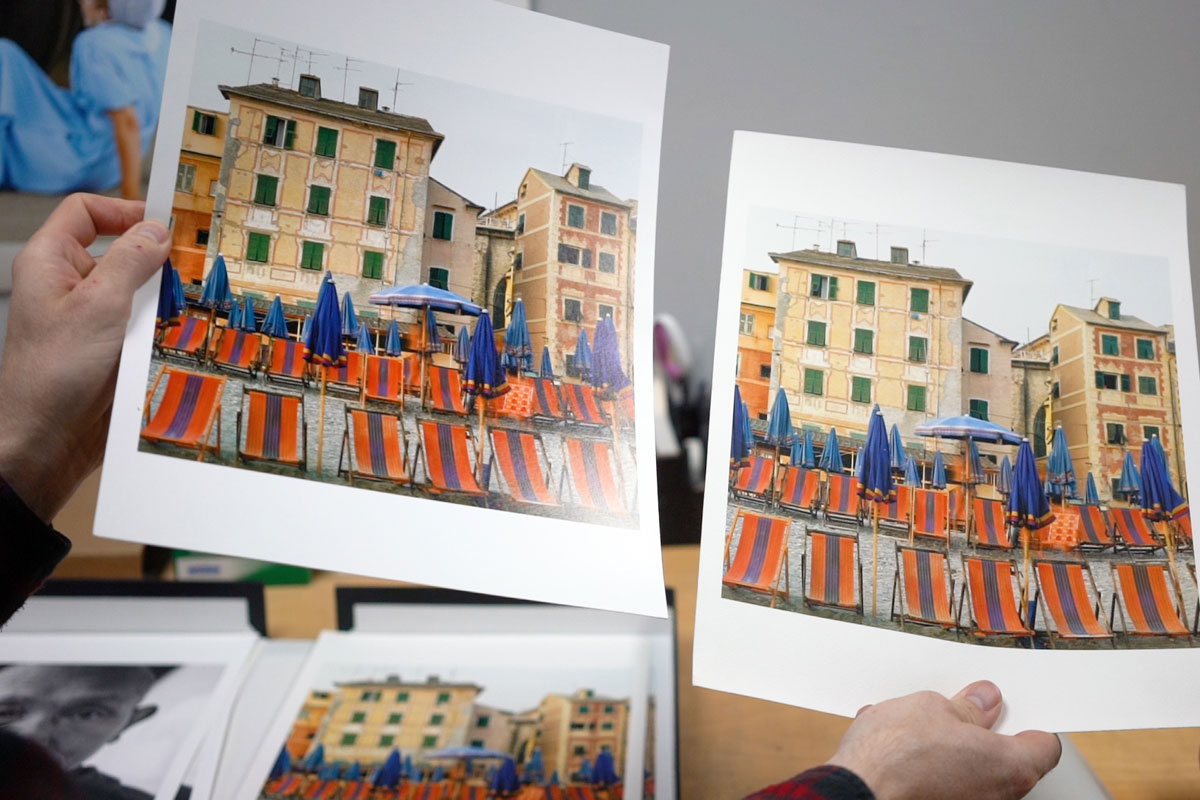
The single biggest reason a print doesn’t match the screen comes down to how each one is lit.
-
Understand That Screens Are Backlit and Prints Are Front-Lit
A monitor with its brightness turned up looks vivid and saturated in a way plain paper simply can’t replicate, since paper only reflects the light already in the room rather than generating its own. That mismatch alone accounts for most of the disappointment people feel the first time a print arrives.
Brightening Your File Correctly Before Sending It to Print
Because prints tend to look darker than the same file looked on a bright monitor, erring toward brighter, without clipping detail, is a safer starting point than sending a file exactly as it appears on screen.
-
Lower Your Monitor’s Brightness and Contrast While Editing
If you don’t have a dedicated print-calibrated monitor, most consumer displays run brighter than a printed page will ever look. Turning your monitor’s brightness and contrast down slightly while editing gives you a more realistic preview of how a print will actually turn out.
-
Brighten with Curves or in Camera Raw
Use a Curves adjustment layer, or brighten shadows directly in Camera Raw, to lift the image before sending it off — Curves is the go-to tool for this, and matte papers in particular benefit from extra shadow brightening since matte surfaces naturally read darker than glossy ones. A solid grounding in adjustment layers makes this step much easier to control precisely.
Rethinking Monitor Calibration
Monitor calibration has a reputation as a cure-all for print-matching problems, but that reputation doesn’t hold up without the right hardware.
-
Skip Calibration Unless You Have a Dedicated Print Monitor
Calibrating a standard consumer display can do more harm than good, since it’s not actually built to replicate paper. Simply darkening the display and reducing contrast slightly gets you a comparably useful approximation without the equipment investment. A dedicated print monitor is worth it only if you plan to do serious print work regularly and in-house.
When a Dedicated Print Monitor Actually Makes Sense
If you’re sending files out to a professional print lab rather than printing at home, a dedicated print monitor usually isn’t worth the cost — sending a properly exposed, appropriately bright file and letting the lab’s calibrated equipment and expertise handle the rest gets comparable results for far less investment.
Choosing the Right Color Space
Color space confusion is one of the most persistent printing myths, and it goes in exactly the opposite direction most people expect.
-
Use Adobe RGB 1998, Not CMYK
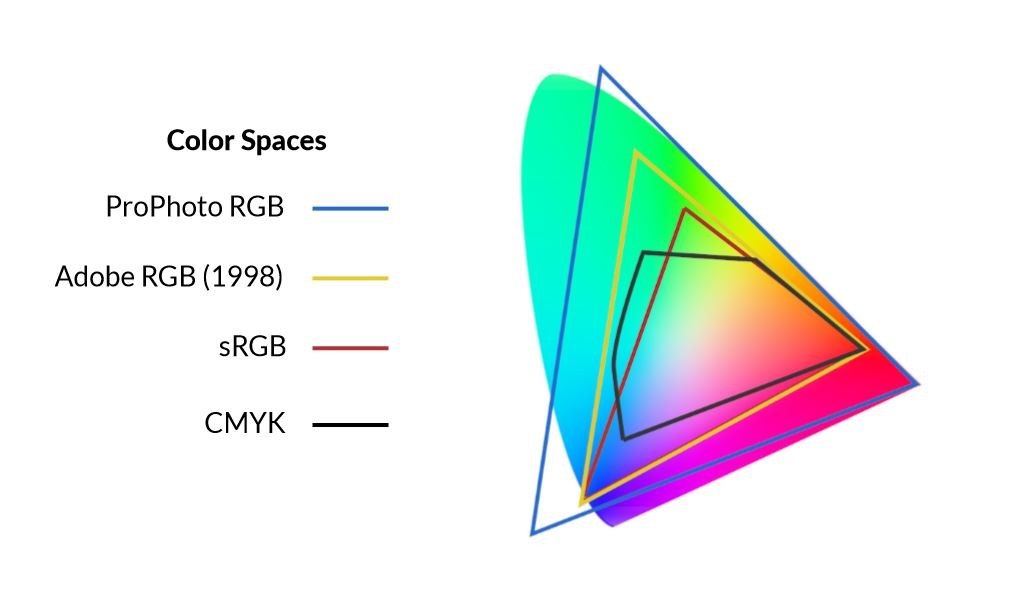
Send files in Adobe RGB 1998 rather than converting to CMYK. CMYK’s color space is actually smaller than RGB, and it only matters for offset press printing — the large machines that print cyan, magenta, yellow, and black in separate passes. A modern inkjet printer, which most fine-art print labs use, isn’t limited that way.
-
Avoid ProPhoto RGB for Printing
Skip ProPhoto RGB despite its appealingly huge gamut — it includes colors beyond the visible spectrum that no current display or printer can actually reproduce, which makes it impractical rather than an advantage for real-world print work.
A side-by-side comparison of these color spaces makes the size difference between CMYK, sRGB, Adobe RGB, and ProPhoto much easier to visualize than reading the gamut differences described in words.
Understanding DPI and How Large You Can Print
DPI confusion often leads people to avoid printing large when they don’t need to, because resolution and viewing distance are closely related in ways that aren’t obvious at first.
-
Lower DPI Instead of Upsampling to Print Larger
If you need a bigger print than your file’s native resolution comfortably allows, drop the DPI rather than artificially upsampling the image in Photoshop. Upsampling risks introducing pixelation and misinterpreted detail, while a slightly lower DPI print, viewed from an appropriate distance, still looks sharp.
-
Match DPI to Expected Viewing Distance
Print at 300 DPI for work meant to be viewed up close, but recognize that DPI can drop dramatically for large-format or long-viewing-distance prints — billboards, for comparison, are often printed at only 10 to 20 DPI and still look sharp from their intended viewing distance.
What ICC Profiles Actually Do
ICC profiles sound intimidating mostly because of the terminology, not because the underlying concept is complicated.
-
Think of an ICC Profile as a Translator Between Devices
An ICC profile is essentially a lookup table that tells one device how to interpret a color so it displays or prints consistently on another device — a profile exists for displays, cameras, and printers, and a print lab that builds custom profiles for each paper and printer combination gets meaningfully more accurate color and shadow detail than relying on generic manufacturer profiles.
-
Let the Print Lab Handle Printer-Side Profiles
As the person sending a file, the only ICC profile you typically need to worry about is your working color space (Adobe RGB 1998); the printer-side profile is something the lab manages, ideally with custom profiles built specifically for their own printers and papers.
Why Generic Manufacturer Profiles Fall Short
The default ICC profiles that come bundled with a printer or paper brand are frequently mediocre for most real printers, which is exactly why professional labs invest in creating and calibrating their own custom profiles for every paper and printer combination they offer.
Choosing the Right Paper and Finish for Your Image
There’s no single best paper — the right choice depends entirely on what kind of image is being printed.
-
Match Paper Finish to Your Image’s Mood
Glossy paper suits high-contrast, vivid, or fashion and product photography well, while a soft, foggy landscape usually looks better on a matte or textured surface. A high-contrast sunset, by contrast, can look too glary and reflective on glossy paper.
-
Consider Skipping Glass in Framing
Regular and museum glass both introduce some reflection, even at their best. Framing a matte print without glass at all avoids glare entirely and lets the paper’s texture show through, which can feel more immersive for a piece meant for close viewing rather than a high-traffic space.
Why Paper Choice Is a Judgment Call, Not a Formula
Even an experienced print technician doesn’t reach for the same paper every time — matching paper to image is closer to an intuitive craft skill built from experience than a fixed rule, which is why experimenting across a few different finishes on your own work is worth the time.
Where Glass Framing Still Makes Sense
Glass isn’t wrong everywhere — it’s genuinely useful for prints in high-traffic areas like a lobby, where protection from touching and dust matters more than eliminating every trace of reflection.
Common Mistakes to Avoid When Printing Your Work
The most common mistake is converting a file to CMYK before sending it to a photo lab, which actually shrinks the usable color space rather than preparing it correctly — Adobe RGB 1998 is the right choice for nearly all fine-art inkjet printing. The second is upsampling a low-resolution image to hit a target print size instead of simply lowering the DPI, which introduces pixelation a lower-DPI print at the same size wouldn’t have. If a print comes back looking darker or flatter than expected, that’s often simply the backlit-versus-front-lit difference at work, not a mistake in the file itself.
More Free Photoshop Tutorials
If you want to build on file preparation and color workflow skills for printing, these free tutorials are a good next step:
- How to Master Adjustment Layers in Photoshop
- How to Master Adobe Camera RAW in Photoshop
- Curves vs Levels in Photoshop: What the Difference Actually Is
Why This Advice Works
Nearly every printing myth covered here comes from applying screen-based intuition to a fundamentally different medium: paper doesn’t generate its own light, its usable color space genuinely differs from a monitor’s, and resolution only matters relative to how closely a print will actually be viewed. Working in Adobe RGB 1998 rather than CMYK or ProPhoto, brightening deliberately with Curves adjustment layers or in Camera Raw, and trusting a lab’s custom ICC profiles rather than generic manufacturer ones all point toward the same underlying idea: send the lab the most accurate, appropriately bright file you can in a color space built for the job, and let their calibrated equipment and paper expertise do the rest.
Final Thoughts
A short recap covers most of what matters: darken your monitor a little while editing, don’t stress too much about full calibration unless you have dedicated print hardware, work in Adobe RGB 1998, print at 300 DPI when you can but don’t be afraid to drop it for a larger print viewed from further away, and choose paper based on the mood of the specific image rather than a single go-to choice. For more from the team behind these tips, Printlab is on both Facebook and Instagram.
Related Tutorials
Master Photoshop, Lightroom and Photography
Join PHLEARN PRO for $12.99 a month or $99.99 a year. Cancel anytime, with a 100% money-back guarantee.






