

Download Assets
This tutorial includes 1 sample image and 1 PDF guide. Downloads are free with a PHLEARN account.
- Download the sample images and PSDs from every free tutorial on PHLEARN
- New free tutorials published every week
- One free account — sign up once, then download anything
Free PDF Guide · 3 Pages
This Tutorial as a Step-by-Step PDF
Walks through planning your lights and darks, burning with a Levels layer and Blend If (Alt/Option-drag right to left), dodging from left to right, inverting each mask with Ctrl/Command+I and painting white, softening with Filter > Blur > Gaussian Blur, then Hue/Saturation on Reds for the moss and Levels on Blue for the sky. Keep it next to your keyboard.
description
Dodge and burn — lightening some areas and darkening others — is what gives a landscape real dimension, turning rocks, cliffs and terrain from flat shapes into something that reads as three-dimensional. This uses Levels adjustment layers restricted with the Blend If sliders, so most of the precision happens automatically instead of demanding pixel-perfect painting, then softens the masks with Gaussian blur and brings color back into foliage and sky.
Enjoying This Free Tutorial?
We publish a new free tutorial every week, each one with sample images and PSDs you can download and follow along with. Sign up and they land straight in your inbox, along with early word on sales, events and subscriber-only offers.
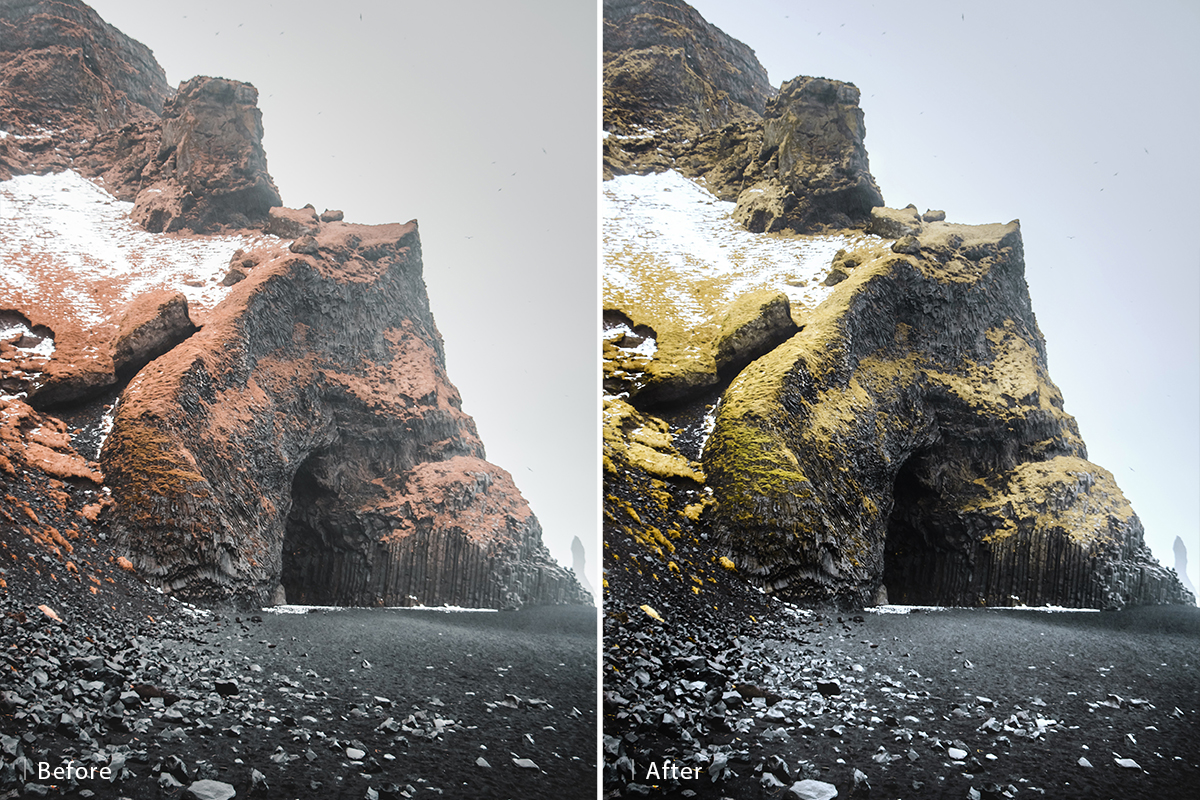
How to Recover Hidden Detail in Landscapes with Dodge and Burn
Dodge and burn — lightening some areas of a photo and darkening others — is what gives a landscape real dimension, turning rocks, cliffs, and terrain from flat shapes into something that reads as genuinely three-dimensional. The technique here uses Levels adjustment layers restricted with the Blend If sliders, which does most of the precision work automatically so you don’t have to paint with pixel-perfect accuracy.
Getting Started
This works especially well on landscape photos with visible texture and form — rock, cave walls, terrain — where added dimension will read clearly, but the underlying technique applies to portraits and other subjects just as well.
Planning Where to Lighten and Darken
Before opening any adjustment layers, it helps to look at the image and decide where light is already implied — areas that would naturally catch a light source — and where deepening the shadow right next to them would make that light read even more strongly by comparison. A quick loose markup, even just circling areas mentally or with a temporary brush layer, gives you a plan before you start.
Darkening Shadows with a Restricted Levels Layer
A Levels adjustment layer with its effect confined to shadows only, via the Blend If sliders, is the core burning tool here.
-
Add a Levels Layer and Darken the Midtones
Add a Levels adjustment layer and drag the midpoint slider to the right to darken the midtones. On its own this affects highlights too, which isn’t what you want yet.
-
Restrict It to Shadows with Blend If
Double-click the Levels layer’s row (the gray area next to its name) to open Layer Style, then hold Alt on PC (Option on Mac) and drag the underlying-layer slider’s right side toward the left. This splits the slider and fades the effect out of the highlights, leaving it visible only in the shadows.
-
Invert the Mask and Paint In the Darkening
Press Ctrl/Cmd + I to invert the layer mask to black, then paint with a standard brush over the areas you planned to darken. Because Blend If already confines the effect to shadow tones, you don’t need to paint with much precision — it simply won’t show up anywhere that’s already bright.
How the Blend If Slider Actually Works
Dragging one half of a split Blend If slider fades that layer’s effect out across the range you drag through, rather than cutting off sharply at one point. Dragging the highlight side left restricts a layer to shadows; dragging the shadow side right restricts it to highlights. Holding Alt/Option while dragging is what splits the slider into two independently movable halves for that smooth falloff, rather than a hard cutoff.
Brightening Highlights with Additional Levels Layers
The same approach, mirrored, builds up the light side of the effect.
-
Add a Levels Layer and Brighten the Highlights
Add another Levels adjustment layer and raise the white point slightly to brighten the image.
-
Restrict It to Highlights with Blend If
Open Layer Style again, hold Alt/Option, and this time drag the underlying-layer slider from the shadow side toward the right, fading the effect out of the dark areas so it’s only visible where the image is already bright.
-
Invert the Mask and Paint In the Brightening
Invert the layer mask to black and paint white over the areas you want brighter — the ones you planned to catch more light.
-
Add Additional Levels Layers for Specific Bright Areas
Repeat the same restricted-Levels approach with one or more additional layers for any specific areas — a particular rock formation, for instance — that need to stand out even more brightly than the rest.
This Technique Works Beyond Landscapes
Because the whole approach is really just restricting where light and dark information shows up, it applies just as well to portraits or any other subject where you want to build dimension through selective lightening and darkening.
Softening the Effect with Gaussian Blur on the Mask
If the painted areas read as too sharply defined, a blur on the mask itself smooths things out without touching the underlying adjustment.
-
Blur the Layer Mask to Soften the Effect
Select any of your Levels layer masks and go to Filter > Blur > Gaussian Blur, applying a moderate amount to soften a too-hard-edged painted area.
When to Reach for Blur Instead of Repainting
If a painted area looks too crisply defined rather than blending naturally into the surrounding tone, a quick Gaussian Blur on the mask is usually faster and gives a softer result than trying to repaint the edge by hand.
Bringing Color Back into Foliage with Hue/Saturation
A targeted color adjustment can revive flat or dull vegetation once the dodge and burn work is done.
-
Target Reds with Hue/Saturation and Shift Toward Green
Add a Hue/Saturation adjustment layer, switch its channel from Master to Reds, and use the eyedropper to click directly on the vegetation. Raise saturation, lower Lightness slightly, and nudge Hue toward green until it reads as more alive without looking artificial.
Adding Color to the Sky with a Blend If Levels Layer
The same Blend If technique used for dodge and burn can add subtle color specifically into an image’s highlights.
-
Add Blue and Green to the Sky’s Highlights with a Blend If Levels Layer
Add a Levels layer, switch to the Blue channel, and pull the right-hand slider from the right to the left to put blue into the highlights, balancing it with a touch of green. Use Blend If the same way as before — Alt/Option-drag from the shadow side toward the right — to restrict the color shift to just the highlights, so it reads like the light itself is carrying color rather than a flat tint over the whole image.
Everything Stays Editable
Because every part of this is built from adjustment layers and layer masks, nothing here is permanent. Double-click any Levels layer at any point to make it stronger or weaker, or repaint its mask, without redoing the surrounding work.
Common Mistakes to Avoid
The most common mistake is skipping Blend If entirely and painting dodge and burn directly at full effect across the whole tonal range, which requires far more precision and is easy to overdo. A second is forgetting to hold Alt/Option while dragging the Blend If sliders, which moves the whole slider instead of splitting it for a smooth falloff. And pushing the Hue/Saturation or color-in-highlights adjustments too far can tip the result from “more dimensional” into obviously altered.
Why This Effect Works
Blend If does the precision work that painting alone would require you to do by hand: once a Levels layer is restricted to just shadows or just highlights, painting over it roughly still produces a clean, tonally-appropriate result, because the adjustment simply won’t show up outside its restricted range. That’s what makes it possible to build convincing dimension quickly, without painstakingly tracing every edge. Layering several restricted adjustments — darkened shadows, brightened highlights, extra brightness on specific features — builds up real, cumulative depth rather than one flat global change.
Final Thoughts
Once Blend If clicks, restricted Levels layers become a fast, forgiving way to add dimension to almost any photo, landscapes included. Plan roughly where light and dark should build up before you start, use Blend If to keep each adjustment confined to the right tonal range, and finish with a light touch of color grading if the image calls for it — the whole process stays fully editable the entire time, since it’s nothing more than layers and layer masks.
Quick Reference: Keys, Menus and Settings
- Full screen viewF
- Burn the shadowsLayer > New Adjustment Layer > Levels, midpoint slider to the right
- Blend IfDouble-click beside the layer name for Layer Style; Alt/Option-drag Underlying Layer right to left for shadows, left to right for highlights
- Paint it inCmd/Ctrl + I inverts the mask, then paint white with a standard Brush
- Soften the maskClick the mask, Filter > Blur > Gaussian Blur
- Greener mossHue/Saturation: Master to Reds, eyedropper on the grass, Saturation up, Lightness down, Hue toward green
- Color the skyLevels: Blue channel, right slider pulled left, a little Green; Blend If left to right; lower Opacity to taste
Everything is adjustment layers and layer masks, so any step can be changed later.

Free Downloads
Follow Along on the Same Photo
Get the cave landscape from the video and the 3-page PDF guide with every step, Blend If move and shortcut. Free with a PHLEARN account.
Dodge and Burn Landscapes: Common Questions
What does dodging and burning do to a landscape?
It makes some parts of the photo lighter and others darker to give it more shape and definition. In a landscape, rocks and terrain look more three-dimensional and the whole photo gets more interesting.
How do I decide where to lighten and darken?
Find where the light comes from and mark the surfaces that already catch it, like the tops of the rocks, to lighten. Darken the areas right next to them so the light areas look lighter in comparison. In the video Aaron sketches this plan on a blank layer in pink and green.
Why use Blend If instead of just painting a Levels layer?
A Levels layer on its own changes every tone. Blend If, in the Layer Style dialog, keeps it to only the shadows or only the highlights, so you can paint loosely and the effect still lands in the right places. Double-click the gray area next to the layer name to open Layer Style.
Which way do I drag the Blend If slider?
On the Underlying Layer slider, drag from the right to the left to keep a layer in the shadows (burn). Drag from the left to the right to keep it in the highlights (dodge).
Why does my Blend If adjustment look harsh?
Hold Alt/Option while you drag. That splits the triangle into two halves so the effect blends in. Without it, the whole triangle moves and the result does not look good.
What if the dodge and burn is too strong or too sharply painted?
Reopen that Levels adjustment and move the sliders to make it lighter or darker. If the painting looks too defined, click the layer mask and go to Filter > Blur > Gaussian Blur to soften it.
How do I make dull, reddish grass or moss look green?
Add a Hue/Saturation adjustment layer, change Master to Reds and click the grass with the eyedropper. Raise Saturation a little, lower Lightness and move Hue slightly toward green.
How do I add color to the sky?
Add a Levels layer, switch to the Blue channel and pull the right-hand slider to the left, then add a little of the same in the Green channel. Alt/Option-drag the Underlying Layer slider from left to right so the color stays in the highlights, and lower the Opacity if it is too much.
Does this technique work on portraits?
Yes. It is really about restricting the light and dark information in a photo and using it to create dimension, so it works on portraits and all kinds of images.
Are the sample files free?
Yes, with a free PHLEARN account. You get 1 sample image and 1 PDF guide: the cave landscape from the video and a 3-page guide to every step.
Master Photoshop, Lightroom and Photography
Join PHLEARN PRO for $12.99 a month or $99.99 a year. Cancel anytime, with a 100% money-back guarantee.





