

Download Assets
This tutorial includes 3 sample images and 1 PDF guide. Downloads are free with a PHLEARN account.
- Download the sample images and PSDs from every free tutorial on PHLEARN
- New free tutorials published every week
- One free account — sign up once, then download anything
Free PDF Guide · 4 Pages
This Tutorial as a Step-by-Step PDF
Walks through Develop module > Remove with Generative AI checked: sizing the brush with [ and ], painting loosely, Mask Refinement Add and Subtract, Apply and Variations, zooming and panning to check, the History before and after, then the light poles and the cabin, better masks and the limits. Keep it next to your keyboard.
description
Generative Remove in Lightroom Classic paints an object out and generates what should be behind it, without a round trip to Photoshop! In this tutorial, we’ll show you how to use the new Generative Remove Tool in Lightroom Classic, so you can achieve clean, distraction-free images with ease.
Enjoying This Free Tutorial?
We publish a new free tutorial every week, each one with sample images and PSDs you can download and follow along with. Sign up and they land straight in your inbox, along with early word on sales, events and subscriber-only offers.
Artist Credit


How to Use Generative Remove in Lightroom Classic
Removing a distraction from a photograph used to mean a round trip to Photoshop. Export, edit, come back, and now you have a second file to manage. Generative Remove changes that: it brings AI-powered object removal directly into the Develop module, so the whole edit stays in Lightroom Classic and stays non-destructive.
It is genuinely good at the job it does, and it has real limits worth understanding before you rely on it. This tutorial covers where it lives, how to get a clean result, how to choose between the variations it offers, and the situations where it will let you down.
A note on versions: this was recorded when Generative Remove first arrived in Lightroom Classic. Adobe has continued to develop its AI tools since, so the panel may look different in your version and the results you get may be better than those shown here. The workflow itself has not changed.
What It Actually Does
Generative Remove is an object eraser. You paint over something you do not want, Lightroom sends the area off to be processed, and it generates plausible new pixels to fill the gap based on the surrounding scene.
That is different from the healing and cloning tools that came before it. Those work by copying pixels from elsewhere in your own image — which is why they struggle when there is nothing suitable nearby to copy from. Generative Remove invents content that fits, which means it can handle removals with no clean source area at all: something in front of a complicated background, an object overlapping several different textures, a distraction near the edge of the frame.
Because the generation happens on Adobe’s servers rather than your machine, you need an internet connection for it to work.
Where to Find It
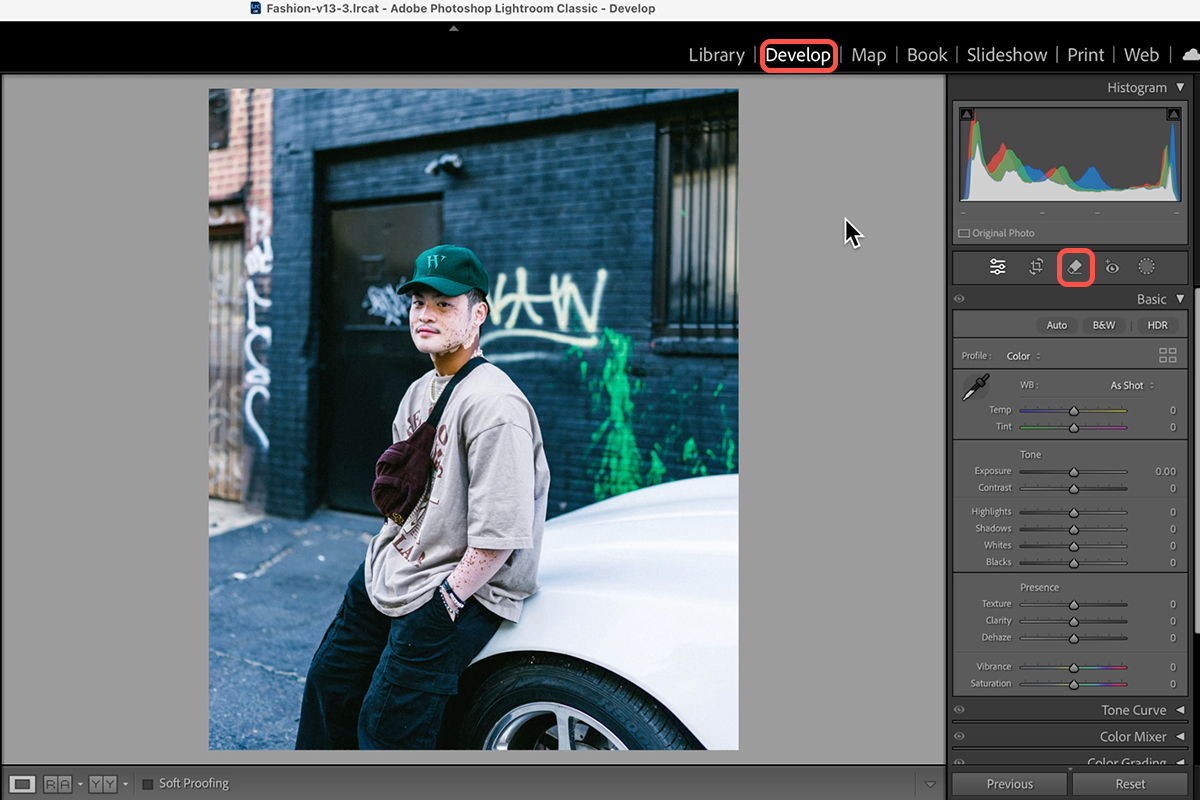
Go to the Develop module and click the Remove icon in the tool strip on the right-hand panel, just below the histogram.
The Remove tool has more than one mode. Generative AI is a checkbox within that panel, and it is enabled by default. If your results look like traditional cloning rather than generated content, that checkbox is the first thing to check.
The Workflow
-
Select the Remove tool and confirm Generative AI is ticked
Everything else in the panel is about how you paint, not what happens afterward.
-
Set your brush size
Use the size slider, or the square bracket keys — left bracket to shrink, right bracket to grow. The brackets are much faster once you are working.
-
Paint over what you want removed
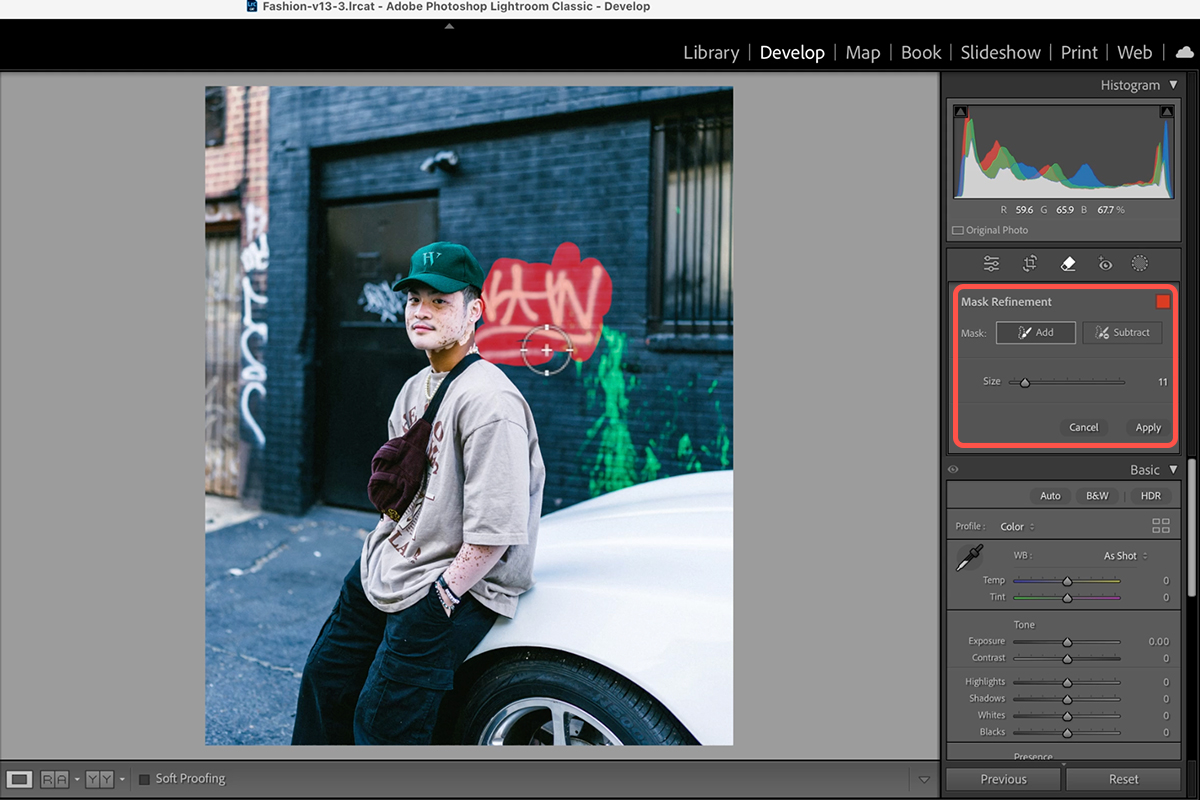
Drag across the object. The painted area shows as an overlay so you can see exactly what is selected.
-
Refine the mask before applying
Use the add and subtract options to correct the selection. This is the step that determines your result — more on it below.
-
Click Apply
Lightroom uploads the region, generates replacements, and returns the result. There is a wait here; it is not instant.
-
Cycle through the variations
You get several generated options. Step through them and pick the best.
-
Repeat for each additional object
Work one distraction at a time rather than painting everything at once.
Getting a Good Mask
The quality of the result depends almost entirely on the selection you paint. A few things make a consistent difference:
Cover the whole object, plus a little margin
Leaving a sliver of the object outside the mask gives the AI a fragment to work around, and it will often preserve it — leaving a smear or a ghost where the object used to be. Paint slightly wider than the thing itself.
Include the shadow
This is the most common mistake. Remove a person and leave their shadow behind and the image reads as wrong immediately, even to someone who has not noticed why. Whatever you remove, remove what it cast as well.
Do not paint more than you need
Every extra area you include is more for the AI to invent, and generated content is always less reliable than real photograph. A tight, deliberate mask produces a better result than a generous sweep — and it processes faster, since the more you select, the longer it takes.
Zoom in to check the edges
Press Ctrl or Cmd and the plus key to zoom, and hold the spacebar to pan around while painting. Judging a mask at fit-to-screen means missing exactly the edge detail that gives a removal away.
Choosing Between the Variations
After processing, Lightroom offers several different generated results rather than one. This is more useful than it first appears — the differences between them are often substantial, and the first option is frequently not the best.
Look specifically at where the generated area meets the real photograph. Failures show up at that boundary as a change in texture, a break in a line that should be continuous, or a patch that is slightly too smooth compared to the grain around it. A variation that looks worse overall but joins cleanly is usually the better starting point.
If none of the variations work, undo, adjust your mask, and try again. Small changes to the painted area can produce completely different results, and re-masking is almost always more effective than trying to patch a bad generation afterward.
What It Cannot Do
You cannot tell it what to put there
Unlike Generative Fill in Photoshop, there is no text prompt. You cannot ask for a specific replacement — you can only indicate what should go, and let it decide what belongs in the gap. For removal work that is fine. For anything creative, this is not the tool.
Removal, not generation
It will not add objects, extend a background, or change the aspect ratio of an image. Those jobs still belong in Photoshop.
It struggles with structure
Complex, regular detail is the hardest case. Straight architectural lines, repeating patterns, text, and faces are where generated fills most often produce something subtly wrong. Busy organic backgrounds — foliage, water, gravel, sky — are where it performs best, because small inaccuracies are invisible.
Where It Fits in a Workflow
The real value is not that it is more capable than Photoshop, because it is not. The value is that it is here, inside the edit you are already doing, and it is non-destructive like everything else in the Develop module. You can turn a removal off, adjust it, or discard it later without having touched your original file.
For the common case — a distraction in the corner of a frame, a stray object on a beach, a sign in the background of a portrait — this eliminates the round trip entirely. For serious compositing or anything requiring precise control over what appears, Photoshop remains the right destination.
One practical habit worth building: work through distractions one at a time and check each result at 100% before moving on. Stacking several generations without inspecting them makes it much harder to identify which one introduced a problem when you notice it later.
Quick Reference: Keys, Menus and Settings
- Open the toolDevelop module > Remove icon, Generative AI checked
- Size the brush[ smaller, ] larger, or the Size and Opacity sliders
- RemovePaint loosely over the object, then click Apply
- Pick a resultArrows next to Variations
- Zoom and panCmd/Ctrl + + or -; hold Spacebar and drag to move
- Protect the subjectMask Refinement > Subtract, paint over the face or hat; Add to extend
- Before and afterHistory panel: the bottom entry is the original
Free Downloads
Follow Along on the Same Photos
Get the three photos from the video, with the graffiti, the light poles and the cabin to remove, and the 4-page PDF guide. Free with a PHLEARN account.
Generative Remove in Lightroom: Common Questions
Where is Generative Remove in Lightroom Classic?
Go to the Develop module and click the Remove icon in the tool strip on the right, just below the histogram. Make sure the Generative AI box is checked. Update Lightroom Classic through the Creative Cloud app if you do not see it.
How is it different from the healing and clone tools?
Healing and cloning copy pixels from elsewhere in your photo, so they struggle when nothing suitable is nearby. Generative Remove invents new pixels that fit the surrounding scene.
Does Generative Remove need an internet connection?
Yes. The area you paint is sent off to Adobe’s servers to be generated, so you need to be online.
How carefully do I need to paint?
Not very. A loose pass over the object is enough. Cover the whole thing plus a little margin, include its shadow, and do not paint more than you want gone.
I painted over my subject by accident. How do I fix it?
Before you click Apply, click Subtract under Mask Refinement and paint over the face, hat or anything you want kept. The tool then leaves that area alone.
Which variation should I choose?
Use the arrows next to Variations to step through them; the first one is often not the best. Look where the generated area meets the real photo and pick the one that joins cleanly. If none work, undo, adjust the mask and try again.
Can I remove several objects at once?
Yes. In the second example Aaron paints over every light pole, then clicks Apply once. Each painted area is processed like its own request, so more areas take a little longer.
Can I tell it what to put in the gap?
No. There is nowhere to type a prompt, so Lightroom decides what belongs there. In Photoshop you could select the area and type trees; here it is object removal only.
How do I compare the result with the original?
Set the view to Fit and open the History panel on the left. Click the bottom entry, where the photo was imported, for the original, and the top entry for the clean version.
Are the sample files free?
Yes, with a free PHLEARN account. You get 3 sample images and 1 PDF guide: the graffiti portrait, the light poles and the cabin, plus a 4-page walkthrough.
Master Photoshop, Lightroom and Photography
Join PHLEARN PRO for $12.99 a month or $99.99 a year. Cancel anytime, with a 100% money-back guarantee.





