

Download Assets
This tutorial includes 1 Photoshop brush and 1 PDF guide. Downloads are free with a PHLEARN account.
- Download the sample files from every free tutorial on PHLEARN
- New free tutorials published every week
- One free account: sign up once, then download anything
Free PDF Guide · 3 Pages
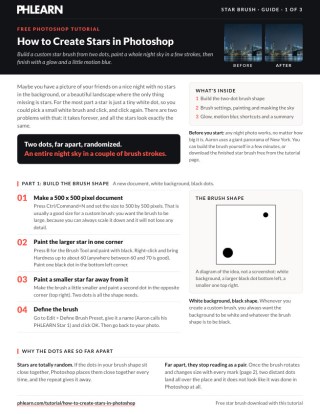
This Tutorial as a Step-by-Step PDF
This guide walks through building a star brush from two dots: a 500 by 500 pixel document, Edit > Define Brush Preset, then Window > Brush settings for Size Jitter, Angle Jitter, Scattering, Opacity Jitter and Spacing. It then paints the sky on layers and finishes with a glow and motion blur. Use it on your own night photos.
description
Painting a night sky one dot at a time is slow and looks it. This tutorial builds a custom brush from two dots spaced far apart, then adds size, angle, scattering, and opacity randomness so a few strokes fill an entire sky, before masking stars off buildings and water and finishing with a sampled outer glow and a little motion blur. Prefer to skip the setup? Our free Photoshop star brush is built exactly this way and ready to paint with.
Enjoying This Free Tutorial?
We publish a new free tutorial every week, each one with sample images and PSDs you can download and follow along with. Sign up and they land straight in your inbox, along with early word on sales, events and subscriber-only offers.


Adding a realistic starry sky to a night photo doesn’t mean clicking hundreds of individual white dots by hand, since a custom brush with the right randomized settings can scatter an entire sky’s worth of stars in just a few strokes. This tutorial builds a custom two-star brush, dials in scattering and size variation to make it look genuinely random, masks stars away from buildings and water, then finishes with an outer glow and motion blur for realism. If you would rather not build the brush by hand, our free Photoshop star brush is a ready-made version of the same thing.
Why Clicking Individual Dots Isn’t a Good Approach
Manually clicking a small white dot over and over to create stars is both slow and produces stars that all look exactly the same, lacking the natural variation real stars have.
-
Recognize the Limitations of Manual Clicking
Understand that painting individual identical dots by hand is time-consuming and produces an unrealistically uniform result.
Creating a Custom Brush Shape With Two Differently Sized Dots
A brush shape built from one small dot and one larger dot, placed far apart on a new document, becomes the raw material for a naturally randomized starfield brush.
-
Create a New 500 by 500 Pixel Document
Press Cmd/Ctrl+N and create a new document at 500 by 500 pixels, a good working size for a custom brush.
-
Paint a Larger Black Dot in One Corner
Press B for the Brush tool, set hardness to around 60-70%, and paint a black dot in one corner of the document.
-
Paint a Smaller Black Dot Far Away in Another Corner
Reduce the brush size and paint a smaller black dot in a distant corner, spacing it far from the first dot.
-
Define the Brush Preset
Go to Edit > Define Brush Preset and name the new brush.
Why the Two Dots Are Spaced Far Apart
Placing the two dots close together in the brush shape would make every painted star cluster look predictably similar, since Photoshop repeats that same spacing relationship each time. Spacing the large and small dots far apart in the source shape instead means the resulting pattern reads as genuinely random rather than an obviously repeated Photoshop brush.
Adding Size and Angle Variation With Shape Dynamics
Shape Dynamics settings randomize the size and rotation of each brush mark, breaking up the otherwise predictable placement of the two-dot shape.
-
Open the Brush Settings Panel
Go to Window > Brush to open the full brush settings panel.
-
Enable Shape Dynamics and Raise Size Jitter
Click Shape Dynamics and raise Size Jitter to 100% so brush marks vary between large and small.
-
Raise Angle Jitter
Raise Angle Jitter as well so each brush mark rotates randomly, further scattering where the large and small dots land relative to each other.
Why Scattering Matters Beyond Size and Angle Alone
Size and Angle Jitter alone still paint every dot along the exact path the cursor moves, which looks obviously mechanical once zoomed out. Turning on Scattering lets the brush throw dots off to either side of that path on both axes, breaking up the straight line into something that reads as a naturally random spread of stars instead of a single brushed stroke.
Scattering Stars Across a Wide Area
The Scattering option spreads brush marks out on both axes, transforming a tight, localized cluster of dots into stars distributed across a wide area from a single stroke.
-
Enable Scattering on Both Axes
Click Scattering, increase the amount, and enable Both Axes so stars spread randomly in every direction.
-
Adjust Spacing to Control Star Density
Return to Brush Tip Shape and adjust Spacing (about 10% in the video), since a lower value produces more stars and a higher value spaces them further apart.
Adding Opacity Variation for Distant-Looking Stars
Turning on Opacity Jitter under Transfer makes some stars appear fainter than others, mimicking how real stars vary in visible brightness.
-
Enable Opacity Jitter Under Transfer
Click Transfer and turn on Opacity Jitter so painted stars vary between fully visible and more faint.
-
Save the Finished Brush as a New Preset
Open the brush panel menu and choose New Brush Preset to save all these settings together for future use.
Painting a Full Sky Using Multiple Brush Sizes
Painting with a couple of different brush sizes on separate layers builds up a sky with both larger foreground stars and smaller, more distant background stars.
-
Paint Stars With a Moderate Brush Size
Create a new layer and paint across the sky area with a moderate brush size, adjusting if the stars start looking too large and snow-like.
-
Paint Additional Background Stars With a Smaller Brush
Create another new layer and paint with a much smaller brush size for fainter, more distant-looking background stars.
-
Merge the Star Layers Together
Shift-click the star layers and press Cmd/Ctrl+E to merge them into one layer.
Masking Stars Away From Buildings and Water
A layer mask painted with a regular soft brush removes stars that landed over buildings, water, or any other area where they wouldn’t realistically appear.
-
Add a Layer Mask
Click the layer mask button on the merged star layer.
-
Paint Black With a Regular Soft Brush
Switch to a regular soft round brush, not the star brush, and paint black over any buildings, water, or other areas where stars shouldn’t appear.
Why the Glow Color Should Be Sampled From the Photo
A generic white or blue glow can clash with the actual color temperature of the sky in the photo, whether it leans warm or cool. Sampling the glow color directly from the image with the eyedropper keeps the added stars consistent with the existing light in the scene rather than looking like a separate effect pasted on top.
Adding an Outer Glow to the Stars
An Outer Glow layer style, colored with an eyedropper sample from the photo and set to Screen blend mode, gives the stars a soft, natural-looking glow.
-
Double-Click the Star Layer
Double-click the merged star layer to open its Layer Style dialog.
-
Enable Outer Glow With Screen Blend Mode
Click Outer Glow and set its blend mode to Screen.
-
Choose a Glow Color to Match the Image
Sample a color from the image, such as a cool blue for a cool-toned photo or a warm orange for a warm-toned one.
-
Adjust Opacity and Size
Adjust the glow’s opacity and size until it looks natural rather than overpowering.
Softening the Stars With a Small Amount of Motion Blur
A small amount of Motion Blur takes the edge off perfectly sharp, crisp dots, making the stars look like they’re subtly streaking across the sky rather than looking obviously computer-generated.
-
Apply Motion Blur
Go to Filter > Blur > Motion Blur, choose an angle, and set a low distance value, such as around 3 to 4 pixels.
Why This Approach Works
Building the brush shape from two dots spaced far apart, then layering in size, angle, and scattering randomness, is what makes an entire painted sky look genuinely natural rather than an obviously repeated pattern. Masking stars away from buildings and water is necessary precisely because that same randomness will inevitably scatter some stars into places they shouldn’t appear. Finishing with a subtle outer glow and a touch of motion blur is what softens perfectly crisp computer-generated dots into something that reads as real starlight in a photograph.
Final Thoughts
A single well-built custom brush turns adding stars from a tedious, unrealistic manual task into something that can be painted across an entire sky in just a few strokes. Once this brush is saved as a preset, it’s ready to bring a realistic night sky to any photo, from a portrait taken on a clear night to a massive landscape panorama.
Quick Reference: Keys, Menus and Settings
- Brush documentCmd/Ctrl + N, 500 by 500 pixels; two black dots at 60 to 70% hardness
- Make the brushEdit > Define Brush Preset
- Randomize itWindow > Brush: Shape Dynamics (Size Jitter 100%, Angle Jitter up), Scattering on Both Axes, Transfer: Opacity Jitter
- Set densityBrush Tip Shape: Spacing about 10%; Brush panel menu > New Brush Preset to save
- Paint and mergeNew layers, two or three brush sizes; Shift-click, Cmd/Ctrl + E
- Hide stray starsLayer mask, soft round brush, paint black over buildings and water
- Glow and blurOuter Glow, Screen, color sampled from the photo; Filter > Blur > Motion Blur, 3 to 4 pixels
No AI, no generative credits.
Free Downloads
Paint With the Same Star Brush
Get the finished star brush from the video, ready to load into Photoshop, plus the PDF guide with every setting. Free with a PHLEARN account.
Creating Stars: Common Questions
Why not just click white dots for stars?
It takes forever, and every star comes out the same size and brightness. A custom brush with random settings paints a whole sky in a few strokes.
How do I make the star brush shape?
Press Cmd/Ctrl + N for a 500 by 500 pixel document with a white background. Paint one larger black dot and one smaller black dot far apart with a hardness of about 60 to 70%, then choose Edit > Define Brush Preset.
Why are the two dots so far apart?
Two dots close together repeat in a pattern that looks made in Photoshop. Far apart, with rotation and size changes, they land in a random-looking spread like real stars.
Which brush settings make the stars look random?
In Window > Brush, turn on Shape Dynamics with Size Jitter at 100% and Angle Jitter all the way up, Scattering with Both Axes, and Transfer with Opacity Jitter so some stars are fainter.
How do I control how many stars I paint?
Spacing in Brush Tip Shape sets the density: lower puts down more stars, higher spreads them out. The video uses about 10%. Raising Count under Scattering adds even more. Save it all with New Brush Preset in the Brush panel menu.
My stars look like snow. What went wrong?
The brush is too large. Paint on a new layer with a moderate size, then add a layer of much smaller, faint background stars.
How do I keep stars off buildings and water?
Merge the star layers with Cmd/Ctrl + E, add a layer mask and paint black with a regular soft round brush, not the star brush. You can also fade them toward the horizon.
How do I make the stars glow?
Double-click the star layer and choose Outer Glow with the blend mode set to Screen. Sample a color from the photo with the eyedropper, then adjust the opacity and size. If the eyedropper will not pick a color, click the layer thumbnail instead of the mask first.
Why add a Motion Blur?
Perfectly sharp dots look fake. Filter > Blur > Motion Blur at a low distance, about 3 to 4 pixels, softens them as if they are moving across the sky.
Is the star brush free?
Yes, with a free PHLEARN account. You get 1 Photoshop brush and 1 PDF guide: the finished star brush from the video, ready to paint with.
Master Photoshop, Lightroom and Photography
Join PHLEARN PRO for $12.99 a month or $99.99 a year. Cancel anytime, with a 100% money-back guarantee.





