Black & White Photoshop Actions
-

-
Add to
favorites
-
Software
-
CompatibilityPhotoshop CS6 & Newer
-
Photoshop actions11 Looks + Grain + Vignette
-
To practice on5 Sample Images
-
In the downloadPDF Guide & Action List
-
Built withEditable Adjustment Layers
Photoshop Action Downloads
Install Guide
How to Install Your Actions
A short PDF that shows three ways to install this action in Photoshop, how to play it on your photo, and three tips for better results.
DESCRIPTION
Eleven black and white conversions, from soft and airy to deep and graphic, plus film grain and a vignette as separate actions. Stack a look, grain and vignette, and fine-tune the Black & White layer for skin and sky.
Choose from three Low Contrast, three High Contrast and three Portrait looks, plus B&W Matte and B&W Classic, then add Fine, Medium or Heavy grain and a Soft or Strong vignette.
Tested in Photoshop 2026 and built from steps that work in Photoshop CS6 and newer, with 5 sample images to practice on and a PDF guide in the download.
PHLEARN PRO · Photoshop Actions
Black & White Photoshop Actions
11 B&W looks5 sample imagesPDF guidePhotoshop 2026
Black & White Photoshop Actions
That Classic Film Look
Turn color photos into rich black and white, with deep blacks, clean whites and tones that suit portraits, architecture and landscapes.
Black & White Portrait
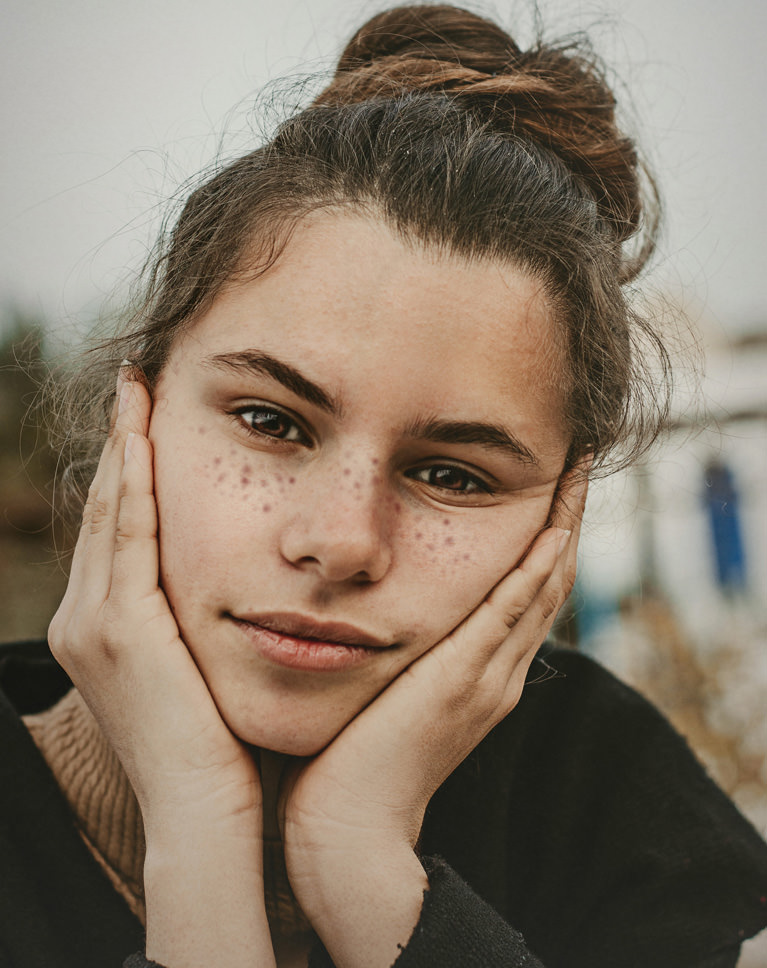
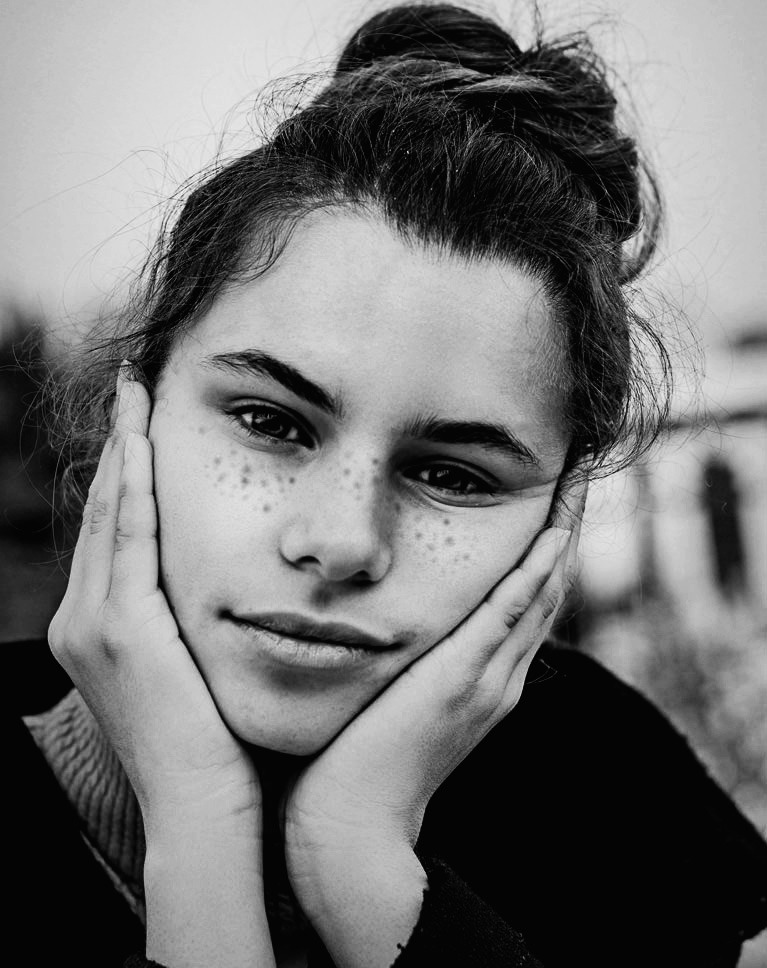
B&W High Contrast 1 turns the portrait into crisp black and white with deep blacks: her face and hands become the brightest part of the frame, and the freckles and eyes stay sharp while the skin keeps a smooth tone. Each look builds its own group, so you can play another look on the same photo and switch groups on and off to compare.
Where Black and White Shines
Without color, a portrait comes down to light, shape and expression. A darker background and bright skin put all the attention on the face. Raise the Reds and Yellows in the Black & White layer for brighter skin. Double-click the Black & White layer to reach the sliders, and move them only slightly. For flattering skin tones with gentle contrast, try B&W Portrait 1, 2 or 3, made for people.
Best On
Close-up portraits, expressive faces and photos with strong window light.
High Contrast Black & White
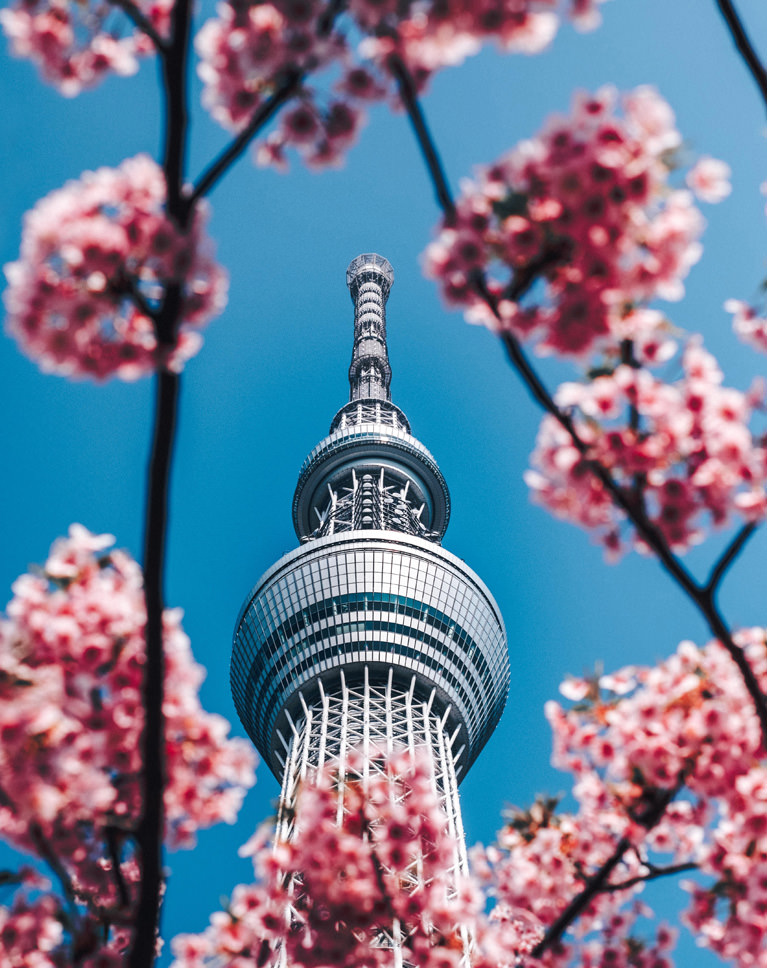
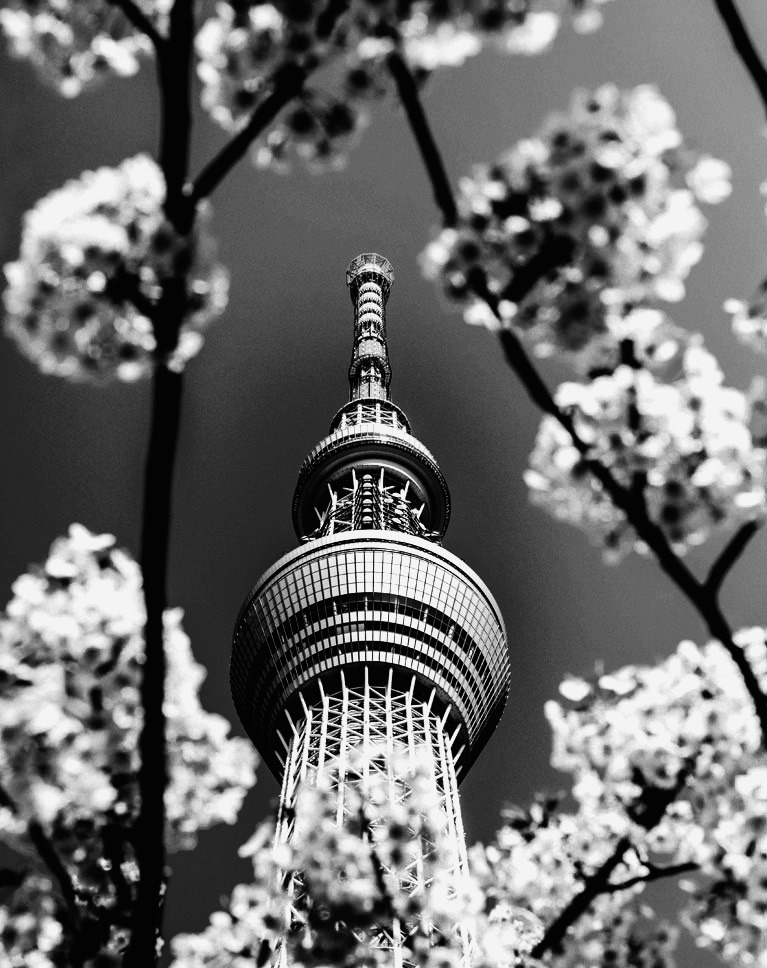
B&W High Contrast 1 drops the blue sky to a deep gray and turns the pink blossoms almost white, so the tower and branches read as strong shapes and lines. Blacks go deep and the textures stand out. It is the first of three High Contrast looks, and 3 is the boldest of them.
Color Turns Into Tone
In black and white every color becomes a shade of gray. The blue sky going dark and the blossoms going light is what gives this frame its contrast. Lower the Blues slider for an even darker sky. The look builds a group with a Black & White layer and contrast layers, so double-click the Black & White layer to reach the Reds, Yellows and Blues sliders. For a softer, airier result with lifted blacks, try B&W Low Contrast 1, 2 or 3 instead.
Best On
Architecture, flowers against the sky and graphic street photos.

Black & White With Vignette
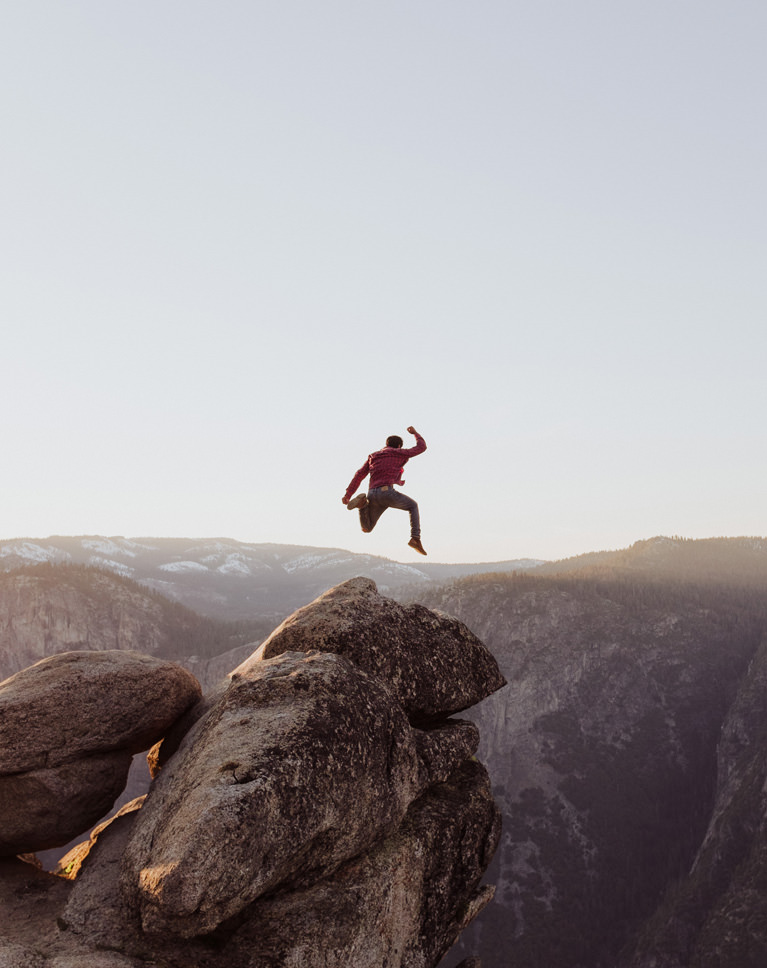
B&W Classic with Vignette Soft and Grain Fine darkens the corners and the rocks in front, pulling the eye up to the jumper against a bright, soft sky. The fine grain gives the gray tones a film-print feel. To move or resize the vignette later, double-click its layer.
A Print-Style Finish
The old pack baked grain and a vignette into every look. Now they’re separate actions: add Vignette Soft or Strong and Grain Fine, Medium or Heavy on top of any look, and change or delete each one on its own. Each sits on its own layer, so you can also lower its opacity. Play Grain last so it sits on top of everything else. Grain is measured in pixels, so use Heavy on very large photos and Fine on small ones.
Best On
Landscapes, travel photos and anything you want to feel like a film print.
What’s in the Download
One action set, 11 looks + grain + vignette
Unzip it and load the set in the Actions panel. Play a look, then add Grain and a Vignette if you like.
- ATNPHLEARN Black & White 2026.atn1 action set with all 16 actions
- JPG5 Sample ImagesPractice photos
- PDFPHLEARN Black & White – Guide (2026).pdfInstall steps, every action explained, fixes
- B&W Low Contrast 1
- B&W Low Contrast 2
- B&W Low Contrast 3
- B&W High Contrast 1
- B&W High Contrast 2
- B&W High Contrast 3
- B&W Portrait 1
- B&W Portrait 2
- B&W Portrait 3
- B&W Matte
- B&W Classic
- Grain Fine
- Grain Medium
- Grain Heavy
- Vignette Soft
- Vignette Strong
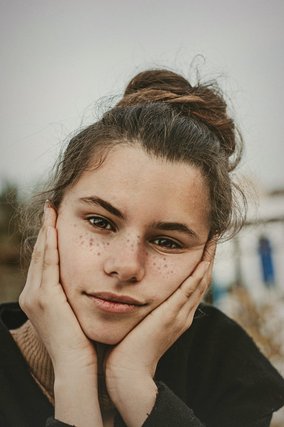
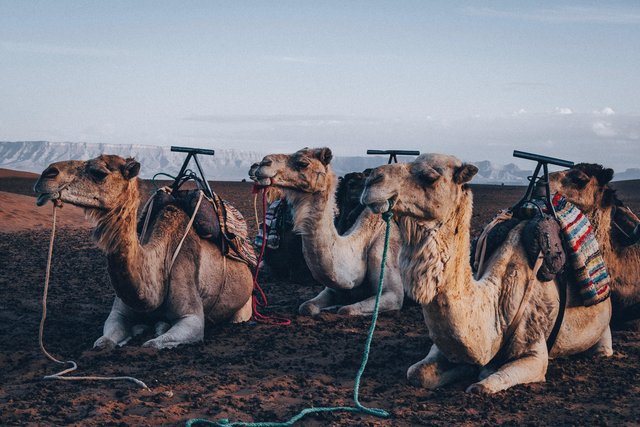
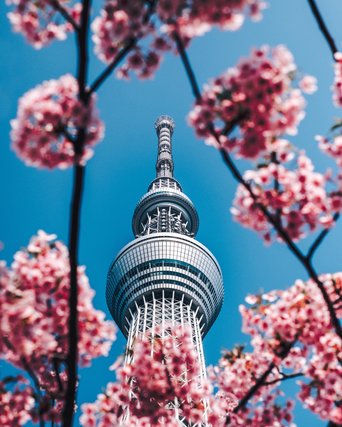
The 5 sample images


Photoshop Action Questions, Answered
What’s included in the Black & White Photoshop Actions?
You get 16 actions: 11 black and white looks (Low Contrast 1–3, High Contrast 1–3, Portrait 1–3, Matte and Classic), Grain Fine, Medium and Heavy, and Vignette Soft and Strong. The download also includes 5 sample images and a PDF guide with install steps and every action explained.
What kind of photos are the Black & White Photoshop Actions made for?
They’re made for portraits, landscapes, lifestyle photos and more. Without color, an image relies on composition, shapes and textures, and these actions enhance those elements, add contrast and style, and can give a vintage film look. Each action can be fine-tuned, to bring out detail in a landscape or protect the soft features of a face.
How do the different black and white styles compare?
Go high contrast for a graphic look that emphasizes shape and texture, low contrast or Matte for a softer, vintage feel, and Portrait for flattering skin. Grain and Vignette are separate actions, so you can add them to any look and change their strength on their own.
Are Photoshop Actions included in my PHLEARN PRO subscription?
Yes. A PHLEARN PRO membership includes every Photoshop Action pack, plus PRO Tutorials, Lightroom Presets, LUTs and Photoshop Brushes.
What version of Photoshop do I need?
These actions work in Photoshop CS6 and newer, on Mac and Windows. We recommend the latest version. Photoshop on the iPad and on the web cannot run actions.
How do I install Photoshop Actions?
Unzip the download, open Photoshop, then double-click the .ATN file. Photoshop shows no confirmation, but the set is now at the bottom of the Actions panel. The PDF guide in your download shows every install method and explains each action, and there is more help on our Photoshop Actions install guide.
Where do the actions show up after I install them?
At the bottom of the Actions panel, as a set named after the pack. Open the panel with Window > Actions, or press Option + F9 on a Mac or Alt + F9 on Windows.
Photoshop says “Command not currently available.” What do I do?
The photo is in a mode Photoshop can’t add these layers to: Indexed Color, Bitmap, Multichannel or 32-bit. Set Image > Mode to RGB Color and 8 or 16 Bits/Channel, and if Quick Mask is on, press Q to turn it off. Then play the action again. The rebuilt 2026 actions work with any layer selected and in CMYK, Lab and Grayscale photos too.
The action stopped and showed a message. Is something wrong?
The 2026 actions don’t stop with messages any more: each one builds its layers in one go, and the layer and group names tell you what to do next. A few actions open a Photoshop window on purpose (Choose Direction, Custom, Choose Blur and the movable vignettes) so you can set the effect yourself; click OK when you’re done.
How do I undo an action?
Open the History panel (Window > History) and click the state from before the action ran. You can also hide or delete the group the action built in the Layers panel.
Do you offer refunds?
Because these are downloadable products, all sales are final and we are not able to offer refunds.
Terms of Use
These Actions are licensed for personal and professional use by the individual who purchased or downloaded them. The license does not extend to companies or partnerships, and the files may not be resold, loaned, gifted, shared, copied or redistributed. All PHLEARN Actions are copyright protected.
Master Photoshop, Lightroom and Photography
Join PHLEARN PRO for $12.99 a month or $99.99 a year. Cancel anytime, with a 100% money-back guarantee.





