
Download Assets
Download Assets
This tutorial includes 4 sample images and 4 sample PSDs. Downloads are free with a PHLEARN account.
- Download the sample images and PSDs from every free tutorial on PHLEARN
- New free tutorials published every week
- One free account — sign up once, then download anything
Watch the Full Series
10 Days of AI in Photoshop & LightroomWatch all 10 tutorials free
description
Generative Fill looks like one tool with one box to type into. It is really three jobs sharing an interface — taking something out, putting something in, and swapping one thing for another — and each wants a different kind of selection and a different kind of prompt.
The rule that matters most is barely documented: Adobe’s Firefly model works best on a small, tight, local selection, while the partner models like Nano Banana want the whole canvas selected so they can see the entire scene. Getting the selection right is most of the difference between a result you keep and one you undo.
Continue Watching 10 Days of AI
JOIN 10 DAYS OF AI (FOR FREE!)
Ready to jump in? Sign up and we’ll email you a printable calendar and daily class schedule so you can get started right away!
Image Source
Generative Fill Does Three Different Jobs, and Each One Wants a Different Selection
Generative Fill looks like one tool with one box to type in. It is really three jobs sharing an interface: taking something out, putting something in, and swapping one thing for another. Each of them wants a different kind of selection and a different kind of prompt, and getting those two things right is the difference between a result you keep and one you undo.
The rule that matters most is barely mentioned anywhere: Adobe’s own Firefly model works best on a small, local selection, while the partner models like Gemini 2.5 Nano Banana work best when you select the whole canvas. Do it the other way round and both will disappoint you.
The Two Things That Decide the Result
The Selection Sets the Context
Photoshop samples what surrounds your selection to work out what belongs there. A selection drawn tight against an object gives it almost nothing to go on, which is why loose selections consistently beat careful ones here.
An Empty Prompt Means “Remove”
Leave the box blank and Photoshop fills the area with what it thinks should be behind. Type anything and you have asked it to add. That single distinction covers most of what people get wrong.
Different Models Want Different Scopes
Firefly: small selection, local job, three variations at a time. Partner models: select all, instruct in a sentence, usually one result per run.
Remove Something From the Frame
-
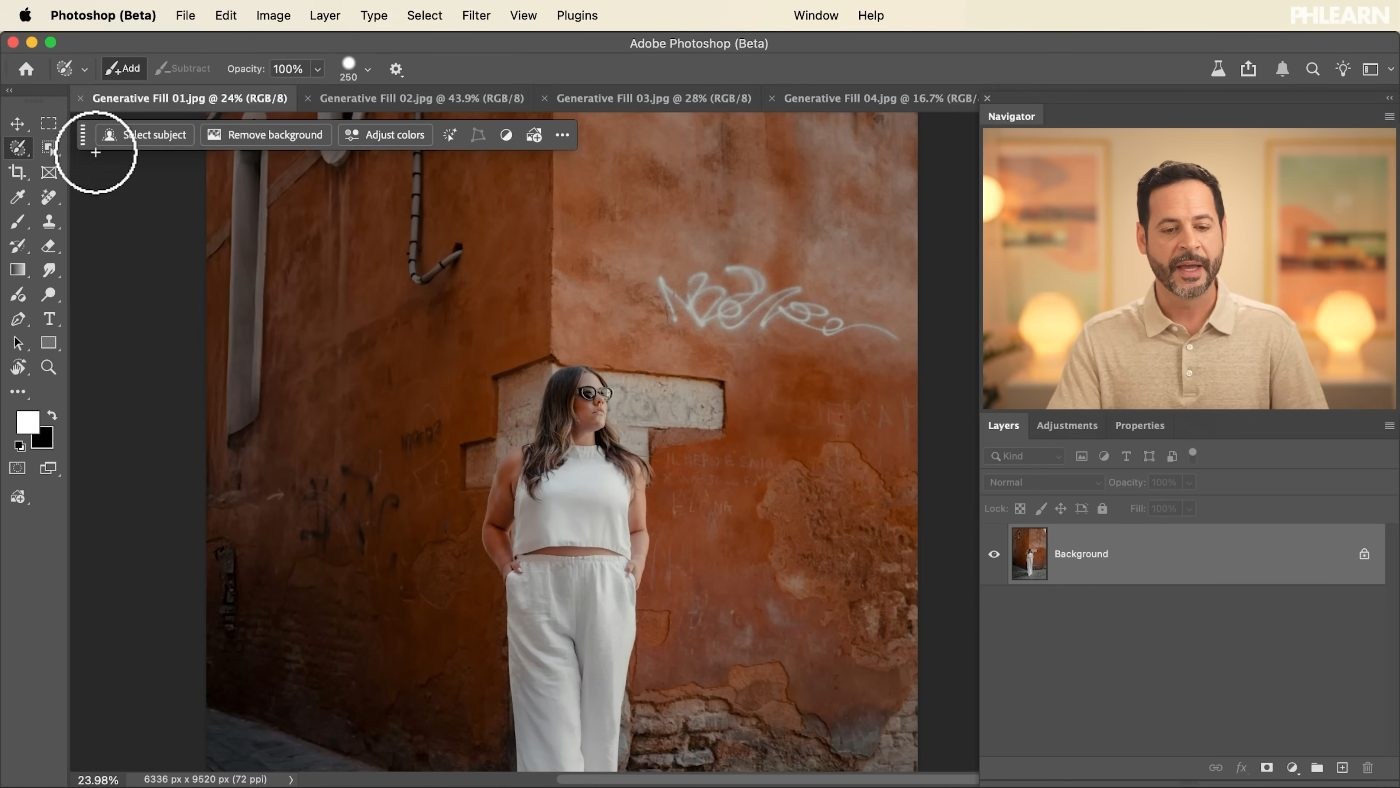
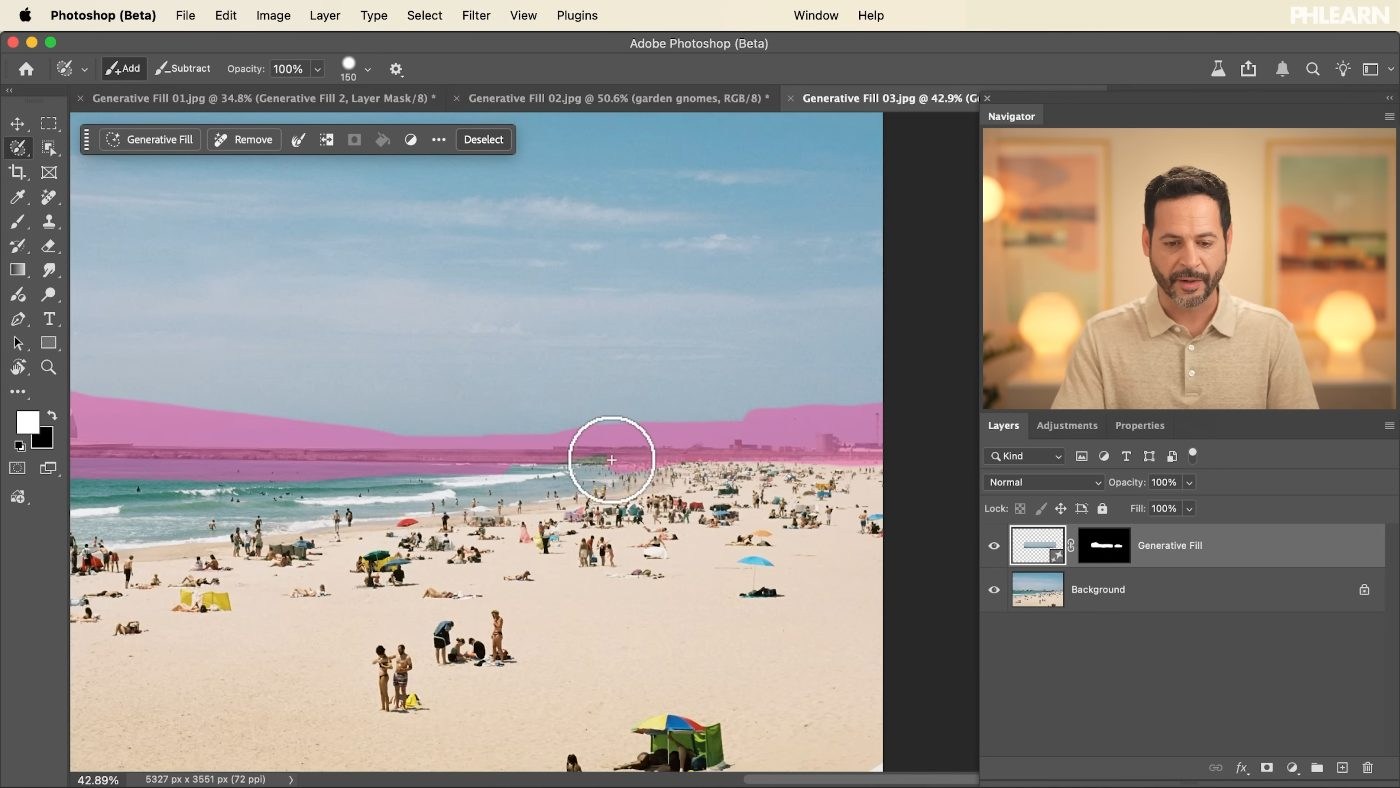
Grab the Selection Brush (B) and Paint a Loose Circle Around the Object
Deliberately sloppy. Include a buffer of the background on all sides — that buffer is the context Photoshop uses to invent the fill, and starving it is the most common cause of a visible patch.
-
Open the Contextual Task Bar and Click Generative Fill
Window > Contextual Task Bar if it isn’t showing.
-
Leave the Prompt Completely Blank and Generate
No text at all. Describing the background is an instruction to build one, and Photoshop will happily give you a more interesting background than the one you actually had.

Add Something That Was Never There
-
Select the Area Where You Want It to Appear
The selection is doing double duty here: it says where, and its size says how big. Draw it at roughly the scale you want the object to be.
-
Click Generative Fill and Type What You Want
Short and concrete — “garden gnomes” rather than a paragraph. Check which model is selected before generating.
-
Work Through the Variations in the Properties Panel
Three per run with Firefly. Generating twice and choosing from six is a better use of a minute than accepting the first plausible one.
Replace Something Using a Partner Model
-
Select All With Cmd/Ctrl + A
This is the part that reads as wrong and isn’t. Partner models such as Gemini 2.5 Nano Banana are built to work on a whole image with an instruction, not on an isolated patch. Give one a small selection and the result is usually worse than Firefly’s.
-
Click Generative Fill and Write an Instruction, Not a Description
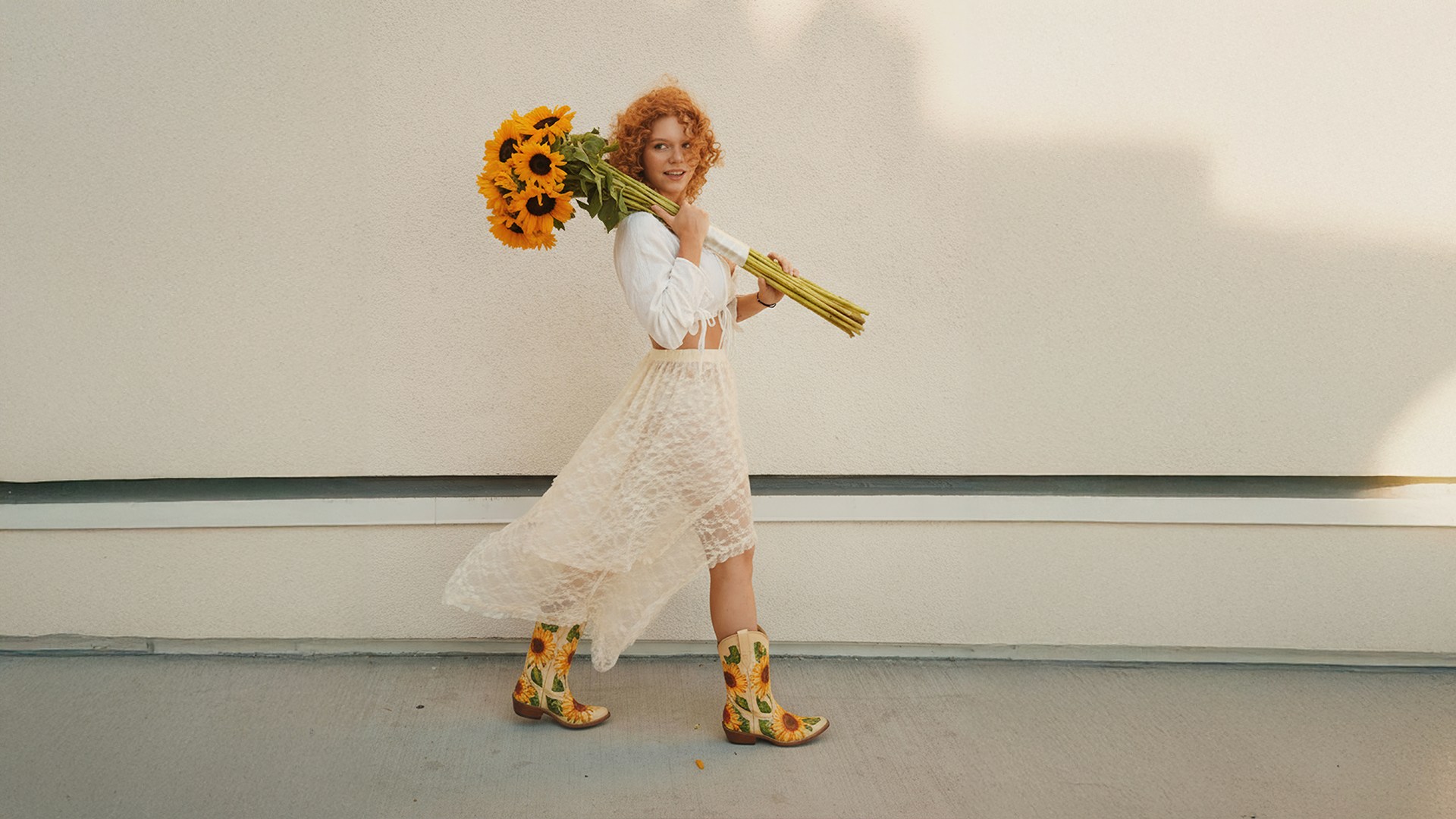
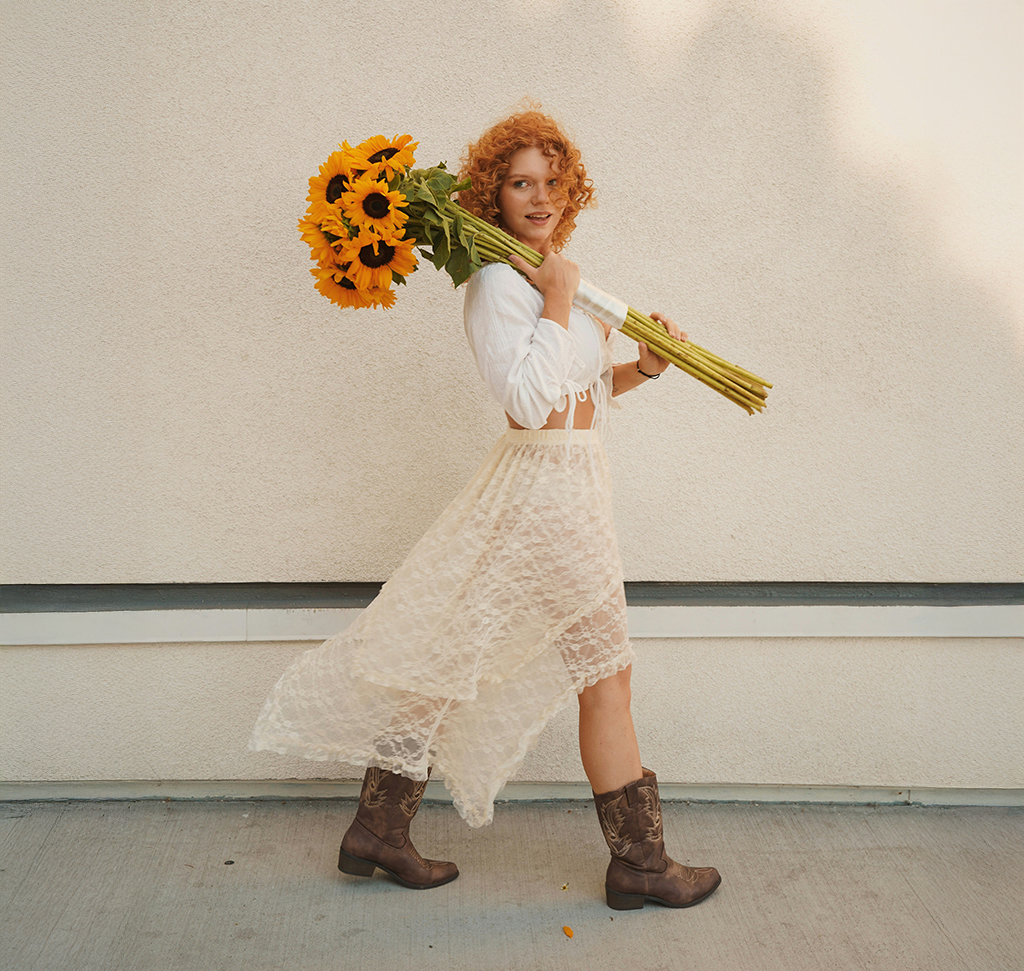
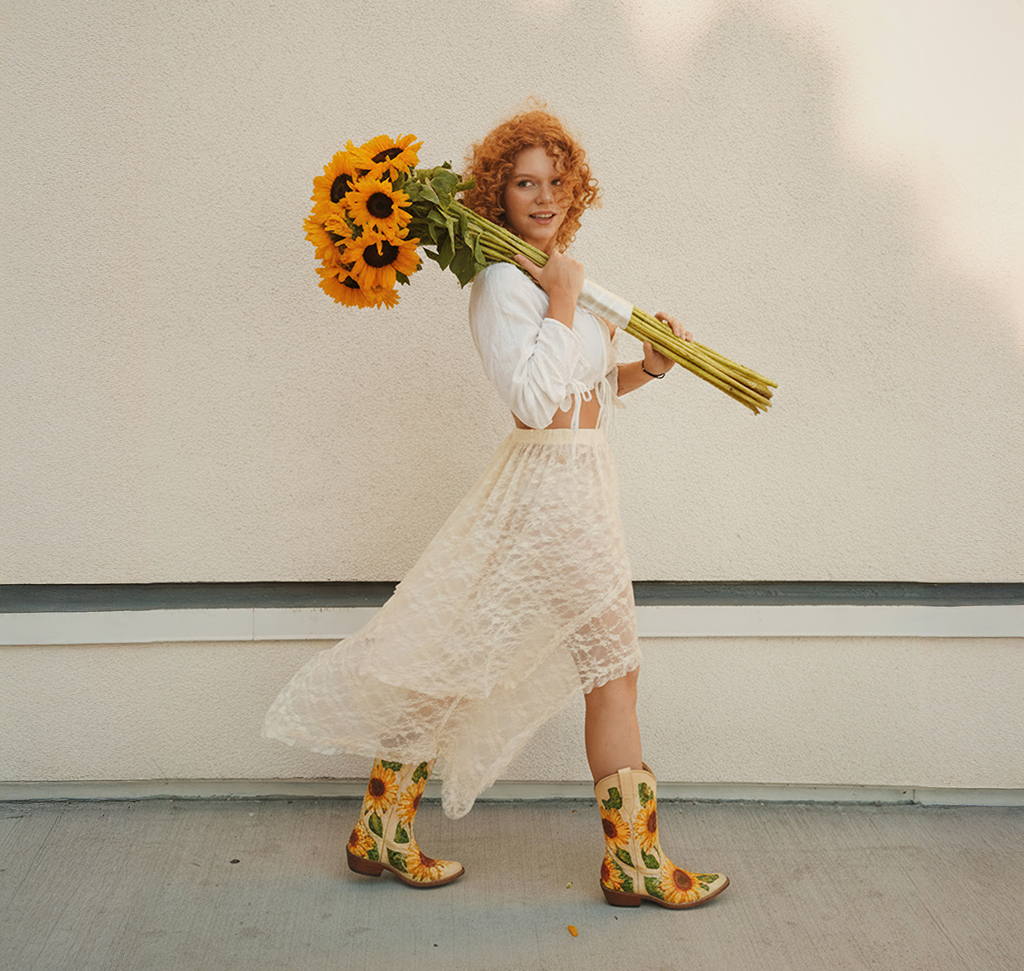
“Change her boots to sunflower boots” — a sentence telling it what to do to the photograph. That phrasing is what partner models respond to, and it is different from the noun-phrase prompts Firefly likes.
-
Choose the Partner Model in the Model Picker, Then Generate
Expect a single result rather than three. Click Generate again for another option — the variation between runs is real, so a second or third attempt is often worth it.

Each run spends generative credits, and partner models are not priced the same as Firefly; our free guide to generative credits breaks down what every AI tool in Photoshop and Lightroom costs.
Common Mistakes
Selecting Too Precisely
A tight selection is the habit you built with every other tool in Photoshop, and it is the wrong habit here. Leave a margin.
Prompting When You Meant to Remove
Blank means remove. Anything typed means add.
Using a Partner Model on a Small Selection
Select all instead, and instruct it. Small local jobs belong to Firefly.
Accepting the First Variation
The spread between generations is wide enough that the first result is rarely the best available.
Asking for Something the Scene Can’t Support
Lighting and perspective come from the surrounding pixels. An object that would need light from a direction the photo doesn’t have will look pasted on no matter how you prompt it.
Prompting Is a Smaller Skill Than It Looks
There is a lot written about prompt craft, and most of it overstates the case for this tool. In Generative Fill the prompt is usually the least important of the three inputs. The selection matters more, the model choice matters more, and the photograph itself matters most — a scene with even light and simple geometry will accept almost anything you generate into it, and a difficult one will fight every attempt.
So the useful habit is not writing better prompts. It is noticing, before you type anything, whether the area you have selected gives Photoshop enough to work with, and whether the job in front of you is a Firefly job or a partner-model job.
Do All Three on One Photograph
Paint a loose selection around something you want gone, hit Generative Fill, and generate with an empty prompt. Download the four free sample images and four PSDs and then do the other two jobs on the same frame — add an object with a short prompt into a selection drawn at the right size, and replace something by selecting all and instructing a partner model. Seeing the three side by side is what makes the selection rule stick. For everything Photoshop does that AI doesn’t, our PRO Photoshop Learning Path runs to 11 courses and 53 hours.
Quick Reference: Keys, Menus and Settings
- Select looselySelection Brush tool, paint a circle around the object and it fills the center
- Show the task barWindow > Contextual Task Bar
- RemoveGenerative Fill, prompt left blank, Firefly Image 3, Generate
- AddGenerative Fill, a short prompt (“garden gnomes”), pick a variation in the Properties panel
- Bring back detailClick the Generative Fill layer mask, B, paint black
- ReplaceSelect > All (Cmd/Ctrl + A), Generative Fill, Gemini 2.5 Nano Banana, “change her boots to sunflower boots”
Firefly gives three variations per run; partner models give one.
Free Downloads
Follow Along on the Same Photos
Get the four sample images and four PSDs: the graffiti wall, the green house, the beach scene and the sunflower portrait. Free with a PHLEARN account.
Generative Fill Selections: Common Questions
How do I remove an object with Generative Fill?
Select the object loosely, click Generative Fill and leave the prompt completely blank, then click Generate. With nothing typed, Photoshop knows you want the area removed.
How precise should my selection be?
Loose. With the Selection Brush tool, just paint a circle around the object and it fills in the center. Leave some background around it, because that surrounding area is what Photoshop uses to work out the fill.
Where is the Generative Fill button?
In the Contextual Task Bar, which appears once you have a selection. If you don’t see it, go to Window > Contextual Task Bar and make sure it is checked.
Why did Generative Fill add something when I wanted it removed?
You typed a prompt. A blank prompt means remove; anything typed is a request to add. Describing the background asks Photoshop to build a new one.
How do I add an object that isn’t in the photo?
Select the area where it should go, drawn at roughly the size you want it. Click Generative Fill, type something short like “garden gnomes” and click Generate.
Why do I get three results, and sometimes only one?
Firefly Image 3 gives three variations per run, which you click through in the Properties panel. Partner models give one at a time. Click Generate again for more options either way.
Why select the whole image for Nano Banana?
Firefly works best on a selection right around the object, but Gemini 2.5 Nano Banana works well on the entire image. Choose Select > All (Cmd/Ctrl + A), pick the model in the model menu and describe the change.
What should I type for a partner model?
An instruction, not a noun. Instead of “sunflower boots,” write “change her boots to sunflower boots.” Firefly prefers short descriptions like “tropical.”
The fill changed part of my subject. How do I fix it?
Each generation lands on its own Generative Fill layer with a mask. Click the layer mask, press B for the Brush tool and paint black to bring back the original, as with the sunglasses in the video.
Are the sample files free?
Yes, with a free PHLEARN account. You get 4 sample images and 4 sample PSDs: the graffiti wall, the green house, the beach scene and the sunflower portrait, so you can try all three Generative Fill jobs.
Master Photoshop, Lightroom and Photography
Join PHLEARN PRO for $12.99 a month or $99.99 a year. Cancel anytime, with a 100% money-back guarantee.





