
Download Assets
Download Assets
This tutorial includes 4 sample images and 4 sample PSDs. Downloads are free with a PHLEARN account.
- Download the sample images and PSDs from every free tutorial on PHLEARN
- New free tutorials published every week
- One free account — sign up once, then download anything
Watch the Full Series
10 Days of AI in Photoshop & LightroomWatch all 10 tutorials free
description
Removing objects is the fix for this. Every photograph has something in it you’d rather wasn’t — a stranger walking through the back of the frame, a power line across a clean sky, a bin, a sign, a light stand you didn’t notice until you got home.
Photoshop has three answers, and knowing which to reach for is most of the skill. Find Distractions clears every person or wire in one go but takes no instruction. The Remove Tool paints a single object away and lets you choose exactly what goes. Generative Fill is slower but returns variations to compare, which is what you want on the hard areas.
Continue Watching 10 Days of AI
JOIN 10 DAYS OF AI (FOR FREE!)
Ready to jump in? Sign up and we’ll email you a printable calendar and daily class schedule so you can get started right away!
Image Source
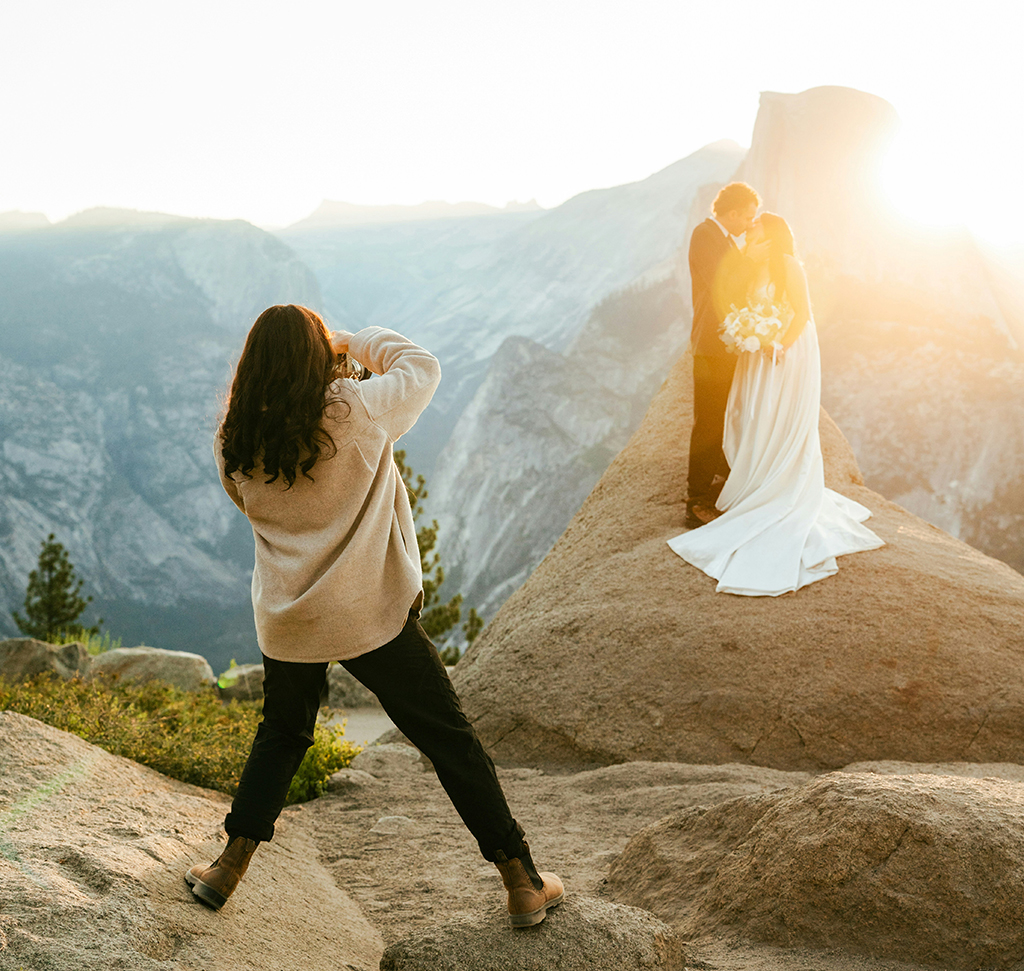
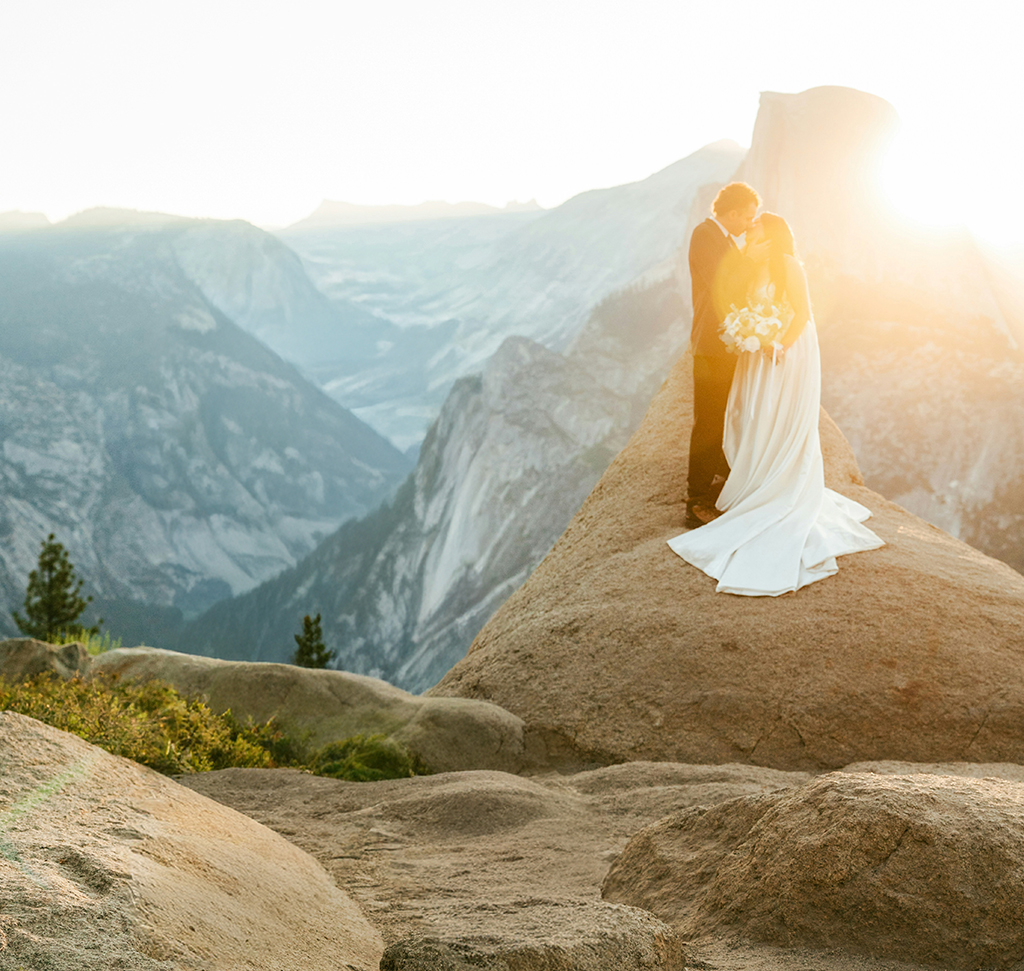
Object Removal in Photoshop Now Takes One Click, But Not Always the Same Click
Every photograph has something in it you’d rather wasn’t. A stranger walking through the back of the frame, a power line across a clean sky, a bin, a sign, a light stand you didn’t notice until you were home.
Photoshop now has three different answers to that problem, and knowing which one to reach for is most of the skill. Object removal by the Remove Tool’s Find Distractions is instant but takes no instruction; painting manually with the Remove Tool is nearly as fast and lets you choose; Generative Fill is slower, costs credits, and gives you options to compare. Picking wrongly wastes either time or credits.
Three Tools for the Same Problem
Find Distractions Is a Batch Operation
It finds every person, or every wire, in the frame at once and removes them together. Brilliant when you want all of them gone. Unhelpful when you wanted to keep one.
Painting With the Remove Tool Is the Middle Ground
You choose the target, Photoshop fills it. No prompt, no credits, no variations — just a fast, decent result on ordinary backgrounds.
Generative Fill Is for When You Need to Choose
Three variations to compare, which is the whole reason to use it. Reach for it when the area behind the object is complicated enough that a single automatic guess is likely to be wrong.
Set It Up So Nothing Is Permanent
-
Select the Background Layer and Grab the Remove Tool
It lives in the toolbar with the Healing tools.
-
Tick “Create a New Layer” in the Options Bar
Do this before you remove anything. Every removal then lands on its own layer, which means you can hide one, erase part of one, or mask a partial result back — none of which is possible once you’ve painted onto the original.
Remove Objects: Every Person in the Background at Once
-
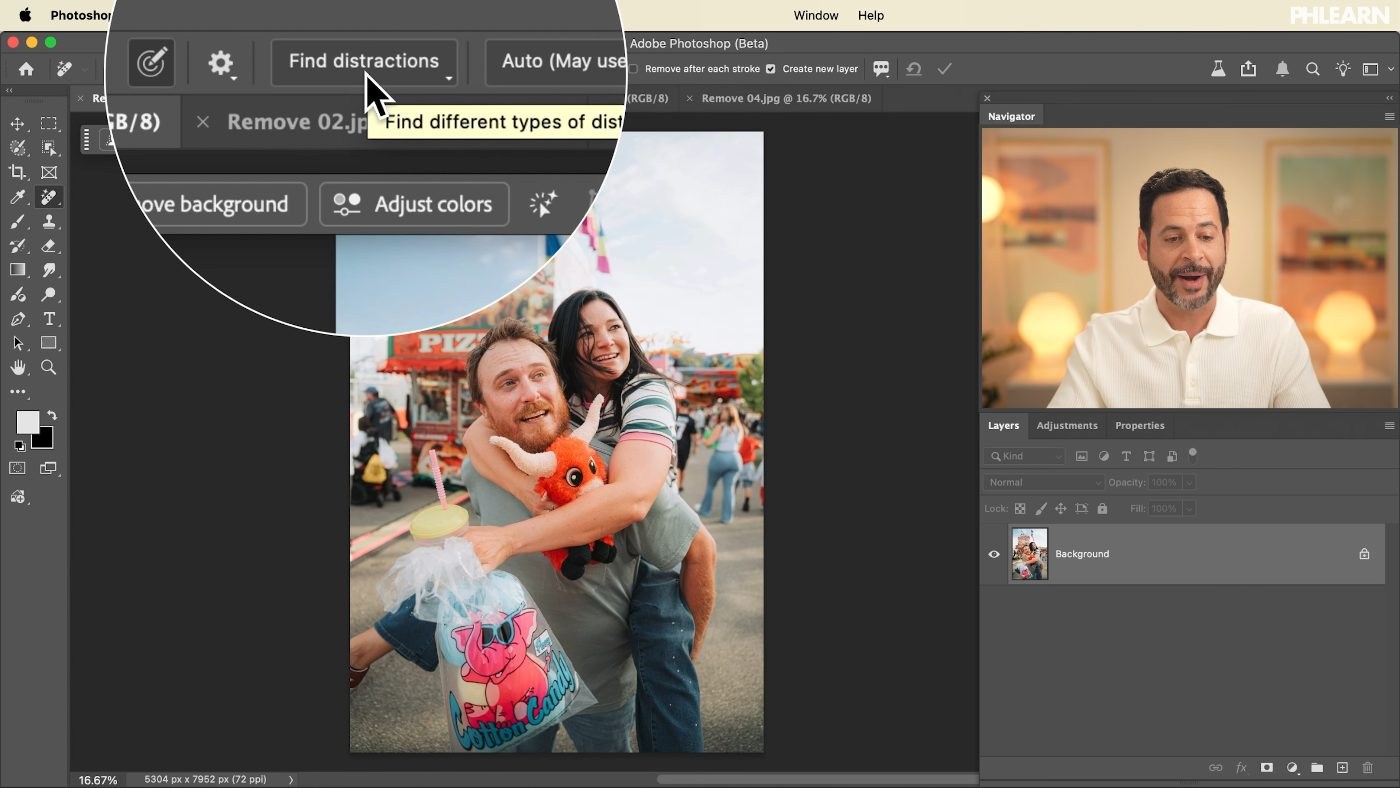
Open Find Distractions and Choose People
Photoshop identifies the background figures itself and highlights them. Look at what it has selected before you commit — it decides who counts as a background person, and it is not always right.
-
Press Enter to Commit
Or click the tick. All of them go in one pass.
Remove Wires and Cables
-
Go Back to Find Distractions and Choose Wires and Cables
This is the one that genuinely changed a job that used to be miserable. Photoshop traces the lines across the whole frame and removes them together, including the thin ones you’d have missed.
-
Paint Over Anything It Left Behind
Support cables, a stray bulb, the last bit of a line where it crossed something busy. Paint straight over it with the Remove Tool and press Enter. Expect to do a little of this — it is normal, not a failure.
Use Generative Fill for the Difficult Areas
-
Sloppily Select the Object With the Selection Brush
Precision is genuinely not needed here. A loose selection with some background caught in it often generates better than a tight one, because Photoshop has more context to work from.

-
Click Generative Fill and Leave the Prompt Empty
An empty prompt tells Photoshop to fill with what belongs there. Typing a description invites it to add something, which is the opposite of what you want when removing.
-
Check the Model, Then Generate
Firefly Image 3 gives the best removal results. You’ll get three variations in the Properties panel.
-
Compare All Three Before Choosing
The differences are usually in the texture and the joins, not the obvious middle. Look at the edges of the filled area on each one.

Generative Fill spends generative credits on every run; our free guide to generative credits sets out what each AI tool in Photoshop and Lightroom actually costs.
The Fast Manual Fix
-
Paint Directly Over One Object With the Remove Tool
Skip Find Distractions altogether. Paint over the person or the object, press Enter, done. When you want one thing gone and don’t need choices, this is faster than anything else here and costs nothing.

What Goes Wrong
Forgetting the New Layer
Removals baked into the background layer cannot be partially undone later. The tick box takes a second.
Trusting Find Distractions Without Looking
It sometimes removes a person you meant to keep, or misses one at the edge of the frame. Check the highlight before committing.
Selecting Too Tightly for Generative Fill
A tight selection starves it of context and the fill shows a seam. Be generous.
Writing a Prompt When Removing
Describing the background usually produces a version of the background that is more interesting than the one you had. Leave it empty.
Spending Credits on Easy Removals
A person against grass or sky does not need Generative Fill. The Remove Tool handles it for free.
Removing Objects Is a Decision, Not Just a Technique
Now that taking something out of a photograph is trivial, the interesting question is no longer how — it’s whether. A stranger in the background can be clutter or can be the reason the picture works. A wire across a sky is almost always clutter. A bin behind a portrait subject is clutter. A second person looking the other way might be the photograph.
The habit worth building is to remove one thing, look at the result properly, and ask whether the frame got better or merely tidier. Those are not the same outcome, and the tools cannot tell them apart for you.
Clean Up One Image Three Ways
Tick “create a new layer”, run Find Distractions on People, then again on Wires and Cables, then paint over whatever survived. Download the four free sample images and four PSDs and take one frame through all three methods — the automatic pass, the manual paint, and a Generative Fill on the hardest area — so you can see where each one starts to struggle. For retouching and clean-up done deliberately, our PRO Ultimate Guide to Non-Destructive Editing covers the layer discipline that makes any of this safe to revise.
Quick Reference: Keys, Menus and Settings
- Set up the Remove ToolOptions bar: Create New Layer on, Remove After Each Stroke off, Mode: Auto
- Remove background peopleFind Distractions > People, then Enter or the check mark
- Remove wiresFind Distractions > Wires and Cables
- Paint out leftoversPaint over them with the Remove Tool, then Enter or the check mark
- Three options to compareLoose Selection Brush selection, Generative Fill, empty prompt, Firefly Image 3, pick in the Properties panel
Free Downloads
Follow Along on the Same Photos
Get the four sample images and four PSDs: the background crowd, the wires and cables, the red X sign and the passerby to paint out. Free with a PHLEARN account.
Object Removal in Photoshop: Common Questions
Which tool should I use to remove objects in Photoshop?
The Remove Tool for a quick, simple removal. Its Find Distractions option when you want every person or every wire gone at once. Generative Fill when the area is complicated and you want three variations to choose from.
How do I keep my removals editable?
With the Remove Tool selected, check Create New Layer in the options bar before you remove anything. Every removal then lands on its own layer that you can turn off and on.
How do I remove all the people in the background at once?
Pick the Remove Tool, click Find Distractions and choose People. Photoshop highlights them in pink; press Enter or click the check mark and they are removed in one pass. Have a clear main subject in front so it knows who to keep.
What if Find Distractions picks someone I want to keep?
Look at the pink highlight before you commit, because Photoshop decides who counts as a background person. If the removal is on its own layer, you can still hide or mask part of it afterward.
How do I remove power lines and cables?
Remove Tool > Find Distractions > Wires and Cables. It finds and removes them across the whole frame. Paint over anything left behind, like supports or hanging bulbs, and click the check mark.
Should Remove After Each Stroke be on?
Aaron unchecks it. Then you can paint over everything you want gone and remove it all at once with the check mark or Enter.
Does the Remove Tool use generative AI?
It can. Aaron sets the mode to Auto, which may use generative AI; Photoshop chooses whether to use it for each removal.
How do I remove something with Generative Fill?
Make a loose selection around it with the Selection Brush tool, click Generative Fill, type nothing, choose Firefly Image 3 and click Generate. Three variations appear in the Properties panel.
Should I type a prompt when removing an object?
No. An empty prompt tells Photoshop to fill the area with what belongs there. Typing a description invites it to add something.
Are the sample files free?
Yes, with a free PHLEARN account. You get 4 sample images and 4 sample PSDs, so you can remove the same people, wires and signs three different ways.
Master Photoshop, Lightroom and Photography
Join PHLEARN PRO for $12.99 a month or $99.99 a year. Cancel anytime, with a 100% money-back guarantee.





