Cutouts & Backgrounds Learning Path
Eight tutorials on cutting out a subject and putting it somewhere new, in order. Simple cutouts first, then every selection and masking tool, difficult hair, studio backdrops, a fast background change, believable shadows and the 2025 Harmonize tools.
What You’ll Learn
Cutting something out and changing what is behind it is the most common job in Photoshop, and the one most people get almost right. The Cutouts & Backgrounds Learning Path is eight tutorials from the first clean Select Subject cutout to hair that matches its background, fringe removal, studio backdrops, a background swap that matches light and focus, the shadow that sells it, and the AI tools that now do the first pass.
- 1. Make a clean, simple cutout Select Subject and Select and Mask on an easy subject, with clean edges and the habits that stop halos later.
- 2. Select and mask anything Every selection and masking tool in one place, including edges with no contrast, transparency, fur and clouds.
- 3. Cut out difficult hair Hair that is close in color to the background, selected with channels and painted masks.
- 4. Remove fringing and rebuild hair Extreme color fringing removed and missing strands painted back by hand.
- 5. Clean and extend studio backdrops Studio portraits: distractions removed, backdrops extended with AI, hair cut out and backgrounds replaced.
- 6. Change a background fast A quick background replacement where the new scene matches light, focus, angle and color.
- 7. Create shadows from scratch Cast shadows, multi-light shadows and contact shadows, the detail that makes a cutout sit on its new ground.
- 8. Finish with Harmonize The 2025 tools: Harmonize and cloud-based Remove Background, and the manual finishing they still need.
Who This Path Is For
Portrait, product and e-commerce photographers, designers who place people and products into layouts, and anyone whose cutouts still look cut out.
You should know layers and layer masks. Everything about selecting is taught here.
What You Need
- Photoshop A current version; the last tutorial uses tools released in 2025.
- Sample files Included for every tutorial, including the difficult-hair images.
- Layers and masks Assumed knowledge. If not, start with the Getting Started in Photoshop & Lightroom.
- A mouse or tablet Either works. A tablet helps when painting hair back in.
For whole scenes rather than single subjects, continue with the Everyday Compositing Learning Path.
How Long It Takes
Eight tutorials and 50 lessons, about 19 hours of video. The selections and masking guide is the longest. At a few hours a week, plan on four to five weeks.
Cut out one of your own photos after each tutorial. Hair is where the practice pays off.
Frequently Asked Questions
Do I need a PHLEARN PRO membership?
Yes. This is a PRO Learning Path, so all eight tutorials and their sample files are included with a membership.
Does Select Subject make this unnecessary?
It makes the first pass fast. Hair, fringing, transparency and matching the new background are still manual, and that is what this path teaches.
Which tutorial is for product photos?
Steps one, two and seven. The studio and hair tutorials are for people, but the same tools apply.
Do I have to follow the order?
It is built to be followed in order, from easy subjects to difficult ones, then backgrounds and shadows.
Where are the three cutout courses from?
Simple, Intermediate and Advanced Cutouts are a 2021 series built to be watched in that order. Steps two, five and eight bring in the newer tools.
Where to Go Next
Start the Path
Start with Simple Cutouts, then the full selections and masking guide at step two.
On This Page
PHLEARN PRO
Every tutorial in this path, with sample files, plus the full PRO library.
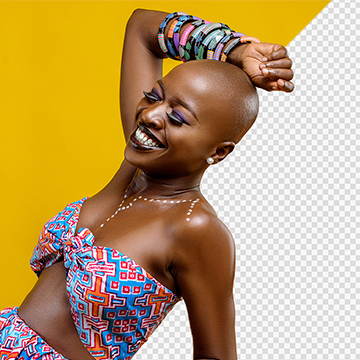
Learn how to cut out subjects in front of relatively simple backgrounds, recover and recreate fine details in hair, and fix common issues like color fringing.
Photoshop | Selections & Masking | Easy | 2.25 hours
5 Sample Images | 5 Sample PSDs
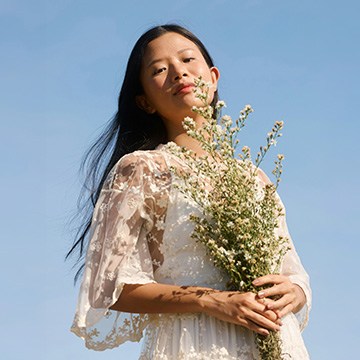
Masking in Photoshop from your first selection to hair, fur and clouds: 17 follow-along lessons on selection tools, layer masks and Select and Mask.
Photoshop | Selections & Masking | Medium | 3.75 hours
24 Sample Images | 21 Sample PSDs | Selections & Masking Course Guide (PDF)

Learn how to cut out subjects from complex backgrounds, fix color fringing, and recreate fine details using custom brushes and compositing tricks.
Photoshop | Selections & Masking | Medium | 2.25 hours
7 Sample Images | 5 Sample PSDs | 1 Photoshop Brush

Learn how to recreate hair with the Pen Tool and Brush Tool, extract details from alternate stock images, and much more.
Photoshop | Selections & Masking | Advanced | 2 hours
6 Sample Images | 3 Sample PSDs | 1 Photoshop Brush

Master studio photo editing in Photoshop! This tutorial combines traditional and AI tools to teach you background changes, retouching, and essential techniques. Get JPEG and RAW files, plus our Frequency Separation Action!
Photoshop | Photo Editing | Medium | 2 hours
6 Sample PSDs | 6 Sample Images (JPEG) | 1 Sample Image (RAW) | 1 Photoshop Action
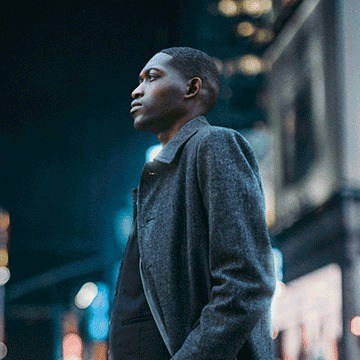
Learn how to quickly remove and change any background with realistic, professional results in Photoshop.
Photoshop | Compositing | Medium | 2.25 hours
6 Sample Images | 3 Sample PSDs
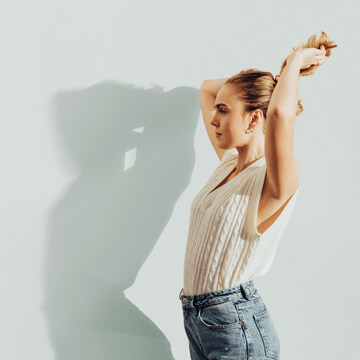
Learn to create realistic shadows for compositing, product mock-ups, product placements, e-commerce and graphic layouts.
Photoshop | Compositing | Medium | 3.25 hours
8 Sample Images | 6 Sample PSDs | 1 Photoshop Action
Transform photos into art! Learn to blend multiple images in Photoshop, from AI tools to classic techniques, to create stunning, realistic composites with perfect color and light.
Photoshop | Compositing | Advanced | 3.25 hours
26 Sample Images | 6 Sample PSDs