

Download Assets
Download Assets
This tutorial includes 3 sample images and 1 sample PSD. Downloads are free with a PHLEARN account.
- Download the sample images and PSDs from every free tutorial on PHLEARN
- New free tutorials published every week
- One free account — sign up once, then download anything
Watch the Full Series
30 Days of Photoshop · 2025 EditionOur most-watched series, updated for 2025 — watch all 30 free
description
A layer mask hides part of a layer without deleting anything. That one sentence is the whole feature, and it is why every serious Photoshop workflow is built on masks rather than the Eraser.
Day 6 builds a full composite with them: a subject cut out of their original background, dropped onto new mountains and a new sky, with the feather and fur edges refined properly, the background blurred as a single Smart Object, and the light shaped to hold it all together.
This is Day 6 of 30 Days of Photoshop, 2025 Edition — our most-watched series, rebuilt from the ground up for today’s tools.
Continue Watching 30 Days of Photoshop
JOIN 30 DAYS OF PHOTOSHOP (FOR FREE!)
Ready to jump in? Sign up and we’ll email you a printable calendar and daily class schedule so you can get started right away!
Image Source
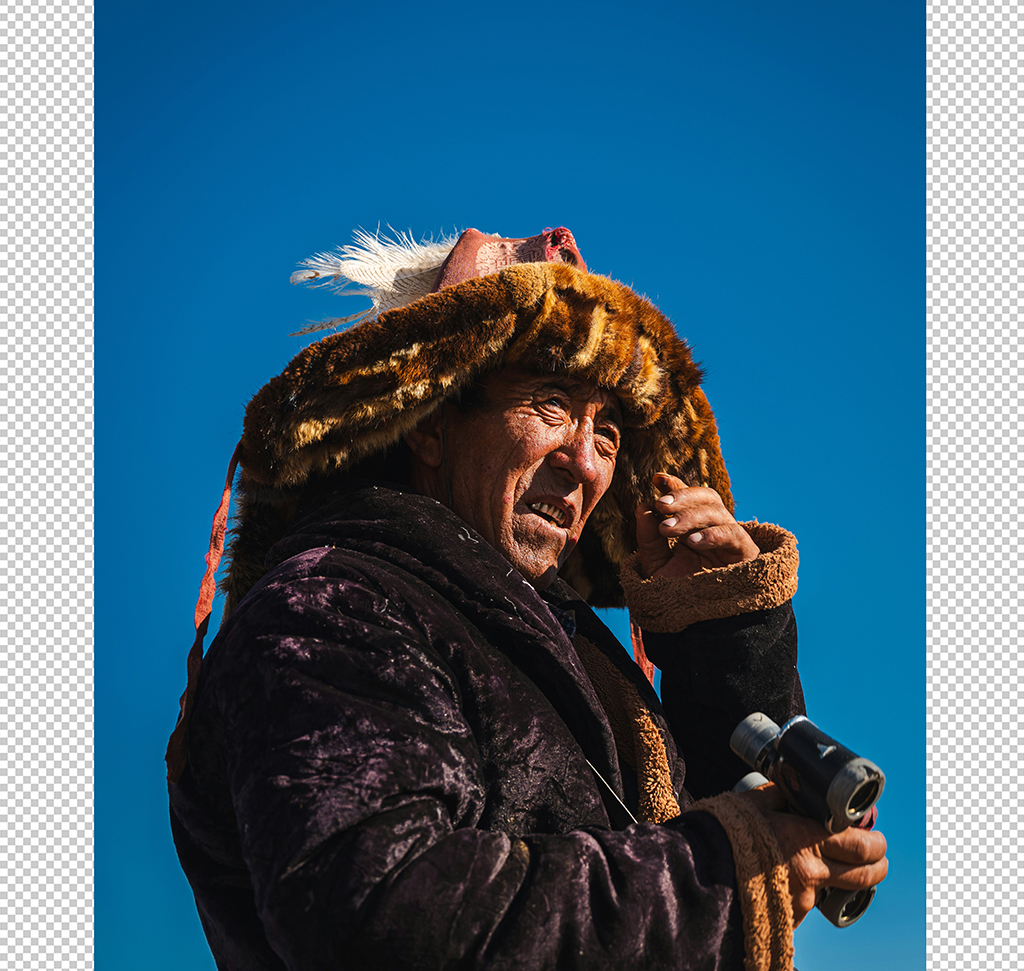
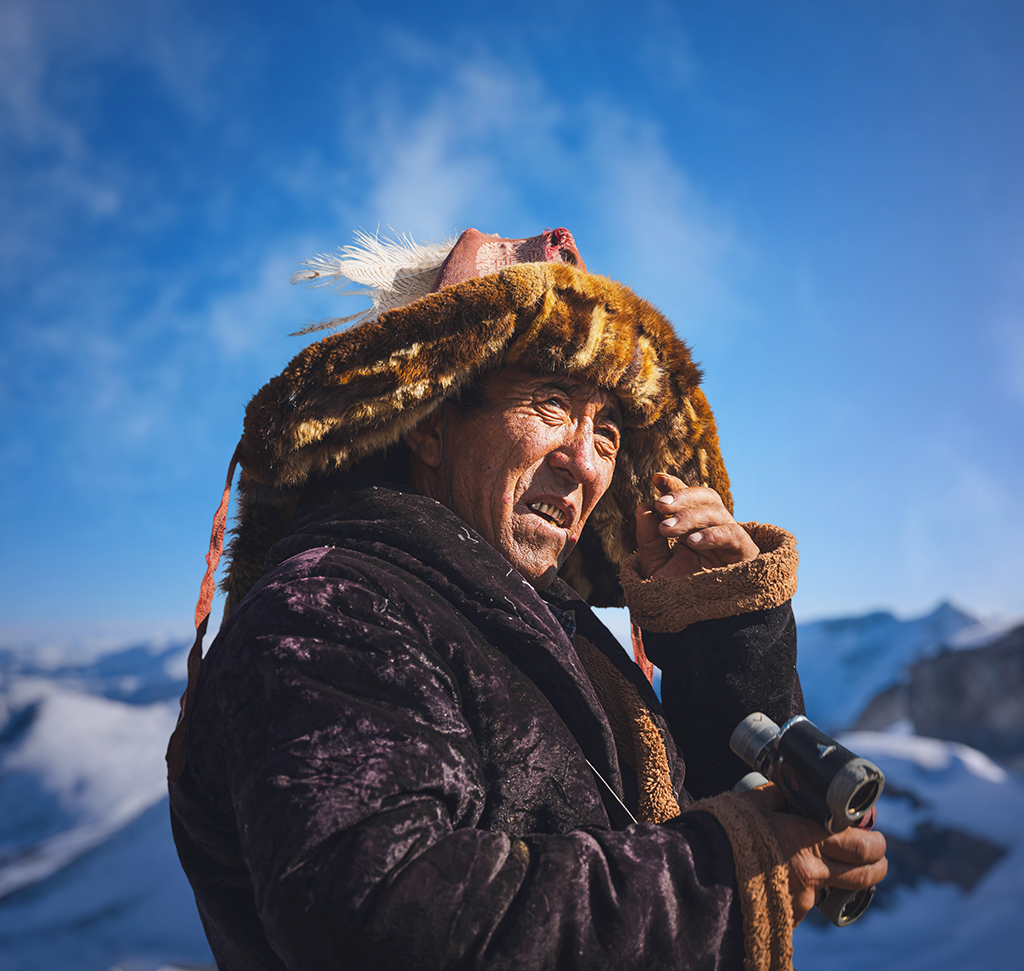
Layer Masks Hide, They Never Delete
A layer mask controls what part of a layer you can see. White shows, black hides, and gray shows partially. It deletes nothing, which is the whole reason it exists — anything the Eraser can do, a mask can do reversibly.
Everything below is one composite: a subject lifted out of their own background and put on a new one, with the edges, the focus and the light all handled by masks.
Always Make the Selection First
This is the habit that makes masking easy. Do not create an empty mask and start painting. Make a selection, then click the mask icon, and Photoshop converts the selection into the mask for you. The rough shape is done in one click and you spend your effort refining instead of drawing.
Worth remembering from Day 4: selections belong to the document, not to a layer. You can run Select Sky on the background layer, then click a completely different layer and turn that selection into its mask.
Cut the Subject Out and Build the Background
-
Bring All Three Images In and Stack Them
Drag the subject, the mountains and the clouds into one document. Double-click the locked background layer to unlock it so it can be reordered, and move the subject to the top, mountains to the bottom.
-
Select Subject, Then Click the Mask Icon
With the subject layer active, hit Select Subject in the contextual task bar and then the layer mask icon. Their original background disappears and the mountains show through.
-
Recompose With the Crop Tool
Press C and open the frame up to give the composite room to breathe, then Ctrl/Cmd + T to scale the mountains into place.
-
Extend the Sky With Generative Fill
If the background does not reach far enough, hide the subject, press M, marquee the empty strip and run Generative Fill with an empty prompt. It is the fastest way to buy yourself more sky. Merge the result down with Ctrl/Cmd + E.
-
Mask the Clouds With Select Sky
Scale the clouds into position, then click the background layer and run Select > Sky. Click back onto the clouds layer — the selection is still live — and click the mask icon. The clouds now exist only where sky already was.
-
Blend Them With Screen, Then Level Them
Set the clouds layer to Screen so the dark parts drop away and only the bright cloud structure remains. Then Ctrl/Cmd + L for a Levels adjustment to bring their density back down until they sit in the scene.
Four Ways to Look at a Mask
On Layers
The default. You see the result, not the mask.
Alt/Option-Click for Black and White
Alt/Option-click the mask thumbnail and the canvas shows the mask itself, in black and white. This is the fastest way to understand what a mask is actually doing, and the fastest way to spot a gray area you did not intend.
Overlay
Shows the masked area as a colored film over the image, like a rubylith. Useful when you are painting a mask by hand and need to see both at once.
Shift-Click to Disable It
Shift-click the mask thumbnail and a red X appears across it — the mask switches off and the whole layer comes back. It is a one-click before/after, and it is also the proof that nothing was ever deleted.
The Mask Controls You Will Actually Use
Click a mask thumbnail and Properties fills with its controls. Density makes the whole mask more transparent — pull it down and hidden areas start showing through faintly. Feather softens the entire edge with one slider, non-destructively, which is different from feathering a selection before you make the mask.
The contextual task bar adds add to mask and subtract from mask brushes for quick fixes without switching tools.

Refine the Edge Properly in Select and Mask
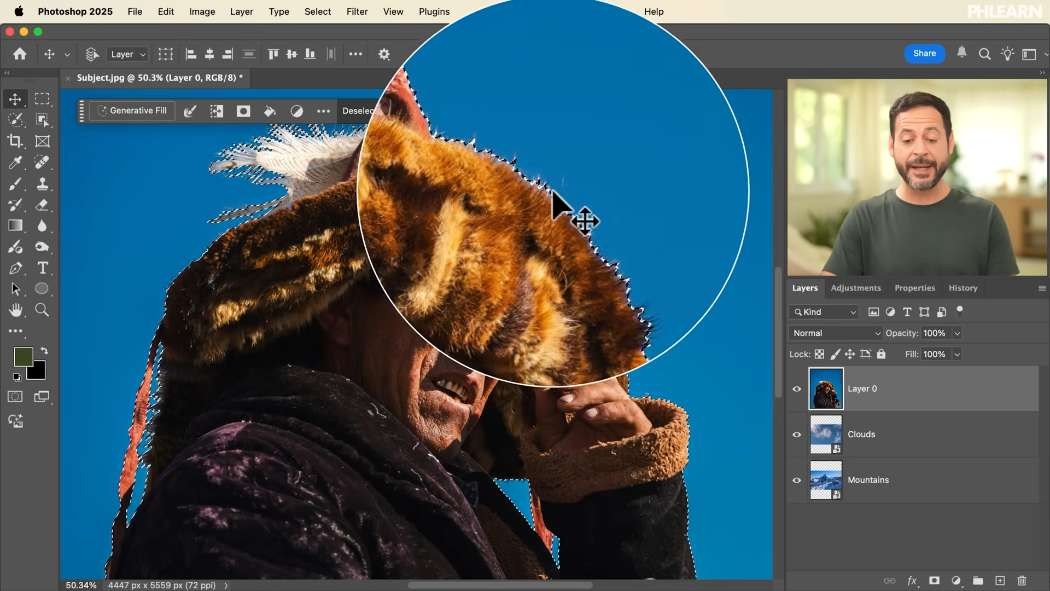
Zoom to 100% on a fresh cut-out and you will see the problem: a hard edge with a rim of the old background still clinging to it. Open Select and Mask from the Properties panel (or Select > Select and Mask).
Global Refinements
Feather softens the edge and Shift Edge moves the boundary inward or outward. Shifting inward by a small amount is what removes that halo of old background, and it fixes more bad composites than any other single control.
The Refine Edge Brush
For hair, fur and feathers, no selection algorithm will get it right. Take the Refine Edge Brush and paint over those areas. Photoshop re-analyzes just there and recovers the fine strands that a hard selection cut off. Use the [ and ] keys to keep the brush close to the size of the detail.
Decontaminate Colors
Recovering fine detail also drags in the color of the old background — a green fringe from a green backdrop, a blue one from sky. Tick Decontaminate Colors under Output Settings and Photoshop replaces those fringe pixels with color sampled from inside the subject. Note that it must output to a new layer with a new mask, because it is genuinely changing pixels; the slider controls how far it goes.
Unlink the Mask to Move the Layer Behind It
The chain link between the two thumbnails means they move together, which is right most of the time and wrong exactly when you want to reposition the content inside a mask you have already perfected.
Click the chain to break it. Now selecting the layer and dragging moves only the image; selecting the mask and dragging moves only the hole. For the clouds, this is how you slide the sky around behind a mask that already matches the horizon. Relink when you are happy.
Blur the Background as One Smart Object
-
Combine the Background Layers
Shift-click the clouds and mountains layers and choose Layer > Smart Objects > Convert to Smart Object. One object means one blur, applied consistently — blurring them separately is how backgrounds end up with mismatched depth.
-
Open Filter > Camera Raw Filter and Find Lens Blur
Camera Raw’s Lens Blur produces a far more convincing out-of-focus background than Gaussian Blur, because it models an actual lens rather than smearing pixels.
-
Turn On Visualize Depth and Paint the Blur In
Lens Blur tries to guess depth automatically, which is the wrong behavior here — everything behind the subject should be equally soft. Switch on Visualize Depth, choose the blur brush, and paint across the whole background with the amount up around 200.
-
Match It to the Subject
Turn Visualize Depth back off and adjust the blur amount until the background is no sharper than the softest part of your subject. A perfectly sharp background behind a slightly soft subject is the single most common giveaway in a composite.
Because it is a Smart Filter you can double-click Camera Raw Filter to change the amount later — though you will need to repaint the depth mask when you do.

Light the Composite With Two Masked Adjustments
-
Brighten the Center
Add a Brightness/Contrast layer, raise brightness and lower contrast slightly. Click its mask, take the Gradient tool with the black-to-white radial preset and drag from your subject outward, so the lift is concentrated on them.
-
Darken the Edges
Add a second Brightness/Contrast layer, this time pulling brightness and contrast down. Drag the same radial gradient on its mask, but tick Reverse so the darkening lands at the edges instead of the middle.
Two adjustments and two gradients, and the composite suddenly reads as one photograph. Relighting toward your subject is what convinces the eye that these elements were always in the same frame.
Unify the Colors With a Gradient Map
The last step on any composite. Add a Gradient Map, pick something with a color cast you like, click Reverse if it comes out inverted, and drop the layer opacity to around 10%.
It tints subject and background with the same colors at the same strength, which is the cheapest possible way to make images shot in different places look like they belong together.
Nothing Was Deleted
Shift-click any mask in the finished file and the original layer returns, whole. The subject’s original background is still there. The unblurred mountains are inside the Smart Object. Every adjustment is a slider you can move.
Masks also work on groups, type layers and Smart Objects — anything in the Layers panel can carry one. Download the three sample images and build this composite yourself; the Refine Edge Brush on the feathers is the part worth practicing.
Day 5 covered the adjustment layers used here. Tomorrow, Day 7 puts levels and curves head to head. If you want a deeper pass on cutting subjects out, our PRO Ultimate Guide to Manual Compositing goes considerably further.
Quick Reference: Keys, Menus and Settings
- Mask from a selectionSelect Subject in the Contextual Task Bar, or Select > Sky, then the layer mask icon
- More skyM, marquee the gap, Generative Fill; Cmd/Ctrl + E to merge
- Blend the cloudsBlend mode Screen, then Cmd/Ctrl + L for Levels
- View the maskAlt/Option-click for black and white; Shift-click to disable it
- Refine the edgeSelect and Mask: Feather, Shift Edge inward, Refine Edge Brush, Decontaminate Colors
- Blur the backgroundConvert to Smart Object; Filter > Camera Raw Filter > Lens Blur, Visualize Depth, amount 200
- Light and unifyTwo Brightness/Contrast layers with radial gradient masks (one Reversed); Gradient Map at about 10%

Free Downloads
Follow Along on the Same Photos
Get the subject photo, the mountains and the clouds to build the composite, plus the layered PSD with every layer mask still live. Free with a PHLEARN account.
Layer Masks: Common Questions
What’s the fastest way to make a layer mask?
Make a selection first, then click the layer mask icon. Photoshop turns the selection into the mask, so you only have to refine it. For the subject here, that’s Select Subject in the Contextual Task Bar.
How do I put new clouds only in the sky?
Click the background layer and run Select > Sky, then click the clouds layer and add a mask. Set the clouds to Screen and darken them with Levels (Cmd/Ctrl + L) until they sit in the scene.
How do I see what my mask looks like?
Alt/Option-click the mask thumbnail to view it in black and white, or pick On Layers, Black and White or Overlay in its properties. Shift-click the thumbnail to switch the mask off and on.
How do I get rid of the old background around my cut-out?
Open Select and Mask from the mask’s properties, then under Global Refinements add a little Feather and move Shift Edge inward until the rim disappears.
How do I mask feathers, hair or fur?
In Select and Mask, paint over them with the Refine Edge Brush. Photoshop re-analyzes those areas and brings back the fine detail. Use the bracket keys to size the brush.
Why can I see the old background color in the edges?
Tick Decontaminate Colors under Output Settings in Select and Mask, and use its slider to set how far it goes. It outputs to a new layer with a new mask.
Can I move the clouds without moving their mask?
Yes. Click the chain icon between the layer and mask to unlink them, select the layer and move or scale it. Relink them when you’re done.
How do I blur the whole background evenly?
Combine the background layers with Layer > Smart Objects > Convert to Smart Object, then use Lens Blur in Filter > Camera Raw Filter. Turn on Visualize Depth and paint the blur over the whole background with the amount at 200.
How do I make a composite’s colors match?
Add a Gradient Map on top, click Reverse if it looks inverted, and drop the opacity to around 10%. It tints the subject and background with the same colors.
Are the sample files free?
Yes, with a free PHLEARN account. You get 3 sample images and 1 sample PSD: the subject, the mountains, the clouds and the finished composite with every mask still live.
Master Photoshop, Lightroom and Photography
Join PHLEARN PRO for $12.99 a month or $99.99 a year. Cancel anytime, with a 100% money-back guarantee.





