

Download Assets
This tutorial includes 4 sample images and 1 PDF guide. Downloads are free with a PHLEARN account.
- Free sample files with every tutorial on PHLEARN
- New tutorials published every week
- Unlimited downloads with your free PHLEARN account
Free PDF Guide · 2 Pages
This Tutorial as a Step-by-Step PDF
The 2-page guide walks through dragging the scratch textures onto the photo, setting them to Screen, darkening the darks with Levels, masking a scratch off the face, tinting with Hue/Saturation and Colorize, then clipping both textures to a logo with Create Clipping Mask and lowering Opacity. Keep it next to your keyboard.
description
Textures are often the finishing touch that makes an image memorable, whether that is a weathered vintage look on a portrait or scuffs and scratches across a logo. This tutorial covers loading a texture as a layer and setting its Blending Mode to Screen, then controlling exactly where it lands using Levels, layer masks, clipping masks and a Hue/Saturation tint.
Enjoying This Free Tutorial?
We publish a new free tutorial every week, each one with sample images and PSDs you can download and follow along with. Sign up and they land straight in your inbox, along with early word on sales, events and subscriber-only offers.
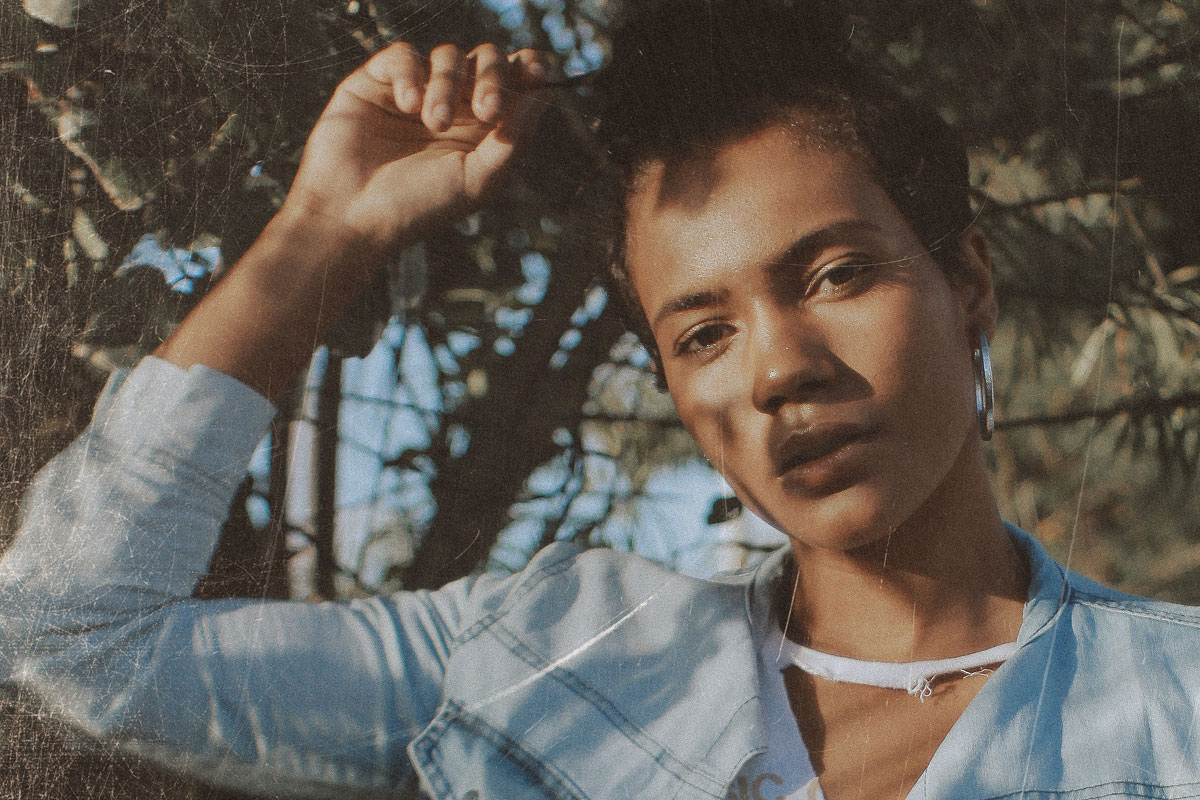
How to Add Textures to Photos and Logos in Photoshop
Give a wedding photo a romantic feel with a vintage, weathered look. Add grit and grunge to an album cover with scuffs and scratches. Help a business stand out by giving its logo some theme and character. Textures are often the finishing touch that makes a picture memorable, and applying them comes down to one blending mode plus a few tools for controlling where the texture lands.
The Short Version
Adding a texture can give an image an entirely different feel. Whether it suits a particular photo is your call, but it can be done to almost any kind of image and there are countless textures to try.
The mechanics are simple: load the texture as a layer in your document and change its Blending Mode to Screen. From there, layer masks, clipping masks and tools like Blend If refine exactly where the texture shows, and multiple textures can be combined in one photo for something more unusual.
Opening the Sample Image and Textures
Place Photo Scratches-1.jpg, Photo Scratches-2.jpg and How to Add Textures in Photoshop.jpg into Photoshop by going to File and then Open, or by dragging and dropping the files into the workspace.
To move a texture onto the main photo, select the Move Tool, the very first item in the Tool Bar on the left side of the workspace, marked by four arrows pointing in different directions. Hold SHIFT and drag both texture images onto the main image; the texture layers land on top of the stack.
Fitting the Texture to the Photo
With the main image selected, press F for Fullscreen so you’re only looking at the photo and its textures.
If a texture is larger than the main image, press CMD or CTRL + T and hold SHIFT and drag to scale it down. It is a texture, so it does not matter much if you squeeze it and lose the aspect ratio. To bring it in from all sides at the same time, hold SHIFT + OPTN or ALT and drag until the layer fits.
Why Screen Is the Blending Mode to Use
In the Layers panel on the right, the Blending Mode starts on Normal. Change it to Screen to drop the dark background out of the texture layer. Screen is the mode for anything light on a dark background: dark areas disappear and light areas stay. Here the black background vanishes and the white scratches remain over the photo.
Controlling Texture Strength with Levels
Press CMD or CTRL + L to open Levels. The window shows how much light and dark the layer holds, with three sliders beneath the Input Levels graph. Dragging the leftmost slider makes the texture layer darker or lighter, so pushing it right darkens the texture’s background and lets more of the original photo through. For this layer, move the left slider to 17 and click OK.
Adding a Second Texture for Variety
Apply the same steps to Layer 2. Find it in the Layers panel, make it visible, and change its Blending Mode from Normal to Screen. Press CMD or CTRL + L for Levels, set the left slider to 16, and click OK.
Masking the Texture Off Your Subject
Layer 2 has scratches crossing the main focus of the image. A layer mask lets you change what shows without deleting anything. Add one from the bottom of the Layers panel by clicking the rectangle with a circle in the middle, keeping in mind that the mask attaches to whichever layer is selected. A white box appears beside Layer 2 once it’s added.
Painting on the Mask
Press B for the Brush Tool, then click the white box beside the layer thumbnail to make sure you’re painting on the mask rather than the image.
At the bottom of the Tool Panel are two color boxes: the one in front is the foreground color, the one behind is the background color. Make sure black is the foreground color.
In the options at the top of the workspace, set the Brush Mode to Normal and Flow to 20%, since a low Flow is a good way to blend an effect gradually. Paint with black to hide texture covering your subject, and press X to swap colors and paint with white to bring it back. The mask thumbnail shows exactly where you’ve painted.
Adding Color to a Black and White Texture
The supplied textures are black and white, but Hue/Saturation can tint them.
Turn off Layer 2 in the Layers panel and select Layer 1. Press CMD or CTRL + U to open Hue/Saturation, and check the Colorize box in the bottom right of the window.
Moving the Hue slider changes the texture’s color. For a warmer image, choose an orange tint or type 27 into the Hue field. Bring Saturation down to 18 and click OK. The tinted texture blends into the photo noticeably better than the plain white version did.
Adding a Texture to a Logo
Go to File and then Open, select Textures on Logo.tif, and click Open in the bottom right corner of the window.
Move the texture layers onto the logo document by holding SHIFT and dragging with the Move Tool. To resize, press CMD or CTRL + T and hold SHIFT while dragging until the texture fits, or hold SHIFT + OPTN or SHIFT + ALT and drag to scale it far down. In the video the width and height stay locked together, so the texture keeps its aspect ratio.
Using a Clipping Mask to Confine the Texture
To apply the texture only to the logo rather than the whole image, use a clipping mask.
Turn off the visibility of Layer 3 in the Layers panel. Right-click Layer 2 and choose Create Clipping Mask, and the texture becomes visible only over the logo. Then click the empty box to the left of Layer 3 to make it visible, right-click it, and choose Create Clipping Mask as well. Use the Move Tool to position the texture where you want it.
Screen Mode and Final Adjustments
Change the Blending Mode from Normal to Screen for both Layer 3 and Layer 2, so the dark background drops out and only the scratches show on top of the vintage logo. The rest is optional fine-tuning. If needed, scale it down a little more with CMD or CTRL + T while holding SHIFT and dragging.
Press CMD or CTRL + L for Levels if you want the texture less visible, and drag the left Input Levels slider to the right to make the darks darker, then click OK. To rotate a texture, use CMD or CTRL + T until it sits how you want, and lower the layer’s Opacity in the Layers panel if the effect is a bit too much (34% in the video).
Why Screen Mode Does the Heavy Lifting
Most textures are shot or scanned as light marks on a dark ground, which is exactly the situation Screen mode is built for: it keeps the light pixels and discards the dark ones, so the texture arrives without its background. Everything after that is control rather than effect. Levels sets how strongly the marks read, a layer mask keeps them off your subject’s face, a clipping mask confines them to a logo’s shape, and Hue/Saturation ties their color to the rest of the image.
Final Thoughts
To add a texture in Photoshop, drop it in as a layer above your photo and set its Blending Mode to Screen. Use Levels to control how strong it reads, a layer mask to paint it away from your subject, Hue/Saturation with Colorize checked to tint it, and a clipping mask when the texture needs to stay inside a shape such as a logo. The scratch textures in the download are yours to keep on any of your photos, and they are a small sample of a larger PHLEARN texture pack.
Quick Reference: Keys, Menus and Settings
- Bring it inMove Tool, Shift-drag the texture onto the image; F for full screen
- ResizeCmd/Ctrl + T, Shift + Alt/Option to bring in all sides
- Drop the backgroundBlend mode Normal to Screen
- Tone it downCmd/Ctrl + L, left Input Levels slider right (17 and 16 on the photo)
- Keep it off the faceLayer mask, B, paint black with brush Mode Normal
- Tint itCmd/Ctrl + U, check Colorize, Hue to orange, Saturation down a little
- Logo onlyRight-click the texture layer > Create Clipping Mask, Screen, Opacity down (34% in the video)
No AI, no generative credits.

Free Downloads
Follow Along on the Same Files
Get the portrait, the two photo scratch textures, the vintage logo file and the 2-page PDF guide with every step. Free with a PHLEARN account.
Adding Textures in Photoshop: Common Questions
How do I add a texture to a photo in Photoshop?
With the Move Tool, hold Shift and drag the texture onto your photo so it lands as a new layer. Then change that layer’s blend mode from Normal to Screen.
Why use the Screen blend mode for textures?
Screen makes dark areas go away and keeps light areas. Use it for anything light on a dark background, like these scratch textures: the black background disappears and the scratches stay.
How do I resize a texture to fit my photo?
Press Cmd/Ctrl + T. Hold Shift + Alt/Option to bring it in from all sides at the same time. It is a texture, so it does not matter much if you lose the aspect ratio.
The texture is lightening my whole photo. How do I fix it?
Press Cmd/Ctrl + L for Levels and drag the left Input Levels slider to the right. The darks get darker, disappear under Screen and let more of the photo through; you can also lower the layer’s Opacity.
How do I keep scratches off my subject’s face?
Add a layer mask to the texture layer, press B for the Brush Tool, make black the foreground color with the brush Mode on Normal, and paint over the area to hide it.
Can I change the color of a black and white texture?
Yes. Press Cmd/Ctrl + U for Hue/Saturation, check Colorize, move Hue to a warm orange and bring Saturation down a little so it blends with the photo.
How do I put a texture only on a logo?
Drag the texture into the logo file, right-click the texture layer and choose Create Clipping Mask. It then only shows over the logo, and you can still move it around.
What blend mode should a texture on a logo use?
Screen again, on both texture layers. Then fine-tune if needed: scale, darken the darks with Levels, rotate with Cmd/Ctrl + T and lower the Opacity if it is too much.
Can I use the textures on my own photos?
Yes. The textures are yours to keep, and the same steps work on just about any image. They are a small sample of a larger PHLEARN texture pack.
Are the sample files free?
Yes, with a free PHLEARN account. You get 4 sample images and 1 PDF guide: the portrait, two photo scratch textures, the vintage logo file and the 2-page step-by-step guide.
From the Magazine View all
Stories, interviews and guides for photographers, new every week.
 BusinessHow to Compete With AI: Give Your Clients MoreEveryone has the same tools now, and your clients know it. The way to compete is to give them more.
 EditingLightCraft vs Lightroom: Is the Free Clone Any Good?The free clone on the same RAW files: what matches, what breaks and who should switch.
 EditingHow to Tell If a Photo Is AI, and Prove Yours Is RealThe tells that still work in 2026, why detectors disagree, and how to prove your own photos.
Master Photoshop, Lightroom and Photography
Join PHLEARN PRO for $12.99 a month, or $99.99 a year (save 36%). Cancel anytime, with a 100% money-back guarantee.





