

Download Assets
This tutorial includes 1 sample image, 1 sample PSD and 1 PDF guide. Downloads are free with a PHLEARN account.
- Download the sample images and PSDs from every free tutorial on PHLEARN
- New free tutorials published every week
- One free account — sign up once, then download anything
Free PDF Guide · 3 Pages
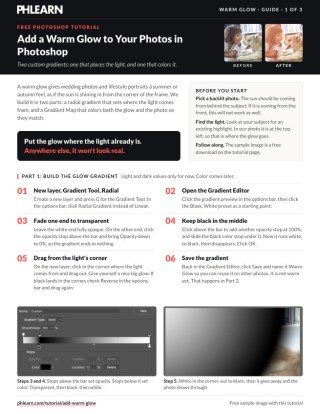
This Tutorial as a Step-by-Step PDF
The guide walks through both gradients: a Radial gradient that runs white to black to transparent, a Layer > New Adjustment Layer > Gradient Map in deep red, orange and yellow, the glow layer set to Screen with the map clipped to it, and an unclipped copy at around 20% or Soft Light. Keep it next to your keyboard.
description
A warm glow only reads as real when it comes from wherever the photo’s light already is. This tutorial builds one from two custom gradients: a radial black-to-white-to-transparent gradient set to Screen that establishes the light source, and a hand-built Gradient Map — deep red in the shadows, orange through the midtones, warm yellow in the highlights — clipped to the glow and then reused at low opacity over the whole image to tie it together.
Enjoying This Free Tutorial?
We publish a new free tutorial every week, each one with sample images and PSDs you can download and follow along with. Sign up and they land straight in your inbox, along with early word on sales, events and subscriber-only offers.
Add a Warm Glow to Your Photos in Photoshop
A warm glow in the corner of a photo — that soft, sun-drenched autumn or summer feeling — works best on a backlit image where the light source is already coming from behind the subject. This tutorial builds that effect from two custom gradients: a radial white-to-black-to-transparent gradient that establishes where the light is coming from, and a Gradient Map that colors both the glow and the overall image with matching shadow, midtone, and highlight tones.
Matching the Glow to Your Existing Light Source
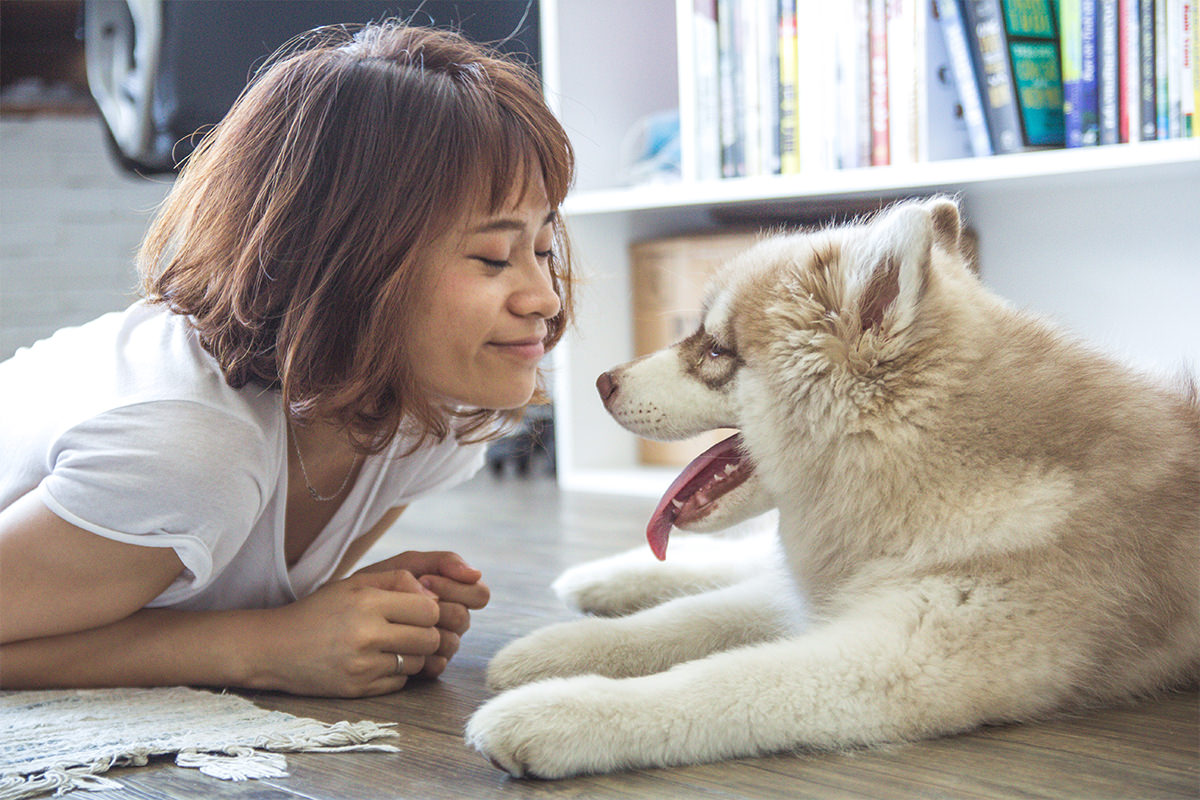
Before adding anything, look at the photo’s existing highlights to see where the light is already coming from — in this example, a photo of a woman and a puppy has a highlight in the top-left corner. Placing the glow effect anywhere other than that existing light direction will make the result look fake, so the glow always needs to originate from wherever the photo’s real light source already sits.
Building a Radial Gradient from White to Transparent
Create a new layer and select the Gradient tool (G), choosing the Radial Gradient option instead of Linear. Open the Gradient Editor and start from a basic black-and-white gradient as a base. Along the bottom of the editor, the small square markers control color stops, while the markers along the top control opacity at each point.
Setting Up the Opacity Stops
Set the white end of the gradient to 100 percent opacity so it stays fully visible, and add a new opacity stop at 0 percent further along so the gradient fades to fully transparent. In between, add one more color stop set to black at full opacity, so the gradient travels from opaque white, through opaque black, and out to full transparency — values only for now, with color to be added later through the Gradient Map.
Drawing and Reversing the Gradient
With the radial gradient selected, click in the corner where the light source originates and drag outward. If the gradient comes out backwards (dark in the corner instead of light), click the Reverse option in the tool’s options bar to flip it, so the light corner reads as bright white fading through black and finally to transparent. Save this custom gradient using the gradient panel’s save option so it can be reused later.
Creating a Custom Warm Gradient Map
Add a Gradient Map adjustment layer (Layer > New Adjustment Layer > Gradient Map). Rather than using one of Photoshop’s built-in presets, build a custom warm gradient from scratch, starting from a black-to-white base. Additional preset gradient sets, like Photographic Toning, can be loaded in through the gear icon and the Append option if a starting point is wanted, but this warm glow effect is built entirely with custom color stops.
Placing Red, Orange, and Yellow Color Stops
Click along the gradient bar to add new color stops: a deep red positioned toward the shadow end, an orange positioned in the midtones by shifting the hue slider and brightening slightly, and a warmer, brighter, slightly desaturated yellow positioned toward the highlights. The darkest values stay black, then transition through red, orange, and yellow up to white, with every stop free to be repositioned or recolored until the warmth feels right. Lower the Gradient Map layer’s opacity later, in the whole-image step, since the full-strength effect is far too intense on its own.
Clipping the Gradient Map onto the Glow
Change the radial gradient layer’s blend mode from Normal to Screen, which makes any black in that layer invisible while keeping white fully visible. Then, with the Gradient Map directly above the radial gradient layer, right-click it and choose Create Clipping Mask, restricting that Gradient Map to affect only the gradient layer beneath it rather than the whole image.
Why the Gradient Needs Both Black and White
Because the Gradient Map assigns separate colors to shadows, midtones, and highlights, the radial gradient needs both black and white values, not just white fading to transparent, for the clipped Gradient Map to produce a full range of color across it. A plain white-to-transparent gradient would only ever pick up one single highlight color from the map, instead of the smooth progression from red through orange to yellow that gives the glow its depth.
Warming the Whole Image with a Second Gradient Map
Duplicate the clipped Gradient Map layer, then right-click the copy and choose Release Clipping Mask so it applies to the entire image rather than just the glow layer. Lower its opacity significantly, down to around 20 percent, so it adds a subtle warm cast across the whole photo rather than overwhelming it. Changing this second Gradient Map layer’s blend mode to Soft Light instead of Normal blends the warmth into the existing tones more naturally.
Finishing with an Extra Highlight Gradient
For an additional touch, add one more new layer with a plain foreground-to-transparent gradient (white as the foreground color, with Reverse unchecked if it is still on from the first gradient) placed in the same corner as the original glow, adding a bit more concentrated brightness right at the light source. The size of any of these gradients can be scaled up or down by zooming out and dragging a larger or smaller radius — too small a gradient tends to look unnatural, so err toward a larger, softer spread. Adjusting each layer’s opacity and saturation afterward is how the whole effect gets tuned to taste for a given photo.
Why This Technique Works
A convincing warm glow needs to do two things at once: establish a believable light source and apply color that shifts naturally from shadow to highlight, rather than a single flat tint. Building the glow as a white-to-black-to-transparent radial gradient, rather than a simple white fade, is what allows the clipped Gradient Map to paint it with a full red-to-yellow range instead of one flat color. Reusing that same Gradient Map on the whole image, at a much lower opacity and in Soft Light mode, ties the corner glow and the overall color grade together so they read as one consistent light source rather than two separate effects layered on top of each other.
Final Thoughts
Once the custom radial gradient and warm Gradient Map are built, they can be saved and reused on any backlit photo, adjusting opacity, blend mode, and gradient size to match each new image’s existing light. Matching the glow’s direction to the photo’s real light source is what keeps the whole effect from reading as an obvious digital add-on.
Quick Reference: Keys, Menus and Settings
- Glow gradientNew layer, G for the Gradient Tool, Radial Gradient in the options bar
- Set the stopsGradient Editor from Black, White: white at 100%, black at 100% in the middle, the far end at 0% opacity; Save as Warm Glow
- Draw itDrag out from the corner the light comes from; check Reverse if black lands in the corner
- Warm colorsLayer > New Adjustment Layer > Gradient Map: black, deep red, orange, yellow, white
- Color the glowGlow layer to Screen; right-click the map > Create Clipping Mask
- Warm the photoDuplicate the map, right-click > Release Clipping Mask, Opacity around 20% or Soft Light
- Extra highlightNew top layer, Foreground to Transparent in white, Reverse unchecked, drag from the same corner
No AI, no generative credits.
Free Downloads
Follow Along on the Same Photo
Get the backlit sample photo from the video, a woman and a puppy lit from the top left, the layered PSD with both gradient maps, plus the 3-page PDF guide. Free with a PHLEARN account.
Warm Glow in Photoshop: Common Questions
What kind of photo works best for a warm glow?
A backlit photo, with the sun coming from behind the subject. If the light comes from the front, the effect doesn’t work as well.
Where should I put the glow?
In the corner the light already comes from. Look for an existing highlight on your subject; in the sample photo it is at the top left. A glow from a place with no light won’t look real.
How do I make a gradient that fades to transparent?
In the Gradient Editor, the stops above the bar set opacity and the stops below set color. Start from Black, White, bring the opacity stop at one end down to 0%, and add a 100% opacity stop in the middle with the black color stop under it.
Why does the glow gradient need black in it?
A Gradient Map colors darks, midtones and lights separately. A white-only gradient gives it one value to color, so you get one flat color. White to black gives the map a full range for yellow, orange and red.
My gradient came out dark in the corner. How do I fix it?
Check Reverse in the Gradient tool’s options bar and drag again from the light’s corner.
What colors go in the warm Gradient Map?
Start from Black, White and add three color stops: a deep red toward the shadows, an orange in the midtones and a slightly desaturated yellow toward the highlights. Slide any stop until you like it.
Why set the glow layer to Screen?
Screen makes black on the layer invisible and keeps white visible, so only the bright part of the glow shows over the photo.
How do I make the Gradient Map color only the glow?
With the Gradient Map directly above the glow layer, right-click it and choose Create Clipping Mask. The small arrow means it affects only the layer below.
The whole photo turned orange. What now?
That is expected at full strength. Duplicate the map, choose Release Clipping Mask on the copy and lower its Opacity to around 20%, or set it to Soft Light. If the glow itself is too saturated, lower the clipped map’s Opacity.
Is the sample file free?
Yes, with a free PHLEARN account. You get 1 sample image, 1 sample PSD and 1 PDF guide: the backlit photo used in the video and a 3-page step-by-step guide.
Master Photoshop, Lightroom and Photography
Join PHLEARN PRO for $12.99 a month or $99.99 a year. Cancel anytime, with a 100% money-back guarantee.





