

Download Assets
This tutorial includes 1 Photoshop brush and 1 PDF guide. Downloads are free with a PHLEARN account.
- Free sample files with every tutorial on PHLEARN
- New tutorials published every week
- Unlimited downloads with your free PHLEARN account
Free PDF Guide · 4 Pages
This Tutorial as a Step-by-Step PDF
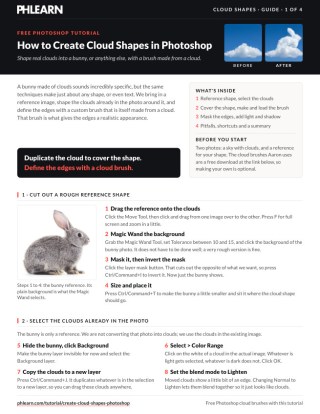
This guide walks through shaping clouds into a bunny: a Magic Wand reference at Tolerance 10 to 15, Select > Color Range, Ctrl/Command+J copies set to Lighten, making a black-on-white cloud brush with Edit > Define Brush Preset, masking edges with that brush and Curves for light and shadow. Use it for any shape or word.
description
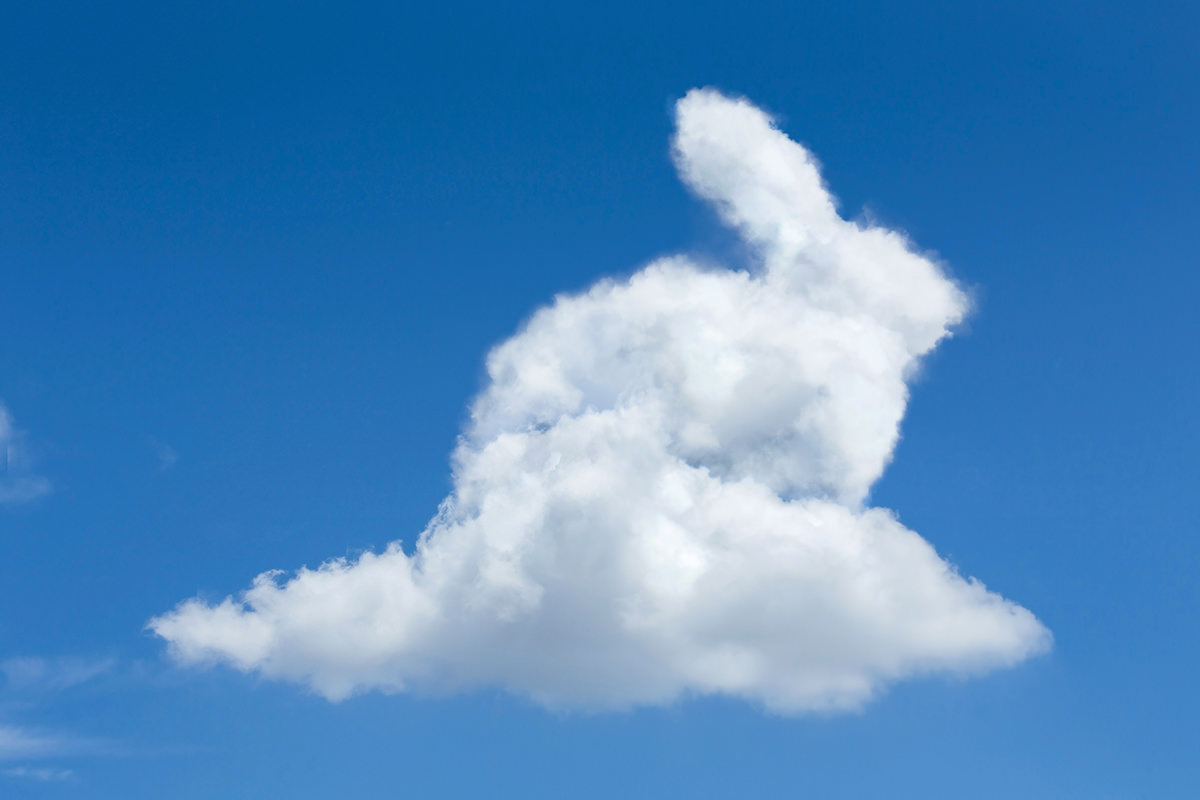
Shaping real clouds into a bunny comes down to the brush you mask with. Aaron cuts out a rough reference silhouette, selects the bright cloud tones with Color Range and duplicates them on Lighten for coverage, then builds a brush from a photographed cloud so every masked edge carries real cloud texture. Two masked Curves layers add light at the top and shadow at the bottom.
Enjoying This Free Tutorial?
We publish a new free tutorial every week, each one with sample images and PSDs you can download and follow along with. Sign up and they land straight in your inbox, along with early word on sales, events and subscriber-only offers.
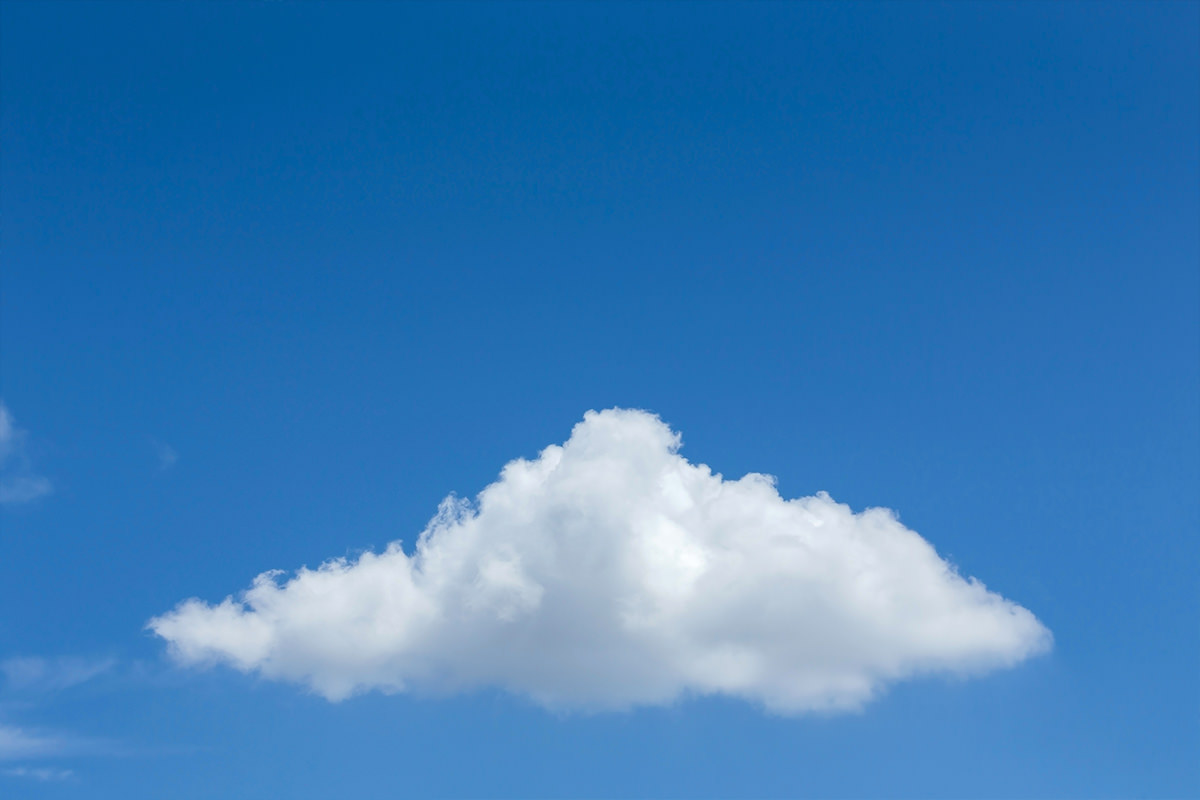
Turning real clouds into a recognizable shape, in this case a bunny, relies on a reference silhouette for placement and a custom brush actually made from a photographed cloud, since a regular soft-edged brush never looks convincingly cloud-like along an edge. This tutorial covers cutting out a rough reference shape, duplicating and blending existing clouds to build coverage, building a custom cloud-textured brush, and using layer masks with that brush to define the shape’s edges realistically.
Cutting Out a Rough Reference Shape
A quickly cut-out reference silhouette, brought into the same document as the cloud photo, provides an outline to build the cloud shape around without needing to be perfectly precise.
-
Bring the Reference Image Into the Cloud Photo
Use the Move tool to drag a reference shape, such as a bunny photo, into the same document as the cloud image.
-
Roughly Select the Reference’s Background
Select the Magic Wand tool, set Tolerance to around 10-15, and click the reference image’s background to select it.
-
Load the Selection as a Mask and Invert It
Click the layer mask button, then press Cmd/Ctrl+I to invert the mask so the reference shape itself is visible instead of its background. Then press Cmd/Ctrl+T to make the reference a little smaller and position it where the cloud shape should go.
Selecting and Duplicating the Existing Clouds
Color Range isolates just the bright cloud areas of the photo, and duplicating that selection repeatedly builds up enough cloud coverage to work with across the whole reference shape.
-
Select the Clouds With Color Range
On the background layer, go to Select > Color Range and click on a bright cloud area to select the lighter tones.
-
Duplicate the Selection to a New Layer
Press Cmd/Ctrl+J to duplicate the selected clouds onto their own new layer.
-
Change the Blend Mode to Lighten
Change the duplicated cloud layer’s blend mode from Normal to Lighten so the edges blend smoothly with the background clouds.
-
Duplicate the Cloud Layer Multiple Times
Press Cmd/Ctrl+J repeatedly to create several cloud layers, enough to provide coverage across the entire reference shape.
Creating a Custom Brush From a Photographed Cloud
Turning a duplicated cloud into a black silhouette on a white background and saving it as a brush preset produces a brush whose edges are actually shaped like real cloud texture.
-
Duplicate a Cloud Layer to a New Document
Right-click a cloud layer, choose Duplicate Layer, and send it to a new document.
-
Add a White Layer Underneath
Add a Solid Color layer filled with white below the cloud layer, then change the blend mode of the cloud layer from Lighten back to Normal so you can see the cloud itself.
-
Lock Transparency and Fill With Black
Lock the cloud layer’s transparency, then press Shift+Delete (Shift+Backspace on Windows) to fill only its visible pixels with black.
-
Clean Up the Edges
Erase any unwanted stray pixels around the edges of the black cloud shape, then crop in a little closer around the cloud.
-
Define the Brush Preset
Go to Edit > Define Brush Preset, name the brush, and confirm to save it.
Why the Brush Shape Needs to Be Black on White
Photoshop reads a custom brush preset based on which areas are dark versus light, using the dark areas as the actual brush shape. Filling the cloud silhouette with black on a white background is what tells Photoshop to shape the brush exactly like that cloud’s own organic, puffy outline, rather than a plain round or soft-edged tip.
Loading the Cloud Brush Set Into Photoshop
Loading a saved cloud brush set through the Brush Presets panel makes ready-made cloud-textured brushes available without building one from scratch each time.
-
Open Brush Presets
Go to Window > Brush Presets.
-
Load a Saved Brush Set
Click the panel menu, choose Load Brushes, and select a saved cloud brush file, such as the one included with this tutorial. In current Photoshop versions, open Window > Brushes and choose Import Brushes from the panel menu.
-
Select a Cloud Brush
Right-click with the Brush tool active to choose one of the newly loaded cloud-shaped brushes.
Defining the Shape’s Edges With the Cloud Brush and Layer Masks
Painting with the cloud brush on each duplicated cloud layer’s mask, working from outside edges inward, shapes the overall cloud coverage into the reference silhouette while keeping every visible edge textured like an actual cloud.
-
Add a Layer Mask to Each Cloud Layer
Click the layer mask button on one of the duplicated cloud layers.
-
Paint Black Around the Outside First
Using the cloud brush, paint black on the mask around the outer area that should be hidden, letting the cloud-shaped brush create a naturally textured edge.
-
Paint White From the Inside Out
Switch to white and paint from the inside of the shape outward with the same cloud brush to build a puffy, rounded silhouette.
-
Repeat Across Every Cloud Layer
Repeat the same black-then-white masking process on each remaining cloud layer, using the reference silhouette underneath as a guide.
You can also hold Alt/Option and click the layer mask button for a black mask, then paint white only where the clouds should show. Finally, hide the reference, lower the brush opacity a little and soften the edges, since edges that are too precise look Photoshopped.
Why a Regular Soft Brush Doesn’t Work for This Edge
Masking with an ordinary round, soft-edged brush produces a smooth, even edge that immediately reads as a Photoshop mask rather than the naturally irregular, puffy boundary of a real cloud. Using a brush shaped like an actual photographed cloud instead means every edge painted is textured the same way real cloud edges are, which is what keeps the finished shape looking like it’s genuinely made of clouds.
Why Light and Shadow Add More Than Just Decoration
A flat cloud shape with no tonal variation reads as a paper cutout rather than something three-dimensional and cloud-like. A slight brightening near the top and darkening near the bottom, following the same logic as light falling on any rounded object, is a small addition that meaningfully increases how convincingly dimensional the final cloud shape looks.
Adding Light and Shadow for Extra Depth
Masked Curves adjustment layers, brightened on top and darkened on the bottom and painted in with the cloud brush, add a subtle sense of light hitting the cloud shape from above.
-
Add a Brightening Curves Layer
Add a Curves adjustment layer and raise it slightly to brighten the image.
-
Mask and Paint the Brightness Near the Top
Invert the layer’s mask to black, then use the cloud brush to paint white near the top of the shape, suggesting light hitting the clouds from above.
-
Add a Darkening Curves Layer
Add another Curves adjustment layer, darkened slightly, invert its mask, and paint with the cloud brush along the bottom of the shape for added depth.
To finish, Shift-click all of the cloud layers and use the Move tool to position the shape, then add a layer mask to hide any areas that were duplicated unnecessarily.
Why This Approach Works
Building a brush directly from a photographed cloud, rather than relying on a standard soft round brush, is what makes every masked edge read as genuinely cloud-textured instead of obviously painted. Working from a rough reference silhouette gives the whole shape a clear structure to build toward without ever needing to trace it with pixel-perfect precision, since clouds are never perfectly sharp-edged anyway. Adding subtle brightening near the top and darkening near the bottom with masked Curves layers is what gives the finished shape a sense of real dimension, as if actual light were falling across it.
Final Thoughts
The core idea here, duplicating existing clouds for coverage and using a cloud-shaped brush to define edges, works for any recognizable shape, not just a bunny, whether that’s other animals, letters, or a message spelled out entirely in clouds. Once the custom cloud brush exists, the same workflow applies to any new shape in just a fraction of the time it took to build the technique the first time.
Quick Reference: Keys, Menus and Settings
- Rough referenceMagic Wand, Tolerance 10 to 15; layer mask, Cmd/Ctrl + I to invert
- Select the cloudsSelect > Color Range, click a bright cloud; Cmd/Ctrl + J, blend mode Lighten
- Make a cloud brushDuplicate Layer to a new document, white layer under it, lock transparency, Shift + Delete black; Edit > Define Brush Preset
- Load brushesWindow > Brush Presets > panel menu > Load Brushes; right-click with B to pick one
- Shape the edgesLayer mask, cloud brush: black outside first, white from the inside out; Alt/Option-click for a black mask
- Light and shadowCurves brighter, Cmd/Ctrl + I, paint the top; Curves darker, paint the bottom
No AI, no generative credits.
Free Downloads
Paint With the Same Cloud Brush
Get the Photoshop cloud brush from the video, plus the PDF guide to shaping real clouds with Color Range, layer masks and Curves. Free with a PHLEARN account.
Making Shapes From Clouds: Common Questions
Can I make shapes other than a bunny?
Yes. The same steps work for any shape or even text: duplicate the clouds to cover the shape, then define its edges with a cloud brush.
Does the reference cutout need to be precise?
No. Select its background with the Magic Wand at a Tolerance of 10 to 15, click the layer mask button and press Cmd/Ctrl + I to invert. It’s only a guide and gets hidden later.
How do I select just the clouds?
On the background layer, go to Select > Color Range and click a bright cloud. Light areas get selected and dark ones don’t.
The copied clouds have a visible edge. How do I blend them?
Press Cmd/Ctrl + J to put the selection on its own layer and change its blend mode from Normal to Lighten. Duplicate it again to cover the whole shape.
Why not mask with a soft round brush?
A soft brush leaves a smooth edge that looks like Photoshop, not like a cloud. A brush made from a real cloud gives every edge cloud texture.
How do I make a brush from a cloud?
Duplicate a cloud layer to a new document, add a white Solid Color layer under it, lock the cloud’s transparency and press Shift + Delete to fill it with black. Clean up the edges, crop, then Edit > Define Brush Preset.
How do I load the cloud brushes?
Go to Window > Brush Presets, open the panel menu and choose Load Brushes, then pick the .abr file. Right-click with the Brush tool to choose a cloud brush.
What’s the best way to paint the cloud masks?
Paint black around the outside first, then white from the inside out for a puffy shape. Alt/Option-click the layer mask button to start a layer with a black mask.
How do I give the cloud shape some depth?
Add a slightly brighter Curves layer, invert its mask with Cmd/Ctrl + I and paint white along the top with the cloud brush. Do the same with a darker Curves layer along the bottom.
Are the sample files free?
Yes, with a free PHLEARN account. You get 1 Photoshop brush and 1 PDF guide: the cloud brush file Aaron loads in the video.
From the Magazine View all
Stories, interviews and guides for photographers, new every week.
 BusinessHow to Compete With AI: Give Your Clients MoreEveryone has the same tools now, and your clients know it. The way to compete is to give them more.
 EditingLightCraft vs Lightroom: Is the Free Clone Any Good?The free clone on the same RAW files: what matches, what breaks and who should switch.
 EditingHow to Tell If a Photo Is AI, and Prove Yours Is RealThe tells that still work in 2026, why detectors disagree, and how to prove your own photos.
Master Photoshop, Lightroom and Photography
Join PHLEARN PRO for $12.99 a month, or $99.99 a year (save 36%). Cancel anytime, with a 100% money-back guarantee.





