


Download Assets
This tutorial includes 1 sample image and 1 PDF guide. Downloads are free with a PHLEARN account.
- Download the sample images and PSDs from every free tutorial on PHLEARN
- New free tutorials published every week
- One free account — sign up once, then download anything
Free PDF Guide · 3 Pages
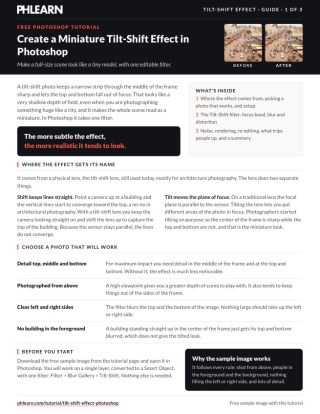
This Tutorial as a Step-by-Step PDF
The guide covers choosing a photo shot from above, turning the Background into Layer 0 and a Smart Object, then Filter > Blur Gallery > Tilt-Shift: the solid and dotted focus lines, the blur dial, Distortion left at 0, a little Noise, High Quality, and double-clicking Blur Gallery to change it later. Keep it next to your keyboard.
description
This recreates the miniature-looking tilt-shift photography effect entirely in Photoshop, using the Blur Gallery’s dedicated Tilt-Shift filter on a Smart Object so the result stays fully editable afterwards. Covers where the effect comes from and why a real tilt-shift lens produces it, how to pick a photo that will actually work, setting the in-focus band, adjusting blur and distortion, and adding noise and light bokeh so it reads as a photograph rather than a filter.
Enjoying This Free Tutorial?
We publish a new free tutorial every week, each one with sample images and PSDs you can download and follow along with. Sign up and they land straight in your inbox, along with early word on sales, events and subscriber-only offers.
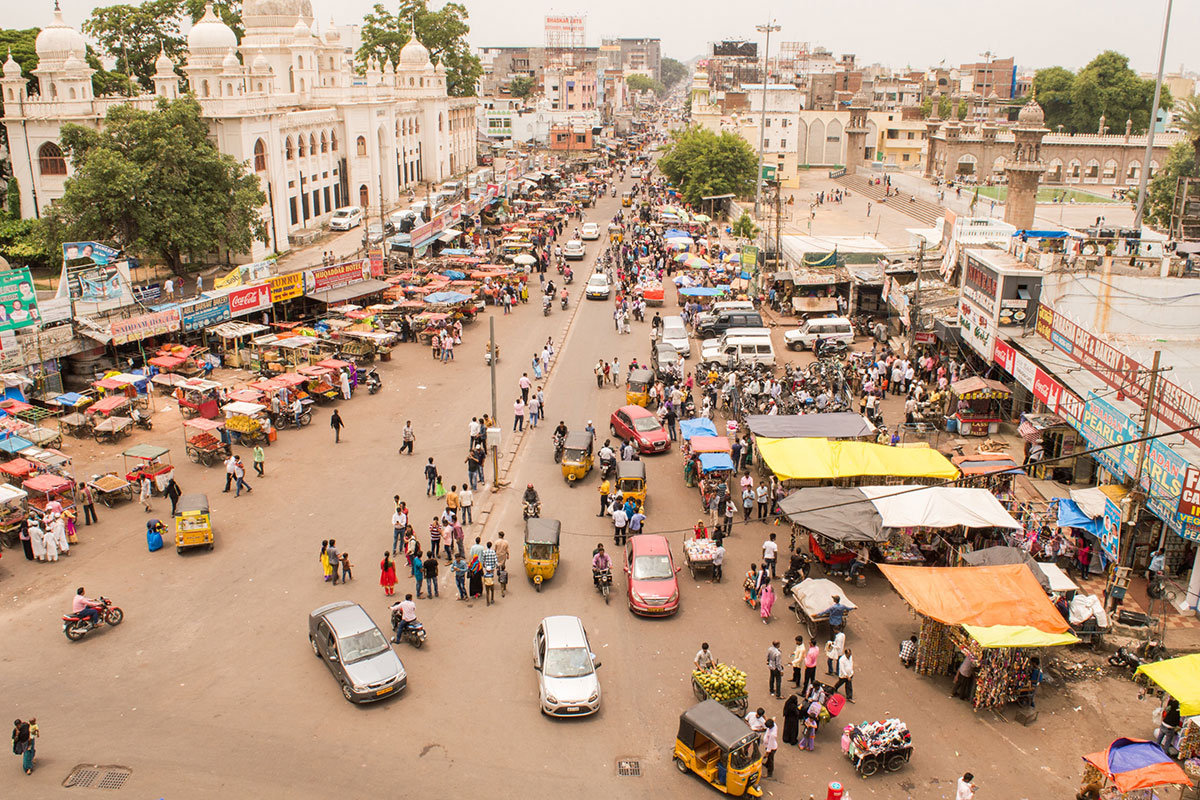

Create a Miniature Tilt-Shift Effect in Photoshop
This tutorial recreates the miniature-looking tilt-shift photography effect entirely in Photoshop, using the Blur Gallery’s dedicated Tilt-Shift filter on a Smart Object so the result stays fully editable. The sample image is available as a free download on PHLEARN.com.
Where the Tilt-Shift Effect Comes From
The name comes from a physical tilt-shift lens, used in architecture photography to keep a building’s vertical lines from converging (the “shift” function), and separately to change the plane of focus (the “tilt” function). Photographers eventually turned that tilt function to creative use, deliberately angling the plane of focus so only a narrow strip through the middle of the frame stays sharp while everything above and below blurs out, which tricks the eye into reading a normal-scale scene, even something as large as an entire city, as a tiny miniature model.
Choosing the Right Photo for a Tilt-Shift Effect
For the effect to read convincingly, the source photo needs real detail across the top, middle, and bottom of the frame; an image with little detail near the top and bottom won’t show the blur transition clearly, which weakens the whole illusion. Shooting from above works especially well, since it naturally provides more depth to play with and tends to keep distracting elements out of the left and right edges of the frame.
Avoiding Buildings in the Foreground
Since the effect works by blurring the top and bottom of the frame, a single building running straight up through the center of the image won’t produce a convincing tilt-shift look, as it just blurs the top and bottom of that one building rather than creating the layered depth the effect depends on. A scene with people, objects, or terrain spread naturally across the whole frame gives the blur something meaningful to separate.
Preparing Your Layer for the Filter
Double-click the gray area of the locked Background layer to convert it into a regular layer (it becomes Layer 0), then right-click that layer and choose Convert to Smart Object. Using a Smart Object matters specifically because a filter applied to a regular layer becomes permanent, while a filter applied to a Smart Object stays fully editable and can be reopened and adjusted at any later point.
Setting the In-Focus Area with the Tilt-Shift Filter
Go to Filter, then Blur Gallery, then Tilt-Shift. Click the center line and drag it up or down to choose exactly which horizontal band of the image stays fully in focus. Two solid lines mark the boundary of the fully sharp area, and two dotted lines beyond those mark where the image becomes completely out of focus, with a gradual feathered transition in between; dragging the solid and dotted lines closer together produces a more dramatic, pronounced miniature effect, while spacing them further apart creates a subtler, more gradual falloff.
Widening the Focus Lines for Realism
A tighter, more extreme set of lines can look more obviously artificial, so widening the gap between the solid and dotted lines, even pulling them further apart than seems necessary at first, tends to produce a result that reads as a genuine lens effect rather than an obvious Photoshop filter; as a general rule, a more subtle application of this effect tends to look more realistic than a heavy-handed one.
Adjusting Blur Amount and Distortion
The Tilt-Shift filter includes its own on-canvas blur dial for controlling how strong the out-of-focus blur becomes, along with a Distortion slider and a Symmetric Distortion checkbox in the options panel on the right, which pull the blurred areas subtly toward the center of the frame; distortion is optional. Aaron pushes it up to show the effect, then turns Symmetric Distortion off and sets Distortion back to 0, because he prefers this image with less distortion.
Using the Blur Dial for Subtlety
As with the focus lines themselves, a more restrained blur amount tends to look more convincing than pushing the dial to its maximum, since an extremely heavy blur reads as an obvious digital effect rather than a believable shallow depth of field.
Adding Noise and Light Bokeh for Realism
Further down in the filter’s options, a Noise slider adds a small amount of grain to the blurred areas, which is worth including even in a small amount, since a touch of noise makes the effect read as an actual photograph rather than an obviously synthetic Photoshop edit. The Light Bokeh option, which blows out brighter highlights in the blurred area, isn’t especially useful for this particular kind of image, and the Motion Effects tab is only for the separate Path Blur and Spin Blur filters, not Tilt-Shift. Once everything looks right, check High Quality in the options bar before clicking OK to render the final result.
Re-Editing the Effect Anytime with Smart Objects
Because the filter was applied to a Smart Object, it’s never truly finalized: double-clicking the Blur Gallery entry listed under that layer in the Layers panel reopens the exact same Tilt-Shift dialog with every previous setting intact, ready to nudge the focus area, blur amount, or any other parameter further, even well after the initial edit was applied.
Why Subtlety Is the Secret to This Effect
Nearly every adjustment in this tutorial, the spacing of the focus lines, the blur amount, the distortion setting, points toward the same underlying lesson: a tilt-shift effect looks most convincing when it’s held back rather than pushed to its most dramatic setting. Choosing a photo with detail across the whole frame and keeping every slider on the restrained side is what separates a believable miniature illusion from an obviously filtered photo.
Final Thoughts
Creating a convincing tilt-shift miniature effect in Photoshop comes down to picking the right source photo, applying the Blur Gallery’s Tilt-Shift filter to a Smart Object so it stays editable, and keeping the focus lines, blur, and distortion all on the subtle side rather than maxed out. A touch of added noise at the end is what finally sells the illusion as a genuine photograph rather than an obvious digital effect.
Quick Reference: Keys, Menus and Settings
- Unlock the layerDouble-click the gray area of the Background layer (it becomes Layer 0)
- Keep it editableRight-click the layer > Convert to Smart Object
- Open the filterFilter > Blur Gallery > Tilt-Shift; drag the center to set the focus area
- Blur and DistortionBlur dial on the canvas, held back; Distortion 0, Symmetric Distortion off
- Check the grainNoise tab; zoom with Cmd/Ctrl + +, hold Spacebar to move around
- RenderCheck High Quality in the top bar, then OK
- Change it laterDouble-click Blur Gallery under the Smart Object
No AI, no generative credits: one Blur Gallery filter on a Smart Object.
Free Downloads
Follow Along on the Same Photo
Get the aerial street scene Aaron turns into a miniature and the 3-page PDF guide with every Tilt-Shift setting. Free with a PHLEARN account.
Tilt-Shift Effect: Common Questions
What makes a tilt-shift photo look like a miniature?
A narrow strip through the middle of the frame stays sharp while the top and bottom fall out of focus. That reads as a very shallow depth of field, even on something huge like a city.
What kind of photo works best for a tilt-shift effect?
One shot from above, with detail at the top, middle and bottom of the frame and nothing large filling the left or right side. Avoid a building standing straight up in the foreground.
Where is the Tilt-Shift filter in Photoshop?
Go to Filter > Blur Gallery > Tilt-Shift. The controls appear right on top of your image.
How do I unlock the Background layer first?
Double-click the gray area of the Background layer in the Layers panel. It becomes Layer 0 and the lock icon disappears. Then right-click it and choose Convert to Smart Object.
What do the solid and dotted lines do?
Everything between the two solid lines is in focus, and each dotted line marks where the image is completely out of focus. The blur feathers in between them. Spacing them wider looks more like a real lens.
How much blur should I use?
Set it with the blur dial on the canvas and avoid going super crazy, because a heavy blur stops looking real. Aaron sets it, then backs it off a little.
Should I use Distortion?
It’s optional. Distortion pulls the blurred areas toward the center; Aaron tries it, then turns off Symmetric Distortion and sets Distortion back to 0 for this image.
Why add noise to a tilt-shift effect?
Just a little noise makes the result look more like a photograph and less like it was done in Photoshop. Raise the amount in the Noise tab, adjust Size and Roughness, then bring the amount down.
Can I change the tilt-shift after clicking OK?
Yes, because the layer is a Smart Object. Double-click where it says Blur Gallery under the layer and you are back in the Tilt-Shift filter with every setting as you left it.
Are the sample files free?
Yes, with a free PHLEARN account. You get 1 sample image and 1 PDF guide: the aerial street scene from the video and a 3-page guide to every step.
Master Photoshop, Lightroom and Photography
Join PHLEARN PRO for $12.99 a month, or $99.99 a year (save 36%). Cancel anytime, with a 100% money-back guarantee.





