
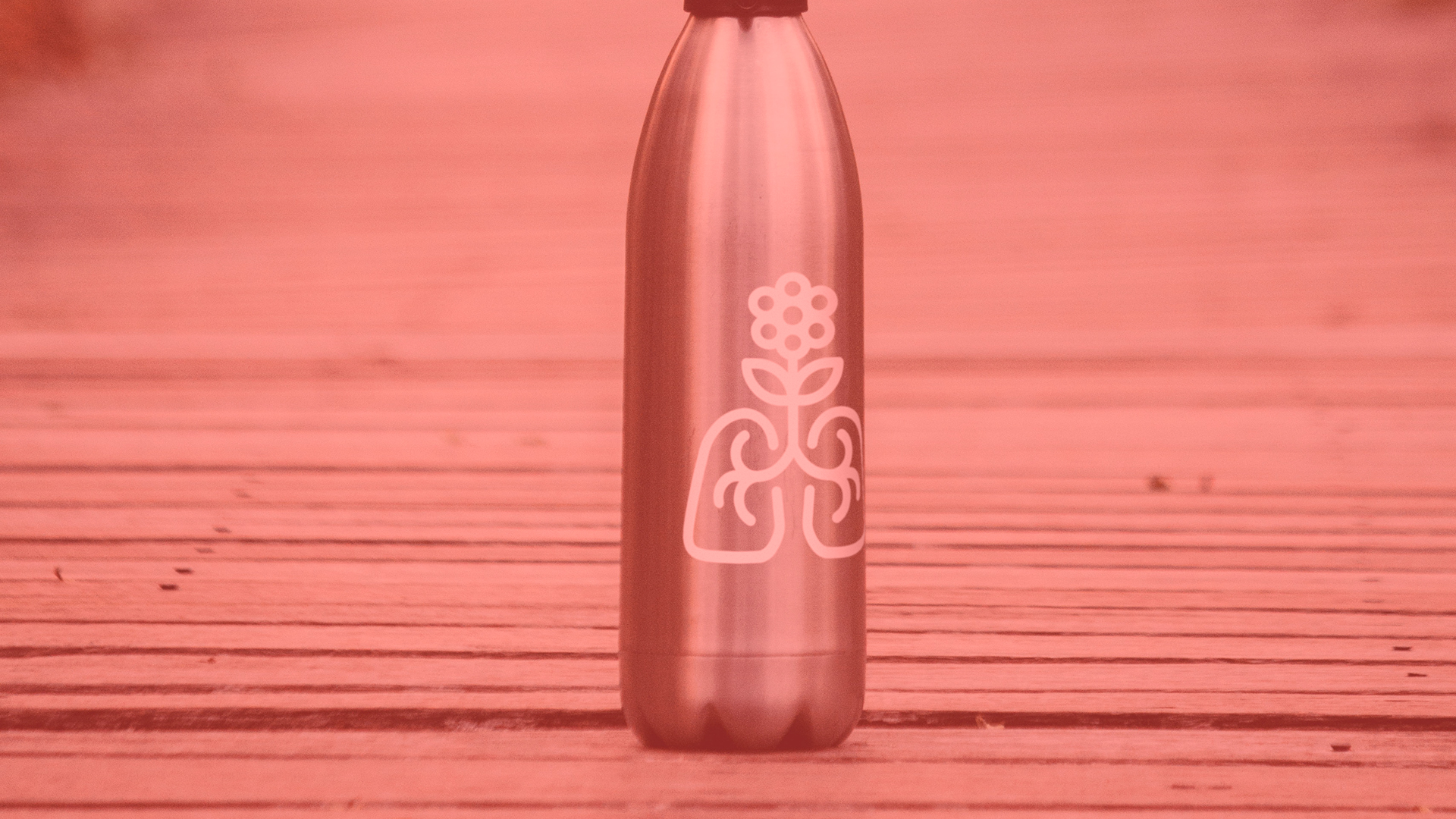

Download Sample Images
Download Assets
This tutorial includes 2 sample images. Downloads are free with a PHLEARN account.
- Free sample files with every tutorial on PHLEARN
- New tutorials published every week
- Unlimited downloads with your free PHLEARN account
description
Learn how to wrap a flat logo around a curved product in Photoshop so it looks printed on rather than pasted over. We’ll warp the artwork to the bottle’s shape, darken it into the product’s own shading with a clipped Levels layer, then match the photograph’s own softness and grain so the edges stop looking cut out.
This tutorial is part of our Quick Tips series — short, focused Photoshop techniques you can pick up in a couple of minutes.
Enjoying This Free Tutorial?
We publish a new free tutorial every week, each one with sample images and PSDs you can download and follow along with. Sign up and they land straight in your inbox, along with early word on sales, events and subscriber-only offers.
Image Source
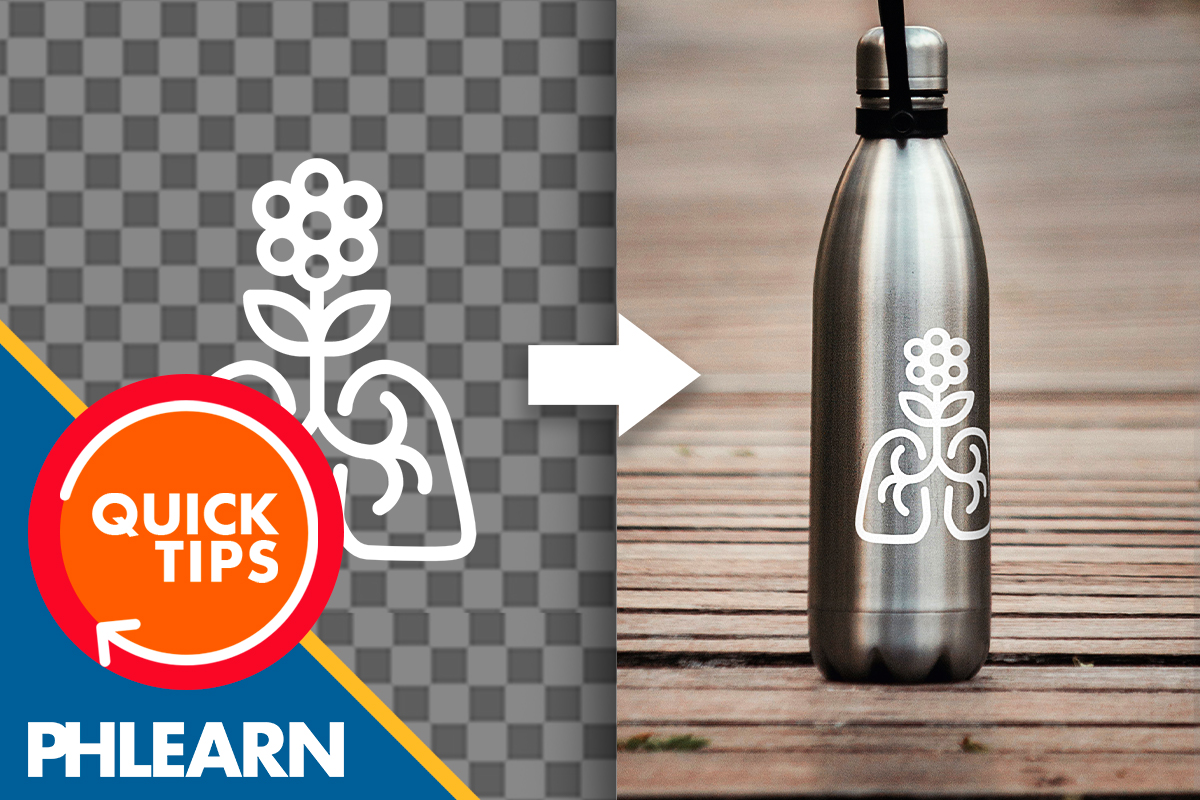
Make a Flat Logo Sit on a Curved Product
A logo pasted straight onto a product photo always reads as a sticker. The label is too clean, too flat, and too evenly lit for the object underneath it. Everything that sells the illusion happens after the logo is in position.
This walks through wrapping a line-art logo around a stainless steel bottle: warping it to the curve, darkening it into the product’s own shading, painting shadows through a mask, and finally matching the photograph’s softness and grain.
All standard Photoshop tools, all re-editable. No AI, no generative credits, no plugins.
Why a Pasted Logo Looks Fake
Three things give it away, and each one gets its own fix below. The logo is flat while the product is round. The logo is evenly bright while the product has highlights and shadow. And the logo is razor sharp while the photograph has softness and grain from the camera.
Fix all three and the eye stops arguing with the image.
Wrap It to the Curve
-
Position the logo with the Move Tool.
Press V, drag the logo into place over the product, and scale it with Transform. Convert the logo layer to a Smart Object first — the filters at the end depend on it, and it keeps every step reversible.
-
Right-click and choose Warp.
With the transform active, right-clicking gives you Warp instead of a plain box. This is the tool that bends artwork rather than just stretching it.
-
Match the product’s curves.
Pull the warp handles until the logo follows the barrel of the bottle. The vertical edges should bow outward the way the surface does.
-
Use Split Warp to isolate one area.
Split Warp adds a division line so you can work on one region without dragging the rest of the logo with it. On a curved surface that matters — the middle needs more bend than the edges, and without a split you cannot give it more without ruining what you already set.
Light It Like the Product
The bottle has a bright side and a dark side. Right now the logo does not, which is the second tell.
-
Add a Levels adjustment layer.
From the adjustment layer menu, choose Levels.
-
Clip it to the logo and darken.
Clip the adjustment so it only affects the logo layer, then pull the Levels down until the logo is clearly too dark across the whole shape. Too dark is correct at this stage — the mask decides where it stays.
-
Invert the layer mask.
Inverting hides the darkening completely, giving you a clean surface to paint it back onto selectively.
-
Paint white where the shadows fall.
Take the Brush Tool with B, size it to the area, and paint white on the mask wherever the product itself is in shadow. The darkening returns only there, so the logo picks up the same falloff as the bottle.
-
Paint black to undo.
Black hides it again. Work back and forth until the logo’s shading agrees with the surface it is sitting on.
Match the Photograph
The last tell is sharpness. Vector artwork has perfectly clean edges; a photograph does not. Both of these apply to the Smart Object, so they stay adjustable afterwards.
-
Add a small Gaussian Blur.
Filter > Blur > Gaussian Blur, with the Radius around 1.5 pixels. Barely perceptible on its own, and enough to stop the edges looking cut out.
-
Add matching grain.
Filter > Noise > Add Noise, Amount near 3.44%, Distribution set to Gaussian, and Monochromatic checked. Monochromatic keeps the grain neutral instead of introducing colored speckle the photo does not have.
What Trips People Up
The logo still looks stuck on
Usually the shading step. Warping alone fixes geometry but not light, and the eye reads light before it reads shape.
The warp drags the whole logo
That is what Split Warp is for. Without a split, every handle influences the entire mesh.
The filters cannot be changed later
The layer was not a Smart Object when the filters were applied. Convert first, then filter.
When to Use It, and When Not To
Use it when you have a clean product shot and flat artwork — bottles, cans, boxes, packaging, anything with a predictable curve.
Don’t expect it to survive a heavily textured or reflective surface, where a real mockup with displacement mapping will beat hand warping.
More Free Photoshop Tutorials
- How to Create and Use Layer Masks in Photoshop
- How to Use Blending Modes in Photoshop 2025
- Three Ways to Use Blend If in Photoshop
- How to Dodge and Burn in Photoshop
Download the Practice Files
Grab the sample images and follow along. Everything in this tutorial uses standard Photoshop tools — no AI, no generative credits, no plugins.
Related Tutorials
From the Magazine View all
Stories, interviews and guides for photographers, new every week.
 BusinessHow to Compete With AI: Give Your Clients MoreEveryone has the same tools now, and your clients know it. The way to compete is to give them more.
 EditingLightCraft vs Lightroom: Is the Free Clone Any Good?The free clone on the same RAW files: what matches, what breaks and who should switch.
 EditingHow to Tell If a Photo Is AI, and Prove Yours Is RealThe tells that still work in 2026, why detectors disagree, and how to prove your own photos.
Master Photoshop, Lightroom and Photography
Join PHLEARN PRO for $12.99 a month, or $99.99 a year (save 36%). Cancel anytime, with a 100% money-back guarantee.





