
Download Assets
Download Assets
This tutorial includes 1 sample RAW file. Downloads are free with a PHLEARN account.
- Free sample files with every tutorial on PHLEARN
- New tutorials published every week
- Unlimited downloads with your free PHLEARN account
Watch the Full Series
description
Mask types are what let you stop editing the whole photograph. Everything in the Basic panel applies to all of it. Masking is how you stop editing the picture and start editing parts of it.
On Day 5 of 30 Days of Lightroom Classic we tour all ten mask types — subject, sky, background, objects, people, brush, linear and radial gradients, color range and luminance range — and stack them on a single image.
This is Day 5 of our 30 Days of Lightroom Classic series. Follow along with all 30 episodes as we explore the magic of Lightroom together!
Continue Watching 30 Days of Lightroom Classic
JOIN 30 DAYS OF LIGHTROOM (FOR FREE!)
Ready to jump in? Sign up and we’ll email you a printable calendar and daily class schedule so you can get started right away!
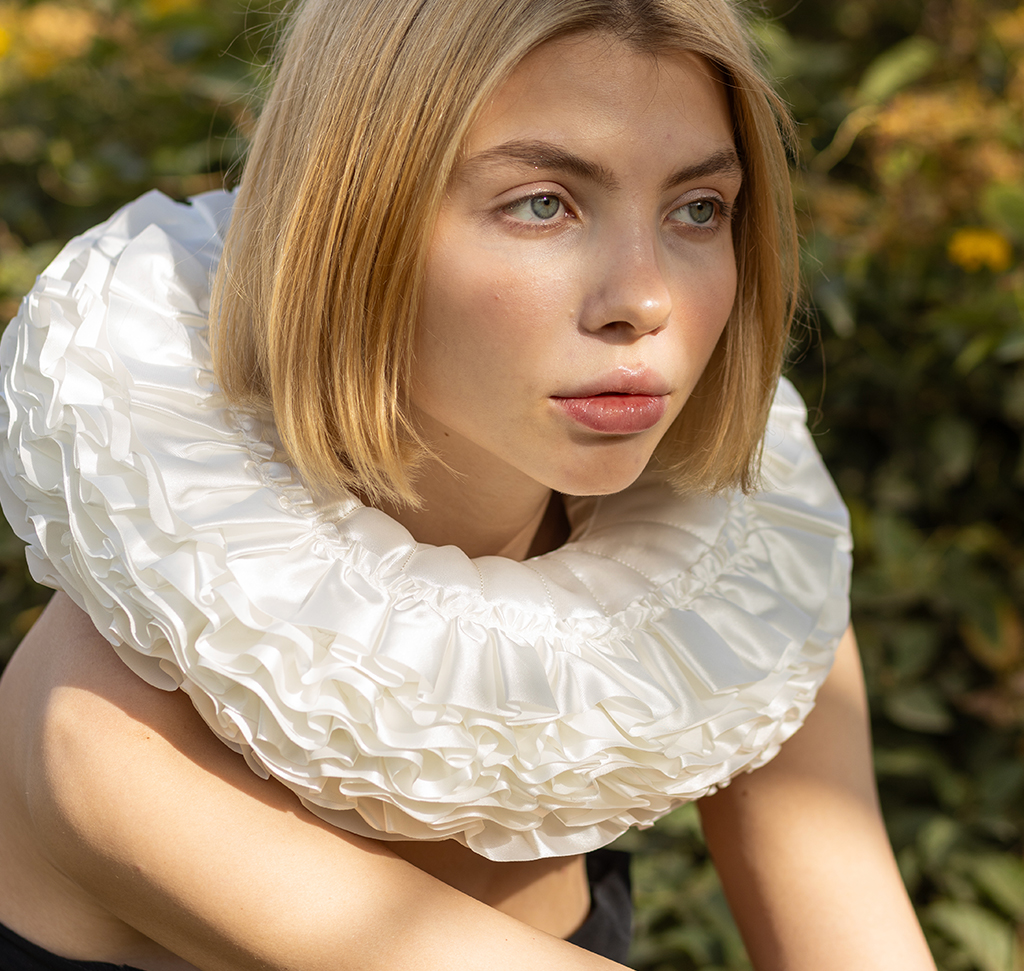
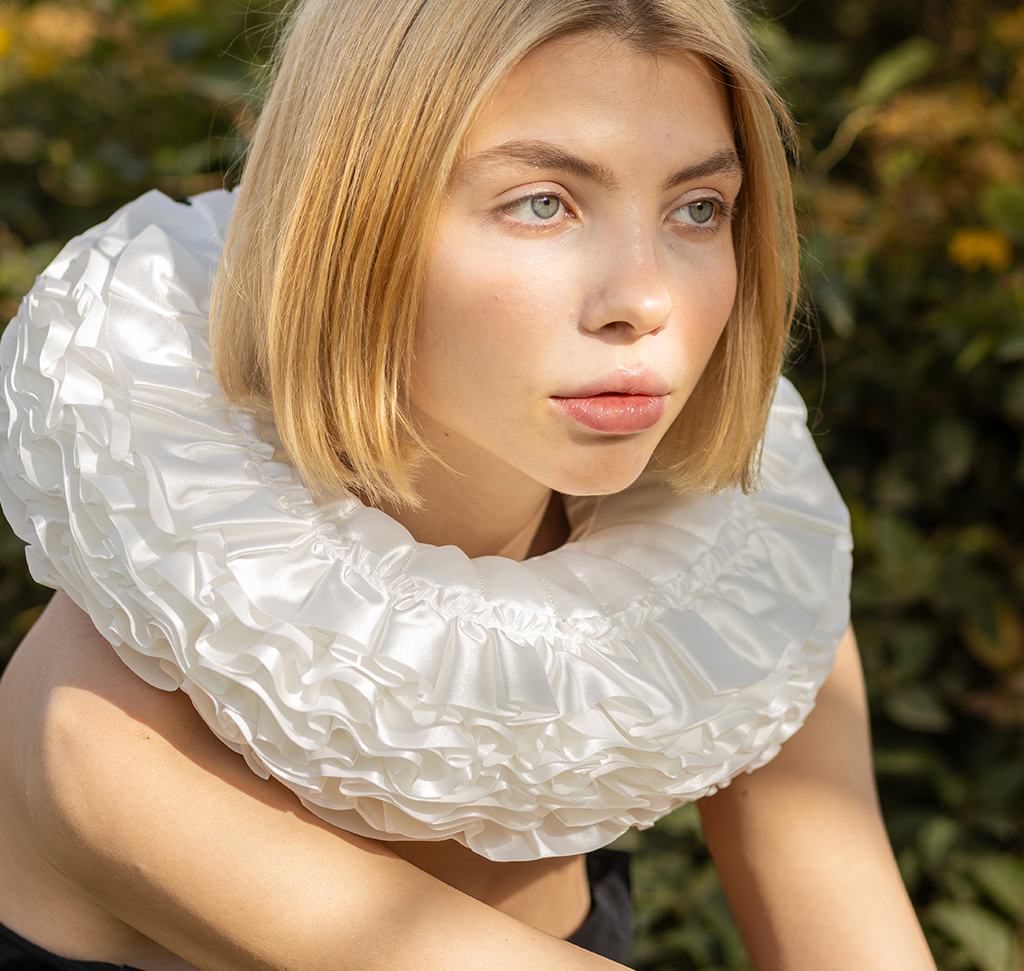
Image Source
Masking Is How You Stop Editing the Whole Photograph
Everything in the Basic panel applies to the whole photograph. Raise the exposure and the shadows come up on your subject, the background and the sky all at once. That is usually what you want right up until it isn’t — until the face needs a lift the sky does not, or the background is pulling attention away from the person in front of it.
Masking is how you stop editing the picture and start editing parts of it. Lightroom Classic gives you ten ways to build a mask, several of which pick out your subject automatically. Day 5 is a tour of all of them and how they combine on a single image.
Where Masking Lives
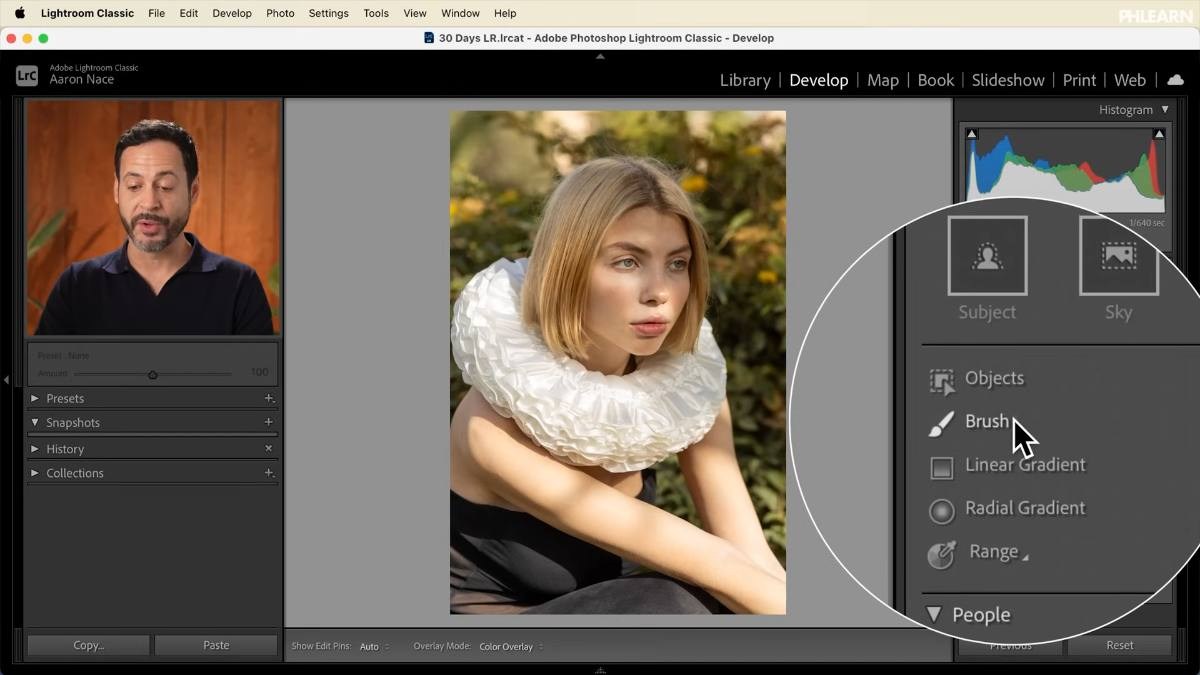
Masking is in the Develop module, in the small tool strip directly under the histogram — the same row as Crop, Remove and Red Eye. Click the masking icon and the panel changes: you get a Create New Mask menu listing every mask type, and once you make one, a floating Masks panel appears listing what you have built.
What a Mask Actually Does
A mask is a selection. Once one exists, every slider in the masking panel applies only inside it. Lightroom makes this visible: the adjustment sliders sit on a light gray background while you are working on a mask. Scroll past them and the background returns to normal, and you are back in the global Basic panel that affects the whole image.
That gray background is the single most useful thing to notice as a beginner. If you cannot work out why a slider is doing something strange, check whether you are inside a mask or outside it.
Masks are also permanent and re-editable. Click any mask in the Masks panel days later and you can resize a gradient, repaint a brush stroke or change its sliders. Nothing is baked in.
The Automatic Selection Masks
These four do the selecting for you, and on a normal photograph they are startlingly good.
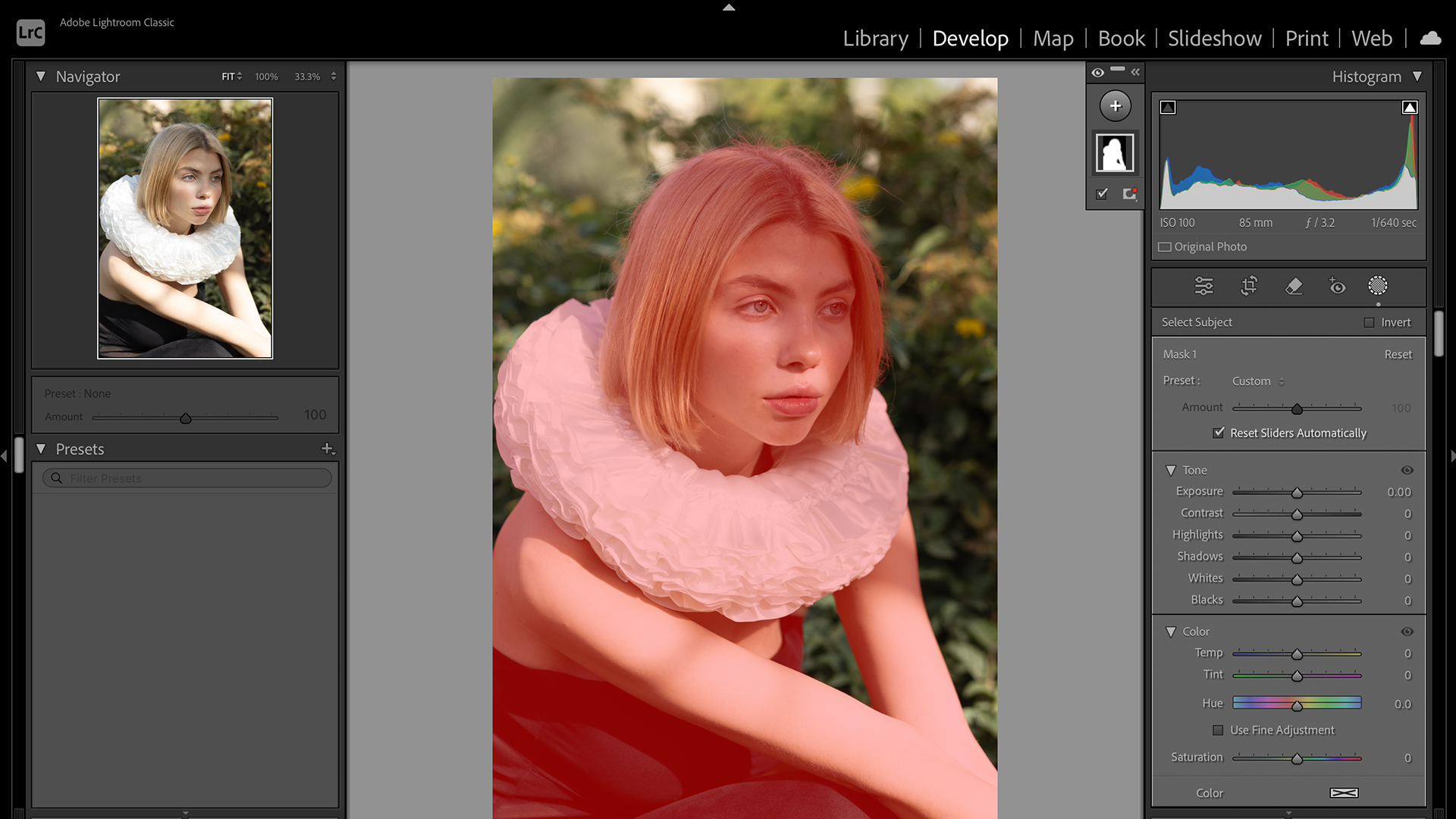
Select Subject
One click and Lightroom finds the person or main object in the frame. This is the mask you will use most. Select People beside it does the same thing but lets you choose between individuals when there is more than one in shot — on a single-subject photo the two are identical.
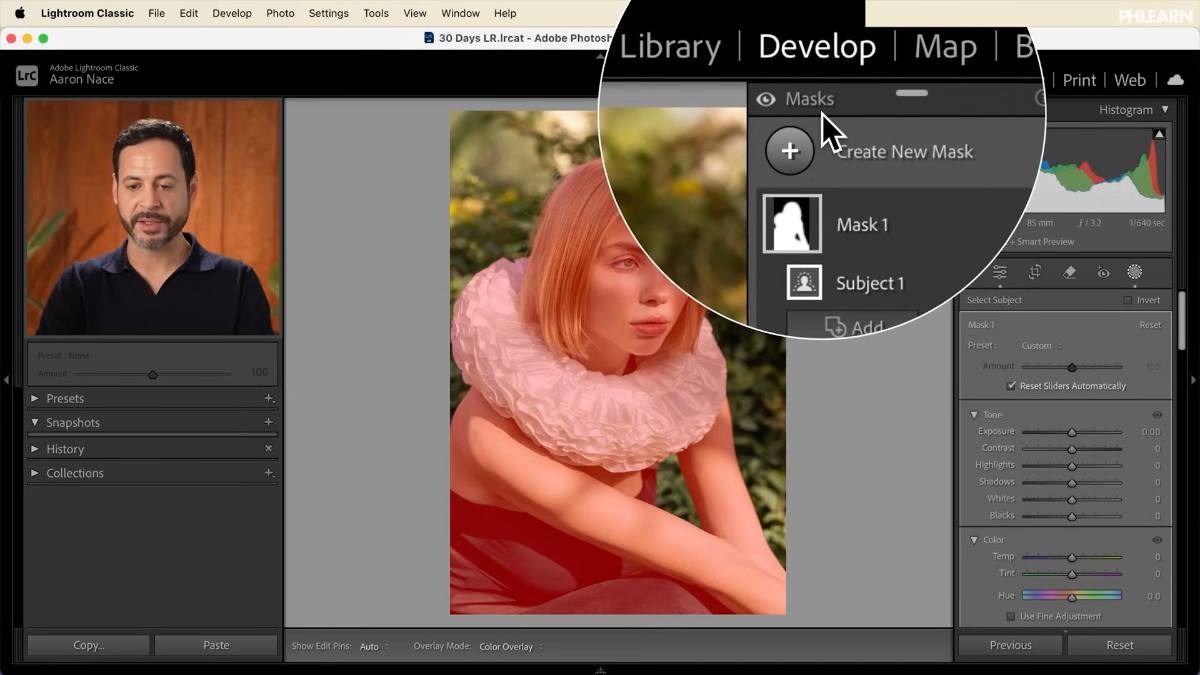
The red overlay shows exactly what is selected. Toggle it off once you trust the selection, because it makes judging the actual adjustment impossible.
Select Sky
Finds the sky and nothing else. Deepening a washed-out sky without touching the landscape below it is a two-second job with this. Nothing happens on an image with no sky in it.
Select Background
The inverse of Select Subject. Its most reliable use is not dramatic: drop the background exposure slightly and your subject separates from it immediately, with none of the artificiality of a fake blur.
Select Objects
The flexible one. Rough out a brush stroke over anything — a collar, a jacket, a chair — and Lightroom works out the actual edges. It handles awkward shapes that Select Subject ignores, and it is far quicker than painting them by hand.
The Manual Masks
When you want to decide where the mask goes rather than let Lightroom guess.
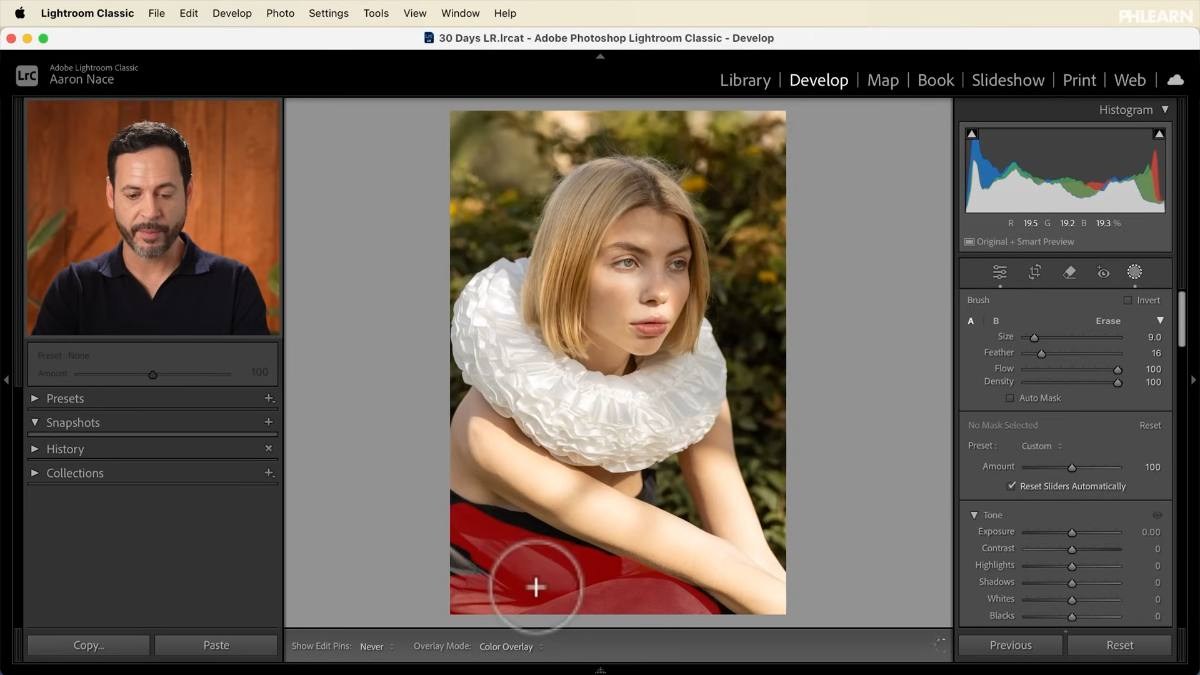
Brush
Paint the mask wherever you want it. Useful for anything without a clean edge, and for the small corrections nothing else catches — a dress that is drawing too much attention, a bright patch in the corner of the frame.
Linear Gradient
Click and drag to create a mask that fades along a straight line. This is the digital equivalent of a graduated neutral density filter, and it is the standard way to hold back a bright sky or darken one edge of a frame.
Radial Gradient
Drag out an ellipse with a soft edge. Lifting the exposure very slightly inside one placed over a face is one of the oldest tricks in portrait editing, and it works because the falloff is gradual enough that nobody sees the edit. Protect the highlights while you do it and the effect stays believable.
The Range Masks
These two select by value rather than by shape, which makes them the most precise tools in the set.
Color Range
Click a color and Lightroom selects everything similar to it across the frame. Drag instead of clicking to sample a wider spread, then use the refine slider to widen or tighten the range. Selecting only the green foliage behind a subject and shifting its saturation and temperature is a good example — it changes the whole feel of a background without touching the person.
Luminance Range
The same idea applied to brightness. Click a bright area and you have selected the highlights themselves, then extend the range to include a little more. Pulling the highlights down inside a luminance mask recovers detail far more surgically than the global Highlights slider, because it is only touching the pixels that actually need it.
Reading the Masks Panel
The floating Masks panel is the control centre and repays a minute of attention.
The plus icon at the top creates a new mask. Each mask is listed with its own name and thumbnail, and each has its own eyeball to switch that one mask on and off. The eyeball at the very top of the panel toggles every mask at once — that is your real before-and-after, and it is the fastest way to see whether the whole stack of local edits is actually improving the picture.
Click any mask in the list to select it and its sliders return, ready to adjust.
Building Up a Real Edit
A finished image usually carries several masks doing small jobs rather than one doing a big one. A representative stack:
-
Subject mask
Lift the shadows and exposure a little so the person reads clearly.
-
Background mask
Darken it slightly. The separation this creates is worth more than either adjustment alone.
-
Object mask on a distracting element
A bright collar or a patterned fabric, brought down in contrast so it stops competing.
-
Brush mask on anything left over
Lower the highlights, whites and exposure on whatever is still pulling the eye.
-
Linear gradient into a corner
A slight darkening at one edge to keep attention in the middle of the frame.
-
Radial gradient on the face
A small exposure lift with the highlights protected.
-
Color and luminance ranges last
Saturation on the background greens, highlights pulled down where they are brightest.
None of these is a large move. That is the point — seven small, well-placed adjustments look natural in a way that one big global change never does.
Masks and Global Edits Work Together
Turning the Masks panel off does not remove the masks; it just hides the panel. Your local adjustments are still applied, sitting on top of whatever the Basic panel is doing, and both remain editable independently at any time. Click back into the masking icon and the whole stack reappears exactly as you left it.
Where This Usually Goes Wrong
Editing while you think you are in the Basic panel. Check the gray background. Half of all “why is nothing happening” moments in masking are a slider being applied inside a mask you had forgotten was selected.
Leaving the red overlay on. It is there to confirm the selection, not to edit through. Color judgement is impossible with a red wash over everything.
One mask doing too much. If a single adjustment is strong enough to be obvious, it is strong enough to look edited. Several small masks beat one heavy one.
Trusting an automatic selection without checking the edges. Select Subject is very good and not perfect. Zoom to 100% around hair and clothing edges before you commit to a strong adjustment — refining selections properly is covered in Master Masking in Lightroom Classic.
Take It From Here
Masking is the point where Lightroom Classic stops being a photo corrector and becomes a photo editor. Every image from here benefits from it, and the ten mask types cover almost anything you will need — the skill is knowing which one is the shortest route to the selection you want.
Tomorrow we go further: adding to and subtracting from masks, and the deeper settings — point color, curves, effects and detail — that live inside each one.
Quick Reference: Menus and Settings
- Open maskingDevelop > masking icon in the tool strip under the histogram
- Automatic masksSubject, People, Sky, Background; Objects by brushing roughly over the item
- Manual masksBrush; Linear Gradient and Radial Gradient by click and drag
- Range masksColor Range: click or drag to sample, refine slider; Luminance Range on a bright area
- Check the selectionShow Overlay on to see the red selection, then off to judge the edit
- Masks panelPlus icon for a new mask; eyeball per mask; top eyeball toggles all of them
- Mask or globalGray slider background = inside the mask; the Basic panel below affects the whole photo
Free Downloads
Follow Along on the Same RAW File
Get the RAW portrait from the video and build the same subject, background, object, brush, gradient and range masks on it. Free with a PHLEARN account.
Masking in Lightroom: Common Questions
Where is masking in Lightroom Classic?
In the Develop module, in the tool strip under the histogram, next to Crop, Remove and Red Eye. Click the masking icon to get the Create New Mask menu.
What types of masks does Lightroom have?
Ten: Subject, People, Sky, Background and Objects select for you; Brush, Linear Gradient and Radial Gradient you place by hand; Color Range and Luminance Range select by color or brightness.
How do I know if a slider changes the mask or the whole photo?
Sliders on a light gray background apply only inside the selected mask. Scroll past them to the Basic panel and you are back to edits that affect the whole image.
What is the difference between Select Subject and Select People?
Select People lets you choose between individuals when more than one person is in the photo. With one person, the two give the same selection.
How do I make my subject stand out from the background?
Create a Select Background mask and lower its exposure a little. Lifting the exposure and shadows slightly on a subject mask adds to the separation.
How do I select just one object, like a collar?
Choose Select Objects and brush roughly over it. Lightroom works out the edges, and you can change contrast or anything else on that object alone.
How do I change only the greens in the background?
Use a Color Range mask and click the green. Drag to sample a wider range and use the refine slider to select more or less, then adjust Saturation or Temperature.
Why is my photo covered in red while I mask?
That is the overlay showing what the mask selects. Turn it off once the selection looks right, so you can judge the adjustment itself.
Can I change a mask after I make it?
Yes. Click it in the Masks panel to get its sliders back, or resize a gradient. Each mask has its own eyeball, and the eyeball at the top of the panel turns them all off for a before and after.
Is the sample file free?
Yes, with a free PHLEARN account. You get 1 sample RAW file, the .CR3 portrait Aaron masks in the video.
Master Photoshop, Lightroom and Photography
Join PHLEARN PRO for $12.99 a month or $99.99 a year. Cancel anytime, with a 100% money-back guarantee.





