

Download Assets
This tutorial includes 1 sample image, 1 sample PSD and 1 PDF guide. Downloads are free with a PHLEARN account.
- Download the sample images and PSDs from every free tutorial on PHLEARN
- New free tutorials published every week
- One free account — sign up once, then download anything
Free PDF Guide · 3 Pages
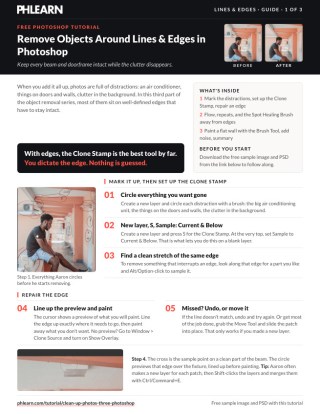
This Tutorial as a Step-by-Step PDF
Walks through circling every distraction, the Clone Stamp (S) with Sample set to Current & Below, Window > Clone Source > Show Overlay, lowering Flow to blend, the Spot Healing Brush away from edges, and a flat wall painted with the Brush Tool, masked and given 1% noise. Keep it next to your keyboard.
description
Learn how to remove objects around lines and edges in Photoshop, the hardest kind of distraction because an automatic tool’s guess isn’t precise enough. This tutorial shows how to mark every distraction first, then use the Clone Stamp tool on its own layer to continue doorframes, railings, and wall lines exactly, switch to the Spot Healing Brush in open areas, fill large flat walls by overpainting and masking back, and add a touch of noise so the repair blends in.
Free Object Removal Series
- A Tour of the Best Object Removal Tools in Photoshop
- Clean Up Simple Backgrounds in Photoshop
- Remove Objects Around Lines & Edges in Photoshop (This Episode!)
- Remove Objects From Complex Textures in Photoshop (Coming Soon)
If you’re ready to take these skills to the next level, be sure to check out our PHLEARN PRO series on object removal in Photoshop.
Enjoying This Free Tutorial?
We publish a new free tutorial every week, each one with sample images and PSDs you can download and follow along with. Sign up and they land straight in your inbox, along with early word on sales, events and subscriber-only offers.
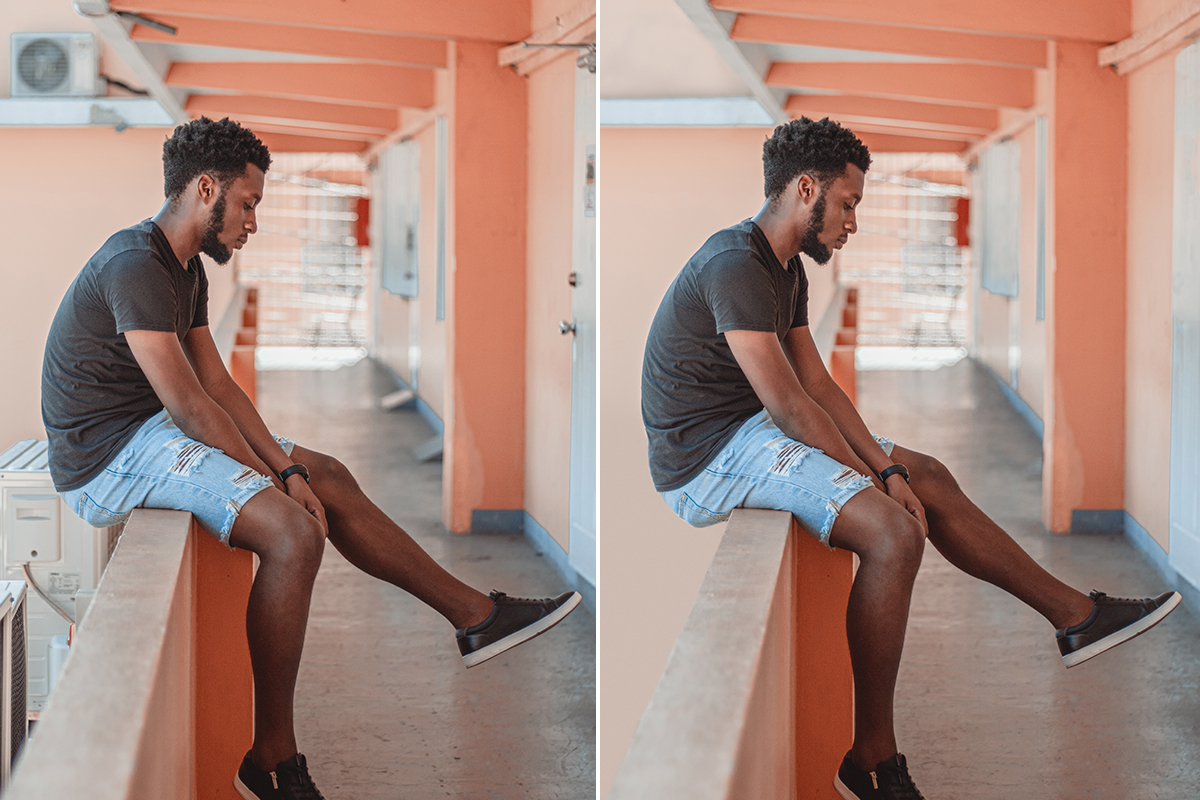
How to Remove Objects Around Lines and Edges in Photoshop
This third part of the object removal series tackles the hardest version of the problem: distractions that sit right along well-defined lines and edges, where an automatic tool’s guess isn’t precise enough. The clone stamp tool is the star here, because it lets you dictate exactly what gets copied and exactly where an edge should continue, rather than leaving that decision to Photoshop.
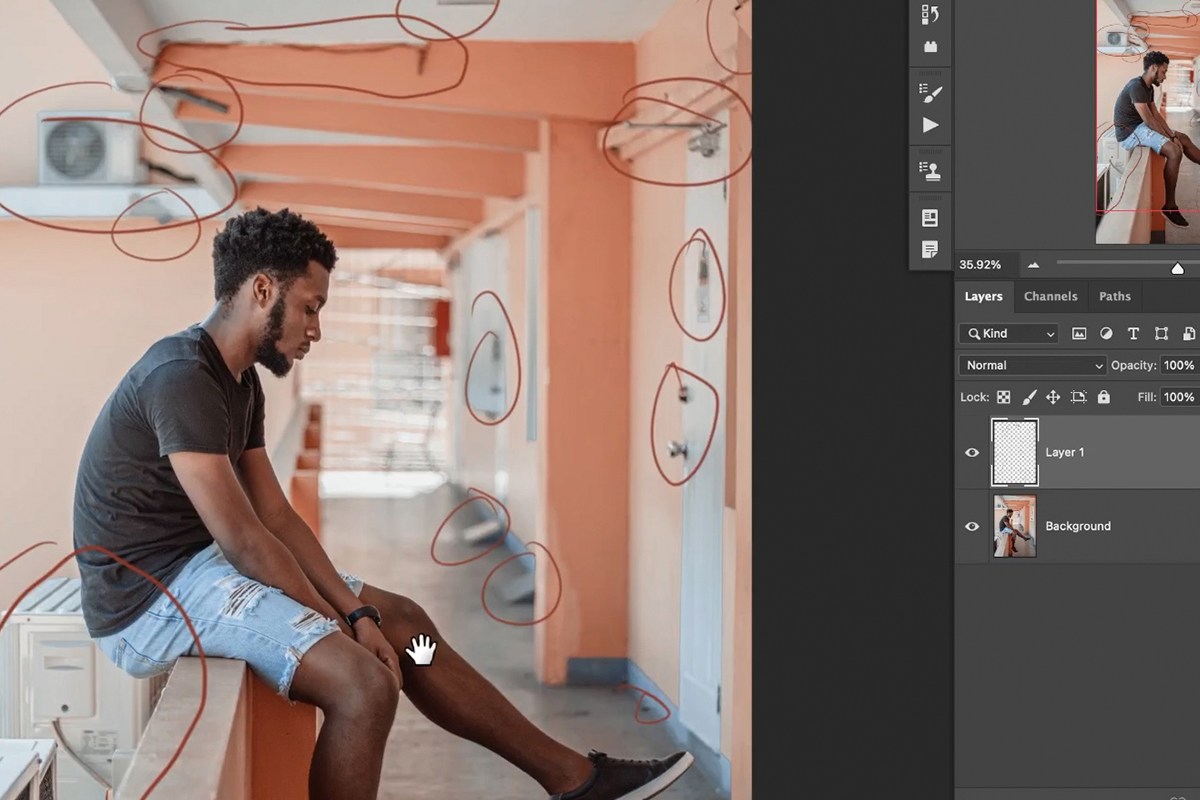
Marking Everything You Want to Remove
With a genuinely cluttered image, it helps to identify every distraction up front before diving into removal, rather than discovering more as you go.
-
Create a New Layer and Mark Distractions
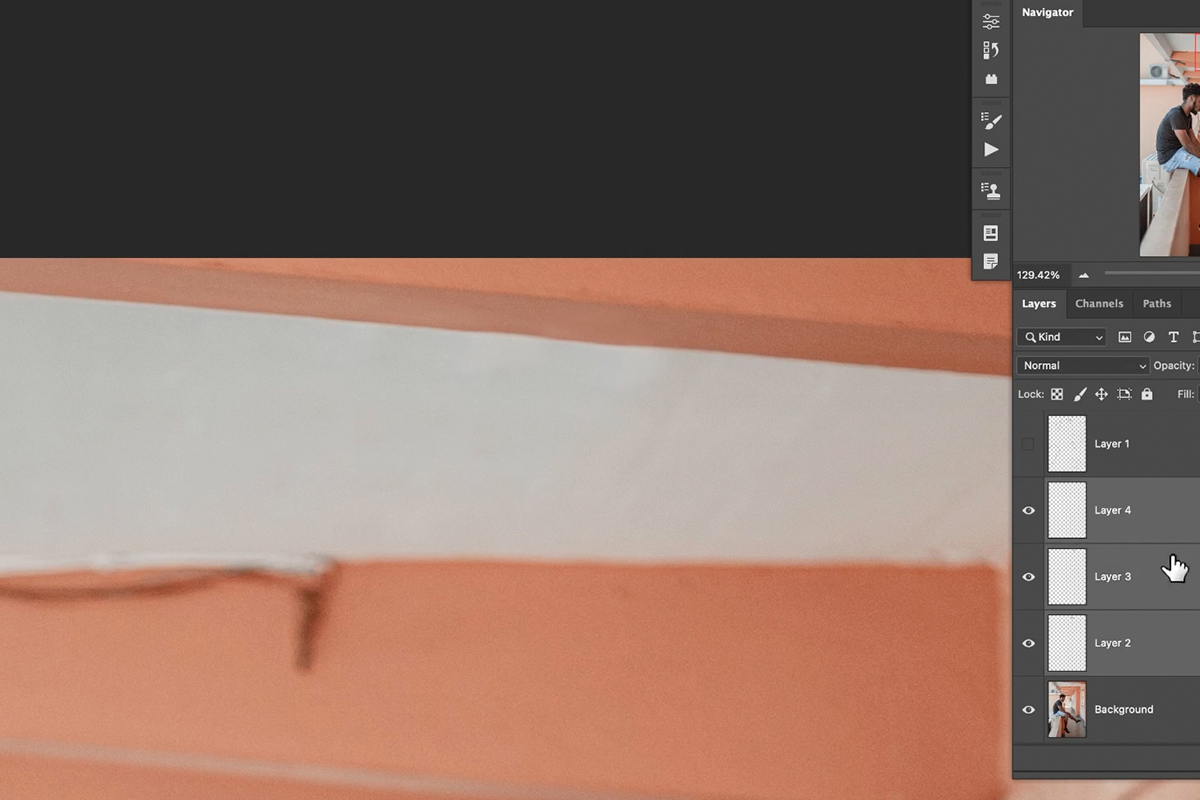
Create a new layer and circle or mark each object you want removed — an air conditioning unit, background clutter, small objects on doors and walls — so you have a clear list to work through.
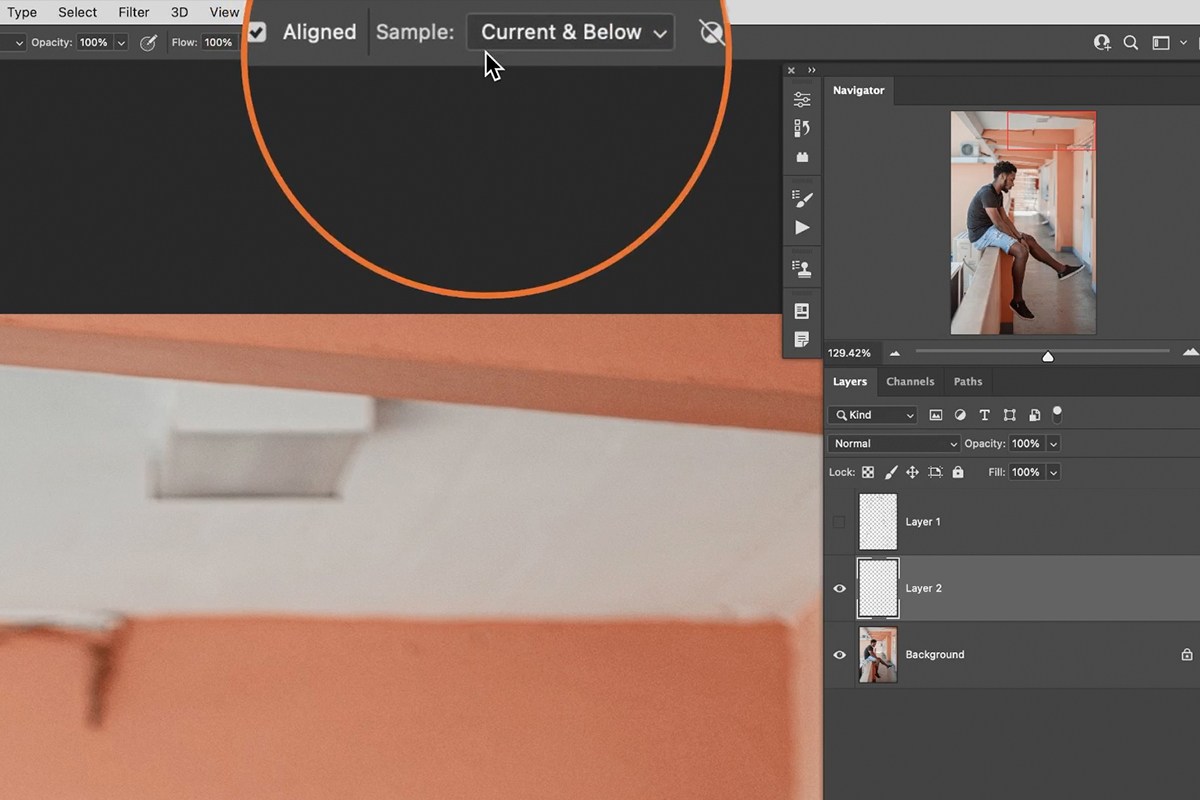
Repairing Edges with the Clone Stamp Tool
Whenever a distraction sits along a defined edge or line you need to preserve, the Clone Stamp tool is the right choice, because it copies exactly what you sample rather than blending or guessing.
-
Select the Clone Stamp Tool on a New Layer
Press S for the Clone Stamp tool, create a new layer, and set the Sample option at the top of the screen to Current & Below so it works correctly on a blank layer.
-
Sample a Matching Point Along the Edge
Hold Alt/Option and click on a point along the same edge or line elsewhere in the image, where the line is clean and undisturbed.
-
Preview and Paint the Sampled Area In
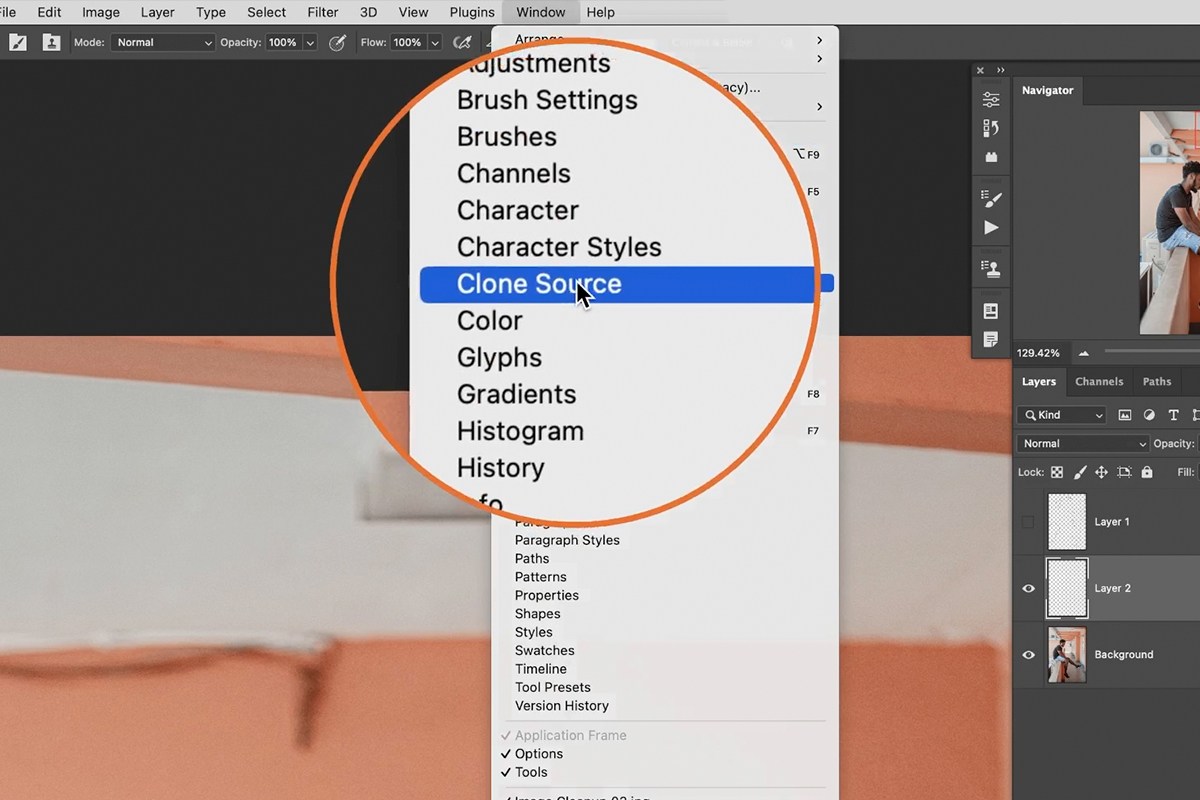
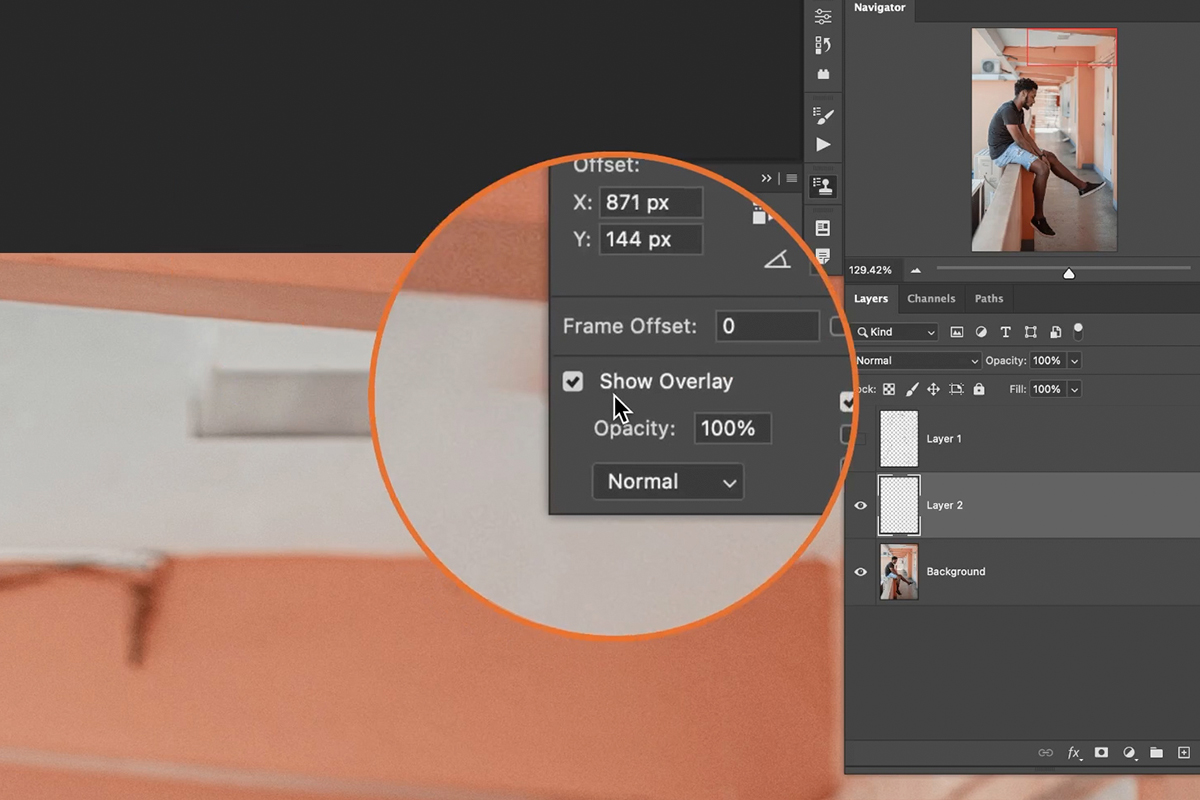
Paint over the distraction to continue the line. If the Clone Stamp overlay preview isn’t visible, go to Window > Clone Source and enable Show Overlay to see exactly where your sampled content will land before you paint.
If You Miss the Alignment
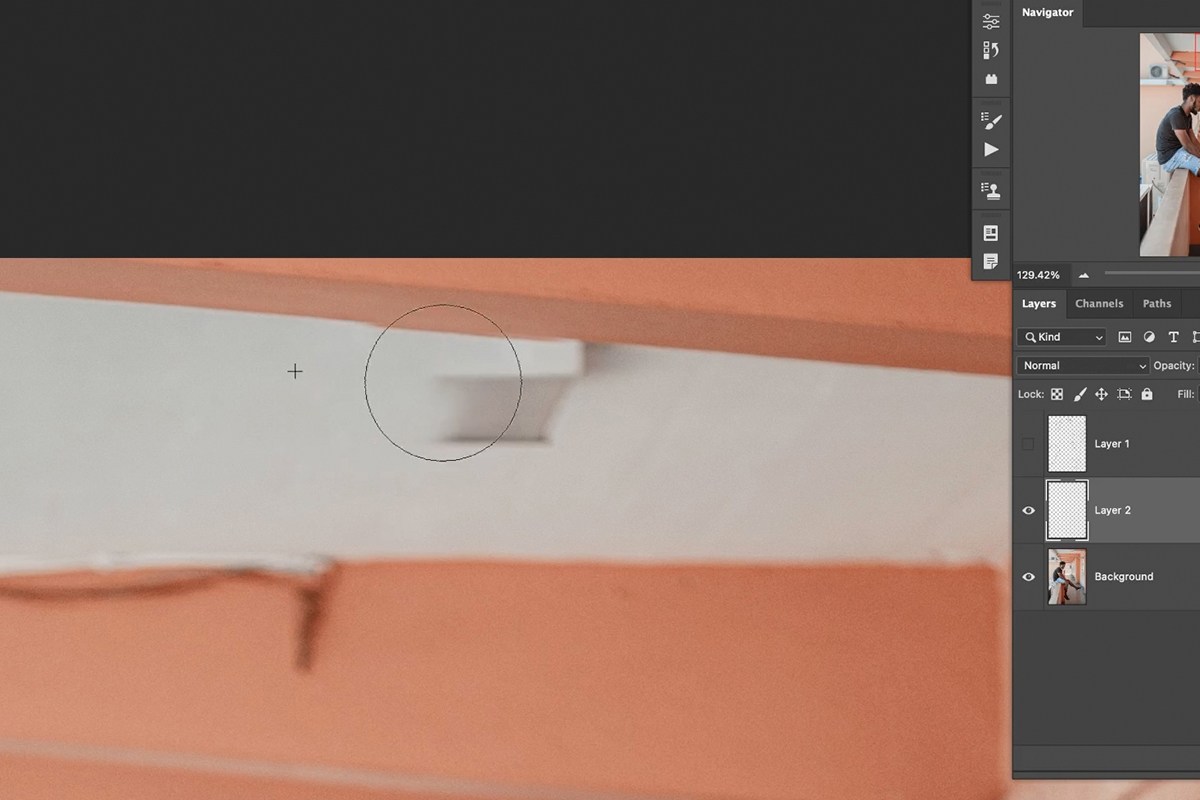
A misaligned clone stamp result is easy to fix: undo and try again, or, since the work is on its own layer, switch to the Move tool and simply reposition what you already painted until it lines up correctly. This only works if the clone stamp work is isolated on its own layer rather than painted directly onto the image.
Working Through Multiple Edges in Sequence
A photo with several distracting objects along different edges is really just the same technique repeated many times, sampling fresh each time the edge direction or texture changes.
-
Sample Fresh for Each New Edge Segment
Continue sampling along each edge as you move around the image — a doorframe, a railing, a wall line — rather than reusing one sample point everywhere, since lighting and texture can shift from one section to another.
-
Lower the Brush Flow for a Blended Result
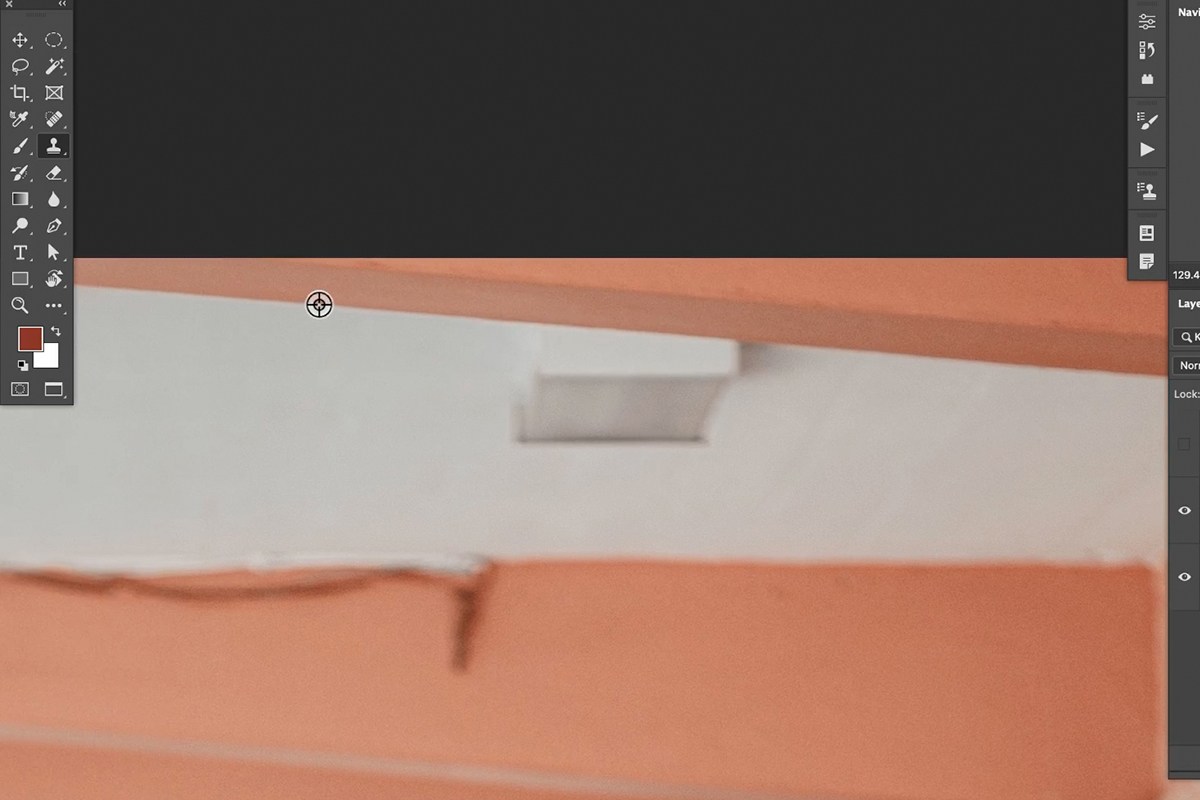
Reduce the Clone Stamp tool’s Flow setting (around 20–30%) when you want a softer, more blended repair rather than a hard, fully opaque copy — useful for smoothing a transition rather than replacing an area outright.
-
Watch for the Pattern Starting to Repeat
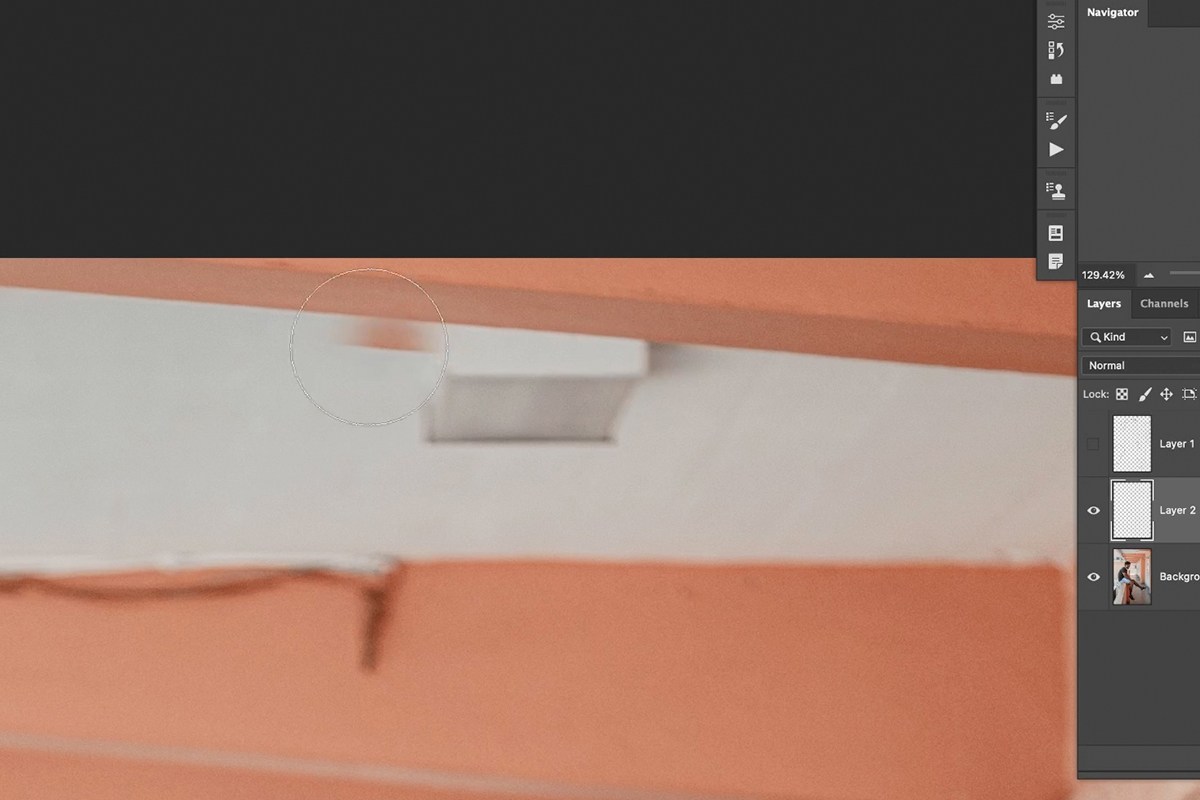
If you keep cloning in the same direction for too long, the tool will eventually start sampling from the area you just painted, causing a visible repeating pattern. Stop before that happens, resample from a fresh spot, and continue.
Lower Flow as a Blending Tool
Dropping the Clone Stamp tool’s Flow to a lower percentage doesn’t just make the effect weaker — it turns the tool into a soft blending pass, useful for smoothing out a slightly mismatched tone rather than fully replacing what’s underneath.
Using the Spot Healing Brush Tool Away from Edges
Not every distraction needs the precision of the Clone Stamp tool — anything sitting in an undefined area with no important edge to preserve is a good candidate for a faster, more automatic tool.
-
Select the Spot Healing Brush for Undefined Areas
Choose the Spot Healing Brush tool for objects sitting in open, undefined space with no critical edge nearby, and simply paint over them.
-
Switch Back to Clone Stamp If Results Look Wrong
If the Spot Healing Brush produces an odd or unwanted result near a subtle edge, switch back to the Clone Stamp tool to fix that specific area with more control.
-
Clear Small Repeated Distractions
For a cluster of small, similar distractions in the same general area, like dimples or marks on a floor, create a new layer and paint over each one with the Spot Healing Brush — there’s no need to remove absolutely everything, just the more pronounced distractions that draw the eye.
Filling Large Flat Areas with the Brush Tool
For a large, simple, single-color area like a plain wall behind a subject, the ordinary Brush tool can be faster than any of the more specialized removal tools.
-
Sample the Wall Color with the Brush Tool
Create a new layer, press B for the Brush tool, and hold Alt/Option to sample the wall’s color.
-
Overpaint the Area Generously
Choose a large, soft-edged brush and paint well beyond the area you actually need to cover, including over your subject if necessary — the excess gets cleaned up with a mask in the next step.
-
Mask Back to a Clean Edge
Add a layer mask, press B for the Brush tool, and paint black to hide the overpainted areas, then paint white to bring back detail right up to the edge you actually need.
Why Overpainting Beats Painting to the Edge
Trying to paint a large area color by color, stopping exactly at each boundary, tends to produce visible seams where different brush strokes meet — similar to painting a sky and stopping abruptly where the ground begins. Painting with one large brush well past every edge, then masking back precisely afterward, keeps the color completely consistent across the whole area.

Recognizing When Precision Doesn’t Matter
Not every fix along the way needs to be flawless — small imperfections in an outdoor floor or a naturally imperfect surface are expected and don’t need to be hunted down and erased. The goal is removing the more pronounced distractions that actually pull attention away from the subject, not achieving an artificially perfect surface.
Adding a Touch of Noise for Realism
A flat, brushed-in color area can look slightly too smooth compared to the rest of a photo, which noise fixes with almost no effort.
-
Convert the Painted Layer to a Smart Object
Right-click the brushed-in layer and choose Convert to Smart Object so the noise filter stays editable afterward.
-
Apply a Small Amount of Noise
Go to Filter > Noise > Add Noise and apply a very small amount, around 1%, just enough to match the natural grain of the rest of the photo.
Common Mistakes to Avoid
The most common mistake is reaching for an automatic tool like Content-Aware Fill or the Spot Healing Brush on a distraction sitting right along a critical edge — those tools guess at what belongs there, and a guess is exactly what you don’t want when precision matters. It’s equally common to try painting large flat areas edge by edge with a small brush rather than overpainting broadly with one large brush and masking back, which almost always leaves visible seams between separate strokes.

Why This Approach Works
The Clone Stamp tool’s biggest advantage over automatic tools is control: it never guesses at what belongs in an area, it copies precisely what you tell it to, which is exactly what you need when an important line or edge runs through the middle of a distraction. Working on a new layer for every removal, rather than painting directly on your background, is what makes mistakes cheap to fix — a misaligned clone can simply be moved into place with the Move tool, and an over-generous brush stroke can be pulled back with a mask, neither of which would be possible on a flattened image. That same layer-first discipline is what separates quick, forgiving edits from ones that require starting over, whether you’re precisely repairing a line or doing broader object removal by painting in a more built-up scene.
Final Thoughts
Edges are what separate an easy object-removal job from a difficult one, and this technique is really about matching that difficulty to the right tool — automatic tools for open, undefined areas, and the Clone Stamp tool wherever a line or edge needs to be preserved exactly. Marking every distraction before you start, working on separate layers, and grouping everything together at the end makes it easy to judge the overall before-and-after difference once the whole pass is complete.
Quick Reference: Keys, Menus and Settings
- Clone on a new layerS for the Clone Stamp, Sample: Current & Below; Alt/Option-click the edge
- See the previewWindow > Clone Source > Show Overlay
- Merge patchesShift-click the layers, Cmd/Ctrl + E
- Blend a repairFlow 20 to 30%; Shift + 2 sets about 20%
- Flat wallB, Alt/Option-click the color, large soft brush, then a layer mask
- Add noiseConvert to Smart Object, Filter > Noise > Add Noise, about 1%
No AI, no generative credits.
Free Downloads
Follow Along on the Same Photo
Get the photo with the beams, doorframes and wall clutter to clean up, the layered PSD and the 3-page PDF guide. Free with a PHLEARN account.
Removing Objects Along Edges: Common Questions
What is the best tool for removing objects along an edge?
The Clone Stamp, by far. It copies exactly what you sample, so you decide where the edge goes instead of letting an automatic tool guess.
Why won’t the Clone Stamp work on a blank layer?
Check the Sample setting at the top of the screen. Set it to Current & Below so the tool can copy from the layers underneath.
How do I see a preview before I clone?
Go to Window > Clone Source and turn on Show Overlay. The cursor then shows what you’re about to paint, so you can line the edge up first.
What if my cloned edge doesn’t line up?
Undo and try again, or grab the Move Tool and slide the patch into place. Moving only works if you cloned on its own layer.
Why does the Clone Stamp keep repeating the object?
It samples all the layers, including the one you’re painting on, so eventually it copies what you just painted. Paint to about the right place, stop, Alt/Option-click again and keep going.
How do I blend a clone that is a little too light or dark?
Lower the Clone Stamp’s Flow to 20 or 30 percent and fade the fix in. Shift + 2 sets it to about 20 percent.
When can I use the Spot Healing Brush instead?
When the object sits in an undefined area with no edge that needs to stay intact, like marks on the floor. If it gives an odd result, fix that spot with the Clone Stamp.
How do I clean up a large, flat wall behind a subject?
On a new layer, press B, Alt/Option-click the wall color and paint the whole area with a large, soft brush, even over the subject. Add a layer mask and paint black, then white, to bring it back to the edge.
Why add noise to a painted area?
It makes the brushed-in color look more like a photo. Right-click the layer, choose Convert to Smart Object, then go to Filter > Noise > Add Noise and set about 1%.
Are the sample files free?
Yes, with a free PHLEARN account. You get 1 sample image, 1 sample PSD and 1 PDF guide: the photo to clean up, the layered PSD and the step-by-step guide.
Master Photoshop, Lightroom and Photography
Join PHLEARN PRO for $12.99 a month, or $99.99 a year (save 36%). Cancel anytime, with a 100% money-back guarantee.





