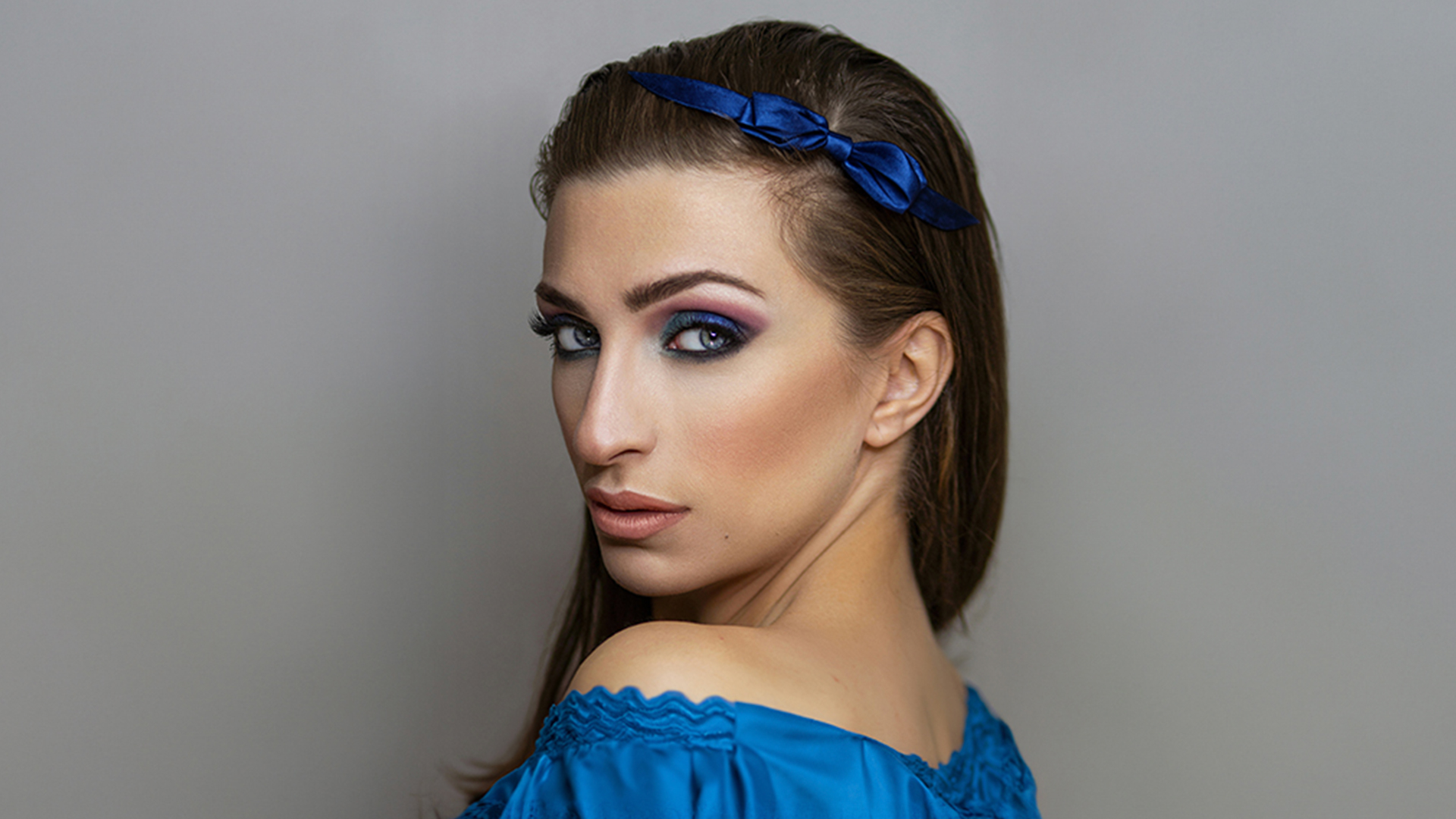

Download Assets
This tutorial includes 3 sample images, 3 sample PSDs and 1 PDF guide. Downloads are free with a PHLEARN account.
- Download the sample images and PSDs from every free tutorial on PHLEARN
- New free tutorials published every week
- One free account — sign up once, then download anything
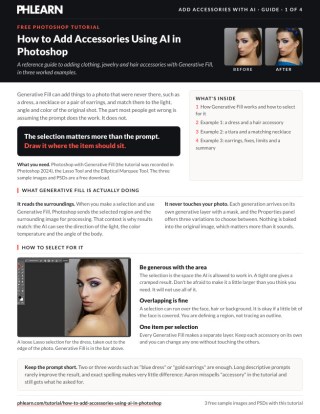
Free PDF Guide · 4 Pages
This Tutorial as a Step-by-Step PDF
The 4-page guide walks through generous Lasso and Elliptical Marquee selections, Shift to add, Alt/Option to subtract and the Spacebar to move while drawing, then Generative Fill prompts such as blue dress, colorful tiara and gold earrings, re-prompting one layer in the Properties panel, and where the results fall down. Keep it next to your keyboard.
description
To add accessories using AI in Photoshop, the selection matters more than the prompt: draw it where the item should sit, and Generative Fill does the rest. This tutorial covers three different examples and shows you how to add matching clothing to the existing colors and styles in the photo.
Enjoying This Free Tutorial?
We publish a new free tutorial every week, each one with sample images and PSDs you can download and follow along with. Sign up and they land straight in your inbox, along with early word on sales, events and subscriber-only offers.
Artist Credit
- Apostolos Vamvouras
- Good Faces
- Hiki App
Images sourced from Unsplash.
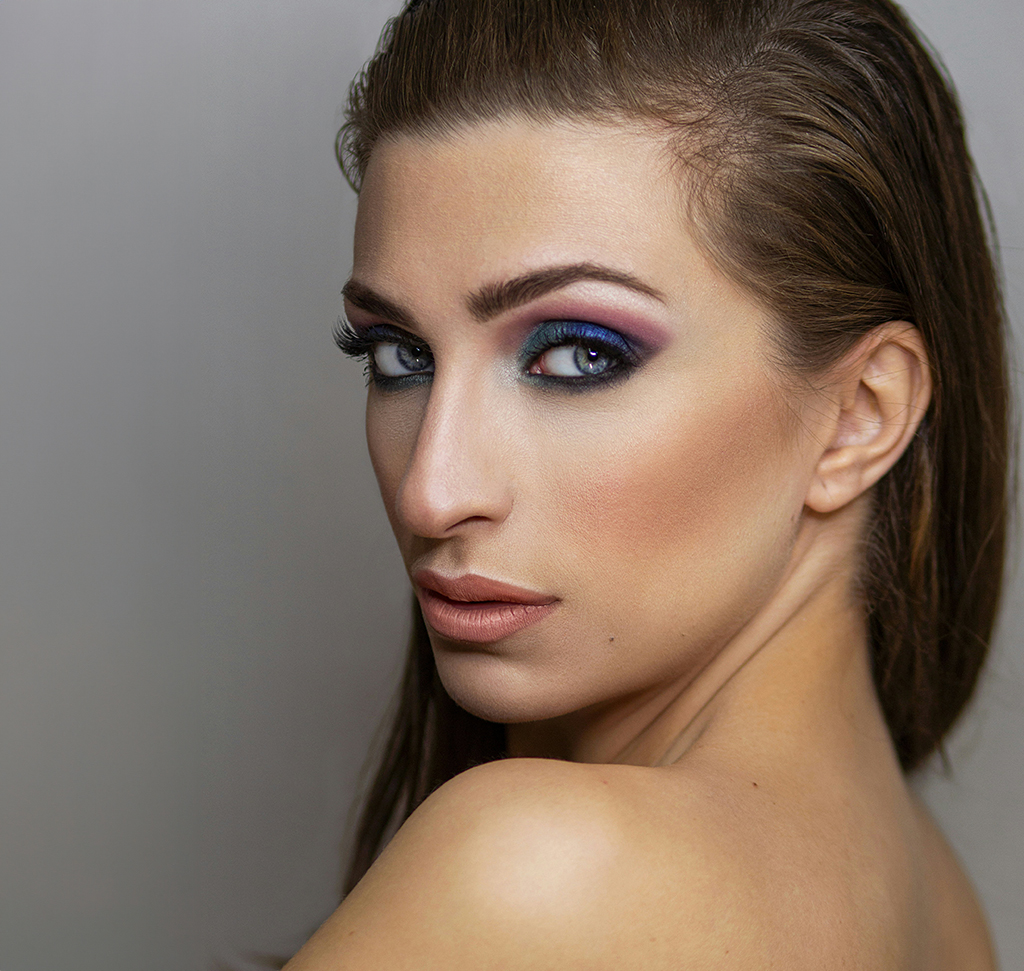
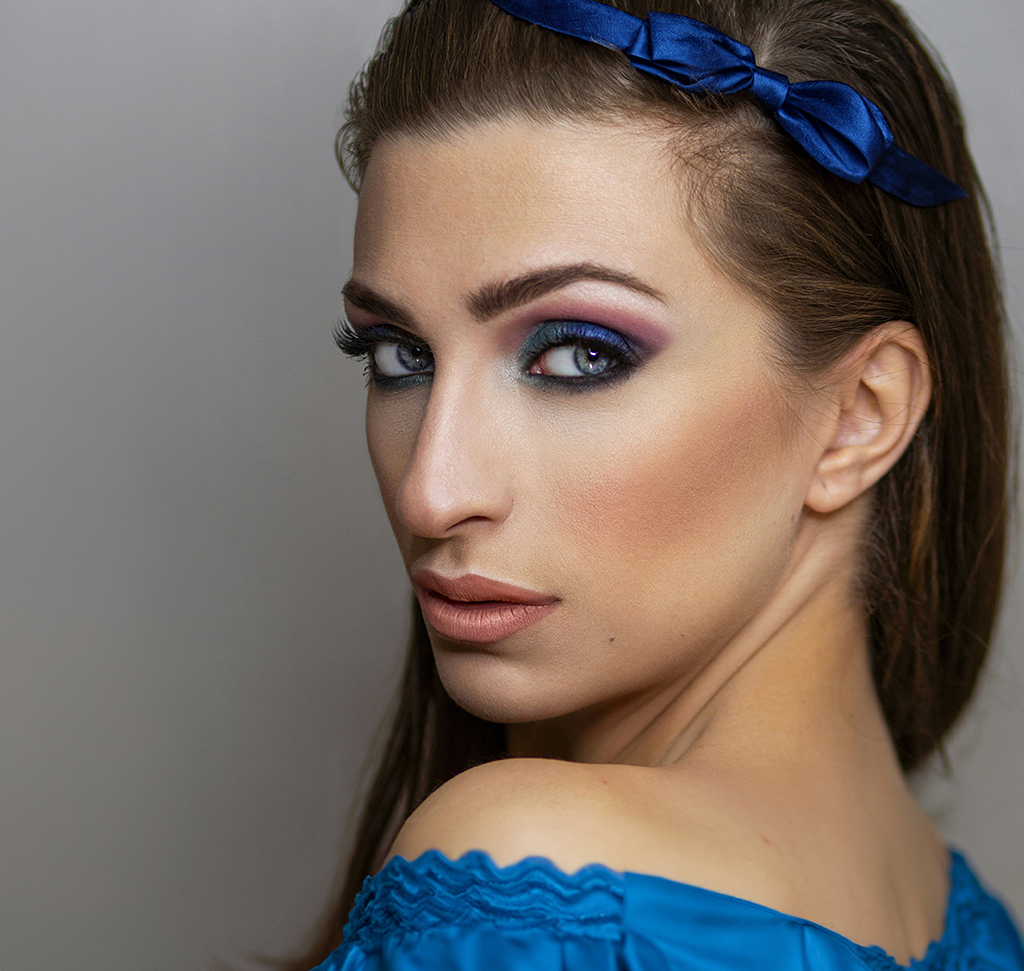
How to Add Accessories Using AI in Photoshop
Generative Fill can add things to a photograph that were never there — a necklace, earrings, a change of clothing — and match them to the lighting, angle and color of the original shot. Used well it is genuinely useful for concepting and for quick client visualizations.
The part most people get wrong is assuming the prompt does the work. It does not. The selection does. Almost every disappointing Generative Fill result traces back to how the area was selected rather than what was typed, and this tutorial concentrates on that.
What Generative Fill Is Actually Doing
When you make a selection and use Generative Fill, Photoshop sends the selected region and the surrounding image for processing. That surrounding context is why the results match — the AI can see the direction of the light, the color temperature, the angle of the body, and it generates content that fits.
Each generation arrives on its own generative layer with a mask, and the Properties panel offers three variations to choose between. Nothing is baked into your original image, which matters more than it sounds.
The Selection Matters More Than the Prompt
Be generous with the area
The instinct is to select precisely where you want the object. That is the wrong instinct. The selection defines the space the AI is allowed to work in, so a tight selection produces a cramped result — a necklace crushed against the collarbone with nowhere to hang naturally.
Select a larger area than the object needs and let it decide how to fill the space. It will not use all of it.
Overlapping is fine
Selections can overlap the face, the hair, the background. The AI works out what belongs where. Trying to trace a perfect boundary around where jewelry should sit wastes time and usually produces a worse result than a rough, generous shape.
Adding Clothing
-
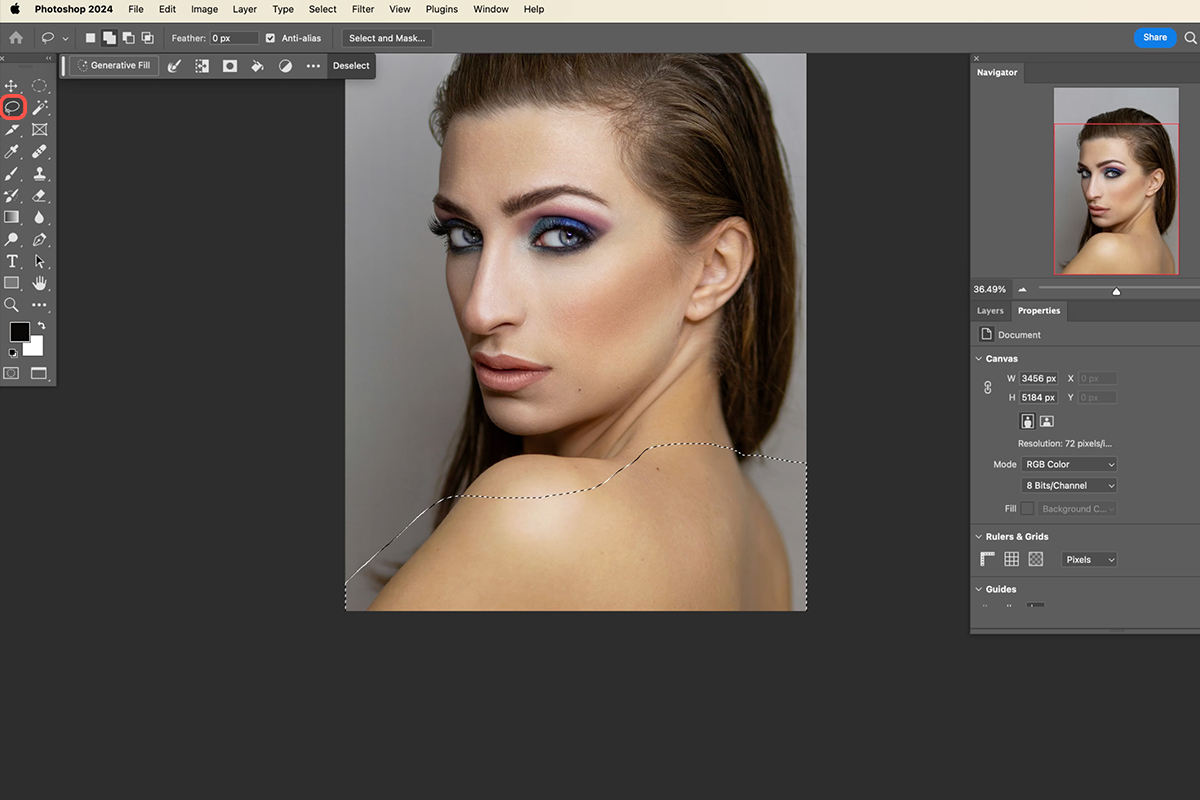
Press L for the Lasso Tool
A rough freehand selection is all this needs.
-
Draw around the area the garment should occupy
Follow the body loosely — this is defining a region, not an outline.
-
Click Generative Fill in the contextual task bar
Or find it under the Edit menu.
-
Type a short prompt and click Generate
Something like “blue dress” is enough. Long descriptive prompts rarely improve the result.
-
Cycle through the three variations
They are in the Properties panel. If none work, click Generate again for three more.
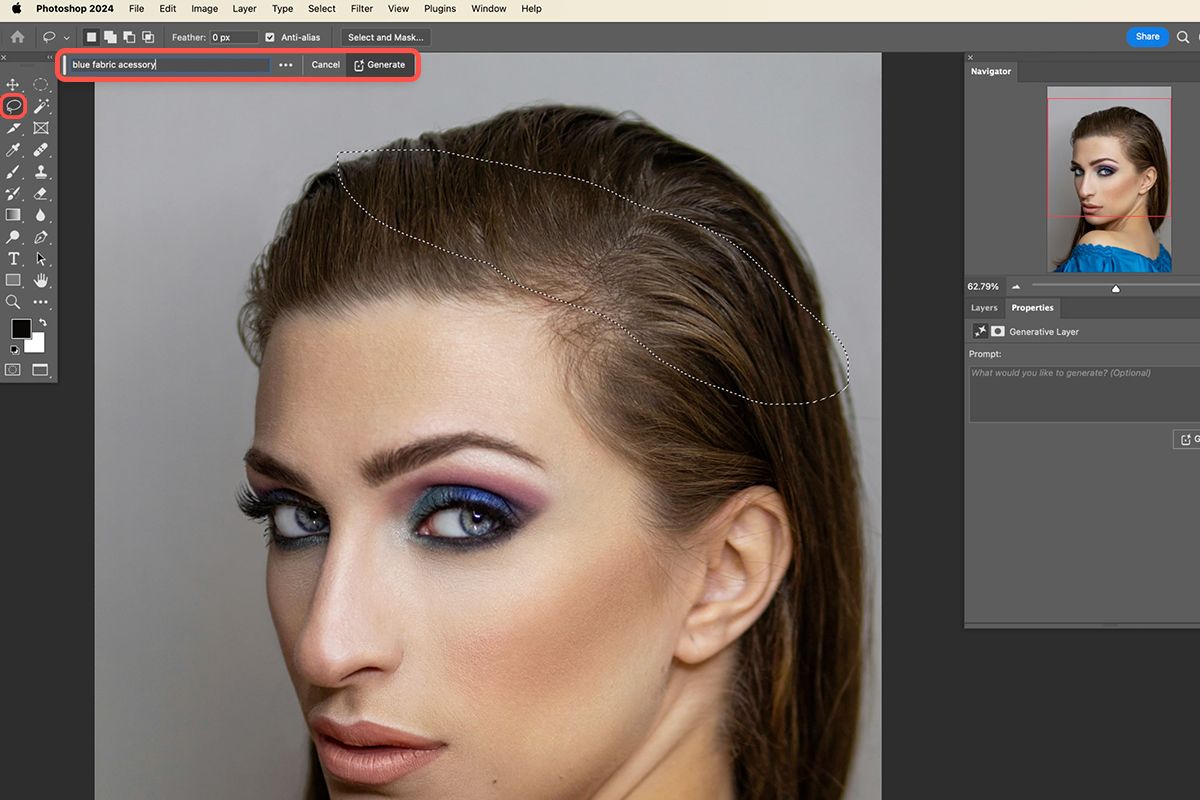
The same approach works for anything worn loosely — a scarf, a wrap, a piece of draped fabric. Select the region, describe it in two or three words, generate.
Building More Precise Selections
Some accessories need a specific shape. Earrings and necklaces both sit in defined places, and the Elliptical Marquee combined with a few modifier keys handles them quickly.
Perfect circles
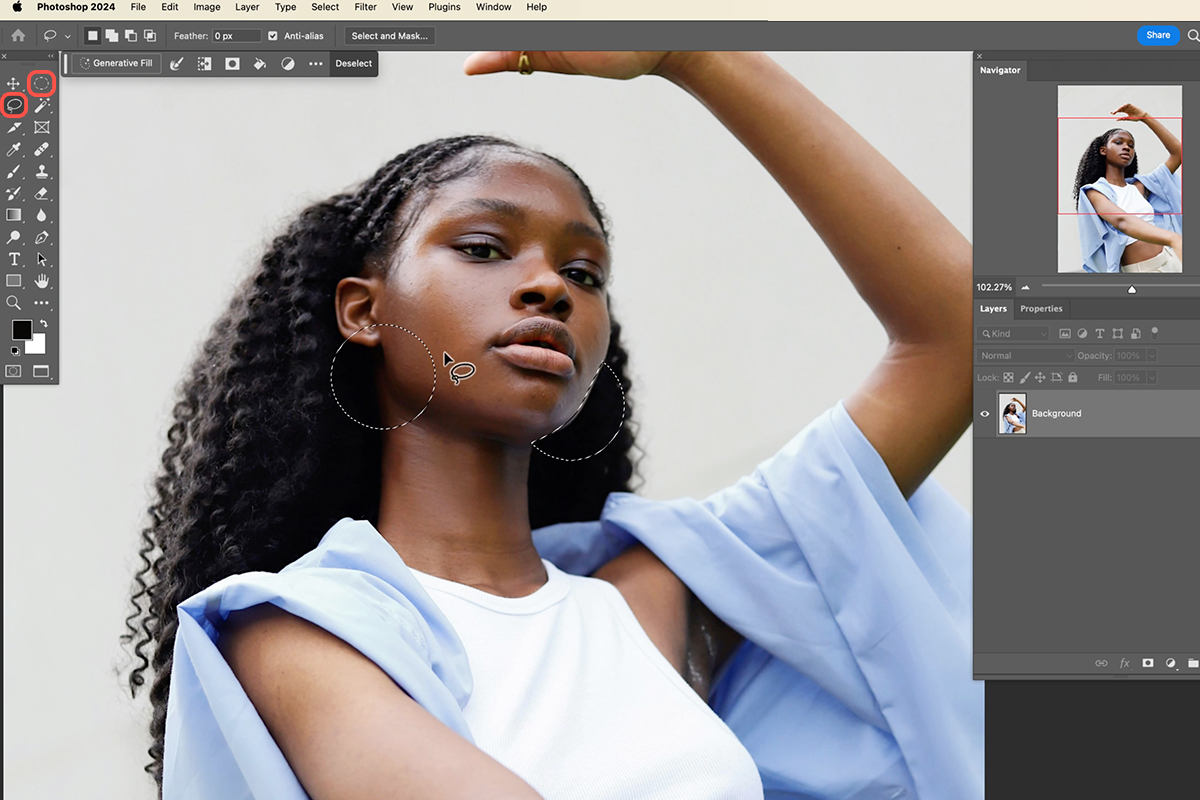
Choose the Elliptical Marquee Tool and hold Shift while dragging to constrain it to a circle.
Reposition while you draw
Getting a circle in exactly the right place is fiddly, because it draws outward from wherever you started. Hold the spacebar mid-drag — without releasing the mouse — and you can move the whole selection around. Release the spacebar and continue sizing. This is one of the most useful and least known shortcuts in Photoshop.
Adding and subtracting
Hold Shift before starting a new selection to add it to what you already have — that is how you select both ears in one go. Hold Alt or Option to subtract, which is how you carve the face back out of a selection that overshot.
Combining these lets you build a selection like “two circles at the ears, minus the cheek between them” in about five seconds, entirely with modifier keys.
Necklaces and Earrings
For a necklace, a rough lasso across the upper chest and neck works, or an ellipse with the face subtracted if you want a cleaner boundary. Prompt with something concrete: “gold necklace”, “jewel necklace”.
For earrings, two Shift-constrained circles over the ear areas, then Alt or Option with the Lasso to remove any face caught in between. Prompt: “gold earrings”.
If a result is close but not right, changing a single word in the prompt is more effective than generating the same prompt repeatedly. Swapping “jewel” for “gemstone”, or adding a metal — “silver”, “gold” — shifts the output meaningfully. Exact spelling and grammar make very little difference, so do not labor over phrasing.
One Item Per Layer
This is the habit that makes the whole workflow practical. Every Generative Fill creates a separate layer, and those layers stay independent.
That means you can regenerate the earrings without touching the necklace. You can toggle any single item off to compare. You can mask an individual piece if part of it overlaps something it should not. And if a client wants the dress in a different color, you regenerate one layer rather than starting over.
The temptation when you are moving fast is to make one big selection covering several accessories at once. Resist it — you lose all of that control, and one bad element means regenerating the lot.
Where It Falls Down
Being straightforward about the limits:
Fine repeating detail is unreliable. Chain links, intricate metalwork and small repeated patterns are where generated content most often looks subtly wrong under inspection.
Hands and text are still difficult. If an accessory involves either, expect to generate several times.
Resolution is limited. Generated regions are produced at a capped size, so on a very large file a generated area can be softer than the surrounding photograph. On a big print this shows.
It is a starting point for serious work. For a quick visualization or a concept, the output is often good enough as it stands. For a final retouched image, treat the generation as a base to refine — mask the edges, adjust the color to match, and add your own contact shadows where the object meets the body.
A Reasonable Workflow
Work one accessory at a time, generously selected, on its own layer, with a short concrete prompt. Generate a few variations before settling. Keep the layers named.
Done that way, adding several accessories to a portrait takes a couple of minutes and leaves you with a file you can still adjust afterward — which is a very different thing from a flattened image you have to redo.
Quick Reference: Keys, Menus and Settings
- Select for clothingL for the Lasso, a loose shape out to the edge of the photo; Shift-drag to continue it
- Add a garmentGenerative Fill in the Contextual Task Bar (or the Edit menu), “blue dress”, Generate
- Perfect circleElliptical Marquee, Shift while dragging; hold Space mid-drag to move it
- Add and subtractShift adds to the selection, Alt/Option subtracts (Lasso over the face)
- Pick a variationProperties panel; Generate again for more, or change one word (“jewel” to “gemstone”)
- Restyle one itemSelect its generative layer, type a new prompt in Properties, Generate
Free Downloads
Follow Along on the Same Photos
Get the three portraits for the dress, tiara and earrings examples, their three finished PSDs with every generative layer, and the 4-page PDF guide. Free with a PHLEARN account.
Adding Accessories With AI: Common Questions
How do I add clothing to a photo with AI in Photoshop?
Press L for the Lasso and draw loosely where the garment should go, out to the edge of the photo. Click Generative Fill, type something like “blue dress” and click Generate.
How big should my selection be for Generative Fill?
A little larger than you think you need. The selection is the space the AI can work in, so a tight one gives a cramped result. It’s okay if it overlaps a bit of the face.
What should I type as the prompt?
Two or three words, often borrowing a color already in the photo: “blue dress”, “colorful tiara”, “gold earrings”. Spelling barely matters; “accessory” is misspelled in the video and still works.
I can’t reach the edge of the photo with the Lasso. What do I do?
No big deal, especially on a trackpad. Hold Shift and click and drag again to continue the selection.
How do I move a selection while I’m drawing it?
Hold the Spacebar mid-drag without letting go of the mouse, move it, then release the Spacebar to keep sizing. To move a finished selection, click inside it and drag.
How do I select both ears for earrings at once?
With the Elliptical Marquee, hold Shift for a circle at one ear, then hold Shift again to add a second. Switch to the Lasso and hold Alt/Option to subtract the face.
What if none of the variations look right?
Click Generate again for more. If it still isn’t working, change one word, as the video does when it swaps “jewel” for “gemstone”.
Can I change one accessory later without redoing the others?
Yes. Each Generative Fill is its own layer. Select that layer, type a new prompt in the Properties panel, as with “funky style” for the tiara, and click Generate.
Part of the accessory looks wrong. Do I have to start over?
No. Make a new layer, select just the piece that doesn’t connect (Shift to add a second area) and run Generative Fill on it for new options.
Are the sample files free?
Yes, with a free PHLEARN account. You get 3 sample images, 3 sample PSDs and 1 PDF guide: the three portraits, their finished layered files and a 4-page step-by-step guide.
Master Photoshop, Lightroom and Photography
Join PHLEARN PRO for $12.99 a month or $99.99 a year. Cancel anytime, with a 100% money-back guarantee.





