

Download Assets
This tutorial includes 1 sample image, 1 sample PSD, 1 Photoshop brush and 1 PDF guide. Downloads are free with a PHLEARN account.
- Download the sample images and PSDs from every free tutorial on PHLEARN
- New free tutorials published every week
- One free account — sign up once, then download anything
Free PDF Guide · 3 Pages
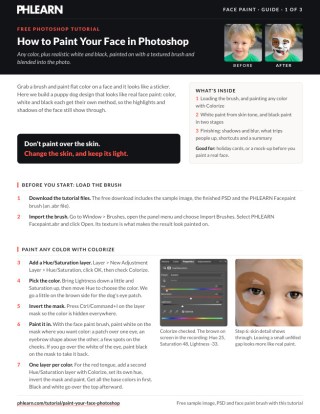
This Tutorial as a Step-by-Step PDF
The 3-page guide covers importing the PHLEARN Facepaint brush, Hue/Saturation with Colorize for any color, Reds and Lightness for white, a duplicated Blue channel to bring highlights back into black, Curves with Blend If for the shadows and the Blur Tool with Sample All Layers. Keep it next to your keyboard.
description
This technique turns a photo into a hand-painted face-paint effect entirely in Photoshop — any color you want, plus convincing white and black tones, built with adjustment layers and a textured custom brush and then blended into the photo so it reads as real paint rather than a flat digital overlay. Covers colorizing, targeting skin tone for white paint, painting black in two stages, and restoring highlights using channels.
Enjoying This Free Tutorial?
We publish a new free tutorial every week, each one with sample images and PSDs you can download and follow along with. Sign up and they land straight in your inbox, along with early word on sales, events and subscriber-only offers.
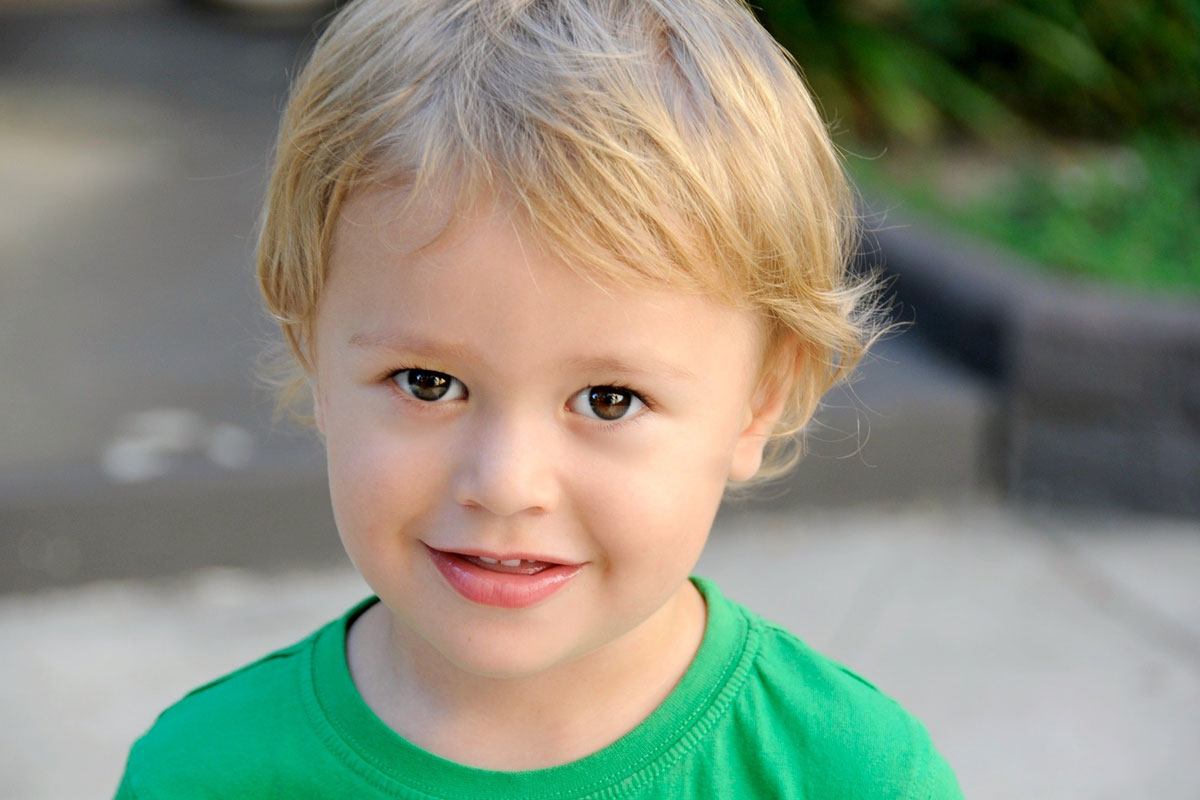
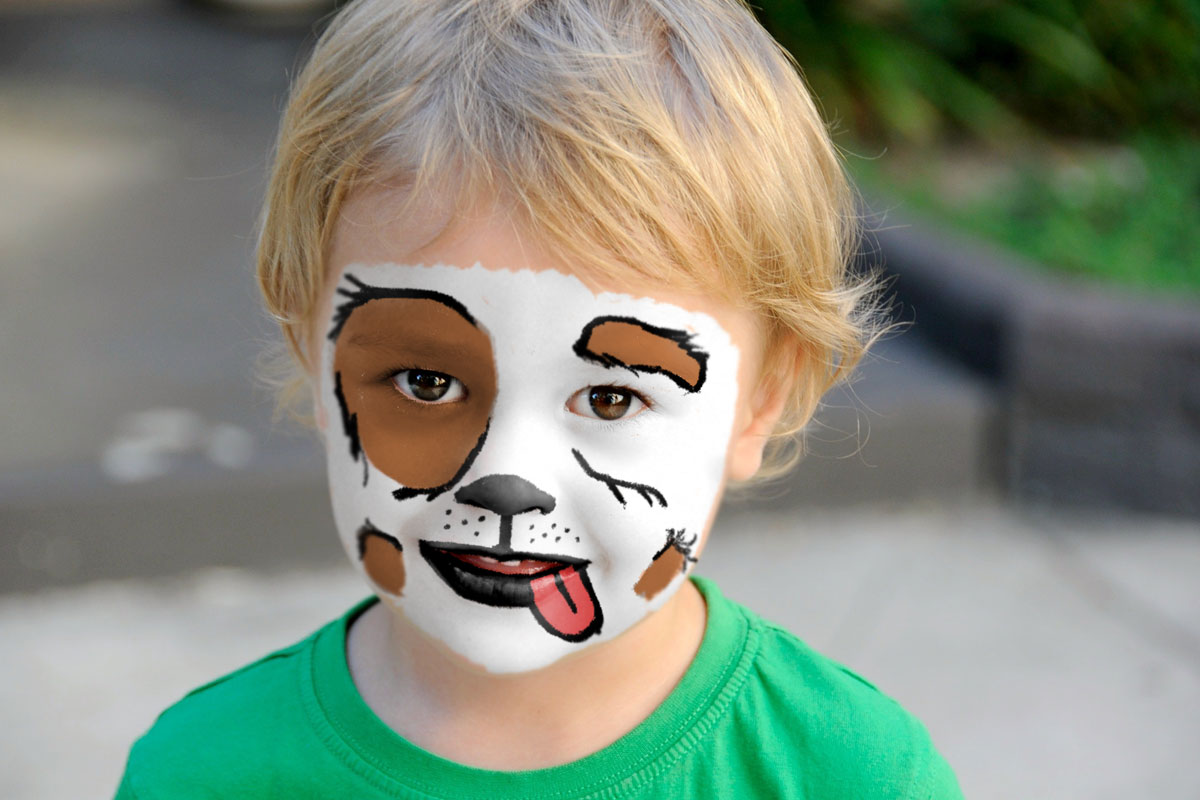
How to Paint Your Face in Photoshop
This technique turns a photo into a hand-painted face-paint effect entirely in Photoshop — any color you want, plus convincing white and black tones, all built with adjustment layers and a textured custom brush, then blended into the photo so it reads as real paint instead of a flat digital overlay.
Getting Started with the Face Paint Brush
Before painting any color, load the custom brush this effect depends on for its hand-painted texture.
-
Load the Custom Face Paint Brush
Go to Window > Brushes, open the panel menu, and choose Import Brushes. Select the face paint brush file to add it to your brush list — its textured, slightly broken edge is what gives the finished effect a hand-painted rather than digitally-airbrushed look.
Painting Custom Colors with a Colorize Adjustment Layer
Any color of face paint starts the same way: a Hue/Saturation adjustment layer set to Colorize, painted in through its layer mask with the textured brush.
-
Create a Colorize Adjustment Layer
Go to Layer > New Adjustment Layer > Hue/Saturation and check the Colorize box. Lower the lightness slightly and raise the saturation, then pick whatever color you want using the Hue slider.
-
Invert the Mask and Paint the Color In
Invert the adjustment layer’s mask (Ctrl/Cmd + I) so the color is hidden everywhere, then paint white with the face paint brush directly where you want that color to appear on the subject — over an eye for a marking, above the eye for an eyebrow shape, or anywhere else the design calls for. Give each color its own Hue/Saturation layer with Colorize: Aaron uses one for the brown eye patch and a second, with its own hue, for the red tongue. Get all the base colors in first; black and white go over the top afterward.
Why Colorize Beats a Flat Color Fill
Because Colorize works by shifting hue and saturation rather than replacing pixels outright, the original highlights and shadows of the subject’s skin stay visible through the new color. That’s what keeps the paint looking like it’s following the contours of a real face instead of sitting on top of it as a flat sticker.
Creating Realistic White Paint by Targeting Skin Tone
White paint needs a different approach than the colorize method, because pushing lightness on a colorized layer doesn’t produce a convincing white.
-
Target the Reds in a New Hue/Saturation Layer
Create another Hue/Saturation adjustment layer, but leave Colorize off. Change the channel dropdown from Master to Reds, then use the eyedropper to click directly on the subject’s skin — this targets just the red tones that make up skin color.
-
Push the Lightness All the Way Up
With Reds still selected, raise the Lightness slider all the way. The skin turns white but keeps its highlights and shadows.
Softening the White with Blend If
Pushed to full lightness, this layer can look flat in the shadow areas of the face. Double-click the layer to open its blending options, then hold Alt/Option and drag the underlying-layer slider from the shadow end inward. This fades the white effect out of the darker areas automatically, so the paint keeps reading as though it’s following the same light as the rest of the photo instead of sitting on top of it uniformly. Then invert the layer mask (Cmd/Ctrl + I) and paint the white in with the face paint brush only where you want it visible, the same way as the color layer.
Painting Black Face Paint in Two Stages
Black is the hardest color to fake convincingly, because flat black has no highlights of its own — so this step builds it in two passes instead of one.
-
Paint the Base Black on a New Layer
Create a new layer and paint black directly onto it with the face paint brush wherever the design needs it. The brush’s textured edge does most of the work here, but a touch of blur later will help it settle into the photo’s existing resolution.
Restoring Highlights with Channels
Flat black paint loses the subject’s natural highlights entirely, so the next step pulls those highlights back out of the original photo using the channels panel.
-
Duplicate the Blue Channel
Turn off all the paint layers so only the Background layer is visible. Open Window > Channels, then drag the Blue channel down onto the new-channel icon to duplicate it — the blue channel typically holds the most contrast for isolating highlights on skin.
-
Boost Contrast with Levels
Press Ctrl/Cmd + L on the duplicated channel and darken the shadow input slider. This increases contrast so the lighter areas of the face — the nose, lips, and other highlight points — stand out more clearly for the selection.
-
Load the Highlights as a Selection
Hold Ctrl/Cmd and click the channel’s thumbnail to load its lightest areas as an active selection.
Painting the Highlights Back In
Turn all the paint layers back on, create a new layer, and with the highlight selection still active, paint white onto that new layer with a regular soft brush. Because the selection constrains the paint to only the highlight areas, features like the nose and lips reappear through the black paint exactly where they belong — which is the difference between paint that looks flat and paint that looks like it’s actually sitting on a three-dimensional face.
Deepening Shadows and Blending the Effect
The last two steps push the effect from convincing to photographic: darkening the shadow side and blurring the paint into the photo’s existing texture.
-
Darken Shadows with a Curves Layer
First go back to the brown spot layer and bring its Lightness down a little. Next, add a Curves adjustment layer and pull it darker, then use Blend If again — this time holding Alt/Option and dragging from the highlight end inward — so the darkening only shows up in the shadow areas of the face. Invert the Curves mask (Cmd/Ctrl + I), paint white just over the brown areas, and lower the layer opacity a little if it looks too dark.
-
Blur the Paint into the Photo
Create a new layer, select the Blur tool, set its strength to 100%, and enable Sample All Layers. Paint over the edges of the face paint a few times to soften the brush’s hard texture into the photo’s natural resolution. Aaron starts at 100 and brings the strength down a little as he goes.
Matching the Photo’s Existing Focus
Areas of the original photo that are slightly out of focus — often the sides of the face compared to the center — need a little extra blur to match, so the paint’s sharpness doesn’t give away that it was added digitally. Since the blur lives on its own layer, it’s easy to dial back or turn off entirely if any area ends up softened too much.
Why This Effect Works
Every color in this effect — the colorize layers, the targeted white, the two-stage black — is built as its own adjustment layer with its own mask, which means each one can be repainted, faded, or removed independently without disturbing the others. That layered approach is also why the highlights survive: pulling them from the channels panel and repainting them through a selection preserves the subject’s actual bone structure and lighting instead of flattening it under solid color, the same principle covered in more depth in this guide to precise, channel-driven object masking. The final blur pass matters for a similar reason: Blend If and a soft blur both work by letting the new paint interact with what’s already in the photo — its lighting, its focus — rather than sitting on top of it as an obviously separate layer.
Final Thoughts
The core idea behind this whole effect is that face paint isn’t one texture, it’s several distinct techniques stacked together: Colorize for hue, targeted Reds for a believable white, channels for restoring highlights, and Blend If plus the blur for tying it all back into the photo’s original lighting and focus. Once those pieces are in place, the same workflow works for any color combination or character design — a face paint mask like the one used here just gives the brush its hand-painted texture, but the underlying layer structure is what actually sells the effect.
Quick Reference: Keys, Menus and Settings
- Load the brushWindow > Brushes > panel menu > Import Brushes > PHLEARN Facepaint.abr
- Any colorLayer > New Adjustment Layer > Hue/Saturation, Colorize; Cmd/Ctrl + I invert the mask, paint white
- WhiteHue/Saturation on Reds, eyedropper on the skin, Lightness all the way up; Alt/Option-drag the dark Underlying Layer slider
- BlackB, paint black on a new layer; [ and ] resize the brush
- HighlightsWindow > Channels, duplicate Blue, Cmd/Ctrl + L Levels darker, Cmd/Ctrl-click the thumbnail, paint white on a new layer
- ShadowsCurves darker, Alt/Option-drag the light Underlying Layer slider, invert the mask, paint over the brown
- Blur it inNew top layer, Blur Tool, Strength 100 then lower, Sample All Layers
No AI, no generative credits.
Free Downloads
Follow Along on the Same Photo
Get the sample photo, the finished layered PSD, the PHLEARN Facepaint brush and the 3-page PDF guide. Free with a PHLEARN account.
Face Paint in Photoshop: Common Questions
Why not just paint color on the face with a brush?
Flat color covers the skin’s highlights and shadows and looks like a sticker. A Hue/Saturation layer with Colorize changes the skin’s color but keeps its light, so it reads as real paint.
How do I load the face paint brush?
Go to Window > Brushes, open the panel menu and choose Import Brushes, then pick PHLEARN Facepaint.abr. Its texture is what makes the result look painted on.
How do I paint more than one color?
Give each color its own Hue/Saturation layer with Colorize. Aaron uses one for the brown eye patch and a second for the red tongue, and gets all the base colors in before the black and white.
I painted color over the white of the eye. How do I fix it?
It’s only a layer mask, so paint black on the mask to take the color back off.
How do I make white face paint?
Add a Hue/Saturation layer with Colorize off, change Master to Reds, click the skin with the eyedropper and push Lightness all the way up. The skin turns white but keeps its highlights and shadows.
Why does my white paint look flat?
Double-click the layer and, on the Underlying Layer bar, hold Alt/Option and drag the dark slider to split it. The white fades out of the shadows, which looks more subtle and more real.
Why does black face paint look fake?
Straight black has no highlights, so it has no depth. Paint it first, then select the photo’s highlights from a duplicated Blue channel and paint white through that selection on a new layer.
How do I select just the highlights?
Hide the paint layers, open Window > Channels and drag Blue onto the new channel icon. Press Cmd/Ctrl + L and make the darks a little darker, then Cmd/Ctrl-click the channel thumbnail.
Why blur the face paint at the end?
The textured brush is a little jagged against the photo. On a new top layer, the Blur Tool with Sample All Layers checked softens it to match the photo, with more blur where the photo itself is out of focus.
Are the sample files free?
Yes, with a free PHLEARN account. You get 1 sample image, 1 sample PSD, 1 Photoshop brush and 1 PDF guide: the photo, the finished layered PSD, the PHLEARN Facepaint brush and a 3-page guide.
Master Photoshop, Lightroom and Photography
Join PHLEARN PRO for $12.99 a month, or $99.99 a year (save 36%). Cancel anytime, with a 100% money-back guarantee.





