
Download Assets
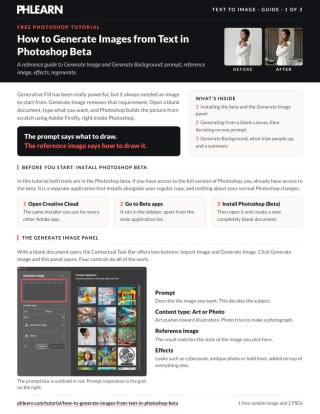
This tutorial includes 1 sample image, 2 sample PSDs and 1 PDF guide. Downloads are free with a PHLEARN account.
- Download the sample images and PSDs from every free tutorial on PHLEARN
- New free tutorials published every week
- One free account — sign up once, then download anything
Free PDF Guide · 3 Pages
This Tutorial as a Step-by-Step PDF
Walks through installing Photoshop (Beta) from Creative Cloud > Beta apps, then Generate Image on a blank document: Prompt inspiration, Content type Art or Photo, a reference image, Effects with Clear All, and regenerating one prompt in new styles. Part 2 covers Remove Background and Generate Background. Keep it next to your keyboard.
description
Generate images from text in Photoshop and the prompt is only half of it: a reference image steers the result, and iterating beats starting over.
Craft stunning visuals from scratch in Photoshop Beta. In this tutorial we’ll show you how to use text to create photorealistic or artistic styles, and seamlessly replace backgrounds.
Enjoying This Free Tutorial?
We publish a new free tutorial every week, each one with sample images and PSDs you can download and follow along with. Sign up and they land straight in your inbox, along with early word on sales, events and subscriber-only offers.
Artist Credit
- Darina Belonogova
Images sourced from Pexels.


How to Generate Images from Text in Photoshop Beta
Generative Fill changed how a lot of people work in Photoshop, but it always had one requirement: you needed an image to start from. It filled, removed, and extended what was already on the canvas. It could not give you something out of nothing.
Generate Image removes that requirement. Open a blank document, type a description of what you want, and Photoshop builds the picture from scratch using Adobe Firefly. You can steer it toward a photograph or an illustration, point it at a reference image so it borrows that image’s style, and stack effects on top — then keep regenerating with the same prompt until something lands. The same technology also powers Generate Background, which replaces the background behind a cut-out subject in one step.
This tutorial covers both, and where each one is actually worth using.
Getting the Beta Installed
Generate Image arrived first in the Photoshop beta, which is a separate application from your regular install — the two sit side by side and do not interfere with each other. If you have a full Photoshop subscription, you already have access.
-
Open the Creative Cloud desktop app
The same installer you use for every other Adobe application.
-
Go to Beta Apps
It sits in the left-hand sidebar, separate from the main application list.
-
Install Photoshop (Beta)
It installs alongside your existing copy. Nothing about your normal Photoshop changes.
Generate an Image from a Blank Canvas
Create a new document at whatever size you need and leave it empty. The Contextual Task Bar at the bottom of the screen now offers two options that were not there before: Import Image and Generate Image.
Click Generate Image and the prompt panel opens.
Start With Prompt Inspiration
Before typing anything, look at the Prompt Inspiration row. Each thumbnail there is paired with the prompt that produced it, and clicking one loads that prompt into the box. This is the fastest way to learn what a good prompt actually looks like — the examples are far more specific than most people write on their first attempt.
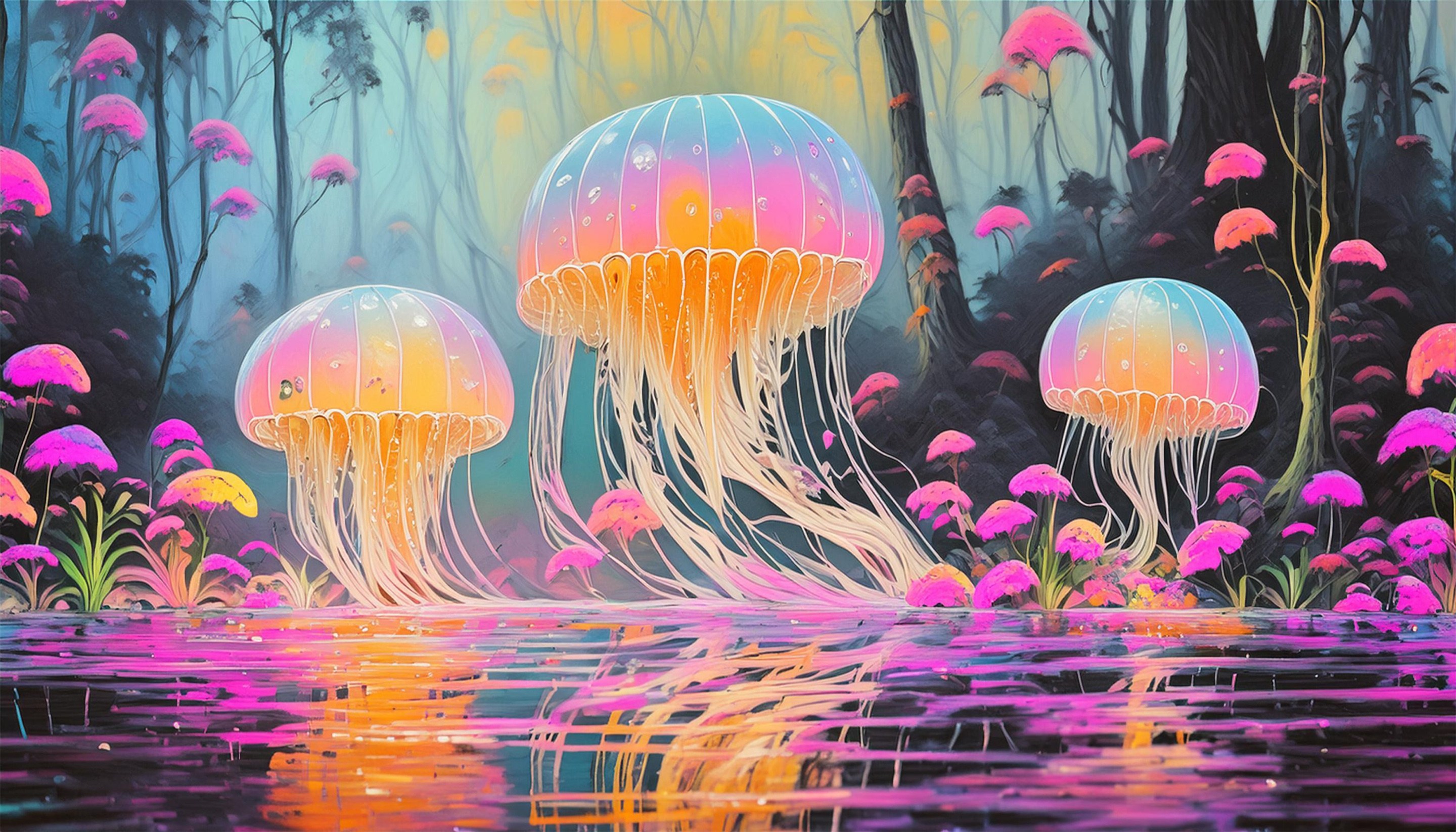
A prompt like “underwater jellyfish forest with bioluminescent flowers emerging from the water, pastel colors” gives the model a subject, an environment, a light source, and a palette. A prompt like “jellyfish” gives it almost nothing. The difference in output is enormous, and reading a dozen of the built-in examples teaches the pattern quickly.
Choose Photo or Art
Directly under the prompt there is a content type toggle. Photo pushes the result toward something that looks like it came out of a camera — real depth of field, believable light. Art pushes toward illustration, painting, and rendering. Same prompt, very different worlds.

Steer the Result With a Reference Image
This is the setting that does the most work, and the one most people skip.
A reference image does not tell Photoshop what to draw — the prompt still does that. It tells Photoshop how to draw it. Pick a reference with heavy contrast and deep shadows and your jellyfish come back moody and dark. Pick a soft pastel reference and the same prompt returns something airy and light. The subject stays constant while the entire visual treatment changes.
You can swap the reference image and hit Generate again as many times as you like. Because the prompt does not change, you get a run of images that are recognizably the same idea rendered in completely different styles. That is a genuinely useful way to explore a concept before committing to a direction.
You can also remove the reference entirely and let the model decide.
Layer Effects on Top
Below the reference there is a list of effects — cyberpunk, antique photo, and many more. These stack on top of everything else you have set. Selecting “cyberpunk” with a pastel reference image produces something neither setting would give you alone.
There is a Clear All button for the effects list, which matters more than it sounds like it should. Effects are easy to leave switched on by accident, and then every subsequent generation comes back tinted in a way you did not ask for. If results start looking oddly uniform, clear the effects and try again.
Iterate Instead of Restarting
The important thing about this panel is that every control stays live after you generate. The prompt, the content type, the reference image, and the effects are all still there and all still editable. Change one, press Generate, and you get a fresh set built on the new combination.
That turns image generation into a dial-in process rather than a slot machine. Change one variable at a time — swap only the reference, or clear only the effects — and you can see exactly what each control contributes. Change three at once and you learn nothing about why the result improved.
Keep going until something is close, then bring it onto the canvas and refine it with Generative Fill and the rest of Photoshop’s normal toolset.
Generate a New Background Behind a Subject
The same Firefly technology drives a second feature that is arguably more useful for photographers: replacing a background entirely.
-
Open a photograph with a subject you want to keep
A portrait shot against a plain white backdrop is the clearest case.
-
Click Remove Background
It sits in the Contextual Task Bar. Photoshop selects the subject and drops the background automatically.
-
Click Generate Background
A new button that appears once the background is gone.
-
Describe the background you want
Something like “luxury home interior” is enough to start. Add lighting and time of day if you want more control.
-
Generate and pick a variation
You get several options. Cycle through them and choose the one whose light best matches your subject.
Why This Blends Better Than You Would Expect
Generate Background looks at the original background before it replaces it, so the new one is built with the existing lighting in mind rather than dropped in blind. The direction of the light, the color temperature, and the general brightness carry across. That is the difference between a composite that reads as one photograph and one that reads as a subject pasted onto a stock image.
It is not perfect — check the edges of the hair and the shadow under the feet, and expect to do some masking work on difficult subjects. But it gets you far closer to a believable result than a manual background swap does in the same amount of time.

Which One to Reach For
Generate Image is for starting from nothing — concepts, backgrounds you will build on, texture and element libraries, visual exploration before a shoot. Generate Background is for photographs you already have that need a different setting.
Both are beta features, which means they will keep changing. If a control described here has moved or been renamed by the time you open the app, that is expected — the underlying workflow of prompt, style reference, effects, and regenerate is what stays constant.
Quick Reference: Menus and Settings
- Install the betaCreative Cloud desktop app > Beta apps > Photoshop (Beta)
- Open the panelNew blank document, then Generate Image in the Contextual Task Bar
- Write the promptClick a Prompt inspiration thumbnail to load a detailed prompt; Content type: Art or Photo
- Set the styleReference image: pick one, swap it or delete it
- Add an effectEffects > Clear All, then cyberpunk, antique photo or bold lines
- IterateEvery setting stays live; change one and click Generate again
- New backgroundRemove Background > Generate Background, type “luxury home interior”, Generate
No keyboard shortcuts in this one. Everything is a button.
Free Downloads
Follow Along on the Same Files
Get the sample image, the two finished PSDs and the 3-page PDF guide to follow along with Generate Image and Generate Background. Free with a PHLEARN account.
Generate Image in Photoshop: Common Questions
Can Photoshop generate an image from just a text prompt?
Yes. In the Photoshop beta, Generate Image builds a picture from scratch on a blank document using Adobe Firefly. Generative Fill still needs an image to start from; Generate Image does not.
How do I get the Photoshop beta?
Open the Creative Cloud desktop app, go to Beta apps and install Photoshop (Beta). If you have the full version of Photoshop you already have access, and the beta installs alongside your regular copy without changing it.
Where is the Generate Image button?
Create a new, completely blank document. The Contextual Task Bar then offers two buttons, Import Image and Generate Image. Click Generate Image to open the panel.
How do I write a good prompt?
Start with Prompt inspiration. Clicking a thumbnail shows the prompt that made it, and they are detailed. Aaron uses one that names a subject, a place, a light source and a palette: underwater jellyfish forest with bioluminescent flowers, pastel colors.
What is the difference between Photo and Art?
It is the Content type setting under the prompt. Photo tries to make the result look like a photograph; Art pushes it toward illustration.
What does the reference image do?
It sets the style, not the subject. The prompt still decides what is drawn, and the result matches the look of the reference you pick. Swap it or delete it and generate again for a different style of the same idea.
Why do all my results look alike or too colorful?
Check the effects and the reference image. An effect stays on until you click Clear All, and a colorful reference makes every result colorful. Clear the effects or pick a different reference and generate again.
Do I have to start over to try a different version?
No. The prompt, content type, reference image and effects all stay editable after you generate. Change one, click Generate, and keep going until you get something you like.
Can it replace the background of a photo?
Yes. Open the photo, click Remove Background in the Contextual Task Bar, then click Generate Background, type something like luxury home interior and click Generate. It keeps the original background in mind so the new one matches the light.
Are the sample files free?
Yes, with a free PHLEARN account. You get 1 sample image, 2 sample PSDs and 1 PDF guide: a reference image to steer a generation, the finished documents to compare against and a 3-page walkthrough of both tools.
From the Magazine View all
Stories, interviews and guides for photographers, new every week.
 EditingLightCraft vs Lightroom: I Edited the Same RAW Files in BothThe free clone on the same RAW files: what matches, what breaks and who should switch.
 InspirationRare Historical Photos: 13 of the Rarest Pictures Ever TakenFrom the earliest surviving picture of a person to the last passenger pigeon: who took each one and why it survives.
 EditingArtCraft: Photoshop Cloned by AI in Two Weeks. Is It Legal?ArtCraft cloned Photoshop and Lightroom with AI and gave them away. Any good? Legal? Safe?
Master Photoshop, Lightroom and Photography
Join PHLEARN PRO for $12.99 a month, or $99.99 a year (save 36%). Cancel anytime, with a 30-day money-back guarantee.