

Download Assets
Download Assets
This tutorial includes 2 sample images and 1 sample PSD. Downloads are free with a PHLEARN account.
- Download the sample images and PSDs from every free tutorial on PHLEARN
- New free tutorials published every week
- One free account — sign up once, then download anything
Watch the Full Series
30 Days of Photoshop · 2025 EditionOur most-watched series, updated for 2025 — watch all 30 free
description
Blend If is buried two clicks deep in a dialog most people never open, and it does something no mask can: it hides a layer according to the brightness of the pixels, either its own or the ones underneath it.
Day 17 uses it to drop a new sky into a landscape so convincingly that the original light still reads through the horizon, then turns the same four sliders into a color-grading tool that touches only the shadows, or only the highlights.
This is Day 17 of 30 Days of Photoshop, 2025 Edition — our most-watched series, rebuilt from the ground up for today’s tools.
Continue Watching 30 Days of Photoshop
JOIN 30 DAYS OF PHOTOSHOP (FOR FREE!)
Ready to jump in? Sign up and we’ll email you a printable calendar and daily class schedule so you can get started right away!
Image Source
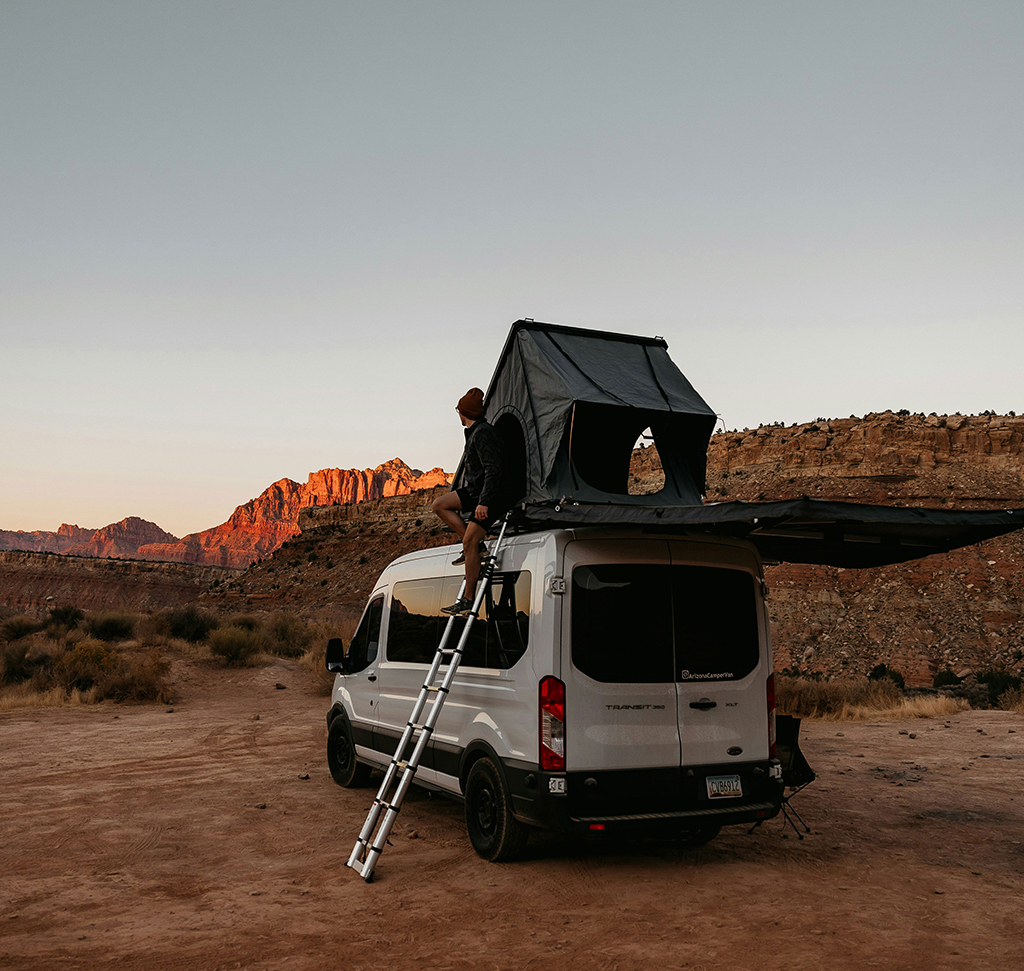
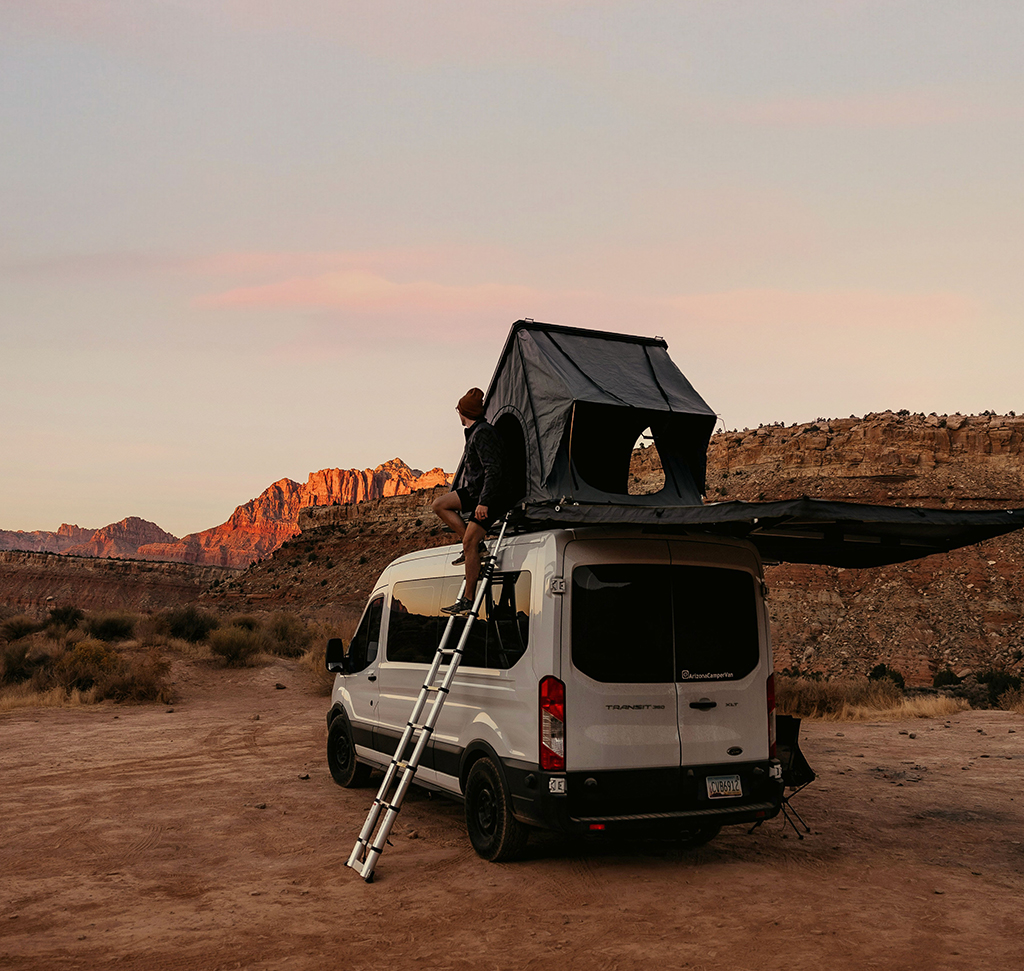
Blend If Targets Your Edits by Brightness, Not by Brush
A layer mask hides a layer based on where pixels are. Blend If hides it based on how bright they are — and it can key off the brightness of the layer below rather than the layer itself.
That second capability is what makes a replaced sky look real, because the original light in the photograph is allowed to come back through where it should. It is also, with two different layers on top, an unusually precise color-grading tool.
Where to Find It
Double-click the empty gray area of a layer in the Layers panel — not the thumbnail, not the name. The Layer Style dialog opens with Blending Options showing, and Blend If is at the bottom. You can also use the fx button and choose Blending Options.
Drag the dialog off to one side so you can watch the image while you move the sliders. It is not a preview panel; the canvas updates live.
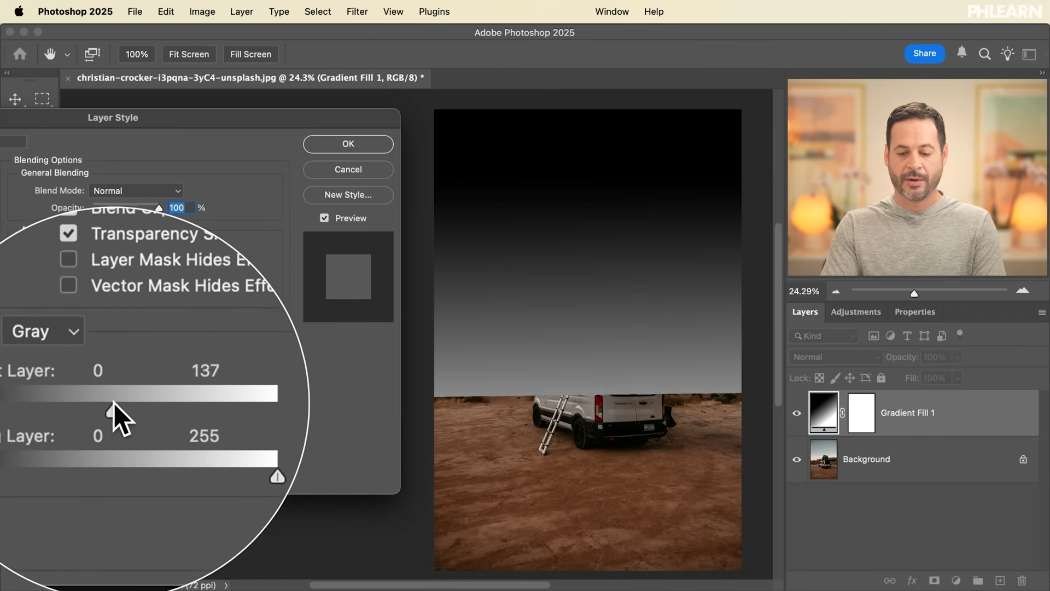
Two Sliders, Two Different Jobs
This Layer
Controls visibility based on the brightness of the layer you are working on. Drag the left handle right and the dark pixels of your layer disappear; drag the right handle left and its bright pixels disappear.
Underlying Layer
The interesting one. Now visibility is decided by whatever sits beneath the layer. Drag the left handle right and your layer vanishes wherever the image below is dark; drag the right handle left and it vanishes wherever the image below is bright.
This is the mechanism that lets a new sky respect the tonality of the original photograph, and there is no other tool in Photoshop that does it.
Split the Handles or It Will Look Terrible
Each handle looks like one triangle. It is two, stuck together.
Move one as it comes and the cutoff is absolute — every pixel above a certain brightness shows, every pixel below it does not, with a hard, jagged boundary between. Hold Alt/Option and drag and the handle splits in half. The gap between the two halves is a feathered transition, and widening it is the difference between an obvious cut and an invisible blend.
Assume you will always split them. An unsplit Blend If is almost never what you want.
See It Clearly on a Gradient First
Before doing anything real, put a black-to-white linear gradient over an image and open Blend If on it. Because the gradient runs smoothly from one end of the tonal range to the other, every slider move is legible — you can literally watch which brightnesses are being switched off.
Five minutes with a gradient teaches this faster than any explanation, and the understanding transfers directly to real work.

Blend a New Sky Into a Landscape
-
Bring the Sky In and Mask It Roughly
Place and scale the new sky. Hide it, click the background layer, run Select > Sky, then turn the new layer back on and click the layer mask icon. The replacement now sits where the old sky was.
-
Unlink the Mask So You Can Position the Sky
Click the chain between the thumbnails, then move and scale the sky freely while the mask stays on the horizon.
-
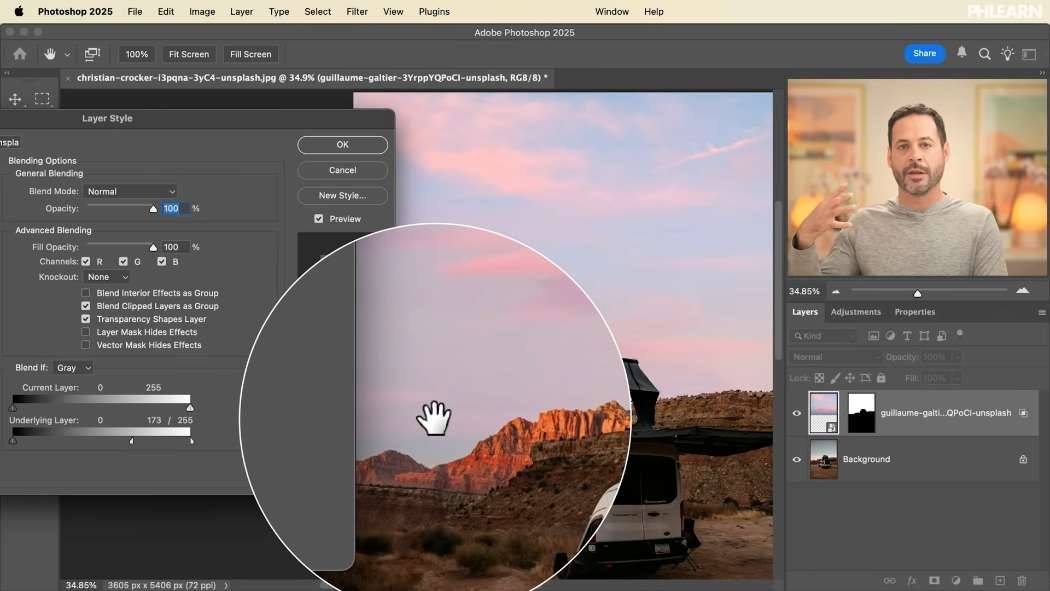
Hide the Dark Pixels of the New Sky
Open Blend If. On This Layer, Alt/Option-split the left handle and drag it right. The darkest parts of the imported sky drop away and only its brighter structure remains — already a noticeable improvement.
-
Hide It Where the Original Was Bright
On Underlying Layer, Alt/Option-split the right handle and drag it left. Wherever the original photograph was bright — the glow along the horizon — the new sky steps back and lets that original light through.
-
Use the Preview Checkbox Constantly
Toggle it while you work. It is very easy to over-adjust and end up with a sky that has half disappeared.
Those two sliders working together are the whole trick. The imported sky contributes its shape and color, the original photograph keeps its light, and the horizon stops looking like a seam.
Color Tone the Shadows With a Solid Color
-
Add a Solid Color Fill Layer
Layer > New Fill Layer > Solid Color. Pick a blue. It will cover everything, which is fine for now.
-
Restrict It to the Shadows With Blend If
Double-click the layer, and on Underlying Layer Alt/Option-split the right handle and drag it left until the color only survives in the darkest parts of the image.
-
Change the Blend Mode and Drop the Opacity
Flat color in the shadows still looks like flat color. Try Soft Light, Hard Light or Color, then pull the opacity down. Now it reads as a tint rather than paint.
Change the Color Any Time
Double-click the fill layer’s thumbnail and pick something else — a warm pink instead of blue — and the Blend If range stays exactly as you set it. You are auditioning colors inside a fixed tonal selection.
Grade Only the Highlights With a Gradient Map
Same idea, better tool. Add a Gradient Map, click Reverse if it comes out inverted, and drop the opacity as usual.
Then open Blend If and, on Underlying Layer, split the left handle and drag it right so the grade disappears from the shadows and survives only in the brighter half of the image. Warm highlights against untouched shadows, from one adjustment layer.
With that range locked in you can cycle through gradient presets knowing each one only affects the highlights — which makes choosing between them much faster than judging a grade applied to everything at once.
The Color Channel Dropdown
Above the sliders is a dropdown set to Gray. Switch it to Red, Green or Blue and Blend If keys off that channel instead of overall brightness.
Rarely needed, occasionally the only answer — when the thing you want to isolate is distinguished by color rather than by how light it is.
Nothing Is Baked In
Blend If is a layer style, not a destructive operation. Double-click the layer at any point and every handle is where you left it. Combine it with a mask, as the sky replacement does, and you have two independent controls on the same layer: one for position, one for tone.
Replace a Sky of Your Own
Download the sample images and do the sky blend, but start with the gradient exercise — it takes two minutes and makes the sliders make sense. Then find a landscape of your own with a dull sky and try it. The moment the horizon stops looking pasted is the moment this tool becomes permanent in your workflow.
Day 16 covered Smart Objects. Tomorrow, Day 18 works through the blending modes that pair with everything above.
Quick Reference: Keys, Menus and Settings
- Practice gradientG, Basics, black to white, Linear
- Open Blend IfDouble-click the gray area of the layer, or fx > Blending Options
- Feather a handleAlt/Option-drag to split it in two
- Mask the new skySelect > Sky, layer mask icon, click the chain to unlink
- Blend the skyThis Layer: left handle right; Underlying Layer: right handle left
- Tone the shadowsLayer > New Fill Layer > Solid Color; Underlying Layer right handle left; Hard Light, lower opacity
- Grade the highlightsLayer > New Adjustment Layer > Gradient Map, Reverse; Underlying Layer left handle right

Free Downloads
Follow Along on the Same Photos
Get the landscape and the new sky to blend into it, plus the layered PSD with Blend If set on each layer. Free with a PHLEARN account.
Blend If: Common Questions
Where is Blend If in Photoshop?
Double-click the empty gray area of a layer in the Layers panel, or click fx and choose Blending Options. Blend If is at the bottom of the Layer Style dialog.
What is the difference between This Layer and Underlying Layer?
This Layer hides your layer based on its own brightness. Underlying Layer hides it based on the brightness of whatever is beneath it, which is what lets the original light show through a new sky.
Why does my Blend If edge look harsh?
Each handle is two halves stuck together. Hold Alt/Option and drag to split it; the gap between the halves feathers the transition.
What is the easiest way to understand the sliders?
Put a black-to-white linear gradient over an image and open Blend If on that layer. Every slider move shows exactly which tones are switched off.
How do I blend a new sky with Blend If?
Mask the new sky with Select > Sky and unlink the chain so you can position it. Then split the left This Layer handle and drag it right, and split the right Underlying Layer handle and drag it left so the original horizon glow comes through.
How do I add color to just the shadows?
Add Layer > New Fill Layer > Solid Color, then on Underlying Layer split the right handle and drag it left. Try Soft Light or Hard Light, lower the opacity, and double-click the fill thumbnail to try other colors.
How do I color grade only the highlights?
Add a Gradient Map, click Reverse if needed and lower the opacity. In Blend If, split the left Underlying Layer handle and drag it right so the grade leaves the shadows.
What does the Gray dropdown in Blend If do?
It picks what the sliders read. Switch it to Red, Green or Blue to hide a layer based on one color channel instead of overall brightness.
Is Blend If permanent?
No. It is part of the layer style, so double-click the layer at any time and every handle is where you left it.
Are the sample files free?
Yes, with a free PHLEARN account. You get 2 sample images and 1 sample PSD: the landscape, the new sky and the layered file with Blend If on each layer.
Master Photoshop, Lightroom and Photography
Join PHLEARN PRO for $12.99 a month or $99.99 a year. Cancel anytime, with a 100% money-back guarantee.





